
Microsoft Teams User Management: Access and Governance Guide
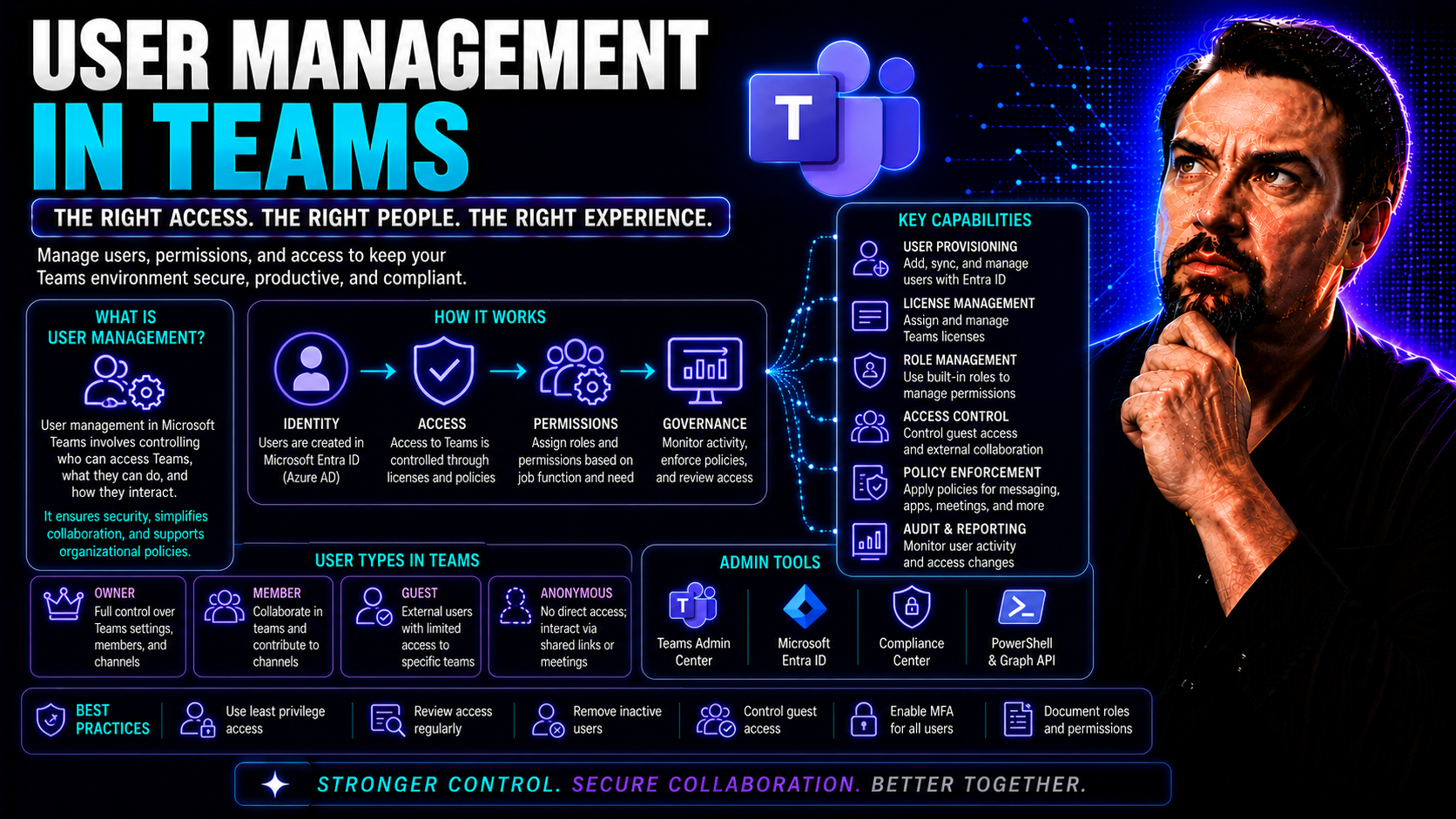
Managing who can do what in Microsoft Teams isn’t just clicking a few boxes—it’s the foundation of secure, productive teamwork. This guide lays out what you need to know about making sure every user lands in the right place, gets the access they need, and nothing more. From handling licenses to enforcing the rules that keep things running smoothly, we’ll break down the why and how of user management.
Teams and SharePoint go hand-in-hand, so effective user management keeps your workspaces organized, secure, and compliant. You’ll get hands-on steps for assigning licenses, configuring access, and governing your digital workspace, all in line with best practices. Whether you’re building a new Teams environment or tuning up an existing one, this guide is your playbook for confident, chaos-free collaboration.
If you want a deeper dive into transforming chaotic workspaces into clear, productive ones, check out how Microsoft Teams Governance cuts out the confusion and gives you control.
Managing User Access and Teams Licenses
When it comes to Microsoft Teams, getting the right people into the right spaces with the right tools isn’t a one-and-done job. It’s an ongoing dance of controlling who has access and what they’re allowed to do—with licensing at its core. As your organization changes—people joining, switching departments, or moving on—so do your user access requirements. That’s where license management comes in. You want flexibility and control, but you don’t want to get stuck in the weeds.
This section zeroes in on what it takes to keep up with the constant churn and make user management feel less like herding cats. You'll see how to assign or remove Teams licenses one-by-one, for a whole department, or even across the entire company. There’s more than one way to get it done: use the Microsoft 365 admin center for hands-on tweaks, or bring in PowerShell to automate the process and cut down on busywork.
By mastering these tasks, you free up time, keep compliance headaches to a minimum, and always know who can access what and why. The detailed steps up next are designed to walk you through every angle—so you don’t just follow a checklist, you understand how everything fits together. This is about making license management work for you, not the other way around.
How to Assign and Remove Teams Licenses for Users
- Assigning a Teams License to a Single User:Head to the Microsoft 365 admin center and find Users > Active users. Pick the person who needs Teams access.
- Tap ‘Licenses and Apps’ on their profile. Flip the switch for Microsoft Teams and hit ‘Save Changes.’
- Double-check that they’re assigned the right Teams license (sometimes bundled in Microsoft 365 or Office 365 plans).
- Removing a Teams License:Find the user in Active users again. Click their name, go into ‘Licenses and Apps,’ and uncheck Microsoft Teams.
- Saving the change will cut off their Teams access, which is crucial during offboarding or when someone transfers roles.
- Bulk Assign or Remove Licenses:In the Admin Center, filter your user list (e.g., by department). Select everyone who needs changes, then ‘Manage product licenses.’
- This lets you assign/remove Teams in batches—key for onboarding new hires in waves or cleaning up after a re-organization.
- Admin Roles Required:You’ll need Global administrator, User administrator, or a specific Teams admin role (if delegated rights).
- Best Practices and Pitfalls:Keep track of license counts to avoid running out or paying for unused seats. Have a clear process for offboarding—removing licenses right away helps with both security and budgeting.
- If users don’t get access right away, licenses might take time to sync or activation could be blocked by existing policies.
With these steps, you can stay on top of who can access Teams, streamline onboarding/offboarding, and keep your compliance folks happy.
Managing User Access via Microsoft 365 Admin Center
- Editing User Logins:From the Microsoft 365 admin center, pick the user and update login info under ‘Username’ or ‘Contact information.’ This keeps credentials current after role changes or department moves.
- Assigning Admin or Reporting Roles:In a user’s profile, go to ‘Roles’ and select either an admin role (like Teams admin) or grant reporting access as needed. This ensures only trusted folks handle sensitive changes or view reports.
- Managing Access at Scale:Bulk update roles or permissions by selecting multiple users, a must for department-wide changes or quick role adjustments. Save time, reduce errors.
- Troubleshooting Common Issues:If users have trouble accessing Teams or key reports, check their roles are assigned properly and licenses are current. Often it’s a missed step in user setup.
Smooth provisioning keeps your users productive and your data safe—with less fire-drill for admins.
Automating Teams License Management with PowerShell
- Bulk Assigning/Removing Licenses:Use PowerShell scripts (with the Microsoft Graph or MSOnline modules) to target users by department, job title, or group and assign/remove Teams licenses en masse.
- This is ideal for onboarding waves, mass transfers, or offboarding departing staff, cutting down manual effort and eliminating missed users.
- Automated Provisioning with HR Integration:Link PowerShell scripts to HR systems or Azure AD events, so when an employee joins/leaves, licenses adjust automatically. Less chasing, more control.
- Reporting and Compliance:Generate license usage and assignment reports via PowerShell. Handy for audits and spotting unused licenses you can reclaim.
- Monitoring Success:Log script output and errors to catch failed updates or compliance gaps before they grow into bigger issues.
For organizations running at scale, automation is not just a time-saver—it’s a sanity-saver.
Managing the Team Lifecycle from Creation to Archival
Teams in Microsoft Teams aren’t static—think of them more like living, breathing workspaces that constantly evolve with your business. Over time, you’ll create new teams, adjust existing ones, and eventually retire those that no longer serve a purpose. If you don’t manage this lifecycle closely, it’s all too easy to end up with “Teams sprawl”—a mess of unused, duplicated, or abandoned workspaces making your digital house hard to keep tidy.
This section looks at every key stage: how to properly create a new team, what it takes to update or reconfigure an existing team, and what to do when a team is no longer active. You’ll also see how archiving and restoring teams plays a role in compliance and reduces security risk. These approaches let admins and project leaders keep workspaces fresh and prevent clutter, while making sure essential collaboration history isn’t lost in the shuffle.
If you want to dig deeper into tackling Teams sprawl, take a look at this resource on automated lifecycle governance with Graph API and Power Platform. It covers standardization, automation, and metadata that’ll keep your Teams house in order while speeding up approvals and reducing mistakes.
Adding, Editing, and Managing Teams and User Profiles
- Add a Team: Use the Teams admin center to create new teams for departments or projects, customizing the structure and membership from the start.
- Edit Team Settings: Adjust a team’s name, description, channels, and privacy level to ensure it fits the project or business need—even after initial creation.
- Manage Team Profiles: Update user roles (Owner, Member, Guest) within teams and link user profiles so everyone has the right permissions. This supports smooth, secure collaboration.
- Organize by Need: Segment teams by department or function and use templates for consistency. This avoids confusion and repeats, especially in busy organizations.
- Assign Admin Duties: Delegate administrative responsibilities for each team to lessen bottlenecks and give trusted users oversight.
For project workspace organization tips, this step-by-step Microsoft Teams project guide lays out best practices with SharePoint and Power Automate.
How to Archive, Restore, and Renew Expiring Teams
- Archiving a Team:Head to the Teams admin center. Find the inactive team and select ‘Archive.’
- This freezes conversations, files, and channels. The team is read-only—perfect for preserving records without cluttering up your active workspace.
- Restoring a Deleted Team:In the admin center, go to Deleted groups. Restore the team within 30 days—after that, it’s gone for good unless you’ve set up extra retention policies.
- This brings back team membership, files, and chat history, ensuring nothing’s lost before you’re sure you don’t need it.
- Renewing Expiring Teams:Teams with expiration policies will show notifications before deletion (to owners/admins). Hit ‘Renew’ to keep the team alive and all data intact.
- Review teams regularly for ongoing relevance. Renew what’s needed; archive or delete what’s not.
- What Happens to Team Data:Archived teams preserve all messages, files, and SharePoint content. Restoration brings everything back, but deletion past retention means permanent loss.
- Compliance Implications:Archiving and proper team deletion helps reduce risks and meets audit requirements by ensuring business records are managed, not lost or scattered.
Admin Roles, User Groups, and Permission Settings
Keeping Microsoft Teams running like a well-oiled machine takes more than toggling a few features. Clear definitions around who’s in charge, who can do what, and who gets access to sensitive spaces are what separate a secure Teams environment from a risky free-for-all. That means nailing down admin roles, organizing users into logical groups, and setting up the right permissions—for both collaboration and security.
This section is all about taking control. You'll learn how to set up admin and reporting access so trusted individuals can oversee Teams operations, dig into usage stats, and respond to issues efficiently. You'll also learn the ins and outs of building and managing user groups, including how to automate group memberships for recurring needs, ensuring everyone lands in the right team with the right access—even as people come and go.
Getting these roles and permissions right supports governance, promotes accountability, and keeps sensitive data locked down. For those aiming to go the extra mile on security, you can find more about advanced controls, DLP, and audit logs in this Teams security hardening podcast episode—a five-layer approach for true peace of mind.
Configuring Admin and Reporting Access in Teams
- Assign Teams Admin Roles: Delegate Teams admin, Teams Communications admin, or other specific roles using Azure AD or the Teams admin center to control who manages policies, users, and compliance.
- Grant Reporting Access: Give certain users permission to access analytics and reports without giving them broad admin powers—providing oversight while containing risk.
- Adjust Admin Network Settings: Configure network performance, service health, and Teams-specific monitoring so the right admins get the alerts that matter and can respond fast.
- Set Up Reporting Networks: Designate reporting roles for users who oversee adoption metrics or compliance reporting.
- Delegate Responsibility: Assign clear roles so every admin or reporting user knows what’s expected. No overlap, no missed issues.
Managing User Groups and Collaboration Permissions
- Create and Modify Groups:Use Microsoft 365 Groups or create teams directly in the Teams admin center to group users by department, project, or function. Adjust membership as business needs shift.
- Assign Users to Groups:Manually add or import users, or automate this step with dynamic group rules tied to Azure AD properties like role or location.
- Set Permission Tiers:Define owners (full control), members (collaboration), and guests (limited access) within each team. Use conditional access and data loss prevention (DLP) where extra control is needed.
- Automate Group Management:Deploy automation scripts or tools for onboarding, role changes, and offboarding—this ensures permissions stay in sync with reality, not just policy.
- Balance Accessibility and Security:Review group permissions often, especially for shared or guest-access spaces. Stay on top of who has what to cut down on accidental exposure.
Using Microsoft Teams Management Tools and Dashboards
If you want to steer your Teams environment confidently, knowing your way around the main management dashboards is a must. The Teams Admin Center and the Microsoft 365 Admin Center are where you handle licenses, create or modify teams, manage policies, and monitor usage all in one place. These dashboards have intuitive menus, quick access grids, and shortcut actions that speed up daily management.
You’ll find key features like user lists, team status panels, policy settings, and license assignment tools side by side. Quick search, filters, and direct action buttons let you make changes fast—no digging through endless submenus. For admins juggling many teams or users, these interfaces are the difference between proactive management and playing endless catch-up.
Take a little time upfront to get familiar with these tools. When issues crop up, or business needs shift, you’ll be set to act quickly and confidently, right from your dashboard.
Insights, Reporting, and Feedback to Improve Teams Governance
User management isn’t just about setting up roles and licenses—it’s about making informed decisions with real-world data. This section shines a light on how Teams analytics and Power BI reports let you track what’s working (and what’s not), while feedback from users points out practical pain points and opportunities for improvement. Together, reporting and feedback drive better governance, boost adoption, and reduce security gaps.
You’ll see how to tap into deep usage reports, spot trends, and tie activity with license allocation. You’ll also get the basics of collecting actionable feedback, whether it’s through built-in forms, surveys, or informal chats. That way, you catch what your users (and your business) need most, even if they don’t always say it loud.
If managing Teams sprawl is a concern, check out how lifecycle governance and analytics combine in this Power BI and lifecycle automation resource. Combining analytics with policy and automation keeps your environment lean, nimble, and compliant.
Keeping an eye on insights, and listening to user voices, means not just managing Teams—but actually improving it, one step at a time.
Leveraging Teams Analytics and Power BI Reports
- Access Built-In Teams Analytics:From the Teams admin center, use built-in dashboards to see real-time data on usage, active users, and device trends. This helps track adoption, spot inactive accounts, and justify license needs.
- Dive Deeper with Power BI:Connect Teams data to Power BI for customizable, visual reports. Slice by department, project, or location to uncover adoption bottlenecks or over-deployed licenses.
- Interpret and Act:Analyze where engagement lags or features go unused. Use this info to plan targeted training, trim wasted licenses, or shift resources where they’re needed most.
- Support Governance and Sprawl Controls:Relay analytics back to admins and business leaders to inform lifecycle policies, reduce redundant teams, and encourage healthy usage patterns.
For a closer look at integrating Power BI into your Teams governance strategy, explore this detailed guide on controlled sprawl reduction.
Collecting and Acting on User Feedback for Better Teams Management
- Use Built-In Feedback Tools: Teams offers suggestion boxes and help functions for users to flag issues or wish-list features directly.
- Send Out Surveys: Launch Teams polls or mail out Microsoft Forms surveys to catch broad trends, gaps, or frustrations users face.
- Analyze and Prioritize: Review feedback regularly, spot repeating themes, and use that info to tweak governance or training focus.
- Close the Loop: Communicate back about what will change—users feel heard, which boosts morale and adoption.
- Integrate with Change Management: Use insights from feedback loops to plan support sessions, update FAQs, or refine access policies.
You Should Also Listen To
If you are researching Microsoft Teams user management, these episodes add useful context on the architecture, governance, operations, and security decisions behind the topic:
- Azure Virtual Network – Simply Explained — Learn which network architecture and connectivity choices influence Teams quality and performance.
- Microsoft Teams Governance – The Illusion of Control — Use governance and ownership models to turn performance data into repeatable operational improvements.
- Teams Telephony – Simply Explained — Understand the calling metrics and architecture behind reliable Teams voice performance.
- Microsoft Defender XDR – Simply Explained — See how security monitoring complements Teams health and operational monitoring.

Microsoft MVP | Host of M365.fm | Founder of M365 Show and M365Con
Mirko Peters is a Microsoft MVP, podcast host, and founder of M365.fm, M365 Show, and M365Con. His work connects Microsoft practitioners through podcast interviews, livestreams, and community events.
At M365.fm, Mirko hosts conversations with Microsoft MVPs, product experts, architects, and community contributors. Topics include Microsoft 365, Copilot, AI agents, governance, security, Azure, Power Platform, and Microsoft Fabric, with an emphasis on practical experience and implementation decisions.
M365.fm is the podcast and learning platform. M365 Show brings experts together for livestreams, while M365Con provides an online conference setting for community learning.
Official website: Mirko Peters (https://www.mirkopeters.com/). Recognition: Mirko Peters — Microsoft MVP profile (https://mvp.microsoft.com/de-DE/mvp/profile/9b0ca797-db5a-493a-a845-8b9158046cf5). Connect on LinkedIn (https://www.linkedin.com/in/m365showpodcast/).





