User Sync Troubleshooting
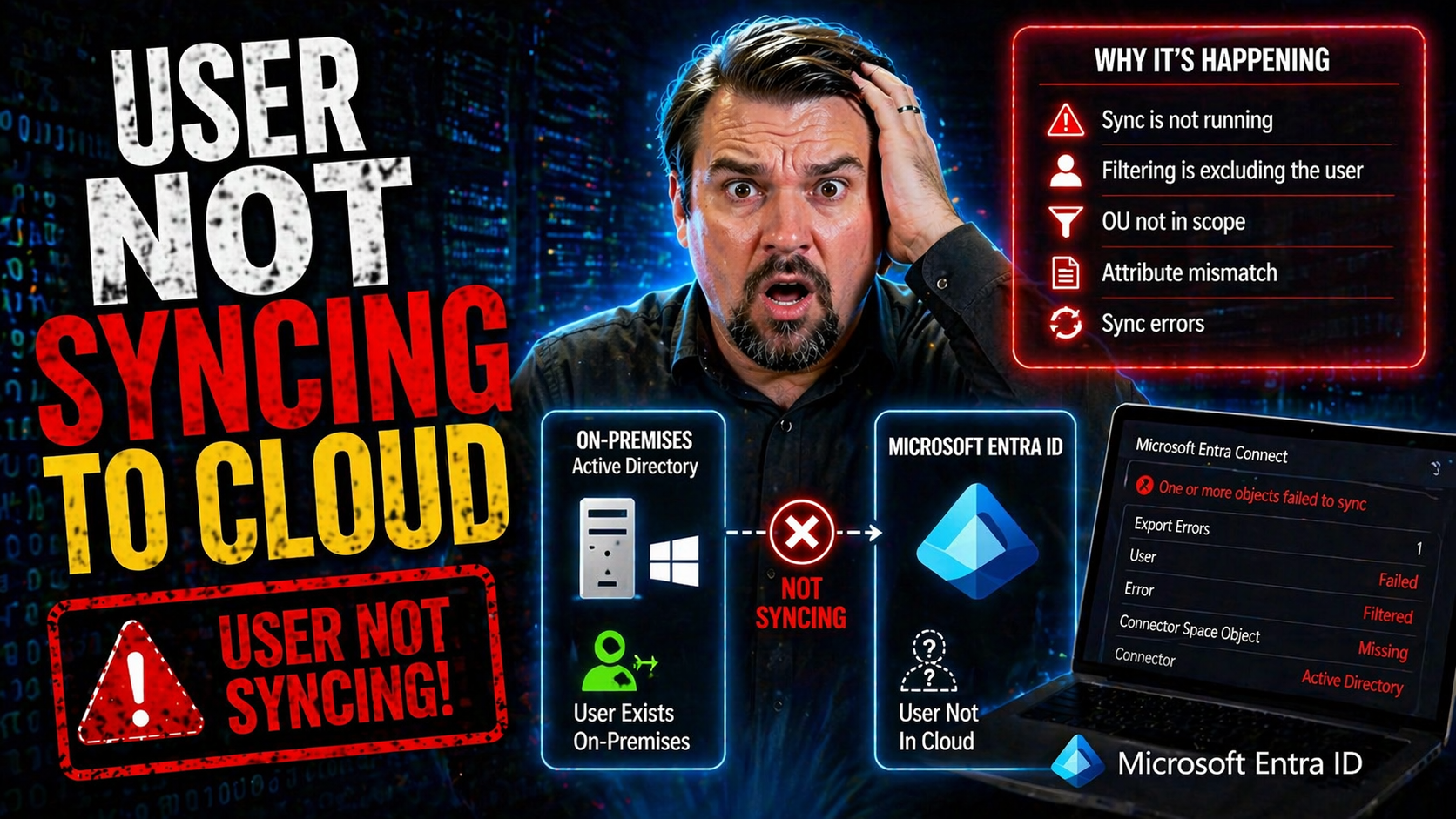
If you’ve landed here, you’re likely wrestling with the all-too-familiar struggle of user accounts not showing up in the Microsoft cloud. Whether it’s a missing user in Microsoft Entra ID, an incomplete hybrid AD sync, or a single stubborn account that just won’t budge, you’re in the right place. These situations are a headache for anyone managing Microsoft 365, Azure, or hybrid identity setups.
This guide breaks down the most common sync failures—slow syncs, users who vanish or duplicate, “not found” errors, and unhelpful status messages. You’ll get a playbook that covers both basics and advanced scenarios, from failed directory agent installations to complex object matching conflicts. We’ll cover all the critical checkpoints, logs, and tools you need, and explain exactly why a thorough, step-by-step approach matters when untangling user sync issues.
You can expect clear directions, explanations of the underlying sync mechanics, intervention strategies, and how to validate your fix. We assume you’re handy with Active Directory, Windows Server, and the Microsoft admin portals, but you won’t need to be a rocket scientist to follow along. Grab your admin hat—let’s get these users syncing where they belong.
Diagnosing Cloud Sync Failures in Microsoft Entra On-Premises Integrations
Syncing users from your on-premises Active Directory up to Microsoft Entra ID is essential for staying up to date with identity and access across cloud services. The process is powered by Microsoft Entra Connect, a bridge that copies changes from your environment into the cloud. When that bridge starts shaking—or worse, falls apart—users and organizations pay the price with broken logins or missing accounts.
At its core, a successful integration depends on sturdy architecture, correct prerequisites, and predictable sync flows. Even a small misconfiguration, an overlooked firewall rule, or a skipped service account permission can set off a long chase for a missing user or group. That’s why understanding the overall picture—the handoff from on-premises to the cloud, the network tunnels involved, and the service dependencies—is crucial before you dive into the weeds.
This section sets the stage for what makes hybrid sync tick and where IT teams most often slip up, especially when new requirements or environment changes catch them off guard. Grasping the logic behind each moving part will make every future troubleshooting session less mysterious and a whole lot faster.
How Microsoft Entra On-Premises Objects Sync With the Cloud
In Microsoft Entra Connect setups, on-premises AD objects like users and groups are mapped to the cloud using a unique set of attributes. Key among these is the Immutable ID—generated from the objectGUID in your on-premises directory and used as the definitive match in Microsoft Entra ID.
When an object is created or modified, Entra Connect pulls the data, applies any sync rules or attribute mappings, and decides whether to create, update, or link the corresponding object in the cloud. This ensures a consistent identity for each user across environments, provided naming, GUIDs, and matching logic are set up correctly. Most mismatches and sync stoppages come from bad attribute alignment or confusion about which object “owns” the identity in hybrid scenarios.
Verify Ports and Access URLs For Microsoft Cloud Sync
- Check outbound TCP ports: Ensure your sync server can connect to key Microsoft services. Typically, TCP ports 80 (HTTP) and 443 (HTTPS), and sometimes 8080, must be open for outbound traffic.
- Validate access to required URLs: Microsoft Entra Connect must reach endpoints like login.microsoftonline.com, graph.windows.net, and *.servicebus.windows.net. You can find a complete, updated list of required URLs in Microsoft’s documentation.
- Test with PowerShell or browser: Use tools like Test-NetConnection, curl, or even a browser to confirm that endpoints respond. Blocked connections can reveal DNS, firewall, or proxy issues.
- Review firewall and proxy logs: Double-check that there’s no silent TLS/SSL interception or proxy authentication issue dropping your outbound traffic—especially in tightly locked-down enterprise environments.
Check Service Status for Hybrid Sync Environments
To keep sync humming, all critical services on both your Entra Connect server and in the cloud must be healthy and running. On-premises, this means checking the Microsoft Entra Connect Synchronization Service via services.msc or the Synchronization Service Manager console. Watch for stopped, disabled, or crashing services, as these often halt sync entirely.
Cloud-side, review the Microsoft service health dashboard for incident reports that might impact synchronization. Service logs, alerts, and status messages inform you if updates, outages, or transient issues are affecting hybrid identity connectivity. Recognizing service health status quickly lets you rule out environmental issues versus specific configuration problems.
Troubleshooting Agent Problems and Sync Server Configuration
Much can go sideways before a single user object ever leaves your server, especially during initial deployment or upgrades. Sync agents need the right permissions, software prerequisites, and network reach. But real-world environments are messy: group policies may lock down execution, antivirus software could block install steps, or simple admin rights may be missing.
This section focuses on why agent-side hiccups appear so often. From botched installations to surprise service crashes, many of the recurring headaches are rooted in how the sync agent is configured and kept healthy on its Windows Server host. Botched updates, orphaned dependencies, or neglected maintenance can all stall sync and leave your user directories out of step.
Before you leap to blame the cloud, it pays to get hands-on with the agent running locally. The coming sections will walk you through quick hit-checks and robust fixes—helping you build confidence that your sync server is doing its part before troubleshooting cloud-side issues.
Common Agent Installation Issues and Server Setup Steps
- Insufficient permissions during setup: One of the leading causes of agent installation failure is not running the install as a local administrator or missing delegated rights in Active Directory. Always confirm permissions before launching the installer.
- Service account misconfiguration: The sync service needs a dedicated account with specific directory and local server rights. Using an incorrectly scoped account or letting account passwords expire leads to startup errors and runtime failures.
- Certificate and TLS/SSL trust problems: Hybrid environments—especially with tight security controls—often trip up on missing or expired root CAs. These result in silent TLS handshake failures between agent and cloud. Validate the Windows certificate store includes all necessary trusted root CAs.
- Outdated OS and prerequisites: Running Entra Connect on unsupported or unpatched versions of Windows Server, or missing .NET Framework dependencies, is a recurring issue. Always check for the latest supported OS and prerequisite updates before installing or upgrading.
- Conflicting software or GPO policies: Endpoint protection, firewalls, or restrictive group policy objects may interfere with agent startup and operations. Review security software logs and group policy settings if installs repeatedly fail or services crash without clear errors.
Monitor Object Sync Status and Perform Delta Sync Steps
- View synchronization status: Open the Synchronization Service Manager on your Entra Connect server. Check the “Operations” tab for recent sync cycles, errors, and the count of imported/exported objects.
- Run a manual delta sync: Use PowerShell on the sync server: Start-ADSyncSyncCycle -PolicyType Delta. This triggers a sync of recent changes only, reducing wait time versus a full sync.
- Verify sync results: After the cycle completes, review the “Operations” list and the event logs for new errors. Confirm user, group, or attribute changes are reflected in the cloud by checking the Microsoft Entra admin portal.
- Interpret failure messages: Look for failure details in the Synchronization Service logs or PowerShell output—unmatched users, permission denials, or attribute conflicts that explain missed syncs.
Investigating Object Synchronization Problems and Matching Errors
Not every sync problem is a broad server or service failure—many times the culprit is an individual user or group with an attribute conflict, a duplicate, or a mismatch between what’s on-premises and what lives in the cloud. These are the errors that keep IT pros up at night: a perfectly healthy sync environment, but that one stubborn account just won’t appear, merge, or update correctly.
The root cause could be anything from a typo in a UPN to a lingering stale object with a matching email address or proxy attribute. Microsoft’s hybrid identity relies on a dance called “matching”: soft matching based on primary attributes, and hard matching using the immutable ID. When the steps go wrong, objects don’t sync or—worse—show up as duplicates or orphans.
This section gets you comfortable diagnosing sync failures at the object level and prepares you to spot naming collisions, attribute mismatches, and authorization gaffes no matter how deep you have to dig. After that, you’ll know how to get even the most elusive accounts properly matched and synced.
Diagnosing On-Premises Objects and Directory Object Sync Status
- Check for attribute conflicts: Use tools like the Synchronization Service Manager or PowerShell (Get-ADUser, Get-MsolUser) to compare key attributes (UPN, email, proxyAddresses) between on-prem and cloud accounts.
- Review sync logs and status: Scrutinize recent sync cycles for user-level errors, such as “export errors” or “not synchronizing” warnings in the sync service operations tab.
- Verify matching logic: Confirm that the on-premises object’s Immutable ID (derived from objectGUID) matches what’s in Microsoft Entra ID; mismatches here are a red flag for sync issues.
- Search for duplicates: Run queries or use portal filters to spot cloud-only objects that may be blocking your on-premises sync by pre-existing with the same attributes.
Resolving Provisioning Quarantined Problems and Directory Service Authorization
- Identify quarantine states: In the Microsoft Entra admin portal or synchronization logs, look for users marked as “quarantined” due to data or permission issues.
- Review directory permissions: Make sure the service account used by Entra Connect has read and write access to the necessary AD objects and attributes.
- Check for attribute violations: Users may be quarantined if their attributes break policy (e.g., invalid formats or restricted values). Correct these on-premises, then re-run the sync.
- Clear quarantine status: After fixing root issues, remove users from quarantine via the portal or PowerShell, then trigger a delta sync to restore normal operation.
Cloud Sync Troubleshooting With Logs, Files, and the Microsoft Portal
When basic checks and configurations still leave users unsynced, the next step is digging into the rich diagnostic tools at your disposal. Microsoft Entra Connect and its cloud services generate a detailed trail of what happened during each sync cycle—from log files on your Windows server, to encoded error messages in the event viewer, to full status dashboards in the Microsoft Entra admin portal.
Reviewing the right logs and using the portal’s real-time insights helps you move from guesswork to facts: you’ll see which errors occurred, which objects stalled, and whether the issue lies with your deployment or with the Microsoft service itself. Automation tools and the portal’s graph-based reports can even help you spot patterns and schedule future remediations to avoid repeat failures.
This section introduces the core tools for getting to the bottom of silent sync drops, mysterious mismatches, or those odd cases where the sync service insists “success”—but a user is still missing. With these in your toolkit, even thorny hybrid identity challenges become easier to untangle and prevent next time.
Reviewing Log Files and Cloud Sync Troubleshooting Output
- Synchronization Service Manager logs: Found in C:\ProgramData\Microsoft\Azure AD Connect\Trace, these detail every sync action and common error codes.
- Windows Event Viewer: Check Application and System logs for “Directory Synchronization” or “Azure AD Connect” events; filter for warnings or errors.
- Entra Connect Health portal logs: These offer cloud-based visualization and historical error tracking—great for spotting ongoing or intermittent issues.
- PowerShell output: Scripts like Get-ADSyncScheduler or Get-ADSyncRunProfile show real-time object sync outcomes and failure details.
Using the Microsoft Portal and Automation Center for Sync Monitoring
The Microsoft Entra admin portal is your one-stop shop for real-time sync insights. From the “Identity” section, you can view synchronization health, track object-level errors, and drill into recent sync cycles. The Automation Center lets you schedule syncs, set up alerts on failure, and apply one-click remediations for common issues.
Online Help Center resources, along with Microsoft Graph reporting, provide context for persistent problems or user-level blocks. Using these tools turns troubleshooting from a guessing game into a measured, data-driven process—freeing you up to switch from firefighting to proactive identity management.
Confirming Sync Resolution and Reporting Steps
- Validate object presence: Search for the synced user or group in both on-premises AD and the cloud portal to confirm the object has transferred successfully.
- Test logins and permissions: Attempt cloud sign-in using the affected user to ensure credentials and access policies now work as expected.
- Review sync logs: Double-check that recent cycles show zero errors and that previously flagged objects are now “success” or “completed.”
- Document your fix: Record steps, symptoms, and outcomes for the issue in your team’s incident log or knowledge base for future reference.
- Schedule follow-up syncs: Set up routine checks or monitoring to spot early warning signs if the same problem crops up again.
Share Feedback and Learn From Community Discussions (21)
- Offer feedback to Microsoft: Use the feedback button in the Entra admin portal or Microsoft Docs to report bugs or request new features—it helps improve the tools for all admins.
- Engage in forum discussions: Join Microsoft Tech Community and dedicated Entra ID spaces to ask questions and contribute answers. At least 21 other admins have posted about similar situations—learn from their wisdom or quirks.
- Share your scenario in comments: Add details of your unique sync challenge to knowledgebase articles, so future readers can reference real-world fixes.
- Leverage admin portal resources: Use links to troubleshooting guides and podcasts like this episode on Entra ID and conditional access to deepen your understanding.
Understanding Immutable ID and Object Matching Conflicts in Hybrid Sync
Here’s where things get a little more advanced—object matching in hybrid sync is not foolproof, and one of the trickiest sources of sync failures lies in Immutable ID mismatches. Every user synced from your on-premises directory carries a unique Immutable ID in the cloud, derived from their original objectGUID. If you recreate or migrate a user without proper cleanup, the new on-premises object gets a fresh objectGUID, but the old Immutable ID is still pegged to the cloud account. This hidden mismatch silently blocks sync or produces duplicates.
Complicating things, cloud-only user objects sometimes linger from past migrations, blocking new sync attempts from on-prem. If you don’t identify and clean up these stale or orphaned objects, your shiny new users fail to appear—or worse, you wind up with two accounts for the same individual. Most guides gloss over these scenarios, but they’re some of the biggest headaches in real-world identity deployments.
This section peels back the curtain on exactly how and why Immutable ID conflicts occur and outlines hands-on processes for isolating and resolving these errors. If the easy fixes haven’t worked and you suspect an identity mismatch, these next subsections are essential reading for your toolkit.
Root Cause Analysis for Immutable ID Mismatches During User Re-Provisioning
Immutable ID mismatches happen when an on-premises user is deleted and recreated without first removing or updating the cloud object. The new on-prem user may have the same UPN or email, but a new objectGUID, so the generated Immutable ID doesn’t line up with what’s in Microsoft Entra ID. As a result, synchronization fails silently or throws matching errors, leaving the account orphaned or duplicated in the cloud.
To resolve this, admins must identify the conflicting cloud object and either hard-match it to the new on-premises user by updating the Immutable ID, or remove the stale cloud object before a fresh sync. This process is critical when migrating, restoring, or re-provisioning users, ensuring a seamless handoff and no invisible blocks at the directory layer.
Detecting and Resolving Duplicate User Objects Across On-Premises and Cloud
- Identify stale cloud-only users: Use portal filtering and PowerShell (Get-MsolUser -All | Where-Object {$_.LastDirSyncTime -eq $null}) to find user objects that never synced from on-premises.
- Check for attribute collisions: Compare primary attributes like UPN and email between cloud-only and on-prem accounts to spot overlaps.
- Remove or merge duplicates: Delete or merge the cloud-only object via the portal or PowerShell before retrying sync from on-prem. This clears the blockage and allows the intended object to appear.
- Resync on-premises user: Trigger a delta sync and confirm the new object lands in the cloud with the correct attributes and Immutable ID.
- Document the cleanup: Record all changes and the resolution steps to avoid confusion and prevent the issue from returning during future migrations or re-orgs.
You Should Also Listen To
If you are exploring user not syncing to Microsoft Entra ID, these episodes add practical context for identity security, governance, and reliable Microsoft 365 operations.
- Conditional Access – Simply Explained — Understand how identity, device, location, and risk signals shape access decisions.
- Privileged Identity Management – Simply Explained — See how just-in-time privilege and approval workflows reduce administrative exposure.
- Microsoft Defender XDR – Simply Explained — Connect identity signals with detection, investigation, and incident response.
- Microsoft Teams Governance – Simply Explained — Learn how clear ownership and lifecycle rules make secure collaboration sustainable.
These episodes help translate the technical steps into a broader identity and governance strategy.

Microsoft MVP | Host of M365.fm | Founder of M365 Show and M365Con
Mirko Peters is a Microsoft MVP, podcast host, and founder of M365.fm, M365 Show, and M365Con. His work connects Microsoft practitioners through podcast interviews, livestreams, and community events.
At M365.fm, Mirko hosts conversations with Microsoft MVPs, product experts, architects, and community contributors. Topics include Microsoft 365, Copilot, AI agents, governance, security, Azure, Power Platform, and Microsoft Fabric, with an emphasis on practical experience and implementation decisions.
M365.fm is the podcast and learning platform. M365 Show brings experts together for livestreams, while M365Con provides an online conference setting for community learning.
Official website: Mirko Peters (https://www.mirkopeters.com/). Recognition: Mirko Peters — Microsoft MVP profile (https://mvp.microsoft.com/de-DE/mvp/profile/9b0ca797-db5a-493a-a845-8b9158046cf5). Connect on LinkedIn (https://www.linkedin.com/in/m365showpodcast/).