
Using Bots in Teams: The Ultimate Guide for Modern Workplaces
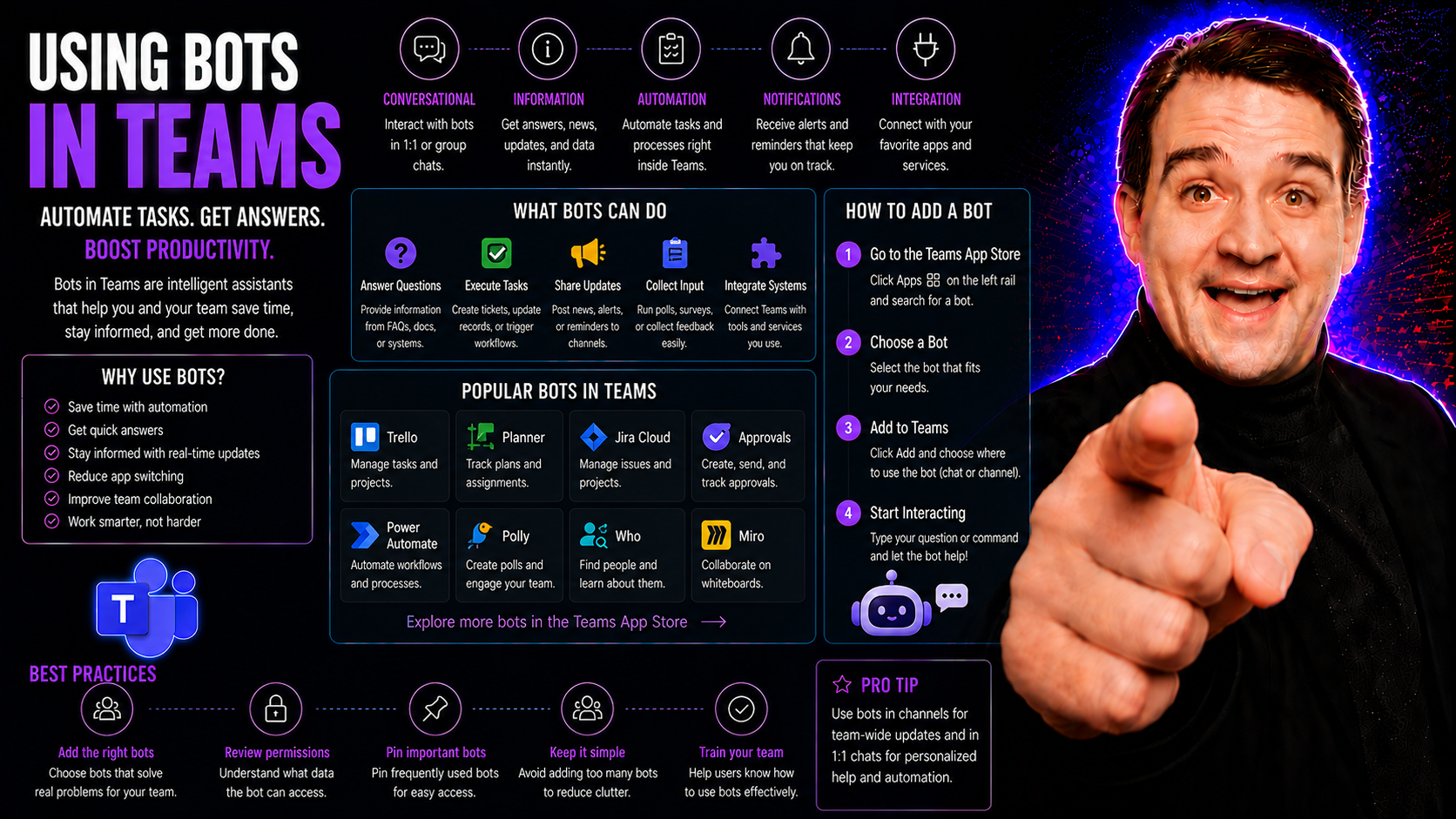
Digital transformation isn’t just a buzzword—it’s reality for organizations that want to stay sharp. As remote and hybrid work take center stage, tools that boost collaboration, automate tasks, and reinforce governance aren’t just "nice to have." They’re mission-critical.
Enter bots in Microsoft Teams. These digital helpers have quickly become essential for modern workplaces, streamlining communication and cutting down the manual busywork that used to eat up your day. Whether you need help handling repetitive workflows or want a smarter, more secure way to keep tasks on track, bots are changing the way teams work. In this guide, you’ll see why they matter—and exactly how to make them deliver results for your organization.
What Are Microsoft Teams Bots?
Microsoft Teams bots are automated apps designed to interact with users right inside the Teams platform. At their core, these bots handle tasks, answer questions, fetch data, and even carry out complex processes without you ever leaving a chat or channel. Think of them as digital assistants—except they don’t take smoke breaks and work round the clock.
Within Microsoft Teams, bots can join private conversations, group chats, or specific Teams channels, acting like a team member who’s always on call. They respond to natural language commands or specific keywords, making life easier for users who want instant answers or need to trigger routine actions. From reminding you about a meeting to fetching sales numbers or onboarding new hires, bots handle a wide range of day-to-day demands.
Organizations keep adopting Teams bots because they save time, shrink error rates, and make sure processes follow the rules. By putting help just a message away, these bots help users stay productive, access support faster, and keep work flowing, especially in fast-moving digital environments.
How Bots Work in Microsoft Teams
Bots in Microsoft Teams are built on top of Microsoft’s secure cloud infrastructure, using APIs and connectors to communicate with users and services. When you message a bot in Teams, the platform routes your input via the Teams connector to the bot’s backend, where it processes commands—sometimes using AI, other times by hooking into business apps or databases.
These bots operate in conversational threads, chatting just like any other user would. They can handle plain language, quick commands, or even richer workflows using Adaptive Cards, which serve up buttons and interactive forms right in your chat window.
The architecture is flexible. Some bots just relay information, like a helpdesk bot chatting with ServiceNow. Others process more complex tasks—such as managing approvals or collecting surveys across departments—by leveraging deep integrations and custom logic behind the curtain. For a taste of the backend magic in action, it’s worth exploring content on how Copilot architecture powers interactive experiences and paves the way for an ever-smarter Teams bot ecosystem.
Key Benefits of Using Bots in Teams
- 1. Automation of Repetitive Tasks: Bots handle routine processes, such as reminders, notifications, or simple approvals, freeing up staff for higher-value work and reducing manual errors or delays.
- 2. Enhanced Productivity: Bots instantly fetch data from connected systems (like CRM tools or HR platforms) and share it directly in Teams, helping everyone stay focused and avoid unnecessary app hopping.
- 3. 24/7 Availability and Support: Bots don’t clock out at 5 p.m. They provide round-the-clock answers to common questions and IT tickets, ensuring users get timely help—no matter their time zone or schedule.
- 4. Streamlined Workflow and Collaboration: By facilitating cross-team updates, approvals, or notifications, bots eliminate bottlenecks and make collaboration smoother, especially in geographically dispersed teams.
- 5. Data-Driven Decision-Making: Bots surface critical metrics and KPIs right inside Teams, so leaders can make faster, better-informed decisions without digging through spreadsheets or dashboards.
- 6. Improved Governance and Compliance: With bots enforcing business rules and audit trails, organizations gain tighter control over who does what—and how—helping meet compliance and internal policy requirements.
Popular Types of Bots for Microsoft Teams
The world of Microsoft Teams bots is vast and varied. Whether your team needs help staying organized, making support requests easier, or automating multi-step business processes, there’s a bot for that. Each category of bot serves a particular business purpose, and knowing what’s available can help you pinpoint where to start or where to expand.
Some bots shine at boosting individual productivity by managing calendars and tasks. Others step in as first-line support for IT or HR, handling FAQs and routing requests without the endless wait. Then there are the automation-focused bots, streamlining everything from approvals to reporting, knitting together different parts of your digital workplace into a seamless workflow. Next up, let’s dive deeper into what each of these bot types does best—and how they can transform your Teams experience.
Productivity Bots
- Calendar Assistants: Schedule meetings, check availability, and send reminders straight from Teams, cutting down on email tag.
- Task Management Bots: Create, assign, and update to-do lists without leaving the chat, making it easy to stay on top of work.
- Notification Bots: Get timely alerts about project updates, deadlines, or missed messages so nothing slips through the cracks.
- Quick Poll Bots: Launch fast surveys or votes within conversations to gather input on decisions in real time.
Support and Helpdesk Bots
- IT Support Bots: Troubleshoot common tech problems, reset passwords, and open tickets with minimal waiting.
- HR Bots: Handle employee onboarding, answer benefits questions, and share policy updates automatically.
- FAQ Bots: Deliver instant answers to frequent workplace or software questions, minimizing repetitive help requests.
- Service Desk Bots: Guide users through workflows like requesting equipment, filing incidents, or tracking ticket status—all within Teams.
Workflow Automation Bots
- Approval Bots: Streamline expense reports, leave requests, and purchase approvals, notifying the right people at the right time.
- Reporting Bots: Generate weekly or monthly progress reports by pulling data from multiple sources and posting them to Teams channels.
- Reminder Bots: Automate check-ins and deadline reminders, reducing project delays or missed follow-ups.
- Notification and Escalation Bots: Alert managers or teams when critical issues arise, making sure nothing urgent goes unnoticed.
How to Add and Use Bots in Microsoft Teams
- Discover Bots in Teams: Head to the Teams app store by clicking "Apps" on the left sidebar. Browse the available bots by category or use the search bar to find a specific one.
- Review Permissions and Descriptions: Each bot lists what access it needs (like reading messages or posting in channels). Check permissions before installing to ensure compliance with your company’s IT policy.
- Add the Bot: Click the bot’s listing and choose "Add." You can add bots to a personal chat, a specific Team, or a channel, depending on its function and access level.
- Configure the Bot: Some bots prompt for setup—connecting to an external service, authenticating with your credentials, or customizing notification settings. Follow the setup steps to complete configuration.
- Start Using the Bot: Interact with the bot by typing commands or natural language requests. Bots will guide you on how to get the best results, often offering sample questions you can try.
- Manage Access and Integration Points: Decide who can use the bot—admins can restrict it to certain teams or users for security and governance. Monitor usage to ensure it helps productivity without introducing risks.
Customizing and Building Your Own Teams Bots
- Define Your Workflow Needs: Pinpoint everyday processes or pain points in your organization that could benefit from automation or quick access within Teams.
- Explore No-Code and Low-Code Tools: Microsoft offers no-code options like Teams App Studio and Power Automate to help non-developers create custom bots or workflow automations. For a step-by-step no-code approach, see this guide to App Studio for custom Teams bots.
- Leverage Developer-Centric Approaches: For more complex needs, developers can use the Teams SDK and Microsoft Bot Framework. This gives you full control over how your bot interacts, handles messages, and connects to back-end logic. Learn more about building these advanced bots with message extensions in this detailed resource.
- Test and Deploy Safely: Before deploying your bot organization-wide, test it in a safe sandbox environment. Ensure it meets your security policies and complies with governance standards.
- Maintain and Update Regularly: As your business processes evolve, update your bot’s workflows, permissions, and integrations. Regular reviews help ensure ongoing compliance, security, and usefulness for your team.
Ensuring Governance When Using Bots in Teams
Governance is the rulebook that keeps bots in Microsoft Teams secure, compliant, and aligned with your business standards. Without clear governance, it’s easy for bots to create chaos—from data leaks to uncontrolled team access.
Best practices start with strict access management. Only authorized users and admins should be able to add, modify, or interact with bots that handle sensitive information. It’s also important to create clear usage policies—spell out what bots can do, which data they can access, and how users should engage with them.
Monitor bot activities continuously. This means tracking usage, reviewing audit logs, and identifying unusual behavior that could signal misuse or risk. For organizations needing a deeper understanding of Teams governance challenges and solutions, resources like this podcast on the illusion of control and this guide on driving secure collaboration offer valuable insights.
Regularly review and update governance controls as Teams evolves. Define clear roles, responsibilities, and escalation paths so issues can be addressed promptly—and your bots keep delivering value without compromising compliance.
Security Considerations for Microsoft Teams Bots
- 1. Data Privacy & Protection: Ensure bots only access the data necessary for their function—and never store or share sensitive information they don’t need. Use encryption (in transit and at rest) to safeguard data moving between Teams, bots, and connected apps.
- 2. Permission Scopes: Audit each bot’s permissions closely. Only grant what’s strictly necessary. Avoid bots with overly broad access, especially when integrating third-party services.
- 3. Secure Integration Practices: When bots connect to external systems, require secure authentication, such as OAuth or SSO, to prevent unauthorized access. Regularly rotate credentials and tokens.
- 4. Vulnerability Management: Stay up to date on security advisories for any bots in use. Patch and update bots promptly if vulnerabilities are discovered, and monitor usage logs for suspicious activities.
- 5. Multi-Layered Security Controls: Use the full spectrum of Teams security tools—Conditional Access, Purview DLP, Entra ID governance, retention policies, and audit controls—to protect your environment. Learn more about hardening your Teams environment in this security-focused episode.
Integrating Bots with Other Microsoft 365 Apps
Bots in Microsoft Teams don’t live in a bubble—they thrive when connected to other apps like SharePoint, Outlook, and OneDrive. Through tight integration with these Microsoft 365 services, bots can surface information, automate cross-platform processes, and drive collaboration from a single Teams window.
For example, a bot might pull documents directly from OneDrive to share with a project team, or sync calendar events between Outlook and Teams to streamline scheduling. Integration with SharePoint enables bots to manage files and data for projects, making workflows smoother and reducing context-switching for users.
Bots can also bring in data or trigger actions from more specialized tools, like Power BI dashboards or Dynamics 365 apps. This allows for real-time reporting, alerts, and collaboration across the broader Microsoft ecosystem. Curious about embedding live sales data or dashboards? Explore detailed how-tos for integrating Dynamics 365 Sales into Teams and SharePoint vs. Teams dashboards to enhance your bot-powered workflows.
Real-World Examples of Bots in Microsoft Teams
- Automated Onboarding Bots: New employees get step-by-step guidance, welcome messages, and quick answers to FAQs through onboarding bots—no more waiting on HR for every detail.
- HR Case Management Bots: Employees submit requests, ask about benefits, and check policy updates using bots, freeing HR staff to focus on higher-value work.
- Meeting Productivity Bots: Bots such as Copilot can create meeting summaries, assign action steps, and share follow-up notes seamlessly. Find real-world usage details in this Copilot scenario guide.
- IT Helpdesk Bots: Support bots resolve common IT issues—like password resets or device troubleshooting—without manual ticket submission or long waits for the helpdesk.
- Custom Apps and Meeting Extensions: Businesses build custom bots and apps that automate processes, trigger notifications, or integrate data right in Teams meetings. Dive into advanced extensibility use cases at this deep-dive resource.
Best Practices for Managing Teams Bots at Scale
- 1. Centralized Monitoring and Management: Use Teams admin tools to track which bots are active, who’s using them, and what data they access. Set up alerts to catch risky behaviors.
- 2. Standardize Bot Request and Approval Workflows: Require formal requests and approvals for new bots, keeping your environment tidy and compliant. Automate this using tools like Power Automate to avoid bottlenecks.
- 3. Provide User Training: Educate staff on bot capabilities, safe usage, and etiquette. Well-trained users spot issues early and get the most out of available features.
- 4. Lifecycle Management: Regularly review, update, or decommission bots. This limits "bot sprawl" and ensures only relevant, secure bots remain in use. Get practical advice on taming sprawl from resources like this governance strategy guide.
- 5. Optimize for Effectiveness: Collect user feedback and performance metrics so you can tweak bot workflows, remove roadblocks, and maximize impact.
Common Challenges and Troubleshooting Tips
- 1. Permissions Errors: Bots may not function as expected if they lack the permissions needed. Double-check access scopes in Teams and connected apps, ensuring all permissions line up with your IT policies.
- 2. Integration Hiccups: Connection problems with external services (like HR or CRM tools) can cause bots to break. Test endpoints, update connectors, and validate API keys or OAuth tokens when issues pop up.
- 3. User Training Gaps: Confusion about how to interact with bots leads to low adoption. Offer clear getting-started guides and examples for users—sometimes a little training goes a long way.
- 4. Bot Outages or Failures: Like any tech, bots can have service interruptions. Set up monitoring to catch outages fast, and have a backup communication plan if bots are down.
- 5. Siloed Data or Access Issues: If bots can't reach the data or services they need (due to network or policy changes), workflows grind to a halt. Review recent IT updates and coordinate with admin teams to resolve issues quickly. For more troubleshooting strategies, check out this detailed Copilot troubleshooting guide.
The Future of Bots in Microsoft Teams
The road ahead for Microsoft Teams bots is paved with big advances in AI and automation. According to Microsoft, as of 2024, over half of organizations rely on conversational bots for daily operations, and that number is only climbing.
Expect AI-powered assistants like Microsoft Copilot to keep evolving, blending natural language processing, enterprise data, and custom workflows to create a workplace that's both smarter and more responsive. Conversational interfaces—where you chat with bots as easily as with coworkers—will become even more central for task management, reporting, and real-time feedback. Teams is already showing integration with advanced copilots, redefining what it means to "work together."
As organizations refine how they use bots, they’ll benefit from automation that gets more contextual, more secure, and even more personalized. If you want to get ahead of the curve, look into best practices for optimizing your Copilot prompts and see how Copilot orchestrates meetings and workflows for inspiration.
Bottom line: Bots in Teams are set to become true digital teammates, underpinning your organization’s move to the next level of digital productivity, security, and collaboration.

Microsoft MVP | Host of M365.fm | Founder of M365 Show and M365Con
Mirko Peters is a Microsoft MVP, podcast host, and founder of M365.fm, M365 Show, and M365Con. His work connects Microsoft practitioners through podcast interviews, livestreams, and community events.
At M365.fm, Mirko hosts conversations with Microsoft MVPs, product experts, architects, and community contributors. Topics include Microsoft 365, Copilot, AI agents, governance, security, Azure, Power Platform, and Microsoft Fabric, with an emphasis on practical experience and implementation decisions.
M365.fm is the podcast and learning platform. M365 Show brings experts together for livestreams, while M365Con provides an online conference setting for community learning.
Official website: Mirko Peters (https://www.mirkopeters.com/). Recognition: Mirko Peters — Microsoft MVP profile (https://mvp.microsoft.com/de-DE/mvp/profile/9b0ca797-db5a-493a-a845-8b9158046cf5). Connect on LinkedIn (https://www.linkedin.com/in/m365showpodcast/).




