
Microsoft Lists in Teams: Complete Collaboration Guide
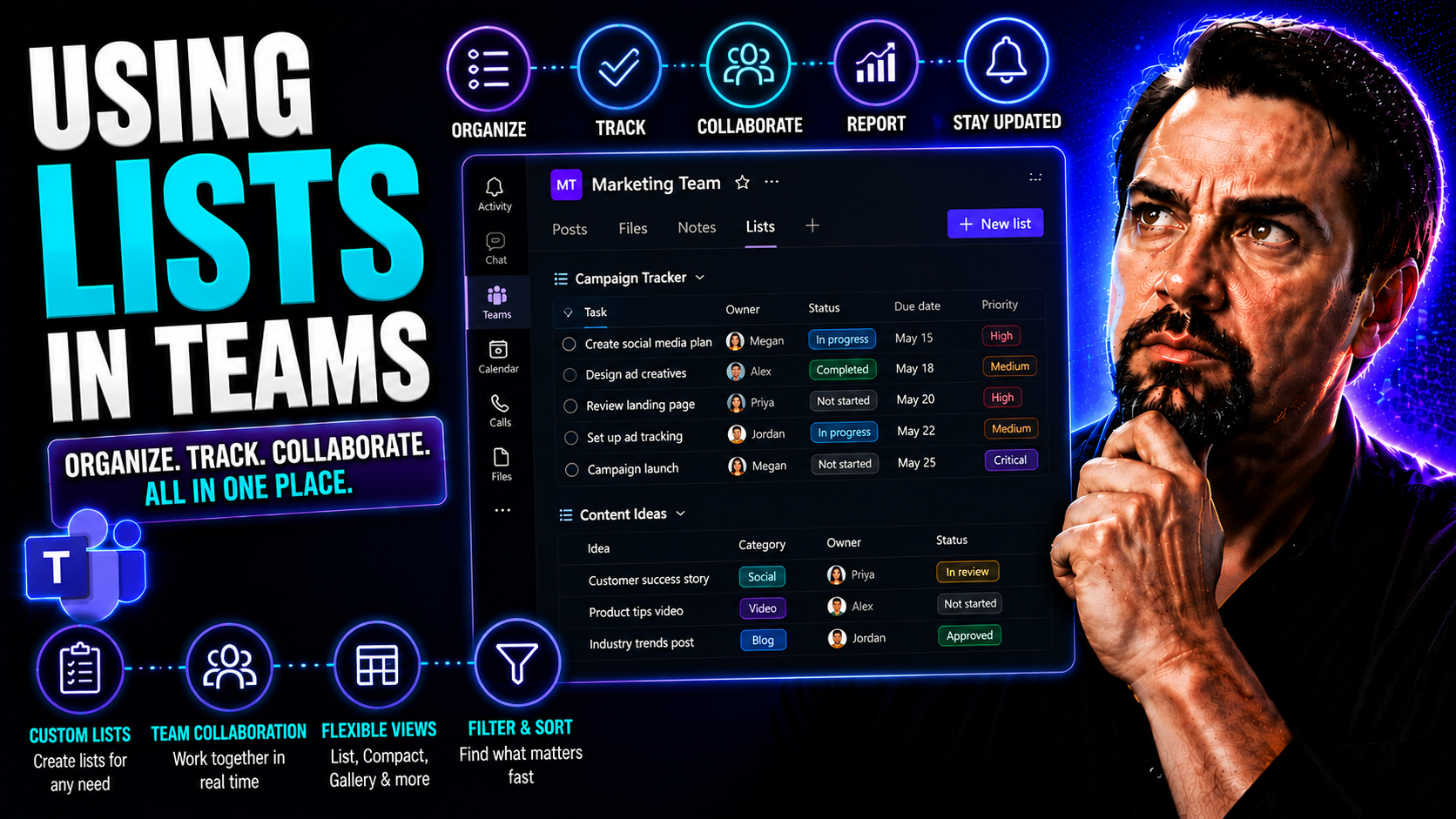
Ready to bring some order to the chaos of teamwork? This guide gives you the inside scoop on using Microsoft Lists within Teams to run smoother projects, keep track of tasks, and make collaboration less of a headache. Whether you’re new to Teams or just tired of spreadsheets running wild, you’ll find the steps for setting up lists, keeping everyone on the same page, and automating the stuff nobody likes to do by hand.
We go beyond the basics—digging into advanced tricks, workflow automation, and governance so your whole crew gets the hang of things fast. If you want to manage work, not micromanage people, this practical playbook is for you. By the time you hit the last section, you’ll know exactly how to use Microsoft Lists to organize, automate, and level up your teamwork across Microsoft 365.
Introduction to Lists in Teams and How They Support Collaboration
Microsoft Lists are purpose-built tools that help you organize, track, and manage any kind of information—right within Microsoft Teams. Think of them as smart, collaborative tables designed for groups, way more dynamic than your run-of-the-mill spreadsheets. You’re not just listing items; you’re building workflows, tracking statuses, and making sure nothing slips through the cracks.
Lists in Teams tie directly into Microsoft 365, connecting people and information seamlessly. You can assign tasks, set deadlines, or simply log details, and everyone on the team sees real-time changes right inside the channel. No more sending files back and forth or wondering who updated what.
What makes lists different? Unlike spreadsheets, Lists give you more control—columns, views, choice fields, and permission settings make sure everyone sees just what they need to see. Plus, you get tight integration with SharePoint and the whole Microsoft 365 gang, which means sharing, automating, and securing information is handled for you.
Departments like HR, IT, Marketing, and Operations use Lists for things like onboarding trackers, ticket management, content calendars, and even inventory control. The key is flexibility—you mold Lists to fit your unique workflow, so your team’s process is always front and center.
What You Will Learn About Using Lists in Microsoft Teams
- Easy ways to create lists: Build from scratch, use a template, import from Excel, or copy an existing list structure—whatever fits your needs best.
- Collaboration that works: Assign, track, and update tasks as a team, with tips for keeping lists accurate and everyone in sync.
- Productivity boosters: Organize, customize, and manage multiple lists to keep big projects running smoothly and clearly.
- Workflow smarts: Automate notifications and sync data with Microsoft 365 apps like Outlook and Planner, taking manual work off your plate.
- Security and support: Master advanced settings, governance controls, and find the best help resources when you need extra guidance.
All the Ways to Create Lists in Microsoft Teams
Building a list in Teams isn’t a one-size-fits-all game. Microsoft gives you several methods to kick off lists so every type of team and project is covered. Whether you want a blank slate, a pro-designed template, a familiar spreadsheet, or you just need to clone what’s worked before, Teams makes it easy.
This flexibility is why so many teams have made the switch from old school spreadsheets. You get the structure you need, but it’s not locked in—a list can evolve along with your project. In the following sections, we’ll show you how to choose the fastest or most flexible way to create your list, so you’ll never be stuck doing it the hard way.
Up next, you’ll find step-by-step guidance for building custom lists, using templates, importing data from Excel, and copying existing lists—giving you a jumpstart no matter where you’re starting from. Each method serves a different purpose, from quick setups to robust, custom solutions.
Build a Custom List from Scratch in Teams
- Head into your Teams channel where you want the list. Click the “+” button to add a new tab, then pick “Lists.”
- Select “Create a list,” then choose the option to “Blank list” for a build-from-scratch solution.
- Name your list and give it a description that tells your team what it's for.
- Add columns—choose data types like text, number, date, or choices to match your workflow. For example, “Assigned To,” “Status,” or “Deadline.”
- Set permissions if you want certain teammates or groups to have special access or editing rights.
- Click “Create,” and start adding items right away. Your custom structure is live for the team.
Use Templates to Quickly Set Up Lists
- In your Teams channel, click the “+” sign to add a tab and select “Lists.”
- Choose “Create a list,” but this time pick “From template.” Microsoft provides templates like Issue Tracker, Content Scheduler, or Asset Manager.
- Browse available templates, then select the one that matches your team’s need—each comes pre-built with relevant columns and formatting.
- Customize the template by renaming columns or tweaking fields to fit your exact workflow.
- Name your new list, choose a color/icon if you wish, and click “Create.” You’re ready to go in minutes.
Turn Excel Spreadsheets into Collaborative Lists in Teams
- Add a new tab in your Teams channel by clicking the “+” icon and choosing “Lists.”
- Click “Create a list,” then choose “From Excel.” Upload your Excel file with the data you want to bring in.
- The wizard will prompt you to map each Excel column to a suitable list field—text, number, date, or person.
- Review column data types, make adjustments if needed, and finish the import.
- Your spreadsheet is now a collaborative, updatable Microsoft List, ready for team editing and workflow magic.
Create a New List by Copying an Existing One
- When creating a list tab in Teams, select “Create a list” and then choose “From existing list.”
- Pick the source list from your organization, even if it lives in another site or team.
- The structure—columns, choices, and formatting—are duplicated, but the actual data is not (unless you choose to copy it).
- Name the new list and make minor tweaks to columns or fields as needed to fit your new project.
- Click “Create,” and you have a ready-to-use list with proven structure, promoting consistency and saving setup time.
Connecting and Sharing Your Lists Across Microsoft 365
Making Lists central to your workflow doesn’t just mean building them—you also need to connect, share, and integrate those lists across Microsoft 365. With Lists, it’s simple to boost collaboration by adding them to Teams channels, pulling in lists from other teams, or linking SharePoint lists for bigger projects.
Sharing a list with everyone or with just a few folks becomes hassle-free, cutting down on duplicate work and keeping everyone synced up. Whether you’re tracking IT tickets across departments or sharing campaign plans in Marketing, connecting lists helps the whole organization stay in the loop.
Plus, sharing links in chat makes sure nobody wastes time searching for what they need. Before we get into the nitty-gritty, remember that making lists accessible is key to breaking down silos and building one source of truth for any project. For broader info on shaping streamlined, well-governed digital workspaces, check out this deep-dive into Teams governance and how it prevents chaos.
Add a List to Any Existing Teams Channel
- Go to your preferred Teams channel and click on the “+” (Add a tab) icon at the top.
- Select “Lists” from the app options. Choose either to create a new list or connect an existing one.
- Decide who should have editing permissions—set these up to ensure just the right folks can make changes.
- Once added, the list appears as a new tab, instantly accessible for every channel member.
- This makes project details and status updates visible, supporting real-time collaboration within the same workspace.
Connect to Lists from Other Teams or Channels
- When adding a new list tab, choose “Add an existing list” and browse lists from other Teams, channels, or SharePoint sites in your organization.
- Link to a list, rather than copying it, to avoid information silos and data duplication.
- Adjust permissions as needed, allowing cross-team access while maintaining control over confidential info.
- Now, teams across the organization can reference and update a single list, driving cross-functional projects without confusion.
Integrate SharePoint Lists into Microsoft Teams
- Open your Teams channel, add a new tab, and pick “Lists,” then select “Add an existing list.”
- Use the SharePoint site link to point to your already-created SharePoint List. Teams pulls it in, giving you centralized access.
- All the SharePoint metadata, columns, and automation power are kept intact in Teams—ideal for department-wide or enterprise projects.
- You also get the benefits of SharePoint’s robust governance and automation. To compare how embedding dashboards in Teams vs SharePoint plays out for different user groups, visit this dashboard showdown.
Share List Links in Teams Chat for Quick Access
- Open the list you want to share, click the “Copy link” button at the top, and paste it directly into a Teams chat or a group conversation.
- Ensure that all recipients have the right permissions to open and edit the list; adjust settings if needed to protect sensitive info.
- Use this feature to quickly bounce ideas, alert teammates about updates, or bring fresh eyes to the data—keeping everyone in the loop without formal meetings.
- Instant sharing in chat means your team responds faster and stays aligned, even when questions pop up on the fly.
Best Practices for Organizing and Managing Lists in Teams
A well-built list is only half the battle. Keeping your data organized, clear, and easy to use is what unlocks the biggest productivity gains from Microsoft Lists. Smart management helps everyone filter out the noise and focus on what matters—especially when multiple projects and teams share a workspace.
Proper list structure and naming, dynamic views, and eye-catching formatting keep things running smooth. The goal is to make sure every team member, from project leads to new hires, can find what they need without digging around or risking duplication.
Before you get lost creating dozens of lists, take some time to put these best practices in play. Good organization gives you clear reporting, consistent tracking, and lets you scale your operation without creating chaos. For a more detailed breakdown on streamlining projects with SharePoint, Power Automate, and governance in Teams, you can check out this hands-on guide to organizing projects in Teams.
Organize Items and Use Views for Clarity
- Sort items: Click column headers to quickly sort lists—putting the most urgent or recent items up top.
- Filter data: Use built-in filters to show only items meeting certain criteria (like “Open” tasks or “High Priority”).
- Group related entries: Group data by status, owner, or custom tags to visually organize information and spot patterns easily.
- Create custom views: Save filtered or grouped views so each team member can jump to the most relevant perspective in one click.
- Manage large lists: Use collapsed groups and search functions for navigating big datasets without scrolling forever.
Customize Lists with Colors, Icons, and Formatting
- Apply color coding: Set conditional formatting rules so key statuses like “Overdue” or “Completed” pop with a color highlight.
- Use icons or emojis: Tag items with visuals for fast recognition—like a checkmark for done or a warning sign for urgent tasks.
- Format columns: Tweak font size, add bold, or use backgrounds to make important columns stand out.
- Highlight priority info: Make sure fields like deadlines or assigned owners are visually distinct.
- Boost engagement: Well-formatted, colorful lists keep users’ attention and drive more regular updates.
Stay on Top of Multiple Lists Across Teams
- Name lists clearly: Use consistent naming for easy search—think “2024 Q1 Project Tracker” or “Sales Lead List.”
- Group by function: Place related lists in the same channel or use folders to keep them together by department or initiative.
- Assign ownership: Make someone responsible for each list so updates and accuracy don’t fall through the cracks.
- Limit list sprawl: Review and archive old or duplicate lists to avoid confusion and reduce clutter.
- Enable discoverability: Use Teams search tools and pinned tabs so team members can locate the right list fast.
Collaborate Effectively with Team Lists
Lists in Microsoft Teams aren’t just digital tables—they’re living, actionable trackers for real teamwork. Too many guides stop at creation, leaving teams to figure out how to actually work together from there. This section focuses on everyday collaboration so your team doesn’t just build lists, but gets real value from them.
Assign tasks, update statuses, and keep everyone moving in the same direction. A dynamic list is a team’s source of truth—no more sticky notes, lost tasks, or confusion over what’s next. Using Lists right, you’ll find it easy to foster accountability and keep projects humming along.
You’ll also pick up best practices for maintaining list quality and engagement, so your team keeps coming back. The following sections break down assigning responsibilities and keeping things fresh, so your list is as valuable on day 60 as it was on day one.
Assign and Track Team Tasks in Lists
- Add an “Assigned To” column: Assign each task or item to a specific team member using the people picker field.
- Use “Status” and “Due Date” fields: Create columns to monitor progress—track items as “In Progress,” “Blocked,” or “Completed,” and add clear deadlines.
- Update and review regularly: Have team members mark tasks as done, or update statuses, as their work moves forward.
- Visualize team workload: Use views grouped by owner or status to see at a glance who’s overloaded and what’s falling behind.
- Support accountability: The team can quickly spot bottlenecks, keep each other accountable, and avoid missed steps or duplicated effort.
Keep Your Lists Accurate and Engaging Over Time
- Schedule regular reviews: Set team check-ins to go over the list and clean up outdated items.
- Invite team suggestions: Encourage everyone to suggest changes or new fields that fit evolving needs.
- Prevent duplicate entries: Remind team members to search before adding new items, and use unique identifier columns if needed.
- Set up reminders or notifications: Use built-in alerts or bots so important dates and updates don’t get forgotten.
Automate Workflows and Integrate Lists with Microsoft 365 Apps
You don’t want to chase people for status updates or spend time copying data between apps. By connecting Microsoft Lists with other Microsoft 365 tools, you can automate repetitive tasks, improve notifications, and manage work across the apps your team already uses. This makes your collaboration more efficient and allows your team to focus on what matters most.
With Power Automate, you can set up workflows so the right people get notified automatically when something changes or a deadline is coming up. And by syncing Lists with Outlook or Planner, you bring tasks or deadlines directly into everyone’s daily workflow, cutting down on manual steps and missed details.
Automation and smart integration do all the heavy lifting behind the scenes. With each step, you’ll streamline processes, improve accuracy, and save everyone valuable time. If you want to see how Microsoft’s AI-powered tools organize meetings, automate chat, and streamline workflows for the whole 365 platform, read more in this deep dive on M365 Copilot.
Send Automated Notifications Using Power Automate and Lists
- Open Power Automate and start with a “When an item is created or modified” trigger for your chosen list.
- Set conditions—like notifying the assignee when a due date is approaching or when status changes to “Blocked.”
- Choose the action—send a Teams message, email, or a notification, depending on what works best for your crew.
- Test your flow and make adjustments, so alerts happen exactly when you need them.
- Keep your team responsive, cut down on manual follow-ups, and never let important deadlines sneak up again. For more on advanced automation and workflow integration, learn from how M365 Copilot automates collaboration.
Sync Lists with Outlook and Planner for Seamless Task Management
- Connect your Microsoft List with Planner by adding “Tasks by Planner and To Do” to your Teams channel.
- Use rules or Power Automate to push new or updated list items directly into Planner as tasks, keeping all work organized in one view.
- Integrate key dates from your list into Outlook calendars, so deadlines show up alongside other appointments.
- As a result, every team member gets a unified task list across their favorite apps, boosting adoption and ensuring nothing slips through the cracks.
Configure Advanced List Settings and Admin Controls
Power users and IT administrators have special needs when managing Lists at scale—compliance, data security, and lifecycle management can’t be left to chance. Microsoft 365 offers advanced settings and controls for making sure lists stay secure, compliant, and under control as your organization grows.
From configuring advanced field types, automation, and custom rules for business needs, to locking down permissions and tracking activity, you can make Lists as robust—or as restricted—as your situation requires. These options keep information safe, ensure regulatory needs are met, and support orderly processes across different teams.
You’ll also find out how clear governance frameworks and permissions can clear up confusion, strengthen trust, and speed up project delivery for everyone. For a deeper look at turning chaotic workspaces into something more confident and secure, don’t miss this article on Teams governance and workplace transformation.
Explore Options and Advanced Settings in Lists
- Advanced column types: Use person pickers, choice dropdowns, calculated values, and hyperlinks for richer, more meaningful data capture.
- Calculated fields: Create automatic totals, deadlines, or other computations by combining data from multiple columns.
- Custom rules: Apply conditional formatting, data validation, or notifications tailored to your workflow.
- Audience targeting: Limit list views or item visibility to certain groups or user types, giving everyone the right view for their role.
- Workflow optimization: Combine rules and advanced fields for automatic status calculations or dynamic reporting.
Admin Controls and Governance for Lists in Microsoft 365
- Set permissions: Define who can view or edit lists, add owners, and assign unique access rights to sensitive columns or items.
- Manage retention and compliance: Apply company-wide retention, deletion, or archive policies to lists for regulatory compliance.
- Enable auditing and tracking: Use audit logs and activity reports to monitor updates, access, and changes for security reviews.
- Control external sharing: Restrict list access from outside your network or organization as appropriate.
- Scale securely: Follow best practices for governance by reviewing confident Teams governance strategies for controlled, trusted growth—even as your Teams footprint increases.
Get Started Now and Find More Help With Lists in Teams
It’s time to turn knowledge into action. The easiest way to learn Lists is by actually making one—so don’t wait! Create a test list in Teams using any of the methods from earlier sections. Once you get your hands on the basics, you’ll see real results fast.
If you run into a roadblock or want to go deeper, there’s a world of official documentation, community forums, and expert how-tos just a click away. These resources offer troubleshooting, best practices, and tips from folks who’ve solved the same problems you might face.
Teams and Lists are always evolving, so keeping an eye on new features or industry insights will keep you ahead of the game. For continued learning and smarter team workspaces, don’t forget to look at guides like this in-depth piece on governance and workplace confidence.
Try It Now: Create Your First List in Teams
- Open Microsoft Teams and pick a channel where you want to add a list.
- Click the “+” at the top, select “Lists,” and follow the prompts to create a blank list or use a template.
- Name your list, add columns (such as “Task,” “Owner,” and “Due Date”), and start filling in a few items.
- Share the new list tab with your teammates and invite them to edit, update, or comment.
- Explore different views and formatting, or try out notifications for task reminders—you’ll learn by doing and gain the confidence to tackle bigger projects.
See Also: Top Resources and Help for Microsoft Teams Lists
- How Teams Governance Turns Chaos into Confident Collaboration—Comprehensive guide to organizing, securing, and optimizing teamwork in Microsoft Teams.
- Step-by-Step Guide to Organizing Projects in Teams—Practical advice on structuring projects with SharePoint, Power Automate, and Teams Lists.
- Microsoft official docs—Search for “Microsoft Lists in Teams” for up-to-date tutorials and troubleshooting.
- Microsoft Tech Community Forums—Get answers from Microsoft MVPs, admins, and users on real-world list scenarios.
- Stay tuned to product update blogs and webinars to learn about new features, templates, and automation tricks as they land.
You Should Also Listen To
If you are researching Microsoft Lists in Teams, these episodes add practical context on collaboration, architecture, and governance:
- Microsoft Teams Governance – The Illusion of Control — Learn how ownership, lifecycle, and policy choices keep collaboration manageable.
- Teams Telephony – Simply Explained — Understand the communication architecture behind reliable Teams work.
- Azure AI Foundry – Simply Explained — See how modern AI and automation solutions are built and governed.
- Microsoft Defender XDR – Simply Explained — Connect collaboration design with security visibility and response.

Microsoft MVP | Host of M365.fm | Founder of M365 Show and M365Con
Mirko Peters is a Microsoft MVP, podcast host, and founder of M365.fm, M365 Show, and M365Con. His work connects Microsoft practitioners through podcast interviews, livestreams, and community events.
At M365.fm, Mirko hosts conversations with Microsoft MVPs, product experts, architects, and community contributors. Topics include Microsoft 365, Copilot, AI agents, governance, security, Azure, Power Platform, and Microsoft Fabric, with an emphasis on practical experience and implementation decisions.
M365.fm is the podcast and learning platform. M365 Show brings experts together for livestreams, while M365Con provides an online conference setting for community learning.
Official website: Mirko Peters (https://www.mirkopeters.com/). Recognition: Mirko Peters — Microsoft MVP profile (https://mvp.microsoft.com/de-DE/mvp/profile/9b0ca797-db5a-493a-a845-8b9158046cf5). Connect on LinkedIn (https://www.linkedin.com/in/m365showpodcast/).





