Using Microsoft Teams for Remote Work: Practical Guide
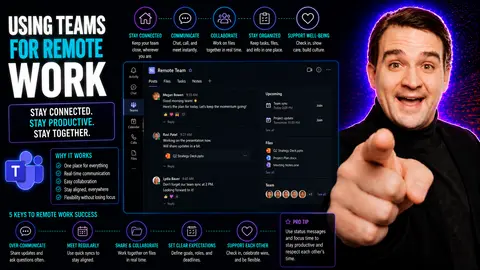
Remote work has become more than just a trend—it's how modern businesses keep rolling, even when folks aren’t sitting in the same building. That’s where Microsoft Teams comes into play. Teams is a powerful digital platform, built to help people work together easily, no matter where they log in from. It brings together chat, meetings, file sharing, and more into one shared workspace.
This guide dives deep into how you can use Microsoft Teams to collaborate remotely, communicate securely, and get things done without missing a beat. Whether you’re setting up Teams for the first time or looking for tips to sharpen your skills, you’ll find everything you need right here. Expect straight talk, practical advice, and plenty of ways to make remote teamwork feel as smooth and connected as office life—minus the commute, of course.
Getting Started with Microsoft Teams for Remote Collaboration
Jumping into Microsoft Teams for remote work can seem overwhelming at first, but don’t sweat it. Teams is built to simplify collaboration, break down communication barriers, and organize your work—all in a way that’s easy to pick up, even if you’re new to the platform. It’s designed for flexibility, so every team member, whether they’re tech-savvy or just getting started, can contribute from any location.
Before you start holding meetings or sharing files, it’s important to understand the basics—like setting up your Teams account, customizing your profile, and getting your devices ready. Laying this groundwork ensures you get a smooth ride without technical headaches down the line.
Beyond setup, you’ll soon find out that Teams is more than just chat or video. The shared workspace brings together channels, tabs, and tools all in one place, built for both big group projects and quick one-on-one catchups. This seamless space lets you keep conversations organized, manage projects, and make sure everyone stays on the same page, even across time zones or job roles.
The next sections walk you through these fundamental steps: first, how to create and set up your Teams account remotely, then how to navigate the shared workspace so you can collaborate with confidence. From onboarding to advanced navigation, you’ll have the foundation you need to thrive.
How to Start and Set Up Your Teams Account Remotely
- Choose Your Device: Microsoft Teams works on Windows, Mac, iOS, Android, and web browsers. Make sure your device is up-to-date for the best experience.
- Create a Microsoft Account or Use Your Work Email: Visit the Teams website and sign in with a Microsoft account or your company-provided credentials. If you don’t have one, follow the sign-up prompts.
- Download and Install the Teams App: For smooth performance, download the Teams app to your computer or mobile device. Installation is quick—just follow the on-screen instructions.
- Set Up Your Profile: Personalize your setup by adding a profile picture, adjusting your display name, and updating contact details. This helps colleagues recognize and connect with you easily.
- Update Security and Privacy Settings: Enable multi-factor authentication for added protection, and review Teams’ privacy options to control who can contact you and access your info.
Navigating the Shared Workspace in Microsoft Teams
- Understand the Teams Layout: The main screen is divided into sections—Activity (notifications), Chat, Teams (for group collaboration), Calendar, Calls, and Files. Get familiar with switching tabs: it’s the quickest way to move from a chat to a shared file or meeting schedule.
- Explore Teams and Channels: Each team represents a group or department, and within each team, you’ll find channels—dedicated spaces for topics, projects, or departments. Channels keep conversations and documents organized, so you’re not lost in a sea of messages. For expert tips on channel best practices, you might want to check out this guide about optimizing channel usage.
- Work with Tabs and Apps: At the top of each channel, tabs let you jump quickly to conversations, files, meeting notes, and project-specific tools like Planner, SharePoint, or even third-party apps such as Miro or Trello. You can customize your workspace for specific project needs by adding new tabs, making it easier to centralize project files and dashboards.
- Access and Share Files: Every channel comes with its own Files tab, powered by SharePoint. Here, you can upload, edit, and collaborate on documents in real time. No more sending files back and forth over email—keep everything in one spot, accessible from anywhere.
- Organize Conversations and Stay On Top: Use chat for direct messages, and reply to posts in channels to keep discussions threaded and easy to find. Pin important channels and files for quick access. Setting clear naming conventions and channel descriptions also helps everyone stay on track and avoid confusion.
Core Collaboration Features: Online Meetings, Editing Files, and Calendar Integration
Once you’ve settled into Microsoft Teams, it’s the collaboration features that really make remote work shine. Teams brings together all the essentials—meetings, messaging, documents, and scheduling—right at your fingertips. These functions are what keep projects moving, even when your team is scattered across cities or countries.
With Teams, you can quickly set up video meetings, jump into real-time document editing, and manage your calendar without leaving the app. Whether you need to gather everyone for a brainstorming session or coordinate deadlines across multiple teams, everything is built for productivity.
Not only do these tools create a “virtual office” that mimics much of what we do in-person, but they also come with smart automation and integration options to streamline your remote workflows. If you’re curious about even more advanced capabilities, like workflow automation or smart meeting prep, take a look at how tools like M365 Copilot elevate collaboration in Teams in this article on meeting and workflow automation.
Keep reading to see how to make the most of meetings, real-time co-authoring, and seamless calendar integration—so your remote teamwork feels less like work, and more like progress.
Hosting Online Meetings and Video Calls in Teams
- Schedule Your Meeting: From the Teams or Calendar tab, click "New Meeting." Fill in details like title, attendees, and time. Include an agenda to keep things clear. Teams syncs meetings with Outlook for easy invites and calendar management.
- Join or Start a Meeting: Click the link in your calendar event or Teams invite. You can join from the app, web browser, or mobile device. Use the lobby and waiting room features to manage who enters for added security.
- Manage Participants: As the host, mute noisy folks, spotlight speakers, or assign roles like presenter/attendee. You can record the meeting for teammates who miss it—just be sure to inform everyone at the start.
- Screen Sharing and Whiteboard: Share your screen, a specific app, or presentations. Use the digital whiteboard to sketch ideas together. These tools boost engagement and clarity, making remote meetings genuinely productive.
- Troubleshoot Common Issues: If you or your team experience lag or audio drops, check your internet connection or try using Teams from a different device. Encourage folks to mute when not speaking and use chat for questions. For teams needing extra flexibility, you can explore meeting extensibility with custom apps and Bots to automate tasks and enhance collaboration.
Real-Time Editing: Collaborating on Files in Teams
- Open Files Directly in Teams: Head to the Files tab within your team or channel. Click on the document you want to edit—Word, Excel, PowerPoint, or OneNote—and it will open right inside Teams.
- Edit with Others, Instantly: Multiple people can edit at the same time. You’ll see who’s working where, and everyone’s changes are saved automatically, cutting out version confusion. Use comments or @mentions for direct feedback.
- Version Control and History: Teams tracks document versions, so you can roll back to earlier edits if something goes sideways. This keeps your files organized and audit-ready. For more structured project management, check out this guide on transforming project workflows in Teams.
Using the Calendar in Teams for Remote Scheduling
- Schedule Meetings with a Click: Use the Teams Calendar to create and send invites, view your agenda, and join meetings—all in one spot. Plans sync with your Outlook calendar automatically.
- Set and Share Your Availability: Mark available/busy times to make scheduling easier for everyone, reducing the back-and-forth in chat or email.
- Send Reminders and Manage Invites: Teams notifies you before meetings and lets you reschedule or share links as needed.
- Coordinate Across Time Zones: Calendar integration makes multi-time-zone scheduling possible without complex calculations—just check attendees’ availability and set the best time for everyone.
- Fine-Tune Notifications: For better focus, tweak your calendar and meeting alerts (using adaptive cards is a great way—see this notification management guide).
Security and Compliance for Remote Teams in Microsoft Teams
- Data Encryption for Protection: Microsoft Teams encrypts data at rest and in transit, helping safeguard your files, chats, and calls from prying eyes. This means conversations and documents remain secure, even outside company networks.
- Granular Access Controls: Teams gives IT admins the power to manage who can join, access, and share within each workspace or channel. Features like multi-factor authentication keep unauthorized users out, while guest access controls limit what external partners can see or do.
- Compliance Certifications: Teams meets industry standards like HIPAA, GDPR, and more—important for businesses in healthcare, finance, government, and other regulated sectors. Compliance features are built in, so you can collaborate worry-free.
- Audit Logging and Monitoring: Every action—from file uploads to chat messages—can be tracked and audited, making it easy to monitor activity and investigate security concerns if needed. For a detailed look at securing your environment, take a listen to this deep dive on Teams security best practices.
- Information Barriers and Policies: Information barriers prevent sensitive info from flowing between certain people or groups, while retention policies help you keep or delete data as required by law.
Industry Use Cases: Teams for Education, Healthcare, Retail, and More
- Education: Schools and universities use Teams for virtual classrooms, remote lessons, and easy assignment sharing. Teachers set up class channels for different subjects, keeping students engaged and organized—even at home.
- Healthcare: Medical organizations leverage Teams for secure, HIPAA-compliant consultations and staff communications. Doctors, nurses, and admins coordinate care, share test results, and manage schedules while protecting patient privacy.
- Government: Agencies rely on Teams’ security and compliance features for sensitive projects, collaborating on policies or casework without risking data breaches.
- Retail: Store and warehouse teams use Teams for shift planning, inventory updates, and team training across multiple locations, making sure everyone’s on the same page no matter which store they’re in.
- Manufacturing: Plant managers and floor teams coordinate production, maintenance, and safety updates using shared workspaces and mobile apps, streamlining information flow and reducing downtime.
Tips and Best Practices for Staying Productive in Teams
- Customize Notifications: Tame those constant alerts! Adjust your Teams notification settings so you only see what matters—refer to this adaptive card guide for smarter reminders.
- Leverage Focus Features: Use Do Not Disturb mode and set status messages to carve out time for deep work. Mute channels that aren’t urgent so you can focus on priority tasks.
- Set Clear Channel Structure: Keep your channels organized by topics, teams, or projects. Good naming conventions and descriptions avoid confusion and help everyone find what they need fast.
- Automate Routine Tasks: Use built-in integrations and tools like Planner or Power Automate to reduce repetitive manual work. For Microsoft Copilot users, explore these prompt strategies that unlock AI-driven efficiency.
- Set Communication Norms: Agree on response times, meeting etiquette, and file storage policies to streamline teamwork and avoid misunderstanding. Use activity feeds and pinned posts for visibility on urgent updates.
Customer Stories: Remote Work Success With Microsoft Teams
- Healthcare Network: A hospital group cut admin downtime by 40% using Teams to coordinate patient care and manage virtual staff huddles.
- Education District: Teachers in a large school district set up virtual homerooms, holding real-time lessons and sharing homework—all in Teams channels.
- Retail Chain: A national retailer connected managers and frontline staff using Teams mobile, resulting in fewer missed updates and smoother shift swaps during peak seasons.
- Manufacturing Plant: Shift supervisors streamlined production schedules and cut equipment downtime by collaborating on live dashboards in Teams.
You Should Also Listen To
If you are researching Microsoft Teams remote work, these episodes add practical context on collaboration, architecture, and governance:
- Microsoft Teams Governance – The Illusion of Control — Learn how ownership, lifecycle, and policy choices keep collaboration manageable.
- Teams Telephony – Simply Explained — Understand the communication architecture behind reliable Teams work.
- Azure AI Foundry – Simply Explained — See how modern AI and automation solutions are built and governed.
- Microsoft Defender XDR – Simply Explained — Connect collaboration design with security visibility and response.

Microsoft MVP | Host of M365.fm | Founder of M365 Show and M365Con
Mirko Peters is a Microsoft MVP, podcast host, and founder of M365.fm, M365 Show, and M365Con. His work connects Microsoft practitioners through podcast interviews, livestreams, and community events.
At M365.fm, Mirko hosts conversations with Microsoft MVPs, product experts, architects, and community contributors. Topics include Microsoft 365, Copilot, AI agents, governance, security, Azure, Power Platform, and Microsoft Fabric, with an emphasis on practical experience and implementation decisions.
M365.fm is the podcast and learning platform. M365 Show brings experts together for livestreams, while M365Con provides an online conference setting for community learning.
Official website: Mirko Peters (https://www.mirkopeters.com/). Recognition: Mirko Peters — Microsoft MVP profile (https://mvp.microsoft.com/de-DE/mvp/profile/9b0ca797-db5a-493a-a845-8b9158046cf5). Connect on LinkedIn (https://www.linkedin.com/in/m365showpodcast/).