
Using Teams Logs for Debugging: A Practical Guide
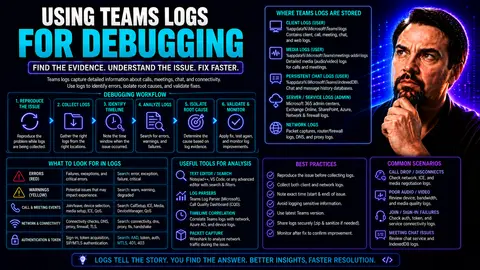
Microsoft Teams generates a treasure trove of data behind the scenes every time you chat, join a meeting, or make a call. These “logs” capture the nitty-gritty details of what’s happening under the hood. By digging into Teams logs, you or your IT crew can quickly get to the bottom of pesky issues – think login failures, call drops, or weird app glitches.
This guide walks you through not only what Teams logs are, but how to gather and use them for smarter troubleshooting. From helping day-to-day support staff all the way up to admins responsible for platform reliability, strong log management means fewer headaches and faster answers. Along the way, using logs also ties directly to better compliance and accountability in your organization – so you’re keeping both operations and your auditors happy.
Whether you’re a hands-on pro or just getting started, you’ll find real-world advice for using Teams logs to keep your digital workplace running smooth.
Logs Overview for Microsoft Teams Debugging
In Microsoft Teams, logs are like a paper trail for everything the app does, both on your device and in the cloud. They capture system messages, errors, warnings, and detailed steps the application takes while you connect, call, or collaborate. These logs aren’t meant for everyday users, but when something goes sideways, they become your best friend for untangling what might be wrong.
Teams generates two main kinds of logs. On the client side, you’ll find logs created by the app on your computer or mobile device. These help you spot user-specific issues, like failed logins or connection hiccups. On the admin side, there are logs collected and managed through platforms like the Microsoft Teams Admin Center, which help IT teams monitor, investigate, and fix issues across entire organizations.
Logs serve a major role in any solid troubleshooting plan. When diagnosing a problem, they provide the “who, what, when, where, and why.” You see which errors or warnings showed up, the exact time they happened, and often clues about what triggered them. This makes them essential not just for fixing individual complaints, but for ensuring strong platform governance, data security, and compliance across your Teams environment.
If you want to see how this fits into the big picture, organized log data is a building block of good Microsoft Teams governance. For more on how managing Teams properly leads to clearer, safer collaboration, check out this resource: Microsoft Teams Governance: From Chaos to Confident Collaboration.
By understanding what gets logged and where to look, you’ll be prepared to act quickly when issues come up, making your Teams experience smoother for everyone involved.
Debug Logs and Desktop Logs in the Teams Client
The Microsoft Teams desktop app generates several distinct types of logs, each designed for a different slice of diagnostics. Knowing the difference can mean the world when you’re sifting through them to chase down a stubborn problem.
First up, you’ve got debug logs. These are detailed text records showing every step Teams takes while running. Debug logs are the primary source for troubleshooting behaviors like failed sign-ins, messaging errors, or anything that feels “off” in the user experience. If Teams throws up an error or just freezes, debug logs have the receipts.
Then, there are media logs. These hone in on audio and video performance—perfect for unraveling issues with echo, bad call quality, or those meetings where someone’s voice sounds like a robot in a washing machine. Media logs dive into connection speeds, packet loss, jitter, and codec selection during calls or video meetings.
Lastly, you have general desktop logs. These capture broader application activity, like how Teams launches, interacts with other programs, or responds to your hardware. They help spot things like Teams refusing to start or crashing unexpectedly.
Locating these logs depends on your operating system, but they’re always tucked away in user folders (like AppData on Windows or Library on Mac). When it comes to diagnosing, look for entries marked as “error” or “warning” – those are your hot leads. Routine logs fill in the story, but it’s the blaring errors that usually point you to the culprit.
By matching the right log file to the type of problem you’re facing, you can zero in on root causes much faster—saving time for both IT staff and the end user who just needs Teams to work right now.
Log Collection Methods in Microsoft Teams
Collecting the right logs from Microsoft Teams is step one in effective troubleshooting, and you’ve got options designed for both regular users and IT administrators. The method you choose depends on whether you’re hands-on at a single device, or managing things across a whole organization from the Teams Admin Center.
Manual log retrieval is built into the Teams desktop app, making it possible for end users or frontline helpdesk staff to export logs on their own. This is ideal when you’re dealing with issues that are isolated to one device or user account. It keeps things simple and lets you respond quickly to support requests.
But when problems start popping up for multiple people, or you need to keep an eye on Teams health across your whole enterprise, remote log collection comes into play. Here, admins can use Microsoft Teams Admin Center to remotely gather diagnostic logs from chosen user devices, without physically visiting desktops or laptops.
It’s important to understand the requirements for both collection methods—things like having the right permissions or making sure user devices are online and reachable. Pinning down these environmental needs upfront means you won’t waste time with failed log requests or missed troubleshooting windows.
In the next sections, you’ll find step-by-step details for each approach, from exporting logs in the desktop client to meeting all the prerequisites for seamless remote collection. By knowing your options, you can pick the method that fits your support scenario best and keep Teams running right for everyone.
How to Perform Log Collection in Teams Desktop App
- Open the Teams Desktop App
- Start by launching the Microsoft Teams app. Make sure you’re logged in and ready at the desktop—you’ll need direct access to the app to collect logs.
- Use the Keyboard Shortcut
- On Windows, press Ctrl + Alt + Shift + 1. If you’re on a Mac, hit Option + Command + Shift + 1. This shortcut is the quickest way to generate a comprehensive log bundle, covering debug, media, and desktop logs.
- Wait for the Confirmation
- Teams will show a brief pop-up notification that logs have been collected. This means all the needed log files are bundled and ready.
- Find the Log Files
- By default, Teams saves these logs in your user’s Downloads folder. On Windows, look for files called “MSTeams Diagnostics Log” or similar. On Mac, check the same Downloads folder or the path specified in the notification. Each log set will be timestamped, making it easy to match them to when the problem occurred.
- Alternative Access via Menu
- If the shortcut isn’t your style, you can head to the Teams app menu (click the profile picture at the top right), select “Help,” then “Collect Support Files.” This accomplishes the same thing.
- Best Practices for Safe Log Collection
- Try to reproduce the issue, then collect the logs right away. This ensures the log files actually capture the problem in real time, giving IT the full story.
- Send Logs to Support
- Once collected, attach the downloaded log files to your support request. Avoid opening or altering them—just send them as they are to keep timestamps and error traces intact.
Following these quick steps, anyone from a tech-savvy user to a helpdesk agent can safely gather Teams logs. This way, you’ll always have a full diagnostic snapshot ready for your troubleshooting team, with zero impact to ongoing work.
Prerequisites for Remote Teams Log Collection
- Necessary Admin Permissions: Only Teams administrators with the proper permissions in Microsoft 365 or Azure Active Directory can initiate remote log collection.
- User Device Online: The targeted user’s device must be powered on and connected to the network. Offline devices can’t send logs until they reconnect.
- Network Connectivity: Ensure reliable connectivity between the Teams client and cloud services; firewalls or network restrictions may block log transfer.
- Teams Client Version Compatibility: Confirm that the user’s Teams client supports remote diagnostics—older versions might lack this feature.
- Consent and Privacy: Inform users if privacy policies require it before collecting any device diagnostics remotely.
Check these prerequisites before starting, so you avoid wasted time and make the remote log collection process seamless and compliant.
Using Teams Client Diagnostic Tools for Troubleshooting
When things go wrong in Microsoft Teams, trying to get answers can feel a bit like reading tea leaves—unless you know where to look. That’s where the diagnostic tools built into the Teams desktop client come to the rescue. These features are specifically designed to help support pros and power users capture all the right info, right when a problem hits.
The real value here is in making troubleshooting more efficient. Instead of guessing at what the user “might have” done, you can trigger tools that provide concrete data—logs and events that show exactly what happened inside the application. This makes it far easier to spot patterns, reproduce problems, and match log findings to real-life symptoms, such as sign-in failures or connection drops.
By making these diagnostic modes easily accessible—often just a couple clicks or key presses away—Microsoft puts crucial troubleshooting power right at your fingertips. If you need to escalate a problem, these logs offer everything your IT or Microsoft support team needs to analyze the case in depth.
The next sections will walk you through the practical steps, from activating the right logging mode in Teams to translating all those technical entries into plain-language answers. Whether you’re in IT or you just keep getting called to “take a look,” this approach means less finger-pointing and far quicker resolutions for everyone involved.
Accessing Diagnostic Features in the Teams Client
- Launch Teams and Open the Profile Menu
- Click your profile picture in the top-right corner of the Teams window. This reveals the main settings and help tools menu.
- Navigate to the Help Section
- Hover over or click “Help” in the menu. Here, you’ll find diagnostic and support options, including direct access to issue reporting.
- Activate Diagnostics Using Keyboard Shortcut
- Speed up things with the shortcut: Press Ctrl + Alt + Shift + 1 (Windows) or Option + Command + Shift + 1 (Mac). This instantly triggers Teams to collect a full diagnostic log bundle.
- Look for Confirmation and Access the Log Bundle
- Once triggered, a notification appears confirming that diagnostic logs were collected and saved—usually in your Downloads folder, ready for review or to send to IT.
By following these simple steps, even first-timers can gather all the data support staff need to investigate Microsoft Teams glitches thoroughly and efficiently.
Teams Troubleshooting: Understanding Log Findings
- Scan Logs for Error Entries
- Open the log files with a text editor and search for keywords like “error,” “failed,” or “warning.” These lines highlight the moments when something went wrong, such as a sign-in problem or message delivery failure.
- Interpret Timestamps
- Cross-reference the log’s timestamps with when the user reported the issue. Look for clusters of errors or anomalies during that window—this helps confirm you’re seeing what actually happened during the incident.
- Identify Common Error Patterns
- Repeat errors or the same code popping up often signal recurring issues, like network disconnects or authentication hiccups. Make note of error codes; many correspond directly to known Teams issues listed in Microsoft’s support guides.
- Map Log Events to User Activity
- Spot when a user joins a meeting, starts a call, or attempts to sign in. If an error appears right after a specific action, that’s your cue about what triggered the problem.
- Simplified Analysis for Non-Technical Staff
- Even if you’re not a specialist, focusing on high-level error messages and sequence of events gives you actionable clues for helpdesk triage—no need to decode every line or know developer jargon.
- Correlate with Network and Device Performance
- If possible, align timestamps from Teams logs with monitoring data (like Intune or Azure Monitor reports) to spot root causes hidden from Teams logs alone, such as bandwidth dips or device slowdowns.
This approach helps both technical and non-technical support staff translate raw log data into a clear narrative, so issues are identified and resolved swiftly—often before waiting on escalation or external help.
Managing Remote Teams Log Collection in Admin Center
- Access Teams Admin Center
- Log into the Teams Admin Center using your Microsoft 365 or Azure AD credentials with the required admin permissions.
- Initiate Remote Log Collection
- Navigate to the “Users” section, find the user you want logs from, and use the “Collect diagnostics” or equivalent option. Specify whether you need all logs or want to focus on specific problem categories.
- Monitor Collection Status
- Track collection progress in real time from the portal. You’ll be notified when logs are successfully gathered or if issues (like the device being offline) get in the way.
- Retrieve and Analyze Logs
- Download the completed log bundle securely right from the Admin Center. Ensure logs are stored according to your organization’s privacy and security policies—these files may contain sensitive user data.
- Best Practices for Enterprise Scale
- Coordinate with end users and inform them if privacy notices are needed. Only collect what’s necessary for the investigation to minimize data risks. Regularly review permissions and policies to stay compliant and avoid accidental overreach.
Remote log management makes troubleshooting at scale feasible for big organizations and is a cornerstone of efficient Microsoft Teams governance. To see how well-structured admin practices build trust and keep your Teams environment both productive and secure, check this: Transforming Chaos into Confident Collaboration with Teams Governance.
By following these steps, your IT team can pinpoint issues, respond faster, and support users across all locations—no walking from desk to desk required.
Feedback and Additional Resources for Teams Debugging
- Use In-Product Feedback Tools
- Microsoft Teams makes it easy to submit feedback or report bugs directly inside the app. Click on your profile, head to “Help,” and pick “Give feedback.” This sends your comments straight to Microsoft for consideration in future updates.
- Tap into Official Resource Libraries
- The Microsoft Teams documentation and support sites are loaded with troubleshooting guides, best practices, and technical documentation for both end users and admins.
- Join Support Forums and Community Discussions
- The Microsoft Tech Community and Answers forum are gathering spots for IT pros, admins, and users. Here, you can swap experiences, get peer advice, or even see real-world solutions to common log and debugging issues.
- Explore Blog Articles and Curated Content
- Stay up to date and deepen your Teams knowledge with expert blog posts and how-to articles. For insight into Teams governance, troubleshooting trends, and compliance tips, resources such as this Teams Governance article are invaluable.
- Automate and Scale Your Debugging Efforts
- Advanced admins can use PowerShell scripts or Microsoft Graph API endpoints to automate log collection and parsing. This keeps large organizations agile and responsive, even as ticket volume climbs.
By connecting with the broader Microsoft Teams support ecosystem, you’re never alone in facing an issue. Take advantage of these feedback channels and learning hubs to ensure your support game is always one step ahead. And as Teams evolves, so will your toolkit for keeping collaboration running strong and secure.

Microsoft MVP | Host of M365.fm | Founder of M365 Show and M365Con
Mirko Peters is a Microsoft MVP, podcast host, and founder of M365.fm, M365 Show, and M365Con. His work connects Microsoft practitioners through podcast interviews, livestreams, and community events.
At M365.fm, Mirko hosts conversations with Microsoft MVPs, product experts, architects, and community contributors. Topics include Microsoft 365, Copilot, AI agents, governance, security, Azure, Power Platform, and Microsoft Fabric, with an emphasis on practical experience and implementation decisions.
M365.fm is the podcast and learning platform. M365 Show brings experts together for livestreams, while M365Con provides an online conference setting for community learning.
Official website: Mirko Peters (https://www.mirkopeters.com/). Recognition: Mirko Peters — Microsoft MVP profile (https://mvp.microsoft.com/de-DE/mvp/profile/9b0ca797-db5a-493a-a845-8b9158046cf5). Connect on LinkedIn (https://www.linkedin.com/in/m365showpodcast/).




