
Using Webhooks in Teams: A Complete Guide
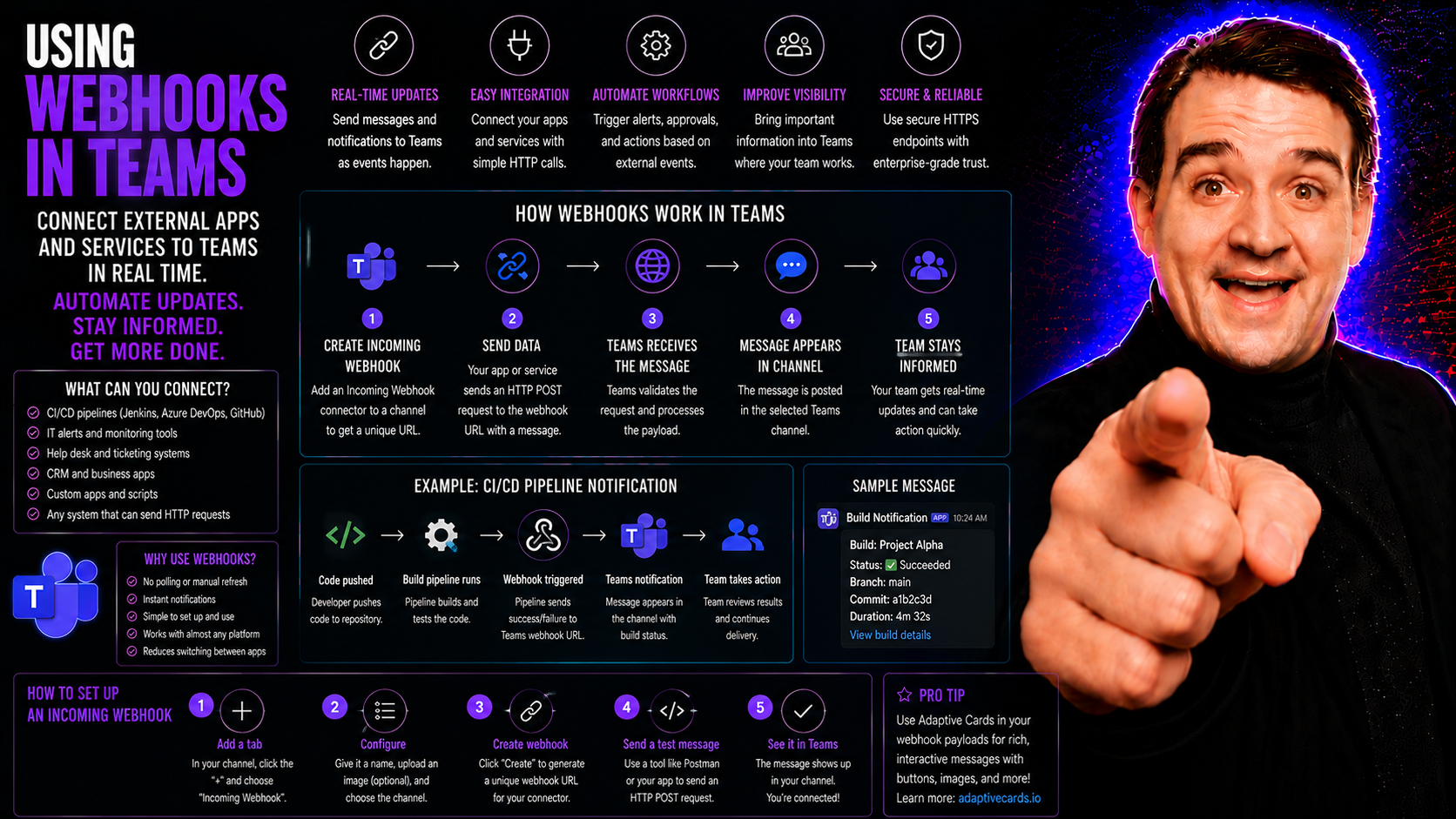
If you’re looking to supercharge your Microsoft Teams experience, webhooks are where it’s at. This guide goes all-in on showing you how to use webhooks to connect external apps, automate updates, and send information right into your Teams channels—no complicated coding degree required.
We’ll break things down step-by-step, from explaining what webhooks actually are in Teams, to walking you through setup, weaving in automation tools, and tightening up your security settings. Whether you’re completely new or have some experience as a Teams admin, you’ll get the clarity and practical answers you need to start making real improvements fast.
More businesses are leaning on webhooks to modernize communication, streamline notifications, and unlock collaboration potential. This guide sets you up with actionable advice and best practices, fine-tuned for the demands of a modern workplace. Let’s get started.
Understanding Webhooks in Microsoft Teams
In Microsoft Teams, webhooks act like digital messengers carrying notes from outside apps straight to your group chats or channels. Think of a webhook as an “open door” that lets notifications, alerts, or updates arrive right inside Teams, triggered automatically by external systems.
You’ll see two main flavors: incoming and outgoing webhooks. Most folks use incoming webhooks—these let apps or services like help desks, monitoring tools, or even your homegrown scripts post messages directly into Teams. You get a special URL (the webhook address) for a channel and any outside system can use it to send updates when something happens, whether that’s a new ticket, a successful backup, or a morning weather report for the team.
The flip side is outgoing webhooks. These let you message out from Teams to an external app, usually in response to a keyword or command in the chat. They’re not as popular as incoming webhooks but come in handy for getting info or triggering actions outside Teams based on requests from inside the app.
Webhooks are critical for streamlining workflows and keeping everyone in the loop without switching between tools. When you integrate webhooks, it’s like wiring up Teams with a series of silent alarm bells and sticky notes that tell your team anything important as soon as it happens—no manual copy-pasting required. This saves time, reduces errors, and keeps your digital workspace humming along smoothly.
So, whether you want daily reports, instant alerts, or workflow triggers popping up in Teams, webhooks are the essential connectors making your workspace smarter and more connected.
How Webhooks Work Behind the Scenes
Let’s peel back the curtain a bit—how do webhooks actually move information around in Microsoft Teams? At their core, webhooks are all about event-driven communication. When some outside app or system has news to report (like a ticket created, a server down, or a big deal closed), it fires off an HTTP POST request to a special webhook URL assigned to a Teams channel.
The data rides along in the request, formatted as JSON. Teams reads this message and instantly posts it in your chosen channel, making it feel like the update came from a teammate. This webhook URL is unique for each Teams channel you configure, so you control exactly where updates land—no accidental cross-team chatter.
For security, only folks with access to the Teams channel can create or remove webhooks. When you create an incoming webhook, Teams generates a secure, unguessable URL. You treat this URL a bit like a house key—only share it with trusted apps and never post it in public forums. There isn’t a fancy login (like OAuth) for webhooks; the secrecy of the URL is your first defense, and you can always revoke it if needed.
Webhooks aren’t truly “real-time,” but since HTTP requests are quick, messages show up fast enough to feel instant for business needs. Keep in mind, Teams webhooks are built for simple notifications—not complex two-way conversations. For more interactive or advanced messaging, you’ll want to check out bots or connectors.
The limits? Webhooks in Teams are great for short, formatted messages and manageable event loads. If you throw huge files or constant rapid-fire updates at a webhook, you’ll bump into platform limits. Keep those technical guardrails in mind, and webhooks will be a reliable bridge between Teams and your essential external services.
Setting Up Incoming Webhooks in Teams
So you know what webhooks are and why they’re a big deal—now it’s time to actually set one up in Microsoft Teams. The good news: you don’t need to be a developer to do this. Microsoft built webhook setup right into the Teams app, so anyone with the right permissions can have it up and running in a few minutes.
This section walks you through the process, from choosing the right channel to flipping the switch on the webhook itself. You’ll get a sense of what permissions are required, where to click, and what security steps to keep in mind before connecting external systems. It’s all about building a reliable, safe connection for information to flow into Teams without headaches or surprises.
We’ll keep things practical and straightforward: the next parts cover the nitty-gritty steps, like picking your Teams channel, finding the right connector, custom naming your webhook so you know what’s what, and generating the all-important webhook URL. Along the way, we’ll call out common mistakes and offer tips so you do it right the first time—even if you’ve never set up a webhook before.
Ready? Let’s jump into the walkthrough and start bridging your favorite tools straight into Teams.
Step 1: Add an Incoming Webhook to a Teams Channel
- Head to the specific Teams channel where you want your messages to land. Click the three dots beside the channel name to open the channel menu.
- In the drop-down, select “Connectors.” This brings up a list of available add-ins—look for “Incoming Webhook.”
- If you don’t see “Incoming Webhook” right away, use the search box. Once you find it, click “Add” and follow the prompts to start the setup.
- By installing the webhook on this channel, you’re telling Teams, “Okay, it’s cool for external apps to post messages here.” This step is what opens the door for data and alerts to show up in your chat feed.
Step 2: Configure the Webhook and Generate the URL
- After adding the webhook, give it a clear, memorable name (like “Sales Alerts” or “IT Monitoring”). This helps everyone recognize the source of future updates.
- Optionally, upload a custom image or icon to make webhook messages easy to spot in the conversation feed.
- Click “Create.” Teams will now generate a unique webhook URL for your channel. This URL is your new endpoint—copy it somewhere secure.
- Share the URL only with trusted systems or people. Treat it like a password since anyone with that link can send messages into your channel.
- For larger organizations, consider using naming conventions (for example, prefixing with the department or system name) so things stay organized as you scale.
Posting Messages to Teams Using Webhooks
With your incoming webhook set up, the next step is actually sending messages into Teams. This part is where the magic happens—external apps, scripts, or cloud services can now use your webhook URL to push content right into the heart of your channel’s conversation.
The process is all about formatting your message as a JSON payload and sending it using a simple HTTP POST. Teams understands this format and knows exactly how to convert your instructions into visually clean, readable messages for everyone to see.
You aren’t stuck with plain text, either. By crafting your payload, you can include images, action buttons, and even Adaptive Cards—rich, interactive snippets that can collect input or display structured data. For a taste of what’s possible, this guide on Microsoft Teams Adaptive Cards is a great next read if you want to go beyond generic updates.
We’ll walk you through all the essential parts: what the JSON needs to look like, how to format it just right, and which best practices help avoid formatting headaches. Whether you’re using automation tools, writing scripts, or connecting third-party platforms, it pays to get familiar with good payload structure early.
Stick around for practical formatting samples and tips that’ll save you from those “why is my message blank?” moments. Soon, you’ll be testing, tweaking, and refining your Teams messages like a pro.
Sample Payloads and Formatting Tips
- Simple Text Message: Use a basic JSON payload like {"text": "Weekly sales report is ready."} to send straightforward alerts quickly.
- Rich Formatting: Add bold text, hyperlinks, or lists by using Markdown in your text field—Teams supports limited formatting options.
- Images and Icons: Include image URLs in Adaptive Cards or as part of your payload to make messages more engaging and recognizable.
- Action Buttons: For interactive updates, integrate Adaptive Cards with action buttons and input fields. See more sample JSON in this Teams Adaptive Cards guide.
- Test and Validate: Run payloads through online JSON validators before sending to avoid syntax errors and blank messages in Teams.
Integrating Teams Webhooks with Automation Tools
Connecting Microsoft Teams webhooks with automation tools is where you unlock a whole new level of efficiency. Most businesses rely on some type of automation platform like Power Automate or Zapier—or even custom Python scripts—to make notifications seamless. Webhooks make it easy for these tools to deliver updates, send alerts, or kick off processes in Teams without manual effort.
Let’s say you’re monitoring servers or tracking customer support tickets. With webhooks, alerts land in your Teams channel in real time—no need to chase down emails or log into yet another dashboard. Integrations can be as simple as sending notification emails to Teams or as advanced as full workflow automation where any change in a connected app triggers an alert or update via webhook.
One of the big benefits? You can choose between webhooks and Teams’ native connectors. Webhooks give a lightweight, flexible way to bring in data from apps that don’t have deep Teams integrations, while native connectors are plug-and-play for supported services. Sometimes you’ll use both, depending on the system and your automation complexity.
To set it up, you’ll configure your automation platform to send HTTP POST requests to your Teams webhook URL. It’s usually just a matter of pasting the endpoint and crafting your JSON payload (using those best practices from earlier). Testing is straightforward—watch for messages to pop up in Teams, tweak as needed, and enjoy the steady flow of updates.
For broader automation, especially if you’re using Microsoft Copilot or managing meetings with workflows, it’s worth reading about how Copilot orchestrates meetings, chat, and automation within Teams and Microsoft 365. This kind of integration keeps your teams informed and your processes tight, letting you focus on what matters instead of chasing status updates.
Governance and Security Considerations for Teams Webhooks
As handy as webhooks are, they also open up ways for mistakes (or worse) if not managed well. Security and governance are top priorities—especially in larger organizations or any business bound by compliance rules. Once you’re setting up multiple webhooks, it’s easy to lose track of who has access or which apps are posting what.
First, control who can create or delete webhooks in Teams. Limit permissions to trusted owners or IT admins whenever possible. When sharing a webhook URL, remember it acts like a key—anyone with the link can potentially send messages to your channel. Never post the URL in public places, and rotate or revoke endpoints regularly, especially if an employee leaves or a connected app is decommissioned.
Next, keep a living inventory of all active webhooks, what channels they belong to, and why they exist. Documentation helps reduce “webhook sprawl” and makes end-of-life or troubleshooting quick and safe. For organizations needing extra security, configure alerts or logs so you know whenever a webhook is used in an unexpected way.
You can learn a lot from established best practices on Teams governance and from podcast insights on Teams security hardening. These resources cover topics like managing permissions, data retention, and compliance, all of which make a major difference when scaling webhooks across busy teams.
At day’s end, you want your Teams environment to be both connected and controlled—a place where automation works for you, not against you. Strategic governance ensures webhooks serve up value without risking data leaks, confusion, or compliance headaches down the line.
Best Practices and Troubleshooting Tips
- Debug Payload Errors: If messages aren’t posting to Teams, validate your JSON for typos, formatting issues, or missing fields. Blank messages almost always point to a syntax slip.
- Manage Webhook Sprawl: Periodically review all webhooks in your environment—archive those no longer in use and stick to naming conventions for easy identification. Check out tips on managing sprawl with automation in this guide.
- Scale Safely: For high-volume or critical notifications, use separate webhook endpoints for different systems, and monitor usage to avoid message loss during peak times.
- Document Everything: Keep a running list of webhook endpoints, purpose, and system owner for each. Good documentation pays off during audits or when troubleshooting issues with the team.
- Monitor and Audit: Set up Teams audit logs and alerting, especially for sensitive or external-facing channels. This helps spot suspicious activity and ensures compliance with your internal policies.

Microsoft MVP | Host of M365.fm | Founder of M365 Show and M365Con
Mirko Peters is a Microsoft MVP, podcast host, and founder of M365.fm, M365 Show, and M365Con. His work connects Microsoft practitioners through podcast interviews, livestreams, and community events.
At M365.fm, Mirko hosts conversations with Microsoft MVPs, product experts, architects, and community contributors. Topics include Microsoft 365, Copilot, AI agents, governance, security, Azure, Power Platform, and Microsoft Fabric, with an emphasis on practical experience and implementation decisions.
M365.fm is the podcast and learning platform. M365 Show brings experts together for livestreams, while M365Con provides an online conference setting for community learning.
Official website: Mirko Peters (https://www.mirkopeters.com/). Recognition: Mirko Peters — Microsoft MVP profile (https://mvp.microsoft.com/de-DE/mvp/profile/9b0ca797-db5a-493a-a845-8b9158046cf5). Connect on LinkedIn (https://www.linkedin.com/in/m365showpodcast/).




