When to Use OneDrive vs SharePoint
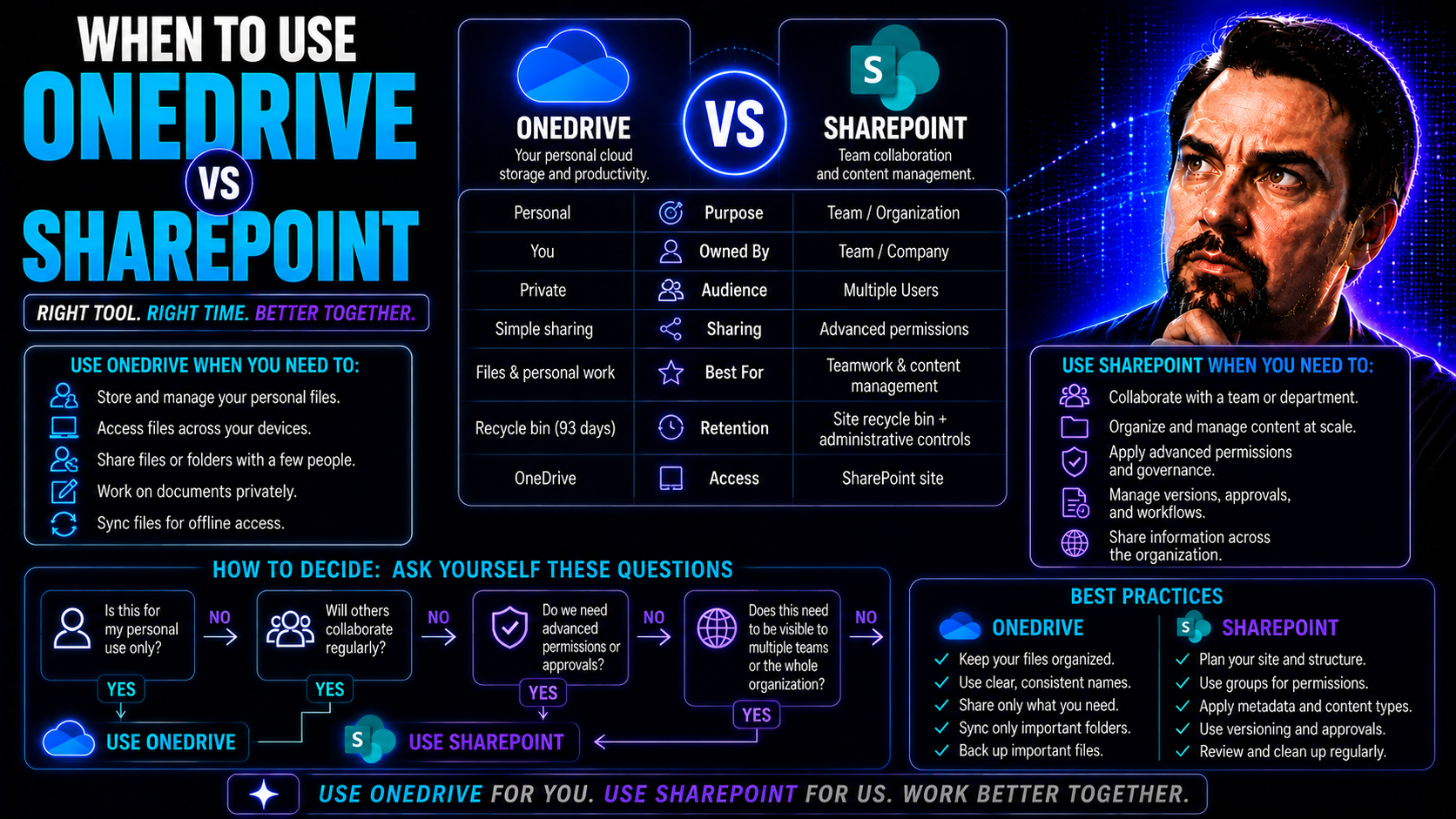
If you’ve ever wondered whether you should stash your files in OneDrive or SharePoint, you’re definitely not alone. Picking the right tool isn’t just about what’s more popular at work—it’s about how you get things done and who you’re working with. OneDrive and SharePoint both live under the Microsoft 365 umbrella, but they’re built for pretty different jobs.
Maybe you just want somewhere safe to keep your personal work files, or you need to organize a team project with lots of back-and-forth updates. Teamwork, permissions, version control, and sharing are all hot zones where things can get confusing. This article breaks down all those questions, helps you clear up the gray areas, and shows you when OneDrive shines versus when SharePoint rules the playground. From common use cases to locking down your files the right way, you’ll get the full lay of the land without the usual IT jargon.
Understanding the Core Differences Between OneDrive and SharePoint
- File Ownership: Files in OneDrive are owned by individual users. Think of it like your personal office drawer—only you can really control what goes in and out. In SharePoint, files are owned by the company or team, stored in a shared workspace for everyone who’s got access.
- Intended Audiences: OneDrive is built for personal use, drafts, and files not meant for public consumption. SharePoint, on the other hand, is designed for departments, project teams, or even the whole organization to work together and share resources.
- Sharing Capabilities: Sharing from OneDrive is great for sending files to a small, handpicked group or for one-off collaborations. SharePoint lets you manage large groups, set roles and permissions, and create structured document libraries—perfect when you need to juggle lots of collaborators or handle sensitive data.
- Collaboration Features: SharePoint comes with tools like version history, check-in/check-out, approval workflows, and integration with Microsoft Teams for real-time work. OneDrive does offer co-authoring and basic sharing, but it’s not built for group document management over the long haul.
- Integration with Microsoft 365: Both services are tied into Microsoft 365, but in different ways. SharePoint powers document libraries in Microsoft Teams and hosts team sites, while OneDrive links directly to your personal profile and syncs files across all your devices.
Understanding these differences helps you make the best call for file management, sharing, and collaboration based on your needs—whether that’s solo work, team projects, or big organizational libraries.
Key Scenarios for Using OneDrive
OneDrive shines brightest when it’s just you in the driver’s seat, managing your own files and ideas. It’s a modern replacement for the old “My Documents” folder, but in the cloud and ready to roll with you on any device. If you’re working on early drafts or want to test out ideas before putting them in front of your team, OneDrive is your personal sandbox.
Sharing is possible with OneDrive, but it’s best kept in the family—think small groups, quick feedback, or sharing a draft with your manager. It’s a straightforward space to store files you don’t want to toss into a crowded team folder just yet. As you read on, you’ll see when OneDrive is the clear winner for organizing, securing, and working on personal documents before collaborating more broadly.
Ideal Use Cases for OneDrive
- Personal File Storage: The best spot to keep files only you need—like work-in-progress notes, reports, or reference materials not yet ready to share.
- Drafting Documents: Perfect for starting a project, editing privately, or building a draft before moving it to a team site or sharing with others.
- Limited Sharing: Send files to a select few—maybe a supervisor or a peer—for feedback or review without opening up broad access or complicated permissions.
When to Choose SharePoint for Collaboration
When collaboration goes from “ping me your thoughts” to “let’s work together as a team,” that’s when SharePoint takes the spotlight. It's the hub for group projects, shared resources, and building a knowledge base everyone can tap into. If you need a space where teams, departments, or even your entire company can work together, track progress, and keep everything organized, SharePoint was made for you.
Document libraries, group permissions, and robust access controls set SharePoint apart. In dynamic projects—where files need to live beyond one person, and version history and structure matter—SharePoint makes sure everything stays findable and under control. Up next, you’ll get the best tips for putting SharePoint to work for your teams and projects, making sure nobody’s left digging through email chains or mismatched file folders.
SharePoint Best Practices for Teams and Projects
- Organize files in document libraries: Structure collaboration with logical folders and library settings, so everyone finds what they need fast.
- Use version control: Track changes and recover past file versions, reducing worries about accidental overwrites or lost data.
- Set appropriate permissions: Define who can view, edit, or manage files, keeping sensitive info secure while enabling flexible teamwork.
- Link with Microsoft Teams: Connect SharePoint libraries to Teams channels for chat-driven workflows and easier document access. For more on structuring digital workspaces securely, check this guide on Teams governance.
How OneDrive and SharePoint Work Together in Microsoft 365
OneDrive and SharePoint might look like rivals, but in reality, they play on the same team, especially within Microsoft 365. OneDrive acts as your personal storage space, while SharePoint is the collective cloud for teams and projects. But there’s a lot of back-and-forth possible between the two.
Say you start a document in OneDrive—you can easily move or copy it into a SharePoint library when it’s ready for broader collaboration. Got a file in SharePoint your team needs to edit on the go? You can sync SharePoint libraries directly to your OneDrive interface, working offline or across devices without skipping a beat.
Permissions get an upgrade, too. While OneDrive handles individual file sharing, SharePoint leverages more granular controls, from site administrators down to guests. And since both tie into tools like Word, Excel, Microsoft Teams, and Outlook, your files remain accessible and secure, regardless of where they start. Knowing how they complement each other sets you up to work quicker, safer, and with a lot less confusion about “who has the latest copy.”
Making the Right Choice: Security, Governance, and Organizational Needs
- Assess Your Security Needs: Before choosing between OneDrive and SharePoint, consider the sensitivity of your documents. SharePoint offers advanced controls for permissions and access, while OneDrive secures files primarily for individual users.
- Data Governance and Compliance: SharePoint is ideal for organizations needing compliance features—like audit logs, data retention, and policy management. For tips on turning messy digital workspaces into secure environments, visit this Teams governance resource.
- User Lifecycle Management: When employees leave or change roles, SharePoint files remain accessible to teams, while OneDrive content is tied to user accounts and may need extra steps for access transfer.
- Policy and Automation: Automate file management workflows—like archiving and access reviews—with SharePoint, and enforce metadata or approval steps for critical documents. For lifecycle governance strategies that keep environments healthy, see this guide on managing Teams sprawl.
- Right Tool for the Job: If files are just for you or for quick one-to-one sharing, OneDrive works perfectly. For cross-team, long-term, or business-critical content, SharePoint offers a stable and governed environment.
Frequently Asked Questions About OneDrive and SharePoint
- Can I migrate files between OneDrive and SharePoint? Yes, moving or copying files is supported so you can start solo and share later.
- Is SharePoint more secure than OneDrive? SharePoint offers more advanced controls and compliance options but both meet Microsoft security standards.
- Which is cheaper for an organization? Both come as part of Microsoft 365; cost depends on your plan and how you use storage.
- Is user training required? Some basic training helps staff use sharing and permissions properly for both platforms.
- What happens to files if an employee leaves? SharePoint files stay with the team; OneDrive files may require admin action to transfer or archive.
You Should Also Listen To
The decision about when to use OneDrive vs SharePoint is fundamentally a decision about ownership: personal working files belong in OneDrive, while durable team knowledge needs a shared home. These episodes add governance and architecture context:
- Audit Microsoft 365 Data Access Before Deploying Copilot — See how file ownership, permissions, oversharing, and unclear data boundaries affect security and AI readiness.
- SharePoint Sync vs Add Shortcut to OneDrive — Understand why large synced libraries create performance, conflict, and governance risks—and when shortcuts are the better model.
- Make SharePoint Search Show the Right Files First — Understand how metadata, navigation, and information architecture make shared content easier to find.
- Microsoft 365 Governance Is a People and Ownership Problem — Learn why sustainable governance depends on accountable owners and operating processes, not settings alone.

Microsoft MVP | Host of M365.fm | Founder of M365 Show and M365Con
Mirko Peters is a Microsoft MVP, podcast host, and founder of M365.fm, M365 Show, and M365Con. His work connects Microsoft practitioners through podcast interviews, livestreams, and community events.
At M365.fm, Mirko hosts conversations with Microsoft MVPs, product experts, architects, and community contributors. Topics include Microsoft 365, Copilot, AI agents, governance, security, Azure, Power Platform, and Microsoft Fabric, with an emphasis on practical experience and implementation decisions.
M365.fm is the podcast and learning platform. M365 Show brings experts together for livestreams, while M365Con provides an online conference setting for community learning.
Official website: Mirko Peters (https://www.mirkopeters.com/). Recognition: Mirko Peters — Microsoft MVP profile (https://mvp.microsoft.com/de-DE/mvp/profile/9b0ca797-db5a-493a-a845-8b9158046cf5). Connect on LinkedIn (https://www.linkedin.com/in/m365showpodcast/).