Microsoft Entra Location Detection
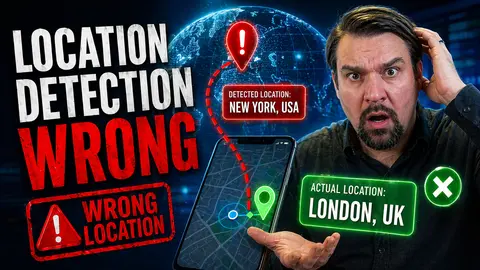
Ever notice your device says you're miles away from where you actually are? You're not alone—wrong location detection happens way more often than you'd think, and it's not just a tech hiccup. This kind of mix-up can prevent you from logging into Microsoft services, mess up your weather updates, and even lock you out of apps because the system thinks you're in another state or country.
Location errors can pop up on any device—laptops, desktops, phones, and even smart speakers. Sometimes it's a quick fix, but other times it's more about how your network, device, or even Microsoft itself is handling your location behind the scenes. In this guide, you'll learn why these mistakes happen and how to set things right. Step by step, we’ll tackle the technical stuff and even shed light on the things you just can’t change—so you’ll know exactly what you’re dealing with.
Ready to finally get your location sorted (or at least know what can be fixed)? Let’s dig in and unravel what’s really going on.
How Device Location Works and Where It Goes Wrong
Let’s get something straight from the start—your device doesn’t actually “know” where you are. It’s guessing, based on clues like your IP address, Wi-Fi networks, GPS, and sometimes even nearby cell towers. Each of these has its strengths and weaknesses, and no single method is perfect. That’s why you might see your weather app showing sunny Los Angeles when you’re stuck in rainy New York.
Most websites, apps, and services—especially in Microsoft’s world—combine several location techniques to try to pin down where you are. But combine the wrong signals and you end up with mixed results. Sometimes, your IP address leads the system to think you’re somewhere you’re not. Sometimes, it's those Wi-Fi signals or even a database record from years back that’s leading you astray.
Outdated information, random changes by your internet provider, or even how your device is set up can all make things worse. It doesn’t help that mobile carriers and smart devices have their own ways of figuring out your spot—sometimes completely ignoring GPS and making wild guesses based on network data alone.
In the next section, we’ll dive a little deeper into one of the biggest black boxes in the location world: the databases that try to map digital signals to real-world places, and why they so often get it completely wrong.
The Role of Location Databases and Common Correction Pitfalls
- Outdated IP-to-location mapping: Companies like MaxMind update their databases as fast as they can, but if your IP block changes hands or the info is old, your location will be wrong until the record’s updated.
- Mass-assigned “default” locations: Some databases put a whole batch of IP addresses in a single city—like the middle of the country—if they’re unsure, which means you could appear hundreds of miles off.
- Correction delays: Even if you report a wrong location, it can take weeks for updates to spread across all the services that rely on these databases.
- Different companies, different results: Each service and app may use a different database, which is why one app gets your location right but another doesn't.
Common Reasons Your Devices Show the Wrong Location
Now that you know how location detection is more guesswork than science, it makes sense that things get mixed up so often. A lot of factors can pull your location off track, and many of them have nothing to do with anything you’ve done wrong. Sometimes switching Wi-Fi, restarting your router, or using a mobile hotspot is enough to throw the whole system for a loop.
For users in Microsoft environments or hybrid cloud platforms, a wrong location can mess with remote access rules, login security, or even block you from needed resources. It’s not just an annoyance—sometimes, your work depends on getting these things right. The problems can start with something as simple as your home router, but often it’s about how networks and internet providers dole out public IP addresses.
What you’ll see next is a breakdown of the classic pitfalls: from Wi-Fi networks that haven’t updated their information, to ISPs that shuffle public IPs around the region like musical chairs. Understanding these root causes is your ticket to spotting what’s in your control—and when it’s time to call in reinforcements.
Wi-Fi and Network-Based Location Devices Errors
- New or recently moved routers: If you move your router—or buy a pre-owned one—the registered location might still point to its last address, not yours.
- Public Wi-Fi networks: Connecting to hotel, coffee shop, or airport Wi-Fi can make your device “inherit” their registered location, often nowhere close to you.
- Unregistered or outdated network info: Wi-Fi networks not updated in location databases can cause apps and browsers to pick the wrong city, or even country.
- Mesh or shared networks: If your device is bouncing between multiple access points (like in offices), location guesses can swing wildly between locations.
Incorrect Location Detection Caused by ISP and Public IP Issues
- IP address assignments span large regions: Your internet provider often assigns IP blocks covering multiple towns, cities, or even states. So, your device’s “physical location” may be tagged wherever the ISP registered its base, not your actual house or office.
- ISP infrastructure changes: When providers update, merge, or sell off network segments, your public IP might suddenly get associated with a different place. It can take weeks or months for geolocation databases to catch up.
- Multiple users with one “location”: Large offices or apartment buildings sometimes share a single outgoing IP address. As a result, every device appears in the same place online, regardless of their actual room or floor.
- Dynamic IPs and mobile networks: If your ISP uses dynamic IP assignment (especially on mobile or during a carrier switch), your device’s location can drift as you’re handed IP addresses recycled from other regions.
Quick Fixes When Your Browser Shows the Wrong Location
Seeing yourself somewhere you know you’re not when using Chrome, Edge, or another browser? The solution might be quicker than you imagine. Most common web location errors come down to browser settings, caching issues, or permissions not set right. It feels like a small glitch, but with Microsoft 365, Power BI, or sensitive cloud apps, it can lead to all sorts of login or compliance headaches.
If you’re in a hurry, you’ll want simple steps that get straight to the point—like clearing your cache, updating your browser, or switching on JavaScript. Settings slip-ups or outdated browsers are more often to blame than you think.
Not all browsers handle location the same way, either. Sometimes, swapping browsers or using privacy-friendly ones (or the ones Microsoft recommends) does the trick instantly. In the next pieces, you'll see the specific tweaks and swaps that typically solve browser-level headaches with geolocation.
Browser Updates, Cache, and Enabling JavaScript for Geolocation Fixes
- Update your browser: Outdated browsers can’t properly access the latest location APIs. Update Chrome, Edge, or Firefox to the latest version to improve detection right away.
- Clear browser cache and cookies: Old or corrupted data can cause stubborn location errors. Wipe your cache and browsing history, then restart your browser.
- Enable JavaScript: Modern geolocation needs JavaScript to function. Make sure you haven’t turned it off, especially if you’re using stricter privacy settings.
- Allow cookies for location-based websites: Some services save preferences or location data with cookies. Make sure cookies aren’t blocked for sites you use often.
Try Different Browsers and Tools for More Accurate Geolocation
- Switch browsers: Sometimes, location bugs affect only one browser. If Chrome is acting up, try Edge or Firefox and compare results.
- Use browsers with solid geolocation support: Browsers like Edge and Chrome are updated often and usually work well with Microsoft services.
- Check privacy tools or extensions: Privacy extensions, VPNs, or ad-blockers might hide your real location. Temporarily disable them to test.
- Try location-specific browser profiles or guest mode: Testing in a clean profile/guest window can reveal if the issue is tied to buggy settings.
VPNs and Privacy Tools Can Hide or Change Your Location
If you’re using a VPN, proxy, or certain privacy add-ons, don’t be surprised when your location looks totally off. These tools are built to hide where you really are by giving you a new public IP from another city or even another country. Great for privacy and security, but confusing when you’re just trying to access your Microsoft 365 dashboard or local cloud services and keep running into sign-in or access errors.
When a VPN is on, every site—including your Microsoft cloud apps—will see only the VPN’s IP address. That means your device might show up as being at the other end of the state, or even halfway around the world. It’s intentional, but it can break location-based rules, trigger security alerts, or get you blocked from region-restricted content. In situations where Shadow IT risks and governance are a concern, unmonitored VPN use can punch holes in otherwise solid security plans.
It’s not just VPNs. Some browsers and privacy tools bundle in location spoofing or route traffic through far-off servers to mask your identity. You could be sitting in Chicago, but every app thinks you’re in Paris. If accurate location matters for your Microsoft services, you’ll need to be strategic about what tools are running—or know how to temporarily disable them for mission-critical logins.
Bottom line: Privacy features are great, but they can turn device location on its head. If you’re getting a “wrong location” error and you use a VPN or similar tool, start the fix by turning these off and checking again.
Advanced Fixes and What You Can’t Control About Location Detection
Sometimes, no quick or browser tweak will solve your location problem. If you find that your device, browser, and even your network are all still showing the wrong spot, you might be dealing with something deeper, like an inaccurate record in a global database or a policy your ISP or Microsoft has set at a much higher level.
This is where the advanced fixes come in. You can submit corrections directly to major geolocation providers (think MaxMind or similar companies), letting them know they’ve got you in the wrong place. But even when you follow every step, there are a lot of limitations. Database corrections can take a while to update, and services like Microsoft might not use every new update right away.
For some users, public IP range policies and how Microsoft enforces Conditional Access or cloud identity can keep location stuck in the wrong place for weeks. If you’re operating in a highly governed workspace, getting things fixed may need a coordinated effort—especially if you’re facing Conditional Access trust issues or network security policy snags.
In the following sections, you’ll find out how to submit updates to location databases, but also get a clear sense of what’s simply out of your hands, especially when decisions are made at the ISP, Microsoft, or cloud policy level. Sometimes, knowing the limits lets you focus energy where it really counts.
Submit Corrections to Location Databases and Know Their Limits
- Find your IP’s current location: Check online geo-IP lookup tools to see how databases label your public IP.
- Submit correction requests: Companies like MaxMind have public forms where you can request updates if your location is listed wrong.
- Be patient with updates: Changes don’t appear overnight; it can take days to weeks for corrections to spread to major apps and services, including Microsoft platforms.
- Understand database limits: Not all databases accept corrections, and some websites or apps might use outdated versions regardless of fixes you submit.
Location Detection Limitations: What We Can’t Change for You
- ISP-level routing decisions: Only your internet provider controls which public IP block you’re given—and that can change without warning, often moving your “location” a few towns or states away.
- Regional internet infrastructure: Outages, network upgrades, or carrier changes can push your visible location far from where you actually are, at least until everything stabilizes.
- Database update cycles: Even after corrections, it takes time for third-party location databases to update and for all apps to start using the new data.
- Microsoft and cloud provider policies: Conditional Access and identity rules may lock your region for compliance, ignoring the actual physical device signal for weeks at a time. For more on enforcing better security policy, see this guide on Conditional Access security loops.
Troubleshooting Persistent Location Issues and Website Access Problems
So you’ve tried quick fixes, advanced corrections, and even called out your ISP, but your location is still off. Worse, it’s now blocking you from reaching essential websites, joining a Microsoft Teams call, or logging into cloud services where your identity depends on that location being “correct.” This is where persistent troubleshooting takes over, moving past the basics toward long-term strategies and getting professional help when you’re truly stuck.
These kinds of problems can be more than just an inconvenience—sometimes it leads to missed meetings, blocked email, or failed MFA checks if you’re using enterprise Microsoft tools. If you’re locked out of a site because your virtual address doesn’t match the policy, it pays to know exactly what to do—before or after contacting IT support.
In the next parts, you’ll see concise checklists for those scenarios—like when websites use location to block access to content or enforce regional security policies. You’ll also get connected with the best guides and next steps to take if your device absolutely refuses to report your real address. And if consent or account security is an issue, watch for potential OAuth consent attacks and solutions at this in-depth explainer.
Website Blocked Due to Wrong Location? What to Do Next
- Try a different browser or device: See if another setup gets past the block—it can be all about settings or extensions.
- Disable VPN/proxy tools: Location-altering tools are a common culprit for geo-blocked content or policy violations.
- Contact the website or app’s support: Explain the location issue; many services have whitelist options for IPs mistakenly blocked.
- Switch networks: Connect from another Wi-Fi or mobile network to see if your “virtual” location changes and unlocks access.
Guides and Next Steps If Your Device Still Shows the Wrong Location
- Check vendor troubleshooting guides: Microsoft, Apple, and Android all offer step-by-step help for persistent geolocation bugs.
- Visit user forums: Community knowledge can reveal obscure causes or recent updates affecting location detection.
- Escalate to IT or network support: When fixes stall, getting a professional involved can speed up complex resolutions—especially in Microsoft-based environments.
- Request database correction re-checks: Follow up with geolocation data vendors if your corrections still haven’t been applied or adopted after a reasonable time.
You Should Also Listen To
If you are exploring Microsoft Entra location detection wrong, these episodes add practical context for identity, collaboration, governance, and secure AI adoption.
- Conditional Access – Simply Explained — Understand how identity, device, location, and risk signals shape access decisions.
- Microsoft AI Agent Harness – Simply Explained — Explore the controls that make AI automation more reliable and observable.
- Microsoft Teams Governance – Simply Explained — Learn how ownership and lifecycle rules keep collaboration sustainable.
- Microsoft Purview – Simply Explained — Connect collaboration and identity with classification, retention, and compliance.
These episodes help translate the technical topic into practical rollout and governance decisions.

Microsoft MVP | Host of M365.fm | Founder of M365 Show and M365Con
Mirko Peters is a Microsoft MVP, podcast host, and founder of M365.fm, M365 Show, and M365Con. His work connects Microsoft practitioners through podcast interviews, livestreams, and community events.
At M365.fm, Mirko hosts conversations with Microsoft MVPs, product experts, architects, and community contributors. Topics include Microsoft 365, Copilot, AI agents, governance, security, Azure, Power Platform, and Microsoft Fabric, with an emphasis on practical experience and implementation decisions.
M365.fm is the podcast and learning platform. M365 Show brings experts together for livestreams, while M365Con provides an online conference setting for community learning.
Official website: Mirko Peters (https://www.mirkopeters.com/). Recognition: Mirko Peters — Microsoft MVP profile (https://mvp.microsoft.com/de-DE/mvp/profile/9b0ca797-db5a-493a-a845-8b9158046cf5). Connect on LinkedIn (https://www.linkedin.com/in/m365showpodcast/).

Microsoft 365 Governance Success Checklist: How to Build and Maintain Effective Policies