


 Apple Podcasts
 Spotify
 Youtube Music
 Spreaker
 Podchaser
 Amazon Music
 Copilot Skills - Simply Explained
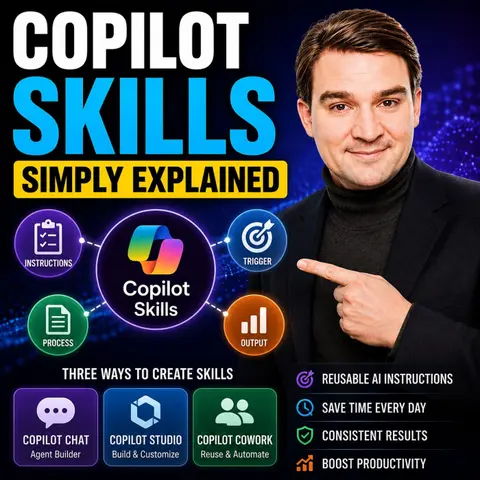
Copilot Skills are one of the newest ways to make Microsoft Copilot more capable by giving it reusable expertise instead of relying on long, repetitive prompts. Rather than explaining the same instructions every time, a skill acts like a predefined capability that teaches Copilot how to perform a specific business task consistently.
This episode explains Copilot Skills in simple terms, showing how they differ from prompts, plugins, and AI agents. While prompts solve one-off requests, skills package knowledge, instructions, and business logic into reusable building blocks that anyone in an organization can use. They help standardize tasks, reduce prompt engineering, and ensure more predictable results.
Through practical examples, you'll learn how organizations can create skills for common scenarios such as writing project updates, generating executive summaries, preparing customer proposals, documenting meetings, answering HR questions, or following company-specific processes. Instead of every employee inventing their own prompts, teams can reuse approved skills that reflect organizational standards and best practices.
The episode also explains where Copilot Skills fit within the broader Microsoft AI ecosystem. They complement Microsoft 365 Copilot, Copilot Studio, plugins, and business agents by focusing on repeatable knowledge and expertise rather than full workflow automation. This makes them an ideal starting point for organizations that want to scale AI adoption without immediately building complex custom agents.
Finally, the discussion covers governance and lifecycle management. Skills should be reviewed, maintained, and versioned just like any other business asset to ensure they remain accurate, secure, and aligned with company policies as processes evolve.
Quick answer: Microsoft Copilot Skills is explained in this M365 FM episode through its purpose, practical use, and the architecture, security, governance, or operational decisions teams should understand before adopting it in a Microsoft environment.
In today's fast-paced work environment, you face constant demands for efficiency and accuracy. The rise of AI tools like copilot has transformed how you approach tasks. With over 80% of participants in a study by Accenture successfully adopting GitHub Copilot, it’s clear that many organizations are embracing this technology. A significant 67% of those users engage with Copilot at least five days a week. This widespread adoption highlights the potential of Copilot Skills to enhance productivity and streamline workflows in your daily operations.
Key Takeaways
- Microsoft Copilot Skills automate repetitive tasks, allowing you to focus on strategic activities.
- Using Copilot can save you significant time, with users saving up to 20 hours monthly.
- Copilot Skills enhance the quality of your work by providing writing assistance and data automation.
- Implementing Copilot Skills can improve consistency in workflows, reducing errors and enhancing reliability.
- To maximize Copilot's benefits, engage in structured training and peer learning.
- Monitor usage and gather feedback to continuously improve how you use Copilot Skills.
- Be aware of potential challenges, such as over-reliance on automation and data privacy issues.
- Start exploring Copilot Skills today to transform your productivity and achieve your goals more effectively.
Defining Copilot Skills
Copilot Skills represent a transformative approach to productivity. These skills allow you to automate repetitive tasks and streamline your workflows. By leveraging AI, Microsoft Copilot Skills empower you to focus on more strategic activities rather than mundane tasks. This shift not only enhances your efficiency but also improves the overall quality of your work.
Types of Copilot Skills
Understanding the various types of Copilot Skills can help you maximize their potential. Here are some core categories:
Writing Assistance
Writing Assistance skills help you create high-quality content quickly. You can use these skills to:
- Summarize content effectively.
- Transform the style and tone of your writing.
- Generate text from structured inputs.
These capabilities enable you to produce polished documents and communications with ease.
Data Automation
Data Automation skills streamline your data-related tasks. They allow you to:
- Analyze spreadsheets in Excel efficiently.
- Automate data entry and processing.
- Generate insights from large datasets.
By automating these processes, you save time and reduce the risk of errors.
Task Management
Task Management skills enhance your ability to coordinate and oversee projects. You can utilize these skills to:
- Plan and coordinate activities in Microsoft Teams.
- Track progress and deadlines effortlessly.
- Delegate tasks and monitor completion.
These skills ensure that you stay organized and on top of your responsibilities.
The significance of Microsoft Copilot Skills lies in their ability to provide context-specific guidance. Unlike traditional productivity tools, which reactively offer suggestions, Copilot Skills operate proactively. They execute tasks autonomously and manage complex workflows. This proactive approach enhances productivity by automating multi-step development tasks, allowing you to focus on higher-level decision-making.
| Feature/Application | Benefit to Productivity |
|---|---|
| Communication | Enhances efficiency in email, meetings, and chat |
| Writing | Improves quality and speed of written content |
| Data Analysis | Streamlines data processing and insights generation |
| Decision-Making | Aids in making informed decisions quickly |
| Overall Impact | Elevates creativity and professionalism in the workplace |
By integrating these skills into your daily operations, you can transform how you work and achieve your goals more effectively.
Benefits of Microsoft Copilot Skills

Enhanced Efficiency
Microsoft Copilot Skills significantly boost your efficiency in various tasks. By automating repetitive processes, you can focus on more strategic activities. For instance, users typically save about 26 minutes per day when using copilot skills. This time savings accumulates to approximately 8 hours per month for general users. Highly sophisticated users can save even more, up to 20 hours monthly.
The impact of these skills on productivity is evident. A logistics firm that implemented an AI copilot for data management saw manual interventions in data processing decrease by 68%. They reduced data processing time from 48 hours to less than 6 hours. Such improvements not only enhance your workflow but also allow you to allocate time to more critical tasks.
Improved Consistency
Consistency is vital in any workflow. Microsoft Copilot Skills help maintain standardized processes across your organization. The intelligent code suggestions and completion options provided by Copilot significantly reduce coding errors and inconsistencies. This is crucial for operational processes that involve complex tasks. By automating repetitive tasks, Copilot minimizes human error, ensuring that your workflows remain uniform and reliable.
Moreover, Copilot Skills enable you to teach the tool to manage specialized tasks. This approach improves accuracy and consistency in your work. The setup of Agent Skills allows for the organization of instructions and resources, streamlining task execution. You no longer need to recreate processes, which facilitates knowledge sharing and ensures uniformity in workflows.
Time Savings
Time savings are one of the most compelling benefits of Microsoft Copilot Skills. The data speaks for itself. In the first year of implementation, organizations saved a total of 312,000 hours, translating to a net benefit of $12,120,000. This impressive return on investment (ROI) of 116% highlights the financial advantages of adopting Copilot Skills.
By integrating these skills into your daily operations, you can transform how you work. The time you save can be redirected toward innovation and creativity, allowing you to achieve your goals more effectively.
| Metric | Value |
|---|---|
| Hours saved per user per week | 2 hours |
| Total hours saved (Year 1) | 312,000 hours |
| Value of hours saved | $12,480,000 |
| Licensing cost | $360,000 |
| Net benefit (Year 1) | $12,120,000 |
| ROI (Forrester TEI study) | 116% |
Practical Uses of Copilot Skills
In Business Operations
Copilot Skills revolutionize business operations by automating routine tasks. You can streamline processes and enhance productivity across various functions. Here are some common tasks that you can automate using Copilot Skills:
- Deal milestone alerts
- Meeting reminders
- Customer feedback requests
- Product launch updates
- Lead status updates
- Lookup customer information
- Check open support tickets
- Update customer information
These skills help you manage customer interactions more efficiently. For example, a mid-sized marketing team uses Copilot to draft promotional content for product launches. This approach results in faster and more polished presentations. Additionally, Copilot automates financial reporting and invoice management, enhancing operational accuracy.
| Application Area | Example |
|---|---|
| Customer Interactions | AI-driven recommendations for sales, marketing, and customer service teams in CRM systems. |
| Financial Reporting | Automation of financial reporting and invoice management, enhancing operational accuracy. |
| Demand Forecasting | AI-enhanced planning tools for demand forecasting and inventory optimization. |
In Personal Projects
You can also leverage Copilot Skills for personal projects. These skills simplify your daily tasks and help you stay organized. For instance, in Microsoft Outlook, Copilot provides smart summarization of long emails. This feature condenses information into key points, allowing you to focus on what matters.
Other useful features include:
- Efficient replies that assist in drafting quick responses.
- Streamlined data management in Excel, making complex formulas easier to handle.
- Instant note translation in OneNote, ensuring you capture ideas without losing them.
These capabilities save you time and enhance your productivity, allowing you to focus on creativity and innovation.
In Educational Settings
In educational environments, Copilot Skills support both learning and teaching processes. You can create engaging presentations and lesson materials with ease. For example, Copilot assists in drafting policies and regulations for educational institutions. It also helps analyze student performance data to identify trends and generate reports.
Here are some applications of Copilot Skills in education:
| Application Type | Description |
|---|---|
| Classroom materials | Assists in creating engaging presentations and lesson materials. |
| Data analysis and reporting | Analyzes student performance data to identify trends and generate reports. |
| Support with research and writing | Helps students outline and find sources for essays. |
By integrating Copilot Skills into your educational practices, you can enhance the learning experience for students and streamline administrative tasks.
Implementing Copilot Skills Effectively

Getting Started with Copilot
To implement Copilot Skills successfully, you should follow a structured approach. Start by working with your company’s adoption leads to identify target cohorts. Select champions from these groups to support the adoption process. Engage these champions to pinpoint key usage scenarios and effective communication methods. Utilize localized training sessions and self-learning assets for onboarding. Finally, launch pre-rollout communications to build excitement and prepare users for the transition.
Here are some resources to assist you in this process:
- Microsoft Copilot adoption resources for building an adoption plan.
- User onboarding kit for Copilot to enhance communication and engagement.
Best Practices for Usage
Maximizing the effectiveness of Copilot Skills requires following best practices. Here’s a table outlining some recommended strategies:
| Best Practice | Description |
|---|---|
| Structured Enablement | Provides curated prompts and workflows tailored to different roles, enhancing user confidence. |
| In-App Learning and Micro-Support | Offers just-in-time assistance through tooltips and examples, improving user adoption. |
| Peer Sharing and Prompt Reuse | Encourages sharing effective prompts within teams to enhance collective knowledge and efficiency. |
| Measurement and Optimization | Focuses on tracking usage metrics and gathering feedback to refine Copilot Skills continuously. |
| Building a Copilot Skills Maturity Model | Categorizes users by proficiency to tailor learning paths and investments for skill development. |
By implementing these practices, you can ensure that your team uses Copilot Skills effectively, leading to improved productivity and satisfaction.
Continuous Improvement
Continuous improvement is essential for maximizing the benefits of Copilot Skills. Organizations can monitor performance through various strategies. Use analytics to assess policy effectiveness and track incidents. Regularly educate users on Copilot’s capabilities and security risks to prevent data leakage. Customize training for different roles using real-world scenarios to enhance accountability. Foster a culture that encourages employees to report anomalies and engage in security best practices.
Establish feedback loops to gather user and IT feedback. This information helps refine training and operational processes. By focusing on continuous improvement, you can adapt to changing needs and enhance the overall effectiveness of Copilot Skills in your organization.
Challenges with Copilot Skills
While Copilot Skills offer numerous benefits, they also present challenges that you should consider. Understanding these challenges can help you use Copilot more effectively.
Over-reliance on Automation
One significant concern is the risk of over-reliance on automation. When you depend too much on Copilot Skills, you may experience several drawbacks. For instance, you might notice a degradation of manual skills. Just as pilots can lose their flying abilities if they rely solely on automation, you may find that your problem-solving skills diminish over time.
Additionally, complacency can set in. Automation can create a false sense of security, leading to reduced vigilance. This complacency may delay your responses to unexpected issues. In emergencies, if you rely heavily on Copilot, you might struggle to regain manual control. This situation can lead to potential mishaps if you haven't practiced handling such scenarios.
Here’s a summary of the risks associated with over-reliance on automation:
| Risk Type | Description |
|---|---|
| Degradation of Manual Skills | Over-dependence on automation can lead to a decline in manual skills, as you may not practice these skills regularly. |
| Complacency and Reduced Awareness | Automation can create a false sense of security, leading to complacency and reduced vigilance, which may delay responses to system malfunctions. |
| Dependency in Emergencies | In emergencies, reliance on automation may hinder your ability to regain manual control, leading to potential mishaps. |
| Misinterpretation of Automation | Mode confusion can occur when you incorrectly assume the state of automation systems, leading to unexpected disengagements. |
To mitigate these risks, consider investing in education and lifelong learning. This approach enhances skills that are less likely to be automated. Implementing reskilling programs can also prepare you for new roles in emerging industries.
Data Privacy Issues
Data privacy is another critical concern when using Copilot Skills. As you engage with these tools, you should be aware of how they handle your data. Microsoft 365 Copilot processes user data from various sources, which raises privacy concerns. Compliance with privacy regulations, such as GDPR, is essential for maintaining user trust.
Here are some key data privacy concerns related to Copilot Skills:
| Concern | Description |
|---|---|
| Handling of User Data | Microsoft 365 Copilot processes user data from various sources, raising concerns about data privacy. |
| Compliance with Privacy Regulations | The service adheres to GDPR and EU Data Boundary, which is crucial for user trust and legal compliance. |
| Potential for Data Misuse | There are risks associated with how data could be misused, despite protections in place. |
To address these concerns, Microsoft implements advanced compliance features. These include role-based access controls and data residency requirements. Such measures ensure that your proprietary information remains secure within your Microsoft 365 tenant boundary.
Learning Curve
Finally, the learning curve associated with Copilot Skills can pose challenges. Many users find it difficult to adapt to new technologies. However, structured training can help you overcome these challenges. Training accelerates productivity by teaching you how to use Copilot effectively.
Here are some strategies to enhance your learning experience:
- Engage in peer learning, as 60% of participants prefer this method.
- Attend expert-led demonstrations to understand Copilot's functionalities better.
- Utilize self-paced skilling organized by role to support your learning journey.
By focusing on these strategies, you can build your confidence and proficiency with Copilot Skills.
Incorporating Microsoft Copilot Skills into your workflow can significantly boost your productivity. These skills automate repetitive tasks, enhance efficiency, and improve consistency.
Remember:
- Embrace the potential of AI to streamline your operations.
- Focus on strategic activities that drive results.
By mastering these tools, you position yourself for success in a rapidly evolving work environment. Start exploring Copilot Skills today and transform how you work!
FAQ
What are Copilot Skills?
Copilot Skills are AI-driven features from Microsoft that automate repetitive tasks. They help you streamline workflows, enhance productivity, and focus on more strategic activities.
How do I create a Copilot Skill?
You can create a Copilot Skill by describing the task in plain English within Copilot Chat. The tool generates the skill automatically, requiring no coding knowledge.
Can Copilot Skills be used in any Microsoft application?
Yes, Copilot Skills integrate seamlessly across various Microsoft applications, including Word, Excel, and Teams, enhancing productivity in each environment.
Are there any costs associated with using Copilot Skills?
While Microsoft 365 subscriptions may include Copilot Skills, specific costs depend on your organization's licensing agreement. Check with your IT department for details.
How can I ensure data privacy when using Copilot Skills?
Microsoft implements advanced compliance features, including role-based access controls. Always follow your organization's data privacy policies when using Copilot Skills.
What if I encounter issues while using Copilot Skills?
If you face challenges, consult the Microsoft support resources or your organization's IT team. They can provide guidance and troubleshooting assistance.
How can I improve my skills with Copilot?
Engage in training sessions, utilize peer learning, and explore self-paced resources. Regular practice will enhance your proficiency with Copilot Skills.
Can Copilot Skills help with team collaboration?
Absolutely! Copilot Skills streamline communication and task management, making it easier for teams to collaborate effectively and stay organized.
🎧 Listen to this episode
Want a practical explanation of Copilot Skills? This episode breaks down the topic in clear language and shows why it matters for Microsoft 365, Azure, Power Platform, security, AI, and modern work.
Listen to this episode if you want to:
- Understand the key concepts behind Copilot Skills
- See how it fits into the wider Microsoft technology ecosystem
- Learn where it can create practical value for your organization
You may also enjoy these related M365 FM episodes:
- Copilot for Dynamics 365 Finance and Operations - Simply Explained
- Copilot in Microsoft Entra ID - Simply Explained
- Copilot for Microsoft Fabric - Simply Explained
- Power BI Copilot - Simply Explained
- Microsoft Security Copilot - Simply Explained
Discover more practical Microsoft conversations on M365 FM.
Last reviewed: July 2026.
Who Should Listen
This episode is for Microsoft practitioners, architects, developers, security professionals, and IT leaders evaluating the topic in a real-world environment.
🎧 You Should Also Listen To
- AI Agents — A relevant next step that adds practical context to this topic.
- Model Context Protocol — A relevant next step that adds practical context to this topic.
- Microsoft AI Agent Harness — A relevant next step that adds practical context to this topic.
🚀 Want to be part of m365.fm?
Then stop just listening… and start showing up.
👉 Connect with me on LinkedIn and let’s make something happen:
- 🎙️ Be a podcast guest and share your story
- 🎧 Host your own episode (yes, seriously)
- 💡 Pitch topics the community actually wants to hear
- 🌍 Build your personal brand in the Microsoft 365 space
This isn’t just a podcast — it’s a platform for people who take action.
🔥 Most people wait. The best ones don’t.
👉 Connect with me on LinkedIn and send me a message:
"I want in"
Let’s build something awesome 👊
1
00:00:00,000 --> 00:00:02,560
Welcome to another episode of Microsoft Knowledge Nuggets.
2
00:00:02,560 --> 00:00:03,400
I'm Merco Peters.
3
00:00:03,400 --> 00:00:05,160
Today's topic is one you've probably heard
4
00:00:05,160 --> 00:00:06,880
but might not fully understand.
5
00:00:06,880 --> 00:00:08,960
Copilot skills, you've heard the term.
6
00:00:08,960 --> 00:00:10,800
Maybe you've seen a button labeled skills
7
00:00:10,800 --> 00:00:13,680
or creator skill in some menu and you thought,
8
00:00:13,680 --> 00:00:14,860
what does that actually mean?
9
00:00:14,860 --> 00:00:15,700
Is it a chatbot?
10
00:00:15,700 --> 00:00:17,480
A template, some kind of automation thing.
11
00:00:17,480 --> 00:00:18,320
Here's the problem.
12
00:00:18,320 --> 00:00:20,520
Microsoft uses different names for the same idea
13
00:00:20,520 --> 00:00:22,040
depending on which product you're in.
14
00:00:22,040 --> 00:00:24,000
In Copilot chat, they call them agents.
15
00:00:24,000 --> 00:00:25,680
In co-work, they call them skills.
16
00:00:25,680 --> 00:00:27,760
And in Copilot Studio, they also call them skills,
17
00:00:27,760 --> 00:00:29,240
but with a slightly different meaning.
18
00:00:29,240 --> 00:00:31,320
It's confusing and honestly, it shouldn't be.
19
00:00:31,320 --> 00:00:32,480
By the end of this episode,
20
00:00:32,480 --> 00:00:34,720
you'll understand exactly what a copilot skill is,
21
00:00:34,720 --> 00:00:37,560
where it lives and how to create your first one,
22
00:00:37,560 --> 00:00:39,400
all in plain English.
23
00:00:39,400 --> 00:00:41,640
What a copilot skill actually is.
24
00:00:41,640 --> 00:00:44,360
Let's break it down with the simplest definition possible.
25
00:00:44,360 --> 00:00:47,520
A copilot skill is a reusable instruction set for AI.
26
00:00:47,520 --> 00:00:49,200
Think of it like writing a job description
27
00:00:49,200 --> 00:00:50,680
for a temporary worker.
28
00:00:50,680 --> 00:00:52,760
You wouldn't just say, do some work.
29
00:00:52,760 --> 00:00:55,760
You tell them the job, the schedule, the expected output
30
00:00:55,760 --> 00:00:58,280
and the rules to follow, same thing here.
31
00:00:58,280 --> 00:01:01,080
When you create a skill, you give Copilot three things.
32
00:01:01,080 --> 00:01:02,720
First, the skills name.
33
00:01:02,720 --> 00:01:04,880
Second, a description that tells Copilot
34
00:01:04,880 --> 00:01:08,120
when to trigger it, like, this task matches this skill.
35
00:01:08,120 --> 00:01:11,400
Third, the instructions themselves.
36
00:01:11,400 --> 00:01:13,800
The step-by-step process for the AI to follow.
37
00:01:13,800 --> 00:01:14,840
Here's the important part.
38
00:01:14,840 --> 00:01:17,440
A skill is not a chatbot that you sit and talk to.
39
00:01:17,440 --> 00:01:19,720
It's a specialist that only activates when needed.
40
00:01:19,720 --> 00:01:21,560
You don't have to turn it on or off.
41
00:01:21,560 --> 00:01:23,280
Copilot looks at what you're asking,
42
00:01:23,280 --> 00:01:24,720
checks for a matching skill
43
00:01:24,720 --> 00:01:27,240
and runs it automatically if there's a match.
44
00:01:27,240 --> 00:01:29,280
The best analogy I've found is a recipe card.
45
00:01:29,280 --> 00:01:32,000
You have the same ingredients and the same steps every time
46
00:01:32,000 --> 00:01:33,240
and you get the same result.
47
00:01:33,240 --> 00:01:34,320
That's a skill.
48
00:01:34,320 --> 00:01:35,720
Write the instructions once
49
00:01:35,720 --> 00:01:37,680
and every time Copilot runs that skill,
50
00:01:37,680 --> 00:01:39,560
you get the same structured output,
51
00:01:39,560 --> 00:01:42,440
consistent and repeatable with no guessing.
52
00:01:42,440 --> 00:01:44,040
Now here's where the confusion starts.
53
00:01:44,040 --> 00:01:47,120
Microsoft has placed skills in three different homes.
54
00:01:47,120 --> 00:01:48,280
Where skills live?
55
00:01:48,280 --> 00:01:50,080
So where do skills actually live?
56
00:01:50,080 --> 00:01:52,200
That's an important question because the home you pick
57
00:01:52,200 --> 00:01:53,920
determines how much control you get
58
00:01:53,920 --> 00:01:55,560
and how easy the setup is.
59
00:01:55,560 --> 00:01:57,800
Copilot gives you three different homes
60
00:01:57,800 --> 00:01:59,440
to create and manage skills
61
00:01:59,440 --> 00:02:01,360
and each one serves a different purpose.
62
00:02:01,360 --> 00:02:03,520
The first home is Copilot chat,
63
00:02:03,520 --> 00:02:05,680
specifically the agent builder inside it.
64
00:02:05,680 --> 00:02:06,920
This is your easiest path.
65
00:02:06,920 --> 00:02:08,920
You just describe what you want in plain English,
66
00:02:08,920 --> 00:02:11,400
name, description, instructions, everything
67
00:02:11,400 --> 00:02:13,760
and Copilot builds the skill for you with zero code
68
00:02:13,760 --> 00:02:14,600
and zero markdown.
69
00:02:14,600 --> 00:02:16,600
You don't write, you don't touch, you just talk
70
00:02:16,600 --> 00:02:17,800
and it builds.
71
00:02:17,800 --> 00:02:19,640
The second home is Copilot Studio.
72
00:02:19,640 --> 00:02:21,680
The builder's platform for when you need more hands
73
00:02:21,680 --> 00:02:22,520
on control.
74
00:02:22,520 --> 00:02:24,400
Skills here live as MD files,
75
00:02:24,400 --> 00:02:26,640
which are just text files with simple formatting,
76
00:02:26,640 --> 00:02:29,000
store the long side instructions and workflows.
77
00:02:29,000 --> 00:02:30,960
You can open them up, edit them directly,
78
00:02:30,960 --> 00:02:33,120
even add Python scripts if that's your thing.
79
00:02:33,120 --> 00:02:35,520
It's more powerful, but it's also more involved.
80
00:02:35,520 --> 00:02:37,360
Now the third home is Copilot Core Work
81
00:02:37,360 --> 00:02:39,040
and this one works a bit differently.
82
00:02:39,040 --> 00:02:41,040
Core Work skills are also MD files,
83
00:02:41,040 --> 00:02:42,240
but they live in your one drive
84
00:02:42,240 --> 00:02:43,840
under a specific folder structure,
85
00:02:43,840 --> 00:02:45,720
documents then Core Work then Skills.
86
00:02:45,720 --> 00:02:47,920
You can write a skill in plain text and upload it
87
00:02:47,920 --> 00:02:50,280
or use Core Work's built in tools to create one.
88
00:02:50,280 --> 00:02:52,840
Core Work even runs a quality check after creation
89
00:02:52,840 --> 00:02:55,000
to test whether your instructions are clear enough.
90
00:02:55,000 --> 00:02:58,160
Here's the thing, all three homes follow the same core concept.
91
00:02:58,160 --> 00:03:00,680
Instructions are trigger and an output format.
92
00:03:00,680 --> 00:03:03,080
The packaging changes, but the idea stays the same.
93
00:03:03,080 --> 00:03:04,680
Let me give you the quick comparison.
94
00:03:04,680 --> 00:03:06,720
Copilot chat is described and go.
95
00:03:06,720 --> 00:03:08,480
Simple, fast, no setup.
96
00:03:08,480 --> 00:03:12,280
Copilot Studio is built in control, more features, more complexity
97
00:03:12,280 --> 00:03:14,360
and Copilot Core Work is like training a coworker
98
00:03:14,360 --> 00:03:15,600
to handle a task for you.
99
00:03:15,600 --> 00:03:17,240
You describe the process once
100
00:03:17,240 --> 00:03:19,960
and it executes repeatedly behind the scenes.
101
00:03:19,960 --> 00:03:21,520
Let's start with the easiest one.
102
00:03:21,520 --> 00:03:24,160
Creating a skill right inside Copilot chat.
103
00:03:24,160 --> 00:03:26,440
Creating your first skill, agent builder.
104
00:03:26,440 --> 00:03:28,000
So you're in Copilot chat.
105
00:03:28,000 --> 00:03:29,800
First thing to find is the agent builder.
106
00:03:29,800 --> 00:03:30,800
Depending on your interface,
107
00:03:30,800 --> 00:03:32,840
it might be under a tab called agents
108
00:03:32,840 --> 00:03:34,760
or a button that says create.
109
00:03:34,760 --> 00:03:36,800
Microsoft moves things around sometimes,
110
00:03:36,800 --> 00:03:39,520
but look for the option that lets you describe what you want.
111
00:03:39,520 --> 00:03:40,680
That's your entry point.
112
00:03:40,680 --> 00:03:42,240
Let me walk you through a real example.
113
00:03:42,240 --> 00:03:43,920
Say you take meeting notes all day,
114
00:03:43,920 --> 00:03:46,240
you know the drill, messy bullet points,
115
00:03:46,240 --> 00:03:49,760
half finished sentences, action items buried inside paragraphs.
116
00:03:49,760 --> 00:03:53,000
You want Copilot to turn those into clean structured summaries.
117
00:03:53,000 --> 00:03:54,680
So you type something like this.
118
00:03:54,680 --> 00:03:57,640
Create a meeting notes skill that takes messy transcripts
119
00:03:57,640 --> 00:03:59,480
and turns them into structured summaries
120
00:03:59,480 --> 00:04:01,360
with action items and decisions.
121
00:04:01,360 --> 00:04:03,360
That's it, one sentence, no instructions to write,
122
00:04:03,360 --> 00:04:04,680
no output format to define.
123
00:04:04,680 --> 00:04:05,920
You just describe the job.
124
00:04:05,920 --> 00:04:08,560
Copilot takes that description and builds the skill for you.
125
00:04:08,560 --> 00:04:10,640
It writes the name, the description that tells itself
126
00:04:10,640 --> 00:04:13,600
when to use this skill and the step-by-step instructions.
127
00:04:13,600 --> 00:04:15,520
Then it presents everything for your review.
128
00:04:15,520 --> 00:04:18,360
You read through, make tweaks if you want and test it.
129
00:04:18,360 --> 00:04:20,040
Here's the process in four steps.
130
00:04:20,040 --> 00:04:21,400
You describe what you want.
131
00:04:21,400 --> 00:04:23,760
Copilot generates the skill, you review and adjust,
132
00:04:23,760 --> 00:04:25,120
then you test with real input.
133
00:04:25,120 --> 00:04:26,800
When you test, you'll see the output.
134
00:04:26,800 --> 00:04:29,400
A structured summary with sections for meeting title,
135
00:04:29,400 --> 00:04:32,840
date, attendees, key decisions, action items,
136
00:04:32,840 --> 00:04:35,240
discussion topics, and open questions.
137
00:04:35,240 --> 00:04:37,720
Everything organized exactly how you asked,
138
00:04:37,720 --> 00:04:41,160
with no formatting, no markdown and no code on your part.
139
00:04:41,160 --> 00:04:42,360
And here's the knowledge nugget.
140
00:04:42,360 --> 00:04:45,040
You do not need to write a single line of code or markdown.
141
00:04:45,040 --> 00:04:47,040
You don't even need to know what a markdown file is.
142
00:04:47,040 --> 00:04:49,800
You just describe the job and copilot handles the rest.
143
00:04:49,800 --> 00:04:51,640
It's the fastest way to create a skill.
144
00:04:51,640 --> 00:04:53,880
And for most beginners, it's all you'll ever need.
145
00:04:53,880 --> 00:04:57,040
Now, if you need more control, maybe you want to add a Python
146
00:04:57,040 --> 00:04:59,400
script or a custom workflow, that's when you move
147
00:04:59,400 --> 00:05:01,440
to copilot studio.
148
00:05:01,440 --> 00:05:03,480
Creating skills in copilot studio.
149
00:05:03,480 --> 00:05:05,480
Copilot studio is a different animal.
150
00:05:05,480 --> 00:05:07,600
It's built for people who want to get under the hood
151
00:05:07,600 --> 00:05:09,560
and it has three layers to know about.
152
00:05:09,560 --> 00:05:10,880
Instructions are always active.
153
00:05:10,880 --> 00:05:13,280
They shape how your agent thinks and responds,
154
00:05:13,280 --> 00:05:15,800
tone, role, default behavior.
155
00:05:15,800 --> 00:05:17,320
They run behind every conversation.
156
00:05:17,320 --> 00:05:18,880
Skills are called on demand.
157
00:05:18,880 --> 00:05:21,800
They're expert knowledge for specific, repeatable tasks
158
00:05:21,800 --> 00:05:23,840
and only activate when the trigger matches.
159
00:05:23,840 --> 00:05:25,840
Workflows are step-by-step processes
160
00:05:25,840 --> 00:05:27,360
with approvals and conditions.
161
00:05:27,360 --> 00:05:28,640
If you need a guaranteed outcome
162
00:05:28,640 --> 00:05:30,440
like routing something to a manager for approval
163
00:05:30,440 --> 00:05:32,520
before sending, that's a workflow.
164
00:05:32,520 --> 00:05:35,800
Skills in studio are packaged as MD files or markdown files,
165
00:05:35,800 --> 00:05:37,120
but they're more than just text.
166
00:05:37,120 --> 00:05:39,400
A skill can include scripts, templates, and examples
167
00:05:39,400 --> 00:05:40,640
all bundled together.
168
00:05:40,640 --> 00:05:43,120
You can attach a Python script for calculations,
169
00:05:43,120 --> 00:05:45,880
a word template for output, and reference documents,
170
00:05:45,880 --> 00:05:47,200
all inside one package.
171
00:05:47,200 --> 00:05:49,440
Here's the anatomy of a skill, MD file.
172
00:05:49,440 --> 00:05:51,000
At the top is the name, something clear
173
00:05:51,000 --> 00:05:53,640
and specific like expense calculator.
174
00:05:53,640 --> 00:05:56,680
Then a description that says when this skill should trigger.
175
00:05:56,680 --> 00:05:59,480
Use this when a user needs to calculate total expenses
176
00:05:59,480 --> 00:06:01,160
from receipt data.
177
00:06:01,160 --> 00:06:04,040
Then a section for when to use it and another for when not to use it.
178
00:06:04,040 --> 00:06:06,600
This prevents the skill from activating in the wrong context.
179
00:06:06,600 --> 00:06:07,960
Then the step-by-step instructions.
180
00:06:07,960 --> 00:06:09,120
Here's a real example.
181
00:06:09,120 --> 00:06:11,360
Say you want a skill that runs a Python script
182
00:06:11,360 --> 00:06:14,000
to calculate expenses from uploaded receipts.
183
00:06:14,000 --> 00:06:16,040
In co-pilot studio, you create the skill.
184
00:06:16,040 --> 00:06:18,960
MD file and package the Python script right alongside it.
185
00:06:18,960 --> 00:06:20,760
When the skill triggers, it runs the script,
186
00:06:20,760 --> 00:06:22,920
processes the data, and returns the result.
187
00:06:22,920 --> 00:06:24,840
The skill and code travel together.
188
00:06:24,840 --> 00:06:28,200
Use skills for repeatable expertise, tasks where the AI needs
189
00:06:28,200 --> 00:06:29,400
to think and adapt.
190
00:06:29,400 --> 00:06:32,280
Use workflows for strict order and approvals.
191
00:06:32,280 --> 00:06:35,120
Tasks where you can't afford variation.
192
00:06:35,120 --> 00:06:36,240
Skills are flexible.
193
00:06:36,240 --> 00:06:37,280
Workflows are rigid.
194
00:06:37,280 --> 00:06:38,280
Pick the right tool.
195
00:06:38,280 --> 00:06:40,160
And there's one more place, skills live,
196
00:06:40,160 --> 00:06:43,200
inside co-pilot co-work, and it feels different.
197
00:06:43,200 --> 00:06:45,320
Creating skills in co-pilot co-work.
198
00:06:45,320 --> 00:06:47,760
Co-work skills live in a different place than you might expect.
199
00:06:47,760 --> 00:06:50,720
They're stored as MD files in your one drive,
200
00:06:50,720 --> 00:06:53,040
under documents, then a folder called co-work.
201
00:06:53,040 --> 00:06:55,360
And inside that, a folder called Skills.
202
00:06:55,360 --> 00:06:57,000
That's where all your custom skills live.
203
00:06:57,000 --> 00:07:00,640
And you can open that folder to see every skill sitting there as plain text.
204
00:07:00,640 --> 00:07:02,560
There are two ways to create a skill in co-work.
205
00:07:02,560 --> 00:07:05,880
You can write it in plain text and upload it directly to that skills folder.
206
00:07:05,880 --> 00:07:09,800
Or you can use co-work's built in skill management tool inside the chat interface.
207
00:07:09,800 --> 00:07:12,360
You describe what you want, co-work creates the MD file
208
00:07:12,360 --> 00:07:14,800
and saves it to that folder automatically.
209
00:07:14,800 --> 00:07:17,400
After you create a skill, co-work runs a quality check.
210
00:07:17,400 --> 00:07:20,880
It tests trigger coverage, whether your skill activates when it should.
211
00:07:20,880 --> 00:07:24,000
It tests instruction clarity, whether your steps are specific enough.
212
00:07:24,000 --> 00:07:25,520
And it tests robustness.
213
00:07:25,520 --> 00:07:29,120
Whether the skill can handle edge cases, you get a report back with results.
214
00:07:29,120 --> 00:07:31,080
If something's weak, you know where to improve.
215
00:07:31,080 --> 00:07:32,000
Here's a real example.
216
00:07:32,000 --> 00:07:33,520
Say you're a real estate agent.
217
00:07:33,520 --> 00:07:35,560
After every scoping call with a buyer,
218
00:07:35,560 --> 00:07:38,320
you need to turn your notes into a structured one-pager.
219
00:07:38,320 --> 00:07:42,200
Budget range, must-haves, deal breakers, next steps.
220
00:07:42,200 --> 00:07:43,640
You do this every single time.
221
00:07:43,640 --> 00:07:46,840
So you create a skill called buyer profile assistant.
222
00:07:46,840 --> 00:07:51,600
You give it trigger phrases like create a buyer profile or summarize client call.
223
00:07:51,600 --> 00:07:55,320
You tell it to read the transcript, extract key information and fill a template.
224
00:07:55,320 --> 00:07:57,400
You attach your actual one-pager template
225
00:07:57,400 --> 00:07:59,720
so the output matches exactly what you need.
226
00:07:59,720 --> 00:08:04,160
Then you test it, you upload a call transcript and say, run the buyer profile assistant.
227
00:08:04,160 --> 00:08:08,560
Co-work activates the skill, reads the transcript and produces a summary in chat.
228
00:08:08,560 --> 00:08:10,520
Then you ask it to prepare the word doc.
229
00:08:10,520 --> 00:08:15,760
It pulls your template, populates every section, budget, must-have, deal breakers, next steps,
230
00:08:15,760 --> 00:08:17,440
and hands you a finished document.
231
00:08:17,440 --> 00:08:20,840
Same format every time, with no manual formatting or copy pasting.
232
00:08:20,840 --> 00:08:23,160
Co-work skills are built for background delegation.
233
00:08:23,160 --> 00:08:24,920
You're not sitting there chatting with the AI.
234
00:08:24,920 --> 00:08:27,760
You describe the process once, attach the templates, define the rules,
235
00:08:27,760 --> 00:08:29,720
and then co-work executes it repeatedly.
236
00:08:29,720 --> 00:08:31,680
You just drop in the inputs and get the outputs.
237
00:08:31,680 --> 00:08:35,200
Those same rules apply, whether you're in studio or co-work.
238
00:08:35,200 --> 00:08:36,400
What makes a good skill?
239
00:08:36,400 --> 00:08:38,360
We start with the very name of your skill.
240
00:08:38,360 --> 00:08:42,760
It needs to be readable to two completely different audiences, humans and AI.
241
00:08:42,760 --> 00:08:44,920
Humans need to see what the skill does at a glance.
242
00:08:44,920 --> 00:08:48,160
AI needs to find the right skill when a task matches.
243
00:08:48,160 --> 00:08:50,560
So go with precise descriptive names.
244
00:08:50,560 --> 00:08:53,520
Meeting notes summarizer beats note-taker every time.
245
00:08:53,520 --> 00:08:57,080
Buyer profile assistant works better than client helper.
246
00:08:57,080 --> 00:08:59,160
Clever names just confuse everyone involved.
247
00:08:59,160 --> 00:09:00,360
Next up, trigger phrases.
248
00:09:00,360 --> 00:09:02,800
This is how co-pilot knows when to activate your skill.
249
00:09:02,800 --> 00:09:03,800
Be specific about it.
250
00:09:03,800 --> 00:09:05,680
Don't say use this for meetings.
251
00:09:05,680 --> 00:09:09,480
Say use this when a user uploads a meeting transcript and asks for a summary.
252
00:09:09,480 --> 00:09:13,640
The more specific your trigger gets, the less likely the skill activates in the wrong context.
253
00:09:13,640 --> 00:09:17,360
And if a skill fires when it shouldn't, the output becomes useless real quick.
254
00:09:17,360 --> 00:09:18,960
Now let's talk about instructions.
255
00:09:18,960 --> 00:09:20,760
Here's the thing most people get wrong.
256
00:09:20,760 --> 00:09:21,760
Skills are called on demand.
257
00:09:21,760 --> 00:09:22,760
They're not always active.
258
00:09:22,760 --> 00:09:25,760
Every time the skill runs, it burns AI processing.
259
00:09:25,760 --> 00:09:28,120
So keep your instructions short and focused.
260
00:09:28,120 --> 00:09:30,920
Don't dump your entire company policy in there.
261
00:09:30,920 --> 00:09:33,320
Just the steps needed for that one specific task.
262
00:09:33,320 --> 00:09:37,320
Short instructions mean faster execution and lower consumption overall.
263
00:09:37,320 --> 00:09:38,560
Output format matters too.
264
00:09:38,560 --> 00:09:41,120
You want to tell the skill exactly how to structure its output.
265
00:09:41,120 --> 00:09:42,800
Give me a summary with these sections.
266
00:09:42,800 --> 00:09:46,520
Meeting title, date, attendees, key decisions, action items, open questions.
267
00:09:46,520 --> 00:09:49,880
If you have a template, a word doc or an Excel file, include it.
268
00:09:49,880 --> 00:09:54,240
The skill can use that template as a reference and match your existing format exactly.
269
00:09:54,240 --> 00:09:57,440
Rules and exceptions are where good skills separate from bad ones.
270
00:09:57,440 --> 00:09:58,960
Think about the edge cases.
271
00:09:58,960 --> 00:10:00,680
Always flag unclear items.
272
00:10:00,680 --> 00:10:02,360
Never remove people's names.
273
00:10:02,360 --> 00:10:04,760
If the transcript is too short, ask for more input.
274
00:10:04,760 --> 00:10:07,280
These rules prevent the skill from making bad assumptions.
275
00:10:07,280 --> 00:10:10,360
They act like guardrails that keep the output reliable.
276
00:10:10,360 --> 00:10:12,000
Avoid ambiguity at all costs.
277
00:10:12,000 --> 00:10:15,320
Don't create two skills with similar names or overlapping triggers.
278
00:10:15,320 --> 00:10:19,480
If you have a meeting notes skill and a meeting summary skill sitting side by side,
279
00:10:19,480 --> 00:10:21,480
co-pilot won't know which one to use.
280
00:10:21,480 --> 00:10:23,880
The AI will guess and sometimes it'll guess wrong.
281
00:10:23,880 --> 00:10:26,480
If two skills overlap, merge them into one.
282
00:10:26,480 --> 00:10:29,040
Keep your skill library clean and finally test and iterate.
283
00:10:29,040 --> 00:10:30,720
Run sample input through your skill.
284
00:10:30,720 --> 00:10:31,720
Check the output.
285
00:10:31,720 --> 00:10:32,720
Does it match what you expected?
286
00:10:32,720 --> 00:10:34,680
If not, refine the instructions.
287
00:10:34,680 --> 00:10:35,680
Add a rule.
288
00:10:35,680 --> 00:10:36,680
Clarify the trigger.
289
00:10:36,680 --> 00:10:37,840
Then test again.
290
00:10:37,840 --> 00:10:39,280
Skills improve through iteration.
291
00:10:39,280 --> 00:10:41,480
Not through getting it perfect on the first try.
292
00:10:41,480 --> 00:10:43,920
So skills are the specialized workers.
293
00:10:43,920 --> 00:10:45,320
Instructions are the background policy.
294
00:10:45,320 --> 00:10:47,320
Workflows are the strict processes.
295
00:10:47,320 --> 00:10:49,000
How do they fit together?
296
00:10:49,000 --> 00:10:50,480
The big picture.
297
00:10:50,480 --> 00:10:52,560
Skills versus instructions versus workflows.
298
00:10:52,560 --> 00:10:55,520
All right, let's tie everything together now because this is where people get tripped
299
00:10:55,520 --> 00:10:56,520
up.
300
00:10:56,520 --> 00:10:59,360
Instructions, skills and workflows are not competing ideas.
301
00:10:59,360 --> 00:11:02,960
There are three layers that work together and each one handles a different part of the
302
00:11:02,960 --> 00:11:03,960
job.
303
00:11:03,960 --> 00:11:04,960
Instructions are always active.
304
00:11:04,960 --> 00:11:07,000
They shape how your agent thinks and responds.
305
00:11:07,000 --> 00:11:09,360
Tone, roll, defaults, that's instructions.
306
00:11:09,360 --> 00:11:12,080
Think of it like the personality and ground rules.
307
00:11:12,080 --> 00:11:13,080
Be helpful.
308
00:11:13,080 --> 00:11:14,080
Use plain English.
309
00:11:14,080 --> 00:11:15,480
Never make up facts.
310
00:11:15,480 --> 00:11:19,160
That runs in the background of every single interaction whether a skill is active or not.
311
00:11:19,160 --> 00:11:20,680
Skills package, reusable expertise.
312
00:11:20,680 --> 00:11:25,400
They are called on demand for specific, repeatable tasks.
313
00:11:25,400 --> 00:11:26,920
And say, be helpful.
314
00:11:26,920 --> 00:11:31,720
A skill says when someone uploads a meeting transcript, do this exact series of steps.
315
00:11:31,720 --> 00:11:33,080
Instructions are the policy.
316
00:11:33,080 --> 00:11:34,240
Skills are the playbook.
317
00:11:34,240 --> 00:11:36,200
Workflows enforce deterministic processes.
318
00:11:36,200 --> 00:11:37,880
This is the strict one.
319
00:11:37,880 --> 00:11:39,400
Approvals, conditions, guaranteed outcomes.
320
00:11:39,400 --> 00:11:42,440
If you need something to happen in a specific order every single time.
321
00:11:42,440 --> 00:11:46,400
Like step one, extract data, step two, root to manager, step three, wait for approval before
322
00:11:46,400 --> 00:11:47,400
sending.
323
00:11:47,400 --> 00:11:48,400
That's a workflow.
324
00:11:48,400 --> 00:11:49,400
No variation.
325
00:11:49,400 --> 00:11:51,360
No AI improvisation.
326
00:11:51,360 --> 00:11:52,360
Just execution.
327
00:11:52,360 --> 00:11:53,960
Here's a real world example.
328
00:11:53,960 --> 00:11:59,120
To build an agent for your team, the instructions set the tone, helpful, professional, concise,
329
00:11:59,120 --> 00:12:00,920
a skill handles meeting notes.
330
00:12:00,920 --> 00:12:03,600
Takes messy transcripts and produces clean summaries.
331
00:12:03,600 --> 00:12:08,080
And a workflow routes that summary to the team lead for approval before it gets saved.
332
00:12:08,080 --> 00:12:12,240
Instructions shape the behavior, skills to the work, and workflows enforce the process.
333
00:12:12,240 --> 00:12:14,480
Now here's what matters for you as a beginner.
334
00:12:14,480 --> 00:12:16,400
Most people only need skills.
335
00:12:16,400 --> 00:12:18,720
Instructions come built in with any agent you create.
336
00:12:18,720 --> 00:12:20,800
They already have default behavior.
337
00:12:20,800 --> 00:12:23,040
Workflows are for advanced automation scenarios.
338
00:12:23,040 --> 00:12:26,640
If you're just starting out focus on skills, they give you the most value for the least
339
00:12:26,640 --> 00:12:27,840
complexity.
340
00:12:27,840 --> 00:12:30,120
And the naming confusion across all these products.
341
00:12:30,120 --> 00:12:31,120
It's just marketing.
342
00:12:31,120 --> 00:12:35,760
Microsoft calls them agents and chats, skills in co-work, skills in studio, different names,
343
00:12:35,760 --> 00:12:37,280
same core idea.
344
00:12:37,280 --> 00:12:39,160
Instructions plus a trigger plus an output format.
345
00:12:39,160 --> 00:12:41,840
Once you understand that, the product names stop mattering.
346
00:12:41,840 --> 00:12:44,760
Let's wrap up everything we've covered into one clear takeaway.
347
00:12:44,760 --> 00:12:50,240
A co-pilot skill is simply a reusable instruction set that turns your AI into a specialist for any
348
00:12:50,240 --> 00:12:52,040
task you do on repeat.
349
00:12:52,040 --> 00:12:54,160
It's the core idea, nothing more, nothing less.
350
00:12:54,160 --> 00:12:55,480
Here's where you start.
351
00:12:55,480 --> 00:12:59,880
Open co-pilot chat today and describe just one task you do every week, maybe a weekly report
352
00:12:59,880 --> 00:13:01,120
or a meeting recap.
353
00:13:01,120 --> 00:13:03,680
See what the agent builder creates, then test and refine it.
354
00:13:03,680 --> 00:13:05,480
You'll be surprised how fast it works.
355
00:13:05,480 --> 00:13:08,720
I hope this gave you a clearer picture of what co-pilot skills can do.
356
00:13:08,720 --> 00:13:12,280
If this episode helped you, subscribe on your favorite podcast platform and share it with
357
00:13:12,280 --> 00:13:15,880
a friend or colleague who's been confused by all the new terminology.

Founder of m365.fm, m365.show and m365con.net
Mirko Peters is a Microsoft 365 expert, content creator, and founder of m365.fm, a platform dedicated to sharing practical insights on modern workplace technologies. His work focuses on Microsoft 365 governance, security, collaboration, and real-world implementation strategies.
Through his podcast and written content, Mirko provides hands-on guidance for IT professionals, architects, and business leaders navigating the complexities of Microsoft 365. He is known for translating complex topics into clear, actionable advice, often highlighting common mistakes and overlooked risks in real-world environments.
With a strong emphasis on community contribution and knowledge sharing, Mirko is actively building a platform that connects experts, shares experiences, and helps organizations get the most out of their Microsoft 365 investments.




