
Admin Best Practices for Secure Microsoft Teams and SharePoint Environments
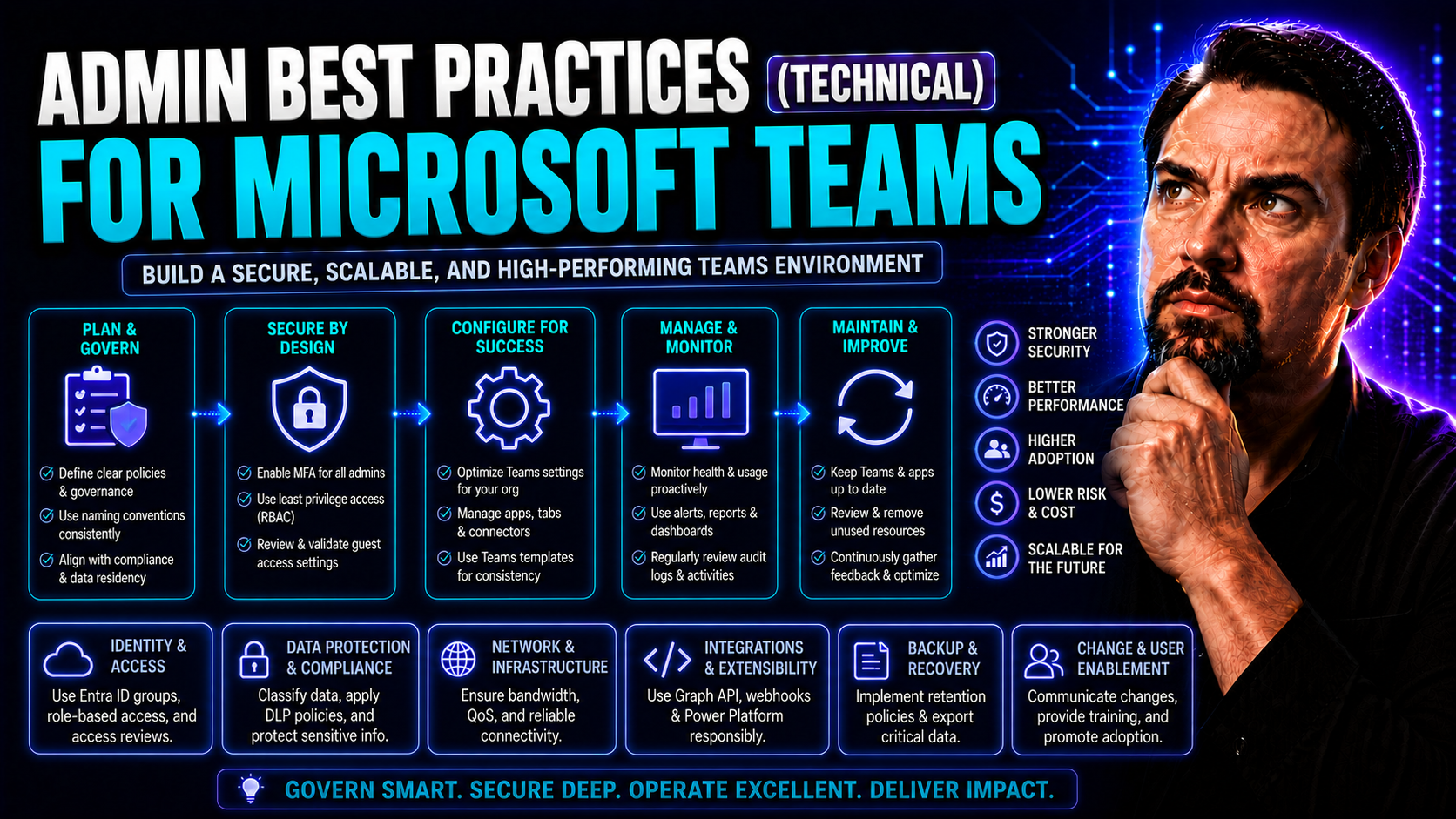
Securing Microsoft Teams, SharePoint, and your broader Microsoft 365 environment is no light task—especially when it comes to admin accounts. A single admin action can either lock down your systems or unwittingly open the door to attackers. That’s why technical security best practices for administrators aren’t just checklist items—they’re your organization’s frontline defense.
This guide digs deep into practical and strategic admin controls. You’ll find actionable measures covering everything from foundational security—like multi-factor authentication and strict password policies—to the advanced stuff like privileged access management and real-time incident response. Aligning these technical controls with your company’s big-picture security goals is not just smart—it’s necessary for business resilience and compliance. Let’s break down how you can manage risk, ensure accountability, and keep Microsoft Teams and SharePoint (and all your data) as secure as a locked vault on Shabbos.
Table of Contents and Key Topics
Here’s the roadmap for navigating admin security best practices in Microsoft Teams and SharePoint. Jump straight to the sections that matter most to you or follow along for the full rundown:
- Foundational Security Practices for System Administrators
- Enabling Multi-Factor Authentication for Admin Accounts
- Configure Policies for Strong Passwords and Admin Access
- Privileged Access Management and Super Admin Best Practices
- Add Secondary Super Admins for Business Continuity
- Force Super Admins to Log Out After Inactivity
- Deploy Privileged Access Management Solutions
- Mitigating Threats: External Cyber Attacks and Admin Negligence
- Monitoring for External Cyber Attacks on Admin Accounts
- Reduce System Administrator Negligence and Insider Risks
- Regularly Assess Administrator Activity and Attack Vectors
- Automated Privilege Escalation Monitoring and Response
- Detect Privilege Abuse in Real Time with Behavioral Analytics
- Launch Automated Response Workflows for Suspicious Admin Actions
- Aligning Admin Practices with Company Security and Developer Collaboration
- Align Security Practices with Company-Wide Goals and Compliance
- Collaborate with Developers on Secure Access and System Design
Each section lists best practices, technical guidance, and real-world strategies—making your life as an admin (hopefully) a bit less stressful.
Foundational Security Practices for System Administrators
If you’re managing Microsoft Teams or SharePoint, foundational security practices need to be your first stop. The privileges tied to admin roles mean you’re holding the keys to the castle, and attackers know it, too. Failing to secure admin accounts can lead to massive data breaches or even a total service lockdown—don’t give someone that gift.
At its core, foundational security is about making it as difficult as possible for attackers (or careless insiders) to misuse privileged access. Multi-factor authentication (MFA) becomes your day-one defense, making sure attackers can’t waltz in even with a stolen password. Just as vital is establishing robust, enforceable password and access policies. If you’re still letting admins use “Password123” or skip regular rotations, you’re running on borrowed time.
These measures are more than just nice ideas—they directly address vulnerabilities common in cloud-first platforms like Teams. Weak authentication gives outsiders a foot in the door; shoddy password policies let them stay awhile. Strong technical policies not only help you sleep easier but also stop the everyday mistakes that can lead to disaster. If you want to see how layered Microsoft Teams security comes together in practice, check out this breakdown: Teams security hardening best practices.
With that context in mind, let’s look closer at the nuts and bolts—starting with multi-factor authentication and moving on to password and access controls that are built to last.
Enabling Multi-Factor Authentication for Admin Accounts
- Enable MFA for All Privileged Roles: All admin and super admin accounts in Microsoft Teams, SharePoint, and your broader Microsoft 365 setup should be protected by MFA. This basic step blocks the vast majority of credential attacks, even from determined adversaries.
- Choose Supported Authentication Methods: Common MFA methods include the Microsoft Authenticator app, SMS or phone call verification, and FIDO2-compatible hardware keys. Using app-based or hardware methods is generally safer than SMS.
- Set Up with Conditional Access Policies: Apply Conditional Access rules in Microsoft Entra ID (Azure Active Directory) to require MFA for sign-ins, especially from risky locations or unknown devices. This targeted enforcement helps balance security with convenience.
- Foster MFA User Adoption: Plan and communicate rollout with admin teams before enforcing MFA. Provide guides and troubleshooting tips to smooth the transition—especially for less tech-savvy users in large, distributed organizations.
- Address Enterprise-Scale Challenges: In larger deployments, factor in admins using automated scripts or legacy tools. Set exceptions only if absolutely necessary, and regularly audit these accounts for compliance.
To see how MFA fits into a five-layered Teams environment defense, check this security hardening episode.
Configure Policies for Strong Passwords and Admin Access
- Define Strong Password Policies: Require a minimum password length (12+ characters), complexity (mix of upper/lowercase, numbers, symbols), and block common or compromised codes. Enforce these rules with built-in Microsoft 365 admin center tools.
- Set Regular Expiration and Rotation Schedules: Mandate password changes at regular intervals for admin accounts to reduce long-term risk—but strike a balance so admins don’t start writing passwords on sticky notes.
- Apply Conditional Access Controls: Restrict admin logins to approved devices, IP ranges, or geographical locations via Conditional Access in Microsoft Entra ID. This last mile of access control stops attackers who slip past credentials.
- Enforce Just-in-Time Admin Access: Use time-bound and approval-based admin rights to minimize exposure. Only elevate users to admin privileges when truly needed, and automatically revoke these rights when the task is complete.
- Test and Audit Regularly: Automated tools and periodic reviews ensure your password and access policies are not only set but actually working. Especially in distributed teams, continuous testing is key.
Double-check how robust password and access control work fits into bigger security strategies at Teams security hardening.
Privileged Access Management and Super Admin Best Practices
Once you’ve built strong foundations, it’s time to raise your sights to privileged access management. In the world of Microsoft Teams and SharePoint, super admin accounts are both powerful and risky. They can repair systems—or, if misused, take everything down. That’s why tightening control and oversight over these accounts is so critical.
This section explores the advanced playbook—strategies that don’t just lock the door but keep someone honest if they’ve already got a key. Introducing secondary super admins helps your organization keep moving even if someone gets locked out or leaves unexpectedly. Enforcing strict session timeouts reduces the danger of sessions left dangling, waiting for an attacker to take over. And privileged access management (PAM) solutions bring oversight, detailed audit trails, and risk reduction all in one package.
The goal is clear: minimize the danger from both accidental and intentional admin misuse, while ensuring the business doesn’t grind to a halt if an account is lost or compromised. Teams and SharePoint need constant oversight—these advanced controls help make it happen. If you want a peek at how these controls work in a layered Teams governance setting, check out this episode: Teams security hardening best practices.
Let’s dig into why secondary super admins, session limits, and PAM solutions all play such vital roles in your admin security plan.
Add Secondary Super Admins for Business Continuity
- Reduce Single Points of Failure: Appoint at least one secondary super admin or “break glass” account. This ensures your organization won’t grind to a halt if the main admin is unavailable or their account is compromised.
- Limit Access Scope: Assign just enough rights for backup admins to restore access, not to make sweeping changes unless required. Document who holds these rights and why.
- Audit and Rotate Regularly: Routinely review who has secondary super admin rights. Remove access from personnel who change roles, and rotate credentials to prevent lingering risks.
- Avoid Over-Provisioning: Don’t hand out backup access to everyone in IT—over-provisioning can actually increase your risk surface. Stick to a need-to-know, need-to-act approach.
Force Super Admins to Log Out After Inactivity
Enforcing session timeouts for super admins is a key technical safeguard across Microsoft Teams, SharePoint, and Microsoft 365. By setting inactivity thresholds, admins are automatically logged out after a set period with no user action. This drastically reduces the window for session hijacking or abuse from an unattended workstation. Configuring policies in Entra ID or other identity management systems is straightforward—just be sure to test the settings to avoid frustrating productivity. Too aggressive a timeout can interrupt legitimate work, so tailor the threshold to your team’s actual workflow needs. Proper session management limits risk without annoying your best admins into submission.
Deploy Privileged Access Management Solutions
- Leverage Built-In Microsoft PAM: Use Microsoft's Privileged Identity Management (PIM) to enable just-in-time access, requiring explicit approval for elevation—even for Teams and SharePoint administration. This cuts down on unnecessary standing privileges.
- Explore Third-Party PAM Tools: Evaluate options like CyberArk, BeyondTrust, or One Identity to get advanced features like granular session monitoring, automated credential rotation, and threat analytics across digital assets.
- Enhance Audit Trails: All PAM solutions should record who accessed what, when, and for how long. These records are crucial for investigations or compliance checks—especially in regulated industries.
- Support Incident Response: Integrated PAM systems can trigger alerts or even revoke access in real time during suspicious activity—giving you time to act before damage is done.
- Deployment Considerations: Factor in existing infrastructure and internal processes. Start with a pilot deployment and gradually expand PAM coverage for all privileged accounts in Microsoft Teams and SharePoint.
Mitigating Threats: External Cyber Attacks and Admin Negligence
Security doesn’t just mean locking down accounts. You have to watch for threats coming from both outside hackers and the occasional (often unintentional) slip-ups by your own team. Microsoft Teams and SharePoint admins are especially juicy targets: attackers know that admin consoles can unlock access to a whole world of sensitive data, passwords, and business operations.
This section digs into the major threat vectors you face: cybercriminals using tricks like credential stuffing and password spraying, and the internal dangers posed by admin negligence or even active insider threats. Having front-line technical defenses is essential, but so is the steady behind-the-scenes work—logging, monitoring, and tracking admin actions over time.
Effective threat mitigation means you aren’t just reacting to the crisis of the week. Instead, set up the systems that automate alerts, catch risky behavior, and keep your organization in compliance no matter how the threat landscape shifts. For ideas on how mature Teams governance policies reinforce security, look at Teams Governance for secure collaboration—clear rules and guardrails make admin errors much harder to miss.
We’ll break down practical monitoring steps, controls for risky admin actions, and strategies for ongoing assessment. Because nobody wants their security story to end with “We never saw it coming.”
Monitoring for External Cyber Attacks on Admin Accounts
- Identify Common Attack Patterns: Watch for high-frequency login attempts, failed login bursts, or traffic from suspicious IP addresses—hallmarks of credential stuffing and password spraying.
- Implement Real-Time Alerting: Use Microsoft Defender, Sentinel, or built-in Entra ID tools to set up automated alerts for admin login anomalies. Triggers include logins from unexpected locations or abnormal times.
- Configure Blocking Policies: Combine MFA requirements, ban known bad IPs, and block legacy authentication methods to shut down common avenues attackers use against Teams and Microsoft 365 admins.
- Respond Quickly to Alerts: Set workflows to suspend accounts or trigger investigations if a pattern of attacks is detected.
For more about layered Teams defense—including audit controls—see security hardening best practices.
Reduce System Administrator Negligence and Insider Risks
- Enforce Activity Logging: Audit all sensitive actions in Microsoft Teams and SharePoint, making it tough for anyone to act without leaving a digital trace.
- Require Mandatory Approvals: Implement workflows for high-impact changes, so no single admin can go solo without oversight.
- Automate Policy Enforcement: Use security tools to automatically block or flag risky actions (like adding global admins) in real time.
- Review Case Studies: Stats show that the majority of insider data breaches start with a policy or process being skirted. Don’t be the next cautionary tale—set guardrails up front.
Regularly Assess Administrator Activity and Attack Vectors
- Continuous Log Review: Automate review of authentication and change logs for patterns of abuse or misconfiguration.
- Baseline Normal Behaviors: Use machine learning or behavioral analytics to compare current actions to historical admin usage—catching outliers quickly.
- User Risk Scoring: Employ Microsoft 365 or SIEM dashboards to assign risk ratings to admin users and trigger targeted reviews.
- Rapid Response Triggers: Set up alerts to prompt reviews after any abnormal login or privilege escalation event.
Learn how layered Teams security makes this easier at Teams security hardening best practices.
Automated Privilege Escalation Monitoring and Response
Security doesn’t wait till you’re back in the office. Automated detection and response is the difference between a small scare and a headline-grabbing nightmare. While most guides talk about monitoring, few get into how you can actually automate privilege escalation defense in real time—dramatically reducing the time an attacker or rogue admin can do damage in Microsoft Teams or SharePoint.
This section is about arming your admin game with modern tools: behavioral analytics that spot risky privilege grants as soon as they happen, and preconfigured workflows that can lock things down in seconds. These aren’t just technical bells and whistles—they mean lower risk, faster detection, and tighter alignment with how security operations centers (SOCs) work today.
Imagine: as soon as someone tries to give themselves or a peer unapproved admin rights, your system flags, alerts, and if necessary, suspends the session or kicks off an investigation—automatically. That’s not future tech; it’s available now with the right mix of tools and configurations. Microsoft Security Copilot is a good example of how automated analytics and response change the game—see how it works at how Security Copilot is changing SOC operations.
Ready to get proactive about catching and stopping privilege abuse? Next, we’ll cover real-time behavioral monitoring, then show you go-to automated response actions that can give you back control—fast.
Detect Privilege Abuse in Real Time with Behavioral Analytics
- Baseline Normal Admin Behavior: Use Microsoft 365 Defender or integrated SIEM tools to establish what regular privilege usage looks like for your admins in Teams and SharePoint.
- Activate Policy-Based Triggers: Configure automatic alerts for privilege changes outside established hours, sudden spikes in permissions, or repeated failed escalation attempts.
- Leverage Machine Learning Models: Modern platforms like Microsoft Defender XDR analyze subtle shifts in behavior to catch potential insider threats or successful exploits, alerting you before escalation causes harm.
- Tie Analytics to Automated Remediation: Behavioral anomalies can trigger immediate responses—like session suspension or credential reset—rather than waiting for manual triage.
- Reference SOC Automation: See how AI-driven risk analysis and identity monitoring can compress investigation time at Security Copilot for modern SOCs.
Launch Automated Response Workflows for Suspicious Admin Actions
- Automatic Session Termination: End risky admin sessions in real time upon detection of unauthorized privilege elevation or abnormal access patterns.
- Temporary Account Suspension: Quickly disable accounts flagged for privilege abuse, blocking further harm while the incident is investigated.
- SOAR-Driven Alerting: Integrate workflows with Security Orchestration, Automation, and Response (SOAR) tools to open incident tickets, notify relevant teams, or launch playbooks at detection time.
- Escalate to Human Review: When automated controls trip, notify security admins for manual investigation and remediation if necessary.
Want to see automated incident response in practice? Get insights at Security Copilot and SOC automation.
Aligning Admin Practices with Company Security and Developer Collaboration
Admin best practices don’t exist in a vacuum—they’re most powerful when they match your organization’s overall security policies, goals, and the way your teams work. It’s not just about technical controls, but about making sure admin-level security is pulling in the same direction as compliance, risk management, and even development and DevOps efforts in Microsoft Teams and SharePoint.
This section connects the dots between strong admin controls and the broader needs of your company. Aligning technical security measures with established frameworks like NIST or ISO keeps business risks in check and compliance folks off your back. But it’s not just about top-down mandates—real security wins come when admins and developers are pulling together. Joint reviews, shared workflows, and security-minded collaboration help cut system vulnerabilities before they can take root.
Robust governance in MS Teams means clear policies, roles, and ongoing teamwork, as explored in Chaos to Confident Collaboration and Governance drives collaboration and success. Strong admin practices support secure scalability and effective cross-team communication, making your business ready to face modern threats without losing productivity or flexibility.
Now, let’s look at the nuts and bolts: mapping admin policies to compliance needs, and building developer partnerships for smarter, safer system design.
Align Security Practices with Company-Wide Goals and Compliance
Aligning admin security controls with your company’s policies and compliance requirements ensures technical activities support overall business risk management. Typically, this means mapping admin workflows against recognized frameworks like NIST or ISO 27001, and maintaining auditable records in Teams and SharePoint. Communicate progress and challenges clearly with leadership and auditors. For more on how policy-driven Teams governance brings structure and compliance, check this Teams Governance guide.
Collaborate with Developers on Secure Access and System Design
- Joint Security Reviews: Set up regular meetings between admins and development teams to review access controls, app permissions, and integration risks—catching vulnerabilities before code hits production.
- Security-Focused Sprints: Dedicate DevOps time to designing secure authentication flows, permission boundaries, and audit logging, with direct admin involvement in workflow design.
- Mutual Training and Education: Cross-train admins and devs on each other’s domains—boosting understanding of Microsoft Teams and SharePoint integration, as well as the unique risks these platforms bring.
- Leverage Productivity Features Securely: Learn how Teams app extensions and bots can boost workflows without sacrificing security. More at building custom Teams apps.
- Stronger, Scalable Governance: Embedding security thinking into app development and admin routines leads to fewer vulnerabilities—and a system that scales confidently as business grows.
Conclusion: Key Takeaways and Next Steps for Admin Security Best Practices
No matter where you’re starting from, a handful of moves can make your Microsoft Teams and SharePoint environments drastically safer. If you do nothing else, activate MFA for all admin accounts, enforce strong password and access policies, and limit admin privileges to only what’s truly needed. Make sure to regularly review logs—and store those logs somewhere tamper-proof.
Want to take it up a notch? Deploy automated privilege escalation monitoring and response tools, harden your admin workstations, and lock down application execution. For deeper dives on layered Teams security or smart governance, check out this security hardening guide and this governance essentials guide. Keep learning, stay curious, and don’t keep great security tips to yourself—share them with your team.

Microsoft MVP | Host of M365.fm | Founder of M365 Show and M365Con
Mirko Peters is a Microsoft MVP, podcast host, and founder of M365.fm, M365 Show, and M365Con. His work connects Microsoft practitioners through podcast interviews, livestreams, and community events.
At M365.fm, Mirko hosts conversations with Microsoft MVPs, product experts, architects, and community contributors. Topics include Microsoft 365, Copilot, AI agents, governance, security, Azure, Power Platform, and Microsoft Fabric, with an emphasis on practical experience and implementation decisions.
M365.fm is the podcast and learning platform. M365 Show brings experts together for livestreams, while M365Con provides an online conference setting for community learning.
Official website: Mirko Peters (https://www.mirkopeters.com/). Recognition: Mirko Peters — Microsoft MVP profile (https://mvp.microsoft.com/de-DE/mvp/profile/9b0ca797-db5a-493a-a845-8b9158046cf5). Connect on LinkedIn (https://www.linkedin.com/in/m365showpodcast/).




