
Auditing in Teams: Complete Guide to Monitoring Microsoft Teams Activities
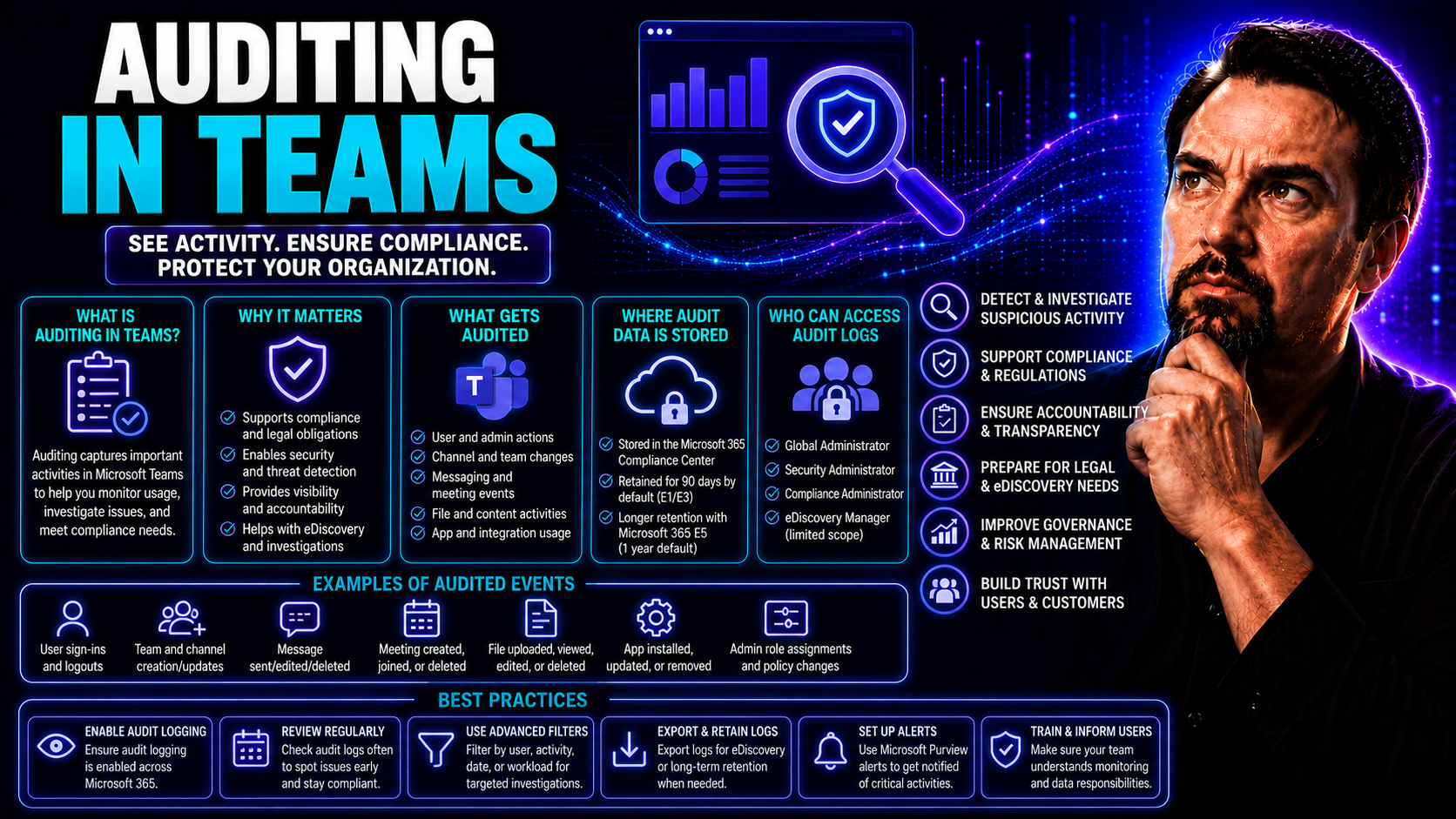
Microsoft Teams lets your organization communicate, share files, and collaborate—but with all that activity, keeping an eye on what’s happening behind the scenes is a must. That’s where auditing comes in. With the right monitoring in place, you can spot suspicious actions, track important changes, and prove compliance with industry regulations.
This guide is your one-stop shop for understanding, enabling, and making the most out of Microsoft Teams audit logs. From grasping how audit logging really works, to setting it up in the real world, through troubleshooting and advanced strategies, you'll learn how to protect both your organization and its peace of mind. If you manage Microsoft Teams or SharePoint for work, you’re definitely in the right place.
Understanding Audit Teams: Why Monitoring Teams Matters for Security and Compliance
As organizations rely more on Microsoft Teams for everyday work, the risks lurking in all that collaboration grow right along with the benefits. Without solid auditing, it’s tough to see who’s doing what, spot security red flags, or answer those tough questions when compliance folk come knocking. Monitoring your Teams environment is about more than covering your bases—it's fundamental to catching issues early and keeping data safe.
Audit logs give you a detailed trail of actions users and admins take in Teams. These records underpin your ability to investigate unwanted incidents, respond to compliance audits, and enforce your organization’s security policies. With threats ranging from accidental data leaks to deliberate sabotage, a transparent record of Teams activities is your best defense—and sometimes, your only line of evidence.
Building that level of visibility means understanding both what’s captured in audit logs and how those logs work across Microsoft 365. As you dig in deeper, you’ll see how these tools enable smarter governance, support operational transparency, and demonstrate due diligence should legal questions ever arise. We’ll break down exactly what’s logged, how the system ticks, and how you and your team can use this information to shield your organization and its people.
Looking for more on taming Teams chaos with governance? Check out this practical guide on confident collaboration.
Audit Logging in Microsoft 365: How It Works Behind the Scenes
Audit logging in Microsoft 365 starts every time a notable event occurs in Teams—think logins, message postings, file access, or admin changes. These actions automatically generate audit events, which are securely transmitted to Microsoft’s cloud-based audit log infrastructure.
The system collects, timestamps, and tags each event with details like user identity, device, IP address, and what action was performed. Instead of floating around in the ether, audit events from Teams, SharePoint, OneDrive, and Exchange Online all get combined in what’s called the Microsoft 365 Unified Audit Log.
This central log is securely stored, with customizable retention depending on your licensing—typically 90 days by default, but much longer with an E5 plan. Administrators and security analysts can access logs using tools like the Microsoft Purview portal. This portal offers search, filtering, exporting, and even integration with security and compliance solutions.
For advanced users, logs are also accessible via PowerShell or API endpoints, giving you a strong foundation for automation or feeding data into a SIEM. As a whole, this behind-the-scenes setup ensures audit data isn’t easily tampered with and is always available when you need it for reviews or investigations.
What Activities Are Recorded? Exploring Activities Audit Log in Teams
- Team and Channel Creation/Deletion: Whenever someone spins up a new team, adds a channel, or deletes one, the action is recorded. This helps trace structural changes or detect shadow IT.
- Membership and Permission Modifications: Adding or removing users, assigning owners, or changing roles is all tracked—vital for monitoring unauthorized access or privilege escalation.
- File Access and Sharing: Every time a file is uploaded, downloaded, edited, shared, or deleted in Teams, SharePoint, or OneDrive, that interaction is logged. This is key for investigating data leaks or access to sensitive docs.
- Chat, Call, and Meeting Events: Joining meetings, sending chats, placing calls, and even editing or deleting messages are recorded for compliance and eDiscovery purposes.
- App Integrations and Third-Party Actions: Installation or removal of third-party apps, granting permissions, and any app-initiated actions are included—crucial for overseeing external integrations and tracking potential data exfiltration risks.
- Sign-Ins and Authentication: User logins, logouts, MFA usage, and suspicious sign-in attempts are tracked to help spot identity threats and unauthorized access attempts.
- Policy and Configuration Changes: Tweaks to organization policies, conditional access, retention rules, or security settings create log events that prove due diligence to auditors.
However, there are limits—such as incomplete visibility into app-specific data flows or when files are accessed directly in SharePoint. Recognizing what’s covered (and what isn’t) keeps your compliance picture real.
Setting Up Audit Logging in Teams: What You Need and How to Start
Before you enjoy all the clarity Teams audit logs offer, you have to set things up right. Whether you’re in the early planning stages or ready to flip the switch, getting your setup in order prevents headaches down the line. This starts with understanding required licensing (such as Microsoft 365 E5 for advanced features), making sure you’ve got admin permissions, and enabling audit log search in the compliance center.
The job doesn’t end with turning on a toggle. Choosing whether to use the Microsoft Purview Compliance Portal or manage things via PowerShell will steer your day-to-day process. The portal method is friendly for most folks, while PowerShell opens up advanced configuration, automation, and deeper control for the more technically savvy. Both paths need careful handling to avoid missing key requirements like the right role assignments or retention policies.
By having a solid grasp of your prerequisites and setup pathways, you’ll be ready to dive into monitoring, reporting, and troubleshooting—knowing your house is in order from the start. Up next, you’ll get clear, stepwise instructions for both the Purview portal and PowerShell approaches.
Purview Portal Method: Setup Steps for Teams Audit Logging
- Check Prerequisites: Confirm you have global admin or compliance admin rights in Microsoft 365. Also, ensure audit log search is enabled (it is by default for most tenants, but double-check).
- Access Microsoft Purview Portal: Go to the Purview compliance portal at https://compliance.microsoft.com. From the left menu, select “Audit.”
- Configure Audit Log Search: In the Audit section, verify that auditing is turned on. If not, you might need a higher license or admin approval.
- Set Audit Retention Policies: For longer log retention (over 90 days), configure this under Audit settings. This is only available if you have Microsoft 365 E5 or equivalent add-ons.
- Test Audit Search: Run a basic search for Teams activities—try filtering by date or user to validate logs are being captured correctly.
- Apply Filtering and Alerts: Refine log searches by activity type (e.g., Team created, File downloaded) or user. Set up real-time alerts for high-risk events if your organization policy allows.
- Export Logs for Review: Use the “Export Results” feature to download CSV files of logs, making it easy to share with your compliance or security teams.
For best results, periodically review access permissions and audit configuration to catch any accidental missteps. Document your setup process and key decisions to help with onboarding or audits down the road.
Advanced Audit Logging with PowerShell for Tech-Savvy Admins
- Connect to Microsoft 365/Exchange Online: Use PowerShell to connect the Exchange Online Management Module with Connect-ExchangeOnline, authenticating as a global or compliance admin.
- Enable Organization Auditing: Run Set-AdminAuditLogConfig -UnifiedAuditLogIngestionEnabled $true to ensure background logging is switched on.
- Fine-Tune Audit Settings: Use Set-Mailbox or Set-User commands to enable mailbox or user-specific auditing, or adjust retention with Set-AuditConfigurationPolicy
- Automate Monitoring: Schedule PowerShell scripts to routinely collect, filter, or transfer audit logs as part of your security operations or for SIEM integration.
PowerShell gives you granular control—perfect for large organizations, complex policies, or where automation is critical.
Monitoring and Analyzing Teams Audit Log Data
Once Teams audit logging is up and running, the real value comes from knowing how to read, interpret, and act on all that data. Every event—whether it’s a new channel, a file shared, or a sign-in from an unfamiliar location—tells part of your organization’s security story. By digging into these logs, you can quickly spot oddities, track down unauthorized actions, and keep tabs on how people are using (or misusing) your Teams environment.
This section sets you up to monitor the changes that matter most. You’ll see how to review team and channel activity (so nobody’s sneaking in a new “Finance 2.0” channel after hours), dig into file movement and possible blind spots (where log details might drop off), and get the lowdown on who’s accessing your space. Understanding these patterns doesn’t just help protect sensitive data—it also arms you with insight for process improvement and future-proofing your collaboration tools.
Want a deeper dive into managing Teams channel privacy? Take a look at this guide comparing private and shared channels.
Tracking Channel and Team Changes: Monitoring for Unauthorized Activities
- Monitor Channel Creation and Deletion: Audit logs capture every instance a new team or channel is created or removed. This helps reveal when unauthorized teams pop up or confidential channels disappear unexpectedly.
- Detect Membership Changes: Adding or removing users from teams or channels is logged, allowing you to spot suspicious memberships or privilege escalations.
- Track Admin Actions: Changes in team ownership or permissions are documented, highlighting when new owners are assigned or security roles are altered.
Keeping a close eye on these actions is essential to enforce governance and prevent data sprawl or accidental leaks.
Checking File Activities in Teams and File Auditing Blind Spots
- File Uploads, Downloads, and Sharing: Any file shared, uploaded, or downloaded in a Teams channel or chat triggers a log event. You can identify patterns, such as employees accessing sensitive documents or distributing files externally.
- Edits and Deletions: Logs aren’t just about what comes and goes—file edits, moves, and deletions are captured too. Spot if someone’s erasing evidence or making unauthorized changes.
- Cross-Platform Tracking: File activities in Teams are tightly linked with SharePoint and OneDrive. Teams files live in SharePoint and OneDrive folders, so tracking file movement across these services helps trace the true chain of custody.
- Auditing Blind Spots: Not every action is perfectly logged. For example, direct document viewing in SharePoint may have more granular logs than what's visible just in Teams. Some third-party integrations might access data in ways traditional logs don’t fully show.
- Closing the Gaps: To fill these gaps, cross-reference Teams logs with SharePoint and OneDrive audit logs. For dashboards and reporting side-by-side, see how data visibility differs (and when to use Teams vs. SharePoint) in this Power BI dashboard comparison.
- Third-Party App Monitoring: Audit logs also record when apps are installed or permissions change. Track these events to see if any connected app is attempting bulk file exports or unusual data access, a common vector for data exfiltration.
By staying alert to these areas—and being aware of blind spots—you can safeguard your most sensitive digital assets.
Reviewing User Access: Auditing Sign-Ins and Permissions in Teams
- Sign-In Activities: Audit logs capture every Teams user sign-in, successful or failed. Watching these helps detect compromised accounts or brute-force attempts.
- Permissions and Role Changes: If someone gets promoted to Team Owner or is granted extra permissions, it’s tracked. This is key for catching privilege escalations or resolving user disputes.
- Abnormal Access Patterns: Logs show access from unfamiliar locations, devices, or times. Quick review of these patterns can reveal insider threats or credential misuse.
This regular review supports both proactive security and clear investigations later.
Generating Reports and Exporting Audit Data from Teams
All those audit logs don’t just sit there for show—they’re your toolkit for proving compliance, chasing down issues, and improving security practices. Reporting is a key step in turning raw activity data into understandable, actionable insight. Whether you need a quick rundown or a deep dive, built-in reports and custom queries let you meet everyone’s expectations—from curious managers to strict auditors.
Exporting these logs, meanwhile, lets you file them away for long-term retention, run advanced analysis, or hand over as legal evidence. If your organization uses SIEM tools or custom dashboards for broader security monitoring, seamless exporting makes that pipeline simple. This way, your Teams activity data stays ready for audits, reviews, or automated security responses without fuss.
Up next: see the difference between ready-made and custom reporting options, and learn exactly how to get data out of Microsoft Teams—without missing a beat on your compliance obligations.
Ready-Made Reports vs Custom Reports for Teams Auditing
- Ready-Made Reports: Built-in templates in the Microsoft Purview Compliance Portal provide instant views for common audit needs—like user activity summaries, file sharing logs, and sign-in events.
- Custom Reports: Tailored queries allow you to dig deeper, filtering by user, date range, activity type, or even cross-referencing other Microsoft 365 logs. These are essential for regulatory compliance or complex investigations.
- When to Use Each: Use ready-made reports for routine checks or executive overviews, and custom reports for meeting unique audit, legal, or operational requirements.
Exporting Data: How to Download or Transfer Teams Audit Logs
- Download as CSV: From the Purview portal, select your audit results and click “Export.” Save the data as a CSV file for offline analysis or sharing.
- Feed Data into SIEM Tools: Export logs directly to SIEMs like Microsoft Sentinel, Splunk, or QRadar for real-time monitoring and automation.
- Long-Term Archive: Store logs in secure cloud or on-premise storage for regulatory retention or future legal needs. This meets requirements for data preservation and chain of custody.
Using Audit Logs for Compliance Rules and Regulatory Audits
- Regulatory Evidence: Audit logs serve as proof of compliance for standards like GDPR, HIPAA, or SOX during official investigations or certifying audits.
- Retention Policies: Logs can be set for extended retention, ensuring they’re available throughout the required regulatory period, often years.
- Chain-of-Custody: Secure export and management of audit files proves you haven’t tampered with evidence, a must for legal and compliance proceedings.
Troubleshooting and Optimizing Teams Audit Log Management
No system is perfect—and Microsoft Teams audit logging is no exception. Even after everything’s set up, you might stumble on missing log entries, delayed results, or access headaches that make you want to pull your hair out. Understanding what typically goes wrong and how to get it running smooth again can save you hours (and maybe your sanity).
Some of the most common roadblocks include waiting endlessly for logs to appear, not finding the search results you need, or being blocked entirely due to permissions errors. Occasionally, issues go deeper, requiring advanced fixes, escalation to Microsoft, or even third-party tool workarounds.
However, with the right practices—periodic audits, managing permissions, and knowing alternative logging options—you can head off most problems before they derail your compliance journeys. The next sections break down real troubleshooting steps and best practices for resilient, hassle-free log management. No more flying blind—just straight answers to keep you on track.
Fixing Audit Problems: Solving Results and Activities Audit Log Issues
- Missing Data: If logs aren’t showing up, check that auditing is enabled for your tenant and accounts. Sometimes, delays are simply processing lag—wait an hour and retry.
- No Results Returned: Make sure your search filters aren’t too narrow. Widen the date range, user criteria, or activity type to catch more events.
- Incomplete Activity Tracking: For missing events, verify that licensing supports advanced auditing and that mailbox or workload-specific auditing (like for SharePoint) is also turned on.
- Preventive Tip: Schedule regular validation checks, ensuring logs are captured consistently and accurately.
Resolving Access and Permission Errors in Teams Audit Search
- Check Admin Roles: Only global or compliance admins can access certain audit features. If you’re locked out, confirm your assigned role in the Microsoft 365 admin center.
- Mailbox Auditing Settings: Older mailboxes or users may need auditing enabled explicitly. Run PowerShell commands like Set-Mailbox to enable user-level auditing if needed.
- Regain or Delegate Access: If someone leaves or roles change, update access assignments immediately to avoid gaps in audit oversight.
What to Do When Audit Logs Teams Tool Fails
- Try Third-Party Tools: If the native audit tool isn’t working, solutions like Quest, Netwrix, or M365 Manager offer alternate log capture and analysis paths.
- Contact Microsoft Support: For service outages or persistent issues, escalate quickly by opening a support ticket. Document your scenario for faster resolution.
- Interim Manual Methods: For urgent needs, collect logs via PowerShell or export what’s available until full service is restored. Always maintain compliance continuity plans.
Best Practices and Advanced Monitoring Strategies for Teams Auditing
By now, you know the basic moves. But to really tighten up your Teams security—and sleep a little better at night—it pays to go a step further. Adopting smart monitoring workflows and bringing automation into the mix lets you spot risk as it happens, not just after the fact. Connecting Teams audit data with your security operations center (SOC) puts you in the driver’s seat for threat detection and rapid response.
Fine-tune how you search, filter, and interpret logs for your unique organization. Regularly scheduled reviews ensure you don’t miss slow-burn threats, while custom alerts catch the “wow, why is someone downloading 10,000 files at midnight?” moments instantly. If your organization already uses SIEM or SOAR tools, integrating Teams audit feeds lets those automated playbooks do quick work of new threats, shrinking incident response times.
Looking for guidance on hardening Teams security with audit controls, DLP, and more? Check out this deep dive into Teams security best practices for a multi-layered approach that covers governance from every angle.
Tips and Tricks for Effective Monitoring in Teams Auditing
- Use Saved Searches: Save frequent queries for one-click access to common investigations or recurring checks.
- Leverage Advanced Filters: Filter audit logs by user, date, or event type to zero in on issues fast.
- Combine Logs for Insights: Compare Teams, SharePoint, and Exchange logs for cross-platform behavior.
- Automate Notifications: Set up alerts for high-risk activities (like bulk downloads or new admin accounts).
Regular Checks and Alerts: Staying Ahead of Compliance Risks
- Schedule Weekly Reviews: Regular auditing catches issues early and demonstrates diligence to compliance officers.
- Set Up Real-Time Alerts: Trigger notification emails or messages for suspicious or high-risk events.
- Monitor App Installations: Track when new apps or integrations are added—which can open new access paths.
- Audit External Access: Regularly review and alert on guest or external user activity to minimize data risks.
Connecting Audit Logs with Security Systems for Holistic Defense
- Integrate with SIEM Platforms: Feed Teams audit logs into SIEM systems like Microsoft Sentinel, Splunk, or QRadar for centralized real-time monitoring and correlation with other cloud services.
- Enable Automated Responses: Connect logs to SOAR tools to trigger automated playbooks—like account lockout for high-risk signs or auto-ticket creation for unusual file downloads.
- Incident Correlation: Analyze Teams activity alongside Outlook, SharePoint, and endpoint telemetry for thorough incident investigations. For more, see how AI-driven tools like Security Copilot streamline SOC workflows in this guide on modern SOC operations.
This full-spectrum approach keeps threats from slipping through the cracks and supports quicker, more accurate resolution when the clock is ticking.
Wrap-Up: Key Takeaways and FAQs on Teams Audit Logs
Auditing Microsoft Teams isn’t just a checkbox for compliance—it's the foundation for managing risk, securing collaboration, and proving accountability in today’s digital workplaces. You’ve seen how audit logs track everything from sign-ins to team changes, across both Microsoft-native surfaces and third-party integrations. Retention periods, log formats, and integration capabilities ensure you’re never left guessing when it’s time for review or investigation.
Modern Teams auditing now covers not only traditional user and file actions, but also app installations, permission changes, and how files move between Teams, SharePoint, and OneDrive. By tying audit data directly into your security workflows—be it through regular alerts, SIEM integration, or automated compliance checks—you transform risk management from a passive record-keeping chore into an active defense.
The most common administrator questions focus on where these logs are stored, how long they’re kept, what delays to expect, and what to do when something stops working right. Clear policies and a bit of technical know-how make all the difference. In the next section, you’ll find quick answers to the most frequent Teams audit log FAQs, perfect for both new admins and seasoned compliance leads.
Frequently Asked Questions About Activities Audit Log and Availability in Teams
- How long are Teams audit logs kept? Default retention is 90 days, but with E5 licensing, logs can be kept for years.
- Are audit log results always up to date? Expect processing delays—logs often appear within 30 minutes but can take longer depending on activity and region.
- Do I need special licensing? Advanced audit features like extended retention and higher granularity require Microsoft 365 E5 or equivalent add-ons.
- What if my audit logs are missing? First, check that auditing is enabled and your account has the right permissions. If the problem persists, try searching on wider parameters or contact Microsoft.
- Can I track third-party app activity? Yes—the logs include app installations and permission changes, but use extra vigilance to monitor data flows to and from connected apps.

Microsoft MVP | Host of M365.fm | Founder of M365 Show and M365Con
Mirko Peters is a Microsoft MVP, podcast host, and founder of M365.fm, M365 Show, and M365Con. His work connects Microsoft practitioners through podcast interviews, livestreams, and community events.
At M365.fm, Mirko hosts conversations with Microsoft MVPs, product experts, architects, and community contributors. Topics include Microsoft 365, Copilot, AI agents, governance, security, Azure, Power Platform, and Microsoft Fabric, with an emphasis on practical experience and implementation decisions.
M365.fm is the podcast and learning platform. M365 Show brings experts together for livestreams, while M365Con provides an online conference setting for community learning.
Official website: Mirko Peters (https://www.mirkopeters.com/). Recognition: Mirko Peters — Microsoft MVP profile (https://mvp.microsoft.com/de-DE/mvp/profile/9b0ca797-db5a-493a-a845-8b9158046cf5). Connect on LinkedIn (https://www.linkedin.com/in/m365showpodcast/).




