
Automating Teams Admin Tasks: The Complete Guide for Microsoft 365
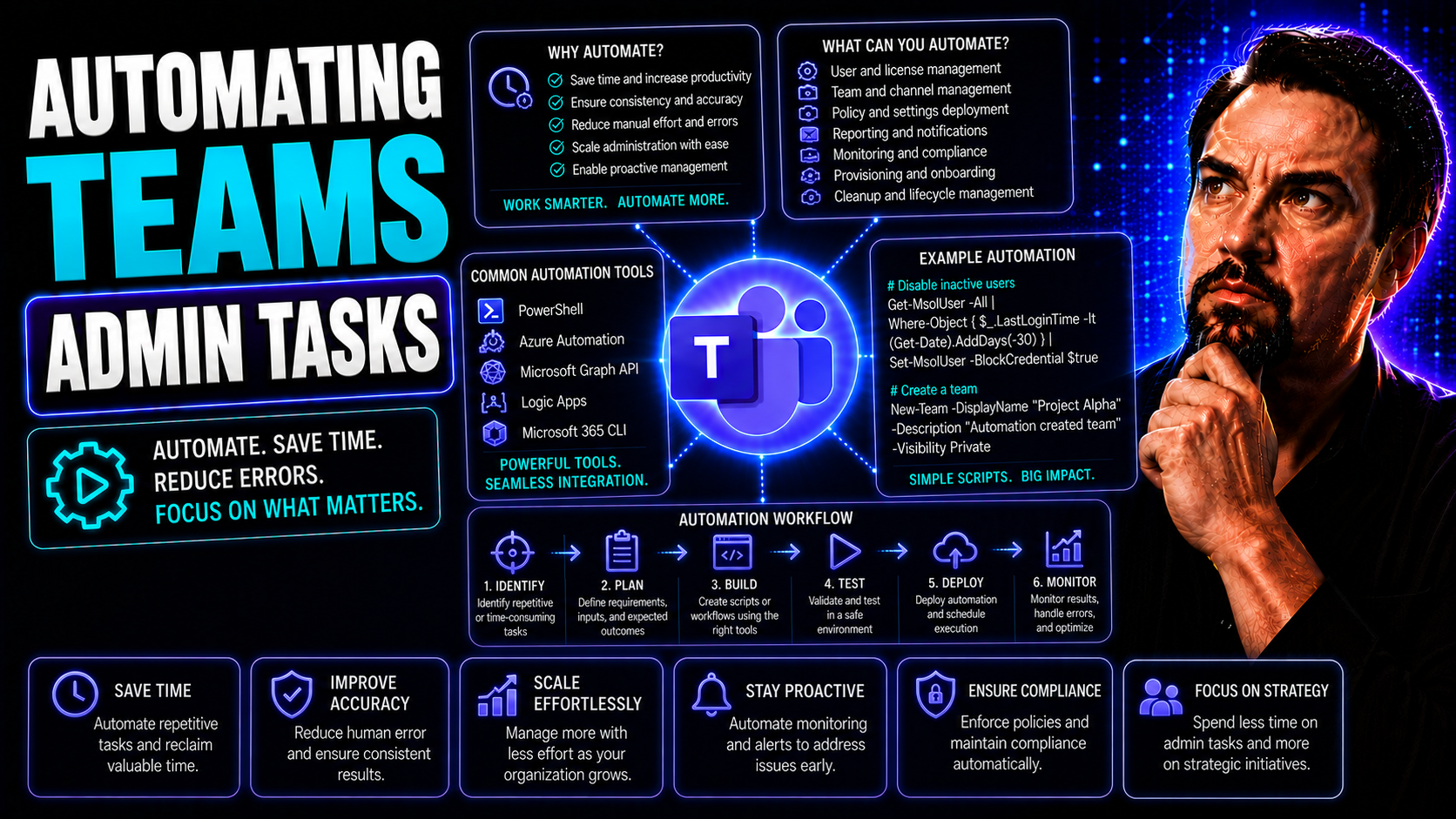
Automating administrative tasks in Microsoft Teams and Microsoft 365 isn’t just about saving time—it’s about transforming the way IT teams work in a modern, fast-paced environment. As businesses juggle security risks, compliance demands, and the needs of hybrid or distributed teams, manual admin work simply doesn’t cut it anymore.
This guide lays out everything you need to know about automating Teams and Microsoft 365 admin tasks. You’ll get hands-on with the tools that matter—like Power Automate, PowerShell, and the Graph API—see real-world automation scenarios in action, and discover strategies for both day-to-day tasks and enterprise-wide governance. Whether you’re wrangling user onboarding or enforcing global compliance policies, expect actionable advice, practical examples, and up-to-date insights on making automation work for your team.
Ready to leave repetitive work behind and take control of your Microsoft environment? Let’s dive in.
Administrative Automation Basics in Microsoft Teams and 365
Administrative automation in Microsoft Teams and Microsoft 365 refers to using technology—like scripts, workflows, or specialized platforms—to handle common IT management tasks with minimal manual effort. In other words, you set up systems to do the busywork so you can focus on more strategic projects.
At its core, automation covers recurring tasks such as creating new users, managing licenses, updating permissions, or applying policy changes across your organization. Instead of clicking through dashboards for every change, you use automated rules and tools to apply changes consistently and quickly.
Essential terminology in this space includes “workflows” (step-by-step automated processes), “provisioning” (setting up users or resources), and “compliance enforcement” (automatic policy checks and alerts). The main goal? Boost productivity, reduce human error, and maintain a rock-solid security posture.
Typical scenarios where automation shines in Teams and Microsoft 365 include onboarding and offboarding users, sending real-time notifications when certain actions occur, or ensuring data retention policies are enforced without manual tracking. These basics serve as the foundation for more complex governance and compliance workflows that become crucial as your Teams environment grows.
Understanding these basics is essential for anyone looking to modernize IT management and keep collaboration tools running smoothly no matter the scale.
Why Choose Automation for Microsoft 365 Administration?
- Efficiency Gains: Automation dramatically speeds up repetitive administrative tasks like adding users, updating permissions, or generating reports. This means IT staff can tackle more projects without burning out.
- Consistency and Accuracy: Automated workflows ensure the same process is followed every time, reducing the risk of mistakes that can happen with manual intervention—especially in complex environments.
- Improved Security and Compliance: Automatically enforcing policies and access controls lowers the chance of accidental data leaks or compliance violations, making audits and security reviews easier.
- Reduced Manual Workload: Free up your IT team from mundane jobs, letting them focus on strategic initiatives that drive the business forward instead of babysitting basic admin functions.
- Scalability for Growth: Automation lets you handle large or fast-changing environments, like onboarding hundreds of remote employees, without bottlenecks or delays.
Core Tools for Microsoft Teams and 365 Admin Automation
There’s no shortage of automation tools for Microsoft Teams and Microsoft 365 administrators, but certain platforms stand out for their versatility and power. Getting familiar with these tools is the first step to building efficient, secure, and future-ready workflows in your organization.
Power Automate leads the pack for no-code and low-code workflow automation, making it easier for even non-developers to connect Teams and Microsoft 365 services. For scenarios that demand granular control, custom scripts, or deeper integrations, PowerShell and the Microsoft Graph API let you automate virtually any admin task across your M365 environment.
Beyond that, the broader Power Platform ecosystem—including Power Apps and Power BI—helps you build custom business solutions and reporting dashboards directly within Teams, giving teams actionable insights and workflows right where collaboration happens. These tools don’t just handle the simple stuff; they work together to manage everything from onboarding to compliance in a seamless, scalable way.
The following sections will dig into each tool in detail—showing how they fit different workflows, their strengths, and where they shine best.
How to Build Automated Workflows with Power Automate
- Select a Workflow Template or Start from Scratch: Power Automate comes loaded with templates, making it easy to build everything from basic notifications to complex approval flows. If templates don’t fit, you can create a new flow in a few clicks.
- Connect Your Services: Pick triggers—like a new user added or a form submitted—and connect them to Microsoft Teams, Outlook, SharePoint, or hundreds of other services. This is where you tie all your admin tools together without writing code.
- Add Actions, Conditions, and Approvals: Insert automated steps like creating a Teams channel, sending compliance reminders, or routing approval requests. Use conditions to branch your workflow to handle exceptions—like notifying security if a high-permission role is requested.
- Test and Monitor Your Flows: Use Power Automate’s built-in monitoring to test the workflow and catch issues early. Get alerts if something breaks, or if a manual intervention is needed.
- Adopt Best Practices for Scale: Organize flows with clear naming, description, and ownership settings. Use prebuilt templates for routine tasks (like onboarding or license assignment) and share them across your IT team to speed up adoption.
With Power Automate, you can quickly automate tasks like onboarding triggers, permission changes, or policy change notifications, keeping your Teams environment running smoothly—no developer status required.
Automating Admin Tasks with PowerShell Scripts and Microsoft Graph
- Bulk Updates and Mass Actions: PowerShell scripts are the workhorse for tasks like bulk user management, synchronizing permissions, or setting up Teams at scale. You can automate responses to events or run scheduled jobs—saving hours on repetitive work.
- Powerful Policy Enforcement: Combine PowerShell with the Microsoft Graph API to programmatically enforce naming conventions, retention rules, or access policies across your Teams and M365 environment.
- Integration with External Systems: Use scripts to connect Teams with HR or ticketing systems, automate approvals, or even prompt owners to clean up inactive Teams as described in proven governance strategies.
- Authentication and Security: Always use modern authentication (OAuth), store credentials securely, and monitor logs for suspicious script activity. Graph’s granular permissions and detailed audit logs help minimize risk and demonstrate compliance.
- When to Use Scripts vs. No-Code Tools: Reach for PowerShell or Graph when you need advanced customization, bulk operations, or integration beyond standard templates. Use them alongside no-code tools like Power Automate for a flexible, future-proof automation strategy.
Using the Power Platform for Enhanced Teams Automation
- Custom Power Apps: Build request and approval apps that users can access directly in Teams—like automated forms for new team creation or equipment requests.
- Automated Reporting with Power BI: Combine Power Automate and Power BI to create dashboards that surface real-time admin insights, license usage, or compliance stats right in Teams.
- Integrated Workflows: Use Power Automate to connect Teams events to SharePoint, Outlook, or third-party services for seamless cross-app automation.
- Collaboration Hub: Teams acts as a central point for these Power Platform-driven experiences, enabling self-service, data-driven decisions, and streamlined business processes for both admins and end users.
Automating Key Microsoft 365 Admin Functions
Automating core administrative functions in Microsoft Teams and Microsoft 365 can completely reshape how IT manages collaboration, compliance, and user experience. These essential areas—user provisioning, license management, permissions governance, and policy enforcement—are where automation delivers not just convenience, but measurable value and risk reduction.
By adopting automated workflows in these critical domains, teams can sharply minimize manual errors, speed up ticket handling, and keep license overspend or access creep under control. These automations also empower IT leaders to enforce policies consistently, whether you’re onboarding dozens of users per week or handling complex compliance requirements across industries.
Each of the next sections drills down into what automation looks like in practice for these high-impact tasks. You’ll see how technology eliminates hassle, standardizes best practices, and helps your business keep pace with the growing demands of the digital workplace—without tying up your smartest people on routine admin chores.
Best Practices for Automated User Provisioning and De-Provisioning
- Integrate with HR or Identity Platforms: Start by connecting Teams and Microsoft 365 automation to your HR or identity systems (like Azure AD). When a new hire is recorded in HR, automation workflows can trigger account provisioning instantly—creating user accounts, Teams memberships, and mailboxes in one go.
- Template and Standardize Resource Assignment: Use templates that automatically assign default Teams, SharePoint sites, and permissions as part of the user creation process. This reduces errors and ensures new users always land in the right groups and channels.
- Automate Approval and Exception Handling: Automate requests and approvals for access to sensitive resources or department-specific Teams, making the process auditable and less prone to oversight.
- Streamlined Offboarding Workflows: When an employee leaves, automatic de-provisioning should remove them from Teams, block access, and reclaim licenses—protecting data and avoiding orphaned accounts that pose a security risk.
- Avoid Common Pitfalls: Schedule regular audits to identify accounts with no recent activity or orphaned permissions and use automation to trigger clean-up prompts for owners. This helps avoid license waste and security gaps.
- Continuous Improvements: Review workflows regularly to adapt to new business needs or compliance requirements, ensuring the automation stays aligned with policy changes and user growth.
Streamlining License Management in Microsoft 365
- Automated License Assignment: Use built-in or third-party tools to assign the right licenses based on user role or department as soon as they are onboarded.
- License Recycling: Set up workflows to automatically reclaim or reassign licenses for users who leave or change roles, reducing unnecessary spend.
- Usage Tracking and Alerts: Monitor licensed features and seat usage with PowerShell scripts or Power BI to quickly spot underused licenses.
- Automated Compliance Reports: Schedule license usage and governance reports to help with audits or optimize costs—see how Microsoft Copilot licensing can be managed for maximum compliance and savings.
Automating Permissions Management and Access Control
- Consistent Role Assignment: Automate permissions and conditional access policies—like ensuring only managers have access to sensitive files in Teams.
- Periodic Access Reviews: Use scheduled automation to prompt team owners for user access reviews, reducing the risk of unauthorized access.
- Least-Privilege Automation: Set up workflows where elevated permissions are time-limited and regularly audited, following strict least-privilege principles.
- Governance Guardrails: Establish rules and alerts by integrating with mature Teams governance models. For more on effective governance, check out how Teams governance transforms chaos to confident collaboration.
Automated Policy Enforcement and Compliance Monitoring
- Automatic Policy Application: Automate the enforcement of security and lifecycle policies—like naming standards, data retention, and guest access.
- Real-Time Compliance Tracking: Set up workflows to monitor compliance and flag any violations instantly. This includes sensitive actions like enabling external sharing.
- Automated Report Generation: Use Power Automate or third-party solutions to schedule and distribute compliance and audit reports. For guidance on deployment, check out Microsoft Copilot governance strategy and best practices.
- Alerting on Non-Compliance: Trigger alerts for things like policy overrides, high-risk permission changes, or adding guests to confidential Teams.
Custom Teams Workflows with Webhooks and Flow
Once you’ve mastered the basics, it’s time to kick it up a notch with custom workflow automation built specifically for Microsoft Teams. Using webhooks, the Power Automate engine (“Flow”), and third-party connectors, IT admins and power users can build sophisticated solutions that go way beyond out-of-the-box features.
These workflows aren’t just about pushing buttons—they enable Teams to interact dynamically with other business apps, trigger real-time notifications, and even collect approvals or feedback without breaking focus. This level of automation is perfect for high-touch scenarios like onboarding, incident tracking, and sales management.
The following sections detail how to create truly interactive experiences, from instant approvals using Adaptive Cards, to automated Teams messages that keep everyone in the loop. And if you’re curious about extending Teams even further with bots, message extensions, or tabs, this deep dive shows how Teams can serve as a productivity super-hub for your organization.
By mastering these custom automation tools, you can transform Teams into a seamless bridge between your people, processes, and platforms—moving far beyond basic notifications to automation that fits real business needs.
How to Use Adaptive Cards for Teams Automation
- Interactive Notifications: Send Adaptive Cards directly into Teams chats or channels to present key actions—like approval requests or feedback forms—without ever leaving the app.
- Instant Approvals and Decisions: Users can approve expenses, review requests, or update status instantly from within an interactive card embedded in Teams. For advanced card-building tips, visit this Adaptive Cards resource.
- Custom Forms for Automation: Gather structured inputs (like incident reports or onboarding checklists) using cards that automatically feed data into backend workflows.
- Productivity and Engagement: Make important notifications stand out—and actionable—by improving how users interact with alerts. Explore more strategies at this guide to smarter Teams notifications.
Automating Teams Messages and Channel Updates
- Automated Alerts from CRM or Email Triggers: Set up flows that post messages in Teams channels when CRM records update, new emails arrive, or helpdesk tickets are created—keeping your team updated in real time. For example, when a sales opportunity closes, an automatic message celebrates in the right channel.
- Scheduled Channel Announcements: Use Power Automate or Graph scripts to schedule channel posts for reminders, policy updates, or company news, ensuring everyone stays informed without IT manually sending each message.
- Message Routing and Forwarding: Automatically forward important messages or alerts from one channel or user to another—like escalating high-priority support tickets to specific Teams or managers.
- Integrating External Systems: Connect Dynamics 365, HR systems, or other business apps to Teams channels for direct updates and workflow triggers, as outlined in these integration best practices.
- AI-Powered Messaging and Meeting Summaries: With Microsoft Copilot in Teams, automate meeting summaries, retrieve context, and push updates directly in chats—see examples in real-world Copilot scenarios.
By automating Teams messages and channel updates, you streamline communication, improve responsiveness, and free up your team from repetitive status-sharing, so they can focus on meaningful work.
Enterprise Automation and Governance for Teams Admins
As your organization grows, so does the complexity of managing Microsoft Teams and Microsoft 365. At enterprise scale, automation shifts from being a nice-to-have to a mission-critical function—especially when audits, compliance, and hundreds (or thousands) of users are involved.
Platforms like CoreView and Microsoft365DSC take center stage for automating governance, reporting, and configuration management across large M365 tenants. Their value is in simplifying oversight: they centralize control, automate policy enforcement and reporting, and provide a clear audit trail so nothing slips through the cracks.
When picking enterprise automation tools, look for solutions that scale with your tenant, support delegation and auditing, and can handle complex regulatory requirements. The coming sections break down how CoreView automates governance and how tools like Microsoft365DSC make configuration as code (and compliance) a reality for big organizations.
Streamlining Governance with CoreView’s Automated Solutions
- Automated Compliance Monitoring: CoreView continuously scans your Microsoft 365 environment for policy violations or configuration drift, alerting IT staff before minor issues become major problems.
- Policy Enforcement at Scale: Define policies for everything from Teams naming standards to external sharing, then automate enforcement and remediation—reducing the manual burden of checking each team or site individually.
- Delegated Administration: Assign role-based access to regional admins or department leads, automating requests and changes while maintaining centralized oversight for sensitive actions.
- Automated License Management and Cost Control: CoreView optimizes license assignments and keeps you from over-provisioning, ensuring unused licenses are reclaimed and costs are kept in check across your tenant.
- Audit and Reporting Automation: Generate detailed audit trails and scheduled governance reports for auditors, leadership, or regulatory bodies, providing documented evidence of compliance without manual data gathering.
- Real-World Example: In a company with hundreds of Teams, CoreView helps automate owner assignment checks, triggers owner nudges for review, and even automates lifecycle enforcement—keeping your Teams environment neat and secure at scale.
Managing Microsoft 365 Tenant Configurations Through Automation
- Configuration as Code: Microsoft365DSC lets you define your M365 and Teams settings as code, enabling version control and repeatability across environments.
- Baseline Enforcement: Use automation to apply and maintain baseline security or configuration policies across your entire tenant, so every user and team starts with approved settings.
- Drift Detection and Correction: Set up automated checks to detect and remediate unwanted changes—if a critical setting drifts, automation brings it back in line right away.
- Bulk Policy Updates: Apply configuration changes to hundreds of Teams or users at once, instead of making adjustments team by team.
- Regulatory Evidence and Audit Export: Maintain a detailed log of configuration histories and changes, which can be exported for audits or compliance reviews.
Automating Teams Admin Tasks for Hybrid and Remote Workforces
The rise of hybrid and remote workforces has redefined what “standard” admin tasks look like in Microsoft Teams and Microsoft 365. Automation here isn’t just about pushing buttons faster—it’s about making distributed team management smooth, secure, and consistent no matter where people are logging in.
With home offices, multiple time zones, and region-specific policies in play, IT teams face new challenges: onboarding remote hires without ever seeing them, ensuring compliance across global regions, and provisioning devices or resources without shipping delays or manual follow-up.
Microsoft’s ecosystem—including Teams, Power Automate, and new tools like Microsoft Places—offers the building blocks for these scenarios. Automating region-based access, device setup, and onboarding checklists cuts through complexity and helps distributed teams feel connected from day one. For more on optimizing office and remote workspaces, take a look at Microsoft Places and hybrid work strategies.
Coming up: practical steps for automated remote onboarding and managing global policies using location-aware automation—the missing links in most competitor guides, but essential for today’s workplaces.
Automated Onboarding for Remote Employees in Teams
- Auto-Provisioning Teams Channels: Automatically create welcome channels and assign new hires to the right teams as soon as they’re added by HR.
- Assign Home-Region Access: Automatically apply region-specific permissions, default apps, and policies based on the employee’s location or department.
- Device and Software Provisioning: Trigger workflows that notify IT to ship devices, or automate license and software assignment for remote setups.
- HR and IT Integration: Connect onboarding workflows with both HR systems and Teams to streamline background checks, orientation content, and training appointments.
- Consistency and Security: Reduce friction and errors, giving every remote employee the same productive start—without IT chasing paperwork or access requests.
Enforcing Location-Based Policies for Global Teams Automation
- Geofenced Automation: Apply access, compliance, or usage rules based on user location—like restricting data sharing in jurisdictions with strict laws.
- Time-Zone Aware Workflows: Automate working-hour alerts, meeting time recommendations, or after-hours access locks for global teams.
- Regional Data Residency Controls: Automatically route data and storage to region-appropriate resources, supporting compliance with data residency requirements.
- Compliance and Audit Reporting: Generate reports by region, showing policy adherence and access patterns for multinational audits.
- Integrated Notification Systems: Send targeted announcements, policy updates, or urgent alerts according to user geography, ensuring they reach the right people at the right time.

Microsoft MVP | Host of M365.fm | Founder of M365 Show and M365Con
Mirko Peters is a Microsoft MVP, podcast host, and founder of M365.fm, M365 Show, and M365Con. His work connects Microsoft practitioners through podcast interviews, livestreams, and community events.
At M365.fm, Mirko hosts conversations with Microsoft MVPs, product experts, architects, and community contributors. Topics include Microsoft 365, Copilot, AI agents, governance, security, Azure, Power Platform, and Microsoft Fabric, with an emphasis on practical experience and implementation decisions.
M365.fm is the podcast and learning platform. M365 Show brings experts together for livestreams, while M365Con provides an online conference setting for community learning.
Official website: Mirko Peters (https://www.mirkopeters.com/). Recognition: Mirko Peters — Microsoft MVP profile (https://mvp.microsoft.com/de-DE/mvp/profile/9b0ca797-db5a-493a-a845-8b9158046cf5). Connect on LinkedIn (https://www.linkedin.com/in/m365showpodcast/).




