
Chat vs Channel Conversation in Microsoft Teams: What’s the Difference?
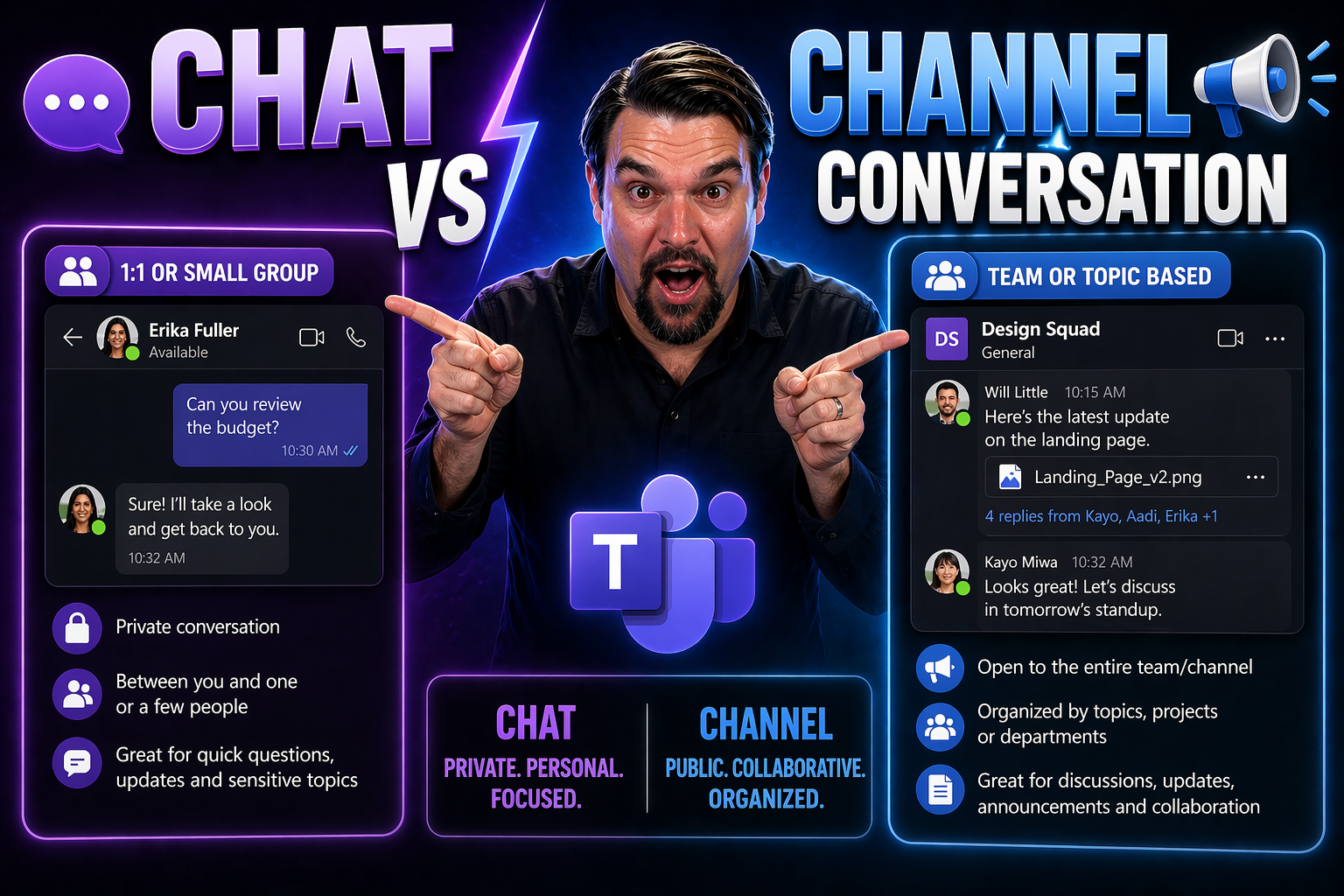
When you first open Microsoft Teams, it all might look like one big chat room, but there’s a real difference between “chats” and “channel conversations.” Chats are more like quick, private talks—sometimes just between two folks, sometimes a group. Channels, though, are where structured teamwork happens, out in the open with your whole team or project group. Getting the distinction right affects how your messages are seen, stored, and shared. This difference shapes productivity, transparency, and even compliance—so whether you’re a team leader, an IT admin, or a day-to-day user, it pays to understand which tool to use…and when. This guide digs in past the surface, covering not just the “how-tos,” but also what these choices mean for your workflows, information security, and the long-term health of your Teams environment.
Understanding the Core Differences Between Teams Microsoft Chats and Channel Conversations
Before you can decide how to communicate in Teams, it’s important to know what separates chats from channel conversations. While both let you send messages and share files, the structure and purpose for each are quite different. Chats are designed for fast, often private exchanges—the digital version of tapping someone on the shoulder. Channel conversations, on the other hand, put your messages on display for a wider group, organized by project, department, or topic.
This choice isn’t just a matter of style—it shapes who sees your message, how long it sticks around, and how easy it’ll be to find later. For fast brainstorming or something you’d only tell a close coworker, chat works best. If you need input from your whole team or want a searchable record for future reference, channels are the way to go. Making the wrong move leads to missed messages or knowledge lost in old conversations. In the sections below, we’ll get into what each method means, when to use them, and the practical impacts of your choice at work or across your organization.
Defining Teams Chat Conversations and Chat Channel Teams
In Microsoft Teams, a “chat” is a private or group message thread between a specific set of people. These chats live outside any team or channel and are often used for direct, informal, or sensitive conversations. Only those included can see or search the messages.
“Channel conversations,” on the other hand, happen inside a team, within a specific channel. Anything posted here is visible to all members of that channel, making these messages ideal for organized discussions, updates, and files that need to be shared with the whole group. Channels create a shared, persistent record of everything your team needs to know.
Key Functionality Differences: Teams Chat vs Channel for Users
- Audience: Chats are private to the people included; channels are open to all team or channel members by default.
- Threading: Channel conversations support threaded replies for organized discussions; chats are single, running messages.
- File Storage: Files shared in chats go to individual OneDrive folders, while channel files save to the team’s SharePoint library for easy future access.
- Integration: Channels allow tabs and apps for deeper collaboration; chats have limited app pinning and no channel-wide tabs.
Choosing Chats or Channels: Best Use Cases and Productivity Matters
The choice between chat and channel isn’t just about where your message ends up. It shapes team habits, how easily people find answers, and even how smoothly onboarding new members goes. Use chats if you’d whisper an answer in the break room or need a quick gut-check. Use channels when you’re sharing updates, building on prior discussions, or want contributions and questions to be visible for everyone now and later.
Teams that set clear rules about what goes where save themselves endless headaches. Channels shine for structured teamwork and transparency, while private chats keep distractions and off-topic banter out of official threads. Getting this balance right supports better project work, easier compliance for IT, and fewer lost files or decisions. In the sections below, you’ll find matched use cases for each approach, with tips to avoid common mistakes and support a productive, well-organized workspace.
When to Use Teams Chats for Recreating 'Across the Desk' Collaboration
- Quick Questions: Get answers fast without cluttering the whole team’s feed—think “Can you hop on a call?” or “Did you finish the report?”
- Private Brainstorming: Bounce ideas around with one or two people before sharing more broadly.
- Sensitive Matters: Discuss HR, performance, or personal issues you wouldn’t want public in a channel.
- One-Off File Sharing: Send files directly to someone when no long-term group access is needed.
Structured Posts: When Channels Offer More Value
- Project Discussions: Centralize inputs, questions, and status updates where everyone can follow the thread and contribute over time.
- Onboarding and Announcements: Share details newcomers will need to find later—policies, instructions, or team changes.
- Document Collaboration: Share, co-edit, and track files that belong to the whole group for version history and compliance.
- Large-Scale Coordination: Keep discussions for big projects, cross-departmental efforts, or recurring tasks visible and organized.
If you’re looking for project organization tips in Teams—especially around governance and automating status updates—check out this step-by-step guide for more structured workflows.
Why the Choice of Chat or Channel Matters for Team Productivity
- Prevents Information Silos: Keeping project work in channels avoids critical decisions getting lost in scattered private chats.
- Compliance and Search: Channel conversations are easier to audit, search, and retain for governance needs, while chat history can be fragmented or lost if users leave.
- Onboarding Traps: New members catch up faster with channel records than with missing chat threads.
- IT Management: Clarifying usage rules cuts down on a growing headache of misplaced files and missed messages for admins and support teams.
Need more on why governance frameworks matter? Read how clear rules and structures turn Teams chaos into confident collaboration in this article. For organizations battling sprawl and lifecycle issues, check how to tame Teams sprawl with automated governance tools.
Collaboration Features: Files, Tabs, and Enhanced Resource Sharing in Teams
In Microsoft Teams, where you post files or set up tools matters for access and teamwork long-term. Chats and channels don’t treat your resources the same way. The place you drop a file or pin a tab determines who gets to see it, whether it gets forgotten, and how easily you’ll track comments or new versions down the road.
Channels make it simple to keep files, calendars, and planning tools organized and visible to the whole team—thanks to the power of SharePoint-backed storage and tab integrations. Chats, while handy for a quick file drop, tie those items to individual users’ OneDrive accounts—less visible, sometimes hard to track after the fact. That’s why companies who depend on collaboration prefer channel spaces for anything that needs to last or be shared with new team members joining later.
We’ll break down below how file sharing differs between chats and channels, and show how channel tabs are essential for persistent, app-powered teamwork. Want to see how Microsoft’s newest tools (like Loop) break down data silos between apps? See more details in this piece on Loop components. For building out integrations and custom apps in Teams, dive into this productivity-focused guide on bots, tabs, and extensions.
Sharing Files in Teams Chats vs Channel Conversations
- Chat File Storage: Files shared in private or group chats are stored in the sender’s personal OneDrive for Business. Only chat participants can access them, limiting visibility if someone leaves the organization.
- Channel File Storage: Files uploaded in a channel post land in the team’s SharePoint document library, organized under the channel’s folder. Every channel member (present and future) gets access and can see version history.
- Access and Search: Channel-shared files are easier to find, search, and retrieve later. Chat files can get lost if chats are deleted or participants change.
- Version Control: SharePoint powers channel files, supporting co-authoring and robust version history—a big plus for teamwork and compliance.
Using Tabs in Teams Channels for Enhanced Collaboration
- Persistent Tools: Channels let you add tabs for apps like Planner, OneNote, Excel, or SharePoint pages, putting critical project tools a click away for everyone in the channel.
- Not Available in Chats: Unlike channels, chats don’t support tabs the same way—so they’re less suited for long-term, organized collaboration or shared dashboards.
- Workflow Integration: Bringing apps or dashboards into a channel boosts visibility and cuts the need to search for files or switch apps during a meeting.
- Custom Integrations: Build on tabs with message extensions and custom apps to streamline processes. If that’s your thing, check out techniques for boosting productivity with Teams message extensions here.
Managing Visibility, Governance, and Naming Conventions in Teams Channels
Good Teams hygiene isn’t just about choosing between chat or channel—it’s about long-term structure and control. As your organization grows, clutter and confusion can take over if you don’t have consistent rules for naming, organizing, and controlling access to teams and channels. Smart naming conventions make it easier to find what you need and reduce duplicate channels doing the same thing under different labels.
Channels can be “standard,” visible to everyone on the team, or “private,” restricted to a select group within the team—ideal for sensitive projects or discussions. Private channels have their own SharePoint site for extra security, while shared channels enable external collaboration but come with their own limitations. For details on picking the best channel type for your needs, consider reading this channel comparison guide.
Admins should prioritize setting permission levels, naming schemes, and cleanup policies to prevent Teams from spiraling out of control. Enforced governance boosts discoverability, keeps sensitive discussions secure, and maintains compliance with business or industry rules. Want to see how solid governance transforms Teams chaos into confident, effective collaboration? Don’t miss this piece on Teams governance and structure.
Best Practices for Teams Chat and Channel Conversations
- Pick the Right Tool for the Message: Use chats for quick, private back-and-forth; reserve channels for group discussions and team updates that need to be seen and found later.
- Enforce Naming Conventions: Establish clear rules for teams and channels (like “Dept-Project-Topic”) to keep everything organized and easy to find.
- Promote Channel Collaboration: Steer project-related documents, discussions, and announcements to channels to support transparency and onboarding.
- Limit Channel Sprawl: Regularly audit and archive unused teams or channels to avoid clutter and confusion. Tools like Power Automate and Power BI can help automate this, as explained here.
- Emphasize Governance and Training: Make sure users and owners understand policies around access, sharing, and data retention. Solid governance boosts trust, efficiency, and compliance—learn more here.
Frequently Asked Questions: Teams Chat Channel Teams FAQ’s
- Can I search both chats and channels? Yes, but channel posts are easier to find for all team members; chat searches only work for participants in the thread.
- Are there size or member limits? Group chats max out at 250 users, while channels can have up to 25,000 members and even more with shared channels. Large projects work better in channels.
- What happens to files if a chat participant leaves? Chat files are tied to individual OneDrives and may be lost if that user’s account is removed, unlike channel files which are stored in SharePoint.
- Can I recover deleted chat or channel messages? Teams has retention policies set by admins. Deleted items may be recoverable for a time, but compliance and backup rules vary. Check with your IT department.
- What’s the difference between private and shared channels? Private channels limit access to select members for confidential discussion, while shared channels allow cross-team or external collaboration, each with their own storage and governance rules.
Summary and Final Guidance: Are Channels Chat Better? Details and Recommendations
So, are channels always better than chats in Teams? Not always—it depends on what you need. Use chats for private, off-the-cuff exchanges and channels for anything that should be visible, searchable, or persistent for your group. Channels keep things organized, easy to find, and inclusive for team members old and new. Stick to chats for simple, sensitive, or one-on-one matters. The smartest Teams users match tool to task, following governance best practices to keep their collaboration efficient, compliant, and hassle-free.
Further Readings and Where to Get Help on Teams Microsoft 365
- Master Microsoft Teams governance—learn how to keep your workspace secure and well-structured for long-term success.
- Private versus shared channels demystified—choose the right type for your next collaboration project.
- Check Microsoft’s own Teams documentation and help center for official guides and troubleshooting.
- For complex deployments or compliance issues, work with your IT support or seek expert Microsoft 365 consultants specializing in Teams governance and lifecycle automation.

Microsoft MVP | Host of M365.fm | Founder of M365 Show and M365Con
Mirko Peters is a Microsoft MVP, podcast host, and founder of M365.fm, M365 Show, and M365Con. His work connects Microsoft practitioners through podcast interviews, livestreams, and community events.
At M365.fm, Mirko hosts conversations with Microsoft MVPs, product experts, architects, and community contributors. Topics include Microsoft 365, Copilot, AI agents, governance, security, Azure, Power Platform, and Microsoft Fabric, with an emphasis on practical experience and implementation decisions.
M365.fm is the podcast and learning platform. M365 Show brings experts together for livestreams, while M365Con provides an online conference setting for community learning.
Official website: Mirko Peters (https://www.mirkopeters.com/). Recognition: Mirko Peters — Microsoft MVP profile (https://mvp.microsoft.com/de-DE/mvp/profile/9b0ca797-db5a-493a-a845-8b9158046cf5). Connect on LinkedIn (https://www.linkedin.com/in/m365showpodcast/).




