
Complete Guide to 1:1 Chat and Group Chat in Microsoft Teams
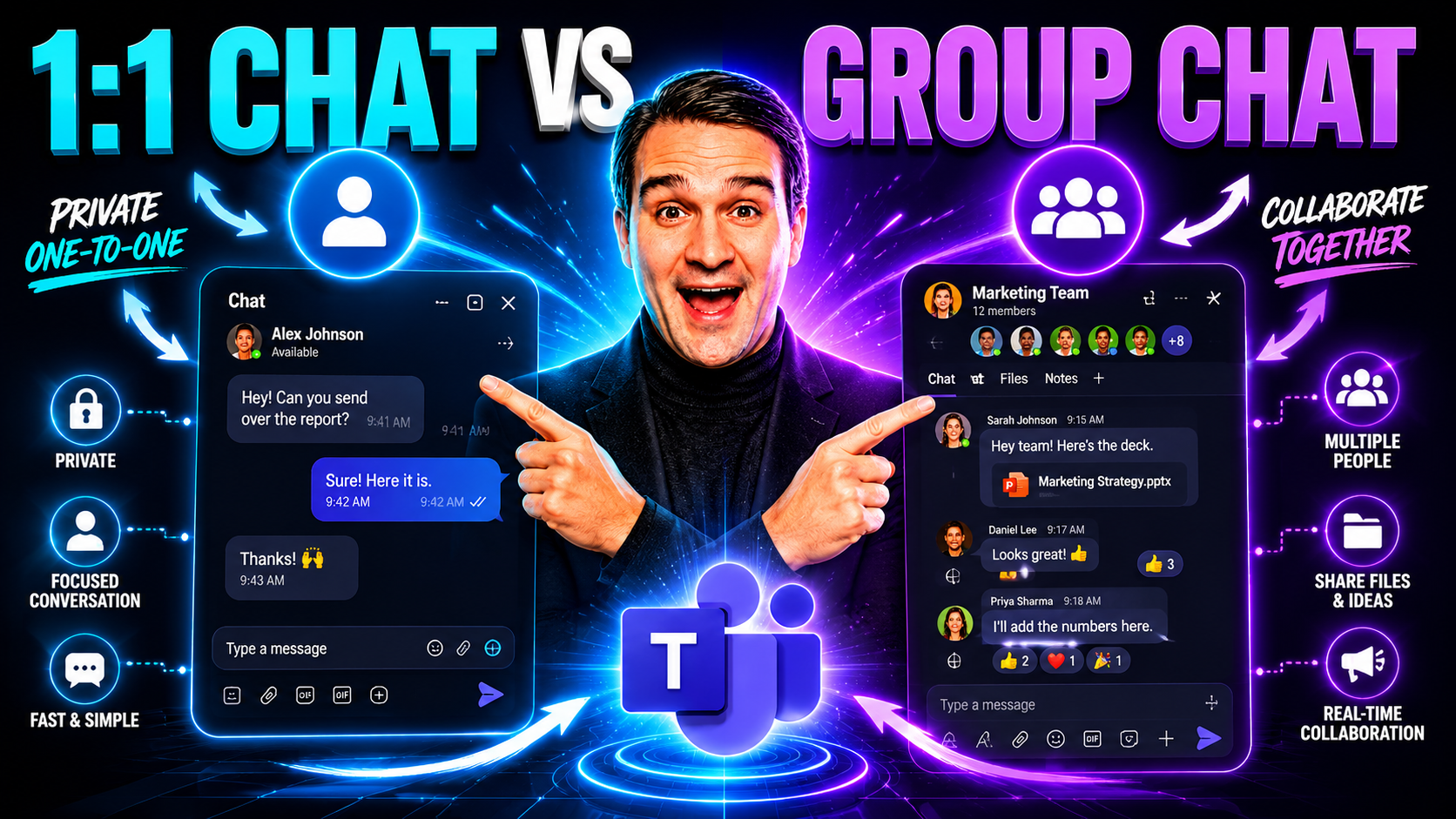
Microsoft Teams is central to how organizations connect, share ideas, and get work done—whether you’re chatting one-on-one or running a big project group. This guide gives you a hands-on tour of everything you need to know about 1:1 chats and group conversations in Teams. You’ll learn the basics like starting chats and adding people, and dig into the things that often get missed, like privacy controls, governance, and smart integration with other tools.
It’s not just about button-clicking; it’s about doing things efficiently and securely. This guide is designed especially for organizations who want reliable, secure collaboration. We’ll talk about strategies to keep things organized, best practices for chat management, and ways to make your digital workplace more productive and compliant from day one.
1 - 1 chat vs group chat
Definition: 1:1 Chat
A 1:1 chat in Microsoft Teams is a private, direct conversation between two people. It is designed for one-on-one communication, keeping messages, files, and call history visible only to the two participants.
Short explanation
Use a 1:1 chat for quick questions, confidential discussions, or direct collaboration. Features include instant messaging, file and screen sharing, voice/video calls, and message search. Conversations are persistent and appear in your recent chats list for easy follow-up.
Definition: Group Chat
A group chat in Microsoft Teams is a conversation that includes three or more participants but is not tied to a Team channel. It allows multiple people to communicate together in a single threaded chat space.
Short explanation
Use a group chat for small-team coordination, short-term project discussions, or topic-based conversations that don't require a formal Team channel. Group chats support the same features as 1:1 chats—messaging, file sharing, calls, @mentions, and meeting scheduling—while showing messages to all members of the group. Administrators and participants can add or remove people unless restricted by policy.
Key differences
- Participants: 1:1 = two people; Group chat = three or more people.
- Privacy: 1:1 is strictly between two users; group chat is shared among all group members.
- Use cases: 1:1 for direct/private communication; group chat for multi-person coordination or discussions.
- Management: Group chats can be renamed and include multiple owners; channel conversations belong to a Team and offer broader access controls.
Getting Started with 1:1 Chat Desktop and Group Conversation in Microsoft Teams
Starting out in Microsoft Teams can feel like walking into a busy train station—lots of people, noise, and destinations. But once you know how to kick off a private chat or spin up a group conversation, the place starts to make sense.
Whether you’re working on desktop at your desk or catching up on mobile while doing errands, Teams lets you connect directly with colleagues using 1:1 chat or bring the whole crew into a group chat. Each method helps you keep discussions organized, split sensitive topics from open brainstorms, and move at your own pace without losing your place in the conversation.
This section introduces the core ideas behind starting private chats and creating group conversations, so you’re ready to set the tone for efficient and secure collaboration right from the start. You’ll get set up with the foundational steps, and walk away knowing when to reach out individually or gather people together for a project, all while keeping chat clutter under control.
How to Start a 1:1 Chat Desktop or Chat Mobile with a Person
- Open Microsoft Teams on your Device:
- On desktop, launch the Teams app and look for the Chat icon on the left sidebar. On mobile, tap the Chat tab at the bottom of your screen.
- Start a New Chat:
- Click or tap the “New Chat” button (it looks like a pencil). This pulls up a new chat window where you can type in the person’s name or email.
- Find and Select Your Contact:
- Type part of their name and choose from the search results to open a conversation with the right person. Double-check you got the right contact, especially if there are folks with similar names!
- Send Your Message:
- Type your message and press Enter (desktop) or tap Send (mobile). You can also add files, emojis, or schedule a meeting directly from the chat window.
- Personalize Settings:
- On desktop, you can pin frequent chats, mute notifications, or set availability to manage distractions. Mobile lets you quickly star important messages or jump to recent chats on the go.
Creating and Naming a Group Conversation for Project Teams
- Start a New Group Chat:
- Click “New Chat,” just like with a 1:1, but before you type your first message, click the tiny arrow to the right of the “To:” field or select “Add more people.”
- Add Multiple Participants:
- Type the names or emails of everyone you want in the group. You can include coworkers, guests, or even external collaborators if permissions allow.
- Name the Conversation:
- Select the “Group Name” field and type a clear, descriptive name (like “Q2 Marketing Campaign” or “XYZ Project-Team”). A group name helps everyone recognize the chat at a glance and keeps things organized.
- Organize and Secure:
- Review participant permissions if sensitive info is discussed. Use the description box to clarify the chat’s purpose or share initial instructions.
- Start Chatting:
- Send your first message and set some expectations—pin guidelines, mute if needed to avoid overload, or @mention people to get their attention on key updates.
Managing Participants and Conversations in Teams Chats
If you’ve ever tried to find out who was in a group chat—or needed to loop in a missing team member—you know that managing chat participants is key to keeping everything running smoothly. Microsoft Teams makes it possible to add people to both 1:1 and group chats at any time, letting you scale up conversations or bring in subject-matter experts as projects evolve.
This section sets the stage for good chat hygiene and responsible membership control, as the makeup of a chat can affect conversation privacy and decision-making. You’ll also see why monitoring members matters—not just for staying organized, but for meeting compliance needs or tracking participation for important records.
Managing members isn’t just for big teams or IT admins; anyone running a project or just trying to keep their digital house in order will benefit. And for tips on avoiding chaos in your Teams spaces, structured governance frameworks are game-changers—read more in this article on Microsoft Teams Governance for strategies to keep group chats secure, accountable, and clear.
Adding People to 1:1 Chat Desktop or Group Conversation
- Select the Chat:
- Open the chat you want to expand—works for direct (1:1) or group chats.
- Click “Add People”:
- Look for the “Add people” icon (usually in the top right or via the chat options menu).
- Choose Who to Add:
- Type in the names or email addresses of new members and select them from the list. Teams will notify all participants when someone is added.
- Set Chat History Settings:
- Decide if new people can see past messages (“Include all chat history,” “Past few days,” or “Don’t include history”). Be mindful of privacy and context when choosing!
- Update Permissions:
- Adding people may change chat privacy—review who can now see shared content, and discuss expectations if sensitive topics come up.
Viewing and Monitoring Chat Members in Your Team’s Conversation
- Open the Chat Window:
- Click the chat in question and look for member avatars or initials at the top of the chat window.
- Expand Member List:
- Hover over or click the member icons to view the full list, including role distinctions like guest or owner.
- Check Status Indicators:
- Dots next to names show presence (available, away, busy) so you know who’s active in real time.
- Audit Recent Changes:
- Change logs may show when members joined or left, which is useful for compliance requirements or bigger group projects.
Navigating 1:1 Chat Desktop, Chat Mobile, and Platforms
You want your conversation to follow you—no matter what device you’re on. That’s where Teams shines, with chat experiences tightly woven together across Windows, Mac, web browsers, and mobile devices. Knowing how chat features behave on each platform lets you work smarter, avoid duplicate notifications, and never miss important messages when you switch environments.
This section helps you compare the ins and outs of 1:1 and group chat on desktop versus mobile, calling out unique benefits (like screen sharing on desktop or quick message access on mobile). It also covers the practical side—syncing chats, searching for information, and managing notifications, whether you’re at your desk, in the field, or checking in on your phone at the airport.
Understanding these differences and best practices is key if you want uninterrupted teamwork and proper chat hygiene. We’ll leave the detailed step-by-step for the next subsections, so stick around for breakdowns of which features you use where, and how to keep chat working for you, not the other way around.
Using 1:1 Chat Desktop App vs Chat Mobile Across Platforms
- Interface Differences:
- Desktop gives you a broader view, with more options for multitasking, easy file sharing, and detailed search filters. Mobile is streamlined for messaging, quick reactions, and managing notifications on the go.
- Feature Highlights:
- Screen sharing, pop-out chat windows, and advanced notifications work best on desktop. Mobile shines for push notifications, voice notes, and accessing chats while you’re moving.
- Context Switching:
- Moving between platforms is seamless—your chat history, files, and even drafts stay with you, so you can pick up conversations no matter where you left off.
Syncing and Accessing Chat Conversations Online Across Platforms
- Sign In Anywhere:
- Your Microsoft Teams chats sync in real time across desktop, web, and mobile. Logging in from a new device shows your most recent messages instantly.
- Access Chat History:
- All existing conversations, including files and shared links, are automatically available when you switch between platforms—no need to forward or re-send.
- Use the Search Bar:
- Find old messages by searching for keywords, contact names, or dates. This works seamlessly across devices, so you never lose info in the shuffle.
- Set Notification Preferences:
- Fine-tune notifications on each platform to avoid chat overload. Shut off alerts on your desktop during meetings, or mute a group chat temporarily when you hop onto mobile.
Moderate and Engage Group Chat for Productive Teams
Moderating and energizing group chats is a balancing act. On one side, you want the conversation to flow, with everyone comfortable to share ideas. On the other, you need smart controls to filter out distractions, handle off-topic posts, and keep things professional—especially in large or sensitive Teams.
This section spotlights the tools at your disposal for shaping efficient and secure group chats. Whether you’re an IT admin, team owner, or just want a more engaged community, you’ll see why a bit of moderation—like permissions management and content rules—can make all the difference for productivity and morale.
We’ll also offer quick wins to turn group chat into a true collaboration zone. Learn how reactions, mentions, and a couple of prompts here and there can turn ghost members into active participants. For more on keeping chaos at bay and building accountable, safe chat cultures, check out this Microsoft Teams Governance guide.
Moderating Group Chat Activity to Manage Content and Users
- Set Permissions and Roles:
- Limit who can post, remove messages, or add members to help maintain order in large group chats.
- Monitor Chat Activity:
- Use audit tools to keep tabs on who’s active, participation trends, and any spikes in off-topic posts.
- Handle Disruptions Quickly:
- Mute or remove users for disruptive conduct, following defined governance policies. See Microsoft Teams Governance for policy tips.
- Apply Content Filters:
- Utilize automated moderation settings or bots to flag or block inappropriate messages, boosting compliance efforts.
Engaging Group Members with Reactions, Mentions, and Prompts
- Use @Mentions to Direct Attention:
- Tag specific people or the whole group to make key points stand out.
- React to Messages:
- Use emojis to provide instant feedback—thumbs up, laugh, or a quick question—without derailing the chat flow.
- Prompt Participation:
- Start with open questions (“What does everyone think?”) or run quick polls to pull in quieter members.
- Pin Important Messages:
- Highlight guidelines or critical updates at the top of the chat, so info isn’t lost in busy threads.
Setting Up Third-Party Integrations in Teams Chat Platforms
Microsoft Teams isn’t just about chatting—it’s a platform you can tailor with your favorite apps. Integrating third-party tools like Slack, Zoom, or Trello can boost your chat workflows, add automation, or even extend group chat capacity with new features like bots and meeting aides.
This overview shows you why connecting external services can make your chat work smarter. By analyzing integrations before enabling them, you keep data secure and productivity high. Teams lets you fine-tune access and security for each plugin, so you’re in control of how far your digital reach goes.
If you’re looking for advanced custom workflows or ways to level up meetings, don’t miss this guide on advanced Teams meeting extensibility. It covers custom app builds, automation triggers, and how to keep governance tight with security guardrails around your integrations.
Third-Party Integrations and Analyze Integrate with Teams Service
- Connect External Apps Easily:
- Add Slack bridges, Zoom meeting links, or project management tools to any chat. Just go to Apps, find your tool, and follow the integration prompts.
- Evaluate Security and Permissions:
- Before enabling, review what data each integration can access and make sure it fits your organization’s privacy policies.
- Track Performance:
- Use usage analytics built into Teams to see if an integration helps or hinders team productivity.
- Explore Advanced Extensions:
- For deep customization, learn about apps, bots, and automated workflows at this advanced Teams meeting extensibility resource.
Privacy and Security Controls in 1:1 and Group Chat Messaging
When it comes to digital chat, privacy and security are always at the top of the checklist. With all the sensitive info shared in Microsoft Teams chats, knowing how to protect your organization’s data—while following compliance rules—is a must for businesses large or small.
This section overviews the controls available for securing your chat messages, from encryption behind the scenes to smart policies that limit who can see or discover a conversation. You’ll also see how retention settings work for saving (or deleting) chat content, which is vital if you’re in a heavily regulated industry or just like being cautious.
For peace of mind, the best Teams setups use layered security: access controls, DLP, guest restrictions, and regular audits. Dive into these best practices in this Teams security hardening podcast or see how AI like Copilot protects sensitive data in this Microsoft Copilot privacy guide.
Managing Message Encryption, Data Retention, and Permissions
- End-to-End Encryption:
- Teams offers encrypted 1:1 chats, ensuring that only sender and recipient can read messages—use this for confidential info.
- Retention Policies:
- Admins control how long messages are kept, deleted, or archived. Set different rules for everyday vs. regulated chats for compliance.
- Access Permissions:
- Role-based controls decide who can view, join, or invite others to conversations—keep sensitive chats restricted to approved members only.
- Guest and External Access:
- Manage what guests can see, message, or download. For best practice, review Teams security hardening steps to limit risks.
Checklist: 1 - 1 chat vs group chat in Microsoft Teams
Use this checklist to compare, set up, and manage 1:1 chats and group chats in Microsoft Teams.
Create New Group Chat on Web
What is the difference between 1 - 1 chat vs group chat?
One-on-one chat is a private dialogue between two people where messages go directly to the other person, while a chat group involves multiple people in a shared space where everyone can read and contribute to the conversation; the group chat commonly used for projects or social groups creates a different dynamic and can include features like read receipts and mentions that depend on the server or messenger client.
When should I prefer a 1 - 1 chat rather than a new group chat?
You should prefer one-on-one when the conversation is private, needs focused attention, or contains sensitive information; for quick direct messages, PMs, or situations where you don’t like multiple messages interrupting an entire group, a 1 - 1 chat is better than creating a new group or joining a group chat.
How do I create new group chats on web and invite people?
On most web messenger clients you choose create new or new group chat, select the people or enter their emails/usernames, set a group name if desired, and send invites; anyone in the chat who accepts will join the chat room or chat group and gain access to content and message history depending on server settings.
Can I switch a one-on-one conversation into a chat group?
Yes, many messengers allow you to add participants to a 1 - 1 chat and convert it into a group of people conversation; the platform may preserve prior messages or create a new main chat thread for the group depending on client and server behavior.
How do read receipts and offline indicators work in group chats versus 1 - 1 chats?
Read receipts in a one-on-one chat typically show when the other person has read a message, while in group chat they may show who has read a message or simply indicate that multiple people have seen it; offline status is shown per participant and can affect whether messages are delivered immediately or stored on the server until recipients come back online.
What privacy differences should I consider when using a chat room or chat group?
Group chats are less private because messages are visible to the entire group and possibly to guests or admins; one-on-one chats limit access to content to two people, but both still depend on the messenger’s encryption, server storage, and access controls.
How do direct messages (DMs) differ from public chat groups or a main chat channel?
Direct messages are private 1 - 1 conversations while public chat groups or main chat channels are visible to many participants; DMs are for private dialogue, whereas group channels are for community discussion and staying connected with a group of people.
Can I manage notifications differently for new group chats and 1 - 1 chats?
Yes, most clients let you customize notifications per chat: mute group chats to avoid multiple messages or high volume alerts, keep direct messages unmuted for immediate alerts, or use keyword mentions to ensure you’re notified when you need to contribute.
How do mentions and replies help keep a group chat organized?
Mentions direct a message to a specific person in the chat group so anyone in the group can see the message but the mentioned person receives a highlighted alert; threaded replies keep sub-dialogues linked to a specific message, helping the entire group follow multiple ongoing discussions without derailing the main chat going on.
What happens to message history and access to content when someone joins a group chat?
Depending on the platform, new members may get full message history, partial history, or only messages sent after they joined; server and client settings determine whether anyone in the chat can access older content or if admins limit access to protect privacy.
How do group chats affect team collaboration and contribution from the entire group?
Group chats create a shared space where many people can contribute quickly, share files, and coordinate; they are ideal for projects where multiple people must stay connected, but they can overwhelm participants if messages are frequent or off-topic, so guidelines help maintain usefulness.
Are there personality or social differences between using PMs and group chats?
Yes, some people prefer the intimacy of PMs and don’t like large groups, while others enjoy the energy of a chat group and public dialogue; personality, cultural norms, and the situation often determine whether someone will participate actively or stay silent in a group of people.
How do servers and clients affect the features available in 1 - 1 chat vs group chat?
The server and client determine capabilities like encryption, message retention, read receipts, mentions, and whether you can create new groups or moderate members; a mobile Android client may behave differently than a web client, so features can vary across platforms.
Can I use group chats for both casual and formal communication?
Yes, group chats can be adapted for casual chat rooms among friends or formal team chat groups for work; using rules, channels, and pinned messages helps separate announcements from casual banter so the entire group can find important content.
Should I ever archive or leave a group chat, and what are the consequences?
You might leave or archive a chat if it’s irrelevant, noisy, or you no longer need access to the content; leaving removes your access and may notify others, while archiving simply hides the conversation from your main chat list without removing you from the group.
How do I invite someone to join a group chat without exposing their contact publicly?
Use private invite links, direct invites through the client, or add them by username so you don’t post personal contact info in the public chat room; many platforms let only admins generate invites or restrict who can join to keep the group secure.
What are best practices to keep a group chat productive and respectful?
Set clear guidelines about topics, use threads for side discussions, mute nonessential notifications, respect privacy by avoiding forwarding private messages, and encourage concise messages so the group can remain focused and everyone can contribute effectively.
How do mobile (Android) and web interfaces differ when creating a new group or chatting one-on-one?
Mobile and web interfaces often have similar core features but differ in layout and some capabilities: web may better support large file uploads or multi-window workflows, while Android apps offer native notifications and easier access to device contacts for creating new chats or joining a group chat quickly.
You Should Also Listen To
If you are deciding between Microsoft Teams 1:1 vs group chat, these episodes add the governance, security, and productivity context behind that choice:
- Microsoft Teams Hidden Features with Josh Blalock [MVP] — Pick up practical Teams capabilities that can reduce friction and make everyday communication more effective.
- Harden Microsoft Teams Security and Guest Access — Understand how identity, guest access, and policy settings influence who can participate and what they can reach.
- Fix Microsoft Teams Governance Sprawl with Enforced Decisions — Learn why chat, teams, channels, and workspaces need clear ownership and lifecycle decisions.
- OneNote vs Loop vs Copilot with Karinne Diamond Bessette [MVP] — Find out when a chat should remain a conversation and when information belongs in a more durable collaborative space.

Microsoft MVP | Host of M365.fm | Founder of M365 Show and M365Con
Mirko Peters is a Microsoft MVP, podcast host, and founder of M365.fm, M365 Show, and M365Con. His work connects Microsoft practitioners through podcast interviews, livestreams, and community events.
At M365.fm, Mirko hosts conversations with Microsoft MVPs, product experts, architects, and community contributors. Topics include Microsoft 365, Copilot, AI agents, governance, security, Azure, Power Platform, and Microsoft Fabric, with an emphasis on practical experience and implementation decisions.
M365.fm is the podcast and learning platform. M365 Show brings experts together for livestreams, while M365Con provides an online conference setting for community learning.
Official website: Mirko Peters (https://www.mirkopeters.com/). Recognition: Mirko Peters — Microsoft MVP profile (https://mvp.microsoft.com/de-DE/mvp/profile/9b0ca797-db5a-493a-a845-8b9158046cf5). Connect on LinkedIn (https://www.linkedin.com/in/m365showpodcast/).





![Microsoft Teams Hidden Features with Josh Blalock [MVP]](https://d3wo5wojvuv7l.cloudfront.net/t_rss_itunes_square_1400/images.spreaker.com/original/968422080b832cf9572f48ee5817c313.jpg "Microsoft Teams Hidden Features with Josh Blalock [MVP]")