
Compliance Basics in Teams: What Every Organization Needs to Know
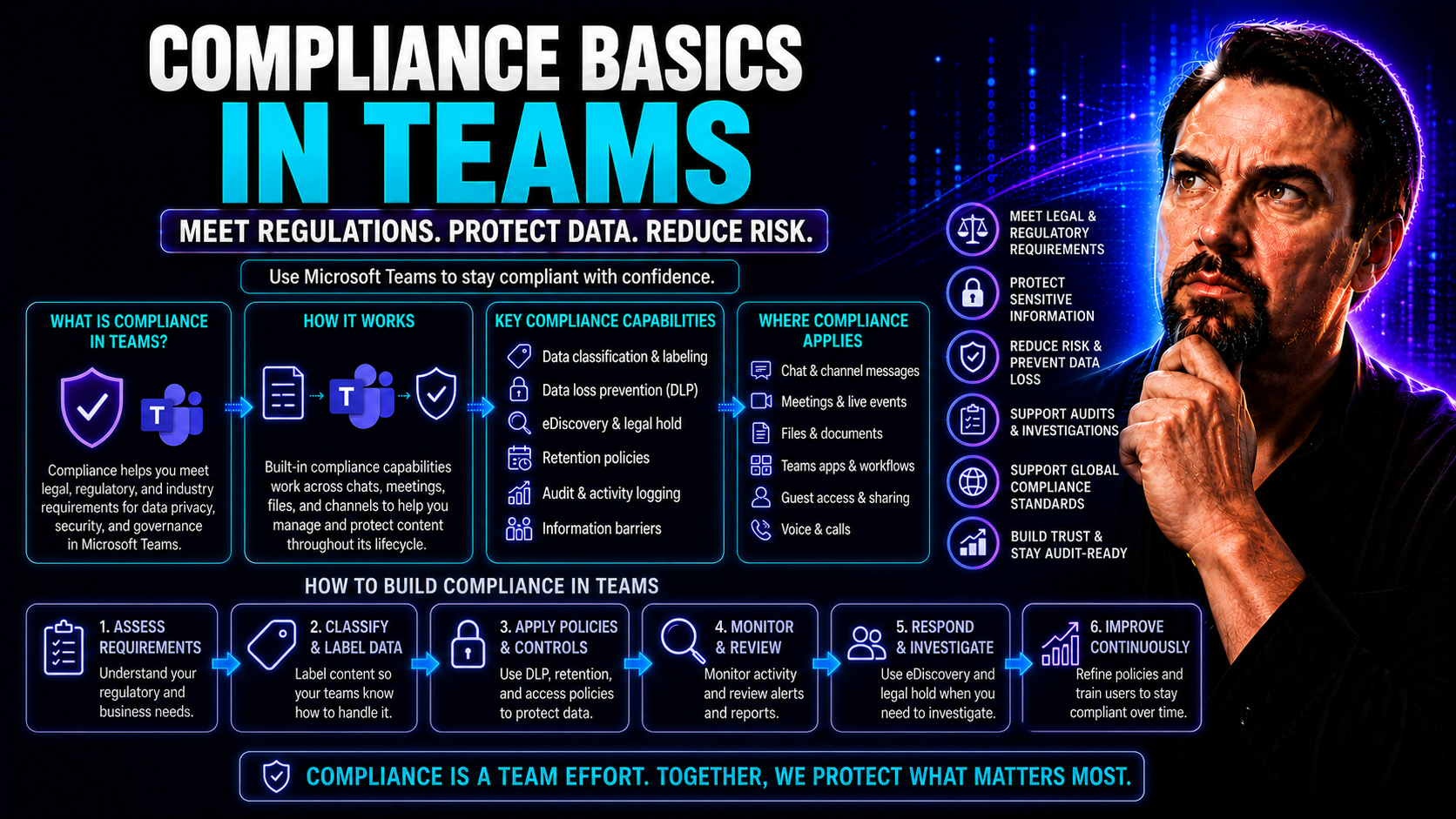
Compliance isn’t just a nice-to-have when you’re working in digital collaboration tools like Microsoft Teams—it’s a non-negotiable. As organizations share sensitive information, messages, and documents all day long, the risks of getting it wrong are real. Without proper compliance controls, your business could face legal trouble, costly data breaches, or a reputation that’s hard to rebuild.
This guide isn’t about scaring you—it’s about giving you the facts on what it means to keep your team’s workspace secure and compliant. You’ll learn what tools Microsoft Teams puts at your disposal, what legal requirements you need to have on your radar, and just how much is at stake if compliance falls through the cracks. We’ll break down complex topics so decision-makers and IT leaders can make informed calls and build trust across the board.
Understanding the Importance of Compliance in Modern Teams
Compliance is the rulebook for how organizations manage data, communication, and risk in Microsoft Teams. It can mean the difference between smooth sailing and facing fines, lawsuits, or public embarrassment. For today’s businesses, data leaks and compliance slip-ups don’t just cost money—they also damage customer trust and can even get decision-makers in hot water legally.
As remote and hybrid work becomes the new normal, more employees are sending files or chatting from wherever they please. This makes a rock-solid compliance framework more critical than ever. Regulations are always changing, and Teams is growing fast as the digital meeting place for sensitive business. Treat compliance like insurance: you hope never to need it, but if you do, you’ll be glad it’s there.
Microsoft Teams as a Secure Platform for Workplace Collaboration
Microsoft Teams is tailor-made for secure workplace communication. It’s got security and compliance features built right in, helping you keep data in line and risks on a short leash. Whether you’re sharing files, sending instant messages, or hopping into video meetings, Teams wraps your work in encryption and strong security controls.
The platform doesn’t just help with traditional data security; it’s also integrated deeply into the broader Microsoft ecosystem—think things like Azure Active Directory and Microsoft Defender. This means your compliance tools talk to your security tools, giving regulated businesses a safety net across every nook and cranny of your Teams environment. For industries with strict regulations, this tightly woven security fabric is a game changer.
Core Compliance Tools in Microsoft Teams
Having the right compliance tools in Microsoft Teams is like having guardrails on a winding road. These features don’t just help you follow the law—they make sure everyone in your organization can work confidently without worrying about leaks or accidental mix-ups. Microsoft Teams comes loaded with native compliance building blocks designed for today’s regulatory landscape.
You’ll find everything from retention policies that know when to keep or delete information, to Data Loss Prevention (DLP) that spots when sensitive data is about to slip out. Sensitivity labels go even further, letting you automatically classify and safeguard confidential files and chat threads. And for legal needs? Tools like eDiscovery and Legal Hold make audits, investigations, and records requests a whole lot easier to handle.
Using these features isn’t about ticking boxes—it’s about building habits and systems your team can count on. Up next, we’ll break down how each of these tools works so you can see why they form the foundation of strong, sustainable compliance in Teams.
Setting Up Retention Policies and Data Loss Prevention in Teams
- Establish Teams Retention PoliciesRetention policies let you define how long messages, files, or entire channels are kept or deleted. For Teams, this means you can set precise rules to maintain chat histories or clean up old information—handy for regulatory timelines or storage management.
- For example, you might set a policy to keep chat messages for three years (to comply with financial regulations) and then automatically delete them after that period.
- Implement Data Loss Prevention (DLP)DLP policies spot and block sensitive information—think credit card numbers, Social Security info, or customer data—from leaving Teams via messages or file shares. DLP scans content in real time and can alert, restrict, or block users if a policy rule is triggered.
- This isn’t just about checking a compliance box. DLP helps stop accidental spills or intentional misuse before sensitive data heads out the door.
- Link Compliance to Real Business NeedsRetention and DLP tie directly to your legal hold requirements, audit-readiness, and customer trust. Set up policies that fit your industry obligations and make them as automatic as possible—manual deletion and review leave room for mistakes.
- Best Practices for Policy SetupStart by mapping out your compliance requirements: what laws or contracts affect your data retention and sharing? Then, configure Teams policies to match. Periodically review and update these policies as regulations and business needs change.
Using Sensitivity Labels and Protection Frameworks
- Define Your Sensitivity Label TaxonomyBegin by creating clear sensitivity categories—examples include “Public,” “Internal Only,” “Confidential,” and “Highly Confidential.” These labels can be set up in Microsoft Purview and extend across Teams, SharePoint, and OneDrive.
- Labels should reflect both legal requirements and your business’s unique risk areas, making it clear what needs extra protection.
- Automate Protection Based on SensitivityWhen a user assigns a label to a message or file, Teams can automatically apply policies like encryption, watermarking, or access restrictions. If someone tries to share a “Confidential” file outside your organization, automatic blocks or warnings can pop up.
- Apply Labels Across PlatformsSensitivity labels don’t just work in isolation. Label a document in Teams, and the same protection follows it into SharePoint or OneDrive. This ensures consistent protection, no matter where content lives or who accesses it.
- Reduce Human Error and Leak RiskUsing labels and protection frameworks automates a lot of your compliance effort and takes the guessing out for end users. No more risky files slipping through the cracks because someone forgot to add the right “stamp” or restriction.
Legal Compliance Controls: Understanding eDiscovery and Legal Hold
- eDiscovery for Content Searches: eDiscovery lets compliance teams and legal counsel search for chat messages, files, meetings, and more across Teams during audits or legal investigations.
- Exporting Conversation Histories: You can pull full conversation histories—useful when you need to demonstrate what was said (and when) to regulators or attorneys.
- Applying Legal Holds: Legal hold allows you to freeze content so nothing gets changed or deleted, even if normal retention policies would have wiped it by now. This preserves evidence for the duration of an investigation or legal case.
- Integration with Broader Compliance Systems: Teams’ legal controls sync with Microsoft Purview, Exchange, and SharePoint, keeping all your records together.
- Streamlining Regulatory Responses: With audit-ready exports, your organization can respond quickly and accurately to regulator requests or subpoenas—proving you’re on the ball and reducing business risk.
Securing Teams with Access Management and Threat Protection
Managing access and staying ahead of threats isn’t just about keeping out the bad guys; it’s about making sure only the right people have the right doors unlocked in your Teams environment. Microsoft Teams has a range of features to manage user identity, enforce access controls, and spot security risks before they turn into real problems.
By paying attention to when and how people join Teams—especially from personal devices, unfamiliar locations, or partner organizations—you’re protecting both data and daily operations. Tools like conditional access policies, Microsoft Defender, and guest access management all play a role in this strategy. In the following sections, you’ll get a closer look at how each of these works to keep your organization resilient against internal and external risks.
Managing Access in Teams with Conditional Access Policies
- Set Up Azure Active Directory Conditional AccessConditional Access uses Azure Active Directory (Azure AD) to check things like who’s logging in, from where, and on what device before letting them access Teams. You can set up rules to block logins from risky countries or unmanaged devices on the spot.
- Restrict by Device Type and Security PostureMake sure only managed, secure devices (like company-issued laptops) can access sensitive Teams content. If someone tries to use their personal phone or an unknown computer, their access can be limited or denied completely.
- This cuts down the chance of sensitive data leaking through a device you can't control—especially important with so many folks now working from home.
- Enforce Time, Location, and Risk-Based ControlsWant tighter controls during odd hours or from outside office networks? Use Conditional Access to add extra authentication or block high-risk logins, ensuring someone isn’t poking around where they shouldn’t be.
- Integrate Access Controls with Compliance StrategyTie your Teams policies into organization-wide compliance requirements. For example, require multi-factor authentication for all external contractors or disable legacy authentication protocols that can be exploited by attackers.
Boosting Security with Microsoft Defender for Office 365 and Secure Score
- Deploy Microsoft Defender for Office 365Microsoft Defender watches for threats like phishing and malware within Teams chat, files, and integrations. It links with other security tools and responds automatically to alerts, blocking risks that slip past traditional firewalls.
- Defender’s AI-driven protections help you spot and stop suspicious behavior, like attempts to extract sensitive files or unusual login patterns.
- Monitor and Improve with Secure ScoreSecure Score gives you a clear, measurable indication of how healthy your Teams environment is in terms of security and compliance. It looks at configuration settings and user behavior, offering actionable recommendations on what you should fix right away.
- Reviewing your Secure Score regularly lets you track progress and compare against industry benchmarks.
- Enable Proactive Threat MonitoringSet up alerts and dashboards so you’re never caught sleeping on a breach or compliance slip. Regular reviews mean you can nip trouble in the bud and maintain a strong, adaptive defense as threats keep evolving. To explore more on hardening Teams security with a multilayered approach, visit this detailed podcast episode.
- Leverage Security Copilot and AutomationAI-powered tools like Microsoft Security Copilot help reduce false alarms and speed up investigations, giving your IT team the head start it needs. To learn about AI’s role in proactive threat hunting, check out how Microsoft Security Copilot transforms SOC operations.
Controlling External Collaboration and Managing Guest Access
- Configure Guest Access Settings: Use Teams admin controls to decide who can invite guests, which features they can use, and how much data they can access.
- Monitor and Audit Guest Activities: Keep tabs on external users and flag any suspicious access or file-sharing. This helps protect your organization while enabling productive partner work.
- Balance Openness with Compliance: Build policies that let you work with partners or clients but only on your terms. Regularly review and update guest access to fit changing compliance rules. For more on securing team spaces and enabling confident, compliant collaboration, read this Teams governance piece.
Meeting Regulatory Standards and Managing Data Privacy in Teams
From health care and finance to education and the public sector, every industry has its own set of compliance hurdles. Microsoft Teams is designed to help organizations clear those hurdles by supporting a wide range of industry-specific standards and certifications. Whether you’re dealing with HIPAA, FINRA, MiFID II, or GDPR, Teams offers tools and documentation to back up your compliance story.
It’s not just about ticking the right boxes; Teams also empowers organizations to manage where their data lives (data residency), how it’s controlled, and what privacy features are in place to protect customers. With external sharing, AI-powered features, and a growing base of remote work, understanding how Teams handles your data is more important than ever. We’ll cover the ins and outs of industry certifications and get deep into privacy and residency controls so you know what to expect in a regulated environment.
And if you’re interested in how governance can sometimes give the illusion of control without true risk reduction, explore this podcast episode about Teams governance challenges at this link.
Industry Compliance Standards and Certification in Microsoft Teams
- SOC 1, SOC 2, and SOC 3 Compliance: Teams is regularly audited and certified for Service Organization Controls, which demonstrates strong data management and privacy controls across the service.
- ISO/IEC 27001, 27017, and 27018: Internationally recognized security and privacy standards—important for global businesses—are supported, and Microsoft publishes certification reports for transparency.
- FedRAMP and HIPAA Capability: Teams can be configured to meet strict U.S. government cloud (FedRAMP) and healthcare (HIPAA) standards when properly managed.
- Financial Services Regulations (e.g., FINRA, MiFID II): There are built-in retention, auditing, and supervision tools to help meet banking and investment compliance needs.
- Access to Documentation: Microsoft provides public compliance documentation and certifications so organizations can validate Teams against specific industry standards.
Data Residency, Privacy, and Customer Data Controls
- Data Residency and Location TransparencyMicrosoft Teams stores user data—like chats, files, and meeting recordings—in Microsoft 365 data centers. Customers can select or view the specific region where their data is held, helping meet regulatory requirements around data residency or sovereignty.
- Granular Privacy ControlsAdmins can adjust privacy settings for users, external access, AI features, and integration with third-party applications. These controls help organizations apply privacy-by-design and maintain a consistent standard for user data handling.
- Encryption and Security MeasuresData, whether in transit or at rest, is encrypted using up-to-date security protocols, making it difficult for unauthorized users to intercept or misuse information. This is vital for privacy and regulatory credibility.
- Customer Empowerment in Data ManagementTeams offers user-level controls for access, retention, and deletion, placing the power of data protection into the hands of the organization. This helps meet rules like GDPR’s “right to be forgotten.” For those leveraging Microsoft Copilot, further privacy details are explained in this Copilot data privacy breakdown.
- Auditability and TransparencyTeams keeps detailed audit logs and reports, making it easy to prove compliance with privacy regulations when called upon by regulators or customers.
Operationalizing Compliance: Policies and Monitoring for Teams
Setting up compliance tools is only half the battle. To keep your organization on the right side of regulations, you need to turn compliance into a living part of your Teams culture—not just a checklist. This means building clear policies, training your users, and tracking what’s happening day to day.
Monitoring user activities, maintaining detailed audit trails, and regularly updating your compliance approach are what make these efforts sustainable and successful. It’s all about establishing practical routines, involving leadership, and giving your employees the know-how to do the right thing. Next, we’ll cover how to lock down your guidelines, track user actions, and make sure training doesn’t get stale.
For insights on how good Teams governance creates successful, secure collaboration, visit this Teams governance podcast.
Establishing Guidelines and Building a Culture of Compliance
- Define and Communicate Clear Guidelines: Set specific rules for Teams use, sharing, and collaboration. Make sure everyone knows what’s expected and what’s off-limits.
- Leadership Buy-In and Role Modeling: Get top management involved in championing compliance. When leaders follow and enforce the guidelines, the rest of the team will, too.
- User Training Programs: Set up regular training to keep users clued up on both what’s required and what could go wrong. Real-world examples can drive the message home.
- Policy Accessibility: Ensure everyone has an easy way to find and reference compliance resources. Handy reminders and simple guides go a long way to avoiding confusion.
- Build Accountability and Community: Empower teams to flag issues, ask questions, and take ownership of compliance. This fosters an environment where everyone feels responsible. For more on how governance transforms teamwork, check out this article.
Monitoring, Auditing, and Reporting User Activities for Compliance
- Set Up Centralized Audit LogsEnable Teams’ audit logging to track sensitive actions, including file shares, permission changes, and chat deletions. This is the backbone of compliance monitoring and helps you reconstruct timelines for investigations.
- Deploy Communication Compliance ToolsCommunication compliance features let you review and flag inappropriate chats, risky attachments, or policy-violating behavior. Supervisors receive alerts for review, and users are educated on appropriate conduct.
- Use Reporting Tools and DashboardsTeams offers built-in dashboards for compliance and security posture, letting you see trends, identify anomalies, and spot risk hotspots at a glance.
- Configure Automated Alerts and EscalationsSet up automated rules to notify admins or compliance officers immediately if suspicious activity occurs—like large data exports or external file sharing outside business hours.
- Review and Respond to Periodic ReportsEstablish regular routines to review and act on audit findings, documenting compliance status and decisions to prove due diligence if regulators ever come knocking.
Ensuring Ongoing Evaluation and Continuous Training
- Schedule Regular Policy Reviews: Don’t let your compliance docs collect dust. Update retention, DLP, and access policies as your business or the regulatory landscape changes.
- Conduct Frequent Compliance Assessments: Run health checks often to catch and fix gaps before they turn into risks—look for new user groups, device types, or integration points that shift your risk profile.
- Deliver Continuous User Training: Keep compliance top of mind through ongoing education, scenario-driven refreshers, and bite-sized content so users don’t forget what’s expected.
- Gather and Act on User Feedback: Encourage team members to ask questions, suggest improvements, and report pain points—this keeps your compliance efforts real and responsive.
Licensing, Architecture, and Advanced Compliance Features in Teams
For organizations with complex or strict compliance needs, Teams offers advanced capabilities—but unlocking them sometimes depends on your Microsoft 365 license or service choices. Choosing the right subscription plan ensures you get the features, reporting, and integration hooks required by law, industry standards, or your own internal best practices.
It’s not just about what you buy, though. Configure Teams to use information barriers or ethical walls when you need to segregate data or prevent cross-group chatter—crucial for finance, health care, or legal sectors. As your compliance program matures, you’ll benefit from machine learning tools, centralized dashboards, and broader visibility over your digital workspace. For guidance on managing Microsoft Copilot licensing for governance and compliance, check out this Copilot licensing blog.
Understanding Licensing and Service Requirements
- Microsoft 365 E3 and E5 Plans: E3 is the baseline for enterprise compliance tools, including DLP and basic auditing. E5 unlocks advanced capabilities like advanced eDiscovery and communication compliance.
- Teams Free vs. Paid: The free version has limited compliance features. Paid plans are necessary for serious compliance needs, especially in regulated industries.
- Industry-Specific Add-ons: Some sectors require extra services, such as advanced auditing for financial firms or HIPAA support for health care providers. Make sure you select and license appropriately.
- Upgrade Triggers: If you’re expanding, working in a regulated industry, or need tighter oversight, moving up to E5 or adding compliance add-ons is the way to go.
Implementing Information Barriers and Ethical Walls
- Financial Industry Segregation: Deploy barriers to block communications between investment banking and brokerage staff as required by regulations like MiFID II or FINRA.
- Legal and Healthcare Compliance: Set up ethical walls to prevent discussions between teams with differing client relationships or access to sensitive health information.
- Intellectual Property Protection: Information barriers can keep distinct project groups separate so R&D, legal, or sales teams aren’t sharing restricted info across boundaries.
- Use-Case-Driven Activation: Only activate these features where legally or contractually necessary—overuse can hamper day-to-day collaboration.
Leveraging Advanced Compliance Capabilities in Teams
- Communication Compliance MonitoringUse machine learning to scan chats and files for inappropriate language, risky content, or data loss events, automating review and intervention to maintain policy adherence.
- AI and Behavioral AnalyticsTeams integrates with Microsoft Purview and Sentinel for insider threat detection. This lets you establish behavioral baselines, receive anomaly alerts, and catch insider risks before they escalate.
- Centralized Compliance DashboardsLeverage consolidated dashboards to get a single, real-time view of your compliance posture, risks, and active investigations across Teams and the wider Microsoft 365 suite.
- Collaboration Event Risk ScoringAssign risk scores to user actions like external file sharing or large data downloads, helping you focus investigations where they matter most and streamline compliance efforts.
Frequently Asked Questions About Teams Compliance
- Which Teams compliance features are included in my subscription?Most organizations get core compliance tools with Microsoft 365 E3. For capabilities like advanced auditing, eDiscovery, and communication compliance, you’ll need E5 or relevant add-ons.
- How do I configure retention and DLP policies in Teams?Use Microsoft Purview’s compliance portal to set up rules on how long messages are stored, what files are protected, and which types of data sharing get blocked. Regular reviews ensure ongoing compliance.
- How do I manage and monitor external and guest access?Use Teams’ admin controls to set guest permissions, monitor activity, and configure governance frameworks—as explained in this Teams governance article.
- How does eDiscovery work in Teams?eDiscovery lets you search, export, and preserve Teams conversations and files to comply with audit or litigation demands. Advanced eDiscovery is available in higher-tier plans for more sophisticated needs.
- What’s the first step to improving Teams compliance?Assess your industry’s requirements, review your current policy settings, and start with robust data retention and access controls. For more on governance strategies, visit this guidance.
- Where can I get ongoing support and updates?Consult Microsoft’s documentation or engage with compliance and IT communities. Stay updated as new tools, regulations, and best practices arrive.
How Compliance Improves Security and Business Efficiency
- Strengthens Data Security: Robust compliance measures make it much harder for data to leak or fall into the wrong hands, with consistently enforced policies across every device and user.
- Streamlines Workflows: Automated retention, access controls, and DLP rules mean less manual work, fewer mistakes, and smoother collaboration across teams.
- Enhances Regulatory Adherence: Meeting legal and industry standards reduces the threat of fines, penalties, or business interruptions—so you can focus on growth, not damage control.
- Builds Organizational Trust: Employees, partners, and customers feel safer when they know your collaboration platform is locked down and compliant.
- Drives Continuous Improvement: Regular policy updates and training mean your compliance posture gets stronger over time, not weaker.

Microsoft MVP | Host of M365.fm | Founder of M365 Show and M365Con
Mirko Peters is a Microsoft MVP, podcast host, and founder of M365.fm, M365 Show, and M365Con. His work connects Microsoft practitioners through podcast interviews, livestreams, and community events.
At M365.fm, Mirko hosts conversations with Microsoft MVPs, product experts, architects, and community contributors. Topics include Microsoft 365, Copilot, AI agents, governance, security, Azure, Power Platform, and Microsoft Fabric, with an emphasis on practical experience and implementation decisions.
M365.fm is the podcast and learning platform. M365 Show brings experts together for livestreams, while M365Con provides an online conference setting for community learning.
Official website: Mirko Peters (https://www.mirkopeters.com/). Recognition: Mirko Peters — Microsoft MVP profile (https://mvp.microsoft.com/de-DE/mvp/profile/9b0ca797-db5a-493a-a845-8b9158046cf5). Connect on LinkedIn (https://www.linkedin.com/in/m365showpodcast/).




