
Conditional Access Basics: Building a Zero-Trust Foundation in Microsoft 365
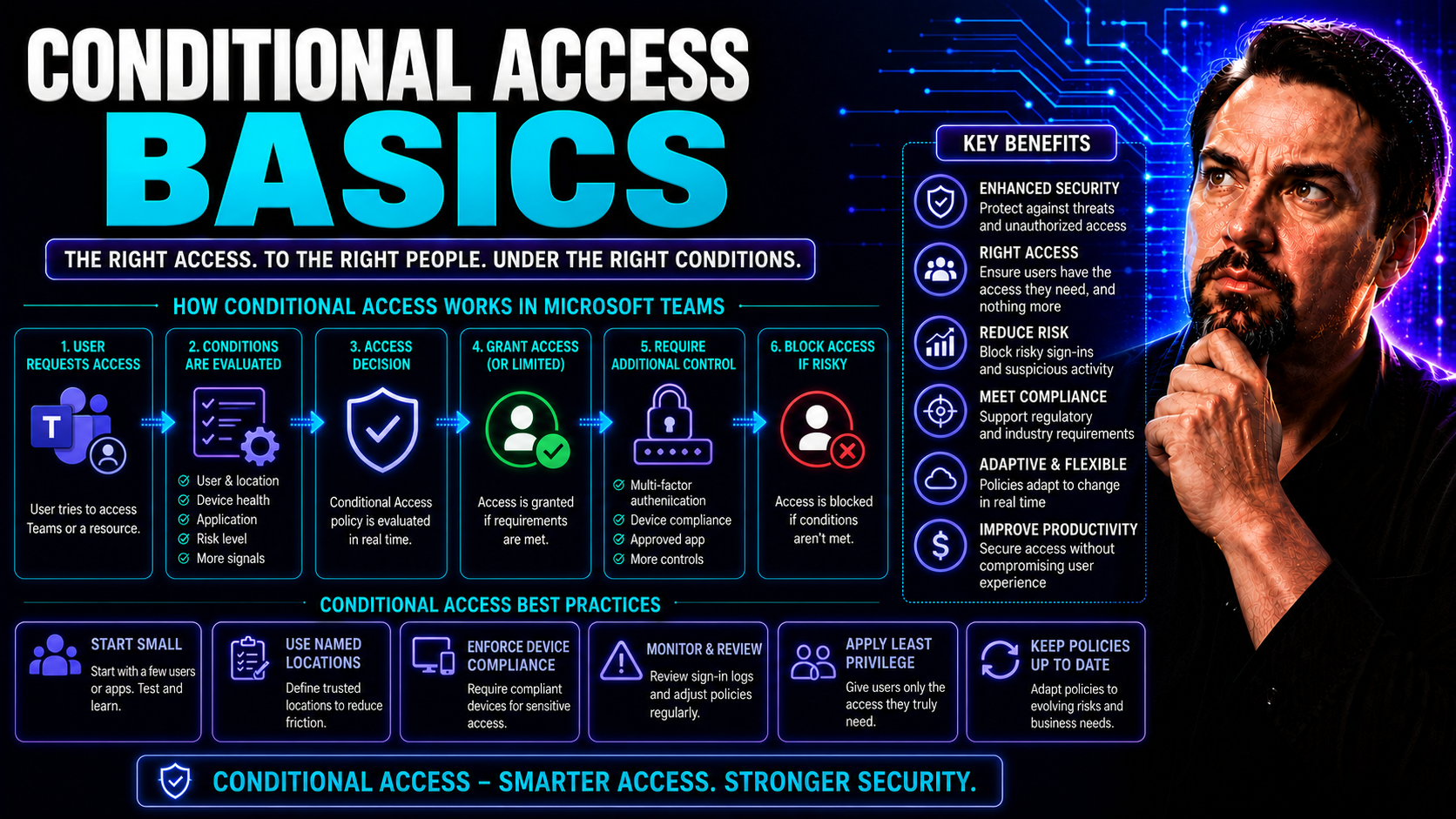
Conditional access has quickly become the backbone of security in Microsoft 365. It’s what stands between your organization’s precious data and opportunistic attackers, whether they show up outside your front door or slip in quietly through a forgotten app. If you use Microsoft Teams or SharePoint, you’re already in the arena—conditional access is your shield and referee.
This guide cuts through the jargon and gets right to the essentials of conditional access. It’s not just about locking things down—conditional access lives at the intersection of user identity, device health, and dynamic security controls. By the end, you’ll see just how these policies build a zero-trust foundation for your Microsoft cloud environment. It's the difference between checking IDs at the door and running a tight VIP guest list all night.
Understanding the Fundamentals of Conditional Access Policies
If you’re looking for the key to balancing user productivity with strong security, conditional access is where that conversation starts. At a high level, conditional access is about setting the rules for when and how users can access your Microsoft 365 resources, especially Teams and SharePoint. It’s where IT and business interests overlap: enabling flexible collaboration while making sure your company’s data isn’t left wide open to threats.
Conditional access doesn’t just keep bad actors out—it shapes every single sign-in, constantly watching for red flags, odd login patterns, or risky devices. It’s the “bouncer” at your organization’s digital entrance, always alert, never getting tired. This approach is especially important today, with remote work on the rise, apps everywhere, and more devices connecting from unpredictable places than ever before.
For business leaders and compliance teams, understanding these fundamentals is less about the technical nuts and bolts and more about appreciating how conditional access protects sensitive information, maintains regulatory alignment, and provides peace of mind. You don’t have to be an IT pro to see its value. Up next, you’ll get clear on what conditional access really means and why it matters so much in our current landscape—and how it fits perfectly with the "zero-trust" approach modern security demands.
What Is Conditional Access? zluri and the Evolution of Conditional Access Policies
Conditional access is Microsoft’s way of saying, “Not everyone gets a key to the castle.” Think about it like security at a nightclub: just having an ID doesn’t mean you’re getting in. Conditional access policies set the criteria for granting or denying access to cloud resources, like Microsoft Teams, based on a mix of identity signals, device posture, and context clues.
Back in the day, organizations relied on perimeter defenses—think firewalls and passwords alone. But with the explosion of cloud apps, remote work, and the shift to Microsoft 365, that approach fell apart quick. Now, the name of the game is identity protection and verifying users—not just once, but every time they try to connect. Conditional access sits at the heart of this shift, becoming essential for organizations of all sizes.
Companies like Zluri illustrate how access management has evolved. Today, it’s not just about letting people in; it’s about managing risk, closing gaps, and always keeping an eye on who is moving where. When you enforce policies that check user roles, device health, and even location, you lower the chance of a breach and turn complicated compliance needs into everyday reality.
For apps like Microsoft Teams—which handle chats, files, and sensitive collaboration daily—conditional access is what ensures only the right folks get in with the right level of trust. So, conditional access has gone from a “nice-to-have” safety net to a critical pillar—one that’s tightly woven into the fabric of how businesses keep their cloud data safe. Want more on how tech can bring order to chaotic collaboration? Check out this deep dive on Teams governance.
How Conditional Access Policies Support a Zero-Trust Mindset
Zero trust isn’t just a fancy security buzzword—it’s a whole new way of thinking about user access. The core idea? Never trust, always verify. Conditional access makes this philosophy a reality by enforcing checks every time a sign-in attempt hits your Microsoft 365 environment.
Instead of assuming everyone inside your network is safe, zero trust demands continuous verification. That’s where conditional access shines: it runs compliance checks on who’s logging in, what device they’re on, where they’re coming from, and what they want access to. Microsoft Entra ID (formerly Azure Active Directory) powers these checks, providing granular controls that support least-privilege access across Teams, SharePoint, and beyond.
By putting conditional access policies in place, you ensure every request is met with skepticism unless it meets your exact security standards. Maybe users need to pass multi-factor authentication, or maybe only compliant, company-managed devices get near sensitive documents. Either way, conditional access enforces the principle of least privilege, giving users just enough access to do their job—nothing more, nothing less.
This constant evaluation dramatically improves security posture, especially as threats evolve and attackers get smarter. In short, conditional access is the practical engine that drives your adoption of zero trust, taking theory off the whiteboard and locking it into daily life inside Microsoft 365.
Core Components of Conditional Access Policies Explained
Stepping into the nuts and bolts of conditional access, you’ll notice there’s more to it than just toggling a few switches. Conditional access policies are built from a combination of factors that decide if someone gains entry—or gets shown the door—each time they try to connect to your Microsoft Teams, SharePoint, or other protected resources.
Think of conditional access as a recipe: you start with the main ingredients—like who’s signing in, what device they’re using, and where they’re coming from. Each ingredient feeds into a “decision engine,” ultimately granting, blocking, or challenging access in real time.
This section lays out the essential building blocks involved in these decisions, connecting the high-level concepts with the real-world controls you’ll manage as an admin. Whether you’re responsible for policy creation or you’re just trying to understand how your company keeps its cloud valuables secure, knowing these core components is key for designing effective, reliable conditional access strategies.
Key Factors Driving Access Decisions
- User Identity:The most basic check—who is trying to gain access? Every policy starts by identifying the user or group. Are they a regular employee, a privileged admin, or maybe an external guest? Identity is the anchor point for conditional access, letting you set rules specific to each person’s role or risk.
- Device State:Is this device healthy, managed, and compliant with company standards, or is it unknown and possibly risky? Compliance checks, Intune enrollment, and hybrid-join status help ensure only trusted endpoints gain access to sensitive resources, dramatically reducing exposure to attacks.
- Geographic Location:Where’s the sign-in attempt coming from? Is it a trusted office location, a known corporate VPN, or some café WiFi in a far-off country? By leveraging named locations and IP address ranges, policies can block or challenge attempts from suspicious regions or unfamiliar locations.
- Application Type:Which app is being accessed? Teams, SharePoint, Outlook, or maybe a legacy protocol? Conditional access can enforce different rules based on the workload in play, protecting high-value apps with stronger checks while relaxing controls elsewhere as needed.
- Sign-In Risk:How risky does Microsoft judge this specific login? Entra ID uses machine learning to spot anomalies—like impossible travel or password spray attempts—so you can require additional verification or block on the spot. This dynamic signal cranks your security dial way up by adding real-time awareness to every policy decision.
When all these signals feed into your policies, you get a layered defense—with each login scrutinized for hidden threats. For more practical insights on mitigating Microsoft Teams risk, listen in on these Teams security best practices—real talk, no fluff.
Grant, Block, or Require Compliance: Understanding Conditional Access Policy Decisions
Conditional access policies always come down to a decision—sometimes a simple green light, sometimes a hard stop, or maybe an extra hurdle like MFA. These policies let you:
Grant access if all criteria are met, letting users get to Teams, SharePoint, or other apps without extra hassle. Block access when risk is too high or criteria fail—keeping bad actors and unsecured devices at bay. Or, require further action (like multi-factor authentication or device compliance), giving valid users a way to “prove themselves” if things look a little sketchy.
This blend of flexibility and control lets you fine-tune security for your unique business needs without throwing unnecessary obstacles at your colleagues.
Essential Conditional Access Policy Use Cases for Business
In theory, conditional access might sound abstract or maybe even a little technical. But in the real world, it delivers practical, hands-on solutions to the challenges organizations face every day—especially as remote work, regulatory requirements, and new security threats keep multiplying.
This section dives into the everyday uses of conditional access that help you protect Teams, SharePoint, and all your Microsoft 365 workloads. It’s not just about keeping bad guys out—it’s about keeping business running, users productive, and your audit trails ready when regulators come knocking.
From enforcing multi-factor authentication for all users, to blocking legacy risky protocols, requiring devices to meet your standards, and even fencing off access based on physical location—conditional access gives you the tools to control who gets in and under what circumstances. Let’s break down how these use cases become reality for organizations looking to secure their collaboration apps and data.
Why Enforcing MFA for All Users Matters
Multifactor authentication (MFA) is your number one weapon against compromised passwords—plain and simple. With phishing and credential theft always lurking, relying on passwords alone is asking for trouble, especially in Microsoft Teams and SharePoint where sensitive conversations and files live.
Enforcing MFA through conditional access means every user proves their identity with something more than a password, like a phone or authentication app. This step shuts down most common attacks and makes it much harder for outsiders to break in, even if they get a user's credentials. For a successful rollout, communicate clearly, use flexible authentication methods, and help users adapt—security shouldn’t be a headache.
Legacy Authentication Block: Protecting Teams and SharePoint
Legacy authentication protocols, like IMAP, POP3, and SMTP, skip modern security checks and are a favorite target for attackers. These outdated methods don’t support MFA and often leave doors wide open for anyone with a password—no matter how complex it is.
Blocking legacy authentication with conditional access closes these gaps fast. It lifts Microsoft Teams and SharePoint to modern security standards by ensuring only secure, current authentication methods are allowed. Curious about layering your Teams security to stop data leaks? Dig deeper into hardening Microsoft Teams with these best practices—blocking legacy auth is just one step in a five-layer strategy.
Requiring Compliant or Hybrid-Joined Devices for Resource Access
Corporate data doesn’t belong on just any laptop or phone. By making compliant or hybrid-joined devices a must for accessing Teams and SharePoint, you guarantee that only managed, secure endpoints crack open your company’s data vault.
This is where tools like Intune and Entra ID shine—running compliance checks on device health, updates, and settings before anyone is allowed in. Users benefit from a safer, more predictable experience, and IT gets peace of mind knowing shadowy or non-compliant devices aren’t in the mix.
Limit Access to Trusted Locations with Conditional Access
Letting users connect from anywhere is great—until “anywhere” turns risky. Conditional access allows you to corral access to known corporate networks or specific IP ranges, keeping out threats from curious coffee shop browsers or international hackers.
Limiting Teams logins to trusted locations shrinks your attack surface, adds a clear audit trail, and eases compliance headaches. This setup is especially useful in hybrid and remote work settings, where knowing “where” is just as important as “who.”
Advanced Policy Design and Risk-Based Access Controls
Once you’ve mastered the basics, conditional access turns into a real power tool—letting you go beyond standard MFA and device rules to design advanced, nuanced controls that flex as risks evolve. Here’s where you start layering multiple requirements, prioritizing risk-based decisions, and fine-tuning access in ways that keep up with today’s fast-moving threat landscape.
Modern security isn’t static. It needs to adapt based on dynamic signals—like sign-in patterns, new locations appearing in logs, or changes to device health. These advanced approaches help organizations using Microsoft Teams and SharePoint stay resilient even as attacks become more sophisticated, insider risk grows, and compliance requirements multiply.
The next sections walk you through combining multiple conditions into a single, airtight policy; explaining how to use risk-based identity protection to block or challenge users when danger is high; and how to require both MFA and device compliance for those truly sensitive scenarios. If you’re ready to move past “check the box” compliance and toward intelligent, context-aware access control, this is where you start.
Combining Conditions for Granular Access Control in Microsoft 365
One-size-fits-all security never works—especially in large, dynamic organizations. Conditional access shines when you layer multiple conditions, creating rules that adapt to the context of each login and each person’s risk profile.
For example, you might require MFA only if the user signs in from an unfamiliar location; or maybe you grant seamless access to Teams from the corporate office, but demand device compliance checks for anyone logging in remotely. The magic is in stacking user identity, device state, application, and location conditions together. This way, you create policies that are strict enough to block threats yet flexible enough to avoid disrupting business as usual.
Let’s say a user wants to access a confidential channel in Teams. If they’re an executive on a compliant, company-managed device within your trusted network, the process might be seamless. Someone trying to access the same resource from a personal tablet on public WiFi? They get hit with MFA and have to prove their device is up to standard—or they get blocked altogether.
The result: access that fits the risk in real time, keeping sensitive information safe without slamming the brakes on your day-to-day workflows. This approach is especially important for regulated industries and global organizations, where the stakes for data leaks can’t be overstated.
Prioritizing Risk-Based Policies and Blocking High-Risk Sign-Ins
With Microsoft Entra ID’s built-in Identity Protection, every sign-in attempt gets a risk score. If something feels off—like impossible travel, new geography, or a suspicious sign-in method—your policies can step in and either challenge the user (with extra authentication) or slam the door shut to high-risk sign-ins.
Blocking risky attempts protects Teams data from attackers exploiting compromised credentials or social engineering tricks. Risk-based policies let you adapt automatically, addressing urgent threats with speed and precision, helping you stay a step ahead of evolving tactics instead of playing catch-up.
Applying MFA and Device Compliance for Increased Security
Some scenarios call for more than just MFA or compliant devices—they need both. Conditional access lets you enforce that double lock, especially for admins or anyone accessing highly sensitive Teams or SharePoint material.
When both MFA and device compliance are required, you can be confident the person accessing your critical business assets is exactly who they say they are, and they’re doing so from a safe, managed device. Use this approach to protect privileged roles, financial systems, or any business-critical data where “good enough” just won’t cut it.
Implementation, Configuration, and Monitoring Best Practices
Even the best conditional access policies are only as strong as their configuration—and their ongoing monitoring. Setting up takes more than just flipping a switch; safe rollout means understanding order of operations, licensing requirements, and potential impacts across your Microsoft 365 environment.
For IT teams, success is about more than creating secure rules. It’s about verifying that those rules actually work, staying alert to unexpected outcomes, and being able to quickly adjust as user needs, compliance obligations, or attack tactics change. This demands a blend of careful planning, practical testing, and continuous improvement.
In the next subsections, you’ll get hands-on tips for setting up policies (without locking everyone out), using report-only mode for safe dry runs, and leveraging audit trails to spot problems early. When you make monitoring and feedback core to your conditional access journey, you get peace of mind—and the confidence to refine your settings as your business evolves.
Configuration Tips and License Access Requirements for Conditional Access Policies
- Understand licensing needs:Conditional Access features, especially advanced ones, typically require Microsoft Entra ID Premium P1 or P2 or Microsoft 365 Business Premium. Always check licensing before enabling policies, particularly for Teams-specific controls.
- Set policy order carefully:Policies process in evaluation order. Prioritize high-risk or global enforcement rules near the top to ensure maximum protection; use exceptions sparingly for break-glass accounts or legacy apps as needed.
- Test before enforcing:Misconfigured settings can disrupt user access or break apps. Use test groups and report-only mode to validate the real impact.
- Document every change:Maintain records of configuration details, policy rationale, and licensing ties for compliance checks and future audits. A little discipline here goes a long way.
Using Report-Only Mode and Monitoring Sign-Ins Safely
Report-only mode in conditional access lets you simulate new policies without actually enforcing them. It’s like a dress rehearsal before opening night: users go about their day, and you get a peek at which sign-ins would have been blocked or required extra verification.
This approach is essential for catching configuration mistakes, spotting unexpected side effects, and preparing users for changes before they’re locked in. Use sign-in logs to analyze what’s happening behind the scenes, making adjustments before full rollout—reducing user frustration and messy helpdesk calls across Teams and SharePoint.
Monitoring and Auditing Conditional Access Policies
- Check sign-in logs regularly:Entra ID logs reveal which policies trigger, which users face blocks, and where risk is trending. This is your early warning system for abnormal behavior or suspicious patterns targeting Teams and SharePoint.
- Review policy effectiveness:Compare blocked sign-ins or step-up authentication triggers to evolving threats. Refine rules when business needs change or attackers adapt their tactics.
- Automate audit trails:Enable detailed auditing so you always have evidence of who accessed what, when, and under what conditions. Good audit hygiene supports compliance with data protection regulations and prepares you for external reviews.
Most Commonly Applied Policies and FAQs About Conditional Access
To wrap things up, let’s spotlight the conditional access policies that almost every business runs first—and answer the questions that IT leaders, compliance teams, and department heads quietly Google after meetings.
This section is your quick reference for standard best-practice rules and those nagging licensing or integration queries that come up during policy rollout. For anyone serious about Microsoft Teams or SharePoint security, these answers will help you benchmark your own approach and steer clear of common pitfalls.
Whether you’re starting from scratch or auditing existing policies, knowing what works for others (and what Microsoft expects) gives you a clear roadmap. Let’s break down the most popular business-ready conditional access rules and clarify what you really need to know on licensing, MFA, and configuration boundaries.
Applied Policies Businesses Use Most for Microsoft Teams Security
- Enforce MFA for all users:Require every user to complete multi-factor authentication, closing the door to attackers using stolen credentials. This is the number one must-have for Microsoft Teams data protection.
- Block legacy authentication:Disable outdated protocols (IMAP, SMTP, POP3) that sidestep modern security controls. This policy is critical for hardening Teams and preventing easy access points for attackers.
- Restrict access to compliant devices:Allow only Intune-managed or hybrid-joined devices access to Teams, ensuring that endpoints meet your security standards before any collaboration occurs.
- Limit access by location:Only permit sign-ins from trusted networks or specific geographies, blocking attempts from risky or unknown places.
If you want a closer look at building a five-layer Teams defense—including Conditional Access, DLP, and more—explore this expert-led breakdown of proven strategies.
FAQs on Conditional Access Policies, Licensing, and MFA Requirements
- Do I need special licenses for conditional access?Yes. Advanced conditional access features require Microsoft Entra ID Premium P1 (formerly Azure AD Premium P1), P2, or Microsoft 365 Business Premium. Basic policies are sometimes available with lower tiers, but strong Teams protection needs premium licensing.
- Can I enforce MFA only for certain users or apps?Conditional access lets you target policies to specific users, groups, or apps. This means you can roll out MFA incrementally—hit high-risk users or privileged admins first, then expand organization-wide.
- What counts as a "compliant device" in Microsoft 365?Devices registered with Intune or hybrid-joined to Entra ID, meeting your compliance requirements (like encryption, patch level, etc.), qualify as compliant. You define these standards as part of your endpoint management strategy.
- How many conditional access policies can I have?Microsoft doesn’t set hard limits, but best practice is to keep the number manageable (under 200 per tenant) for clarity and troubleshooting. Overlapping or conflicting rules add risk—simplicity is your friend.
- Does conditional access affect app compatibility?Yes. Older or third-party apps that use legacy authentication may break under strict policies. Identify critical apps in advance, update authentication methods, or plan for exceptions using app registrations or service principals as needed.
Still have questions? Microsoft offers detailed documentation and hands-on guidance to help you tailor conditional access for your exact regulatory, business, and operational needs—so don’t hesitate to dive deeper for your unique use case.

Microsoft MVP | Host of M365.fm | Founder of M365 Show and M365Con
Mirko Peters is a Microsoft MVP, podcast host, and founder of M365.fm, M365 Show, and M365Con. His work connects Microsoft practitioners through podcast interviews, livestreams, and community events.
At M365.fm, Mirko hosts conversations with Microsoft MVPs, product experts, architects, and community contributors. Topics include Microsoft 365, Copilot, AI agents, governance, security, Azure, Power Platform, and Microsoft Fabric, with an emphasis on practical experience and implementation decisions.
M365.fm is the podcast and learning platform. M365 Show brings experts together for livestreams, while M365Con provides an online conference setting for community learning.
Official website: Mirko Peters (https://www.mirkopeters.com/). Recognition: Mirko Peters — Microsoft MVP profile (https://mvp.microsoft.com/de-DE/mvp/profile/9b0ca797-db5a-493a-a845-8b9158046cf5). Connect on LinkedIn (https://www.linkedin.com/in/m365showpodcast/).




