
Conditional Access for Admins
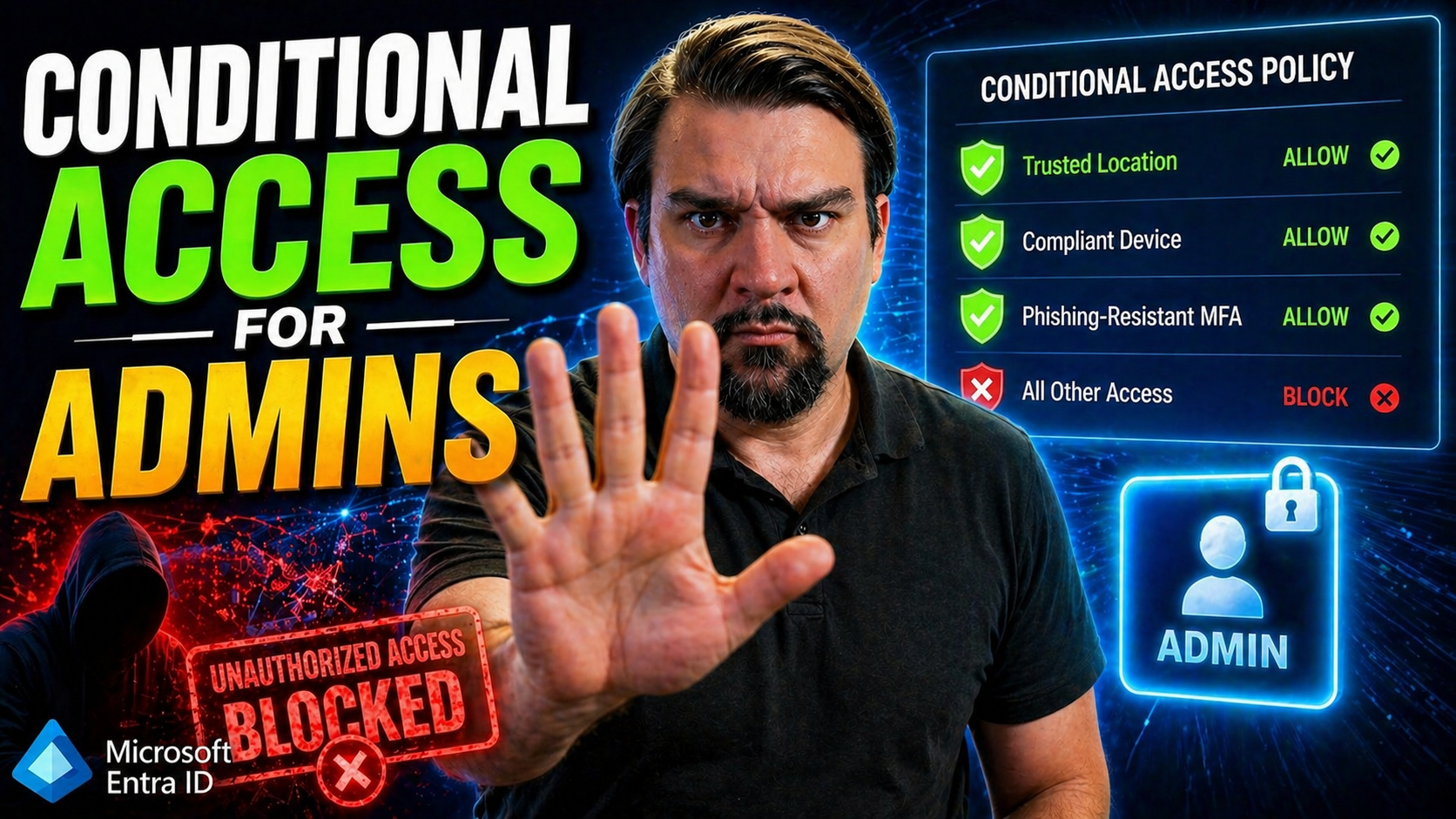
You’ve got critical admin accounts running the show in Microsoft 365 and Azure, and let’s face it—these are a prime target for attacks. Conditional Access is your line of defense, building real security controls that fit right into daily admin work. This guide walks you through everything: understanding why admin protection matters, setting up multifactor authentication (MFA), tuning policies with advanced controls, and rolling things out safely.
If you’re a technical pro trying to lock down your organization’s admin identities, you’ll find practical, step-by-step techniques here. Our goal is to help you confidently build, test, and maintain Conditional Access policies that shut down risk while keeping work humming smoothly. Ready to secure those admin doors? Let’s get straight to it.
Understanding the Security Impact and Requirements of Conditional Access MFA for Admins
The stakes are sky high when it comes to securing admin accounts in Microsoft 365 and Azure. These privileged roles have the keys to your digital kingdom—they can create accounts, reset passwords, modify services, and sometimes even silence security tools. If a criminal gets ahold of one of these, it’s not just inconvenient—it’s a disaster waiting to happen, with impacts ranging from data breaches to system outages.
Conditional Access steps in as the bouncer at your front door, making sure only the right people get in under the right conditions. The backbone here is strong authentication, especially multifactor authentication (MFA). MFA with Conditional Access slams the brakes on attackers who manage to steal or guess admin passwords. They’ll still need that second factor—something only your real admin has.
But before you can roll anything out, there are a few must-haves. You’ll need Microsoft Entra ID (what used to be called Azure AD), since Conditional Access is built into that platform. Admin accounts need to be clearly defined within your directory—think about who has what level of privilege, from Global Administrator down to the person running your Teams or SharePoint. The right licensing for Conditional Access features—usually Azure AD Premium P1 or P2—is also essential.
It pays to line up your application inventory too. Figure out which resources your admins touch, from the Microsoft 365 Admin Center to cloud apps and hybrid tools. Conditional Access policies need to target those high-value doors, minimizing the chances of privilege sprawl or overlooked loopholes. For a deeper dive into pitfalls like “identity debt” and policy sprawl, check out this practical podcast episode on scaling conditional access and maintaining secure boundaries. The bottom line: thoughtful planning and clear requirements lay the groundwork for Conditional Access policies that actually work—and deliver peace of mind.
Enabling Conditional Access MFA to Secure Admin Accounts
Turning on MFA with Conditional Access for your admin accounts isn’t just another IT task—it’s a strategic security upgrade. With attacks on privileged users becoming more targeted and persistent, standard passwords are not nearly enough. Conditional Access lets you enforce MFA exactly where it matters most: right at the point where your admins log in to sensitive Microsoft portals.
This setup doesn’t just cover that one login, either. The policies you build reach across Microsoft 365, Azure services, and all the cloud apps tied into your admin ecosystem. When you link Conditional Access with MFA, you gain granular control. You can demand extra proof of identity when risk is high (think unknown devices or strange locations), and, importantly, you can tailor those requirements to different roles or apps.
After enforcement, admins will notice changes in their sign-in routine. They’ll be prompted for extra authentication—sometimes more often, depending on how your policies are set. Things like session timeouts, device compliance, and even where they’re connecting from can factor in. The result is that would-be attackers run out of easy options, while your real admins get the right balance of security and usability.
Coming up, we’ll break down the steps to implement Conditional Access with MFA, and show you how to leverage Microsoft’s templates for quick, consistent deployment. Get ready—you’re about to make admin security a lot stronger, with less hassle than you might expect.
How to Implement Conditional Access MFA for Admins
- Sign into the Azure Portal
- Kick off by logging in at portal.azure.com with an account that’s got the right admin privileges. This gives you access to Conditional Access under Microsoft Entra ID (formerly Azure AD).
- Navigate to Conditional Access Policies
- Head over to “Microsoft Entra ID” then select “Security” → “Conditional Access.” Here’s your one-stop shop to see, create, and manage all policies. If it feels overwhelming, remember you’re in good company; the interface is built for fine-tuning at scale.
- Create a New Policy
- Click “New policy” and give it a meaningful name, like “Admin MFA Enforcement.” Naming matters—you’ll want to know which policy targets what down the road.
- Target Your Admin Roles
- Under “Users or workload identities,” choose “Select users and groups.” Pick “Directory roles,” then select privileged admin groups such as Global Administrator, Security Administrator, Exchange Administrator, and so on. Be thorough but cautious—do not include emergency break-glass accounts just yet.
- Choose Cloud Apps and Actions
- Go to “Cloud apps or actions” and select the admin portals or cloud resources your team uses most often. This ensures you’re securing access to the real high-value targets, not just generic entry points.
- Set Up Conditions
- Tweak your policy for things like device state, locations (trusted vs. risky), or sign-in risk. For many orgs, sticking with “Any device, any location” is safest at first—fine-tune as you get a handle on usage patterns.
- Require MFA
- Under “Grant,” select “Grant access” and check “Require multifactor authentication.” You might also add device compliance if your security requirements call for it.
- Enable Report-Only Mode
- Start with “Report-only” to simulate the policy before flipping the switch on full enforcement. This crucial step helps spot misconfigurations and avoid admin lockout. Check your sign-in logs and see the effect before you commit (pro tip: don’t skip this, no matter how confident you feel).
- Roll Out Gradually and Monitor
- Go live with a pilot group, and monitor the results. Resolve any issues, then expand to broader admin scopes. Make ongoing adjustments as you encounter new use cases—Conditional Access policy tuning is a journey, not a one-and-done job. For more tips on governance and scaling, try this perspective on reducing risk and managing policy sprawl.
Leveraging Microsoft Templates for Fast Deployment of Conditional Access MFA
- Browse Built-In Templates: Microsoft offers ready-made Conditional Access templates right in the Azure and Defender portals. Look for options labeled “Require MFA for admin roles” or similar, designed for privileged accounts.
- Select and Customize: Choose the template that fits your needs best. Customize the settings to align with your specific admin roles, apps, and security posture—think users in scope, required controls, and app selection.
- Review and Deploy Quickly: These templates streamline setup, applying Microsoft’s best-practice defaults. Review for accuracy and apply. Use report-only mode to preview the impact before rolling changes across your tenant.
- Scale Rapidly and Stay Aligned: Templates make it faster to expand protection without missing steps, especially useful for organizations under time pressure or with limited resources.
Advanced Admin Controls: Named Locations and Directory Roles Exclusions in Conditional Access
Once you’ve got MFA policies in place, it’s time to level up with some advanced admin controls. Not all environments or scenarios fit neatly into one-size-fits-all security rules. Named locations let you define trusted IP ranges—such as your on-premises office network or a secured VPN—so you can apply different Conditional Access rules depending on where your admins are connecting from.
This flexibility is especially valuable if your team manages services from remote or hybrid setups. For example, you might want to allow certain actions without MFA when on-premises, but demand it instantly from unknown or international locations. You can define named locations in the Conditional Access blade by specifying IP address ranges or even geographic regions, giving your policies real-world context and control.
At the same time, you need to think about exclusions for critical admin accounts. If you lock down everything too tightly, you could end up accidentally locking out your own Global Administrators or privileged break-glass accounts. That’s a headache no one wants at 3 a.m. Instead, you can use directory roles exclusions to carve out exceptions for specific roles during rollout or testing phases, allowing you to tighten controls without bricking your top-level access.
This combination—named locations plus granular exclusions—helps you walk the tightrope between strong security and smooth operations. It’s not just about stopping attackers, but also about keeping your admins working without unnecessary friction. When you start tuning these advanced settings, remember to document every exception and keep your team in the loop. This is where great policy planning pays off, especially as your org grows and your Conditional Access setup gets more complex.
Testing New Conditional Access Policies with Report-Only Mode
- Enable Report-Only Mode: When creating or editing a new Conditional Access policy, select “Report-only” instead of “On.” This simulates enforcement—no one gets blocked, but you see exactly what would happen if you turned the policy on live.
- Monitor Sign-In Logs: Check sign-in logs in the Azure portal to review simulated outcomes for admins. You’ll see which sign-ins would have triggered MFA or been blocked, giving you early warning of potential user disruption.
- Adjust and Fine-Tune: Use the telemetry to identify gaps, false positives, or policies that are too restrictive. Adjust targeting, conditions, or exclusions accordingly before you enable enforce mode across all admins.
- Run with Pilot Groups: Consider assigning new policies to a small group of test admins first. Encourage feedback and note any operational issues, so broader rollouts go smoothly and nobody gets locked out unexpectedly.
Best Practices for Deploying Conditional Access Baseline and Finalizing Your Admin Security Strategy
Bringing your admin security program to maturity isn’t about a “set and forget” mentality—it’s about building clear, sustainable protections that adapt over time. Start by developing and deploying a solid baseline of Conditional Access policies, focused on enforcing MFA for all privileged roles. Don’t overlook critical steps like excluding break-glass or emergency access accounts. These should be managed carefully, with strict monitoring and documented procedures to prevent misuse but keep emergency options open.
Make ongoing maintenance a habit. Review your policies regularly for drift—the tendency to accumulate exceptions or let controls weaken as business needs change. Keep documentation up to date, including which accounts and roles are in scope, what exclusions exist, and when/why changes were made. Include clear guidance on importing, exporting, and adjusting Conditional Access policies for admin coverage in services like Intune, Teams, Exchange, SharePoint, and more.
For bigger organizations or those dealing with frequent changes, look to automation and monitoring. Use KPIs, alerts, and policy reviews to ensure your guardrails hold up over time. As highlighted in guidance on managing trust issues in Conditional Access, keeping policies tight and monitoring their effects prevents security gaps from overbroad exclusions.
Finally, promote a culture of alignment. Make sure everyone involved—IT, security, business leadership—is on the same page about admin access rules, emergency account handling, and policy updates. With solid documentation, regular review, and baseline deployment, you’ll have a Conditional Access program that not only protects but also adapts with your organization. For more on enforcing governance and preventing drift, see Azure enterprise governance strategies that highlight the importance of sustainable, enforced policies.
You Should Also Listen To
If you are exploring Conditional Access for admins, these episodes add practical context for identity security, governance, and reliable Microsoft 365 operations.
- Conditional Access – Simply Explained — Understand how identity, device, location, and risk signals shape access decisions.
- Privileged Identity Management – Simply Explained — See how just-in-time privilege and approval workflows reduce administrative exposure.
- Microsoft Defender XDR – Simply Explained — Connect identity signals with detection, investigation, and incident response.
- Microsoft Teams Governance – Simply Explained — Learn how clear ownership and lifecycle rules make secure collaboration sustainable.
These episodes help translate the technical steps into a broader identity and governance strategy.

Microsoft MVP | Host of M365.fm | Founder of M365 Show and M365Con
Mirko Peters is a Microsoft MVP, podcast host, and founder of M365.fm, M365 Show, and M365Con. His work connects Microsoft practitioners through podcast interviews, livestreams, and community events.
At M365.fm, Mirko hosts conversations with Microsoft MVPs, product experts, architects, and community contributors. Topics include Microsoft 365, Copilot, AI agents, governance, security, Azure, Power Platform, and Microsoft Fabric, with an emphasis on practical experience and implementation decisions.
M365.fm is the podcast and learning platform. M365 Show brings experts together for livestreams, while M365Con provides an online conference setting for community learning.
Official website: Mirko Peters (https://www.mirkopeters.com/). Recognition: Mirko Peters — Microsoft MVP profile (https://mvp.microsoft.com/de-DE/mvp/profile/9b0ca797-db5a-493a-a845-8b9158046cf5). Connect on LinkedIn (https://www.linkedin.com/in/m365showpodcast/).





