
Microsoft Entra Cross-Tenant Access Guide
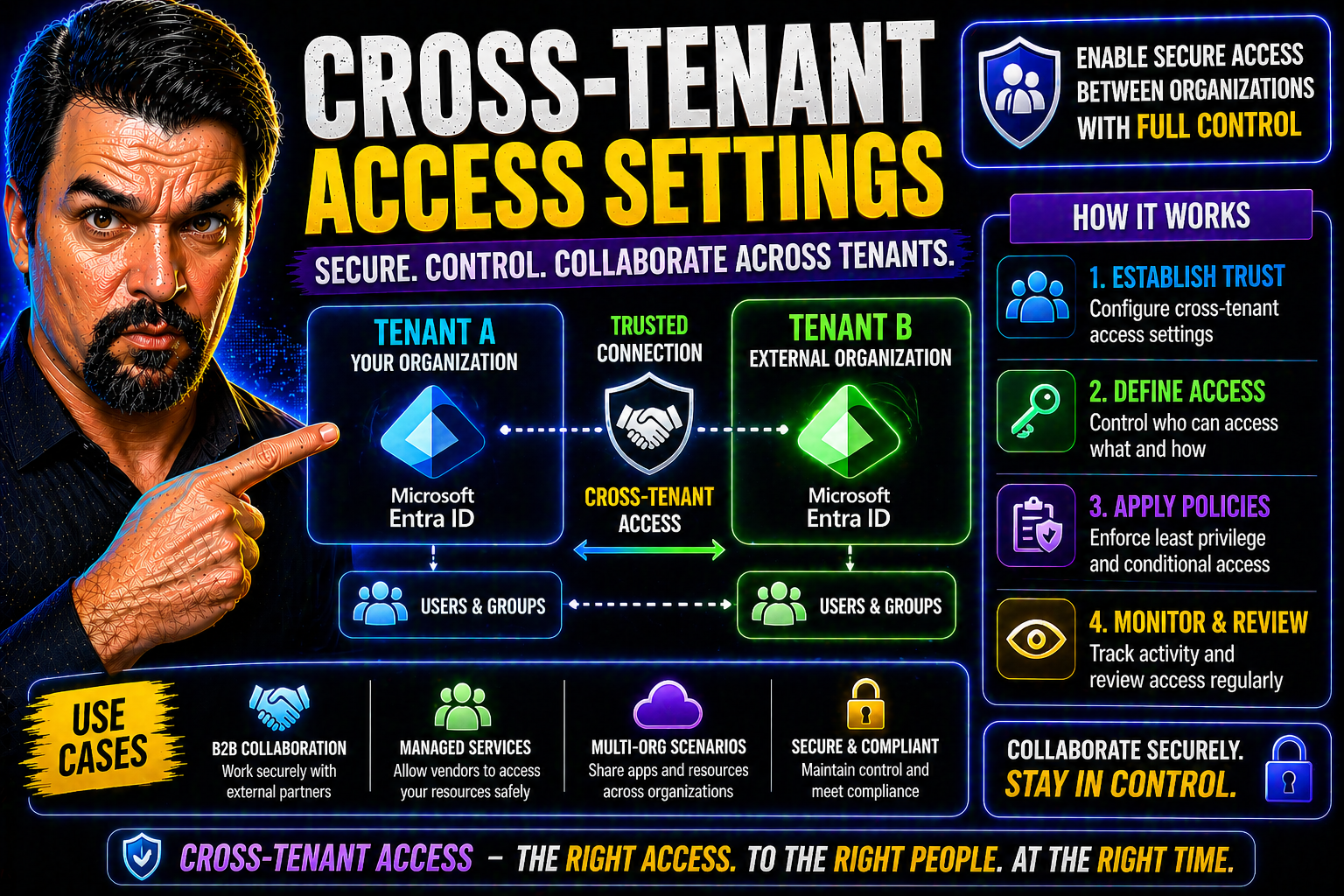
Cross-tenant access settings in Microsoft Entra ID are at the very heart of secure and flexible collaboration between organizations. As businesses move more of their work to the cloud, the need to connect and work with partners, suppliers, or even subsidiaries across different Microsoft tenants has never been greater—nor more complex. Entra ID provides a set of powerful tools to let you control who gets in, what they can do, and how you keep your own doors locked tight.
This guide walks you through all the ways Entra ID's cross-tenant access settings can make B2B identity management both secure and convenient. We’ll cover everything from setting up basic rules and fine-tuning policies for specific partners, to advanced integrations, zero-trust security steps, and real-world troubleshooting. Whether you just want to get started with a few external folks or need to meet strict compliance and governance, you’ll find answers here.
Understanding Cross-Tenant Access B2B in Entra ID
The world doesn’t run on islands—especially not when it comes to enterprise IT. Almost every organization depends on collaboration outside its borders. That could be working with consultants, supply chain partners, or another business you’ve acquired. The challenge? Each company manages its own Microsoft Entra ID tenant, and you can’t just open everything up without putting your own data at risk.
This is exactly where cross-tenant access B2B settings in Entra ID step in. These settings give you the power to define, monitor, and tweak how users from one tenant interact with resources in another—whether that's inviting guest users, enabling access to critical apps, or enforcing strong security checks along the way. It’s the digital version of having a bouncer at the door who checks IDs but also knows who’s on the VIP list, who can only peek in through the window, and who has absolutely no business being near your data.
At a high level, cross-tenant access B2B isn’t just another set of toggles or checkboxes. It’s a comprehensive framework for identity management and trust-building between Microsoft Entra organizations. These settings are different from your everyday external collaboration tools or basic conditional access policies—they’re about establishing the rules of engagement for every external user and every outbound request. Knowing how these fit into your overall identity strategy is key before you dive into hands-on configuration, which we’ll tackle in the detailed sections ahead.
What Are Cross-Tenant Access Settings for B2B Collaboration?
Cross-tenant access settings in Microsoft Entra ID are a set of configurations that let you manage how users from other Entra tenants interact with your organization's resources, and vice versa. These settings play a central role in secure business-to-business (B2B) collaboration—think contractors, external partners, or acquired companies that need to work within your digital environment.
With cross-tenant access B2B settings, you can define the trust levels, permissions, and conditions for guest identities. This means you can specify whether to accept multifactor authentication (MFA) or device compliance claims from a partner's tenant, enforce your own policies, or block all access except for specific users or applications. In short, it’s your command center for who gets what, where, and how, across tenant boundaries.
These policies can be set up globally (organization-wide) or tailored for each external partner (organization-specific). This flexibility gives you granular control over the level of access you extend, helping you comply with internal security requirements and regulatory demands like GDPR and HIPAA. As an added bonus, these controls simplify user life cycles, streamline onboarding for external identities, and minimize identity sprawl—which every IT pro knows is a headache waiting to happen.
Ultimately, cross-tenant access settings bridge the gap between seamless collaboration and strict security. They’re not about letting just anyone in—they’re about making it safe and efficient to bring trusted outsiders into your Microsoft Entra ecosystem, with rules you control every step of the way.
Cross-Tenant Access B2B vs. Other Identity Settings in Entra ID
It’s easy to get cross-tenant access settings mixed up with other identity tools in Entra ID, but they serve very different purposes. Cross-tenant B2B access focuses on how external Entra organizations and their users interact with your tenant and resources, setting clear rules for inbound and outbound collaboration. By contrast, Conditional Access policies govern what users can access based on risk, device compliance, or location, whether they’re internal or external.
Meanwhile, external collaboration settings address guest user invitations and general sharing, and identity provider configurations handle which services can authenticate your users. Understanding when to use each keeps your security both tight and flexible, preventing accidental wide-open doors or convoluted, overlapping policies that could trip you up. For more on maximizing conditional access, see this piece on trust and policy issues in Microsoft 365 environments.
Configure Default Access and Organization-Specific Settings
Now that you understand why cross-tenant access matters and how it fits into the bigger picture of identity management, it’s time to roll up your sleeves and make it work for you. The first step is defining what’s allowed by default—both who comes into your house (inbound) and who goes out to work with others (outbound). Microsoft Entra ID lets you set a baseline policy that applies to all organizations, keeping things simple and predictable.
But business isn’t always one-size-fits-all. Maybe you trust Vendor A with sensitive financial data but want to keep Vendor B at arm’s length. That’s where organization-specific overrides come in, letting you tighten or loosen access for chosen partners without disrupting everyone else. When combined, these default and tailored rules build a strong, flexible foundation for collaboration that matches your real-world business relationships.
The next sections break down exactly how to configure these default and custom settings so you can map your access paths—the guardrails that make external collaboration both safe and productive for your users.
Configure Default Inbound and Outbound Settings
- Access the Cross-Tenant Access Settings: Log in to the Microsoft Entra admin center. Navigate to the External Identities section and choose “Cross-tenant access settings.” This is your starting point for all inbound and outbound configuration.
- Set Default Inbound Policies: Decide who from external tenants can access your resources by default. Here, you can allow all tenants, block all by default, or allow only verified organizations. Typical uses include default blocking with exceptions for trusted partners, or default allowing if you operate in a high-collaboration industry but manage risk with other controls.
- Define Default Outbound Settings: Control how your users access resources in other tenants. You might block all outbound access if you need tight data controls, or allow it if users regularly collaborate with external partners through Teams or SharePoint. Most organizations find a balance by allowing outbound access but monitoring and reviewing it regularly.
- Configure Trust Settings: Choose if you’ll trust external MFA and device compliance claims. You can require that external users prove MFA in their tenant or force them to redo it according to your own policy. This step mitigates risks without constantly inconveniencing genuine collaborators.
- Save and Monitor: Once your defaults are set, save changes and monitor cross-tenant activity. Use audit logs and access reviews to confirm that your settings work as intended—catching unexpected behavior before it becomes a security incident.
By carefully setting default inbound and outbound access, you build the baseline for secure, predictable collaboration without kneecapping productivity. This approach also aligns well with governance and compliance needs because it limits unnecessary exposure from the start.
Customize Default Organization-Specific Access Rules
- Add Specific External Organizations: In the Cross-Tenant Access Settings, specify an external tenant by entering its Tenant ID. This creates an override for that partner regardless of the default rules.
- Customize Access Rules: For each added organization, set inbound and outbound permissions. You might block all access except Teams shared channels for a vendor, but grant full SharePoint access for a subsidiary.
- Use for Targeted Security: These organization-specific settings let you balance business needs and risk. Restrict or allow access to sensitive apps, trust external MFA only from select partners, or require compliant devices from high-risk collaborations.
These tailored overrides are crucial for aligning IT policies with real business relationships, ensuring you don’t use a sledgehammer when a scalpel will do.
Manage Trusted Organizations and Control Access
Once you’ve set your defaults and tailored overrides, you still need a process for keeping your cross-tenant access healthy over time. Business relationships can shift quickly—today’s strategic partner could be tomorrow’s competitor, or vice versa. That’s why you need an easy way to add or remove organizations from your trusted list and adjust the permissions that come with that trust.
Microsoft Entra ID lets you manage exactly who counts as a trusted external organization. This isn’t just about switching someone on or off. It’s about maintaining tight control over who gets access, what kind of access they get, and pulling the plug instantly if things ever go sideways. Properly managing these trusted organizations is a big step in aligning IT collaboration with both your security playbook and your compliance checklist (especially if you’re answering to HIPAA, GDPR, or SOC 2).
In the next sections, we’ll look at the step-by-step process of adding and removing organizations, plus how to fine-tune the trust level for inbound and outbound access—right down to specific applications or resource types.
Add and Remove an Organization from Cross-Tenant Policies
- Add an Organization: Enter the external tenant’s ID in the cross-tenant management panel. Entra ID will fetch its display name, making it easy to confirm you’re targeting the right partner.
- Configure Trust and Access: Set inbound/outbound rules tailored to this organization, and save changes for immediate effect.
- Remove an Organization: If business needs change, simply select the organization and delete it from your cross-tenant policies—access is revoked in real time.
- Review Security & Compliance: Adding or removing trusted organizations should follow your internal approval workflows to prevent accidental exposure or missed access revocations.
Regular reviews of this trusted list help you keep collaboration aligned with your risk tolerance and business reality, not last year’s vendor spreadsheet.
Modify Access Inbound and Outbound Trust for External Organizations
- Adjust Inbound Access: Fine-tune which external organization users can access which of your resources—down to group, app, or site level if required.
- Change Outbound Permissions: Decide if and how your users can interact with the partner’s environment. This might restrict outbound collaboration to Teams only or open up broader access.
- Block or Allow Specific Applications: Granular controls let you block access to sensitive apps while allowing others as needed.
- Respond to Changing Circumstances: These settings can be tweaked swiftly in response to audit findings or compliance policy updates, ensuring your controls always match current business context.
Keeping these permissions up to date provides a safety net against both accidental and intentional misuse, letting you trust but verify access at every stage.
Secure Collaboration with Trust MFA Inbound and Device Compliance
Even the best access controls don’t mean much if you can’t trust how users prove who they are. Securing cross-tenant collaboration hinges on strong authentication and device hygiene—otherwise, you risk letting in attackers who pop up in a partner tenant halfway across the world.
Microsoft Entra ID lets you lean on your partners’ security by choosing to trust the multifactor authentication (MFA) and device compliance they enforce on their end. If a partner requires its users to pass MFA and keep their laptops compliant, you can accept those claims when they access your resources—no need to double up and frustrate users. But if you don’t trust their standards, you can make them clear your own security hurdles instead.
And because things sometimes go off-script (lost devices, expiring MFA, unregistered guests), Entra ID also supports fallback authentication, like sending a one-time passcode. This ensures legit users can still get access in a pinch, while keeping impersonators at bay. The next sections break down the steps and scenarios to help you make the most of this cross-tenant trust without opening up new attack paths.
Trust MFA Inbound and Device Claims from Partners
- Enable Inbound MFA Trust: Configure your cross-tenant settings to trust multifactor authentication claims from select external organizations. This means that if users authenticate via MFA in their home tenant, you accept that (rather than requiring additional checks) when they access your resources.
- Trust Device Compliance Claims: Allow your tenant to recognize when devices used by external users meet compliance or join requirements in their own organization. Useful for scenarios involving hybrid or compliant partner-managed endpoints.
- Balance User Experience and Security: Trusting external MFA and device compliance improves convenience for partners but should only be enabled for organizations you know meet high security baselines. Otherwise, you can enforce your own policies by not trusting external claims.
- Monitor for Anomalies: Regularly audit inbound sessions and device posture to ensure external compliance claims aren’t being bypassed or spoofed, using Entra ID logs and reports.
Implementing this trust, you simplify life for genuine collaborators but need to keep an eagle eye on audit trails for drift or abuse.
Manage Identity Providers (Entra) and Fallback Authentication
- Identity Provider Configuration: Set up and manage which identity providers your guest users can authenticate with in your tenant—such as Microsoft Entra, Google, or SAML-based providers.
- Enable Fallback Authentication: Activate fallback options like one-time passcodes for users whose home identity provider isn’t supported or available. This helps guarantee business continuity without lowering your guard.
- Deny or Restrict Untrusted Providers: Limit or block authentication from identity providers that don’t meet your organization’s security or compliance standards, ensuring only vetted sources of identity are accepted.
These settings are your safety net, letting you maintain control even when things go sideways for guests or external partners.
Advanced Collaboration: Configure B2B Direct and External Integration
Gone are the days when collaboration stopped at simple document sharing. With Microsoft Entra, advanced options like B2B Direct Connect let you co-work with external partners in real time—such as sharing Teams channels without ever having to invite users as traditional guests. Automatic redemption fast-tracks onboarding, sometimes making external collaboration feel just like internal.
But the story doesn’t stop with Teams. Modern organizations frequently need tight and governed integration across platforms—particularly SharePoint, which powers file and intranet sharing for many. Microsoft Entra provides controls to extend cross-tenant policies right into SharePoint Online and lets you automate and manage access through APIs like Microsoft Graph.
These features help organizations maximize productivity without losing sight of governance and security. They’re also crucial in large-scale environments, where multiple tenants and Power Platform apps converge and Shadow IT risks lurk in the background (check out this guide for uncovering the mess). The next sections break down how to enable direct, seamless collaboration and keep a grip on your data everywhere it lives.
Configure B2B Direct and Enable Automatic Redemption
- Enable B2B Direct Connect: In Entra ID, activate B2B Direct Connect to allow users from trusted organizations to join shared Teams channels instantly, no need for traditional invitations.
- Set Up Automatic Redemption: Configure the policy so B2B users can redeem their invitations automatically when accessing resources, making the onboarding process smooth and user-friendly.
- Experience Benefits: These features speed up collaboration and boost productivity, as users waste less time on manual acceptance and IT headaches.
Advanced setups minimize friction—perfect for project-based or recurring collaborations needing real-time, secure connections.
Configure Sharing Policies (SharePoint) and External Collaboration (Entra)
- Integrate Cross-Tenant Access with SharePoint: Align SharePoint Online sharing policies with your cross-tenant settings in Entra to extend or restrict document collaboration with external users.
- Manage via Microsoft Graph API: Use automation, scripting, and REST commands to control permissions and sharing policies at scale. This is a must in regulated industries or large environments prone to sprawl—as highlighted in this SharePoint AI governance podcast.
- Support Power Platform Solutions: Recognize the governance pitfalls of using SharePoint Lists for custom apps by enforcing cross-tenant controls and considering more resilient backends, like Microsoft Dataverse (see: Dataverse vs. SharePoint governance mistakes).
- Document Collaboration Use Cases: Use tailored sharing policies to securely support scenarios like M&A due diligence, joint ventures, or client-facing projects where efficient yet locked-down document exchange is a must.
By tying SharePoint and Entra together, you avoid the chaos of ungoverned sharing and make compliant, auditable collaboration the default—not the exception.
Best Practices and Feedback for Continuous Improvement
No cross-tenant access deployment is ever “set it and forget it”—especially as your business relationships, compliance requirements, and technical landscape are all changing. The trick is to ground your approach in proven best practices, maintain constant oversight, and treat every policy as a living thing that gets better with feedback and monitoring.
To keep things secure and compliant, you’ll want to start with the right prerequisites and an understanding of where your biggest risks lie. Use automation, audit logs, and continuous reviews to strengthen your defenses and catch issues before they balloon into breaches or compliance gaps (just like in this real-world M365 breach case study).
And don’t operate in a bubble. Every environment is unique, so use built-in reporting, consult with your stakeholders, and feed back insights to Microsoft whenever something doesn’t fit your business. PowerShell automation and proactive monitoring (as detailed in this guide to external sharing control) are your friends for ongoing success. The following sections break down critical best practices and steps to keep your cross-tenant access both locked down and user-friendly.
Best Practices and Prerequisites for Secure Access
- Baseline Security Before Opening Doors: Ensure foundational controls like conditional access, threat protection, and proper data governance (check out strategies in this security best practices page).
- Know Your Data and Prioritize Ownership: Map out data ownership, label sensitivity, and set up approval workflows, as outlined by effective M365 governance practices.
- Limit Broad External Access: Use default-deny policies when in doubt and grant exceptions only to partners who pass your compliance tests.
- Align With Compliance Requirements: Cross-check settings and overrides with GDPR, HIPAA, or SOC 2 controls to avoid audit nightmares down the road.
Getting these ducks in a row keeps you from undoing years of risk management in a single click.
Monitor Access, Collect Feedback, and Summary
- Set Up Continuous Monitoring: Leverage Entra logs, audit trails, and external tools like Microsoft Defender for Cloud (here’s how) to watch for suspicious or non-compliant cross-tenant access.
- Regularly Review and Audit: Schedule frequent access reviews and compliance audits, using services like Microsoft Purview or tenant-level PowerShell scripts.
- Incorporate Feedback Loops: Gather user and admin feedback, review error logs, and share findings back with Microsoft to help shape future Entra improvements.
- Stay Proactive: Update access and sharing policies as soon as business relationships or compliance frameworks change—don’t wait for quarterly reviews or annual audits.
The key takeaway: cross-tenant access is only as strong as your ability to watch, react, and improve. A few minutes of regular attention—plus a good feedback loop—are worth far more than any single configuration step.
You Should Also Listen To
If you are researching Microsoft Entra cross-tenant access, these episodes add practical context on identity security, governance, privileged access, and implementation:
- Microsoft Defender XDR – Simply Explained — Connect identity governance with security signals, investigation, and response.
- Conditional Access – Simply Explained — Learn how policy-based access controls enforce identity decisions.
- Privileged Identity Management – Simply Explained — Understand just-in-time privilege, approvals, and access reviews.
- Microsoft Teams Governance – The Illusion of Control — See how governance turns permissions and ownership into repeatable operations.

Microsoft MVP | Host of M365.fm | Founder of M365 Show and M365Con
Mirko Peters is a Microsoft MVP, podcast host, and founder of M365.fm, M365 Show, and M365Con. His work connects Microsoft practitioners through podcast interviews, livestreams, and community events.
At M365.fm, Mirko hosts conversations with Microsoft MVPs, product experts, architects, and community contributors. Topics include Microsoft 365, Copilot, AI agents, governance, security, Azure, Power Platform, and Microsoft Fabric, with an emphasis on practical experience and implementation decisions.
M365.fm is the podcast and learning platform. M365 Show brings experts together for livestreams, while M365Con provides an online conference setting for community learning.
Official website: Mirko Peters (https://www.mirkopeters.com/). Recognition: Mirko Peters — Microsoft MVP profile (https://mvp.microsoft.com/de-DE/mvp/profile/9b0ca797-db5a-493a-a845-8b9158046cf5). Connect on LinkedIn (https://www.linkedin.com/in/m365showpodcast/).





