
Conditional Access Policy Not Applied: How to Diagnose and Fix Microsoft Entra Issues
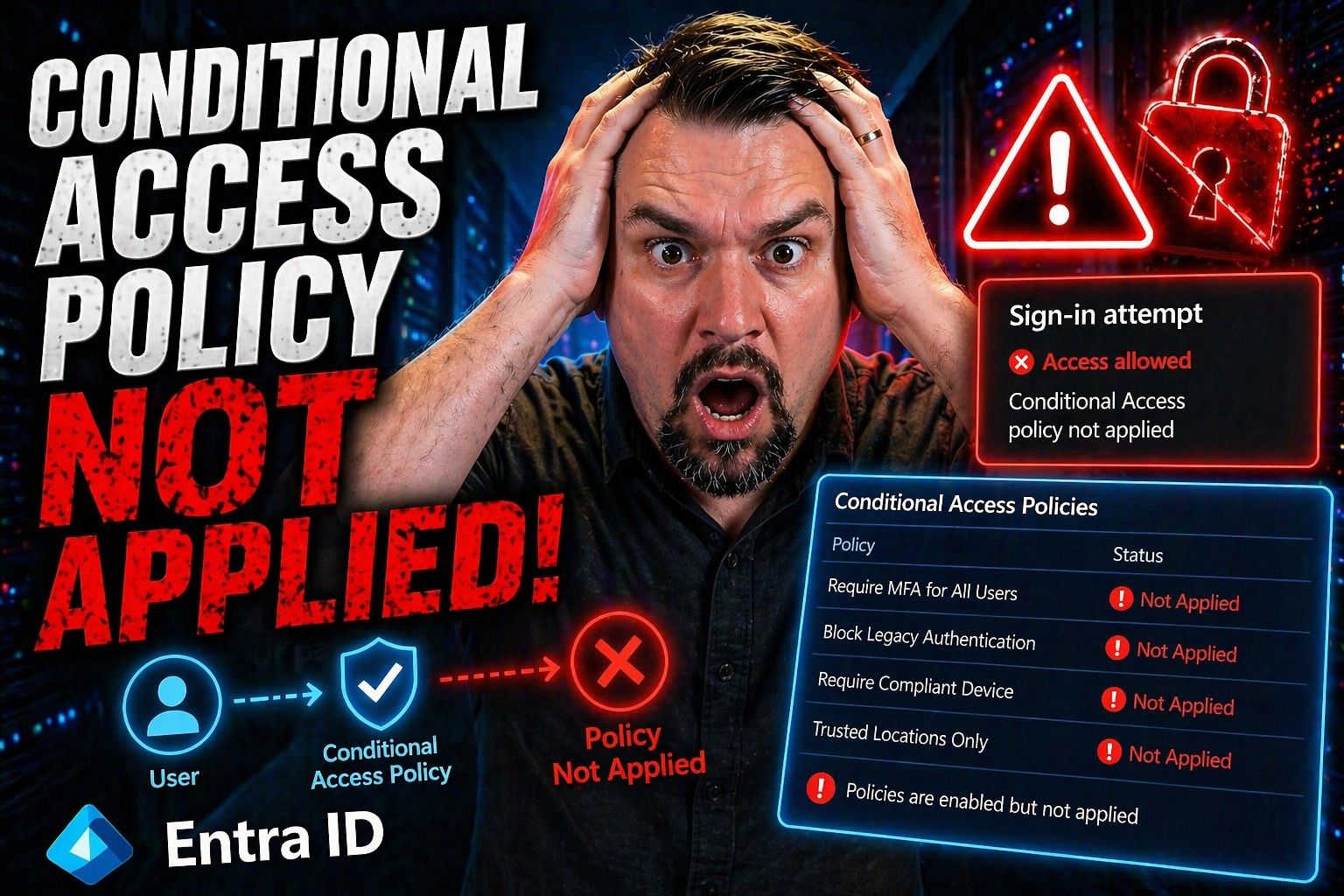
Conditional Access policy not applied requires a clear business scenario, validated security and data boundaries, and accountable ownership. Start with the intended outcome, test configuration and policy effects with representative users, document the decision and support process, then review the approach regularly as requirements and Microsoft 365 capabilities change.
Conditional Access policy not applied: practical checklist
- Define the scenario, owner, and decision criteria.
- Validate permissions, policy, security, and user impact.
- Test with a pilot and document support and review decisions.
Use Microsoft Learn for current guidance.
Last reviewed: July 2026.
Conditional Access is the backbone of identity protection in Microsoft Entra (formerly Azure AD). But when you see those dreaded “NotApplied” statuses in your logs, it means access controls aren’t doing their job—and your organization could be wide open to the wrong folks. This issue hides quietly until your compliance audits, incident response, or unruly users expose the holes.
The tough part? There’s rarely just one reason a Conditional Access policy isn’t applied. Could be a missed setting, a service principal dancing through the cracks, or good old policy sprawl muddying the waters. When Conditional Access doesn’t work, troubleshooting gets tricky fast. So, understanding how Microsoft Entra evaluates and skips policies is crucial. That’s how you patch these invisible gaps, smooth out user headaches, and put your security team’s minds at ease.
With this guide, you’ll get a clear path to diagnosing why a policy wasn’t enforced, avoid the most common traps, and start building Conditional Access policies that truly do what you intend—no more, no less.
Understanding Conditional Access Evaluation in Azure and Why Policies Show Not Applied
Conditional Access in Microsoft Entra might look black and white—apply the rule, get the outcome—but under the hood, things get complicated quick. Before you even think about fixing a “NotApplied” issue, you need to know how Entra chews through every policy the moment someone tries to sign in. Not every policy is going to hit or miss based only on what you checked in the admin portal.
When policies are marked “NotApplied,” it means Entra evaluated your sign-in against the policy, but decided the rule didn’t fit the situation. Maybe the user, device, app, or sign-in context just didn’t match the policy’s scope, or maybe another higher-priority rule got there first and delivered the required outcome.
It’s all about evaluation order and how Entra decides which policies win out when overlap happens. And then there’s policy exclusions, service principal flows, named location quirks, and the way certain Microsoft 365 services have their own little wobbles. Many policies get skipped—sometimes for reasons that aren’t obvious—leaving the “NotApplied” tag as your only clue something’s up.
If you don’t dig deep into these reasons and recognize “NotApplied” for what it is, you risk letting security slip through the cracks or causing login headaches for legitimate users. That’s where the sign-in logs come to the rescue, helping you separate applied, skipped, and ignored policies—and giving you a real picture of what’s actually happening. For more nuance on Conditional Access and risk, this podcast episode on policy sprawl and governance delivers battle-tested strategies for organizations at scale.
How Microsoft Entra Sign-In Logs Help Identify Policy Application Gaps
Microsoft Entra sign-in logs are your main detective in sorting out Conditional Access mysteries. Each log entry details which policies were evaluated for a sign-in, and you’ll see explicit statuses such as “Applied,” “NotApplied,” “Failure,” or “Success.” “NotApplied” doesn’t mean Entra ignored the policy—it means the conditions weren’t met, or another policy took precedence.
Look in the sign-in logs for the “Conditional Access” tab. Here, you can cross-reference user, device, and application context to discover why a policy didn’t trigger. Watch for artifacts like service principal sign-ins or app-only flows: they often show up as “NotApplied” because CA doesn’t process non-interactive tokens. Knowing how to read these logs is critical for catching gaps and ruling out misconfigurations. For more on baseline policies and tracking trust issues, see this guide on Conditional Access trust gaps.
The Most Common Conditional Access Misconfigurations That Prevent Policy Enforcement
Let’s be real—Conditional Access is one of those tools where small mistakes can turn into big security headaches. The most common culprit for “NotApplied” status? Misconfiguration, pure and simple. A misplaced exclusion, a lenient risk threshold, or overlooked legacy protocols can all leave security doors ajar when everyone thought they were locked tight.
Scope and condition mismatches happen all the time, especially with location settings or risky sign-in logic. Whether it’s a user in an unexpected place or an application using outdated auth, enforcement breaks down in ways that aren’t obvious in advance. Add in the quirks of access controls—like mistaking “require all” for “require any”—and you see how easy it is for intended rules to fall through the cracks.
On top of that, legacy authentication acts like a back alley around Conditional Access and MFA—a loophole so many organizations forget, until a compliance review drops the bad news. The best admins stay sharp by double-checking their work and keeping up with new loopholes as Microsoft 365 grows. If you want to see how subtle config drift can change even Microsoft’s own compliance outcomes, this podcast on Microsoft 365 compliance drift is eye-opening.
Location and Risk Condition Pitfalls in Conditional Access Policies
- Misconfigured Named Locations: If named locations have the wrong IP range, missing trusted addresses, or incomplete countries, some sign-ins may dodge your policy without warning.
- Inappropriate Risk Levels: If you set risky user or risky sign-in thresholds too high (or low), legitimate risks can slide by, or users might get blocked for false alarms.
- Omitted or Overbroad Locations: Forgetting to include all required IP ranges, cloud apps, or leaving in legacy “trusted” geographies leads to patchy enforcement.
- Device State Blind Spots: Not accounting for device compliance or hybrid Azure AD join leaves out sign-ins from unmanaged endpoints.
To avoid these errors, consistent audits and clear governance, as explained in this Azure governance guide, make all the difference.
Access Controls and Grant Rules That Cause Conditional Access to Fail
- Conflicting Grant Controls (“require all” vs. “require any”): Setting policies to require every grant control—like MFA plus compliant device plus approved app—creates a situation where a single unmet requirement causes a “NotApplied” or unintended denial.
- Unclear Block Access Logic: Accidentally enabling both “grant” and “block” controls in a policy can cancel each other out, resulting in unpredictable enforcement (or a “NotApplied” outcome if block conditions aren't triggered).
- Overlapping or Excluded User Groups: Including broad groups in a high-priority policy can override more targeted ones, making them appear as “NotApplied” because their conditions never get a chance to trigger.
- Incorrect Cloud App Targeting: Applying policies to the wrong cloud apps—or missing a key app entirely—means intended restrictions simply don’t fire.
Legacy Authentication and MFA Bypasses That Leave Gaps
- Legacy Protocols: Old-school protocols like POP, IMAP, and SMTP bypass Conditional Access and MFA, sneaking past your defenses via Exchange Online and other classic endpoints.
- Unmanaged App Registrations: Apps registered before Conditional Access was enforced (or using client credentials flow) aren’t subject to modern policy checks, letting attackers or unaware users access resources unchallenged.
- MFA Exclusions for Service Accounts: Blanket exclusions for legacy systems or shared mailboxes disable core protections, creating blind spots attackers love.
- Inter-App Loopholes: Flawed integration between client apps can ditch MFA prompts even where you expect them. For more on closing these Zero Trust gaps, check this Zero Trust in Microsoft 365/Dynamics 365 guide.
Troubleshooting Conditional Access Across Microsoft 365 Apps, B2B, and Device Platforms
Conditional Access enforcement is only as strong as its weakest link. Microsoft 365 has its own service quirks, B2B guest/partner sign-ins behave differently, and policy application for devices isn’t always what you’d expect. These nuances can trip up even well-designed policies and leave “NotApplied” footprints behind.
Guest accounts—especially ones long forgotten after a partner project—are a prime example. Their trust boundaries and lifecycle aren’t like internal users, meaning policies can miss them or trigger faintly. Service-specific behaviors in Microsoft 365 platforms, such as Exchange Online or SharePoint, add another layer of complexity, from app permissions to session timeouts.
Then there's the device side: how a user’s endpoint is joined, enrolled, or managed (think: hybrid Azure AD join, Intune compliance, mobile device platforms) dictates what policies will hit or be skipped. If you want to get to the bottom of conditional access enforcement across environments, build an environment-specific checklist that lets you spot gaps in real time, before they cost you a late-night support call. For more on governance pitfalls with guest users and teams governance, see guest account risk strategies and Teams governance improvements for a broader sense of evolving risk.
Microsoft 365 Service Nuances That Affect Conditional Access
Not every Microsoft 365 workload plays by the same rules when it comes to Conditional Access. Services like Exchange Online, SharePoint, and Teams have unique APIs, endpoints, and session management logic. Some protocols or mobile app access don’t always honor the latest CA settings—especially when legacy endpoints or OAuth consented apps are involved.
You might see a policy as “NotApplied” because the app uses different authentication methods, such as Exchange Online PowerShell or SharePoint Online via legacy flow. This can open up attack chains with consent phishing or token theft, underscoring the need for targeted remediation in each workload. For more on these service-level attack vectors and protection, see Microsoft 365 attack chain remediation.
Conditional Access for B2B Collaboration and Guest Users
- B2B Trust Boundaries: Guest users’ home organizations may have their own security rules, and your CA may not always override theirs, meaning policy triggers can be hit or miss.
- Invitation vs. Sign-In Flows: Conditional Access applies at sign-in, not invitation. If a guest never signs in, your policies don’t get to run.
- Monitoring and Alerts: Keep an eye on guest sign-in anomalies by setting up alerts and reviewing Entra logs. This ensures external sharing or lingering guest access doesn’t lead to compliance risks.
- Review and Expiration: Regular access reviews and time-boxed invitations help keep your environment tidy and reduce attack surface. For best results, orchestrate ongoing audit processes with enhanced coverage, as outlined in this practical guide on external sharing controls.
Windows and Device Compliance Challenges in Conditional Access
- Device Platform Exclusions: Policies scoped to Windows, iOS, or Android can skip users entirely if their device isn’t recognized or falls outside compliance.
- Hybrid Azure AD Join Pitfalls: Devices not properly joined (hybrid or otherwise) won’t pass Conditional Access device checks, blocking policy enforcement.
- Intune Integration Gaps: Intune-based compliance policies may take time to register, creating a window where policy application appears inconsistent.
- Non-Compliant or Unattested Devices: Sign-ins from jailbroken, outdated, or unmanaged devices typically don’t trigger device-guarded policies. Further guidance on integrating compliance and threat protection is available at this Microsoft 365 Defender and Purview overview.
Taming Policy Sprawl and Overlaps That Cause Unpredictable Conditional Access
In big environments, it’s easy to go wild with Conditional Access policies. You want airtight coverage, but that can quickly lead to so many overlapping or conflicting rules that no one can predict what’ll get enforced. Too many policies increase complexity, create shadow gaps, and make troubleshooting a headache.
Policy sprawl—when well-meaning admins stack “just one more” policy on top—breeds hidden enforcement blind spots, especially when you rely on group inclusions, exceptions, or forget to clean up test policies. Service dependencies make matters worse: a change to one cloud app or a new integration can sabotage what used to be a reliable policy chain.
The smart move is regular policy audits and rationalization. Focus on baseline, inclusive policies and minimize time-bound exceptions. Make sure every policy has a clear purpose, documented outcome, and is paired with actionable reporting—and never assume your environment is “set and forget.” For approaches on monitoring trust gaps and handling Shadow IT within Conditional Access, see this CA trust issues playbook and the guide on Shadow IT remediation.
Managing Service Dependencies and Preventing Policy Sprawl
- Audit Current Policies: Regularly inventory and document all active CA policies, watching for unnecessary overlaps or obsolete rules.
- Map Interconnected Services: Identify CA dependencies across Azure, Microsoft 365, and third-party apps to catch enforcement gaps introduced by new integrations.
- Consolidate and Rationalize: Combine similar policies and retire old or unused ones, focusing on broad, well-documented rules with targeted exceptions.
- Review for AI/Automation Risks: Don’t forget about background processes—AI agents and automation need their own scoped controls to block Shadow IT risks, as explained here: AI agent Shadow IT threats.
Safely Testing Policy Impact Using Select All Consequences and Reporting
- Enable Report-Only Mode First: Before deploying, use report-only mode to simulate policy impact without blocking legitimate users. Analyze the effect using built-in reporting dashboards.
- Use “Select All” Consequences Cautiously: Apply all enforcement actions in a safe test setting to discover unexpected results or unplanned exclusions before full rollout.
- Document Impacted Users and Apps: Keep records of every user, group, and app affected by changes, so you can communicate with stakeholders and reverse course if things go sideways.
- Gather User and System Feedback: Encourage users to report trouble immediately and check system error logs for policy lockouts.
- Rely on Audit Logs for Incident Response: Use Microsoft Purview Audit and tenant logs to track user activity and verify policy outcomes. For auditing guidance, see this Purview Audit deep-dive.
What to Do If Locked Out or a Conditional Access Policy Is Not Applied
Every Conditional Access admin has this nightmare: you deploy a new policy, and suddenly you—or your whole team—are locked out of the tenant, or the policy you thought would save the day isn’t working at all. Escalation calls mount, and you realize you need a solid recovery strategy just to keep the business running.
The good news? There’s a playbook for getting access back fast—without making things worse. You’ll want break-glass accounts ready, have your rollback and exclusion tactics in place, and escalate with Microsoft support or your security team if needed.
But let’s not stop at recovery. If you don’t address the root cause, you’ll be right back in this mess the next time you tweak a policy. That’s why an after-action review, stakeholder update, ongoing testing, and documented learnings are just as vital as flipping the right switch to restore service. To see why fragmented tool ownership torpedoes governance, check out this deep-dive on governance failures.
Step-by-Step Recovery When Conditional Access Fails
- Use a Break-Glass Account: Keep at least one emergency account with global admin rights but no Conditional Access policies applied. Log in with this to regain access anytime.
- Apply Temporary Exclusion Policies: If you’re locked out, create or activate an exclusion policy for your affected account or group—so you can regain normal access and fix the root issue.
- Escalate for Admin Override: If front-line steps fail, contact Microsoft support or your security team for direct intervention or tenant unlock.
- Rollback Recent Policy Changes: Roll back new or recently changed Conditional Access rules to the last-known good configuration, checking sign-in logs to confirm the fix.
Next Steps and Effective Policy Review After Identifying Not Applied Issues
- Document Lessons Learned: Record exactly what went wrong, what worked as a fix, and where future controls or audits are needed.
- Test in Report-Only Mode: Before turning a policy back on, use Entra’s report-only mode to make sure you’re catching issues without causing new outages.
- Gather and Apply Feedback: Request feedback from affected users and system logs, using their insights to close remaining gaps.
- Communicate with Stakeholders: Update all affected teams, IT leadership, external partners, and users about incident, resolution, and long-term prevention plans.
- Commit to Regular Governance: Schedule ongoing reviews, reporting, and updates to your Conditional Access policies—because good governance, as this podcast on governance illusion reminds us, is a continuous practice, not a set-and-forget checkbox exercise.
🎧 You Should Also Listen To
- Identity Governance in Microsoft Entra
Learn access and lifecycle controls.
- Microsoft Purview – Simply Explained
Explore protection and compliance context.
- Microsoft 365 Governance Operating Model
Understand sustainable ownership and decisions.

Microsoft MVP | Host of M365.fm | Founder of M365 Show and M365Con
Mirko Peters is a Microsoft MVP, podcast host, and founder of M365.fm, M365 Show, and M365Con. His work connects Microsoft practitioners through podcast interviews, livestreams, and community events.
At M365.fm, Mirko hosts conversations with Microsoft MVPs, product experts, architects, and community contributors. Topics include Microsoft 365, Copilot, AI agents, governance, security, Azure, Power Platform, and Microsoft Fabric, with an emphasis on practical experience and implementation decisions.
M365.fm is the podcast and learning platform. M365 Show brings experts together for livestreams, while M365Con provides an online conference setting for community learning.
Official website: Mirko Peters (https://www.mirkopeters.com/). Recognition: Mirko Peters — Microsoft MVP profile (https://mvp.microsoft.com/de-DE/mvp/profile/9b0ca797-db5a-493a-a845-8b9158046cf5). Connect on LinkedIn (https://www.linkedin.com/in/m365showpodcast/).




