
Copilot Prompts for Editing: A Complete Guide for Microsoft 365 Users
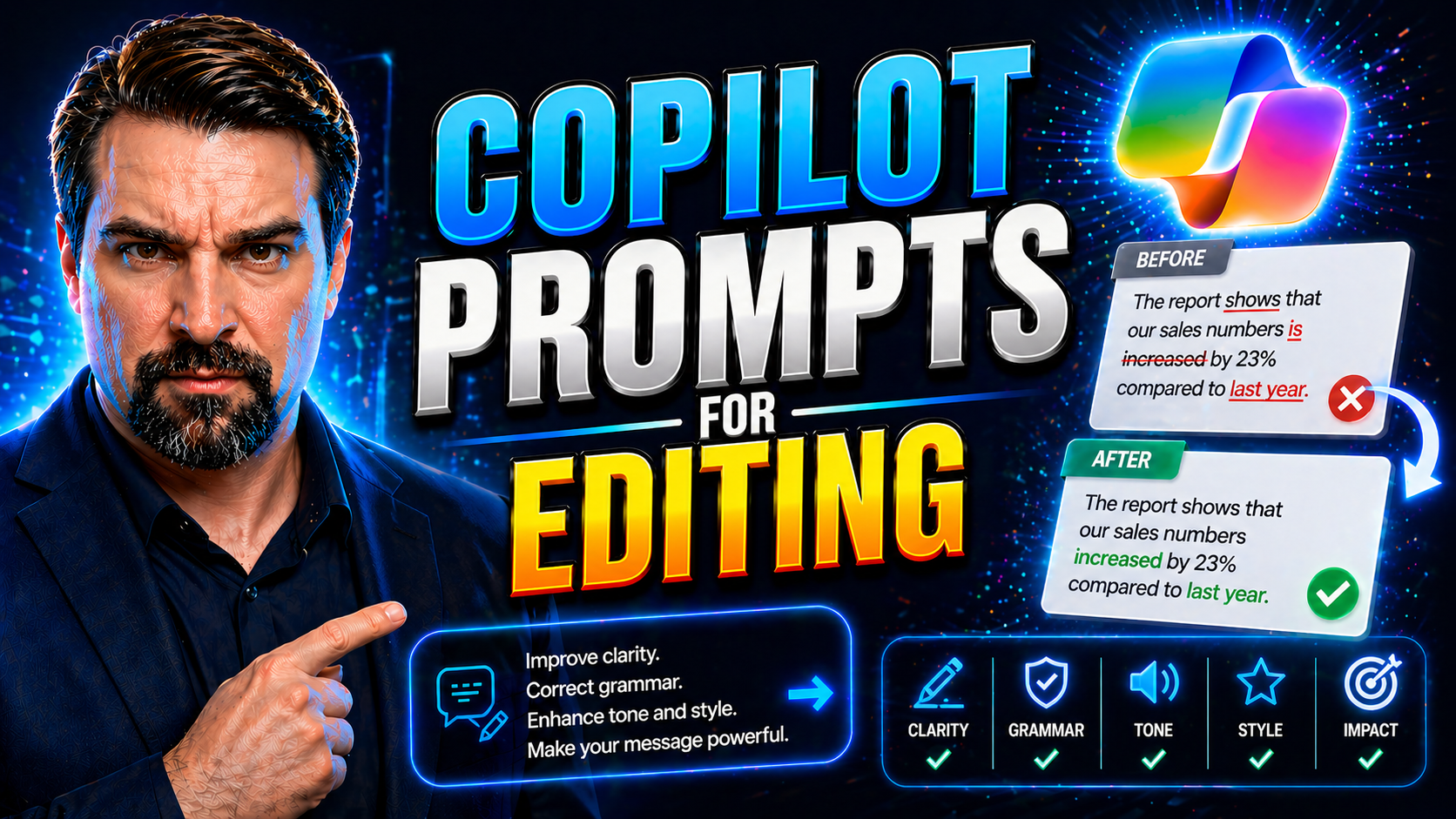
Quick Answer: Effective Copilot prompts for editing state the audience, purpose, desired tone, source text, and limits on what may change. Ask Copilot to preserve facts, mark uncertainties, and return a specific format such as tracked suggestions, a short executive version, or a plain-language rewrite—then keep a human reviewer responsible for the final version.
Copilot has changed the way you approach editing in Microsoft 365, making everything from polishing a document to replying to emails far more efficient. If you’re looking to get hands-on with smarter document edits, boost your productivity, or just keep up with today’s fast-paced workflows, this guide is for you. You’ll find practical prompt ideas, advanced strategies, and best practices for using Copilot as your AI-powered editing partner—whether you’re dealing with Word docs, emails, or meeting notes.
This resource dives into the nuts and bolts of prompt engineering for editing, so you get the best results out of Copilot. You’ll explore techniques for everything from basic rewriting to domain-specific edits in legal or scientific fields. Ready to unlock Copilot’s editing power? Let’s jump in and get those documents, emails, and meeting recaps tighter than ever before.
Mastering Copilot Prompt Engineering for Editing Tasks
At the foundation of efficient editing with Copilot is prompt engineering—that’s just a fancy way of saying you need to know how to talk to your AI assistant to get what you want. Understanding how Copilot interprets prompts and where its strengths (and limits) lie can make the difference between bland edits and top-quality results.
It might sound high-tech, but you don’t need to be a programmer or a writing expert to start mastering prompt engineering in Microsoft 365. Whether you’re drafting a board report, revising a project update, or just cleaning up daily emails, clear and structured prompts help Copilot transform your content without introducing errors or losing your original intent.
This section sets you up with the groundwork every Microsoft 365 user needs to maximize Copilot’s editing skills. You’ll see what makes prompts effective, how Copilot “thinks” about your instructions, and how to frame requests to suit your editing tasks. Advanced or not, with a little practice and the right strategies, anyone can level up their results.
Next, you’ll get a deep look into the building blocks of great Copilot prompts and a rundown of best practices tailored for real-world editing workflows—so you’re not just guessing, you’re getting it right.
The Fundamentals of Copilot Prompts for Editing in Microsoft 365
Copilot prompts for editing are instructions you give Microsoft 365’s AI assistant to refine, rewrite, or improve your documents, emails, or meeting notes. Think of them as your own “virtual editor” questions—everything starts with how you ask.
Copilot interprets prompts by analyzing both your wording and the current context (like the document text, email thread, or even who you’re messaging). Clear, focused prompts yield better AI results; if you’re vague or too complex, Copilot may miss the mark or overlook key details in your content.
There are several core types of Copilot editing prompts. These include commands to rewrite for clarity (“Rewrite this paragraph for a more professional tone”), to summarize or condense (“Give me a summary of this meeting’s key points”), and to proofread or correct specific issues (“Proofread for grammar and passive voice errors with tracked changes on”).
Knowing Copilot’s capabilities and limitations is essential. Copilot excels at rephrasing, simplifying, summarizing, adjusting tone, and spotting basic errors. But it’s not a human editor—it can sometimes misinterpret context, miss subtle nuance, or lack industry-specific compliance if your prompt isn’t precise. Learn to guide Copilot step-by-step: structure your requests, give context, and clarify your expectations. That way, your edits stay sharp and relevant every time.
Best Practices for Crafting Effective Editing Prompts
- Be crystal clear and specific. State exactly what you want Copilot to do—like “Rewrite this to sound more concise” instead of just “Rewrite.” Clear, direct requests cut down on misunderstandings and oddball results.
- Avoid vague or overly complicated instructions. Don’t overload Copilot with too many actions in one go. “Fix grammar and highlight complex words; also summarize for executives and adjust for legal compliance” is a recipe for trouble. Break tasks into bite-sized prompts.
- Always provide context. If Copilot doesn’t know who the audience is or the document’s purpose, your edits may not land. Add context: “Polish this for a client proposal” or “Summarize as an internal team update.”
- Match tone and style to your goals. Copilot can shift from formal to friendly, but only if you say so. Try, “Rewrite this with a professional and reassuring tone” or “Make this more direct and energetic for executive leadership.”
- Iterate and refine. If Copilot’s first response isn’t spot-on, tweak your prompt. Adjust for wordiness, tone, or clarity until you get the edit you like. Iteration is your friend; even two or three runs can dramatically improve output.
- Review for misalignment and errors. Before finalizing, skim the output. Make sure Copilot hasn’t inserted incorrect details, stripped out important content, or introduced a style mismatch.
- Experiment and learn. Don’t be afraid to try variations—test out language, ask for lists or summaries, or even direct Copilot to “act as a legal editor” or “rephrase for second-language simplicity.”
Task-Based Copilot Prompts to Streamline Document Editing
Editing documents in Microsoft 365 can be tedious, but Copilot’s prompt-driven workflows are designed to remove busywork and raise your results. Whether you’re rewriting messy paragraphs, simplifying a complex memo, or proofreading everything before it ships out the door, Copilot can step in and handle the heavy lifting.
This section zeroes in on prompt strategies made for daily editing jobs. You’ll see how to craft instructions for rewriting, sharpening, or translating content—ensuring your team’s work is clearer and more impactful every time. Copilot isn’t just for cleaning up spelling or grammar; it’s also about making your writing connect with readers and meet your organization’s standards.
Up ahead, you’ll get actionable ideas and real-word examples that show you how to prompt Copilot for tasks like rewording, catching errors with tracked changes, and making professional, collaborative edits in just a few clicks. Let’s get your editing process running like a well-oiled machine.
Using Copilot to Rewrite and Sharpen Writing for Clarity and Readability
- Simplify complex sections. Prompt example: “Rewrite the paragraph below using shorter sentences and plain language, so it’s easy for everyone to understand.” Useful when you’ve got technical jargon that needs to be audience-friendly.
- Sharpen and clarify wording. Try: “Make this overview more concise and direct, keeping key ideas and removing fluff.” This prompt helps Copilot trim excess words and stay focused on your main message.
- Improve tone for your audience. Example: “Adjust this message to sound confident and reassuring, suitable for customers concerned about a delay.” Copilot can help shape the emotional subtlety of your text.
- Translate with clarity in mind. “Translate this announcement into Spanish, making sure the instructions remain simple and actionable.” A helpful Copilot prompt when sharing content across international teams.
- Preserve original intent. If you’re worried Copilot might change too much: “Rewrite for readability but keep the same core meaning and intended emphasis.” This keeps edits from wandering too far off course.
- Boost readability for skimming. “Edit this section with bullet points or headings so managers can scan it quickly.” Copilot’s formatting and clarity tweaks help busy readers get to the point.
Proofreading and Editing with Tracked Changes Using Copilot
- Turn on tracked changes edits. Prompt: “Proofread this document for grammar and spelling, but use tracked changes so I see every edit.” This ensures full transparency and makes review a breeze.
- Highlight key errors for review. Try: “Check this report for passive voice, run-on sentences, and repeated words—show corrections with tracked changes.” You’ll get a clean, step-by-step revision record.
- Polish formatting and style issues. Example: “Scan my letter for inconsistent font, spacing, and formatting details—make corrections visible in tracked changes.” Copilot handles tedious fixes while you keep control.
- Collaborate on edits with comments. Adding, “Suggest alternatives for unclear phrases and leave comments explaining your choices” makes Copilot a reliable editing partner—especially for documents going through multiple hands.
- Summarize all edits at the end. Prompt: “After proofreading with tracked changes, give me a list of the five most significant edits you made.” This saves time when you need a quick update.
Enhancing Email and Meeting Communication with Copilot Editing Prompts
Staying on top of emails and meetings can feel endless—but with Copilot’s editing prompts, managing your inbox and catching up on discussions becomes much easier. Whether you’re writing a tricky reply, summarizing a long conversation, or sifting through meeting notes, Copilot helps you process and respond faster while keeping your communication sharp and professional.
In this section, we’ll look at prompt techniques for editing both incoming and outgoing emails—no matter if you’re replying to customers, colleagues, or external partners. You’ll also discover ways to quickly make sense of meeting notes, highlight key decisions, and draft instant follow-ups using Copilot’s powers.
The upcoming lists and explanations will arm you with quick-win prompt strategies so your daily flow isn’t bogged down by endless mail or missed meeting recaps. The result? Clearer communication, faster responses, and less time spent wading through digital clutter.
Editing and Managing Emails Efficiently with Copilot Prompts
- Summarize long email threads. Prompt Copilot with “Summarize this email conversation so I can quickly understand the key discussion points and decisions.” Perfect for when you return from vacation or need a quick update.
- Draft replies for pending emails. Use “Draft a polite response to this customer’s concerns, addressing the main issue and offering next steps.” Copilot will build a base draft, which you can quickly tweak and send.
- Improve clarity and professionalism. Try “Edit this draft so it uses a formal tone and corrects any grammar mistakes before I send it externally.” Suitable for emails heading to clients or out-of-network contacts.
- Triage internal vs. external communication. Use “Rewrite this note for my team using a friendly, concise tone,” or, “Polish this for external vendors, emphasizing our key requirements.” Context makes a difference, and Copilot can switch gears.
- Keep on top of emails waiting for a response. Try “Show me a list of emails that are pending my reply and summarize the action items in each thread.” This prompt keeps you organized and stress-free.
Summarizing and Catching Up on Meetings with Copilot
- Instantly extract meeting highlights. Ask Copilot, “Summarize the main points and decisions from this meeting transcript or recording.” No need to relive the entire hour—you get what matters most, fast.
- Generate action item lists. Prompt with “List all tasks and owners discussed in the meeting, so I know what’s next.” Copilot makes follow-up a breeze and keeps everyone accountable.
- Provide a quick gist for missed meetings. “Give me a brief, two-sentence summary of what I missed in yesterday’s meeting.” This keeps you informed without wading through full recordings.
- Summarize multiple meetings at once. Ask Copilot, “Combine the takeaways from these three meetings into a single overview for managers.” Useful for folks wearing many hats (and juggling many calendars).
- Draft follow-up messages with context. “Draft a follow-up email summarizing today’s meeting outcomes and next steps for the whole team.” Copilot ties it all together for seamless communication.
Advanced and Creative Prompt Strategies for Professional Editing
Once you’re comfortable with the basics, it’s time to elevate your game by using Copilot for complex, high-stakes editing situations. This section introduces advanced prompting approaches that work wonders for executive documents, detailed project plans, translation tasks, and even comparing draft versions—so your output isn’t just edited, it’s top-tier professional.
But that’s not all. We’ll also unlock creative, iterative prompting techniques. Sometimes you’ll need to experiment, test different styles or phrasing, and leverage feedback loops to get your edits just right. Whether you’re fine-tuning a leadership memo, preparing investor updates, or polishing a multi-version proposal, these methods put you firmly in control.
Through this next set of lists, expect a deep dive into powerful, scenario-driven prompts and practical strategies for stretching what Copilot can do with your instructions. Ready to make Copilot your go-to coeditor for even the toughest assignments? Let’s get started.
Advanced Editing Use Cases: Executive Files, Translation, and Planning
- Executive summaries and board reports. Prompt: “Draft an executive summary of this report for board members. Highlight KPIs, critical risks, and recommended actions in concise, non-technical language.” Use this to save leaders time and present data in easy-to-digest form.
- Compare document versions. Try: “Compare this draft and the previous version. Summarize what changed and flag any inconsistencies or missing sections.” Copilot acts as a neutral, sharp-eyed reviewer.
- Translate with cultural accuracy. Prompt: “Translate this policy memo into French, adapting regional phrasing for Canadian offices, and clarify all action steps.” You get both language and cultural fit.
- Highlight critical decisions and insights. Ask: “Extract and list all key decisions and insights made in this planning document for project stakeholders.” Copilot ensures no strategic takeaway gets buried.
- Develop detailed project plans. Use: “Review this outline for a product launch plan. Add missing steps, suggest milestones, and clarify responsibilities for each phase.” Now you’re ready for leadership or cross-team review.
Creative and Iterative Prompting for Better Copilot Outputs
- Experiment with tone and voice. Prompt Copilot to “Edit this announcement in a cheerful, informal style” or “Refine for a somber, empathetic voice.” Review different results and choose what fits best.
- Set up iterative feedback loops. After Copilot’s first draft, reply with “Make it even more concise” or “Add a summary at the top, but keep all technical data.” Keep refining until you reach your desired outcome rather than settling for a first try.
- Break down large edits into steps. Structure prompts like: “First, summarize this research overview. Next, rewrite to target non-expert readers.” Tackling edits step-by-step lets Copilot focus and deliver higher accuracy.
- Request alternate versions. Ask Copilot, “Give me three alternative rewrites of this paragraph emphasizing safety, innovation, and efficiency respectively.” Great for marketing, HR, or any team needing variety.
- Test creative formatting and structure. Try: “Turn this technical description into a FAQ for end users,” or “Reformat this update as a bulleted list.” Copilot isn’t just for editing words—it improves delivery, too.
Use Case-Specific Prompt Frameworks for Editing Workflows
Editing needs aren’t one-size-fits-all—what works for executive briefings might not help you with a project update or an upcoming interview. That’s why prompt frameworks built around real business scenarios are a game changer. This section unlocks tailored strategies, helping you align Copilot’s editing power with the unique needs of each professional workflow.
You’ll see frameworks for high-impact areas like executive and operational communications—where clarity and messaging consistency are vital. Project updates, professional networking, and interview prep also come into focus, with specific prompt ideas for each step.
Dive into the following lists to discover how you can edit more effectively in every context—from boardrooms to networking events—using just the right Copilot prompt for the job.
Prompt Strategies for Executive and Operational Communication
- Executive status updates. Prompt: “Rewrite this status update for the C-suite, highlighting results, challenges, and next steps in a direct, data-driven tone.” Copilot keeps it focused and leadership-ready.
- Operational explainers and how-to guides. Use: “Edit this manual as an operations explainer for non-technical staff, with step-by-step clarity and zero jargon.” You get instructions anyone on the floor can follow.
- Tailored strategic pitches. Prompt: “Polish this pitch for executive sponsors, addressing their concerns and highlighting immediate benefits and long-term ROI.” The right prompt keeps the C-suite’s attention where you want it.
- Drafting with sensitivity in mind. Ask Copilot to “Edit this communication with a neutral tone, avoiding loaded language or sensitive industry terms.” Especially helpful in regulated environments or during organizational change.
- Summarizing for decision making. Prompt: “Condense this report to a one-page summary of key points, decisions needed, and questions for leadership.” Great for meetings or board packets where time is tight.
Editing Project Status, Networking, and Interview Prep Content
- Project status updates. Prompt Copilot to “Summarize this project’s current progress, highlight risks, and outline the next three action items for the team.”
- Networking messages. Use: “Edit this LinkedIn message to sound friendly, professional, and personalized for a new industry connection.”
- Interview preparation. Prompt: “Rewrite these answers for an interview, emphasizing leadership skills and clarity.”
- Competitor and opportunity tracking. Ask Copilot to “Summarize recent competitor moves and suggest how to position our next product launch.”
Optimizing Copilot Prompt Strategy with Tools, Tips, and Resources
The more you use Copilot for editing, the more you’ll want to fine-tune your prompts—and avoid the typical pitfalls (like confusing instructions or bland results). That’s where ongoing tips, real-world examples, and the latest resources come in. This section is your toolbox for getting faster, more consistent editing wins with Copilot.
You’ll find pro tips, troubleshooting advice, and practical ways to stay ahead as Microsoft 365 and Copilot evolve, including as new capabilities like GPT-5 roll out. If you’re looking to maximize value for your workflow, you’re in the right spot.
This next batch of tips and resources will help you keep learning, spark new prompt ideas, and handle everything from daily edits to more advanced Copilot setup, like security and compliance needs. Stay sharp—and never stop improving your AI editing skills.
Practical Tips and Examples for Better Editing Prompts
- Start with clear outcomes. Decide what you want (a summary, reworded message, or grammar check) and mention that directly in your prompt. This gives Copilot a “target” to focus on.
- Use structure for detailed requests. Say things like “First, summarize. Next, simplify for new employees. Then, highlight any unclear sections.” This step-by-step approach helps Copilot avoid skipping what’s important.
- Test variations and learn fast. If one prompt doesn’t quite work, tweak the wording. Even changing “rewrite professionally” to “rewrite in a reassuring, customer-friendly tone” gets different results.
- Avoid ambiguous instructions. Vague prompts like “fix this” can lead to unwanted changes. Specify, for example, “Correct grammar, but keep technical terminology intact.”
- Review, revise, and double-check edits. Always give Copilot’s outputs a once-over for accuracy, tone, and fit. AI can miss subtle points or go off in the wrong direction—your review is the final step.
- Plan for collaboration. Save your most reliable prompts as templates or examples for your team. This builds editing consistency and saves time explaining instructions later.
Resources to Learn More and Advance Your Copilot Editing Skills
- Governed Copilot Learning Center: Centralizes Copilot best practices, governance, and evergreen content for consistent training and adoption.
- Copilot Security and Compliance Guide: Explains how to keep Copilot AI editing secure and compliant, a must as new models and regulations emerge.
- Microsoft Learn and Tech Community: Regularly updated Microsoft resources covering new Copilot features, including prompt engineering tips and rollout guides.
- M365 FM Podcast: Hear real-world experiences and expert discussions about Microsoft Copilot editing, security, and compliance.
- Watch out for GPT-5 Integration: As Copilot gets smarter, look for guides exploring prompt implications, security, and next-level features.
Ethical and Bias-Aware Editing with Copilot Prompts
AI might seem neutral, but editing with Copilot comes with new ethical challenges—ones your standard spellchecker never had to worry about. With so much riding on digital communication today, it’s critical your edits don’t introduce unintended bias, inappropriate tone, or drift from the original author’s intent.
This section gets to the heart of responsible AI-powered editing. You’ll learn how to scan for sneaky bias, maintain brand or authorial voice, and steer clear of edits that could misrepresent or harm. Whether you’re polishing sensitive emails, legal notices, or external-facing material, awareness is key.
Ready to ensure your Copilot edits are inclusive, accurate, and trustworthy? Up next: effective bias detection strategies and practical steps to keep your unique voice intact—even as Copilot lends a hand.
Identifying and Preventing Bias in AI-Edited Content
- Use inclusive, neutral prompts. Guide Copilot with instructions like “Edit for gender-neutral language and avoid cultural stereotypes.” This helps prevent accidental bias in routine edits.
- Carefully review sensitive language. Always check Copilot’s suggestions, especially with compliance notices or official replies. Don’t trust the bot blindly; human review is non-negotiable if reputations or risks are involved.
- Watch for unintentional exclusions. Prompts such as “Summarize this announcement inclusively, ensuring all employees are addressed” keep your edits open and welcoming.
- Audit and track edits for compliance. Want to know if Copilot’s outputs align with policy? Combine prompt strategies with audit and governance tools described at Governed AI Security and review compliance drift insights from Compliance Drift Explained.
Maintaining Authorial Voice and Authenticity in Copilot Edits
- Define the original style in your prompt. Ask Copilot to “Edit this while preserving my conversational tone and direct style.” You want edits that sound like you—not a robot.
- Specify what should stay untouched. If there are signature phrases or unique voice elements, note them: “Do not change branded terms or my closing statement.”
- Compare before and after. Use prompts like “Show the original and revised version side by side, highlighting where the style shifted.” This helps you spot—and prevent—loss of authenticity.
- Review for voice drift after Copilot edits. Before finalizing, ask yourself if the message still feels personal or aligned with your organization. Tweak as needed for consistency.
Collaborative Editing Workflows Using Shared Copilot Prompts
Quality editing isn’t just a solo venture—in team settings, shared prompt strategies can boost consistency, governance, and overall productivity. Instead of everyone reinventing the wheel, prompt templates let your squad edit documents with the same standards and style, no matter the department or project.
This section unpacks how to build and manage collaborative Copilot workflows. From storing your best prompts as standard templates to embedding them in review and approval cycles, you’ll see how prompt consistency and governance shape not just your writing, but your track record on compliance, accountability, and risk.
Practical governance is more than an afterthought; adopting shared Copilot strategies (like those detailed at Copilot Governance Policy) ensures your workflows stay secure, documented, and up to snuff for modern business. Up next: How to design templates, and fold Copilot neatly into your team’s document lifecycle.
Creating Reusable Prompt Templates for Team Consistency
- Standardize prompt libraries. Build and store editing prompts for recurring tasks (like “polish for client proposals” or “summarize for executive updates”) in a shared folder or knowledge base.
- Assign prompt templates by department. Version prompts for Ops, HR, Legal, and Marketing so edits stay on-brand and on-message.
- Update templates as policies or language evolves. Keep templates current as business priorities or compliance regulations change.
- Distribute via training or onboarding. Give new hires a starter set of Copilot prompt templates for instant productivity and alignment.
Integrating Copilot Editing Prompts with Review and Version Control
- Embed prompt details in review steps. When launching a document review, specify which Copilot prompt was used (“Edited with ‘summarize for regulatory compliance’ prompt”) to guide reviewers.
- Track edits with audit-friendly workflows. Use Copilot prompts that require tracked changes or side-by-side comparisons for every edit. For more advanced audit and review practices, check the step-by-step guide on How to Audit User Activity with Microsoft Purview.
- Require approvals for critical content. Set up prompts and workflows so all high-risk or sensitive documents run through Copilot, then human review, before hitting “send.”
- Archive both original and revised files. Use prompts like “Save this version and document all Copilot edits separately,” creating an audit trail for compliance and accountability.
Domain-Specific Editing Prompts for Specialized Industries
Editing in high-stakes industries—like legal, healthcare, or scientific research—demands more than the basics. Here, you need Copilot to be precise, accurate, and compliant, not just “good enough.” This section highlights how to tailor prompt strategies for regulated, jargon-heavy fields, so you get edits that satisfy stakeholders and stand up to scrutiny.
Competitor guides often stick to generic examples, but real professionals need domain-specific frameworks—whether reviewing a contract, polishing a compliance briefing, or prepping a medical abstract for peer review. Copilot can help, but only if you give it the right instructions.
Now, let’s explore prompt examples and approaches so your legal, compliance, and technical writing doesn’t miss a beat—and meets even the strictest industry expectations.
Editing Legal and Compliance Documents with Copilot Prompts
- Compliance language review. Prompt Copilot to “Edit for standard compliance phrasing and remove ambiguous language in this contract.”
- Highlight regulatory gaps. Ask: “Scan this policy notice for missing regulatory references and suggest additions for compliance.”
- Maintain legal authority. Use: “Preserve precise legal terminology and avoid rephrasing clauses that are statutory.”
- Minimize liability risk. Prompt: “Rewrite disclaimers for clarity and completeness, highlighting areas that may introduce risk.”
- Align edits with DLP best practices. For Power Platform and automations, follow governance and DLP policies as explained at Data Loss Prevention Policies.
Prompts for Editing Medical and Scientific Manuscripts
- Enhance clinical accuracy. Prompt Copilot to “Edit this summary to ensure all clinical terms are accurate and up-to-date with latest guidelines.”
- Peer review clarity. Use: “Rewrite this research abstract for clarity and readability, preserving all technical accuracy for peer review.”
- Format for publication guidelines. Prompt: “Format this manuscript to fit journal requirements, including references and section headings.”
- Simplify patient communications. Ask Copilot to “Rewrite these patient discharge instructions using plain, approachable language for non-experts.”
Reusable Copilot prompts for editing
| Editing goal | Prompt pattern |
|---|---|
| Clarify a draft | “Rewrite for a [audience]. Preserve facts, keep the structure, and flag any sentence that needs subject-matter review.” |
| Shorten an update | “Create a [length] summary for [audience]. Keep decisions, risks, owners, and dates; omit repetition.” |
| Improve tone | “Make this professional and direct for [audience]. Do not add claims or commitments that are not present in the source.” |
For current Copilot product guidance, consult Microsoft Support for Copilot.
Frequently asked questions
Should I paste confidential text into an editing prompt?
Follow your organisation’s data-handling rules. Use the approved Microsoft 365 experience and ensure the user has the right access and protection controls for the content.
How do I reduce invented details?
Explicitly tell Copilot to use only the supplied source, preserve facts, and flag missing information. Human review remains essential for sensitive or external content.
🎧 You Should Also Listen To
These episodes provide the adoption and governance context behind safe, useful Copilot prompts for editing.
- AI Agents – Simply Explained helps readers understand how structured instructions and clear task boundaries improve AI-assisted work.
- Operating Model for Microsoft 365 Governance shows how to build accountable practices around shared prompt use and review.
- Microsoft Purview Information Protection – Simply Explained adds the classification and protection context for editing content that may be sensitive.
Last reviewed: July 2026. Copilot features and user experiences evolve frequently.

Microsoft MVP | Host of M365.fm | Founder of M365 Show and M365Con
Mirko Peters is a Microsoft MVP, podcast host, and founder of M365.fm, M365 Show, and M365Con. His work connects Microsoft practitioners through podcast interviews, livestreams, and community events.
At M365.fm, Mirko hosts conversations with Microsoft MVPs, product experts, architects, and community contributors. Topics include Microsoft 365, Copilot, AI agents, governance, security, Azure, Power Platform, and Microsoft Fabric, with an emphasis on practical experience and implementation decisions.
M365.fm is the podcast and learning platform. M365 Show brings experts together for livestreams, while M365Con provides an online conference setting for community learning.
Official website: Mirko Peters (https://www.mirkopeters.com/). Recognition: Mirko Peters — Microsoft MVP profile (https://mvp.microsoft.com/de-DE/mvp/profile/9b0ca797-db5a-493a-a845-8b9158046cf5). Connect on LinkedIn (https://www.linkedin.com/in/m365showpodcast/).




