
Copilot Prompts for Email Automation: Master Microsoft 365 in Your Inbox
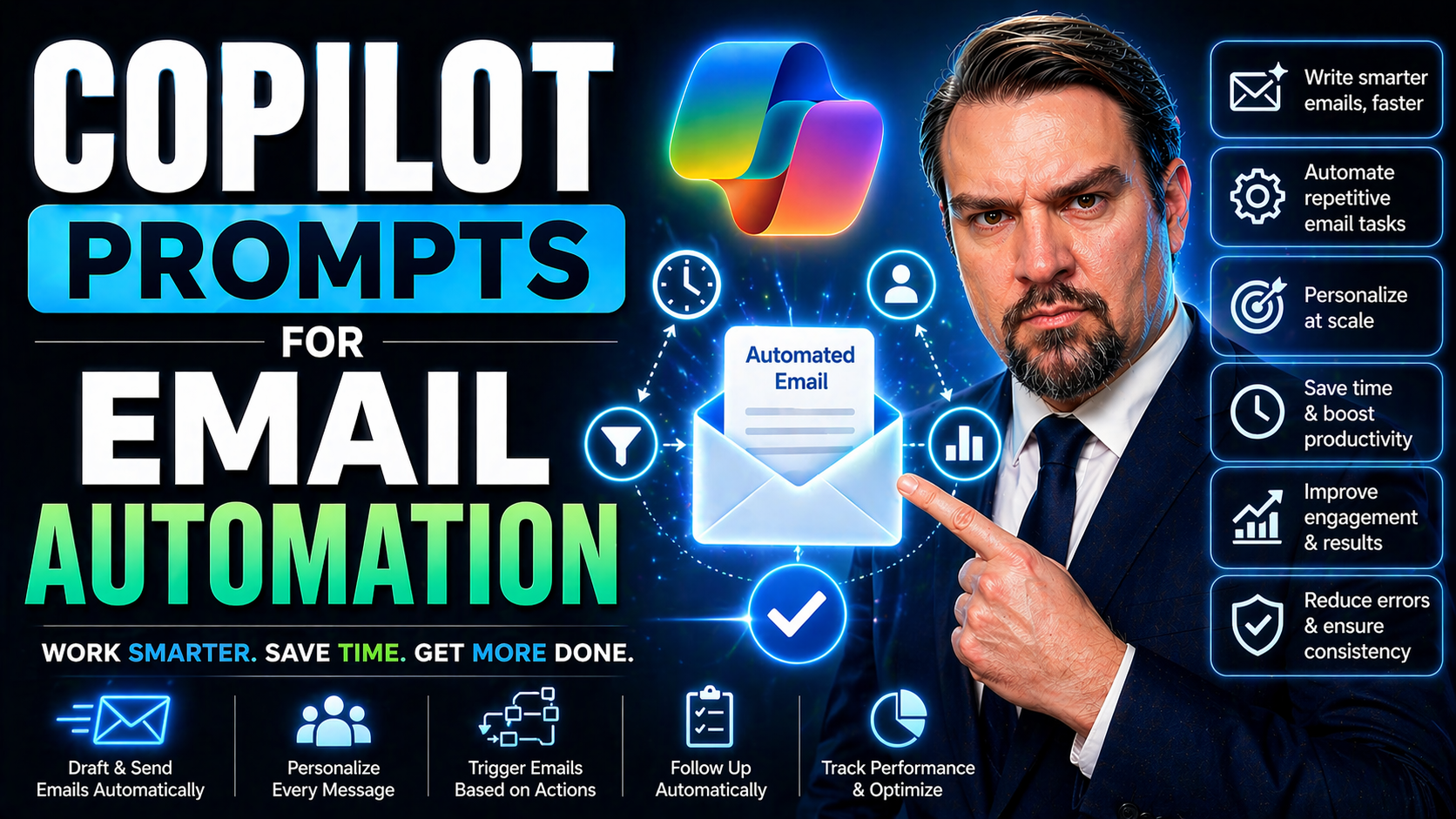
Welcome to your one-stop guide for mastering Microsoft Copilot prompts in email automation! In today's business world, your email inbox is no longer just a stack of digital letters; it's your daily command center. With the surge of AI tools like Copilot in Microsoft 365, automating email workflows isn’t just a nice-to-have—it's a power move for anyone serious about getting more done in less time.
This resource walks you through the essentials and the innovations. Whether you're wrangling unread messages, looking to automate follow-ups, or aiming to keep your responses natural and on brand, Copilot can do the heavy lifting. By strategically designing, refining, and operationalizing prompts, you’ll discover how to streamline communication, reduce repetitive effort, and respond smarter—not just faster.
Responsible AI usage is a major theme here, too. Copilot's strengths shine brightest when there's thoughtful prompt engineering behind them—and a wise approach to security and compliance. You’ll find foundational tips as well as advanced strategies for tapping into Copilot’s abilities, all within your familiar Microsoft Outlook and 365 tools. If you’re aiming to boost productivity and stay ahead in business communications, you’re in the right place.
Mastering Microsoft 365 Email Automation With Copilot Prompts
Let’s face it: email takes up more of your workday than you’d probably like to admit. The good news? Copilot in Microsoft 365 is changing the game for busy professionals who want to move faster without missing a beat. Picture turning long-winded threads into crisp summaries, drafting responses in seconds instead of hours, and making your inbox work for you, not the other way around.
Copilot connects directly with Outlook, tapping into your existing workflows and streamlining the daily tasks that can otherwise eat away at your precious time. By weaving prompt-driven automation into your email routine, you can flag the messages that need your attention, auto-sort the noise, and even tee up polished replies with a single nudge. The result is an inbox that’s always one step ahead.
But automation isn't just about speed—it's about better communication and efficiency across the board. By using Copilot to take on your repetitive chores, you free yourself for the work that actually matters. We’re about to dig into the top ways you can use prompts to magnify your productivity and create more breathing room in your hectic workday. Stick around for the specifics in the next sections.
Essential Copilot Prompts for Managing Emails Pending Response
- “Show me all emails that haven’t received a reply in the last 3 days.”
- Instantly pull up a list of conversations waiting on your response, so no critical message gets lost or forgotten.
- “Summarize emails that require follow-up and group them by sender.”
- Organize your pending to-dos by who’s waiting on you, allowing for batch replies and more efficient catch-up sessions.
- “Remind me tomorrow about any emails in my inbox that are still pending action.”
- Get automated reminders, cutting down on inbox anxiety and keeping those loose ends front and center.
- “Highlight unread emails from my manager or key clients.”
- This prioritizes must-see messages, making sure crucial conversations don’t fall through the cracks.
These prompts put overdue and important conversations on your radar and make follow-up a breeze. Time saved, stress less.
Summarize Email Threads for a Quick Overview With Copilot
- “Summarize this email thread in 3-5 bullet points.”
- Get a quick, easy-to-read overview capturing the gist of long email chains, so you don’t have to wade through every message.
- “Provide a one-paragraph summary of the latest updates in this conversation.”
- Perfect for catching up on project discussions or client negotiations that have gone back and forth all week.
- “What are the action items and outcomes discussed in this thread?”
- Instantly see what needs to be done and who’s responsible, which is gold for staying on top of complex exchanges.
Using these prompts, Copilot distills long discussions into clear, actionable summaries, so you always know what matters most.
Task-Based Prompts to Automate Routine Email Actions
- “Draft a polite follow-up email for this conversation.”
- Automate recurring follow-ups so you maintain momentum with minimal effort.
- “Schedule this message to send tomorrow morning at 8 AM.”
- Use Copilot to set up timed emails, fitting your communications seamlessly into your schedule.
- “Forward this email to my team with a summary and next steps.”
- Instantly share key info and keep everyone in the loop, without crafting the message from scratch.
- “Tag this email and add a task in To Do for follow-up.”
- Turn emails into actionable tasks, making sure nothing lingers unchecked in your inbox.
With these structured prompts, repetitive duties get handled automatically—leaving you free for work only you can do.
Crafting Effective and Human-Sounding Email Prompts
Nobody wants to read an email that sounds like it was spat out of a robot, no matter how advanced the AI. In business, your words are your handshake, your first impression, and sometimes your entire relationship. Crafting prompts that bring out Copilot’s most human-sounding side is essential if you want your automated responses to connect and resonate.
It’s about more than just getting the facts right—it’s making sure your prompt guides Copilot toward emails that feel conversational, confident, and reflect your unique tone. Balancing professionalism with authenticity is the key. Clunky, overly polite, or generic replies can damage trust, while tailored, polished messages set the tone for productive collaboration.
This next set of insights will share the high-level recipe for using prompt engineering to make Copilot-generated emails engaging, readable, and unmistakably you. We’ll lay down the groundwork for everything from tone adjustments to advanced editing tricks, so every message that leaves your inbox carries your signature style.
Optimizing Tone and Style for Professional Yet Personal Email Outputs
- Avoid Robotic or “Polite Generic” Language
- Steer clear of prompts like “Write a very polite email…” that often make Copilot churn out stiff, unnatural replies. Instead, specify the desired tone, such as “friendly but direct” or “professional and approachable.”
- Specify Tone and Audience in Your Prompts
- For example, try: “Draft a short, confident reply for a client update. Use a warm, appreciative tone.” The more precise your direction, the more personal and appropriate the email feels.
- Sharpen for Readability
- Use prompts like: “Rewrite this reply to be clear, concise, and easy to scan.” This ensures Copilot focuses on clarity, making your message accessible to busy recipients.
- Tailor for Each Scenario
- Don’t settle for one-size-fits-all. Try: “Draft an empathetic response for a team member who missed a deadline—encourage them while reinforcing expectations.”
- Experiment with Confidence and Politeness Levels
- Prompt: “Respond with a positive but confident tone, avoid excessive apology.” Testing different instructions reveals what lands best with your particular audience.
Careful prompt design leaves you with emails that are sharp, engaging, and sound just like you—even when the AI is working behind the scenes.
Enhance Writing by Rewriting and Proofreading Emails With Copilot
- Prompt Copilot for Rewriting and Simplification
- Use: “Rewrite this email for clarity and brevity” or “Simplify complex language for easy understanding.” You’ll get cleaner, more reader-friendly drafts.
- Ask for Proofreading with Tracked Changes
- Try: “Proofread this message for grammar, spelling, and professionalism. Show edits using tracked changes.” This keeps your writing sharp and transparent.
- Request a Polished, Natural Rewrite
- Use prompts like: “Edit this draft to sound more conversational and confident, while retaining the original intent.” The result is a message that’s polished yet genuine.
- Target Conciseness Without Losing Nuance
- Try: “Condense this message to 3-4 lines without losing key details or friendly tone.” Copilot will zero in on what matters.
- Double-Check Before Sending
- Prompt: “Review this reply for hidden ambiguity or unclear requests—suggest corrections if needed.” This is a final safety net before your message goes out.
With these prompts, Copilot helps you present your best self every time—making editing and proofreading a part of every email, not just big ones.
Advanced Prompt Engineering for Email Automation
Once you’re confident with basic Copilot prompts, it’s time to step up your game. Advanced prompt engineering is about fine-tuning both the instructions and results so Copilot delivers exactly what you want, every time—no more, no less. This is where you transition from “just trying AI” to truly driving impactful, reliable automation across your inbox.
By mastering specificity, providing Copilot with the right context, and using instructional clarity, you can boost response quality and consistency. The best results come from prompts that leave little room for misinterpretation, ensuring each automated action aligns with your goals and workflow.
But AI, like any tool, improves with practice and small tweaks. Continually refining your prompts based on feedback—whether that’s your own or your recipients’—can make a night-and-day difference over time. Up next, you’ll find actionable best practices and learn the value of treating prompt writing as an ongoing, evolving process.
Best Practices for Crafting High-Performance Email Prompts
- Be Specific and Clear
- Vague prompts like “Write a reply” confuse Copilot. Instead, say, “Draft a reply thanking the client for their update and confirming our next steps regarding the Q3 report.”
- Include Relevant Context
- Add reference information: “Use the attached proposal to draft a response addressing the budget and timeline questions from the client.”
- Direct with Positive Instructions
- Focus on what you want, not what you don’t: “Write a brief, upbeat thank-you email to my team for meeting the project deadline.”
- Guide Copilot on Length and Format
- Prompt: “Summarize this thread in 3 concise sentences with key action items.” This nudges Copilot to keep things snappy and to the point.
- Test and Adjust Regularly
- After sending a few AI-generated emails, review the responses. If people ask for clarification, tweak your prompt and try again for sharper results.
The more intentional you are with prompts, the more Copilot acts as a true extension of your thinking and communication style.
Refine Prompts Iteratively for Effective Email Automation
- Start Simple and Build Complexity Gradually
- Begin with basic instructions: “Draft a friendly response.” If the result misses the mark, layer in more context: “Draft a friendly response confirming the meeting for Friday at noon.”
- Organize Prompts for Continuous Improvement
- Keep a shared doc of your go-to prompts and tweak them as you spot what works (and what doesn’t) over time.
- Use Feedback Loops
- If a prompt yields weak or off-target emails, incorporate recipient feedback or user comments. “Edit for clarity based on the recipient’s questions in their reply,” for example.
- Experiment with Variations
- Try A/B testing: instruct Copilot to “Draft one version that’s concise and another that’s more detailed.” See which aligns better with your team or client preferences.
- Monitor and Update Regularly
- Set a calendar reminder to review your automation routines monthly—eliminate what’s not working and refine what delivers results.
Prompt engineering is never “set-and-forget.” Treat it as an evolving toolkit you polish with every lesson learned.
Integrating Copilot Email Automation With Workflows in Microsoft 365
Email is only one piece of your work puzzle. When you tie Copilot’s automation powers into meetings, Teams, and document workflows in Microsoft 365, you start seeing the real magic. Suddenly, emails aren’t just more efficient—they’re synced with everything else on your plate, from project plans to team updates.
Copilot can automatically bridge conversations between Outlook and Teams or use data from your files, calendars, and shared channels to make every message more relevant and timely. Imagine automated meeting follow-ups landing in your inbox (and your colleague’s) the instant a call wraps up, or team tasks spun up right out of your latest client thread.
This section is about making the most of Copilot’s deep ties across the Microsoft ecosystem. When you set up workflow integrations, you’re not just automating email—you’re automating outcomes, collaboration, and decision-making across your whole workday.
Sync Email Automation With Meetings and Teams for Streamlined Follow-Ups
- “Summarize yesterday’s meeting and send a recap email to attendees.”
- Copilot can review your Teams or Outlook calendar, extract meeting points, and instantly email a crisp summary—no typing required.
- “Generate a list of action items discussed in the latest Teams chat and assign tasks.”
- Use prompts to capture next steps on the fly, syncing team responsibilities between email and shared task lists.
- “Remind me about follow-up emails after meetings with project leads.”
- Have Copilot auto-schedule nudges so you don’t forget critical follow-ups—even when your calendar is packed.
- “Share summary notes from meetings with absent team members via email.”
- Prompt Copilot to fill in colleagues who missed calls, keeping everyone synced without manual effort.
With these workflow-driven prompts, your communication never falls through the cracks—everyone stays on the same page, every time.
Leverage Data and Context for Smarter, Informed Email Automation
- Reference Data from Connected Apps
- Use prompts like: “Draft a reply incorporating details from the attached Excel report and relevant notes in our previous emails.” Copilot can pull context from multiple sources, delivering a responsive message tailored to the business at hand.
- Summarize Complex Conversations
- Prompt: “Summarize this thread and highlight decisions made, referencing relevant project documentation as needed.” You’ll get an overview that connects conversations, files, and ongoing work.
- Include Dynamic Details Automatically
- Try: “Include the latest quarterly sales figures from the company dashboard in my update email to the leadership team.” Copilot can weave real data into your messages, making every communication more relevant.
- Stay Informed and Responsive
- Use: “Reply to this vendor’s email—reference their last delivery issue from last month’s report, and include a polite request for an update.” This keeps every thread grounded in business reality, tightening up your response loop.
By leveraging all the context Microsoft 365 offers, Copilot turns email from mere messaging into real business value—well-informed, fully integrated, and ultra-responsive.
Overcoming Limitations and Avoiding Copilot Email Automation Pitfalls
No matter how good AI gets, it’s not perfect—especially when it comes to email automation. Copilot is powerful, for sure, but even the best prompts can misfire if you’re not careful. Common headaches include vague instructions, lack of context, or going overboard with automation and losing that all-important human oversight.
This section is here to keep you a few steps ahead. You’ll see where most people trip up with Copilot—think ambiguous directions, compliance slip-ups, or letting security drift. Knowing these risks means you can spot problems before they bite, tighten up your automation, and keep your reputation (and data) safe.
Maintaining security and compliance isn’t just a technical checkbox. It’s about blending AI power with the judgment only people can bring. That means reviewing outputs, following best-practice policies, and regularly assessing your tools and workflows. For more on governing Copilot in Microsoft 365, check out this handy breakdown: keeping Copilot secure and compliant. Now, let’s spell out specific mistakes—and how to dodge them.
Common Prompting Mistakes and How to Fix Them in Copilot
- Writing Vague or Overly Broad Prompts
- Avoid: “Write an email about this.” Instead, be clear: “Draft an update email informing the team about the delayed project timeline and next steps.”
- Not Providing Sufficient Context
- If Copilot doesn’t know the background, it fills in gaps with what it guesses—not always what you want. Add relevant details, like referencing the meeting or attached document.
- Conflicting or Misaligned Goals
- Don’t ask for a brief summary but then request every detail. Choose your outcome and make your prompts consistent—either concise or comprehensive, not both.
- Over-Complicating the Prompt
- Trying to cram multiple requests into one instruction can confuse Copilot. Break tasks into sequenced prompts—first draft, then assign, then summarize.
- Failing to Review Copilot’s Output
- Blindly trusting AI can backfire. Always read what Copilot drafts, edit for accuracy, and ask for clarifications when the output doesn’t match your needs.
Spotting these mistakes early means fewer headaches and more reliable email automation in your daily routine.
Ensuring Security, Compliance, and Responsible Use of Copilot in Email Automation
- Verify Copilot Outputs Before Sending
- Even the best AI can miss nuance or get technical language wrong. Always double-check for sensitive details or unintended disclosures, especially with client or confidential information.
- Limit Access with Proper Permissions
- Make sure Copilot only pulls data it’s allowed to see. Employ least-privilege strategies with Microsoft Graph permissions and Entra ID role groups to prevent accidental overexposure. For real-world strategies, see this guide on securing Copilot.
- Extend Data Loss Prevention (DLP) and Sensitivity Labels
- AI-generated content should be subject to the same protective controls as any business document. Leverage DLP and sensitivity labeling for AI outputs, as described here, to keep communication compliant.
- Recognize Copilot’s Limitations
- Copilot struggles with multi-step processes, nuanced legalese, or industry-specific jargon. For critical communications, supplement with your own review or assign human approvals as part of the workflow.
- Maintain Human Oversight and Ongoing Governance
- Security and compliance are not “fire-and-forget.” Regularly review your automation policies, update controls, and monitor with audit trails and communication compliance tools. For a step-by-step checklist, explore Copilot governance best practices.
Following these tips ensures your Copilot automation stays secure, compliant, and a trusted part of your organization—not a risk.
Personalization at Scale Using Dynamic Email Variables in Copilot Prompts
Generic isn’t going to cut it—especially when building strong relationships through email. With Copilot in Microsoft 365, you have the power to go far beyond canned responses. By tying in dynamic variables—like names, purchase history, or recent interactions—you can send out messages that feel tailor-made, even when they’re automated at scale.
The secret sits in merge tags and contextual placeholders, which let you pull in live, up-to-date details from CRMs, spreadsheets, or HR systems, so everyone gets a message that actually feels personal. For those in marketing, sales, or support, this means never sending a bland, impersonal “Dear valued customer” again.
Beyond static personalization, you can now automate emails based on how people interact with your last message. Behavior-based triggers take your outreach from robotic to responsive—think instant follow-ups the moment a recipient opens, ignores, or clicks something in your email. Next, let’s dig into exactly how you can set this up and what it means for your workflow.
Using Merge Tags and Contextual Placeholders in Copilot Prompts
- Structure Prompts with Dynamic Variables
- Example: “Draft an email using {FirstName}, referencing their last purchase {LastPurchase} and company name {Company}.” This pulls in real-time data for every recipient.
- Integrate with CRM or Data Sources
- Set up prompts like: “Personalize this job offer email for each candidate by using details from the attached Excel sheet (e.g., {JobTitle}, {StartDate}).” Copilot fills in the blanks for mass, yet targeted, outreach.
- Ensure Data Accuracy and Relevance
- Pair dynamic placeholders with logic checks: “If {LastPurchase} is empty, skip that sentence.” This prevents awkward or incorrect messages from going out.
- Boost Campaign Results
- Using merge tags not only saves time but drives higher engagement—people actually open and respond to personalized messages.
For marketing and HR teams, these tactics mean less manual editing and more time focusing on meaningful conversations.
Behavior-Based Email Triggers With Copilot for Intelligent Follow-Ups
- Trigger Follow-Ups Based on Engagement
- Example prompt: “If recipient opens the email but does not reply in 48 hours, send a friendly follow-up.” Copilot monitors actions and keeps communication moving.
- Automate Next Steps Using Conditional Logic
- Set instructions like: “If a recipient clicks the link in the campaign email, trigger a personalized thank-you response.” Build smart sequences that react to actual behavior.
- Customize Messages for Different Scenarios
- Example: “If recipient hasn’t engaged after two emails, pause further outreach and flag the contact for manual review.” Avoids annoying contacts with needless repetition.
- Enhance Customer Experience
- Automated, behavior-driven prompts ensure each follow-up is timely and relevant, increasing the chances people reply or take desired actions.
Building smarter, context-aware automations with Copilot means you’re always a step ahead, creating value with every email sent.

Microsoft MVP | Host of M365.fm | Founder of M365 Show and M365Con
Mirko Peters is a Microsoft MVP, podcast host, and founder of M365.fm, M365 Show, and M365Con. His work connects Microsoft practitioners through podcast interviews, livestreams, and community events.
At M365.fm, Mirko hosts conversations with Microsoft MVPs, product experts, architects, and community contributors. Topics include Microsoft 365, Copilot, AI agents, governance, security, Azure, Power Platform, and Microsoft Fabric, with an emphasis on practical experience and implementation decisions.
M365.fm is the podcast and learning platform. M365 Show brings experts together for livestreams, while M365Con provides an online conference setting for community learning.
Official website: Mirko Peters (https://www.mirkopeters.com/). Recognition: Mirko Peters — Microsoft MVP profile (https://mvp.microsoft.com/de-DE/mvp/profile/9b0ca797-db5a-493a-a845-8b9158046cf5). Connect on LinkedIn (https://www.linkedin.com/in/m365showpodcast/).




