
Custom Apps in Teams: The Complete Guide
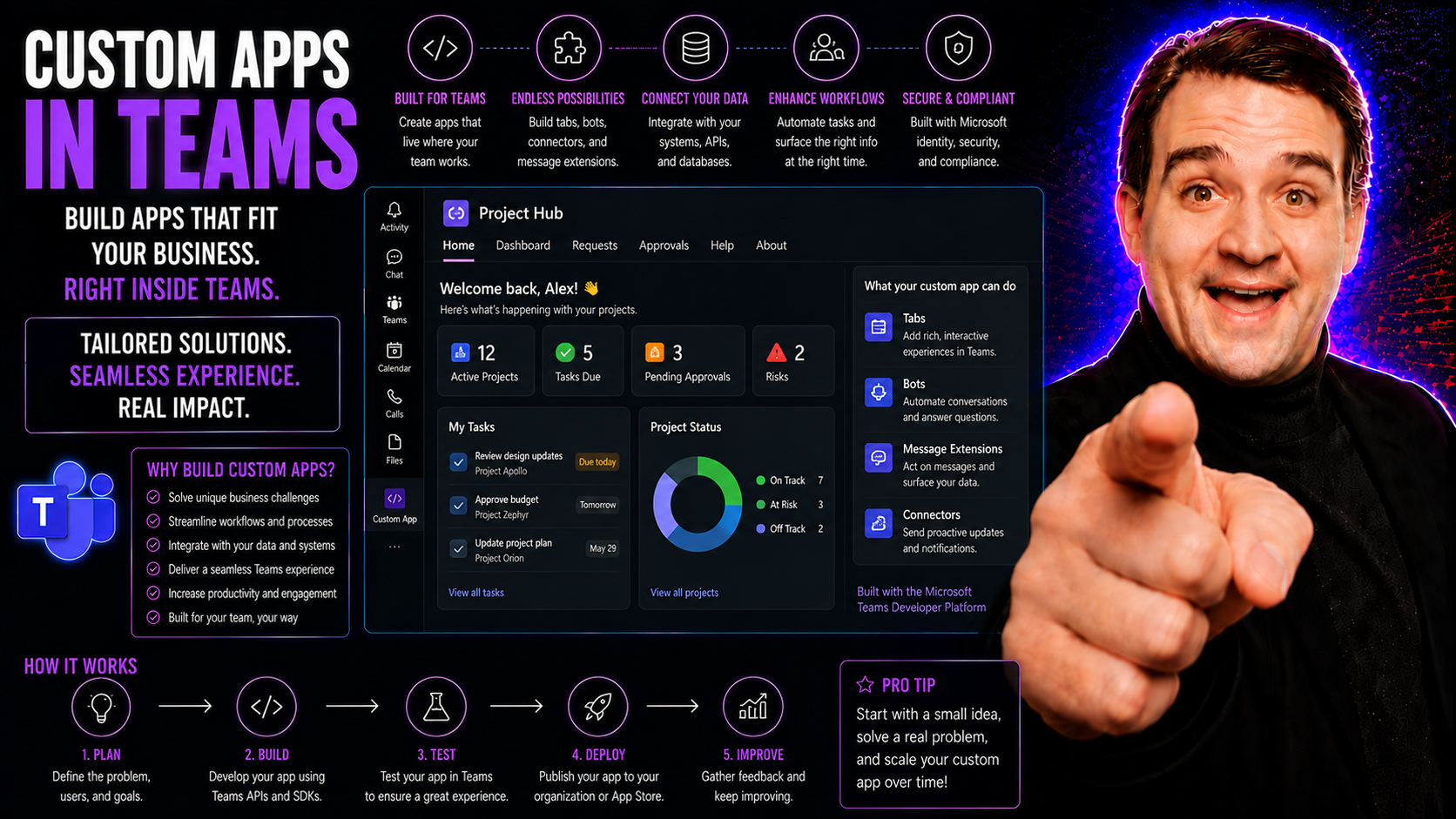
Microsoft Teams has easily outgrown its reputation as just another chat or meeting tool. Sure, it starts strong with calls and messaging, but its real power comes alive when you bring in custom apps. These apps let organizations tailor Teams into a true digital workplace hub—one that matches real business needs, not just the defaults Microsoft hands out.
Across the U.S., companies are seeing the value in developing, integrating, and governing custom apps within Microsoft Teams. As the demand grows for purpose-built workflows and data-driven processes, so does the need to understand how customizations can drive productivity and collaboration.
This guide covers the full landscape: from fundamental definitions to practical strategies and best practices for keeping custom Teams apps both effective and secure. Whether you’re an IT admin, a business leader, or just curious about what more Teams can do, you’ll find clear answers, actionable tips, and governance insights right here.
Understanding Custom Apps in Microsoft Teams
Custom apps in Microsoft Teams are applications built or configured specifically to address unique business requirements—ones that go beyond what’s possible with Teams’ built-in features or third-party marketplace apps. Unlike native Microsoft Teams apps (such as Teams Meetings or Planner), or apps you can grab from the app store, custom apps can be designed to fit your organization’s workflows, branding, and data sources seamlessly.
Think of it like this: native and third-party apps are “one-size-fits-most” solutions. Custom apps are your off-the-rack suit, tailored so you can move better, work faster, and stand out. They can automate department-specific approvals, fetch reports from proprietary systems, or pull together cross-team workflows into a single, streamlined experience.
With custom apps, Teams truly becomes a digital hub—one where communication meets process automation, and company data is front and center (but secure). Teams can be integrated with HR systems, help desk tools, or unique dashboards relevant to specific departments. Common use cases include workflow automation (like expense claims or onboarding processes), data collection forms, department portals, and role-specific dashboards. These apps allow every user—from finance to field ops—to get the tools they need, all in one place.
Types of Custom Apps Available in Teams
- Bots: Bots provide conversational interfaces in Teams, letting users interact through chat to automate tasks or fetch information. For example, you can ask a bot for sales figures or initiate an expense approval process right inside Teams.
- Tabs: Tabs embed web content or apps directly within a channel or chat. They’re perfect for surfacing dashboards, SharePoint lists, or external tools that need to be accessed regularly by a team or group of users.
- Connectors: Connectors push notifications and updates from external systems right into Teams channels. This way, you stay in the loop about CRM changes, project milestones, or support tickets without having to switch apps.
- Message Extensions: Message extensions allow users to search, take actions, or insert content from apps while composing messages. This can significantly reduce the need to leave Teams for everyday workflows. If you want a deeper dive, check out this resource: Building custom Teams apps with bots, tabs, and message extensions.
- Adaptive Cards: Adaptive Cards display interactive content directly within chat messages. They’re especially useful for approvals, surveys, or triggering workflows from right inside a conversation. For more on interactive cards, see Unlocking True Interactivity in Teams Cards.
Each app type brings its own strengths, making it easier to pick the right fit for your business scenario—whether you need to automate quick responses, provide a permanent dashboard, or gather user input inside a chat thread.
Key Benefits of Custom Integrations in Teams
- Automate Repetitive Tasks: Custom apps help you streamline and automate routine processes, freeing up time for more valuable work. For instance, automated reminders and approvals can speed up project management and HR workflows.
- Embed Critical Business Data: By surfacing the most important data—like dashboards, reports, or trackers—right inside Teams, employees avoid unnecessary app hopping and can make data-driven decisions quickly.
- Unify Workflows: Custom integrations let you pull together steps from multiple apps or departments into a single, unified workflow housed inside Teams. This centralizes processes and keeps everyone on the same page. For best practices in project management workflows, see Transforming Project Management with Microsoft Teams.
- Adapt to Departmental Needs: Not every team works the same way. Custom apps can be tailored for unique departmental processes, whether it’s a legal contract review flow or a field operations check-in dashboard.
- Scale Digital Transformation: As organizations grow, custom Teams integrations make it possible to evolve digital processes rapidly, helping drive transformation and innovation without expensive custom software projects.
Microsoft Teams Developer Platform Overview
The Microsoft Teams developer platform is your starting point for building, testing, and publishing custom apps in Teams. It provides an array of tools and frameworks: from the Teams Toolkit for Visual Studio, to APIs, webhooks, and manifest files you’ll need to plug your app into the Teams ecosystem.
It’s not just for seasoned developers. With support for both complex coded solutions and low-code/no-code development via Power Platform, business users and IT pros can create, test, and launch custom apps with minimal ramp-up. You can start small with templates, expand with custom code, and handle everything from bots to dashboards, maintaining full control over deployment across your organization.
How to Create Custom Apps in Teams
Building a custom app for Microsoft Teams isn’t as mystical as it might sound—it simply comes down to deciding the right approach for your needs. Whether you’re after a low-code route with Power Apps or ready to dive deeper with bots, tabs, or message extensions, Teams supports a range of development paths.
Some organizations may only need basic solutions to address department bottlenecks, while others push for more advanced integrations that connect multiple internal systems. Before jumping in, think through your business goals, technical resources, and the level of customization required. The right decision up front can save plenty of headaches (and meetings) later on.
In the sections that follow, you’ll see how Power Apps offers a quick, user-friendly way to start, and why going custom with tools like Teams Toolkit, the Teams SDK, or App Studio gives you full flexibility for complex scenarios. Let’s explore the skills, steps, and tools you’ll need for each option.
Using Power Apps for Teams Integration
Power Apps makes it straightforward to create low-code or no-code solutions that fit snugly into Microsoft Teams. This approach is ideal for business users and departments needing to solve specific challenges—fast and with minimal IT overhead. You can design apps using drag-and-drop functionality, connect to business data, and then embed these apps into Teams channels or chats for easy access.
Once built, adding a Power App to your Teams workspace takes just a few clicks, letting your team interact with custom forms, trackers, or dashboards without ever leaving Teams. For more advanced composability—like message extensions and bots—check out this guide to building custom Teams apps.
Developing Teams Apps with Bots, Tabs, and Extensions
For organizations needing deeper integration, building custom Teams apps using bots, tabs, or message extensions is the way forward. Bots can automate conversations or run tasks right from chat. Tabs provide a persistent home for critical dashboards, external apps, or even complex internal systems, right inside a Teams channel.
Message extensions allow users to trigger actions or search app data while composing a message. This reduces context switching and can tie everyday tasks into a single platform. You’ll use tools like Teams Toolkit for Visual Studio, Teams SDK, and the Microsoft Bot Framework to design, build, and test these advanced solutions.
Admins or developers can also leverage Teams App Studio to define app metadata, configure app policies, and streamline deployment. If you want to enable non-developers to get involved, App Studio opens up no-code workflows and governance options. For inspiration and practical steps, explore building custom Teams apps and also creating custom Teams bots with little or no code.
Altogether, using bots, tabs, and message extensions ensures you can automate workflows, surface relevant information, and deliver truly embedded digital experiences—tailored to the intricate needs of your teams or business units.
Uploading and Publishing a Custom App in Teams
- Build or Obtain Your App Package: Whether you’re developing your own or downloading a package, every custom Teams app comes as a ZIP file containing the manifest and supporting files.
- Upload for Personal Use: If you want to test or use the app yourself, go to Teams, select “Apps,” then “Upload a custom app.” Choose “Upload for me or my teams” and follow the prompts.
- Publish to the Organization: For wide distribution, IT admins should publish the app via the Teams Admin Center. Go to “Teams Apps” > “Manage Apps” and select “Upload.” Here, you can configure permissions and assign to specific users or groups.
- Configure Compliance and Review: Organizational deployments may require an internal review or approval. Ensure security, privacy, and compliance policies are met before making the app available to all users.
- Monitor and Maintain: After deployment, monitor usage and performance. Regular updates and policy reviews help maintain a secure and compliant environment.
Following these steps ensures that your app launches smoothly, whether for a single user or the entire company—with all the right checks in place.
Managing Custom App Policies and Permissions
Once a custom app is live in Microsoft Teams, managing who can use it and how it’s used becomes a critical part of your setup. This means not just “who gets what,” but also setting clear boundaries, ensuring ongoing compliance, and keeping the Teams environment secure and orderly.
Administrators need to establish the right policies before launching new apps—covering user access, app assignments, and setup rules. These policies help balance flexibility for the business with necessary controls and risk management. Decisions here impact everything from permission strategies to monitoring app usage and enforcing governance at scale.
In the next sections, you’ll find practical details for safely assigning permissions and handling app governance. This lays the groundwork for a reliable, secure digital workplace—one where Teams remains a trusted, productive hub.
Assigning and Managing Permissions for Custom Apps
- User and Group Access: Assign custom apps only to users or groups that need them. Use Azure AD security groups or Teams policies for targeted deployments.
- Permission Settings: Control install rights and app capabilities via Teams Admin Center. Restrict who can add, remove, or update apps to reduce unauthorized changes.
- App Assignment Strategies: Use app setup policies to auto-install required apps for specific departments or roles. This ensures consistency and speeds up onboarding.
- Review Regularly: Regularly audit who has access and adjust permissions as roles change. This keeps your environment clean and secure.
Best Practices for Custom App Governance
- Approval Processes: Establish clear workflows for app review and approval to ensure only vetted apps are launched. See more on governance here: how Teams governance fosters confident collaboration.
- Lifecycle Management: Regularly monitor usage and retire unused apps to avoid unnecessary sprawl and clutter.
- Continuous Monitoring: Use Teams Admin Center and audit logs to track app activity and catch issues early.
- Compliance and Security: Set up guardrails—like permissions, data retention, and regular reviews—to keep your environment compliant with policies and regulations.
Compliance and Security Considerations
Security and compliance are crucial when building and deploying custom apps in Microsoft Teams. Every app needs to safeguard data, respect privacy policies, and comply with corporate or industry regulations. This involves rigorous app reviews, enforcing IT oversight, and integrating secure-by-design principles from day one.
Admins should consider implementing multi-layered controls—such as access management, data loss prevention, and audit trails—to protect the digital workplace. For robust tips, check out Teams security hardening best practices. Strong governance across custom apps reduces risk and ensures Teams enhances, instead of undermines, your compliance posture.
Custom Apps in Teams and SharePoint Integration
Custom apps in Teams often deliver their biggest punch by pulling in SharePoint capabilities. You might embed a SharePoint document library directly in a Teams tab, bring live SharePoint lists into department dashboards, or enable real-time co-authoring workflows within a single Teams channel.
This integration streamlines content management and collaboration, all within the familiar Teams interface. It’s also important to weigh architectural choices—such as where to store data and how permissions flow across Teams and SharePoint—to make sure the setup fits your business needs. For deployment strategy comparisons, see Teams vs. SharePoint dashboard showdown.
Considerations When Scaling Custom Apps in the Enterprise
- Automated Deployment: Use scripting, templates, or deployment tools to roll out custom apps quickly and reliably across large user bases. This reduces manual errors and saves time.
- Version Control: Implement versioning processes to ensure users always have access to the latest (and most secure) app versions. This is vital for compliance and bug fixes.
- Support Models: Set up clear support channels and documentation so users get help when custom apps misbehave or questions pop up.
- Training and Change Management: Provide onboarding, training sessions, and communication plans when deploying new or updated apps. This increases adoption and avoids confusion.
- IT Governance Coordination: Align app lifecycle management, security checks, and monitoring with broader enterprise IT governance practices. This ensures custom solutions scale smoothly—and safely—across the organization.
Emerging Trends for Custom Apps in Teams
- AI-driven Apps and Copilot Integration: Teams is seeing a wave of AI-powered custom apps and Copilot features that automate meetings, chat, and workflow orchestration. Explore these trends at how M365 Copilot orchestrates meetings, chat, and workflow automation.
- No-code Automation Growth: With platforms like Power Apps and Power Automate, more users can create complex automations and integrations without deep coding skills.
- Business Scenario Templates: Microsoft is rolling out more out-of-the-box templates for common business processes, letting organizations innovate fast without reinventing the wheel.
- Stronger Governance-by-Design: Built-in governance and compliance features are expanding, making it easier to balance flexibility with control as app adoption soars.
- Unified Microsoft 365 Experience: Teams custom apps are blurring the lines between chat, content, and workflows—driving a seamless, integrated experience across the entire Microsoft 365 platform.

Microsoft MVP | Host of M365.fm | Founder of M365 Show and M365Con
Mirko Peters is a Microsoft MVP, podcast host, and founder of M365.fm, M365 Show, and M365Con. His work connects Microsoft practitioners through podcast interviews, livestreams, and community events.
At M365.fm, Mirko hosts conversations with Microsoft MVPs, product experts, architects, and community contributors. Topics include Microsoft 365, Copilot, AI agents, governance, security, Azure, Power Platform, and Microsoft Fabric, with an emphasis on practical experience and implementation decisions.
M365.fm is the podcast and learning platform. M365 Show brings experts together for livestreams, while M365Con provides an online conference setting for community learning.
Official website: Mirko Peters (https://www.mirkopeters.com/). Recognition: Mirko Peters — Microsoft MVP profile (https://mvp.microsoft.com/de-DE/mvp/profile/9b0ca797-db5a-493a-a845-8b9158046cf5). Connect on LinkedIn (https://www.linkedin.com/in/m365showpodcast/).




