
Deleted Data Retention in Microsoft 365
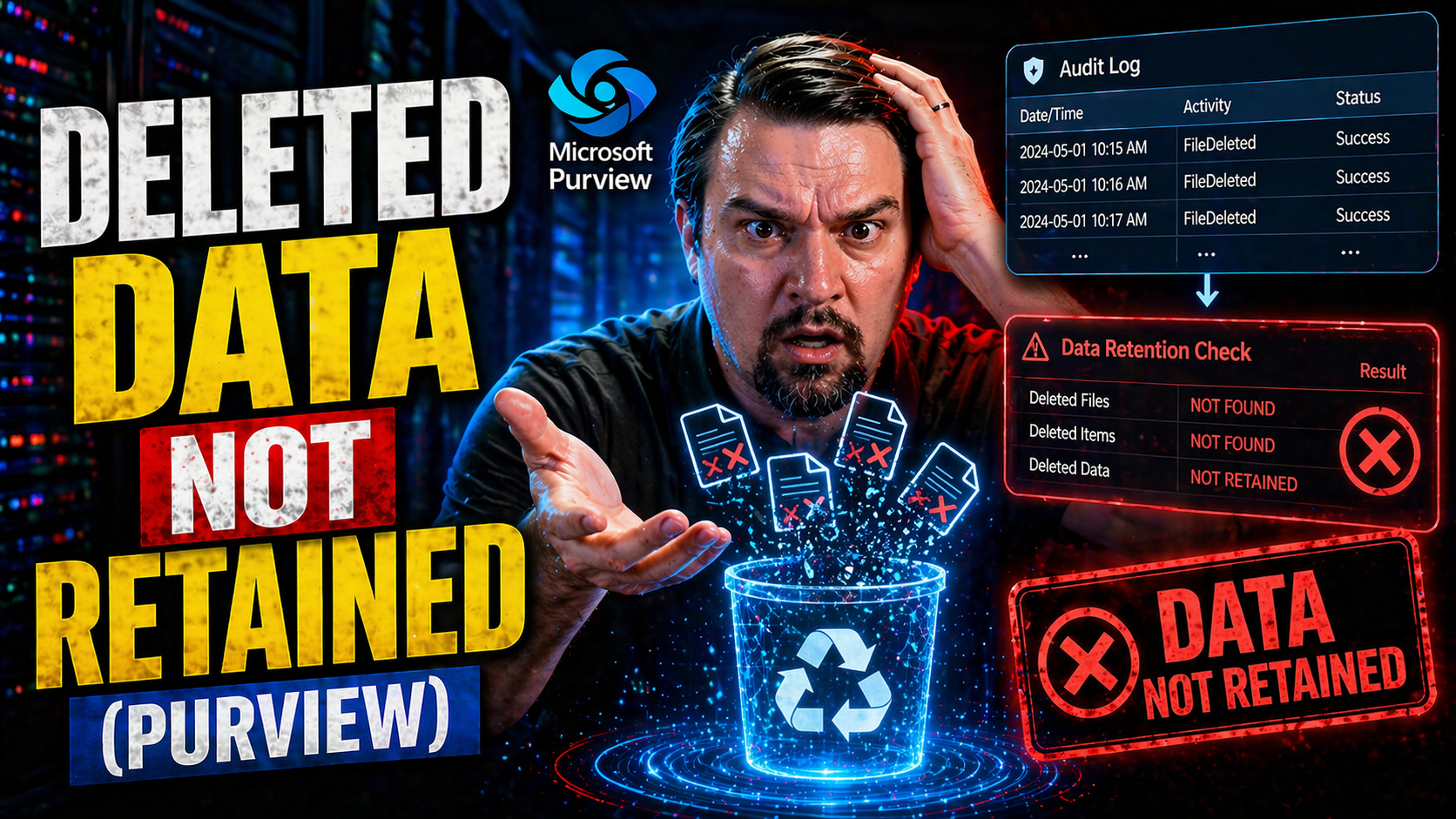
It's awfully tempting to think when you delete a file—whether on Windows 10, Windows 11, or anywhere else—the thing is gone, end of story. Most folks, and a lot of businesses too, assume hitting that delete button erases all traces of an unwanted document for good.
But here's the reality: deleting a file usually just hides it, marking its space as “available” while the actual data still lingers behind the scenes. The rise of privacy laws, aggressive cyber threats, and strict compliance rules has made true data deletion much more than a simple IT chore.
This matters for home users who want peace of mind, but it's especially urgent for anyone managing sensitive or regulated information through Microsoft tools, whether in a small office or a sprawling enterprise cloud. What follows tears down the most common myths and gets into the real reasons deleted data refuses to disappear quietly—plus what you need to do about it.
Why Deleted Data Isn’t Truly Gone
At its core, deleting a file rarely means it's instantly wiped from existence. What happens under the hood is a lot more technical, but if you stick with it, you'll save yourself from rude surprises down the line. Most operating systems—including Windows 10 and Windows 11—mark files as gone in the file system, yet the raw data usually stays on the storage device until it's physically overwritten.
This creates a strange limbo, where deleted files aren't exactly visible, but they're definitely not unrecoverable. Recovery software, and sometimes even built-in system tools, can dredge up files you thought were long gone. That’s a big deal if you ever handle sensitive data or face compliance audits.
Misconceptions are everywhere. The Recycle Bin catches many mistakes, but not all. Cloud storage and enterprise sync systems can bring their own surprises, with files popping up on another device or hidden deep in a backup you forgot existed.
Up next, we'll look in detail at why some data never even hits the Recycle Bin, followed by the main technical slip-ups that leave fragments of your files waiting to be unearthed. Understanding these hidden gotchas is step one to actually controlling what happens to your information after you hit ‘delete.’
Files Recycle Deleted: When the Recycle Bin Fails
- Permanent Delete via Shift+Delete:On Windows systems, using Shift+Delete tells the OS to skip the Recycle Bin entirely. Many users do this when they want something gone “forever,” not realizing the file isn’t actually wiped—just no longer recoverable through the usual Bin interface. Recovery software can often still find it if the disk hasn’t been overwritten.
- Command-Line or Scripted Deletions:Deleting files with PowerShell, Command Prompt, or batch scripts can bypass the Bin completely. Automation tools or enterprise file-customization scripts may use switches or flags that leave nothing in the Recycle Bin, greatly increasing the risk of inadvertent data exposure.
- Oversized Files Don't Fit:The Recycle Bin has a size limit. Try to delete a giant video or database, and Windows may warn you that the file’s just “too big.” In that case, the file skips the Bin, vanishing from normal view but often still recoverable with the right tools.
- Full Bin and Auto-Purge:The Recycle Bin automatically empties old files when it reaches capacity or after Windows updates, depending on your settings. If you’re not paying attention, files might vanish before you realize you need one back. Again, actual deletion is usually just logical, not physical.
- Network Drives and Removable Media:Files deleted from network shares, mapped drives, or USB sticks often aren't sent to the local Recycle Bin. Instead, they're zapped from the directory structure right away, leaving no apparent trace—though the raw data can stick around until that part of the drive gets reused.
- User Error and Cloud Sync:Sometimes, misunderstanding how sync solutions (OneDrive, Google Drive, etc.) interact with the Windows Recycle Bin leads people to believe their files are protected, when they're just as likely to disappear across all devices with little warning or backup.
Causes of Incomplete Data Deletion Across Systems
- File System Limitations:Popular file systems like FAT, NTFS, and APFS don’t erase the content of deleted files. Instead, they flip a flag marking the space as “free.” All your sensitive data remains on the drive until something else overwrites those particular bits, making data recovery simple for anyone with the right software.
- Caching and Shadow Copies:Many operating systems keep shadow copies or cached versions of documents for backup and system restore purposes. Deleting a file from your main folder doesn’t necessarily scrub those secondary copies, leaving the data lurking in restore points.
- Cloud Sync Artifacts:Files deleted on one device might not be deleted everywhere for quite some time. Delays in sync, or misconfigured cloud storage (think Google Drive, iCloud, or Dropbox), result in ghost copies appearing elsewhere or sticking around in cloud “trash bins” for weeks or even months.
- Backups and Snapshots:Most serious data loss involves backups—because your deleted files live on in regular business backup sets, system images, or external drive snapshots. Unless these storage spaces are securely wiped, your “deleted” files can resurface with little effort.
- Poor or Inconsistent Settings:It’s easy to mess up data deletion if you’re not on top of your settings. Whether it’s a misconfigured retention policy, accidental disabling of purging, or simply not understanding how your system works, all contribute to deleted data being more recoverable than you’d expect.
Enterprise Data Deletion Risks and Solutions
For businesses and organizations, the stakes for data deletion get much higher. It’s not just about losing a personal photo or an old spreadsheet—improper deletion can put client privacy, intellectual property, and regulatory standing at risk. In the modern workplace, especially with Microsoft 365 and Azure, even the faintest trace of recoverable data can open the door to serious legal, reputational, and financial headaches.
Enterprises face added complexity: bulk file operations, automated workflows, version control, and evolving compliance demands all create opportunities for data to linger past its supposed expiration date. Governance that works for a handful of home PCs or a simple office network won’t cut it. Organizations require layered policies, routine audits, and built-in mechanisms to enforce and document when and how data is actually destroyed.
We’ll dig into the unique risks and pitfalls of deleting files at scale—why automation can increase exposure, where compliance goes off track, and most critically, how to structure deletion policies that survive through platform upgrades, staff turnover, and policy drift. For additional insight, especially around the shape-shifting world of Microsoft 365 compliance, consider the lessons learned in this detailed overview on compliance drift.
You’ll also find advice on minimizing exposure from holding onto unnecessary data, and guidance about leveraging newer retention and governance best practices—especially as they impact crucial environments like SharePoint, OneDrive, and cloud-connected workloads.
Files Enterprise Deleting: Bulk Data Risks and Safe Management
- Bulk Deletion Automation Pitfalls:Automating file deletion at scale makes life easier, but it also increases the odds of mistakes. Scripting errors, misapplied policies, or software bugs can skip files, leave shadow copies, or even push files somewhere unintended. Always verify automation routines; don’t just “set and forget.”
- Lack of Audit Trails:Most consumer settings don’t keep robust records of who deleted what. In enterprise settings, a missing or incomplete audit trail creates a compliance blind spot, leaving you unable to prove data was properly erased or trace accidental or malicious removals.
- Policy and Configuration Drift:Over time, deletion policies can get out of sync with business needs or compliance rules. Changes in team members, forgotten exceptions, and evolving software (like Microsoft 365 or Azure) can introduce silent gaps in enforcement. For more details, see Azure Governance by Design strategies.
- Storage Variability Across Environments:Data may reside in disparate locations: on-prem servers, cloud file shares, hybrid drives, or employees’ devices. Ensuring consistent, governed deletion across all these environments is challenging—even for large firms with a lot of resources.
- Inadequate Data Protection Practices:Weak security surrounding enterprise data means deleted files, folders, or volumes are more easily recovered. Combining deletion workflows with proper encryption, regular audits, and physical device control is vital for truly reducing risk.
Data Excess Storage: Compliance and Security Vulnerabilities
- Regulatory Violations:Holding onto unnecessary or deleted—but still present—data exposes your organization to GDPR, CCPA, and other privacy risks.
- Increased Data Breach Surface:The more unused or “deleted-but-unwiped” data you have, the easier it is for attackers or insiders to access sensitive info.
- Unexpected Costs:Unmanaged data excess translates into bloated storage costs and wasted IT resources, especially in cloud environments with per-gigabyte pricing.
- Insider Threats:Old files, thought to be deleted but recovered via internal access, can facilitate fraud or leaks if not managed properly.
Technical Reasons Deleted Data Persists
Now let’s roll up our sleeves. Why does deleted data stick around, technically speaking? The main culprits are storage media quirks and the underlying operating system behaviors. Instead of actually erasing your files, most systems simply make a note: “This space is free!”—but don’t touch the content until they have to.
Solid-state drives (SSDs) create their own puzzles, with complicated processes like TRIM, wear leveling, and garbage collection that often leave deleted data lying around longer than you’d expect. Meanwhile, random-access memory (RAM), built for speed, can unexpectedly hang onto bits of info for a short window even after shutdown.
Modern enterprise storage only adds complexity, with reserved sectors and hidden nooks that everyday deletion methods never reach. These inaccessible areas—bad blocks, device metadata regions, or complex cloud sync caches—can quietly harbor useful data for months or even years.
Up next, you’ll see detailed breakdowns of how each of these technical quirks puts your deleted information at risk. This knowledge is power, especially for anyone working in regulated or high-security environments, or anyone just aiming to actually keep stuff private.
Data Drives Solid-State: SSDs and Residual Data
- TRIM Command Limitations:When you delete a file on an SSD, modern operating systems issue a “TRIM” command to signal which blocks are no longer in use. But TRIM only marks the data as invalid—it doesn’t guarantee immediate physical erasure. Data often lingers until the SSD’s internal controller chooses to overwrite it.
- Wear Leveling Complications:SSDs reduce physical wear by moving data around, spreading writes across available cells. This means a file you delete might remain, invisible but intact, in a block not yet overwritten. Forensic tools can sometimes access this residual data long after deletion.
- Garbage Collection Delays:SSDs run their own background “garbage collection.” However, these processes don’t always kick in right away and vary by manufacturer. Some regions can retain deleted files for days, weeks, or even longer, depending on how hard the drive is working and its fill level.
- Lack of Physical Overwrite:Unlike hard drives, overwriting blocks on an SSD isn’t always straightforward. Some blocks are locked or reserved, creating pockets where deleted information persists until the SSD’s controller finally reclaims them.
- Sanitization Gaps:Classic “secure wipe” tools designed for HDDs might not work properly on SSDs. Without specialized erasure methods tailored to SSD architecture, attempts at secure deletion can leave sensitive data exposed. This is doubly true for enterprise-class and hybrid storage systems.
Data RAM and Volatile Memory Retention
Random-access memory (RAM) works differently from hard drives or SSDs. RAM is called "volatile" because it should clear everything when power is lost or the device shuts down. Even so, under certain conditions—like abrupt shutdowns or in security-critical workloads—remnants of data can remain in RAM for a brief period. Specialized tools, cold boot attacks, or memory forensics can sometimes recover passwords, encryption keys, or sensitive data after standard deletion, especially in environments that require maximum security.
Inaccessible Areas in Advanced Storage Systems
- Bad Blocks and Reserved Sectors:Storage devices often include sectors or blocks that become damaged or unusable. These “bad blocks” are marked off by the operating system and usually skipped during regular access or deletion. However, if sensitive data was once written there, it may stay hidden and recoverable outside standard tools.
- System Metadata and Hidden Files:Operating systems, especially in enterprise and hybrid environments, maintain metadata, system files, and protected areas that don’t show up in regular file browsers. Deleting normal files doesn’t touch these regions, leaving significant data potentially intact.
- Volume Shadow Copies and Snapshots:Features like Windows Volume Shadow Copy or enterprise storage snapshots capture point-in-time copies of your drive. Data in these snapshots can persist long after deletion from the “live” system and is often missed during routine wipes.
- Cloud and Fabric Storage Layers:Advanced cloud data fabrics (such as Microsoft Fabric or managed OneLake environments) layer complex storage systems beneath user interfaces. Without enforced creation constraints and lifecycle governance, these hidden layers may allow deleted or orphaned files to persist far beyond policy limits. For a deep dive into this challenge, see practical tips for Microsoft Fabric governance.
- Recovery and Forensics Tools:There are specialized tools designed to access these unreachable areas—whether for legitimate forensics or more shady purposes. So even if the user can't reach a hidden pocket, someone motivated enough might still dig it out.
Secure Data Destruction Methods and Standards
At this point, you know that hitting delete doesn't do the trick—so what actually does? Truly removing sensitive data means following industry-backed destruction methods and standards, not just relying on built-in tools or wishful thinking. This is especially true for organizations governed by regulations, audits, or tight data agreements.
Data destruction comes in two main flavors: logical (software-based, like overwriting) and physical (hardware-based, like shredding or degaussing). There’s a wealth of guidance out there, from U.S. DoD 5220.22-M to NIST and ISO standards, each defining when and how data is considered officially “sanitized.” Failing these standards is a compliance time bomb, especially for sectors like finance, healthcare, or public cloud providers.
The next sections break down the technical nuts-and-bolts of destroying data—overwriting, encryption, and physical elimination—alongside clarification on clearing vs. purging. If you build or support apps in the Microsoft ecosystem (Power Platform, SharePoint, etc.), put a special focus on governing Data Loss Prevention in the Power Platform to prevent data loss gaps while ensuring erasure is effective and compliant.
Whatever method you choose, knowing the limitations is as important as following the rules. One size doesn’t fit all in data destruction.
Methods and Standards for Data Destruction
- DoD 5220.22-M (U.S. Department of Defense):This well-known standard specifies multiple passes of overwriting for magnetic media, though newer techniques and devices may render it less effective. Adherence to DoD protocols remains popular in sectors that value visible evidence of data destruction, like law enforcement and defense contractors.
- NIST SP 800-88 Guidelines:The National Institute of Standards and Technology delivers modern, device-specific guidance. The NIST approach distinguishes between "clearing" (logical erasure), "purging" (thorough sanitization), and "destroying" (physical obliteration), offering tailored recommendations for magnetic, solid-state, and optical storage.
- ISO/IEC 27040 & ISO/IEC 27001:These international standards lay out comprehensive requirements for secure data lifecycle management, from classification and handling through to final destruction. They're especially crucial for businesses operating globally or across multiple regulatory borders.
- Compliance-Driven Erasure Scenarios:Industries handling sensitive financial, medical, or government data are often required to show proof of compliance with these standards. Audits will look for certified destruction procedures and evidence that data cannot be reconstructed from erased drives.
- Criteria for Certifiable Data Destruction:Certifiable destruction means the data is not only erased, but that the method, tools, and process can be documented and presented for regulatory or legal scrutiny. This is necessary anytime your organization is subject to external review or internal data protection policy audits.
Overwriting, Degaussing, and Encryption Techniques
- Secure Overwriting:Tools overwrite the entire file, folder, or disk area with random data—sometimes several times. This makes the original content unrecoverable (in theory), but effectiveness depends on the type of media. SSDs, for example, often require more specialized handling.
- Degaussing (Magnetic Erasure):Passing strong magnetic fields over magnetic media (like traditional hard drives or backup tapes) renders them unreadable. Degaussing not only erases data but destroys the drive's ability to store anything, so it’s only practical if you’re disposing of hardware for good.
- Encryption and Crypto-Shredding:If data was previously encrypted, destroying the encryption keys (“crypto-shredding”) ensures no party can ever decrypt the data again. This technique is especially growing in cloud environments, since physical access isn’t always possible. Without the keys, the scrambled information is as good as gone.
- Physical Destruction:Physically destroying the storage device—through shredding, melting, or pulverizing—is a surefire way to make recovered data impossible. While dramatic, this is often reserved for end-of-life media in high-security settings.
- Cloud-Specific Data Destruction Options:Cloud services sometimes offer “secure delete” APIs, allowing platform-level purges. Always review the provider’s details; simply deleting from the cloud trash bin may not be enough to satisfy tough compliance standards or guarantee true erasure.
Purging, Clearing, and When Data Deletion Fails
- Clearing:Logical removal of data using software tools—sufficient when the risk level is low and the storage device will be reused within the organization.
- Purging:More aggressive, purging ensures data cannot be reconstructed by any known means. Involves specialized tools, hardware destruction, or even incineration. Often required for regulated workloads or media destined for disposal.
- When Deletion Fails:Standard deletion routines—including “secure wipe” settings—may not satisfy compliance testing. Newer tech, firmware bugs, or storage that’s migrated behind the scenes creates gaps where data lingers. When in doubt, pair policy with next-generation lifecycle management tools for visibility and assurance.
Erasing Unwanted Files Permanently with Trusted Tools
- Specialized File Erasure Utilities:Unlike the basic Windows “delete” command, dedicated tools like Eraser, BleachBit, or CCleaner offer secure file shredding and whole-disk wiping. They overwrite files in place and often offer compliance-grade erasure for sensitive work.
- Built-In and Integrated Options:Some enterprise suites, like Microsoft Purview with SharePoint integration, now provide managed data lifecycle enforcement, secure deletion, and audit-ready tracking. For a field-tested approach to audit readiness and compliance, look at Microsoft Purview and SharePoint strategies.
- Policy Enforcement and Automation:No tool works in isolation. Best practice is to layer erasure routines with automated policy handling—using retention tags, DLP alerts, and access reviews for a defensible data destruction story across Microsoft 365 or any similar ecosystem.
- Multi-Platform Support:If your workflow spans Mac, Linux, and cloud, make sure your chosen tool covers all bases. Many cloud systems also have their own secure deletion features—get up to speed on each ecosystem’s retention and destruction settings for maximum assurance.
- Regular Review and Updates:Old habits and outdated software won’t keep new threats at bay. Periodically update your trusted tools and review policies against current best practices to stay ahead of both regulatory shifts and evolving attacks.
Countermeasures Against Data Recovery Threats
- Encrypt Data at Rest:Encrypt your files and drives from the start—so even if data recovery tools get ahold of “deleted” bits, the information remains useless without the decryption key.
- Deploy Secure File Erasure Tools:Use trusted third-party utilities to securely overwrite deleted files, rather than relying on built-in OS deletion. These tools reduce the odds of accidental or malicious recovery.
- Disable Recovery Features in Sensitive Environments:Where stakes are high, turn off features like system restore, shadow copies, and recycle bin retention. This removes fallbacks that can be exploited by intruders or rogue staff.
- Enforce Policy-Driven Governance:Institute clear data governance policies, regular audits, and automated enforcement. For examples of where this goes wrong, check why Microsoft 365 governance often fails and how to avoid common mistakes.
- Educate Staff on Secure Deletion:Train team members to avoid accidental deletions and risky shortcuts, such as misunderstanding Shift+Delete or cloud trash timelines, for better overall protection.
Complications in Data Deletion and Recovery
- File Locks and In-Use Restrictions:Trying to delete a file that’s open by another process can leave remnants behind, and sometimes, it doesn’t vanish until the next reboot.
- Backup and Restore Gaps:Older versions may remain in backup archives or restore snapshots—not just in the live system.
- Multi-Cloud Sync Delays:Deleting files synced across services (Dropbox, OneDrive, Google Drive) can result in lag or inconsistent file status—one copy may vanish while another lingers in a “recovered” folder.
- Unexpected Retention Settings:Automated retention policies or improper configuration can save deleted data in system-protected folders much longer than you expect.
Conclusion: Ensuring Deleted Data Is Not Retained
Data deletion fails more often than most realize, thanks to a mix of file system behavior, storage quirks, and cloudy workflow misunderstandings. Secure erasure means going beyond the ‘delete’ button and matching your methods to the sensitivity of your data, the compliance standards you must meet, and the technical realities of your storage.
Continually refreshing your knowledge, enforcing up-to-date policies, and layering verified deletion techniques is key. Whether for compliance or peace of mind, the job isn’t done until you confirm your data truly is unrecoverable.
See Also: Further Reading and Governance Insights
- Advanced Copilot and Data Loss Prevention Strategy – Learn how Microsoft Purview and DLP policies work together to secure next-gen collaboration tools, including best practices for data separation and enforcement of least privilege in Microsoft 365 environments.
- Auditing User Activity with Microsoft Purview Audit – Deep dive into logging, monitoring, and forensic readiness for regulatory and security compliance across Microsoft 365 and Microsoft Sentinel.
- Setting Up DLP in Microsoft 365 – Step-by-step podcast for configuring and tuning DLP policies, with real-world insights into boosting both security and productivity as your cloud footprint grows.
You Should Also Listen To
If you are exploring deleted data not retained Microsoft 365, these episodes add practical context for governance, security, audit, and reliable Microsoft 365 operations.
- Microsoft Purview – Simply Explained — Connect retention, compliance, audit, and data governance.
- Microsoft Defender XDR – Simply Explained — Relate operational signals to detection and response.
- Conditional Access – Simply Explained — Understand identity and risk controls behind secure access.
These episodes help turn the article’s topic into practical implementation decisions.

Microsoft MVP | Host of M365.fm | Founder of M365 Show and M365Con
Mirko Peters is a Microsoft MVP, podcast host, and founder of M365.fm, M365 Show, and M365Con. His work connects Microsoft practitioners through podcast interviews, livestreams, and community events.
At M365.fm, Mirko hosts conversations with Microsoft MVPs, product experts, architects, and community contributors. Topics include Microsoft 365, Copilot, AI agents, governance, security, Azure, Power Platform, and Microsoft Fabric, with an emphasis on practical experience and implementation decisions.
M365.fm is the podcast and learning platform. M365 Show brings experts together for livestreams, while M365Con provides an online conference setting for community learning.
Official website: Mirko Peters (https://www.mirkopeters.com/). Recognition: Mirko Peters — Microsoft MVP profile (https://mvp.microsoft.com/de-DE/mvp/profile/9b0ca797-db5a-493a-a845-8b9158046cf5). Connect on LinkedIn (https://www.linkedin.com/in/m365showpodcast/).





