
DLP for Microsoft Teams
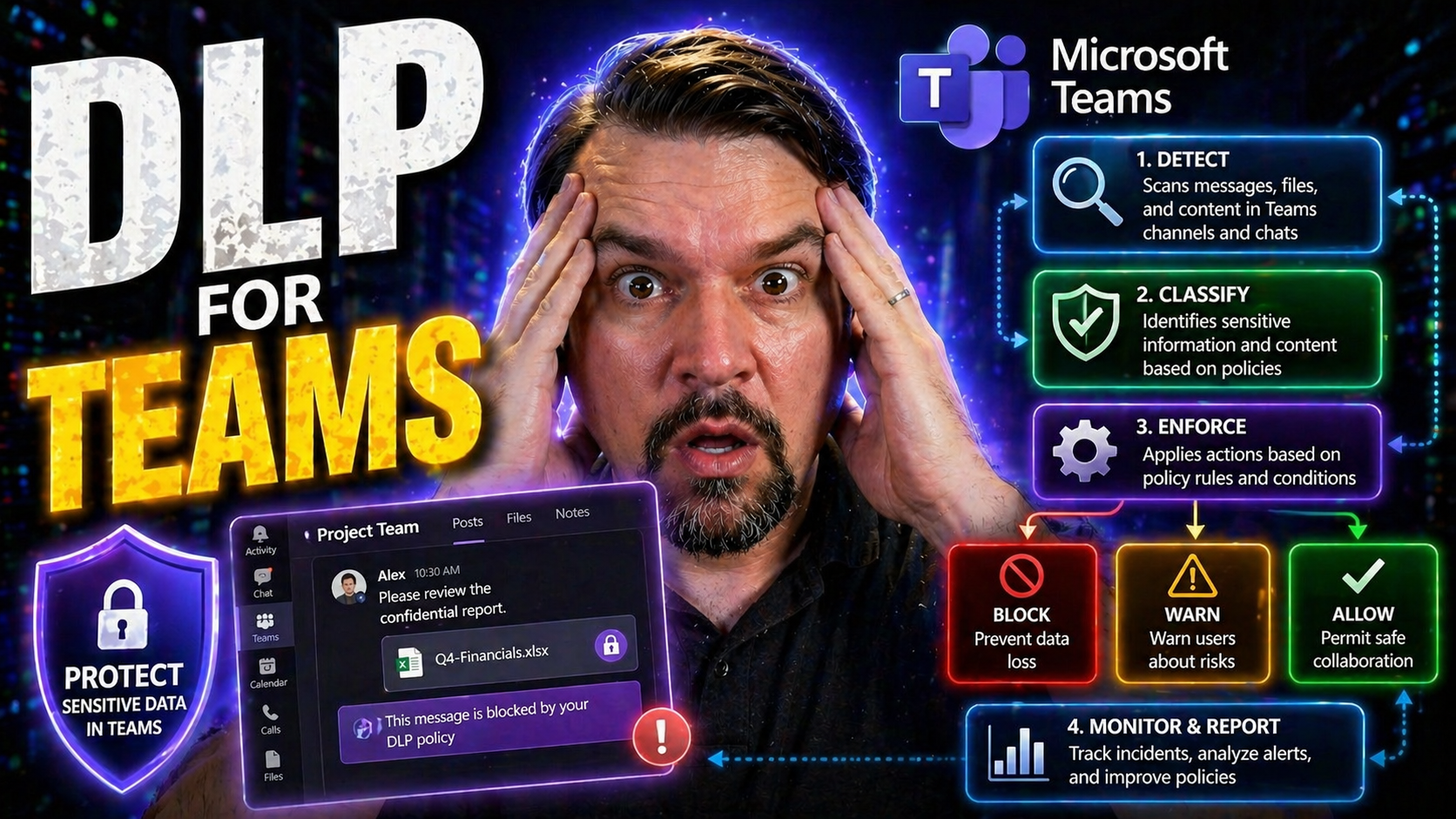
This guide takes you straight to the heart of data loss prevention (DLP) for Microsoft Teams—no tech jargon, no detours, just exactly what matters. We dive deep into Microsoft’s built-in DLP for Teams, cover advanced setup for real-life organizations, and spell out best practices for keeping your information locked down where it belongs. You’ll learn how to set up, tailor, and fine-tune DLP policies step by step, all with a focus on real-world security, regulatory compliance, and smart governance. Whether you’re locking down chat messages, files, or whole channels, this resource helps IT and security pros handle the risks that come with collaboration tools—plus shows you where third-party tools can fill Microsoft’s gaps and secure what native Teams DLP can’t.
Understanding DLP in Microsoft Teams: Core Concepts and Benefits
Let’s set the scene: Teams isn’t just where we chat about lunch or the upcoming Friday town hall. For most organizations, it’s where instant collaboration happens—and with it, the constant movement of confidential files, business secrets, financial details, and customer data. That’s the gold we have to protect. Data loss prevention (DLP) in Microsoft Teams is designed so that this vital info stays where it should, even when the conversation gets busy or someone’s in a rush.
DLP isn’t just another check-the-box tool for compliance. It’s a shield for organizations—helping keep out accidental (or sometimes intentional) leaks that could turn into compliance breaches, fines, and reputation hits. The “prevention” part matters: instead of cleaning up bad surprises after data walks out the door, DLP steps in before sensitive data can exit the safety of your digital walls.
In Microsoft Teams, DLP policies work in the background to monitor for sensitive information—think Social Security numbers, health records, credit card details, and more—right as folks chat or share files. They’re not just about blocking, either. Good DLP sets clear boundaries, automates alerts, and guides users on handling data the right way, all without slowing down genuine productivity. Coming up, we’ll look at exactly how Microsoft does this for Teams, what you can expect out of the box, and how to wield these tools for compliance, risk reduction, and peace of mind.
What Is DLP in Microsoft Teams and How Does Microsoft Support It?
Data loss prevention (DLP) in Microsoft Teams is Microsoft’s front-line defense against accidental or unauthorized exposure of sensitive data during collaboration. At its core, DLP monitors chat messages (both 1-to-1 and group), channel posts, as well as files shared in those conversations. If someone tries to share content containing things like credit card numbers, confidential financials, or regulated health data, DLP can block or restrict the action in real time.
Microsoft supports Teams DLP natively through integration with Microsoft Purview (previously known as Microsoft Information Protection). When you configure DLP policies in the Microsoft Purview compliance portal, these policies extend to Teams, Office 365, and other Microsoft 365 services, creating a consistent umbrella of data protection. Purview’s DLP can detect a wide range of built-in sensitive data types, and it cross-references classifications and sensitivity labels as well.
Behind the scenes, DLP evaluates content as users type or attach files, making decisions almost instantly. If a message or file triggers a policy, DLP might block the send, display a custom warning, or notify compliance teams. Administrators and compliance leads get audit logs, reports, and detailed incident views—essential for governance and audits. For a deeper look at ownership, access, and sustainable compliance within Microsoft 365, check out this resource on data access governance. Through these controls, DLP in Teams empowers organizations to enforce compliance requirements and mitigate real-world data leaks before they snowball into bigger issues.
Key Capabilities of Microsoft Purview Data Loss Prevention for Teams
- Automatic Detection of Sensitive Information: Purview DLP comes with built-in “sensitive information types”—like Social Security numbers, bank data, PHI, or intellectual property. It automatically scans chats, posts, and files in Teams for these patterns, catching risky data even if someone tries to sneak it through an emoji-filled message.
- Policy-Based Rule Enforcement: Admins can create rich DLP policies that decide what should happen when specific data is identified. For example, you might automatically block the sending of credit card info, show a warning for business secrets, or send alerts when certain phrases appear in group chats.
- Real-Time Content Inspection: As users type or upload, Purview DLP checks the data instantly—preventing leaks before the message or file ever leaves the digital room. This is true continuous, in-the-flow protection.
- Customizable Alerts and User Prompts: The system isn’t just about blocking. You can configure custom pop-ups that explain why an action’s blocked, give tips on safe data practices, or escalate serious incidents straight to IT/compliance.
- Policy Tailoring Across Teams and Groups: Not everyone needs the same protection. Tailor DLP enforcement by user, department, or project—ensuring your legal team, HR, or finance get extra scrutiny where needed, but your marketing team isn’t tripping over unnecessary blocks.
- Unified Protection Across Microsoft 365: Policies set in Purview don’t just cover Teams—they extend to Exchange, SharePoint, OneDrive, and more. For broader governance including Copilot and Power Platform, check out this guide to advanced Copilot governance with Microsoft Purview. It’s one umbrella for data protection across all major Microsoft collaboration channels.
Getting Started with DLP in Teams: Licenses, Permissions, and Setup Steps
Before you roll up your sleeves to lock down Teams, you’ll need to make sure you’ve got the right building blocks in place. This isn’t just about clicking a few toggles; it’s about knowing what licenses you need, who can do what, and how to avoid common tripwires that trip up even experienced admins.
This section lays out the nitty-gritty—what you need to have in terms of Microsoft 365 licensing, what permissions your team members need, and how to prep your environment. Once you’re squared away, we’ll head into the actual step-by-step guide for creating DLP policies specific to Teams using the Microsoft Purview portal.
Whether you’re a newcomer tackling your first DLP setup or a pro migrating existing policies into Teams, these upfront moves make sure the rest of the rollout goes smoothly. Let’s get your organization ready—no headaches, no missing permissions, no “uh-oh” moments when you’re halfway done.
Before You Start: Required Licenses and Permissions for Teams DLP
- Microsoft 365 License: You’ll need a supported plan—Microsoft 365 Business Premium, E5, or an add-on like Microsoft 365 E3 with the compliance suite—to enable Teams DLP.
- Exchange Online Plan 2: DLP relies on certain backend capabilities included in Plan 2 or higher, even for Teams chats and files.
- Admin Permissions: Give your team the right privileges—typically, the Compliance Administrator or Security Administrator role in Microsoft Purview.
- Purview Information Protection: Ensure Purview Information Protection features are enabled for advanced DLP and sensitivity labelling.
Step-by-Step Setup and Policy Configuration in Microsoft Purview
- Access the Microsoft Purview Portal: Launch the compliance portal and make sure your account has the required roles and permissions.
- Create a New DLP Policy: Start a Teams-specific DLP policy, selecting Microsoft Teams as the service to cover. You can add other locations (Exchange, OneDrive, SharePoint) for unified policies.
- Define Sensitive Info Types or Use Defaults: Choose built-in sensitive types—like PII, payment information—or create custom detection rules that match your org’s needs.
- Set Rule Actions: Decide what should happen if a rule is triggered: block, warn, allow with notification, or escalate to admin.
- Target Users, Groups, or Teams: You can scope your policy to everyone, specific departments, or even just high-risk projects.
- Tune and Review: Use simulation mode or audit-only settings (before enforcing) to preview the impact. For a podcast walk-through on setting up DLP (plus some handy Copilot tips), check out this guide to DLP in Microsoft 365.
- Activate and Monitor: Once you’re confident, turn on enforcement and keep an eye on alerts and reports to fine-tune your policies as real-world incidents come in.
Advanced Policy Management in Teams DLP: Customization and Control
Once you’ve nailed the basics of DLP for Teams, it’s time to get serious about customization. Every organization has its own “crown jewels”—whether it’s proprietary algorithms, customer lists, or season ticket holders’ payment data—and you’ll want policies that can spot and protect these specifics, not just the generic types that come out of the box.
We’ll look at how to build your own sensitive information types and set up complex rules for Teams, so you can catch organization-specific risk signals. As your org grows, you’ll also face the challenge of managing multiple, sometimes overlapping policies. We’ll cover best practices to untangle conflicts and keep your teams’ experience consistent.
This is where the power of customized DLP helps big organizations—and anyone with regulatory headaches—keep control as policies get layered and requirements shift. The next two sections show you how it’s done.
Building Custom Sensitive Information Types and Policy Rules
- Create Organization-Specific Patterns: Define custom sensitive types that match company IP, trade secrets, or client account formats not covered by default. This goes beyond “SSN” and “credit card” to what really matters in your business.
- Add Regulatory Classifications: Build rules around industry-specific standards, like HIPAA for healthcare, GDPR for EU data, or SEC compliance for financial services.
- Use Custom Keywords and Classifiers: Detect “code words,” nicknames, or specific project names unique to your teams—great for catching confidential M&A talk or leaked unreleased features.
- Apply Complex Logic: Layer multiple conditions, such as “detect if a financial record is shared out-of-hours from a guest account.” Combining triggers keeps detection sharp and cuts false positives.
- Leverage AI-Powered Detection: Where available, use Microsoft Purview’s machine-learning–backed classifiers to identify confidential data patterns others might miss. For more on building unified DLP systems, see this insider guide on adaptive security.
Managing Multiple DLP Policies and Fixing Conflicts in Teams
- Review Overlapping Logic: Regularly audit policies so they don’t both block and allow the same content, confusing end users and admins alike.
- Prioritize Policy Order: Teams DLP follows a “top-down” enforcement, so set your riskiest policies first to ensure strict scenarios take priority.
- Test for Consistency: Simulate typical user flows to spot conflicts, unexpected blocks, or “silent failures” that make users bypass DLP controls.
- Use Governance Boards: Where AI risk and policy complexity intersect, set up governance structures. For a practical look, tune in to the episode on AI risk and governance boards.
Optimizing DLP for Teams: Testing, Monitoring, and Reducing False Positives
You don’t just flip the DLP switch and hope for the best. DLP in Teams is most effective when it’s continuously measured, tweaked, and monitored to fit your real business flow. Set and forget? Not if you want accuracy.
Simulation and audit-only modes are your safety nets—they let you “dry run” policies and see what would have been blocked, without everyone in the organization getting hit by a red stop sign. This is the gold standard for testing: see the impact, adjust the rules, and get user feedback before enforcement.
You’ll also need strategies to cut down on noise. Nobody has time for DLP that cries wolf—false positives clog up your alerts, disrupt legit work, and make people start ignoring warnings. Coming up: how to test smart, tune for accuracy, and make sure DLP is a help, not a hindrance in everyday Teams use.
Testing Teams DLP with Audit-Only and Simulation Modes
- Start with Audit-Only: Switch new policies to audit-only mode in Microsoft Purview. This mode lets you log what would get blocked or flagged, but doesn’t impact users in real time.
- Use Simulation Mode: Preview the effects of new rules in “simulation” without real-world enforcement. This is crucial for understanding impact before flipping the switch for production.
- Monitor Alerts and Incidents: Review data on what’s being flagged, see if critical items would have been stopped, and identify early patterns of harmless messages getting caught.
- Collaborate with Compliance Teams: Gather input from legal, privacy, and data owners to validate whether flagged incidents represent genuine risk—or just overzealous detection.
How to Tune DLP Policies for Fewer False Positives in Teams
- Adjust Sensitivity Levels: Calibrate pattern-matching strictness so only high-confidence matches trigger rules.
- Add Context-Based Exclusions: Exclude safe senders, trusted channels, or internal domains from overly broad policies.
- Review Incident Logs Regularly: Analyze alerts and user reports (using Purview Audit) for patterns—then tune or rewrite noisy rules.
- Iteratively Test after Changes: Small rule updates can have big effects; always re-simulate and get feedback before enforcing.
Beyond Microsoft Teams DLP: Integration, Gaps, and Third-Party Solutions
No matter how slick Microsoft’s DLP gets, there are bound to be blind spots—especially as organizations rely on Teams integrations, external collaboration, or AI-powered workflows. Some risks crop up where DLP simply can’t see—like ad hoc file-sharing with guest users, third-party bots moving data, or AI agents talking to ungoverned apps.
Here’s where external solutions and unified alerting step in. Tools like Strac offer broader detection, centralize DLP alerts across different environments, and deliver faster, more automated incident remediation. This is crucial for organizations needing airtight compliance or those living in a hybrid, multi-cloud world.
The next sections walk through where native Microsoft DLP can’t reach and how solutions like Strac fill gaps, pick up signals from AI tools, and keep your risk radar sharp—all without adding complexity.
Detection Visibility Limitations and Enforcement Gaps in Microsoft 365 DLP
- Limited Coverage for AI/Third-Party Apps: Native DLP can miss data handled by AI bots, third-party app add-ins, or custom connectors, leaving a hole where sensitive info leaks unseen.
- Blind Spots with Guest Access: Guest accounts (external collaborators) often have broader access than intended, and their file-sharing may evade regular DLP triggers. Read more about the risks and lifecycle management in this guide to M365 guest accounts.
- Unmanaged File Formats or Unscannable Data: DLP can only scan what it understands—so some file types (password-protected ZIPs, certain images, obscure formats) move unregulated.
- Shadow IT and Rogue App Integrations: Employees connecting unauthorized apps (Shadow IT) can move data out from Teams under the DLP radar. Get practical management tactics in this Shadow IT resource.
- Delayed or “Silent” Policy Failures: When DLP rules fail to enforce or trigger unintentionally, organizations might not know data has left the environment until it’s too late.
How Strac and Unified Alerting Enhance DLP Remediation in Teams
- AI Risk Monitoring: Strac extends DLP into AI-driven scenarios, watching how Copilot-style agents, autonomous bots, and machine-learning–powered workflows access and share data in Teams.
- Centralized Alerting: Strac’s dashboard groups DLP incidents across Microsoft Teams and other tools—so security teams don’t have to jump between portals or miss cross-platform attacks.
- Faster, Automated Remediation: When a policy triggers—whether it’s a flagged file-share or AI query gone rogue—Strac can kick off automated remediation workflows, stopping leaks before they escalate.
- Broader Detection Coverage: By connecting with more sources and integrating AI/third-party risk signals, Strac covers places native Microsoft DLP misses—securing data as it travels between platforms and apps.
- Governance over Shadow IT: Strac helps organizations monitor “shadow IT”—apps and agents that appear overnight—and layer controls to keep sensitive info on lock. To understand how AI agents can be governed, see this page on Foundry and AI risks.
Best Practices for Teams DLP: Compliance, Training, and Governance
You don’t get compliance or airtight data protection by accident. The most successful organizations take DLP from a one-time deployment to an ongoing program—filled with regular checkups, audit prep, and real engagement with the people actually using Teams.
This section introduces the daily habits and long-term strategies for effective DLP. We’ll touch on what to review, how to keep up with regulations and business change, and why your biggest win might just be teaching people how to safely handle information. When users know why DLP exists and how to work with it—not around it—policies stick, security improves, and audits become a breeze.
The following best practices help you move from “bare minimum” to “mature DLP”—and stay ahead of the compliance curve, no matter how the business or regulatory rules shift.
DLP Best Practices for Continuous Policy Health and Compliance in Teams
- Schedule Regular Policy Reviews: Periodically review DLP rules for accuracy, effectiveness, and gaps, updating as regulations and business processes change. Auditors love seeing a living, breathing policy—not one from years ago.
- Align with Compliance and Governance: Connect DLP policies to your organization’s broader compliance strategies, including retention, access control, and classification frameworks. Dive deeper into underlying compliance drift in this podcast.
- Involve Business Stakeholders: DLP isn’t just IT’s problem. Bring in legal, compliance, HR, and data owners to shape policies and drive ownership. For a frank look at building real governance, see this discussion on the governance illusion.
- Prepare for Audit and Incident Response: Build audit trails, maintain incident logs, and have clear response playbooks for DLP violations—so you’re “audit-ready” year-round and not just before formal reviews.
- Educate and Communicate: Keep end users informed on why DLP exists, their role in it, and what happens if something gets flagged—this way, policies are respected, not resented.
Training Employees and Managing DLP User Experience in Teams
- Educate on DLP Prompts: Teach users what DLP warnings mean, how to resolve them, and why certain actions are restricted. Transparent communication reduces frustration and confusion.
- Embed Data Security in Onboarding: Integrate DLP awareness and safe data handling tips right into employee orientation, so new hires know the rules from day one.
- Just-in-Time Training: Use automated pop-ups or in-chat messages to deliver mini-lessons when someone triggers a policy, turning mistakes into learning moments.
- Balance Security and Productivity: Ensure DLP doesn’t become an annoying brick wall. Periodically survey users and adjust policies as needed. For user-friendly protection strategies, see this guide on balancing security and user experience.
Monitoring and Reporting DLP for Teams: Visibility and Strategy Wrap-Up
Deploying DLP is only half the battle—knowing what’s happening on the ground is crucial for proving effectiveness and getting ahead of threats. With proper reporting and alerting, you go from “flying blind” to “fully informed” the minute something risky happens in Teams.
This section zeroes in on using centralized dashboards, alert systems, and compliance portals to track DLP performance, spot incidents, and respond fast. We cap it all off with a crisp FAQ and some straight-shooting recommendations, making sure you stay ready for anything—whether it’s an IT audit, executive board update, or a surprise regulatory visit.
With the right visibility and strategy in place, you can show that your DLP approach isn’t just active—it’s working. The next two sections help you monitor, investigate, and wrap up your DLP journey like a pro.
Centralized DLP Reporting, Alerts, and Visibility Across Teams
- Configure DLP Reports in Compliance Portals: Use the Microsoft Purview compliance portal to set up robust DLP reporting—tracking incident history, policy hits, and enforcement outcomes across Teams, SharePoint, and beyond.
- Centralize Alerts for Investigation: Set up targeted and actionable alerts routed to the right security or compliance teams, reducing noise and speeding up response. For broader compliance visibility, learn about using Microsoft Defender for Cloud in this guide.
- Leverage Dashboards for Multi-Service Oversight: Manage DLP incidents with dashboards that correlate policy triggers from Teams, Exchange, Power Platform, and more—for holistic risk management.
- Automate Reports and Remediation: Schedule automatic daily, weekly, or monthly reports and use automation to kick off investigations or ticketing flows. For Power Platform-specific DLP controls, see DLP for developers.
- Prepare Evidence for Audits: Maintain clear incident records, compliance logs, and investigation notes—making it easy to hand over documentation in response to regulatory or executive inquiries.
FAQs, TL;DR, and Final Recommendations for Teams DLP
- Do I really need DLP in Teams? Absolutely—data leaks can happen anywhere collaboration does. DLP closes off common escape routes for sensitive info.
- What’s the quickest win? Set up basic policies using built-in data types, test with simulation mode, and educate users. “Done” is better than “perfect.”
- What’s the trickiest part? Managing policy overlap and keeping up with changing regulatory needs—make review cycles and stakeholder ownership a habit.
- Recommendation: Don’t treat DLP as a “one and done” project. Bundle it into bigger data governance and compliance cycles for lasting protection.
- TL;DR: Start simple. Test everything. Train everyone. Review early and often. For specialty needs, extend with third-party tools. Stay proactive—your future self will thank you.
DLP for Hybrid and Multi-Cloud Collaboration: Extending Protection Beyond Teams
The modern workplace doesn’t just live inside Microsoft’s four walls. Teams connects with dozens of external platforms, apps, and APIs—sometimes officially, sometimes not so much. This hybrid, multi-cloud reality is where sensitive data can really slip away if you’re not prepared.
Here, we’re talking about enforcing DLP across integrations with other platforms—like Slack, Google Workspace, or third-party chatbots. You can’t rely on native Teams controls once data hops from one system to another. Policy overload or blind spots can creep in, especially with custom workflows and API-mashing between tools.
This section drills into cross-platform risk and how to line up policy enforcement across all the collaboration tools in your arsenal—reducing complexity and keeping sensitive info under one set of “rules,” no matter where people share or store it.
Cross-Platform Data Loss Prevention with Teams Integrations
- Shared Channels with External Organizations: When Teams channels are shared with partner companies or third-party vendors, DLP can lose sight of where the data heads next. Manage guest life cycles with tools like guest account governance.
- App Connectors and API Workflows: Connectors for CRM, file storage, or task management can bypass DLP checks, especially if they upload or download files via APIs or cloud storage outside Microsoft’s view.
- Cross-Cloud File Sharing (e.g., Teams to Google Drive): When files leave Teams and get dropped into Google Drive, Box, or Dropbox, native DLP coverage ends—exposing sensitive data to new risks.
- Custom Bots and Automation Platforms: Homegrown bots and Power Automate workflows can create their own escape routes. Get a grip on data governance in hybrid apps by using purpose-built, governed platforms described in this breakdown of Dataverse vs. SharePoint.
- Best Practice: Map and document all data pathways—where Teams data might go, and who can access it—to close coverage gaps and keep controls consistent.
Unified DLP Policy Management Across Microsoft and Non-Microsoft Apps
- Standardize Classification and Detection: Use common sensitivity labels and match detection logic across Teams, Slack, Google Workspace, etc.—so “confidential” means the same everywhere.
- Streamline Policy Logic: Document and codify DLP rules in a central library, then push updates across integration points for policy consistency.
- Align Remediation Actions and Alerting: Set up unified alerting and response—one playbook, not six, no matter which platform flags a risky action. For a governance automation playbook, see this resource.
- Periodic Cross-Platform Auditing: Schedule policy effectiveness checks across all connected environments to catch drift and address weak spots.
Behavioral Analytics and Risk Scoring: The Future of Teams DLP
Traditional DLP stops what you can anticipate: known patterns, obvious keywords, standard sensitive types. But real risks come from the unexpected—users acting abnormally, insiders “flying under the radar,” or a storm of messages signaling something’s off. That’s where behavioral analytics and risk scoring have begun to change the game, layering intelligence on top of static rules.
By analyzing user patterns in Teams—things like who’s sending files after hours, frequency of message sharing, or deviations from the norm—we can surface true threats that static rules miss. These aren’t just “did someone type a credit card number,” but “is someone acting in ways that signal data exfiltration or insider intent?”
The upcoming sections shine a spotlight on detecting these advanced risks with machine learning, behavior patterns, and User and Entity Behavior Analytics (UEBA)—showing you how to fortify your DLP approach and stay one step ahead of both accidents and bad actors.
Detecting Insider Threats with Teams Communication and Activity Patterns
- Unusual Message Frequency: Suddenly high volumes of outbound messages, especially after hours or outside normal team channels, may point to data exfiltration.
- Atypical File Sharing: Large file transfers to previously unused or external channels, especially where sensitive content is involved, can signal a breach.
- Off-Hours Activity Surges: Users accessing or sharing confidential data at odd hours might be testing controls or acting outside their normal workflow.
- Behavior-Based Machine Learning Triggers: Leverage analytics to set off alerts when user actions suddenly deviate from their baseline. For a deep dive into protecting data at the platform level, see this Dataverse security feature guide.
Integrating User and Entity Behavior Analytics with Microsoft Purview DLP
- Enhance Alert Context: Combine DLP incident detection with user risk scores so incidents involving high-risk individuals are prioritized.
- Reduce False Positives: Use UEBA-linked anomaly detection to filter out harmless repetitive actions, keeping attention on genuine threats.
- Automate Escalation: Set escalation pathways based on composite behavior and incident risk, so serious issues go to the right people fast.
- Leverage Third-Party Integrations: Supplement Microsoft Purview’s DLP with external UEBA tools for broader context, especially as workflows spill outside Teams. Even if automation content is missing, redirected learning (like here) still points toward keeping governance top of mind.
You Should Also Listen To
If you are exploring DLP for Microsoft Teams, these episodes add practical context for secure Microsoft 365 adoption, data protection, governance, and AI risk management.
- Microsoft Purview – Simply Explained — See how classification, retention, compliance, and protection fit into one Microsoft data-governance model.
- Microsoft Defender XDR – Simply Explained — Connect data-protection controls with detection, investigation, and response.
- Conditional Access – Simply Explained — Understand how identity and risk signals add context to access decisions.
- Microsoft AI Agent Harness – Simply Explained — Explore the controls that make AI automation more reliable, observable, and safe.
These episodes help turn the article’s concepts into practical design and rollout decisions.

Microsoft MVP | Host of M365.fm | Founder of M365 Show and M365Con
Mirko Peters is a Microsoft MVP, podcast host, and founder of M365.fm, M365 Show, and M365Con. His work connects Microsoft practitioners through podcast interviews, livestreams, and community events.
At M365.fm, Mirko hosts conversations with Microsoft MVPs, product experts, architects, and community contributors. Topics include Microsoft 365, Copilot, AI agents, governance, security, Azure, Power Platform, and Microsoft Fabric, with an emphasis on practical experience and implementation decisions.
M365.fm is the podcast and learning platform. M365 Show brings experts together for livestreams, while M365Con provides an online conference setting for community learning.
Official website: Mirko Peters (https://www.mirkopeters.com/). Recognition: Mirko Peters — Microsoft MVP profile (https://mvp.microsoft.com/de-DE/mvp/profile/9b0ca797-db5a-493a-a845-8b9158046cf5). Connect on LinkedIn (https://www.linkedin.com/in/m365showpodcast/).





