
Encryption in Teams Explained: What Every Organization Needs to Know
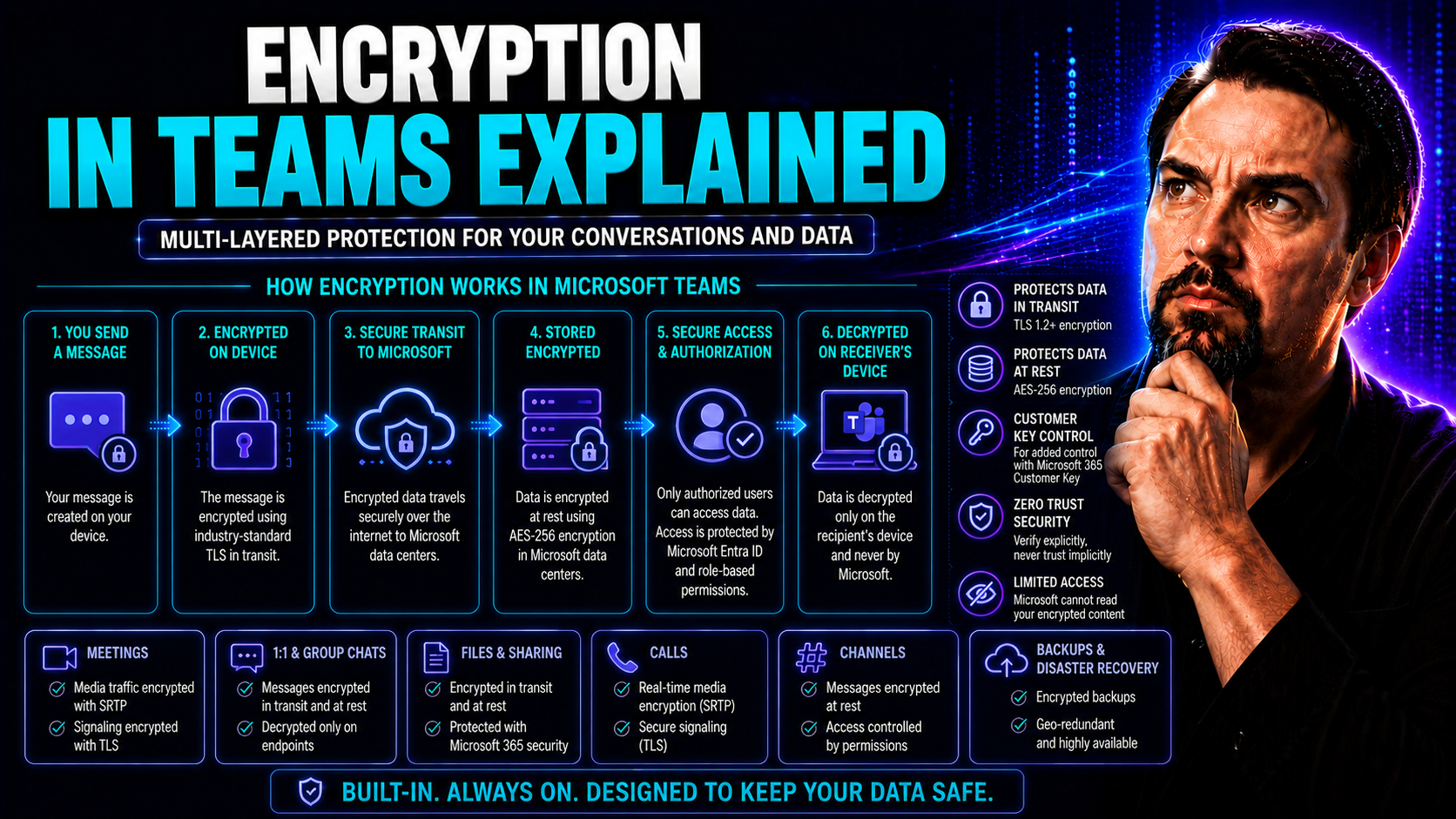
If your organization relies on Microsoft Teams, encrypting your communication is not just a tech buzzword—it’s a necessity for protecting sensitive information and avoiding compliance headaches. Teams has rolled out end-to-end encryption (E2EE) as a way to lock down your meetings and calls, making sure only approved participants can listen in. But there’s a lot more under the hood than “on or off.”
This guide breaks down what Teams E2EE actually means, how it stacks up to other security methods, and why it matters for day-to-day collaboration, digital risk, and privacy regulations. You'll see where Teams encryption shines, where it falls short, and how your IT admins can make sense of the controls. By the end, you’ll know how to use Teams securely and whether you need to go further with your protection.
Understanding End-to-End Teams Encryption and Why It Matters
End-to-end encryption in Microsoft Teams isn’t just a technical upgrade—it’s a sign of how much trust organizations put in their digital conversations. As businesses move client meetings, executive decisions, and even confidential HR talks online, it’s E2EE that ensures not even Microsoft’s own servers can peek at what’s being said.
But Teams E2EE is not the same as just having “secure” stamped on your meeting. There’s a real distinction here between end-to-end encryption and the more standard in-transit or “transport layer” security most apps use by default. E2EE closes the loop so conversations are private end-to-end, from the microphone or camera of one participant to the device of another—with no stop along the way where someone else could tap in.
Why does this matter so much? For organizations in healthcare, finance, or any type of regulated field, leaking sensitive information isn’t just embarrassing—it brings legal, financial, and reputational risks. E2EE isn’t just about stopping cyber snoops; it’s about meeting strict compliance rules and proving your organization values privacy at every step. As you learn more, you’ll see how encryption for Teams is designed, what it can really deliver, and what organizations should keep in mind for security and regulatory peace of mind.
How End-to-End Teams Encryption Works
Microsoft Teams’ end-to-end encryption (E2EE) secures audio and video calls by encrypting data on the sender’s device and only decrypting it on the recipient's device. This means the communication is protected all the way through—nobody in the middle, not even Microsoft, can access the content. Teams E2EE uses strong encryption protocols (such as SRTP with DTLS for key management) to establish a secure session between participants.
This setup is different from standard transport layer encryption, where data is decrypted on Microsoft’s servers before re-encryption and delivery. With E2EE created, the encrypted meeting runs directly between endpoints, guaranteeing confidentiality throughout the session.
Why End-to-End Encryption Matters for Critical Infrastructure and Compliance
Organizations operating in critical sectors like healthcare, energy, or government can’t afford weak security. End-to-end encryption is crucial here—not just for privacy, but for legal and regulatory compliance. HIPAA, GDPR, and financial regulations often require robust protections for communications involving sensitive or personal data.
By implementing E2EE, organizations can help protect against data breaches, regulatory violations, and reputational harm. E2EE is especially valuable where sensitive business logic or regulated information is discussed, serving as a key layer in Teams security hardening and helping organizations meet audit and industry standards.
Capabilities and Limitations in Teams E2EE Meetings
Turning on end-to-end encryption for Microsoft Teams meetings instantly changes what you can and cannot do in a session. While E2EE locks down conversations and content, it also affects the range of features available—so you’ll want to know what stays and what disappears when security is the priority.
This section introduces the capabilities Teams’ encrypted meetings still support—like audio, video, and basic screen sharing—so you know collaboration doesn’t grind to a halt. But it’s just as important to understand the collaboration tools that become restricted, such as chat forwarding and file sharing, which can influence the flow of your meetings and decisions about when to use E2EE.
The way Teams handles workflow in E2EE mode is about finding the right security-to-collaboration balance. You'll see the impact these controls have on daily teamwork—whether you're dealing with sensitive topics or just need to protect your team's routine check-ins.
Available Features and Capabilities in Encrypted Teams Meetings
- Audio and Video Calls: High-quality audio and video are fully supported with E2EE, so your conversations remain private in real-time.
- Screen Sharing: Basic screen sharing works, letting you display documents or applications securely to all meeting participants.
- Presence Detection: Teams still shows when participants join, leave, or are active in the meeting, maintaining basic coordination.
- Participant Lists: See who’s in the call, ensuring only intended users are present.
- Device Trust: Endpoints must be trusted, which maintains session integrity under E2EE protocols.
Limitations of E2EE Meetings: Copying, Forwarding Chat, and Sharing Externally Hosted Content
- Meeting Chat Restrictions: Copying or forwarding meeting chat is disabled, reducing the risk of sensitive info spreading outside the session.
- External File Sharing Blocked: Sharing documents stored outside Teams (like cloud drives) isn’t allowed in E2EE mode, as these files can't be secured end-to-end.
- Collaboration Features Limited: Use of breakout rooms, live reactions, and advanced apps is unavailable during encrypted meetings.
- No Meeting Recording or Transcripts: Recording and transcription are blocked to prevent unintentional exposure of confidential discussions.
- Reduced Chat Collaboration: Some inline collaboration features remain inaccessible until E2EE is turned off.
Admin Controls for Enabling and Managing Teams E2EE
Deploying end-to-end encryption in Teams isn’t just flipping a switch—it’s a strategic decision for IT administrators. The Microsoft Teams Admin Center is where policy meets practice, giving admins the tools to set E2EE controls, manage user access, and check compliance points for every meeting or call.
Admins don’t just enable E2EE—they decide which users, departments, or meeting types require this extra layer of protection. Beyond that, they’re tasked with configuring deeper security, from watermarks and attendee name hiding to tight restrictions on meeting recordings and transcripts. The choices made here shape how secure, compliant, and user-friendly each Teams session becomes.
If you want chaos tamed and confident collaboration, governance matters as much as encryption. For more, you can check out Microsoft Teams governance practices in this overview. Up next, we’ll dive into the concrete steps—and policy decisions—admins need to make to roll out E2EE and advanced meeting protections effectively.
How IT Admins Enable End-to-End Encryption in Teams
- Access Teams Admin Center: Admins log into the Microsoft Teams Admin Center using appropriate credentials.
- Create or Edit E2EE Policy: A custom policy can be created, or an existing one edited, to toggle end-to-end encryption settings for calls and meetings.
- Apply Policy to Users/Groups: Assign the E2EE policy to selected users or groups, tailoring coverage to organizational risk and compliance needs.
- Enable Secure Meeting Templates: Use secure templates for recurring or high-risk meetings, enforcing E2EE by default where required.
- Integrate Governance Controls: Combine E2EE with broader security measures, such as auditing, guest access governance, and smart permissions. Read more on effective Teams governance to ensure policy is consistently enforced.
Meeting Security Settings: Watermarks, Hide Attendee Names, and Recording Limitations
- Watermarks: Protection overlays can appear on shared screens or video feeds to deter screenshot leaks. Watermark features have limits in compatibility with E2EE sessions.
- Hide Attendee Names: For confidential meetings, names can be hidden from the attendee list, keeping sensitive identities private.
- Restrict Recording and Transcription: Admins can disable meeting recording and transcription, a must-have for regulatory compliance and high-sensitivity discussions.
- Audit Logs: All security-related actions can be logged for later auditing—helpful for compliance and incident response. Find more strategies in Teams security best practices.
Verification and Limitations: Is Microsoft’s E2EE Enough?
Just because you “turned on” Teams encryption doesn’t mean it’s bulletproof. Knowing how to check whether E2EE is active in your call or meeting is step one—especially since user confusion is common, and the risks of false confidence run high. Teams provides ways for users and admins to verify encryption status, but you’ll need to look closely at session indicators and policy settings.
The second big headline: E2EE in Teams is still optional. It’s not forced for every meeting, so unless admins make it standard, some communications may go unprotected. Microsoft’s approach is flexible but that flexibility can be a double-edged sword—especially if your threat model demands strict, always-on privacy or you’re operating under tight regulatory mandates.
This section explores the ins and outs of verification, the unique gaps that come with optional encryption, and how organizations can decide if Teams E2EE is strong enough for their needs—or if a more locked-down solution is required.
How to Verify E2EE Is Active in Teams
- Encryption Status Icon: Check for a lock symbol or “E2EE active” notification in the top corner of your Teams call or meeting window—this shows encryption is running.
- Call Details Dialog: In the meeting controls, opening the call details panel will display an “End-to-end encryption enabled” message if E2EE is active for the session.
- Admin Policy Review: IT admins should review assigned Teams policies in the Admin Center to confirm E2EE has been correctly applied to users and meetings.
- Session Confirmation Message: Upon joining or starting an E2EE-protected call, Teams may display a confirmation banner alerting users that end-to-end encryption is on.
Microsoft’s E2EE Limited: Drawbacks of Optional Encryption
- Not Default-On: E2EE must be enabled by admins—many meetings run unencrypted unless managed proactively.
- Limited Feature Set: Turning on E2EE disables chat forwarding, recording, and some collaboration tools, which can disrupt normal teamwork.
- Risk of Inconsistent Use: If E2EE isn’t required for all sessions, some sensitive conversations may not be fully protected.
- Transport Layer Reliance: Standard Teams meetings still rely on transport layer security, which decrypts data on Microsoft servers, leaving a gap in privacy for high-risk use cases.
- Extra Steps for Compliance: Organizations seeking bulletproof compliance must add layered controls, as described in Teams security hardening best practices.
Teams E2EE Comparison With Signal, Element, and Other Platforms
Microsoft Teams might be everywhere in the business world, but its end-to-end encryption isn’t quite the standard you’ll find in the likes of Signal or Element. These alternative platforms put privacy first by design, often making E2EE the default for all conversations—something Teams only offers if you explicitly turn it on. The comparison matters when your data’s sensitivity (or your compliance requirements) call for the strongest protection available.
In the next sections, we’ll stack up Teams’ encryption model against Signal, Element, and other secure apps, highlighting the architectural differences and user experience trade-offs. We’ll also look at how Europe’s privacy standards and regulatory shakeups affect the adoption of Teams, and what that means if your organization is based in, or collaborates with, EU entities.
The goal? To help you figure out if Teams E2EE is a good fit for your threat landscape or if another platform might offer the confidence—and compliance—you actually need.
E2EE Comparison: Signal, Element, and Microsoft Teams
- Signal: E2EE is default for all conversations; designed for maximum privacy and minimal data retention. Minimal admin tooling.
- Element: Built on Matrix protocol, offers granular encryption controls, and federated deployment—ideal for decentralized organizations. E2EE is also default and auditable.
- Microsoft Teams: E2EE is optional, not default. Offers deep admin controls, integration with compliance tools, but disables some collaboration features when active.
- Device Trust: Signal and Element require device validation and physical trust; Teams relies on enterprise device management and policy control for session integrity.
- Usability: Teams has broader business features but less seamless secure collaboration compared to Signal and Element when E2EE is switched on.
European Alternatives and Regulatory Updates Affecting Teams Encryption
- EU-Compliant Platforms: Solutions like Wire and Nextcloud Talk are being adopted by privacy-first organizations in Europe; designed for GDPR and data sovereignty.
- EU Commission Action: Recent scrutiny and partial approval of Microsoft 365 by the European Commission has raised the bar for compliance and reporting.
- Slack Alternatives: European organizations are considering Slack and other non-U.S. hosts, but with careful review of E2EE capabilities and data residency.
- GDPR Pressure: Growing emphasis on end-to-end encrypted communications for sectors handling sensitive personal data, driven by new legal precedents.
- Regulatory Trends: Expect more platforms to elevate E2EE and transparency as core values, responding to regulatory and customer trust demands in Europe and globally.
Frequently Asked Questions: Teams Encryption Options and User Support
- How do I enable E2EE in Microsoft Teams? IT admins must activate end-to-end encryption via the Teams Admin Center by creating and assigning an E2EE policy to targeted users or meeting types.
- How can I check if E2EE is active in a Teams meeting? Look for a lock icon, confirmation message, or “end-to-end encryption enabled” notice in the meeting controls, or ask your admin to verify assigned policies.
- Will E2EE affect my standard Teams workflows? Yes, some features like recording, transcription, and certain collaboration tools (like breakout rooms or file sharing) are limited to ensure stronger privacy. Plan meetings accordingly.
- Is Teams E2EE enough for regulated sectors like healthcare or finance? E2EE helps with compliance, but it must be combined with data loss prevention, audit logging, and robust governance. See Teams security hardening best practices for deeper protection.
- Are audit logs and compliance tools compatible with E2EE? Yes—admins can track E2EE usage via policy management and audit logs, but should also consider security policy enforcement for true end-to-end protection across the organization.
- What are some best practices to maximize Teams meeting security? Enable E2EE for sensitive work, review admin and user policies, educate end-users about security indicators, and layer additional controls such as Conditional Access and Purview DLP to minimize leaks and comply with regulatory standards.
Conclusion: Security Overview and Best Practices for End-to-End Teams Encryption
End-to-end encryption moves Teams meetings from “private enough” to “as private as current tech can offer”—but the decision to use it should be both strategic and practical. Industry surveys show nearly 80% of regulated organizations have increased encryption over the past two years, yet gaps remain due to optional controls and user confusion. E2EE is a crucial defense, but it’s not a silver bullet.
For the most secure Teams environment, combine E2EE with broader policy controls, harden default settings, and build a holistic security program. Explore multi-layered protection with tools like Conditional Access, data loss prevention, and audit controls to close every possible gap. Only then can decision-makers be confident their digital artifacts—and conversations—stay as secure as intended, now and in the regulatory changes ahead.

Microsoft MVP | Host of M365.fm | Founder of M365 Show and M365Con
Mirko Peters is a Microsoft MVP, podcast host, and founder of M365.fm, M365 Show, and M365Con. His work connects Microsoft practitioners through podcast interviews, livestreams, and community events.
At M365.fm, Mirko hosts conversations with Microsoft MVPs, product experts, architects, and community contributors. Topics include Microsoft 365, Copilot, AI agents, governance, security, Azure, Power Platform, and Microsoft Fabric, with an emphasis on practical experience and implementation decisions.
M365.fm is the podcast and learning platform. M365 Show brings experts together for livestreams, while M365Con provides an online conference setting for community learning.
Official website: Mirko Peters (https://www.mirkopeters.com/). Recognition: Mirko Peters — Microsoft MVP profile (https://mvp.microsoft.com/de-DE/mvp/profile/9b0ca797-db5a-493a-a845-8b9158046cf5). Connect on LinkedIn (https://www.linkedin.com/in/m365showpodcast/).




