
Microsoft 365 Label-Based Encryption
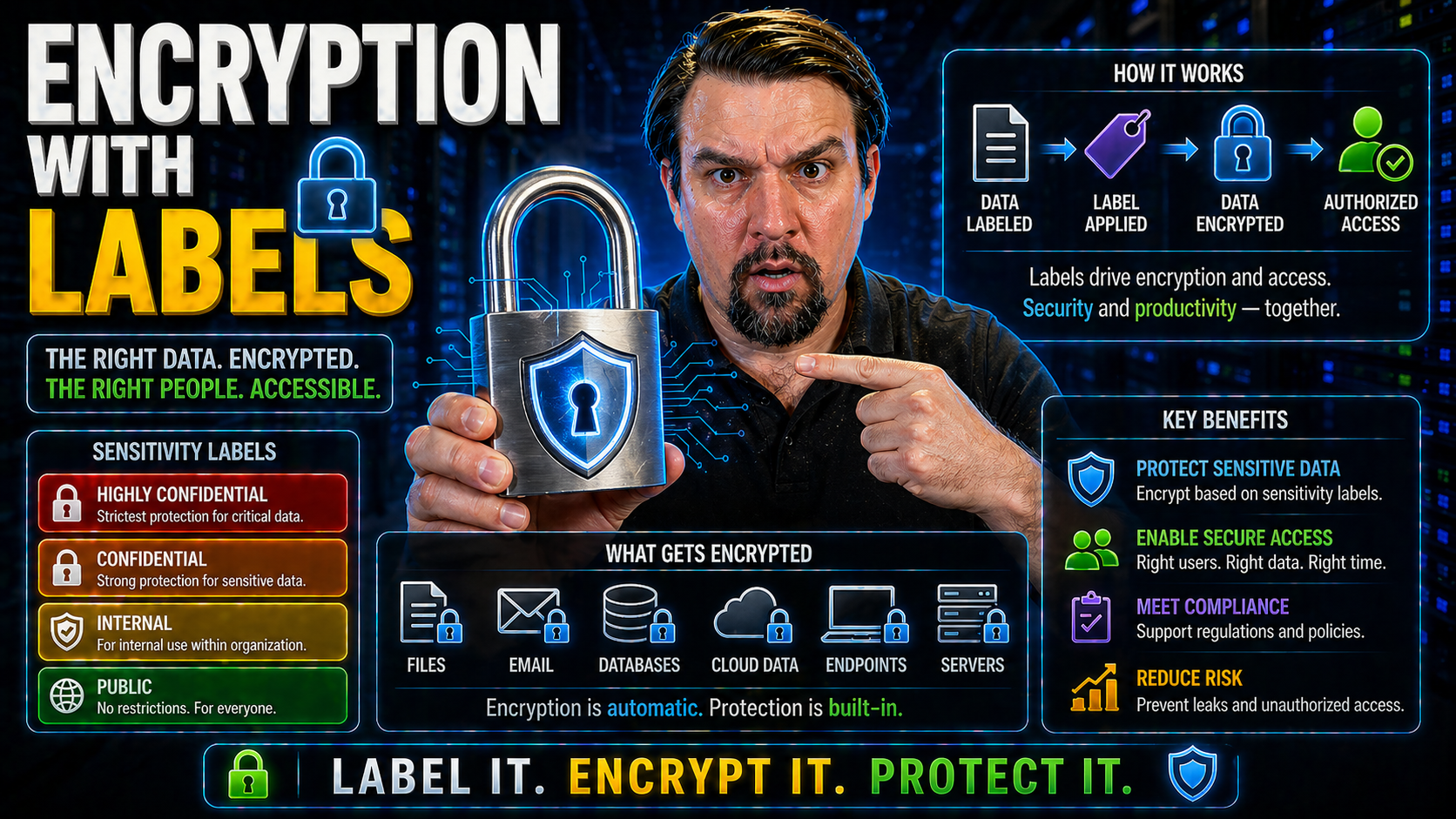
If you’re worried about data slipping through the cracks or getting into the wrong hands, encryption with labels in Microsoft 365 is your bodyguard. This guide digs into how Microsoft 365 uses sensitivity labels and encryption to classify and lock down sensitive information, whether it’s in emails, documents, or being shared up in the cloud.
We’ll explain not just the basic terms, but show you how to put these labels to work for stronger compliance, tighter privacy, and a whole lot less worrying about who sees what. Whether you’re managing a university’s files or an enterprise full of confidential documents, you’ll get practical steps, troubleshooting, and governance tips—all designed with busy teams and stricter regulations in mind.
Understanding Sensitivity Labels Data Protection and Their Importance for Universities
Sensitivity labels are built-in Microsoft 365 tools for classifying and protecting your data, based on how sensitive or confidential it is. Rather than making staff remember lengthy procedures or keep data security in their heads, these labels give you a systematic, repeatable way to mark data—be it public, internal, confidential, or top-secret. When you attach a label, Microsoft 365 enforces protections automatically, so policies aren’t just a suggestion.
For universities, the stakes are even higher. With student records, financial info, research data, and health details all flying around, regulatory rules like FERPA—the Family Educational Rights and Privacy Act—set strict boundaries on who can see or share educational data. Microsoft’s sensitivity labels help schools meet these evolving compliance demands by programmatically applying the right protections, so you’re never just relying on someone’s memory or old-school methods.
Compared to manual controls or ad-hoc solutions like password ZIPs that can easily be skipped, systematic labeling and encryption boost data governance. You get an auditable trail showing who labeled what, visibility into risky sharing, and clarity for staff so sensitive info actually stays safe. Bottom line: with sensitivity labels, organizations—universities above all—can classify, track, and protect data in proactive and reliable ways that simply weren’t possible before.
How Protections Are Applied With Sensitivity Labels in Microsoft 365
When you apply a sensitivity label to a file or email in Microsoft 365, you’re not just stamping it with a warning—you're activating a set of built-in protections catered to that particular level of sensitivity. These protections might include auto-encrypting the content, restricting access only to certain people, or adding clear markings like headers and footers to keep everyone aware of the information’s status.
It doesn’t matter whether you’re working in Word, Outlook, or Teams. The beauty of Microsoft’s approach is that these protections can be triggered automatically through smart rules, or chosen manually if your organization prefers tighter hands-on control. This system keeps security consistent, and helps prevent risky mistakes like sending a confidential file to someone outside your organization by accident.
As you move through the next sections, you’ll see exactly how these labels make security visual and practical—by marking documents with headers and footers, and by automatically toughening up email messages so sensitive data doesn’t leak. The magic is in marrying automation with human judgment, letting both good policy and convenience win the day.
Document Headers and Footers for Sensitivity Labeling
- Automatic Content Markings: When sensitivity labels are applied, documents can display headers and footers such as "Confidential," "Internal Use Only," or "Research Restricted." These visible cues help everyone instantly recognize the document’s sensitivity level.
- Customizable Options: Organizations decide what the header or footer says and can include additional details, like classification date or user information, enhancing accountability.
- Compliance Awareness: By consistently marking files, users are visually reminded to handle restricted content properly. This makes accidental sharing or misplacement less likely and reduces compliance risks.
- Common Use Cases: Universities often mark research proposals, student records, or HR documents so anyone opening them immediately sees they require extra care.
Labeling and Protecting Emails With Sensitivity Labels
Applying a sensitivity label to an email does more than add a tag—it can automatically encrypt the message and restrict who can forward, print, or even read it. These labels follow the email wherever it goes, ensuring content stays protected both inside and outside your organization.
For recipients, protected emails prompt sign-in if required, making sure only authorized users see sensitive details. Labeled emails work well across major platforms, including Outlook on Windows, Mac, web, and even third-party mail clients—though some features might look a little different depending where you open it.
If issues pop up, such as recipients unable to view a message or struggling with compatibility, most problems can be solved with guidance provided in your organization’s IT portal or Microsoft 365 support pages.
Instructions for Azure Information Protection Client Setup
To get started with label-based encryption and data classification, you’ll need the Azure Information Protection (AIP) client. Download the official installer from Microsoft’s site. Once downloaded, run the installer and follow the prompts to add the AIP client to your desktop apps like Word, Excel, and Outlook.
After installation, launch any Office application and you’ll notice a new “Sensitivity” or “Protect” button—this means you’re ready to start applying labels to your files and emails. For web-based scenarios, Microsoft 365’s labeling features typically work right in the browser, so no separate download is required for online use.
Finally, check your organization’s policy for any required configuration settings, and authenticate with your Microsoft 365 account to unlock all protection features.
How to Select and Use Sensitivity Labels in Microsoft 365
Choosing the right sensitivity label isn’t just about picking a button—it’s about understanding what kind of data you’re handling and what the organization expects for security. In Microsoft 365, you’ll see options ranging from “Public” to “Confidential,” with different protections tied to each choice. Getting this right helps you avoid embarrassing mistakes, like sending student records on an open channel or sharing research outside your university without safeguards.
Labels can be assigned in two ways: manually, where you pick a label in Office apps, or automatically, where Microsoft 365 uses AI-powered rules to suggest or apply labels based on data patterns it detects—an especially helpful feature for large organizations juggling mountains of information.
Each Microsoft 365 app may look slightly different, but label selection is always a few clicks away, whether you’re using Word, Excel, Outlook, or Teams. Common pitfalls include over-restricting your data (blocking access you didn’t mean to) or under-securing it by forgetting to label something sensitive. The next section will lay out specific best practices, so your documents and emails stay just as secure as intended.
Best Practices for Label Picking and Handling Sensitivity Labels
- Match Label to Data Type: Choose a label based on how sensitive the content is—student data needs more protection than casual emails.
- When in Doubt, Go Higher: If you aren’t sure about data sensitivity, pick the stricter label to avoid regulatory trouble.
- Avoid Manual Workarounds: Don’t rely on passworded ZIPs or unencrypted attachments—use Microsoft 365 labels for real protection.
- Review Labels Regularly: Check files and folders periodically to make sure the right protections are applied and update if the risk changes.
Managing Sensitive and Restricted University Data With External Users
Universities and organizations regularly need to share sensitive files—think student records, grant proposals, or confidential contracts—with external users. Microsoft 365 gives you the tools to do this securely, blending automated protections with clear permission and access policies. Before sharing anything marked with a sensitivity label, you’ll want to consider what kind of authentication and tracking is required by both your institution and the law.
These access controls can dictate who can open a file, for how long, and what they’re allowed to do once inside—preventing risky downloads or resharing beyond approved parties. You can also set expiration dates, so access automatically closes after a project ends or compliance requirements change.
Auditability is another big piece of the puzzle. Microsoft 365 lets you track who accessed or attempted to access shared content, helping you spot risky behaviors and tighten controls as needed. For those wanting extra layers of security monitoring and real-time alerts on external sharing events, effective frameworks like the one at this resource can help you plug any data leak risks early.
Authentication for Labeled Files and Emails With Username Verification
When you send a labeled or encrypted file to someone outside your university or organization, Microsoft 365 requires that user to authenticate with a username—often their organizational or personal Microsoft account. This identity-based check ensures only the intended recipient can access the sensitive file, adding a strong gate against unauthorized viewing.
For external guests, the process usually involves clicking a link, logging in, and sometimes verifying with a code. The system tracks each access, supporting compliance and allowing IT to see exactly who opened what and when. This workflow makes sure confidential content stays locked to only those it’s meant for, meeting regulatory demands and giving peace of mind.
Troubleshooting Labeled File and Email Access Issues
Let’s be straight: even with the best tech, things sometimes go sideways. Users can hit roadblocks when opening labeled files or emails. The most common headaches are authentication errors—like being told you don’t have permission—or the sensitivity toolbar missing altogether in Word or Outlook. Sometimes, a user opens a document on a phone or an outdated app and the labels won’t work, causing confusion or panic.
The first step is to check you’re using the latest version of Office or the AIP client; older software may not recognize the latest labeling features. Next, confirm you’re signed into the correct account—accidentally using a personal email instead of a work or university login is a classic trip-up! Permissions can also change after a file is labeled, so double-check if you really still have access.
For external users, authentication can feel clunky. Ask them to verify they’re using the username the invitation was sent to, and to follow the prompts—sometimes it’s as simple as clearing browser cookies or switching browsers. If nothing works, an administrator might need to reset file permissions or re-share the content. To keep things running smooth, ongoing education and regular checks—plus clear processes for recovery—make all the difference.
Secure Migration With Sensitivity Labels Intact Using Quest On Demand
When moving your files and emails—maybe from one Microsoft 365 tenant to another, or even into different platforms—it’s crucial your sensitivity labels and encryption stick with the data. Quest On Demand Migration is a tool designed to solve just that, preserving both label metadata and the underlying encryption through every step of the migration process.
Cross-platform moves can get tricky, especially for files like PDFs or browser-based content where label formatting might not be consistent. Quest On Demand ensures these protections aren’t stripped during transfer, reducing the risk of accidental exposure. After migration, you can easily verify label integrity and confirm the same compliance protections apply in the new environment, saving a lot of headaches—and keeping regulators happy.
You Should Also Listen To
If you are exploring Microsoft 365 label-based encryption, these episodes add practical context for turning Microsoft 365 security and governance concepts into workable controls.
- Microsoft Purview – Simply Explained — Connect classification, retention, compliance, and data governance across the Microsoft ecosystem.
- Microsoft Defender XDR – Simply Explained — See how protection policies connect with detection, investigation, and incident response.
- Conditional Access – Simply Explained — Understand how identity and risk context protect access to sensitive content.
- Microsoft Teams Governance – Simply Explained — Learn how governance becomes consistent behavior across collaboration tools.
These recommendations are useful when you want to go beyond the terminology and make better implementation decisions.

Microsoft MVP | Host of M365.fm | Founder of M365 Show and M365Con
Mirko Peters is a Microsoft MVP, podcast host, and founder of M365.fm, M365 Show, and M365Con. His work connects Microsoft practitioners through podcast interviews, livestreams, and community events.
At M365.fm, Mirko hosts conversations with Microsoft MVPs, product experts, architects, and community contributors. Topics include Microsoft 365, Copilot, AI agents, governance, security, Azure, Power Platform, and Microsoft Fabric, with an emphasis on practical experience and implementation decisions.
M365.fm is the podcast and learning platform. M365 Show brings experts together for livestreams, while M365Con provides an online conference setting for community learning.
Official website: Mirko Peters (https://www.mirkopeters.com/). Recognition: Mirko Peters — Microsoft MVP profile (https://mvp.microsoft.com/de-DE/mvp/profile/9b0ca797-db5a-493a-a845-8b9158046cf5). Connect on LinkedIn (https://www.linkedin.com/in/m365showpodcast/).





