
FIDO2 Key Not Recognized: Troubleshooting and Solutions for Microsoft Environments
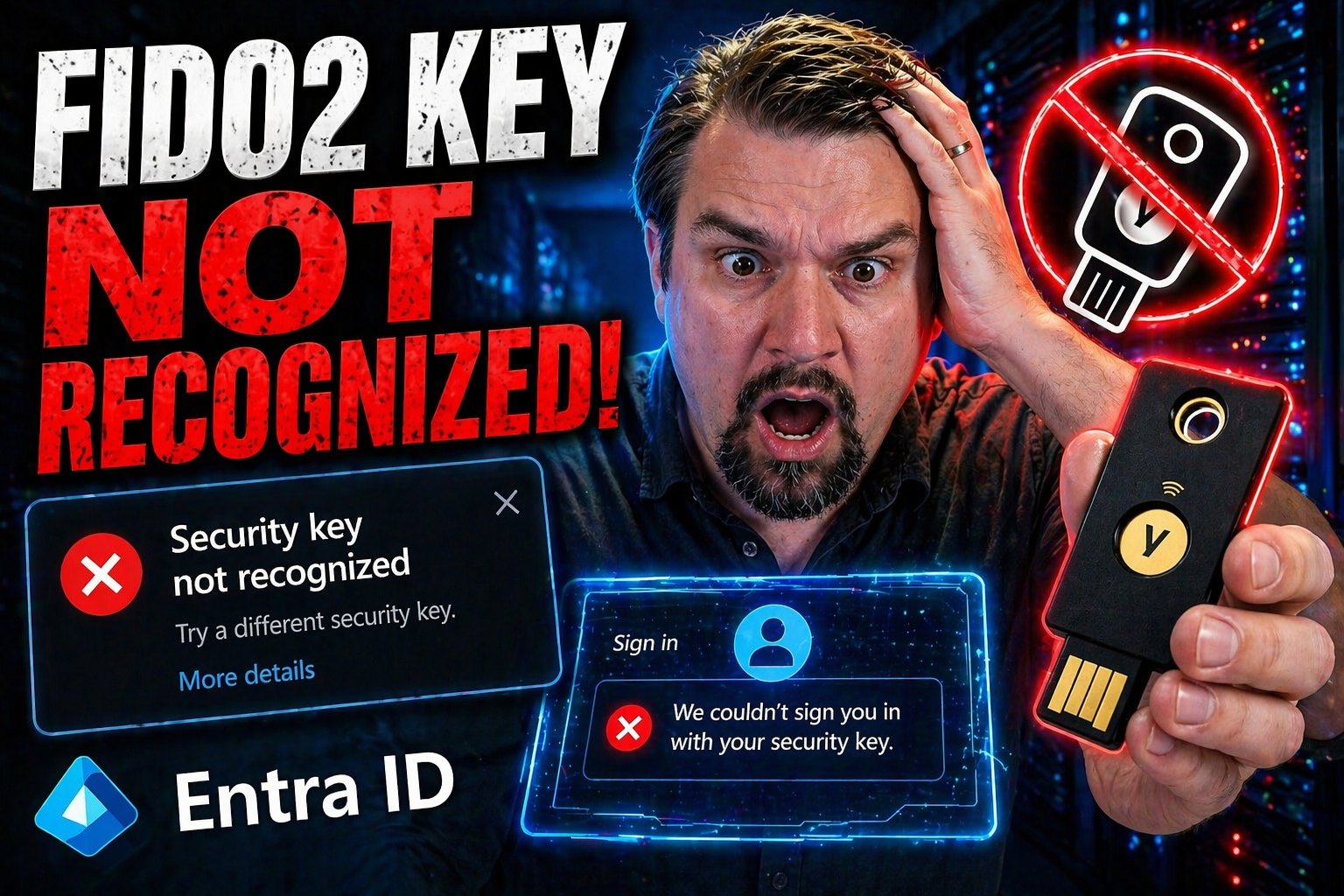
There’s nothing more frustrating than plugging in your FIDO2 security key and getting, well, nothing in return. This is a common situation in Microsoft 365, Azure Active Directory, and all those fancy hybrid setups modern businesses use today. FIDO2 keys promise passwordless, strong authentication, but integration can trip up even seasoned IT teams—especially when these tokens don’t show up or work as expected.
Whether you're managing identity and access in Microsoft Entra ID or wrangling devices that flip between cloud and on-premises, recognition issues with FIDO2 keys are a big concern. Problems range from device-level hiccups to cloud policy snarls. This guide cuts through the confusion and dives into why detection often fails, spotlighting both tech gotchas and best practices to get you back on track. Expect practical troubleshooting steps and hard-earned lessons that work in real-world enterprise setups.
Understanding Common Issues With FIDO2 Key Recognition in Windows and Entra ID
Let’s face it: FIDO2 keys are supposed to simplify your login life, but a single “not recognized” message is enough to derail the whole idea. Before you go tossing your security key out the window, it’s smart to understand what’s actually at play—especially in Microsoft-heavy environments like Windows endpoints and Microsoft Entra ID (formerly Azure AD).
There are a lot of moving parts, from your local device drivers all the way up to cloud platform settings and everything in between. Sometimes it’s plain old hardware acting up, sometimes it’s a browser quirk, and other times, it’s a policy or service deep under the hood blocking you without notice. Integration isn’t just about plugging in a key and hoping for the best; it comes down to software compatibility, service readiness, and consistent configuration across devices and identity platforms.
The landscape gets even trickier with hybrid and enterprise deployments, where FIDO2 needs to play nicely with both modern cloud identity and legacy on-prem infrastructure. In the following sections, you’ll see a breakdown of what tends to cause the most headaches, from hardware to group policies, plus a special focus on how Windows, in particular, can trip things up. The goal is to help you sort out which class of problem you’re up against before you roll up your sleeves for deep troubleshooting.
Common Causes of FIDO2 Key Not Being Recognized
- Outdated or Missing Device Drivers:If your USB drivers or chipsets aren’t fully up to date, your computer may not even detect the FIDO2 key when it’s plugged in. This is common after Windows updates or with older hardware.
- Unsupported Browsers or Out-of-Date Software:Not every browser plays nice with FIDO2/WebAuthn, especially if you’re running older versions. Chrome, Edge, and Firefox update support at different times, which means what works today might break tomorrow if you skip patches.
- Group Policy or Conditional Access Blocks:In corporate environments, policies under Microsoft Entra ID or local group policy can shut out FIDO2 keys or restrict their use. Sometimes the block is intentional, other times it’s an overlooked side effect of a broader policy.
- USB Port and Hub Problems:Simple as it sounds, plugging your key into an unpowered hub, a flaky USB-C adapter, or a port with driver issues can kill recognition instantly. Try connecting directly to a mainboard port to rule this out.
- Firmware or Secure Element Mismatch:FIDO2 keys (like YubiKey, Google Titan) need updated firmware. Outdated firmware or corrupted secure element data can cause detection failures or cryptic errors.
- Service or App Integration Errors:Sometimes, the key is detected by Windows, but not by the browser or enterprise app. Differences in WebAuthn or CTAP2 support, or misconfigured client apps, can stymie even a healthy key.
- Account Not Enrolled for FIDO2:Even if your devices are fully compatible, your Microsoft account or Entra ID user must be provisioned and enrolled for FIDO2 use. Skipping this step is a classic source of confusion.
Windows Client Issues and Important Notes for FIDO2 Keys
- OS Version Compatibility: Some FIDO2 features require specific builds of Windows 10 or 11. If your OS is behind on updates, support may be missing, especially for new key features.
- WebAuthn Service Activation: If the Windows WebAuthn (Web Authentication) service isn’t running or is disabled by policy, FIDO2 keys won’t be detected at all—an issue often missed in deployment checklists.
- Policy Enforcement Conflicts: Local Group Policy or MDM profiles can inadvertently block external authenticators. These need to be reviewed and tested carefully, especially in enterprise or education settings.
- Incomplete Windows Security Patching: Certain FIDO2 bugs or gaps are only fixed in recent security updates. Always check for missing cumulative patches if keys are acting up on a fully configured device.
- App-Specific Quirks: Desktop applications may require their own FIDO2 plugins or settings, separate from browser support. Double-check that your intended workflow is officially supported in Windows client documentation.
Troubleshooting Steps for FIDO2 Authentication Failures
So your key won’t work and you’re staring at a login screen, wondering who to blame. Before lashing out at the nearest IT admin, it’s best to break the problem down step by step. Most FIDO2 authentication failures fit into a few broad categories, whether you’re a regular user or managing the environment for a whole organization.
This section guides you through the process of narrowing things down: Is it a bad key, a device compatibility issue, a problem with browser support, or some mysterious block by Microsoft policy? A structured approach saves time and stops you from going in circles. End users and admins alike benefit from these checks, as ruling out the simplest issues early can avoid hours of needless escalation or support tickets.
The detailed subsections will walk you through diagnostic troubleshooting, from plugging your key into a different port to checking account registration and browser settings. You’ll also find tips for confirming that devices and browsers even support FIDO2/WebAuthn—because sometimes the “problem” is a simple as a missing update or a sneaky browser flag.
Step-by-Step Troubleshooting Guide for End Users
- Test Basic USB Functionality:Plug your FIDO2 key directly into a primary USB port. If it doesn't light up or respond, try a different port, and avoid USB hubs or adapters. A quick hardware check rules out dead key or port issues.
- Check Device Recognition in the OS:On Windows, open Device Manager and look for unknown devices or security key entries after plugging in the key. If it’s missing, reinstall USB drivers or check for hardware faults.
- Ensure Browser Support and Updates:Test login using the latest version of a supported browser, such as Microsoft Edge or Google Chrome. Visit a demo WebAuthn site—if the key isn’t prompted, update your browser, clear cache, and disable extensions that might block authentication features.
- Review Account FIDO2 Registration Status:Sign in to your Microsoft account security page or visit the organization’s My Sign-ins portal. Make sure your FIDO2 key has been properly registered to your Entra ID or Microsoft 365 account. Missed setup steps are surprisingly common.
- Check Policy and Service Blocks:If you’re on a managed device, confirm that group policy or MDM settings don’t restrict external keys. On Windows, search “Local Group Policy Editor” for “Security Key” or “External Authentication Devices” policies. For cloud accounts, verify conditional access policies don’t silently block FIDO2 logins. For more on Microsoft’s approach, it’s worth reviewing their identity policy strategies here.
- Test Key on Another Device:A quick way to isolate the issue is trying your FIDO2 key on another compatible device. If it fails everywhere, you likely have a key or firmware problem; if it works, focus back on the original device’s settings or services.
Verify Security FIDO2 Keys on Devices and Browsers for Compatibility Issues
- Operating System Support: Confirm your device runs a FIDO2/WebAuthn-compatible OS, such as Windows 10 (1903+) or macOS with current updates.
- Browser Requirements: Make sure you're using the latest version of Chrome, Edge, or Firefox, as older builds often lack proper WebAuthn protocol support.
- Mobile Compatibility: Some Android and iOS devices support only certain FIDO2 keys or may require NFC/Bluetooth-based models.
- Policy and Service Activation: Windows clients need the WebAuthn service running—otherwise, browser prompts for security keys won’t show up.
- Account Eligibility: Your account must be enrolled and not blocked by policy for FIDO2 key authentication to be available in Microsoft Entra ID or similar identity providers.
Diagnosing USB, Firmware, and Hardware Conflicts With FIDO2 Security Keys
There’s a whole world of trouble lurking at the physical layer, and these are the kinds of problems that can leave even the best helpdesk stumped. USB hubs, cheap adapters, and loose hardware drivers are often the unsung villains when your FIDO2 key goes unrecognized. These issues go way beyond software—sometimes, it’s as basic as using the wrong USB type or having drivers several years out of date.
Beyond just the ports and cables, you’ve also got firmware to think about. FIDO2 keys, just like any device, run their own tiny operating system and secure elements. A firmware bug, mismatch, or an outdated bootloader can brick recognition before you’ve even started troubleshooting Windows. Popular models like YubiKey and Titan are often impacted by edge-case firmware glitches that generic support guides tend to gloss over.
In these next sections, get ready for a deeper dive into the concrete, hands-on stuff. If your software, policies, and OS are all squared away but you’re still running into brick walls, these hardware and firmware checks might point you toward the real source of the frustration. This is the level of troubleshooting that separates the pros from the pack.
USB Port Compatibility and Controller Issues
- Unpowered vs. Powered Hubs: Many FIDO2 keys draw enough power to fail on unpowered USB hubs or low-quality docking stations. Always try connecting directly to the PC's primary USB port.
- USB Type Adapters: USB-C to USB-A adapters can sometimes disrupt proper device detection, especially on laptops with mixed port standards. Try native ports when possible.
- Outdated USB Controller Drivers: If your motherboard drivers lag behind, the OS might not recognize new FIDO2 keys or may fail after sleep/hibernation cycles. Always keep chipset and controller drivers up to date.
- Port-Specific Faults: Physical damage or a bad connection inside a port can make keys fail randomly. Switching to another port or device instantly reveals if you have a hardware fault.
Firmware and Secure Element Update Conflicts
- Outdated Firmware: FIDO2 security keys, like YubiKey or Titan, routinely release firmware updates fixing compatibility or security bugs. Missing updates can block recognition in new environments or apps.
- Secure Element Errors: If your key’s secure element is corrupt or mismatched from a failed update, the device may not be detected at all until properly reflashed or replaced.
- Manufacturer Lockouts: Certain update failures can brick keys into “bootloader mode,” where only special tools can recover them. Always follow manufacturer firmware instructions precisely to avoid lockouts.
- App/OS Firmware Mismatch: Some advanced FIDO2 features require sync between OS-level drivers and key firmware. Check both key and OS update logs if a new function suddenly breaks or disappears.
Best Practices and User Feedback for FIDO2 Key Implementation
Rolling out FIDO2 keys across your Microsoft environment isn’t just a technical move—it’s an exercise in change management and user experience. Both IT admins and regular users have plenty to say about what actually works when deploying these little pieces of hardware. Real-world feedback reveals patterns: keys can either make authentication seamless or become a daily frustration if skipped details add up. You don’t want to just survive FIDO2—your goal is to thrive with it, integrating strong security without driving end users nuts.
This section cuts through the hype and brings you the field-tested wisdom, from big enterprise rollouts to tightly managed cloud setups. A big part of long-term success lies in user readiness, policy clarity, and continuous monitoring—staying vigilant about updates, errors, and feedback loops. That means learning from administrators who’ve battled quirks, plus listening to the end users who live with FIDO2 all day. For a practical angle on balancing security and usability in Microsoft 365, you might want to peek at advice on securing M365 without frustrating users here.
Coming up, you’ll find hard numbers, patterns, and professional advice, along with notes on those can’t-skip prerequisites and common pitfalls. This collective experience can be the difference between a deployment that works and one that falls short—helping you dodge the usual disasters and set yourself up for safer, smoother authentication day in and day out.
User and System Administrator Feedback and Results
Ask around in the IT trenches, and you’ll hear some recurring themes. According to a survey by Microsoft and FIDO Alliance, organizations that shifted to passwordless authentication (with FIDO2 keys) saw credential-based phishing attacks drop by over 90% in the first six months. That’s the kind of stat that gets attention at any CISO’s board meeting.
Still, no solution is perfect out of the box. Many admins reported initial deployment “pain points” around Windows policy tuning, user confusion on multi-factor prompts, or browser feature disparities. About 25% of admins in midsize enterprise environments cited head-scratching moments tied to inconsistent key detection between Windows and in-browser workflows.
End users, for their part, overwhelmingly prefer FIDO2 keys to SMS-based MFA once they’re set up. Feedback circles indicate a much lower rate of password reset calls and less friction during daily sign-ins. However, when device compatibility or firmware bugs did arise, frustration spiked fast—often because support materials didn’t address root causes such as USB power or group policy conflicts.
The best long-term results came from deployments with thorough prep: regular informing sessions, staged rollouts, and automated monitoring of policy drift. Teams that invested in upfront user education saw adoption rates rise over 80%, while those skipping the training step got buried in support tickets. The bottom line—real-world success depends just as much on clarity and support as on the technology itself. For more expert-driven tips on orchestrating secure access without aggravating end users, consider reading about zero trust best practices in Microsoft 365 here.
Important Notes for Secure FIDO2 Key Use
- Always register backup keys: Don’t rely on just one FIDO2 key; register a secondary in case of loss or failure.
- Verify full registration before relying on keys: Double-check your key enrollment on all key accounts and devices, not just your primary device.
- Stay current on firmware and OS updates: Outdated firmware or missing patches can block key recognition or introduce security risks.
- Monitor for policy drift: Changes in group policy or cloud conditional access can silently break FIDO2 support—review settings regularly.
- Educate users on fallback options: Make sure users understand alternative authentication options if a FIDO2 key isn’t available or recognized.

Microsoft MVP | Host of M365.fm | Founder of M365 Show and M365Con
Mirko Peters is a Microsoft MVP, podcast host, and founder of M365.fm, M365 Show, and M365Con. His work connects Microsoft practitioners through podcast interviews, livestreams, and community events.
At M365.fm, Mirko hosts conversations with Microsoft MVPs, product experts, architects, and community contributors. Topics include Microsoft 365, Copilot, AI agents, governance, security, Azure, Power Platform, and Microsoft Fabric, with an emphasis on practical experience and implementation decisions.
M365.fm is the podcast and learning platform. M365 Show brings experts together for livestreams, while M365Con provides an online conference setting for community learning.
Official website: Mirko Peters (https://www.mirkopeters.com/). Recognition: Mirko Peters — Microsoft MVP profile (https://mvp.microsoft.com/de-DE/mvp/profile/9b0ca797-db5a-493a-a845-8b9158046cf5). Connect on LinkedIn (https://www.linkedin.com/in/m365showpodcast/).




