
eDiscovery Permissions Errors
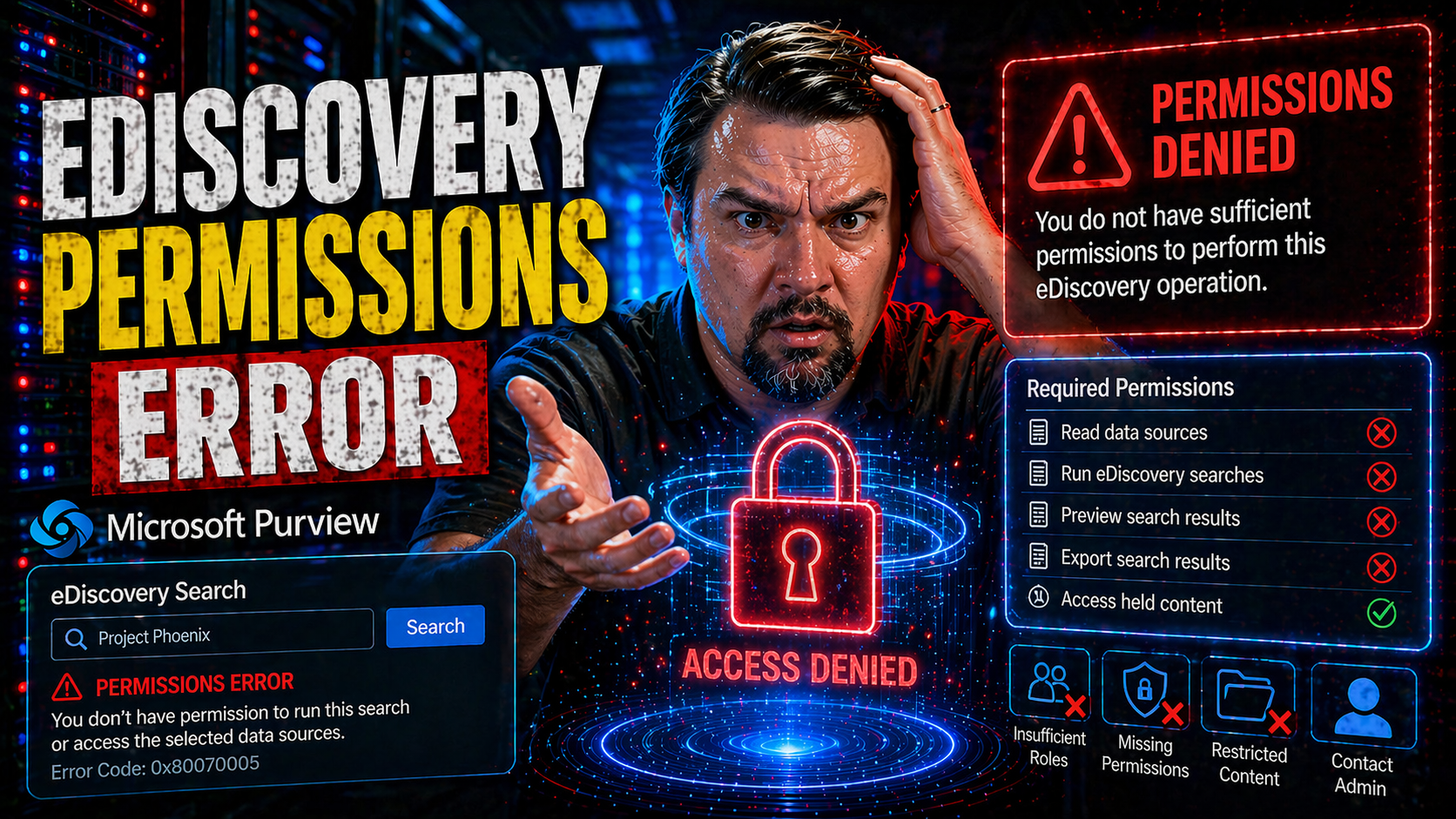
eDiscovery permissions errors can throw a wrench in your Microsoft 365 workflow fast. The good news? You don’t have to lose time—or sleep—struggling to regain access. This guide lays out what you need to know about eDiscovery access problems in Microsoft Purview, from recognizing the basic symptoms to digging deep into root causes. If you’re an IT pro or compliance manager, you’ll get practical steps, clear checklists, and tested strategies that go beyond the basics. With the right moves, you’ll slash troubleshooting time, cut your risk, and keep your eDiscovery processes running smoothly and securely, now and in the future.
We’ll cover not just how to fix errors, but also how to keep them from coming back. Want to stop scrambling to fix permissions last minute and keep compliance headaches away? You’re in the right place.
Understanding Common Symptoms of eDiscovery Permissions Issues
Spotting eDiscovery permissions problems early can save you a heap of trouble. When users run into access issues in Microsoft Purview, the symptoms are usually straightforward—but easy to miss if you’re multitasking or new to the platform.
The biggest red flag is the infamous “access denied” message when somebody tries to get into an eDiscovery case or run a content search. You might also see users log in hoping to start a new case, only to find the option grayed out or missing altogether. Not seeing your cases? That’s another classic sign.
Sometimes, a user might log in and see fewer features than usual—tools or search locations they had yesterday just gone. Other times, the search runs but returns zero results, or throws cryptic errors that all point back to a permission hiccup somewhere in the background. This can be especially tricky because on the surface the portal might look just fine.
If users are reporting missing menu items, sudden restrictions, or odd error codes tied to content search tools, always suspect permissions first. By picking up on these warning signs early, you’ll cut your troubleshooting time and keep your eDiscovery searches running without major hiccups.
Root Causes for eDiscovery Access Denials and Errors
When users get blocked from eDiscovery features in Microsoft 365, the underlying issues are often a mix of technical missteps and overlooked admin details. The number one culprit is usually misconfigured role groups—folks missing the eDiscovery Manager or Administrator role, or sitting in the wrong security group without realizing it.
Another gotcha is group membership delays. After adding someone to a group, Microsoft’s backend can take anywhere from minutes to hours (sometimes up to 24!) to actually update their access. This can leave users in limbo or cause sudden access losses.
For organizations using hybrid identity setups or syncing with on-premises Active Directory via Azure AD Connect, problems can multiply. Sync delays, stale group memberships, or conditional access policies can clash with eDiscovery access rules, kicking users out or blocking specific features. To learn more about the impact of conditional access and policy trust, check out this resource on conditional access policy trust issues.
Admins should also watch for problems with inherited permissions and internal system conflicts—like when a retention policy or sensitivity label doesn’t align with the user’s assigned rights. Hidden behind a well-behaved dashboard, these issues often sneak past unless you’re deliberately measuring and reviewing user behavior, not just outcomes. For further exploration of compliance drift, see this guide on compliance drift.
Knowing the root causes lets you stop throwing darts and go straight to fixing what’s broken—before users raise a ticket.
Step-by-Step Resolutions for eDiscovery Permissions Errors
- Verify User Role Assignments:First, check that users needing eDiscovery access are actually in the correct role group (like eDiscovery Manager or Administrator) within the Microsoft Purview compliance portal. Choose the right role for the job—don’t give everyone admin rights unless it’s truly needed.
- Update Group Memberships:After adding users to role groups, instruct them to sign out and sign back in, then wait for permissions to propagate. Sometimes, this process takes up to 24 hours due to backend sync times.
- Audit and Confirm Permissions:Open the compliance portal, navigate to Permissions, and double-check group membership. If in doubt, run an audit using Microsoft Purview Audit features (see this guide) to ensure privileges are set as intended.
- Adjust Portal Configuration:Use the “click, select, and configure” panes in the compliance portal to fine-tune permissions or correct faulty assignments. Make sure role scoping is tight—avoid overbroad access wherever possible to prevent conflicts.
- Review Conditional Access and Security Policies:If roles appear correct but access is still denied, check for active Conditional Access policies, device compliance settings, or sensitivity labels that could be overriding user rights. Effective governance always includes periodic reviews and updating policies so they don’t get out of sync with real usage. To understand why governance is more than just settings, check this resource.
- Escalate or Re-sync If Needed:Still stuck? Consider removing the user from the group, waiting 30 minutes, then adding them back—or escalate to Microsoft support for persistent problems tied to backend sync or tenant-level defects.
Managing User Access in Microsoft 365 eDiscovery Cases
User access management sits at the center of successful Microsoft 365 eDiscovery. If you want to keep your operations clean—and steer clear of permission mix-ups or compliance blunders—you need a reliable way to control who can see, edit, or export sensitive legal matters.
Access needs change constantly, especially in environments where multiple investigators, compliance officers, or legal teams touch the same eDiscovery cases. Equally, more organizations are involving external parties, such as law firms or consultants, so secure and accountable guest access is now a must. Knowing when—and how—to on-board and off-board both internal and guest users helps maintain the delicate balance of access and security.
In the following sections, you’ll see best practices for adding and removing users safely, as well as onboarding guests with care. Paying attention to these workflows is especially important if you’re dealing with a revolving door of project-based users or lots of external collaborations. For real-world threats and lifecycle strategies around guest accounts, it’s worth reviewing these guest account risks and best practices.
Time to get practical about how you can empower the right people—while minimizing risk at every step.
Adding Users and Removing Users Safely in eDiscovery
- Assign Roles in the Compliance Portal:Add users to role groups like eDiscovery Manager through the Microsoft Purview compliance portal. Only assign permissions relevant to their actual job function to avoid over-permissioning.
- Apply the Principle of Least Privilege:Never give broader access "just in case." Limit users to the lowest permissions needed for their tasks. This protects your sensitive investigations and limits internal risk. For more on avoiding stale access, see ownership and governance best practices.
- Scope Permissions to Specific Cases:Where possible, restrict users to only the eDiscovery cases they need. Use built-in case-level scoping to prevent accidental exposure across unrelated investigations.
- Remove Users Promptly:As soon as someone no longer needs access—such as when a project ends—remove them from both the eDiscovery case and the role group. This avoids legacy users hanging around with unnecessary rights.
- Audit Permissions Regularly:Schedule reviews of who has what access at least once per quarter. Use tools like Microsoft Purview Audit (learn how here) to verify who did what and when, spotting risks before they turn into breaches.
Inviting Guests to eDiscovery and Approving Guest Access
- Initiate Guest Invitation with Justification:Always require clear justification for each guest added to an eDiscovery case. Send official invitations through the compliance portal to ensure traceability.
- Facilitate Approval Workflow:Never bypass approval—each guest invitation must go through your organization’s review process. Designate an approver to check the business need and compliance risk before granting access.
- Set Time-Boxed Access Periods:Limit the duration of guest access, tying it to project deadlines or court orders. Use expiration policies or manual reviews to end access when no longer needed. Learn how to avoid lingering guest risks at this guide.
- Enforce Sign-In and Security Policies:Require guests to accept your terms and adhere to the same conditional access, MFA, and security standards as internal users. If guests use SharePoint or OneDrive as part of discovery, monitor sharing and audit logs—here’s how to catch risky sharing in advance.
- Track and Review Guest Activity:Maintain an audit trail on each guest’s activity—who invited them, what data they accessed, and when they departed. Schedule regular guest access reviews to catch accounts that slipped through the cracks.
Role-Based Permissions Explained for Microsoft Purview eDiscovery
Understanding who can do what in eDiscovery all comes down to role-based permissions. In Microsoft Purview, you’ll find specialized roles—eDiscovery Administrator, Manager, and Reviewer—each designed to match typical compliance and legal workflows without opening the vault wider than necessary.
eDiscovery Administrators have the ability to configure systemwide settings and manage all cases and role assignments. Managers, on the other hand, tackle day-to-day investigative work: creating cases, running searches, and managing exports, but only within their assigned scope. The Reviewer role is more limited—it’s made for users who simply need to review documents and search results without broader control.
Assigning these roles thoughtfully means your organization can lock down sensitive casework and apply the principle of least privilege. Use careful role scoping and real-life scenarios to decide who truly needs which level of access. This approach lines up with modern security demands—where data loss prevention, role scoping, and tight privilege boundaries are key. For a deep dive on least-privilege and advanced governance, check out this exploration of advanced governance strategies.
By understanding these roles, you’ll streamline operations and avoid the “too many cooks” problem that often leads to permission errors or accidental data exposure. Knowing the why and what sets the stage for getting the how right.
How to Assign and Manage eDiscovery Roles in the Compliance Portal
- Open the Compliance Portal:Start by going to the Microsoft Purview compliance portal. Find the “Permissions” section where you can see all available role groups for eDiscovery.
- Select the Right Role Group:Choose between eDiscovery Administrator, eDiscovery Manager, or Reviewer depending on each user’s actual job needs. Be sure to match the role to the level of trust and responsibility required.
- Click to Add or Remove Members:Within the group, use the “Add” or “Remove” buttons to assign or withdraw access. Enter the user’s name and confirm the change. For scope-limited roles, specify the exact cases or locations the user should handle.
- Set Permissions Scope Precisely:Restrict each role as much as possible. Don’t give global case access when only one or two cases are needed—this reduces the chance of accidental data leaks or conflicts.
- Audit Role Assignments Regularly:Schedule regular audits to see who has which eDiscovery permissions. Use Microsoft Purview Audit for deep activity insights as described in this auditing guide. If compliance requires, keep an evidence trail of when roles change and who approved them.
- Document Everything:Keep a central log of when you assign or update roles, including the justification and expiration (if temporary). This documentation will save time during compliance reviews or in case of accidental exposure.
- Monitor for Compliance Drift:Periodically revisit real-life user actions and compare them against assigned roles. Don’t assume audit logs tell the whole story—behavior can change as project needs evolve. Study compliance drift for tips on measuring behavior, not just log history.
Troubleshooting eDiscovery Search Errors and Export Download Issues
Not every eDiscovery headache can be pinned on permissions. Sometimes searches return gibberish errors, estimated results don’t line up with exports, or downloads stall out completely. These operational issues can grind investigations to a halt just as fast as an access problem.
Ambiguous search locations, server-side hiccups like the CS007 error code, and “file not found” during export all point to deeper system or configuration glitches. For admins, pinpointing the source—whether it’s a buggy search index, a whacked-out export job, or a limit you hit without warning—is the name of the game.
In this section, you’ll see the biggest offenders in search failures and export/download errors, plus the most effective ways to clear them out. With the right approach, you’ll move from confusion back to business as usual—without calling Microsoft support right away.
Resolving Search Error CS007 and Incorrect Estimated Results
- Diagnose Error CS007:CS007 usually means you searched a mailbox or site the system can’t resolve. Check that the target mailbox, SharePoint, or OneDrive location is present, active, and properly licensed in Exchange Online or SharePoint Online.
- Resolve Ambiguous Result Locations:If you get a “location ambiguous” error, verify that the user account, email, or URL is spelled right. Cross-check with your directory—sometimes newly created or recently removed mailboxes create a mismatch.
- Check Estimated vs. Actual Results:Estimated results may count item pointers, corrupted messages, or past soft-deleted items. If your download total is way off, re-run the search with refined filters, and confirm retention or litigation holds aren’t skewing the estimate. This is common in Microsoft 365, where background retention settings can affect final counts.
- Refine Search Scope and Criteria:Use precise keywords, target fewer locations, or split up large runs. Large, vague searches can bump up against system limits or timeout, leading to incomplete or missing results.
- Monitor System Status:Sometimes Microsoft 365 services have internal delays or outages. Before spending hours troubleshooting, check the M365 status portal for ongoing incidents that might impact search reliability.
How to Fix Export and File Download Errors in eDiscovery
- Clear Maximum Job Limits:If you see “Maximum Export Jobs Reached,” check for completed or abandoned download jobs in your queue and delete them. Microsoft 365 puts a cap on open export tasks per user to prevent overload.
- Resolve “File Not Found” or Missing Items:This error often crops up when exported items were deleted, moved, or changed since the search. Run the export again immediately after search completion, and make sure retention/litigation holds are in effect so files don’t vanish in between.
- Handle Large Folder Restrictions:Downloading from very large mailboxes or SharePoint folders may fail due to size/time limits. Chop up your export by date range or user group or focus on the most relevant folders first.
- Work Around Timeout Errors:Slow networks or heavy portals can trigger timeouts during download. Use wired connections, start exports during off-hours, and avoid browser add-ons that might interrupt large file downloads.
- Document and Automate for the Future:Keep a record of your troubleshooting process, and where possible, set up automated alerts, PowerShell scripts, or detailed logs so you can spot patterns and resolve common problems faster next time.
Proactive Strategies to Prevent eDiscovery Permissions Errors
- Schedule Regular Permission Audits:Set a recurring schedule—monthly or at least quarterly—to review eDiscovery role assignments and access. This way, you can catch misconfigurations or rogue permissions before they become problems. Microsoft Purview Audit assists by providing detailed user activity logs (see more here).
- Apply the Principle of Least Privilege:Only assign the exact role and scope a user needs—nothing extra. Regularly trim permissions when job roles or projects change. This practice shrinks your risk of accidental leaks or breaches.
- Document Permission Changes:Every time you add, change, or remove an eDiscovery role, log the change with a reason and approver. Having a solid paper trail is a lifesaver during audits and compliance reviews.
- Enable Automated Monitoring and Alerts:Use PowerShell or the compliance portal to set up alerts for critical permission changes. Real-time notifications help you detect unauthorized privilege changes fast, stopping insider risk or accidental admin mistakes before damage is done. For broader strategies, see Zero Trust design practices.
- Build Change Control into Your Workflows:Adopt a formal process for all role and access changes—preferably with multi-factor approvals. This reduces the risk of accidental (or malicious) escalations in your eDiscovery environment.
Resolving Permissions Challenges Across Hybrid and Multi-Tenant Environments
- Map Roles Across Tenants:In mergers or partner alliances using multiple Microsoft 365 tenants, map eDiscovery roles between environments. Use B2B collaboration features to delegate access securely, keeping track of who has which roles in which tenant.
- Audit External and Cross-Tenant Users:Review guest and B2B collaborator access regularly. Azure AD (now Microsoft Entra ID) offers access review tools to help you spot and remove unnecessary permissions, even beyond your primary directory.
- Address Hybrid Identity Sync Issues:If you sync on-premises users to the cloud, watch for Azure AD Connect failures. Stale or broken syncs can interrupt eDiscovery permissions, especially when users change groups locally but updates lag in the cloud.
- Implement Just-in-Time Access:Instead of permanent rights, grant temporary, case-specific access—especially for sensitive discovery across tenants. Automated offboarding closes risk gaps when projects end.
- Document and Review Integration Points:Keep a documented map of all federation, sync, and permission flows between systems. Periodically revisit to ensure nothing has drifted. If your governance plans shift, stay up to date with podcast episodes or official documentation as 365 platforms evolve—content may come and go but review is always needed.
How to Provide Feedback on eDiscovery Support and Was This Helpful?
Good documentation only stays good if users like you speak up. If an eDiscovery support article fixed your problem or missed the mark, use the “Was this helpful?” buttons, surveys, or comment fields in Microsoft Docs or third-party guides to let the authors know what worked—or what didn’t.
Your feedback directly shapes updates and improvements in both Microsoft’s resources and independent troubleshooting guides. Sharing specifics—such as which errors you faced, what steps helped, or where you got stuck—creates a community knowledge base that helps the next person solve problems faster.
Don’t underestimate the power of a quick review or constructive comment. Your insights are valued by admins and IT peers everywhere. And if something seemed off, unclear, or outdated, your voice helps ensure future guides hit the mark for everyone.
You Should Also Listen To
If you are exploring eDiscovery permissions errors Microsoft 365, these episodes add practical context for Microsoft 365 collaboration, employee experience, governance, and secure AI adoption.
- Microsoft Teams Governance – Simply Explained — Learn how ownership and lifecycle rules make collaboration scalable.
- Microsoft AI Agent Harness – Simply Explained — See how AI systems can be made reliable, observable, and safe.
- Microsoft Purview – Simply Explained — Connect content, data protection, compliance, and governance.
- Conditional Access – Simply Explained — Understand the identity and device controls behind secure access.
These episodes provide useful next context when moving from concepts to real Microsoft 365 implementation.

Microsoft MVP | Host of M365.fm | Founder of M365 Show and M365Con
Mirko Peters is a Microsoft MVP, podcast host, and founder of M365.fm, M365 Show, and M365Con. His work connects Microsoft practitioners through podcast interviews, livestreams, and community events.
At M365.fm, Mirko hosts conversations with Microsoft MVPs, product experts, architects, and community contributors. Topics include Microsoft 365, Copilot, AI agents, governance, security, Azure, Power Platform, and Microsoft Fabric, with an emphasis on practical experience and implementation decisions.
M365.fm is the podcast and learning platform. M365 Show brings experts together for livestreams, while M365Con provides an online conference setting for community learning.
Official website: Mirko Peters (https://www.mirkopeters.com/). Recognition: Mirko Peters — Microsoft MVP profile (https://mvp.microsoft.com/de-DE/mvp/profile/9b0ca797-db5a-493a-a845-8b9158046cf5). Connect on LinkedIn (https://www.linkedin.com/in/m365showpodcast/).





