
Fixing Teams Login Issues: The Essential Guide for Microsoft Teams Users
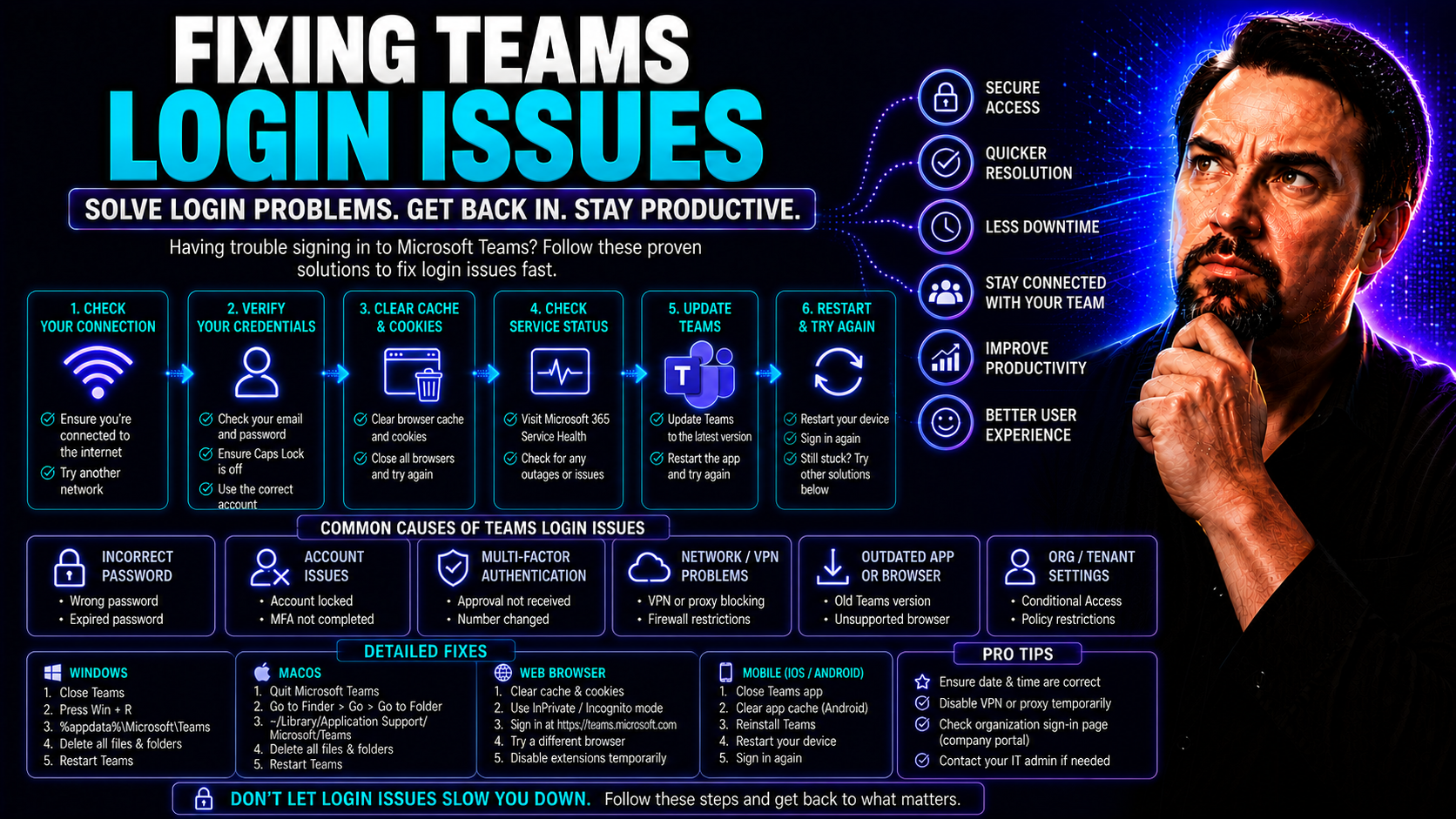
If you’ve ever been stuck staring at a spinning Teams login screen, you already know: Teams sign-in problems can bring the whole workday to a standstill. Microsoft Teams is crucial for meetings, messaging, and collaboration, but even a small login glitch can knock you offline for hours. These issues aren't just annoying—they can stop projects dead in their tracks.
This guide walks you through every angle of fixing Microsoft Teams login issues, breaking down why they happen and how to get back in fast. Expect straightforward fixes for everything from forgotten passwords to mysterious authentication errors, plus advanced steps for network and security pitfalls. Whether you’re just trying to log in or managing Teams for an entire company, you’ll come away with the confidence (and tricks) needed to solve even the trickiest sign-in headaches.
Understanding Why You Can't Sign In to Microsoft Teams
The reasons behind Microsoft Teams refusing your login are often more common than you’d think. Network hiccups top the list—it could be your Wi-Fi is down, your firewall’s blocking access, or your company’s proxy is keeping Teams from reaching its servers. Even a brief network lag can cause unusual login errors.
Incorrect credentials also haunt many users. Maybe there’s a typo in your username, or you’ve forgotten you recently reset your Microsoft 365 password. Sometimes, accounts get locked after too many attempts, leaving you out in the cold even if you eventually remember the right password.
Bigger issues can come from Microsoft’s side too. A widespread service outage can sweep through and block sign-ins for entire regions. These rare global problems leave even seasoned IT folks scratching their heads, as everything looks fine locally but Teams refuses to cooperate.
Lastly, security settings like multi-factor authentication (MFA), expired sessions, or strict device requirements may quietly keep you out without clear error messages. If your company uses policies around device compliance or location-based access, that invisible wall might be what’s stopping your login—especially if you’re trying to sign in from somewhere new or on a freshly updated device.
Verify Microsoft 365 Service Status and Authentication
- Check Microsoft 365 Service Status: Visit the Microsoft 365 status page to see if Teams and related services have ongoing outages or disruptions.
- Confirm Account Authorization: Make sure your Microsoft Teams account is active and assigned the right licenses in the Microsoft 365 Admin Center.
- Review Sign-In Permissions: Double-check that your account hasn’t been blocked or disabled by an admin or due to expired credentials.
- Authentication Method: Confirm that your login method (like MFA, app password, or SSO) is correctly set up and hasn’t changed recently.
- Contact IT or Admin: If in doubt, reach out to your IT support or admin to make sure your account has the right access for Teams sign-in.
Step-by-Step Teams Login Troubleshooting with Built-In Microsoft Tools
Before jumping into deeper troubleshooting or manual workarounds, it pays to use the official diagnostic tools Microsoft provides. These built-in Teams diagnostics and the Remote Connectivity Analyzer can quickly reveal if your issue is a local glitch or something more systemic, saving you time and guesswork.
Using these tools is like having an expert looking over your shoulder. Instead of chasing random fixes, you get a structured process to check everything from network reachability to authentication errors. Microsoft has designed these troubleshooters to zero in on common culprits—bad connections, DNS slip-ups, expired tokens, blocked ports—and help you fix them with clear recommendations.
In the next section, you’ll find a practical guide to running a health check on your Teams login using Microsoft's Remote Connectivity Analyzer and other smart diagnostic utilities. You’ll learn how to get actionable data, interpret the results, and know when you’re dealing with something the automated tools can’t fix—pointing you toward the right next step without wasted effort.
How to Troubleshoot and Resolve Sign-In Issues in Teams Using Microsoft Remote Connectivity Analyzer
- Access the Remote Connectivity Analyzer:Go to the official Microsoft Remote Connectivity Analyzer site and choose the 'Microsoft Teams' diagnostic test. This tool is accessible online—no extra software needed.
- Input Account Details:Enter your Teams email address and any requested credentials. The Analyzer uses this to check your connection to Microsoft 365 servers and Teams authentication endpoints.
- Let the Tool Run Its Tests:The Analyzer automatically checks your network connection, DNS resolution, authentication responses, and the required services for Teams. It flags problems like unreachable servers, SSL/TLS handshake failures, or authentication token issues.
- Review Diagnostic Results:After the scan, review the output for errors. The tool provides a summary—look for any failed steps or warning icons. Most common issues are explained with links to Microsoft’s knowledge base for further action.
- Follow Recommended Fixes:Apply any solutions the Analyzer suggests, such as adjusting firewall rules, fixing DNS settings, or re-authenticating your account. If errors persist, record the exact messages—these details are invaluable for IT support or when opening a Microsoft support case.
Manual Fixes for Persistent Microsoft Teams Login Errors
- Clear the Teams cache: Use this if login loops, stale authentication, or blank screens persist after normal troubleshooting.
- Reset authentication settings: Remove saved credentials or expired tokens in Windows Credential Manager or your device’s keychain to clear out corrupted sign-in data.
- Switch authentication method: Try signing in with a different method (for example, app passwords or alternate MFA) if the default process fails.
- Reconfigure network settings: Update proxy and firewall rules or temporarily disable security tools that might block Microsoft authentication endpoints.
- Contact admin for account review: Use this when you’ve tried everything and suspect a deeper enrollment or licensing snag.
Microsoft Teams App Fixes: Clear Cache, Repair, or Reinstall
Sometimes, the trouble lies right on your computer. If network, account, and service checks all look good, Microsoft Teams app problems—like a corrupted cache or broken installation—can block a successful sign-in. App-level fixes are fast and effective when login errors or endless loops happen only on a single device.
This section is all about tackling those local Teams client mysteries. Before uninstalling anything, clearing Teams’ cache often refreshes outdated sign-in tokens or settings. If that doesn’t cut it, a clean uninstall and reinstall will usually fix corrupt files or persistent configuration bugs holding back your login.
Stick around for step-by-step guidance on each of these fixes. You’ll learn how to clear the cache on Windows and Mac, and how to fully remove and reinstall Teams for that “brand new app” feeling—great for root-level login bugs or when switching between business and personal accounts. The following walkthroughs make sure it’s done right the first time, so you don’t get stuck in another sign-in loop.
How to Fix Microsoft Teams by Clearing the Cache
- Completely exit Teams:Right-click the Teams icon in your system tray (Windows) or dock (Mac) and choose 'Quit' to ensure it’s not running in the background.
- Navigate to the Teams cache folder:On Windows, open File Explorer and go to %appdata%\Microsoft\Teams. On Mac, navigate to ~/Library/Application Support/Microsoft/Teams.
- Delete cache files:Select everything inside the Teams folder except the 'Meeting Add-in' folder, then delete. This clears session tokens and old data that might block sign-in.
- Restart Teams and sign in again:Reopen Teams and enter your credentials. Most lingering authentication or looping issues disappear after this step.
Manual Fix: How to Uninstall and Reinstall Teams for a Fresh Start
- Uninstall Teams from your device:On Windows, use 'Add or Remove Programs' to uninstall Microsoft Teams. On Mac, drag the Teams app to the Trash and empty it.
- Remove leftover data:After uninstalling, manually delete the Teams data folder (%appdata%\Microsoft\Teams for Windows, ~/Library/Application Support/Microsoft/Teams for Mac) to wipe any hidden configuration files.
- Reinstall Teams:Download the latest version of Microsoft Teams from Microsoft’s official website and install it cleanly.
- Open Teams and try logging in again:This ensures no corrupted settings or residual bugs interfere with the login process.
Advanced Authentication Troubleshooting and Admin Settings Reference
For many organizations, Teams sign-in issues run deeper than device settings or personal account errors. They’re often tied to authentication architecture—think OAuth tokens, single sign-on, and policies that govern who gets in and why. If you’re an IT admin or the tech-savvy type, this section is your map to the plumbing and wiring of Teams logins.
You’ll discover how modern authentication shapes access: from multi-factor authentication (MFA) to conditional access rules controlling sign-ins based on device and location. Problems can crop up if SSO tokens expire, tokens fail to refresh, or governance settings change at the tenant level. Understanding these moving parts can save you hours—sometimes days—of frustration chasing phantom errors that stem from a misaligned security policy.
The tools at your fingertips go beyond basic checks. Admins can review license assignments, app permissions, and security policies straight from the Microsoft 365 Admin Center. As you comb through these settings, don’t forget the power of well-built governance frameworks. For a closer look at securing Teams and enforcing best practices, check out this detailed security podcast: Microsoft Teams Security Hardening Best Practices.
How Modern Authentication and SSO Affect Teams Sign-In
Modern authentication in Microsoft Teams relies on OAuth tokens, single sign-on (SSO), and conditional access policies to determine if and how a user can sign in. These systems check credentials, verify device compliance, and may prompt for multi-factor authentication (MFA).
Common login problems occur if tokens expire, SSO states become corrupted, or new conditional access rules are enforced—sometimes leading to stuck or invisible login challenges. IT admins should monitor for MFA loops, SSO token alignment with Azure AD, and update policies as needs evolve to ensure seamless access across their Microsoft 365 environment.
Admin Center Reference Guide for Teams Sign-In Access
- Check user license assignments:Ensure every user has an active Microsoft Teams license in the Microsoft 365 Admin Center for sign-in to work.
- Review app permissions and access policies:Confirm that Teams is enabled as an allowed application in user and organizational settings.
- Audit conditional access rules:Inspect rules for device compliance, location, or MFA that may silently block Teams login. For robust security strategies, see this security hardening guide.
- Monitor Teams governance frameworks:Well-defined governance, explained further in this governance overview, prevents accidental lockouts and ensures user roles and permissions are clear.
Getting Help and Exploring Support Options for Teams Login Problems
If you’ve tried every fix in the book and Teams still won’t let you in, don’t sweat it—there’s plenty of help at your fingertips. Knowing how to reach out and what to provide can mean the difference between waiting hours and getting a speedy resolution.
This section ties up the guide by showing you exactly where to go next. Whether you want to submit feedback directly in the Teams app, open a Microsoft support case, or tap into a wider community of Teams users and IT experts, this is where you find your lifeline.
You’ll also learn the basics of gathering evidence and building a bulletproof support ticket—screenshots, error codes, and details reduce back-and-forth and help support teams zero in on stubborn login bugs fast. Come away with a clear path forward, so no login issue leaves you stranded for long.
Submitting Feedback and Getting Help from Microsoft Support
- Use Teams' built-in feedback tool:Click your profile picture in Teams, select 'Help', then 'Give feedback' to report issues directly to Microsoft.
- Open a Microsoft support ticket:Log in to the Microsoft 365 Admin Center (for admins) or the Microsoft support page, and provide screenshots, steps taken, and error codes.
- Describe your issue clearly:Summarize when and how the login problem occurs. Precise information helps reduce resolution times and unnecessary back-and-forth with support staff.
- Know what to expect:Microsoft typically responds within 24-48 hours, prioritizing business-critical impacts. Severity levels can influence response times, so mention if Teams downtime is halting major work.
Additional Options and Reference Materials for Teams Login Issue Resolution
- Browse Microsoft community forums:Other users have likely asked similar questions—search or post at Microsoft Tech Community for Teams login problems.
- Contact your IT helpdesk:If you’re in an enterprise environment, local IT support can escalate issues internally or check account configurations.
- Review official documentation:Microsoft’s knowledge base is packed with troubleshooting articles—search for error codes or symptoms you’ve detected.
- Leverage expert guides on governance:Resources like this Teams governance guide provide helpful frameworks for persistent access issues and complex teams environments.
- Escalate persistent or rare cases:For uncommon authentication bugs or tenant-level issues, ask admins to open premier or dedicated support cases with Microsoft.
You Should Also Listen To
If you are working on Microsoft Teams login issues, these episodes add practical context on architecture, troubleshooting, security, and governance:
- Recording, Transcription, and Breakout Rooms — Understand meeting features, recording behavior, and collaboration workflows.
- Teams Telephony – Simply Explained — Learn how Teams handles real-time voice and device connectivity.
- Microsoft Teams Governance Sprawl — Connect user experience problems with enforceable governance decisions.
- Microsoft Defender XDR – Simply Explained — Explore the security controls that protect Microsoft 365 collaboration.

Microsoft MVP | Host of M365.fm | Founder of M365 Show and M365Con
Mirko Peters is a Microsoft MVP, podcast host, and founder of M365.fm, M365 Show, and M365Con. His work connects Microsoft practitioners through podcast interviews, livestreams, and community events.
At M365.fm, Mirko hosts conversations with Microsoft MVPs, product experts, architects, and community contributors. Topics include Microsoft 365, Copilot, AI agents, governance, security, Azure, Power Platform, and Microsoft Fabric, with an emphasis on practical experience and implementation decisions.
M365.fm is the podcast and learning platform. M365 Show brings experts together for livestreams, while M365Con provides an online conference setting for community learning.
Official website: Mirko Peters (https://www.mirkopeters.com/). Recognition: Mirko Peters — Microsoft MVP profile (https://mvp.microsoft.com/de-DE/mvp/profile/9b0ca797-db5a-493a-a845-8b9158046cf5). Connect on LinkedIn (https://www.linkedin.com/in/m365showpodcast/).





