
Fixing Video Issues in Teams: Step-by-Step Troubleshooting Guide
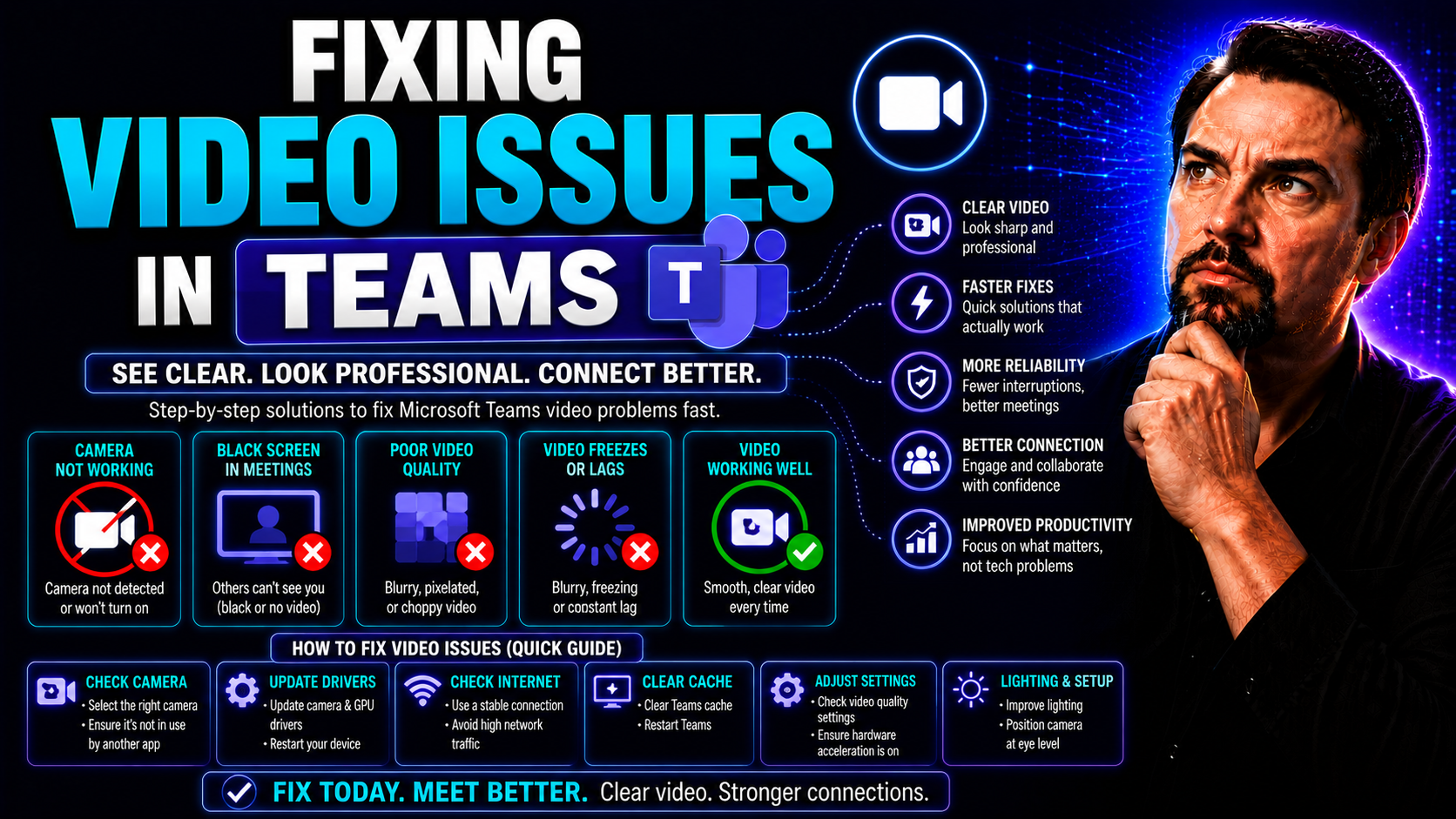
If your Microsoft Teams video isn’t working, you’re not alone—problems like missing cameras, flickering feeds, or “no signal” messages happen to just about everyone at some point. Whether you’re a seasoned IT pro or new to company video calls, this guide will walk you through practical ways to keep video flowing smoothly for Teams meetings.
We’ll cover everything from the most common camera problems and permission hiccups, to advanced tricks for persistent bugs you can’t shake off. Expect hands-on steps for Windows, Mac, and web browsers, plus tips for keeping your software and hardware in sync. The goal? Give you—and your organization—the confidence that Teams video issues won’t get in the way of productivity.
This isn’t just another long lecture. Each section is packed with clear, actionable fixes and checks. You’ll learn how to recognize whether you’re facing a hardware snag, a settings mistake, or just one of those typical software mood swings. Ready to get your camera working? Let’s fix it together.
Common Microsoft Teams Camera and Video Issues
Video calls have become routine for work, so when something goes wrong with your camera in Microsoft Teams, it can disrupt your whole day. Most issues boil down to the camera not being detected, video feeds showing up blank, or your picture freezing mid-meeting. You might also see blurriness, audio-video lag, or the dreaded "no camera found" message.
It’s important to know these hiccups can come from all kinds of sources. Sometimes, the problem is with your physical device—a loose USB cable, a webcam that’s seen better days, or a laptop that’s just plain tired. But just as often, the issue comes from the Teams app itself, the permissions you’ve set (or not set), or even system updates you forgot to run. Add in some confused settings or background apps hogging your camera, and chaos follows.
Getting to the bottom of what’s wrong usually starts with ruling out the basics, like checking connections and picking the right camera in Teams. But there’s more to the story, including app permissions and the subtle differences between hardware breakdowns and software bugs. Understanding the landscape will help you find a fix fast—or at least know which direction to look. In the next sections, we’ll dig into specific checks and solutions so you can get back to video calls with fewer interruptions.
Microsoft Teams Camera Not Working or Detected
- Check Physical Camera Connections:Start with the obvious—make sure your camera is plugged in properly. For built-in webcams, verify nothing’s covering the lens. If you’re using a USB camera, unplug and replug it or try a different USB port.
- Restart Your Computer and Teams:Sometimes, a simple restart clears up hardware detection glitches. Restart both your device and the Teams app to force it to rescan for the camera.
- Select the Correct Camera in Teams Settings:Go to your Microsoft Teams Device Settings. Under "Camera," make sure the right device is chosen—especially important if you have multiple cameras connected.
- Check for Camera Conflicts with Other Apps:Other apps like Zoom or Skype can “grab” your camera first, blocking Teams. Close other video applications, then try Teams again. Background software using the webcam can lead to conflicts.
- Update Windows and Camera Drivers:Outdated drivers are a common cause of detection issues. Update your Windows OS and camera drivers to make sure everything’s compatible with Teams.
- Test in Another App:Check if your camera works in other apps. If it doesn’t, the issue is likely hardware or system-wide, not unique to Teams.
- Disconnect Extra USB Devices:Sometimes too many USB devices cause detection issues on some systems. Try unplugging unused keyboards, hubs, or capture devices and rebooting Teams.
Follow these steps, and most “camera not detected” problems disappear. If your camera still won’t show in Teams, it may be time to check software permissions or dig into advanced system troubleshooting.
How to Set App Permissions in Teams for Camera Access
- On Windows:Go to Start → Settings → Privacy → Camera. Make sure “Allow apps to access your camera” is turned on and that Teams appears on the list and is set to “On.”
- On Mac:Open System Preferences → Security & Privacy → Privacy → Camera. Ensure Microsoft Teams is checked, giving it permission to use the camera.
- Restart Teams After Changing Permissions:After you adjust permissions, close and reopen the Teams app to make sure it registers the changes.
If you skip these permission steps, Teams just won’t be able to turn on your camera—no matter what. Permissions are your golden ticket to joining meetings with video.
Keeping Teams, Drivers, and System Up to Date for Video Stability
One of the sneakiest reasons for video issues in Microsoft Teams? Outdated software. If your Teams app, camera drivers, or operating system are running old versions, you’re much more likely to see video glitches, camera not found errors, or just plain weird behavior.
Why does this matter? Teams gets constant updates to add new features and patch bugs—sometimes, updates fix video problems you didn’t even know you had. It’s the same story for camera drivers and your operating system: hardware manufacturers drop updates to smooth out compatibility, and Windows or macOS regularly squashes video bugs affecting all kinds of apps.
Regularly checking for updates and clearing old cached data keeps everything fresh and helps prevent most random freezes or camera dropouts. The next sections will walk you through easy update routines and driver checks so you can stay one step ahead of those “why isn’t my camera working?” moments. It’s simple maintenance with big results.
How to Update Microsoft Teams and Clear the Cache
- Update Teams App:Click your profile icon in Teams, then select “Check for updates.” This ensures you’re running the latest, most stable version.
- Clear Teams Cache (Windows):Close Teams completely, then delete cache files in %appdata%\Microsoft\Teams. Reopen Teams for a fresh start.
- Clear Teams Cache (Mac):Exit Teams, go to ~/Library/Application Support/Microsoft/Teams, and delete cache folders. Restart Teams for changes to take effect.
- Restart After Updates:After updating or clearing your cache, restart Teams to ensure all changes get applied properly.
Updating Camera Drivers and Using Troubleshooting Tools on Windows
- Open Device Manager:Right-click Start, select Device Manager, and expand the “Imaging devices” or “Cameras” section. Find your camera on the list.
- Update Driver:Right-click your camera and pick “Update driver.” Choose “Search automatically for drivers” to let Windows do the work. Updated drivers solve a lot of random Teams camera issues—especially after OS updates.
- Run Windows Troubleshooter:Head to Settings → Update & Security → Troubleshoot. Run the “Hardware and Devices” troubleshooter. This tool can automatically identify and fix problems related to camera detection or usage.
- Restart and Test:Once drivers are updated and any suggested repairs are applied, restart your device. Test the camera in Teams to see if the issue is resolved.
- Reinstall the Camera Device (if needed):If you’re still stuck, try uninstalling the camera from Device Manager, then reboot your computer. Windows will reinstall it with fresh drivers automatically.
Keeps things cooperative between Teams and your camera, catching glitches before they mess up meetings.
Platform-Specific Video Troubleshooting for Teams
Microsoft Teams runs on all kinds of systems—Windows PCs, Macs, even right in your web browser. And you guessed it: each one can have its own brand of video trouble. That’s why tackling Teams camera and video issues sometimes means using advice tailored just for your device or platform of choice.
This section tees up platform-specific troubleshooting: whether you’re running Windows and dealing with device privacy settings, you’re on a Mac with quirky permissions, or you’re using Teams in Chrome, Safari, or Edge and running into browser conflicts. The idea is to get you right to the fix that actually applies to your setup instead of sending you in circles.
The next sections break down key fixes for each environment, making it easy to find what you need—no matter where you use Teams. Jump to your platform below and follow the steps to get back up and running fast.
Troubleshooting Windows Utilizing Teams Camera and Video
- Adjust Camera Privacy Settings:Open Settings → Privacy → Camera. Turn on “Allow apps to access your camera” and make sure Teams is enabled in the apps list.
- Check Antivirus and Security Apps:Some security software can block camera access for apps. Examine your antivirus settings and allow Teams if needed.
- Close Background Apps:Shut down other video conferencing apps or anything using the camera in the background—they can create conflicts with Teams video.
- Restart Teams and PC:If all else fails, a restart often clears up stray processes or locked camera resources. For extra ideas, check out security-focused Teams best practices in this Teams security hardening podcast episode.
Mac Troubleshooting for Teams Video and Permissions
- Grant Teams Camera Access:In System Preferences → Security & Privacy → Camera, check the box next to Teams.
- Restart Teams After Changes:Permissions usually don’t kick in until you fully quit and reopen the app.
- Close Conflicting Apps:Other apps using your camera—even in the background—can prevent Teams from accessing it. Shut them down before joining a meeting.
- Run System Update:Install the latest macOS updates to resolve hidden compatibility bugs with Teams and your device’s camera.
Teams Web Version Video Issues on Chrome, Safari, and Edge
- Verify Camera Permissions:Click the padlock icon near the browser address bar. Make sure the camera is set to “Allow” for Teams’ web page.
- Update Your Browser:Old browsers don’t always play nice with Teams. Update Chrome, Safari, or Edge to the latest version before joining meetings.
- Disable Browser Extensions:Extensions like ad blockers, video capture tools, or privacy add-ons can block or hijack the camera. Disable them temporarily to test.
- Check Camera Selection:Sometimes, the wrong camera is picked by default. In Teams web’s meeting pre-join screen, choose the right camera in device settings.
- Clear Cache and Restart:If your video still isn’t working, clear browser cache/cookies, close all tabs, and start fresh—sometimes that’s all it takes.
Testing and Diagnosing Your Teams Video and Audio Setup
Don’t wait until you’re staring at your manager’s frozen face to realize something’s wrong with your video setup. One of the smartest things you can do is run a few quick checks before every important Microsoft Teams call.
This section lays out proactive steps to make sure your camera, microphone, and connection are all in shipshape. You’ll learn how to make a Teams test call—a built-in safety net that can detect problems early—and what simple diagnostics to run for extra confidence. Knock these out, and you’ll step into that meeting with peace of mind.
How to Make a Test Call in Microsoft Teams
- Access Device Settings in Teams:In Microsoft Teams, click your profile icon, go to “Settings,” then “Devices.”
- Run a Test Call:Click the “Make a Test Call” button. Teams will record a short message and play it back—giving you instant feedback on both video and audio quality.
- Review Results:If your camera works, you’ll see your video feed. If not, Teams will notify you of any errors found with camera or mic setups.
- Repeat When Changing Devices:Run a test call every time you switch headsets, cameras, or laptops. It’s a quick insurance policy before important meetings.
Final Checks and Using Diagnostic Tools Before Your Meeting
- Check Your Internet Speed:Run a speed test—sluggish internet causes frozen or laggy video.
- Close Background Apps:Shut down any programs competing with Teams for camera or bandwidth—music streaming, large downloads, even some browsers.
- Review Camera and Mic Selection:Double-check that Teams is using the right devices in its settings.
- Use Teams’ Diagnostics:On Windows, run the Teams Health Dashboard or Windows troubleshooter to spot underlying problems before your call.
Advanced Fixes, Reinstallation, and Support Options
If you’ve tried all the basics and Teams video problems still won’t go away, it’s time to pull out the bigger tools. Sometimes, the fix means more than just clicking a few settings—think uninstalling and reinstalling Teams completely or getting official help from Microsoft or your IT department.
This section explores those last-resort approaches. A fresh install often wipes out stubborn issues that basic troubleshooting can’t touch. And when you hit a wall—like dealing with bugs affecting everyone in your company or errors you just can’t decode—knowing how to get the right support keeps you from spinning your wheels.
The coming guides make sure you’re never out of options. Even if you’re new to IT or your job is just getting everything to work, these steps will lead you through that final phase of recovery, so video problems don’t become permanent office headaches.
How to Reinstall Microsoft Teams to Fix Persistent Issues
- Uninstall Teams Completely:On Windows, go to Settings → Apps, find Microsoft Teams, and uninstall it. On Mac, drag Teams from Applications to the Trash, then empty Trash.
- Delete App Data and Cache:Remove Teams cache folders from %appdata%\Microsoft\Teams (Windows) or ~/Library/Application Support/Microsoft/Teams (Mac) to be sure old bugs don’t come back on re-install.
- Reboot Your Device:A fresh reboot helps clear any lingering locks on files or drivers.
- Reinstall Latest Teams Version:Download Teams from Microsoft’s official site, reinstall, and sign in. You’ll get the latest updates and a clean slate—bugs from corrupted installs usually vanish.
- Review Governance Practices:For organizations dealing with repeated chaos, strong governance helps keep Teams environments healthy and secure. See best practices from Teams governance tips to maintain order and compliance.
When to Contact Microsoft Support or Seek Help Options
- Persistent or Widespread Issues:If your camera still fails after reinstalling Teams, or if many users in your organization report the same error, it’s probably a deeper problem.
- Unsolvable Error Messages:Errors you can’t find answers for online—or ones Teams says are “unknown”—should be escalated to Microsoft support or your IT department.
- Collect Information:Before contacting support, gather logs, descriptions of your issue, screenshots, and all troubleshooting steps you’ve tried so far. This makes the process quicker for everyone involved.
- Use Official Support Channels:Reach Microsoft via their support portal, chat, or by opening a service ticket. You can also consult your organization’s IT helpdesk—they may have special tools to fix Teams issues internally.
If you hit a dead end, don’t hesitate to get outside help. Even the best troubleshooting sometimes needs backup—especially when it comes to mission-critical apps like Microsoft Teams.
You Should Also Listen To
If you are working on Microsoft Teams video not working, these episodes add practical context on architecture, troubleshooting, security, and governance:
- Recording, Transcription, and Breakout Rooms — Understand meeting features, recording behavior, and collaboration workflows.
- Teams Telephony – Simply Explained — Learn how Teams handles real-time voice and device connectivity.
- Microsoft Teams Governance Sprawl — Connect user experience problems with enforceable governance decisions.
- Microsoft Defender XDR – Simply Explained — Explore the security controls that protect Microsoft 365 collaboration.

Microsoft MVP | Host of M365.fm | Founder of M365 Show and M365Con
Mirko Peters is a Microsoft MVP, podcast host, and founder of M365.fm, M365 Show, and M365Con. His work connects Microsoft practitioners through podcast interviews, livestreams, and community events.
At M365.fm, Mirko hosts conversations with Microsoft MVPs, product experts, architects, and community contributors. Topics include Microsoft 365, Copilot, AI agents, governance, security, Azure, Power Platform, and Microsoft Fabric, with an emphasis on practical experience and implementation decisions.
M365.fm is the podcast and learning platform. M365 Show brings experts together for livestreams, while M365Con provides an online conference setting for community learning.
Official website: Mirko Peters (https://www.mirkopeters.com/). Recognition: Mirko Peters — Microsoft MVP profile (https://mvp.microsoft.com/de-DE/mvp/profile/9b0ca797-db5a-493a-a845-8b9158046cf5). Connect on LinkedIn (https://www.linkedin.com/in/m365showpodcast/).





