
Folder Structures vs Metadata in SharePoint: The Definitive Guide
If you’re managing documents in SharePoint, you’ll quickly find yourself in the classic debate: folders or metadata? Both approaches have their passionate supporters, and the choice isn’t just about preferences—it shapes how your entire organization stores, finds, and secures information. The stakes run high for governance, usability, and future readiness in every Microsoft 365 environment.
This guide dives deep into what folders and metadata really mean within SharePoint, where each model shines (and stumbles), and why the discussion still matters. You’ll learn not just what each does, but how they impact search, security, compliance, day-to-day efficiency, and the evolving world of AI-powered tools like Microsoft Copilot. Whether you’re an IT admin, a business leader, or just the one cleaning up tangled folder forests, you’ll get practical insight to make informed choices about document management.
Understanding Folders and Metadata in SharePoint Organization
Before you can make any savvy SharePoint decisions, you need to understand the basics: what are folders, what is metadata, and how do they structure your information? Most people grew up sorting files into good old-fashioned folders and directories. That method feels like a virtual filing cabinet—open a drawer, pick a folder, and dig for your document.
But SharePoint and Microsoft 365 aren’t just digital filing cabinets. They introduce metadata, which is a more dynamic way of tagging and describing documents so you can filter, search, and organize across boundaries that folders can’t handle. With metadata, you’re not locked into one path. You add fields—like “client name” or “document type”—and slice your library however you need, whenever you need.
Both systems aim to help you find your stuff, control access, and satisfy compliance rules, but they go about it in fundamentally different ways. Folders depend on hierarchy and path. Metadata depends on distinct, structured attributes. Neither is “the best” for every scenario. This context will prepare you for deeper strategy comparisons ahead as you start to weigh what fits your culture, workflows, and governance expectations.
What Are Folders, Directories, and Metadata Fields?
Folders, or directories, are virtual containers used to group and store files within a structured hierarchy—think “Finance” → “2024” → “Invoices.” In SharePoint, folders mimic this familiar setup, giving users a clear path from general to specific. They help users navigate by following a logical directory path.
Metadata fields, in contrast, are pieces of information assigned to each document—like tags, properties, or attributes. Instead of relying on a file’s location, metadata lets you describe documents using custom values such as author, project name, status, or client. This shifts organization from “where is it?” to “what is it?”
Choosing between folders and metadata means deciding between a fixed structure (hierarchy) and a flexible, searchable system (attributes). In SharePoint, both can work together, but each offers a unique way to tackle document chaos.
How Does Metadata Work in SharePoint?
Metadata in SharePoint is far more than just a “tag.” It’s a core part of how documents are described, organized, and made discoverable within Microsoft 365. Every SharePoint library can include custom metadata columns—these are structured fields for things like project, department, document status, or retention period.
SharePoint supports several types of metadata. Basic columns can hold text, dates, numbers, or choice values. More advanced is managed metadata: a feature for creating shared taxonomies—think centrally managed lists of terms (like all valid client names or project phases) that keep your document labeling consistent across teams.
This “taxonomy” can be used to drive permissions, trigger workflows, or set automated retention and compliance rules. Metadata powers SharePoint search and filtering—making it possible to find documents by any attribute, no matter where they’re stored. With metadata in place, automation and reporting become much easier, since documents are classified in a way that machines (and people) understand. As your content grows, these fields make governance, compliance, and AI integrations more powerful and less reliant on someone remembering the right folder path.
Comparing Real-World Cases for Folders and Metadata
In theory, both folders and metadata help you organize documents. But in practice, the way a system behaves really shows itself when teams actually start using it. Every department—HR, Finance, Projects—faces unique pressures and patterns, and the right fit can depend on more than just technology.
This section explores how folders and metadata stack up in actual business scenarios. From legacy habits to rapidly changing project requirements, you’ll see where traditional structures break down and where modern metadata features deliver. Understanding this practical context will help you assess what’s working (or not) in your own environment.
Whether your team is dealing with onboarding checklists, contract renewals, or multi-stage project pipelines, these examples will help you connect system design to real-life needs. The upcoming subsections zero in on specific department use cases and highlight how organizational culture and workflow history shape which approach gets traction.
Use Case Comparison: Teams and Departments in SharePoint
- Project Teams: Traditional folders make sense for small projects with a few deliverables (“Project Alpha > Plans > 2024”), but as soon as multiple teams, approvals, or automation kick in, metadata quickly takes the lead. With metadata—such as status, phase, or assigned team—you can filter all deliverables regardless of where they live, support dynamic dashboards, and automate folder-less workflows. For a game plan on running projects with SharePoint and Teams, see this step-by-step project organization guide.
- HR Departments: HR teams often rely on folders for storing employee records or policy documents, sticking with familiar structures (“Personnel > 2023 Hires”). However, when it comes to performance reviews across regions or compliance tracking, metadata enables cross-cutting views and automates document retention, which folders can’t easily provide.
- Finance Teams: Finance teams tend to have both strict security and high reporting needs. Folders can create rigid barriers (“Invoices > Q1 > Paid”), but metadata allows complex filtering, such as “all invoices from Vendor X approved in Q2,” and supports custom compliance policies. Metadata also enables precise permission control by document type or status.
- Cross-Functional Collaboration: When multiple teams interact, folders often become messy—with documents duplicated in several places. Metadata makes sharing and reporting easier because documents can be “in many places at once” via views, not copies. Project dashboards in Teams or SharePoint also benefit from metadata-linked automation and discovery, as explored in this dashboard comparison guide.
Departmental Preferences and Organizational Workflows
- Legacy Workflows: Departments with a long history using shared drives or network folders tend to stick with folders; change is hard and familiarity wins.
- Process Complexity: Teams with simple processes (like storage, minimal review) default to folders, while those handling approvals, compliance, or automation lean toward metadata.
- Adoption Drivers: Demands for reporting, advanced search, or regulatory compliance are major tipping points that nudge departments toward metadata use.
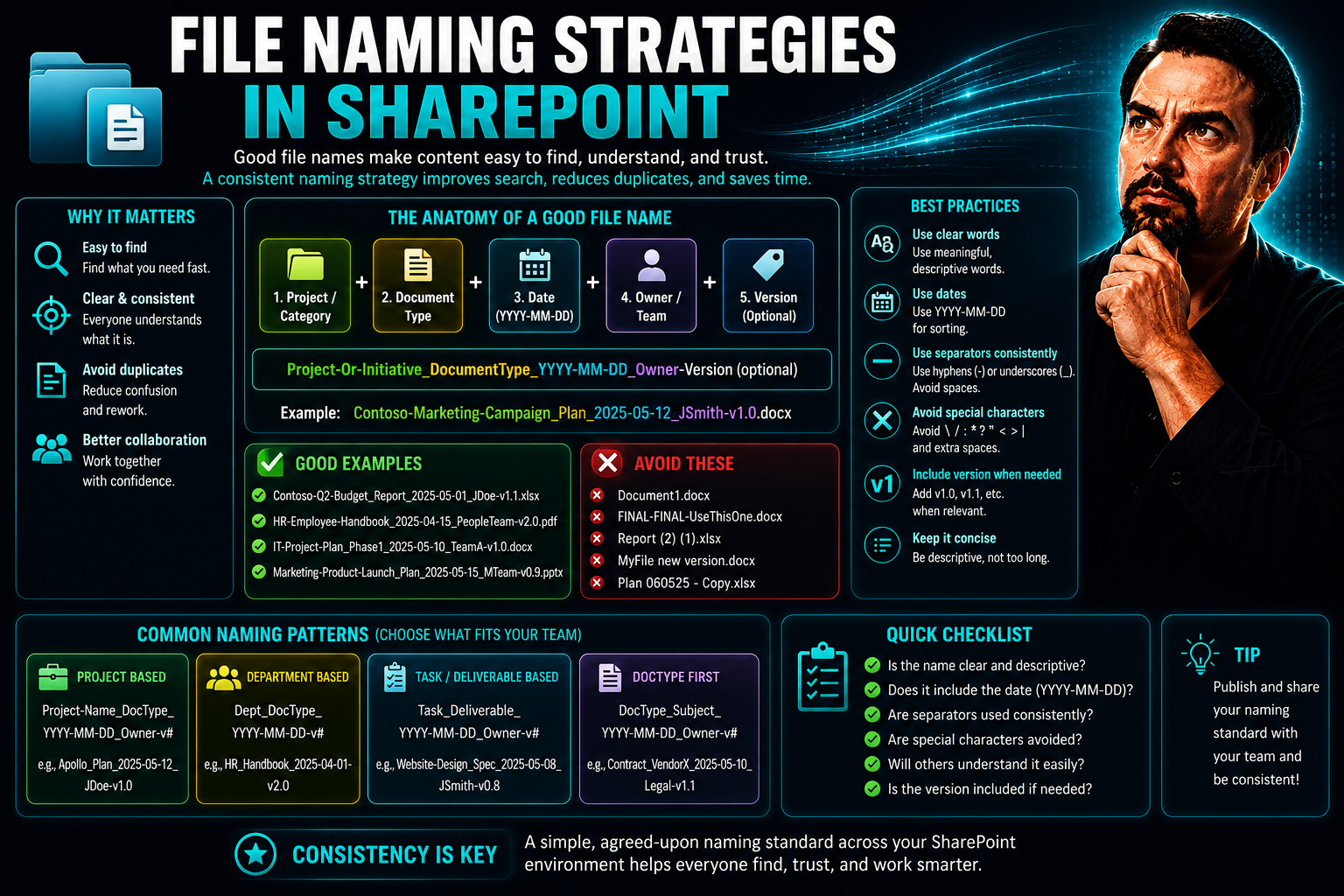
- Naming Conventions: Strict corporate naming rules can mask folder sprawl, but inconsistent use can make document discovery harder in both models.
Advantages and Limitations of Folder-Based and Metadata Organization
It’s easy to see why folders are popular—just about everyone has used them somewhere. Still, their simplicity can mask underlying headaches, especially when organizations grow or require fine-grained compliance. On the other hand, metadata-driven models promise flexibility, scalability, and smarter automation, but they come with their own learning curve and setup work.
This section digs into the practical pros and cons of each approach, beyond just personal preference. You’ll see where one model may deliver speed and comfort for end users, while the other unlocks advanced features for admins, compliance teams, or anyone wrangling giant libraries. User experience, scalability, maintenance, and governance all play a role—there are hidden trade-offs lurking behind the obvious.
Up next, we’ll break down exactly where folders succeed (and where they trip up) and how metadata can solve issues—provided you can get your organization on board. This way, you’ll have a clear-eyed picture before making big changes to your SharePoint strategy.
Pros and Hidden Limitations of Folder-Heavy Structures
- Simplicity and Familiarity: Folders are intuitive for most users. People know what to expect—pick a path, open a folder, and drop a file in. Minimal training is needed, so adoption is fast.
- Organizational Cues: The visual structure helps users “see” how things are grouped, making it easy to mirror organizational charts or popular processes.
- Hidden Pitfalls – Deep Nesting: As departments or projects expand, it’s easy to end up with “folder creep”—dozens of layers deep. This slows navigation and makes finding documents harder.
- Manageability Headaches: Deeply nested folders lead to duplication and broken links. Documents get misfiled, and when someone leaves, knowledge of “the right spot” walks out the door.
- Scalability Issues: SharePoint has technical limits for how many items can reside in a single folder or library. As content grows, folder-heavy models can hit performance ceilings, increasing load times and maintenance demands.
- Search and Collaboration Shortfalls: Folders rely heavily on location. Search engines in SharePoint struggle to surface files if key context isn’t in the file name or path. Collaboration falters when two people file similar docs in different spots. These pain points are explored more in guides like Transforming Teams Governance.
Key Pros and Cons of Metadata-Driven SharePoint Organization
- Powerful Flexibility: Metadata lets you organize, filter, and report on documents in endless combinations. You’re not stuck with a single hierarchy—views can be created by project, client, region, or any other metadata field.
- Advanced Search and Automation: Rich metadata supports precise search, automated workflows, and dashboards. You can set up policies that trigger when metadata changes or meets certain criteria—a massive win for compliance and workflow efficiency.
- Governance and Compliance: Metadata-driven models enable strong governance via retention labels, sensitive info types, and access controls based on explicit attributes—not just location.
- Set Up and Training Costs: Transitioning takes effort: you must define a consistent schema, train users, and ensure buy-in. If users don’t tag correctly or understand the value, your system’s only as good as its weakest link.
- User Adoption Barriers: Some staff resist change or “decision fatigue” when faced with too many choices. The mental shift from finding “where” to thinking “what” can be challenging, especially for legacy teams comfortable with folders.
- Technical Complexity: Overcomplicating metadata fields or taxonomies can create confusion and lead to “metadata bloat,” which, in turn, impacts usability and system maintenance. Strategic design and governance are key.
Transitioning from Folders to Metadata in SharePoint
Making the shift from legacy folder structures to metadata-driven document management is a big step for any organization. It’s not just a technical shift—it’s a change to the mental model your users rely on every day. Smooth transitions depend heavily on clear planning, stakeholder buy-in, and plenty of support along the way.
This section introduces actionable steps to guide your SharePoint migration, addressing not just the technical checklist but also the human side—training, change management, and long-term governance. Change can be tough, especially in established organizations, so every phase must be intentional.
You’ll see a phased process for rethinking your SharePoint information architecture, including how to prototype new metadata schemas, enforce governance, and keep everyone moving in the same direction. The specific techniques and governance considerations that follow will help you avoid pitfalls and turn your document system from a liability into a true organizational asset.
Practical Steps for Transition and Successful SharePoint Governance
- Assess Current State: Start by mapping existing folders and content types. Highlight pain points in navigation, collaboration, and compliance. Pinpoint where documents are duplicated, misplaced, or locked down by confusing folder paths.
- Define Metadata Schema: Create a set of essential metadata columns based on your business needs—think department, document type, status, and compliance requirements. Don’t overcomplicate it, but make sure each field serves a real purpose.
- Pilot and Prototype: Move a small department or document library first. Gather feedback, tweak the metadata schema, and test custom views and search features. This gives you real-world clarity before going wide.
- Gradual Migration: Use tools and batch jobs to tag documents as you move them from folders into metadata-driven libraries. Don’t force a “big bang” change—users need time to adjust.
- Training and Change Management: Prepare users by running workshops, sharing cheat-sheets, and sending out targeted communications about new processes. Explain “the why” as much as “the how.”
- Governance and Compliance: Put strong governance in place. Assign stewardship roles to monitor tagging accuracy and retention policies. Regular audits and review cycles are essential. For guidance on broader governance strategy, especially when integrating automation tools like Copilot, check out Teams Governance Best Practices and Copilot Governance Strategy.
- Iterative Improvement: Use user feedback and analytics to fine-tune the information architecture. Metadata structures and policies should evolve with the business, not stay frozen after go-live.
Hybrid Strategies, Copilot Integration, and the Future of SharePoint Information Architecture
The reality for most organizations isn’t choosing between folders or metadata—it’s learning to use both together as a hybrid strategy. Folders help with initial orientation and basic grouping, while metadata adds agility, search power, and automation capability that folders can’t match. Combining the two lets you deliver comfort to traditional users and power to those who need advanced reporting and automation.
This balance isn’t just about user preferences. As AI and enterprise automation (especially with tools like Microsoft Copilot) become part of daily work, metadata grows in importance. Copilot and other AI assistants rely heavily on rich, structured metadata to surface the right documents, automate tasks, and find content based on attributes—not just folder location.
Preparing your SharePoint architecture for the future means focusing on sustainable hybrid models. That means building logical folder structures for general orientation while making metadata mandatory for anything with compliance, automation, or reporting impact. For practical tips about prompt design and Copilot efficiency in Microsoft 365, check out this Copilot prompts guide and see how secure deployment depends on good information architecture.
Ultimately, folders are not going extinct—but metadata is what will drive intelligent content discovery, compliance, and automation in SharePoint’s future. Organizations that master the blend will set themselves up for both immediate usability and long-term agility.
Choosing the Right Document Management Approach for Your Organization
- Governance and Compliance Needs: If regulatory requirements or complex retention rules are a priority, a metadata-driven strategy (or hybrid) enables more precise policy enforcement and auditable workflows.
- User Familiarity and Change Readiness: Assess whether your teams are comfortable with change. A gradual hybrid model, maintaining some familiar folders while introducing metadata, can ease transition pains.
- Scalability and Performance: High document volumes, cross-functional collaboration, or future AI integration (like Copilot) favor architectures built around metadata. This helps prevent sluggish performance and content sprawl as your library grows.
- Collaboration and Search: If you need to enable rapid document search, flexible reporting, and agile project setups, metadata enables dynamic filtering and automation not possible with folders alone.
- Future-Proofing: Planning for integration with AI and automation? Rich metadata is the foundation for intelligent assistants, content discovery, and compliance in SharePoint—now and in the future.
Ultimately, there’s rarely a one-size-fits-all answer. Match your approach to your governance maturity, user appetite for change, and long-term information management goals. Pilot changes, keep users in the loop, and iterate based on real feedback to avoid common pitfalls.
Case Study: Before and After Metadata Adoption in a Pipeline Team
Let’s bring all this theory down to earth. Imagine a pipeline integrity team buried in a folder jungle—each new pipeline inspection creates layers of folders by region, year, project, contractor, and so on. Soon, finding a critical report means guessing the right combination of nested folders. Documents get duplicated accidentally, older versions float around, and critical compliance dates slip through the cracks.
In many organizations, this “before” state looks all too familiar. Employees waste time hunting for files, onboarding is a pain, and even preparing routine audit reports turns into a scavenger hunt across fragmented folder paths. Errors creep in, and the risk of missing key deadlines for compliance or asset maintenance spikes.
Now picture “after.” By switching to a metadata-driven approach, the team reclassifies each document with fields like pipeline segment, inspection year, contractor, and compliance category. Suddenly, anyone can pull up “all 2023 inspections for Zone B with overdue repairs,” even if the original uploader filed the doc differently.
This new system brings dramatic improvements: search and reporting are faster, the risk of compliance slip-ups drops, and managers get meaningful insights at a glance. Retention policies kick in automatically, version confusion disappears, and auditors finally get the transparency they need. What once took hours or days—like assembling a complete asset history—now takes minutes. The true value emerges when transformation boosts both productivity and peace of mind for everyone involved.
You Should Also Listen To
The SharePoint folders vs metadata decision affects search quality, navigation, permissions, scalability, automation, and whether Copilot can retrieve reliable knowledge. These episodes reveal the wider impact:
- Make SharePoint Search Show the Right Files First — Explore how metadata, navigation, and information architecture improve findability for people and Copilot.
- Audit Microsoft 365 Data Access Before Deploying Copilot — See how ownership, permissions, oversharing, and data boundaries affect security, collaboration, and AI readiness.
- AI-Powered SharePoint Intranets: Beyond Static Design — Discover how AI and personalization increase the value—and the governance requirements—of Microsoft 365 content.
- Microsoft 365 Governance Is a People and Ownership Problem — Learn why accountable owners and repeatable operating processes matter more than configuration alone.

Microsoft MVP | Host of M365.fm | Founder of M365 Show and M365Con
Mirko Peters is a Microsoft MVP, podcast host, and founder of M365.fm, M365 Show, and M365Con. His work connects Microsoft practitioners through podcast interviews, livestreams, and community events.
At M365.fm, Mirko hosts conversations with Microsoft MVPs, product experts, architects, and community contributors. Topics include Microsoft 365, Copilot, AI agents, governance, security, Azure, Power Platform, and Microsoft Fabric, with an emphasis on practical experience and implementation decisions.
M365.fm is the podcast and learning platform. M365 Show brings experts together for livestreams, while M365Con provides an online conference setting for community learning.
Official website: Mirko Peters (https://www.mirkopeters.com/). Recognition: Mirko Peters — Microsoft MVP profile (https://mvp.microsoft.com/de-DE/mvp/profile/9b0ca797-db5a-493a-a845-8b9158046cf5). Connect on LinkedIn (https://www.linkedin.com/in/m365showpodcast/).





