
Getting Started With SharePoint: The Beginner's Guide
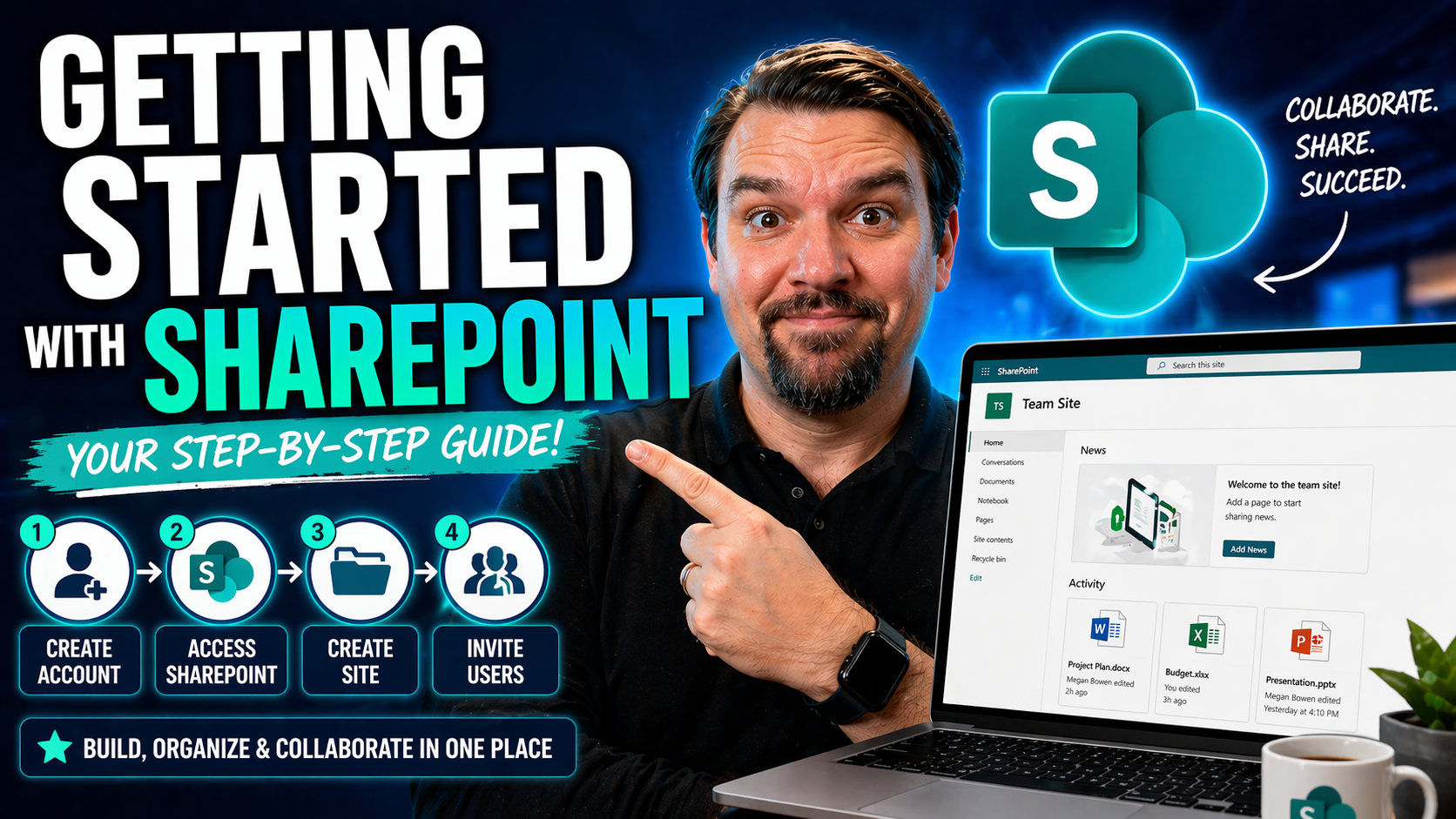
Welcome to your all-in-one beginner’s guide for SharePoint. Whether you’re brand-new or just trying to untangle years of workplace myths, this is the place to start. We break SharePoint down in plain language and lay out every step—no tech degree, buzzwords, or cab ride to IT required. You’ll learn what SharePoint does for organizations, how to build your first site, organize files, set permissions, and ramp up productivity without spiraling into confusion. Dive in, because getting started with SharePoint can be pain-free when you have the right directions and a few insider tips.
This guide walks you through every essential concept, shows you the ropes on core features, and arms you with practical next steps. If you want a clear path from “never used SharePoint before” to “I got this!”, you’re in the right place. Let’s get rolling.
What Makes SharePoint Unique?
SharePoint is Microsoft’s powerhouse platform for storing, sharing, and organizing content. It started out two decades ago as a document management system, but now it’s the backbone for modern digital workplaces around the world. The real magic? SharePoint combines easy file sharing, real-time collaboration, and full integration with Microsoft 365 into one system that scales from small teams to global enterprises.
Businesses turn to SharePoint because it’s a secure, central hub where people can work together—co-authoring files, tracking projects, and managing information without endless email chains or lost attachments. Its flexibility—everything from simple document storage to rich intranet sites—makes it a one-stop shop for teamwork. If you want a platform that does content management, collaboration, and communication, SharePoint stands out in the crowd and keeps everything in sync as your organization grows.
SharePoint Online Versus SharePoint Server: Which Is Right For You?
Before getting too deep, you’ve got to know which version of SharePoint you’re working with. SharePoint Online is cloud-based and comes bundled with Microsoft 365 subscriptions. Everything lives on Microsoft’s servers, so you don’t have to worry about installing software, server maintenance, or updates. It’s perfect if your team wants simple, anywhere access and needs seamless integration with apps like Teams, Outlook, and OneDrive. Updates arrive automatically, so you always get the latest features and security patches.
SharePoint Server, on the other hand, is installed and managed on your organization’s own hardware. It’s the classic, on-premises version. This gives IT departments more control over customizations, data storage, and security, but it comes with heavier maintenance and upgrade work. You’re in the driver’s seat, which some regulated industries or large enterprises prefer, especially if they have strict compliance rules.
For most organizations today—especially those aiming to streamline, cut costs, and support remote or hybrid work—SharePoint Online is the go-to pick. It’s always connected to the rest of your Microsoft 365 ecosystem and adapts as you scale. However, if your company needs custom solutions, full control, or doesn’t want to move to the cloud just yet, SharePoint Server could still be your play. Understanding which version fits your organization’s needs will shape your entire SharePoint journey from the jump.
Getting Started With SharePoint Sites
Building your foundation in SharePoint starts with sites. Think of a SharePoint site as your digital clubhouse—it’s where your team stores files, tracks tasks, shares updates, and collaborates all in one organized digital spot. Learning your way around sites is step one for any new SharePoint user.
Understanding sites goes beyond just clicking ‘new site.’ Sites are about structure—using workplaces that make information easy to find, collaborate on, and keep organized. In this section, we’ll discuss what a SharePoint site is, break down its central pieces (like document libraries and lists), and guide you through the first hands-on steps to get your site up and running. Ready to create a space your team will actually want to use? Let's get started.
What Is a SharePoint Site and How Do You Create One?
A SharePoint site is a dedicated space where teams, departments, or projects store and share information. It’s like a virtual office with everything in its place—documents, lists, announcements, calendars, and more. You might use a SharePoint site as a project hub, a departmental intranet, or a central spot for company policies.
To create a site, choose from templates like “Team site” (for collaboration) or “Communication site” (for broadcasting info). Just click “Create site” in SharePoint Online, name your site, pick privacy settings, and select a template. Each site gets its own homepage, document library, and customizable features. With a few clicks, you set up the core for your team’s work—no IT wizardry required.
Understanding Libraries and Lists in SharePoint Sites
When you walk into a SharePoint site, you’ll spot two heavy-hitters: document libraries and lists. Document libraries are where you store, organize, and share files like Word docs, Excel sheets, and PDFs—think of them as supercharged folders that include permissions, version history, and more.
Lists are for tracking structured data—everything from tasks and contacts to inventory and IT tickets. Lists act like spreadsheets with powerful options: custom columns, filters, automation, and easy sharing. Learning the difference means you can manage documents and data without overlap or chaos, setting you up for real productivity from the start.
Adding a Document Library to Your SharePoint Site
- Navigate to Your SharePoint Site: Go to the site homepage and click the settings gear, then choose “Add an app” or select “New” > “Document library” depending on your SharePoint version.
- Name Your Library: Give it a clear, meaningful name—think “Project Plans” or “HR Forms.” A good name helps everyone on your team instantly know what belongs where.
- Set Permissions: Decide who can see or edit this library from the start. You can assign permissions to specific users or groups to keep sensitive files secure and public files open to the team.
- Organize Starter Folders: Create initial folders, if needed (like “2024 Invoices” or “Team Photos”). Structure from day one saves headaches later.
- Customize Settings: Adjust versioning, naming conventions, and who gets notified when files change. Tailoring your library makes it easy to manage as your needs grow.
Once set up, you’re ready to upload files and start collaborating—no bottlenecks, just smooth teamwork from Day 1.
How to Upload and Organize Files in SharePoint Libraries
- Upload Files: Drag-and-drop one or many files right into your document library, or use the “Upload” button for picking files and folders straight from your PC. Quick tip: Bulk uploads work great—just select multiple files and drop them at once.
- Create & Use Folders: Build folders to group related files—project phases, teams, years, you name it. Don’t overdo the folders, though; too many layers get messy fast.
- Add Metadata: Use columns (like “Status,” “Owner,” or “Due Date”) for tagging files. Metadata is your secret weapon for sorting, grouping, and filtering documents—makes finding the right file a breeze, even after years of uploads.
- Organize Regularly: Review and reorganize as you go, not just when things spiral out. Move stale files to archive folders, merge duplicates, and keep an eye on what’s growing fastest.
- Leverage Filters and Views: Set up custom views and filters to show only what matters now—this clears the clutter for daily work and makes your SharePoint library feel less like a warehouse and more like a well-tuned toolkit.
Keeping files organized from the get-go makes SharePoint a time-saver, not a digital junk drawer. Teamwork and file-finding get easier as your library grows.
Copying, Moving, and Syncing Files and Folders
- Copy or Move Files: Select the file or folder, choose the “Copy to” or “Move to” option in the toolbar. You’ll see a panel to pick the destination—within the same library or across different SharePoint sites. Helpful when reorganizing after launching a new project or keeping annual folders tidy.
- Bulk Actions: You can select multiple files and folders at once for batch moving or copying, which is a must when spring-cleaning whole projects or shifting stuff between teams.
- Sync Libraries for Offline Access: Want files on your computer without manually downloading every time? Click “Sync” in your library, and files show up in your Windows Explorer (or Finder on Mac) via OneDrive for Business. Changes you make offline sync once you’re back online.
- Common Scenarios: Use “Move to” for archiving last year’s files or copying templates into a new team workspace. “Sync” makes SharePoint docs and folders as handy as your usual desktop folders—no need for Wi-Fi to stay productive.
These features keep your SharePoint space clean, help avoid duplicates, and let you work your own way, online or off.
Collaborating in Real Time With SharePoint
SharePoint isn’t just for storing files; it’s built to fuel real teamwork. The magic happens when your team can work on documents together in real time—no waiting for someone to finish before you jump in, and nobody stepping on someone else’s toes. Add version control, document templates, and easy sharing, and you’ve got a recipe for truly effortless collaboration.
In the next section, we’ll look at how real-time co-authoring and tools like version history take your teamwork up a notch. SharePoint helps teams stay in sync, avoid accidental overwrites, and standardize the way you work together—whether you’re dealing with daily checklists or big quarterly reports.
How Real-Time Co-Authoring Works in SharePoint Document Libraries
SharePoint lets multiple people edit the same Word, Excel, or PowerPoint document at the same time—no more “Who has the latest version?” headaches. When a document is in a SharePoint library, open it either in your browser or in the desktop app. Everyone sees updates live, with their coworkers’ names clearly marked.
You can also add comments, suggest changes, and roll back edits if things go off the rails. Co-authoring is best used with files in Microsoft 365 formats. While real-time editing works beautifully most of the time, avoid editing the exact same paragraph as someone else to keep things smooth. Curious about working smarter across the whole Microsoft 365 suite? Take a look at this resource on effective Copilot prompts for Microsoft 365 apps to boost your productivity even further.
Using Version History and Document Templates for Better Collaboration
- Enable and Use Version History: Every change you make in a SharePoint document library is tracked. Right-click a file and choose “Version History” to see who changed what, when. You can restore older versions if you need to undo mistakes or recover lost data.
- Create and Reuse Document Templates: Set up templates for reports, forms, or presentations and save them in your library. Anyone who needs to create a new file can start from a consistent template—saves time and keeps your formats standardized.
- Collaboration Practice Tips: Encourage your team to use version history to avoid accidental overwrites. Use templates to speed up routine work and ensure everyone’s files match your brand or process standards.
With these features, your team can edit with confidence and reduce time spent cleaning up version mix-ups or formatting errors.
Managing Access and Permissions in SharePoint
- Understand Permission Levels: SharePoint lets you control who can view, edit, or manage content by assigning different permission levels—Read, Edit, Full Control—on sites, libraries, folders, or individual files.
- Share Content Securely: Use the “Share” button to send links to colleagues or guests. Decide if you want them to edit or just view, and set expiration dates for extra-sensitive content.
- Assign Access to Groups: Instead of micromanaging every file, create or use groups (like “HR Team” or “Managers”) to give sets of users the right permissions quickly. Make managing access simple, even as teams change.
- Share With External Users (If Allowed): SharePoint can allow partners or vendors outside your organization to access certain content. Just make sure you’re following your organization’s security policies and use guest links wisely.
- Best Practices for Balancing Collaboration and Security: Share only what’s needed. Review permissions regularly to prevent “permission creep.” Sensitive business info stays locked down; team workspaces stay open where it makes sense. Want to see how governance improves team security and accountability? Check out this deeper dive into Microsoft Teams governance—many of these principles apply to SharePoint too.
The right permission setup keeps your info private and the chaos to a minimum, so your team works better—without security risks or accidental leaks.
Using SharePoint Search to Find What You Need
- Use the Search Bar: At the top of every SharePoint site is a search box. Just start typing keywords, and you’ll see files, folders, sites, or people pop up fast.
- Apply Filters: Narrow down results by file type, last modified date, or site—powerful for big environments with tons of content.
- Utilize Advanced Queries: If you know the file author, tag, or even a phrase inside the doc, add these to your search terms for laser-targeted results.
- Save Custom Views: Create and bookmark custom views in lists and libraries to “preset” your frequent searches. That way, what you need most is one click away.
With these tools and tricks, you’ll never feel lost in SharePoint—even if your organization’s content grows to thousands of files.
Planning SharePoint Governance and Site Structure
Getting SharePoint right isn’t just about where to put files. Planning your site structure, navigation, and governance policies up front makes the system scalable and prevents a digital mess down the road. Without a plan, content sprawl and security gaps pile up fast.
This section sets the context for key decisions on how to group sites, manage navigation with hub sites, and assign content owners for accountability and compliance. It’s about laying a strong foundation, much like laying the ground rules for an organized workshop. If you’ve ever seen what happens when every project starts with a blank slate, you’ll know: structure and clear rules are lifesavers. For a broader view on governance in digital collaboration, see this guide on Microsoft Teams governance—many of the same smart practices apply here, too.
How to Design a Scalable SharePoint Site Hierarchy
- Group Sites by Department, Project, or Purpose: Instead of scattering sites everywhere, organize them logically—by business unit, project, or major function. This makes navigation easier for everyone.
- Use Hub Sites for Top-down Consistency: Link related sites under one “hub” so branding, navigation, and permissions stay consistent. Hubs tie scattered efforts together for users and admins alike.
- Plan Simple, Predictable Navigation: Keep your site menus shallow and intuitive. Use clear names and limit the number of clicks needed to reach important content.
- Document the Structure: Create (and actually use) a simple map or flowchart so you and others always understand where things live and how sites connect.
- Prevent Site Sprawl: Require requests or a basic approval process for new sites—don’t let every team create a new one on a whim.
Need inspiration for governing digital spaces? Here’s how Microsoft Teams handles it—those same lessons keep SharePoint organized.
Setting Content Ownership and Retention Policies From Day One
- Assign Site Owners: Every site and library needs a go-to person for questions, maintenance, and approvals.
- Define Document Owners: Document who’s responsible for each critical file or folder, especially those with compliance or legal implications.
- Set Retention Labels: Use built-in tools to automatically keep, archive, or delete content after a set period—reduces clutter and meets regulatory demands.
- Draft Sample Policies Early: Even simple policies on how long to keep project files avoid confusion later.
- Regularly Review Ownership and Policies: Check ownerships and retention rules every quarter or after big staff changes. For more detail, this Teams governance guide covers why review cycles matter.
These habits help maintain a tidy, compliant SharePoint that scales as your team or business grows.
Customizing SharePoint for Personal and Team Productivity
SharePoint isn’t a “one-size-fits-all” storehouse—you can shape it to fit your team and personal work style. Custom pages, news posts, and notifications turn basic SharePoint into a living, breathing tool that keeps your team engaged and organized.
In the upcoming sections, you’ll discover how to build eye-catching pages, share updates, set up alerts for key changes, and use filters or custom views for your daily workflow. These productivity boosters go beyond the basics and help both individuals and admins get the most out of every SharePoint site.
Creating Pages and News Posts to Engage Your Team
- Create a New Page or News Post: Click “New” and choose “Page” or “News post” from your site’s homepage. Pick a layout to start building visually appealing updates or hubs.
- Customize With Web Parts: Add sections for text, images, calendars, document links, or custom widgets—called “web parts”—to deliver information how your audience likes it.
- Make It Stand Out: Use images, banners, and colors to match your team’s style or branding. Visuals not only look good, but they also help important announcements pop.
- Communicate Consistently: Use news posts for project updates, wins, or policy changes—easy for everyone to catch up at a glance.
- Automate and Measure Engagement: Looking to level-up your communications across Microsoft 365? Consider newsletter strategies—see this guide on internal newsletters with Outlook for tips on branded, targeted messaging.
By customizing pages and news, you’ll give your team a reason to start every day in SharePoint—and actually stay informed.
Stay Organized With Alerts, Filters, and Personal Views
- Set Up Email Alerts: Get notified when files change in a library or when someone adds a new item to your list. You’ll be first to know when it matters.
- Build Custom Views: Tailor lists or libraries to show only what you need—like “My Tasks,” “Urgent Docs,” or “This Week’s Updates.” Bookmark these views for quick access.
- Use Filters for Focus: Apply column filters to zero in on certain statuses, owners, or deadlines. Filters keep you from drowning in irrelevant info.
- Follow Important Content: Mark critical documents or lists as “Followed” so they’re pinned to your SharePoint home for fast access.
- Combine Features for Maximum Productivity: Alerts + custom views + filters = information at your fingertips, when and how you need it.
Turn SharePoint into your personal command center, not just a storage bin. These tools help you stay ahead—all day, every day.
Automating Simple Workflows in SharePoint With Power Platform
Imagine having your most repetitive SharePoint tasks done automatically while you focus on what really matters. With Microsoft Power Platform—especially Power Automate and Power Apps—even beginners can build simple, no-code workflows that save time and reduce confusion.
This section introduces automation basics: triggering notifications, building user-friendly forms, and kicking off approvals the second someone uploads a file. If you’re ready to move beyond manual status-tracking and start automating daily chores, read on for easy introductory wins. For a look at how large-scale governance and process automation help keep collaboration platforms tidy, take a look at this resource on Microsoft Teams sprawl and Power Platform.
Getting Started With Power Automate for SharePoint Tasks
- Choose an Automation Template: Open Power Automate (flow.microsoft.com) and search for SharePoint templates like “Send an email when a new file is added.” Start with pre-built flows to save time.
- Connect Your Site and Library: Point the template to your SharePoint site and library. No coding needed—just a few clicks to map fields and recipients.
- Customize Rules and Recipients: Tweak triggers (e.g., new file, item update) and who gets notified—like team leads, requesters, or the whole group.
- Quick Wins: Automate approvals for leave requests, send reminders when deadlines approach, or post Teams messages for key updates—all without writing a line of code.
Start simple, and soon you’ll be automating away all those “I wish this could just happen automatically” tasks—making SharePoint work for you, not the other way around.
Building Basic Forms With Power Apps and Microsoft Forms
- Create Custom Input Forms: Use Power Apps to build easy-to-use forms connected to your SharePoint lists. Drag and drop fields for surveys, check-ins, or requests; perfect for non-techies.
- Try Microsoft Forms for Quick Surveys: Use Microsoft Forms to collect feedback or submit requests—results route right to SharePoint or Excel for live tracking.
- Popular Form Scenarios: Create IT support requests, track time-off approvals, log visitor check-ins, or run project status trackers—all with ready-made templates.
- Seamless Integration: Forms trigger workflows in Power Automate or update SharePoint lists, making responses actionable instantly.
Forms not only collect info more effectively—they cut the hassle of clunky emails and forgotten paper, so your team’s workflow stays modern and smooth.
Beginner's Guide to SharePoint: What You'll Learn and Practice
- Core Skills Mastered: You now understand how SharePoint handles document management, file sharing, and team collaboration at every level. You’re able to set up sites, libraries, lists, and handle permissions like a pro.
- Files and Collaboration: You can upload, organize, and share files—plus use co-authoring, version history, and templates for error-free teamwork.
- Navigation & Search: You know how to structure sites for easy navigation, use hub sites for clarity, and keep information accessible with smart search tools.
- Productivity & Customization: You’re familiar with customizing pages, news posts, alerts, and personal views to match how you and your team work best.
- Automation & Forms: You’ve taken your first steps in Power Automate and Power Apps, initiating workflows and building forms that deliver real productivity gains.
- Learning Pathways: Next, keep practicing through sandbox environments, step-by-step guided projects, and Microsoft Learn modules. Don’t just read—click around, build dummy sites, and test out real-world examples (like creating a leave request form or a team announcement page).
- Recommended Resources: Microsoft’s own SharePoint training, community forums, YouTube walkthroughs, and publisher-supplied guides are gold. Remember, small wins stack up quickly in SharePoint—each skill unlocks the next.
If you keep at it and try out new features with actual use cases, you’ll be job-ready in no time. The best way to grow? Practice, ask questions, and keep exploring new tools as SharePoint evolves.
Hands-On Practice and Guided Projects in SharePoint
- Practice Makes Perfect: Testing in sandbox environments or your own “playground” site helps you build confidence without breaking anything organizational.
- Guided Project Sources: Use Microsoft’s interactive labs, LinkedIn Learning’s sandbox projects, or online community-challenge projects to get real experience.
- Project Ideas: Build a team onboarding site, automate file approvals, create a resource-sharing hub, or try a digital bulletin board for news. The more you apply scenarios similar to your real work, the faster you master it.
- Job-Ready Fast: Mix official step-by-step projects with issues from your actual job—bring your own challenges to practice. You’ll hit the ground running when responsibility calls.
Key Takeaways and Additional Support for SharePoint Beginners
Whew! We’ve covered a lot, but you’re just getting started. All the essential steps—from site setup and file management to collaboration, organization, and automation—are now in your toolkit. The next step? Put them into practice with curiosity and patience.
Need help, get stuck, or want to see what’s working for others? Dive into FAQs, check community forums, and join learning communities. There’s always backup—whether from Microsoft’s courses, your coworkers, or avid SharePoint fans eager to share a trick. For more on how governance cements collaboration and keeps things running smoothly, revisit this guide on Microsoft Teams governance—these lessons are just as valuable for SharePoint success.
Frequently Asked Questions and Community Resources
- How do I reset my SharePoint password? Usually handled via your organization’s Microsoft 365 admin. Look for a “forgot password” link or ask your IT helpdesk.
- Can I share files with people outside my company? If your admin allows, yes—use secure guest links for partners or vendors, but always check your company policy first.
- Where can I find more tutorials and support? Try Microsoft’s official SharePoint documentation, video tutorials on YouTube, and peer questions in tech forums like Microsoft Community or Reddit’s SharePoint space.
- How do I request a feature or report a bug? Use your internal IT ticket system, or for public feedback, Microsoft’s UserVoice or Tech Community forums.
- Need a helping hand? Instructor-led courses, online workshops, and local user group events can help you learn live or catch up via recordings. Reviews and walkthroughs from experienced admins are often even better than official docs for hands-on tips.
The SharePoint world is friendly, and you’re not alone. Whether via peers, pros, or Microsoft’s huge knowledge base, your next answer is only a click away.

Microsoft MVP | Host of M365.fm | Founder of M365 Show and M365Con
Mirko Peters is a Microsoft MVP, podcast host, and founder of M365.fm, M365 Show, and M365Con. His work connects Microsoft practitioners through podcast interviews, livestreams, and community events.
At M365.fm, Mirko hosts conversations with Microsoft MVPs, product experts, architects, and community contributors. Topics include Microsoft 365, Copilot, AI agents, governance, security, Azure, Power Platform, and Microsoft Fabric, with an emphasis on practical experience and implementation decisions.
M365.fm is the podcast and learning platform. M365 Show brings experts together for livestreams, while M365Con provides an online conference setting for community learning.
Official website: Mirko Peters (https://www.mirkopeters.com/). Recognition: Mirko Peters — Microsoft MVP profile (https://mvp.microsoft.com/de-DE/mvp/profile/9b0ca797-db5a-493a-a845-8b9158046cf5). Connect on LinkedIn (https://www.linkedin.com/in/m365showpodcast/).




