Teams Group Chats vs Channels
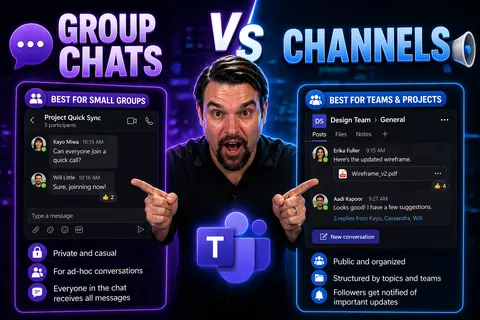
group chats vs channels in Teams works best when teams start with the intended outcome, choose the supported Microsoft 365 capability, and apply clear ownership and practical controls. Validate the approach with representative users, check permissions and policies, then document the decision before expanding it. This keeps collaboration reliable, understandable, and easier to support.
group chats vs channels in Teams: practical checklist
- Define the scenario, owner, and expected result.
- Validate access, policy, and user impact with a pilot.
- Document the decision and review it as needs change.
Use Microsoft Learn for current guidance.
Last reviewed: July 2026.
Choosing between group chats and channels in Microsoft Teams isn't just about where you send a message—it's about guiding the way your whole team works together. On one side, you've got group chats for quick conversations, fast questions, and those “let’s hash this out right now” moments. On the other, channels shape structured teamwork, long-term project tracking, and organization-wide knowledge sharing.
Understanding the strengths and limits of each option can make or break your collaboration, especially around compliance, knowledge management, and project clarity. This guide breaks down both tools, so your organization can build smarter workspaces, keep information discoverable, and stay on top of governance and security demands. Let’s dive in and figure out which approach will make your Teams environment run like a tight ship—no matter the size of your crew.
Introduction to Microsoft Teams Group Chats and Channels
Microsoft Teams offers two main ways for folks to stay connected and get work done: group chats and channels. Group chats are direct conversations—one-on-one or with a small handful—meant for fast, informal back-and-forth. Channels, meanwhile, sit inside broader “teams” and organize conversations and files around projects, topics, or departments.
Think of group chats as your water cooler or quick huddle, and channels as the bulletin board where the team posts updates, shares files, and builds shared knowledge. This dual approach covers both everyday chatter and mission-critical collaboration. If you’re new to Teams, knowing the difference upfront can save your crew headaches down the line.
Teams Microsoft Channels Explained: Features and Use Cases
A Microsoft Teams channel is a dedicated workspace within a team. Each channel sits under a “team” and focuses on a specific topic, department, or ongoing project. Inside channels, posts and replies become threaded conversations, making it easier to keep discussions organized and searchable for the entire group.
Channels are ideal when you need structured collaboration—think project management, recurring meetings, or official documentation. Channels support tabs for apps like Planner or SharePoint, and files shared here live in SharePoint for easy, long-term access. For more about setting up channels the right way, check this guide to using Microsoft Teams channels, which dives into management, organization, and security practices admins should know.
Chat Channel Teams? Key Differences and Functionality Compared
One of the biggest choices you’ll make in Microsoft Teams is deciding when to use a quick group chat versus a channel conversation. Teams gives both—each designed for totally different communication needs and experiences. Knowing which tool fits the task can stop confusion, prevent information loss, and boost collaboration.
At a high level, group chats provide instant, informal spaces for just a few people—great for decisions that don’t need to be seen by everyone. Channels, in contrast, are about transparency and teamwork across whole departments or projects, where organization and search matter.
This section tees up a deep dive into how chat and channel features contrast: from visibility and message organizing, to permissions, search, and integrations. As you read on, keep in mind what your team needs—speed, structure, or both. The details in the coming list will help you map the right decision for each scenario.
Functionality of Microsoft Teams: Comparing Chat and Channel Features
- Conversation Structure:Group Chat: Linear, real-time conversation threads—good for instant back-and-forth with a small group. Everything appears in a single feed, making it easy to follow but easy to lose context on older messages.
- Channel: Threaded discussions under each original post, keeping replies organized by topic. Ideal for tracking multiple conversations in a busy team environment.
- Visibility and Access:Group Chat: Only chat participants can see and search conversations. Good for privacy, but not for institutional memory.
- Channel: All team members have access unless it’s set to private. Adds transparency, making it easy for people to find and contribute.
- File Storage:Group Chat: Files shared are stored in the sender’s OneDrive, with permissions granted to chat members. Managing file access after someone leaves can get messy.
- Channel: Files land in the team’s SharePoint folder for that specific channel, supporting easier version control and knowledge retention.
- App Integration:Group Chat: Limited—can add apps like Polly or Forms, but not full tabs or SharePoint integration.
- Channel: Full app integration: tabs for Planner, SharePoint, Power BI, and more—helping teams centralize all related content and tools.
- Permissions and Compliance:Group Chat: Admin controls are limited; adding/removing members affects only current access, not historic messages.
- Channel: Deeper controls, supporting team and company governance, retention, and eDiscovery policies for compliance regulations.
- Searchability:Group Chat: Search works only within the chat and is limited to participants.
- Channel: Every member can search across posts, files, and threaded messages—much better for archiving organizational knowledge.
Organizing Channels for Team Project Success
Proper channel organization is one of the least flashy but most impactful ways to help Teams users find the information they need without constant digging. When channels are well-structured, communication flows, projects move forward, and people know exactly where to find the latest files and updates.
Poor channel setup, on the other hand, can cause all kinds of headaches—duplicate information, siloed conversations, or even lost documents. That’s where strategies like naming conventions, post threading, and using tabs for shared resources come in. Teams built on clear organization see fewer missed messages, faster onboarding for new members, and smoother handoffs between groups.
Want to go a step further? Check out this step-by-step guide to organizing projects in Microsoft Teams using SharePoint and automation for total project clarity. Up next: how to actually structure those channels and what naming can do for your team’s focus.
Structuring Microsoft Teams Channels and Posts for Clarity
- Dedicated Channels per Topic or Project: Separate big initiatives into individual channels so ideas and files don’t get mixed up.
- Threaded Conversations: Always reply within threads—not by starting a new post every time—to keep related discussions together and easy to follow.
- Pin and Use Tabs: Pin important files and add useful tabs like Planner or SharePoint right in the channel for one-click access to key project materials.
- Channel Descriptions and Guidelines: Briefly explain the purpose of each channel so new and veteran members always know where to share relevant updates.
- Archive/Close Old Channels: If a project’s wrapped, archive or “close” the channel to keep your overall team workspace tidy and focused.
For more practical steps on creating truly effective teams, take a look at this project management guide for Microsoft Teams that leans into best practices for tabs, lists, and communication rules.
Naming Conventions for Chats and Channels: Why It Matters
- Consistent Channel Names: Use a clear, understandable format for channel names—like “Project-XYZ-Planning” or “Dept-HR-Onboarding.” Consistency helps everyone find the right spot quickly and reduces accidental cross-talk.
- Prefix for Project or Department: Starting channel names with the project code or department short-form instantly puts context up front and boosts search results.
- Direct Chat Naming: In group chats, include participants’ roles or the topic—e.g., “Sales Q2 Forecast – Jon/Marie/Erica.” It’s simple but helps clarify who’s in the loop.
- Channel Purpose in Description: Fill in the channel description to spell out why it exists and what updates belong there—this is valuable for onboarding and reduces accidental off-topic posts.
- Adopt a Company Policy: Roll out formal naming rules for all Teams spaces, explained in onboarding or governance docs, to support long-term alignment and compliance. Learn more about structured collaboration with this Teams governance guide.
Messages, Files, and Tabs: Collaboration Features in Teams
Microsoft Teams brings together more than just chat. It’s packed with tools for teamwork—whether that means passing quick messages, sharing crucial files, or centralizing access to dashboards and project trackers. Knowing how these features work in chats versus channels lets your team pick the right tool for the job and avoid common pitfalls.
Channels let teams build threaded conversations for clarity, house project files long-term in SharePoint, and add tabs for live assets like Power BI or Planner. Group chats go lighter and faster—perfect for short messages—but come with tradeoffs around context, file storage, and discoverability. As you dig into the next sections, keep an eye out for opportunities to boost efficiency and keep your workspace organized.
If you want to maximize productivity, take a look at how custom tabs and message extensions in Teams can cut down on app switching and centralize workflows. This resource on building Teams apps and message extensions dives into how these integrations can streamline decision-making and unlock Teams’ full power.
Threads in Channels vs Group Chats: Organizing Your Conversations
- Threads in Channels: In Teams channels, each new discussion starts as its own post, and replies are nested below it. This keeps topics separate, making it easy for users to find what matters to them and ignore what doesn’t.
- Linear Flow in Group Chats: Group chats move in one straight line—new messages just stack on top of old. It’s simple, but longer conversations can get messy fast, and important replies are easy to miss.
- Knowledge Retention: Threaded channel conversations double as knowledge archives. Old answers, files, and context stay findable for years, making onboarding and compliance easier.
- Transparency and Accountability: Channel threads make it clear who responded, when, and to which topic. That’s a big help for tracking progress or double-checking decisions.
- Right Tool for Right Job: Use threads when you need a clear record. Stick to chat for less formal, one-off questions that don’t need to be documented for the whole group.
Sharing Files in Teams: Chat Storage vs Channel Storage
- File Location: Files shared in group chats are stored in the sender’s OneDrive under a dedicated “Microsoft Teams Chat Files” folder, accessible only to people in that chat. In contrast, files shared in channels land in the channel’s folder on SharePoint, open to the whole team by default.
- Permissions: In chats, permission hinges on individual OneDrive sharing. Remove someone from the chat? They lose access. In channels, permissions are team-based and centrally managed—easy if you have turnover or need quick access changes.
- Version History: Channel files in SharePoint get full version tracking, making it simple to roll back changes or audit who did what and when. Chat-shared files in OneDrive offer simpler versioning, best for less critical documents.
- Search and Discoverability: It’s a breeze to search within a channel’s file tab for important docs, even after months or years. Files shared in chat are harder to find later, and new chat participants have zero visibility into past shares.
- Governance and Compliance: Channel-based file storage ties right into company-wide compliance and retention policies thanks to SharePoint’s enterprise controls. Chat files, scattered across different users’ personal OneDrives, create governance headaches and risk data leakage if not managed carefully.
- When to Use Which: For contracts, major policies, or team resources, use a channel so everyone finds the files. For quick handoffs or toss-away docs, chat is faster and simpler. Learn more about balancing Teams and SharePoint dashboards in this Teams vs SharePoint dashboard showdown.
Using Tabs and Apps for Enhanced Team Content
- Planner Integration: Add the Planner app as a tab in a channel to track tasks and deadlines where everyone can see updates in real time.
- SharePoint for Documents and Lists: Pin SharePoint document libraries, lists, or team wikis for one-stop access to all project files and resources.
- Power BI Dashboards: Embed Power BI dashboards in a channel tab to provide at-a-glance business data and KPIs straight from within Teams.
- Custom App Tabs: Build your own tabs using message extensions, bots, or third-party apps—check out more on this in the Teams productivity features breakdown.
- Focused Communication: Use tabs to centralize the tools your team uses daily, so folks aren’t hunting through different systems or browser tabs—everything stays in one place.
Managing Access, Permissions, and Users in Teams
How you add users, manage permissions, and control access can make or break your Teams environment. Group chats and channel-based communications each come with their own quirks for inviting people, removing them, and managing what they can see—both today and once they leave.
Proper user management keeps sensitive conversations secure, prevents knowledge leaks, and supports compliance efforts. It also shapes how knowledge is preserved or lost when projects change or people come and go. Up next, we’ll break down the exact differences for adding and removing folks, and spell out the basics of message access and storage policies so you avoid nasty surprises.
Deciding between private channels, shared channels, and standard team spaces? See this practical guide to channel types in Microsoft Teams for a clear look at access, governance, and collaboration options.
Adding and Removing Users: Group Chats Versus Channels
- Adding to Group Chat: When you add someone to an existing group chat, they gain access only to messages sent after they joined, not the history—protecting past privacy but causing onboarding gaps.
- Removing from Group Chat: Remove someone, and they lose present and future access—though copies might linger in personal mailboxes unless IT enforces deletion.
- Adding to Channel: Invite a new member to a team, and they instantly access all public channel content—including old posts and files—keeping everyone on the same page from day one.
- Removing from Channel: Boot a user from the team, and they’re shut out entirely—files, posts, history, everything—helping safeguard sensitive data as staff changes.
- Special Cases (Private/Shared Channels): With private or shared channels, access rules get tighter—admins can segment which users are allowed, but new joiners only see content from the point they gain access onward for privacy.
Access Messages and Storage Policies in Teams
- Message Retention and Deletion: Teams channels obey company retention policies; messages can be set to remain for years, easily recoverable via eDiscovery. In chats, retention depends on tenant and user policies, but messages can disappear if not set up right.
- Who Can View: All team members see historical channel posts and files. In group chats, only participants at the time of the message can view (new participants see only from their join date forward).
- Compliance and Legal Hold: Channels offer clear audit trails for discovery, supporting regulatory demands. Group chats might slip through the cracks if not governed properly, creating compliance risk.
- Storage Location: Channel messages and files live in SharePoint and the Team mailbox, supporting central controls. Chat messages live in personal mailboxes and OneDrives, making global policy enforcement trickier.
- IT Challenges: Without governance, old chats can harbor sensitive info that’s hard to find or control in an audit. Learn more about preventing chaos and protecting business knowledge with this Teams governance guide.
Communication Options: Public Channels, Private Chats, and Hybrid Approaches
Not every discussion in Teams needs to be open to all—or hidden away in a private chat. The art and science of collaboration lies in knowing when to share out in the open, when to keep things tight, and when a blend is your best bet. Each strategy impacts visibility, knowledge sharing, and even regulatory compliance.
Public channels give transparency, help with onboarding, and support open conversations where everyone reads from the same playbook. Private chats and channels keep things under wraps for sensitive topics or one-off exchanges. Balancing these options—sometimes using shared channels, sometimes creating group chats—can help your organization stay clear and efficient, while respecting confidentiality and reducing unnecessary noise.
Coming up, we’ll break down basic precautions for team-wide messages and smart ways to manage notifications so your team stays productive, not overwhelmed.
Precautions for Public Channels and Team-Wide Messages
- Watch What You Post: Public channels are visible to all team members—think before sharing sensitive company info or personal details.
- Compliance and Data Leakage: Open posts can accidentally expose regulated or confidential data. Set up rules on what’s appropriate for each channel and remind users often.
- Tagging “@Team” Carefully: Use “@Team” or “@Channel” mentions for truly urgent or all-hands updates, not daily chatter—too many pings lead to notification fatigue.
- Channel Descriptions and Policies: Spell out what is and isn’t allowed in public channels. Consider making separate private channels for topics that demand more privacy.
- Hybrid Approach: Blend open communication for routine updates, but shift high-risk or compliance-heavy conversations to private or shared channels. For more tips, this guide to Teams channel types goes deep on governance and security.
Managing Notifications and Reducing Distractions in Teams
- Customize Per Channel: Turn off unnecessary alerts in low-priority channels but keep important ones active—this helps users tune out the noise yet never miss what matters.
- Mute Chats When Needed: Group chats can get chatty. Muting noisy conversations lets you focus on deep work but keeps messages on record for later review.
- Use Activity Feed and Mentions: Let the activity feed and “@” mentions surface high priority items instead of constant banner notifications, so you’re not getting dinged all day.
- Set Quiet Hours: Out-of-hours? Adjust Teams (and device) settings to silence pings so employees don’t burn out.
- Adaptive Cards for Smart Alerts: For advanced users, adaptive cards in Teams can deliver targeted, interactive alerts right in chat or channel posts. See tips in this guide on customizing Teams notifications.
Meetings and Real-Time Collaboration in Teams Chats and Channels
Both group chats and channels in Microsoft Teams let you launch instant meetings, make calls, or share your screen—bringing real-time collaboration straight into your workflow. In a channel, starting a meeting links it to the project or topic for easy follow-up and future reference. In chats, you can quickly hop on a call with just the people you need, keeping things fast and informal.
Knowing which entry point to use helps teams keep their meetings and collaboration focused. Plus, with features like custom apps, side panels, and automation tools, Teams meetings now double as command centers for project work. To take meetings—and compliance—a step further, see how advanced Teams meeting extensibility and AI-driven automation works in this Teams meeting extensibility guide or this M365 Copilot automation overview.
Unique Channel Features and Analytics for Team Engagement
- Pop-Out Channel Chats: Channels now support pop-out chats for side-by-side multitasking, making it easier to juggle multiple projects.
- Channel Analytics: Built-in analytics let owners track activity—like message volume, participation rates, and engagement—to inform adoption strategies or spot off-track teams.
- Email Integration: Teams channels can accept email directly via unique addresses, centralizing external updates alongside Teams conversations.
- Pinning and Tabs: Pin important resources or integrate key apps for one-click access and heightened productivity.
- Structured Governance: Channels support lifecycle management and reporting, helping admins tame sprawl and maintain compliance. Learn more in this Teams governance and sprawl management guide.
Decision Guide: Which Is Better for Your Team—Channels or Chat?
By this point, you’ve seen the ins and outs of using group chats and channels in Microsoft Teams. But how do you choose for your specific project, department, or business goal? The answer comes down to blending speed with structure, and privacy with transparency—sometimes even within the same team.
The following lists break down when chats or channels win, so leaders and IT admins can match communication needs to the right tool. Decision points include team size, compliance risk, search needs, and more. If you’re looking for a quick checkpoint before launching a new project or resetting an existing Team, the rest of this section brings together everything you need to make the call that sticks.
In the end, a healthy workspace rarely chooses one exclusively—most successful organizations mix both, using governance and best practices to keep work structured and secure.
Channels Chat Better? Key Considerations for Your Organization
- Team Size and Growth: Use channels for large groups or cross-functional projects—you’ll need the added organization, file management, and search. Stick to chats for quick, ad hoc discussions among handfuls of people.
- Longevity of Communication: Projects that run for weeks or need a historical record work best in channels, as posts and files stay organized and discoverable over time. Short-lived, one-off decisions? Group chats save clicks and keep things snappy.
- Visibility and Knowledge Sharing: Channels are the go-to option when transparency and open collaboration matter—for onboarding, training, or routine documentation. Group chats are better for brainstorming, confidential talks, or anything that shouldn’t be seen by every team member.
- Regulatory Compliance and Retention: If your business faces audit or compliance checks (GDPR, HIPAA, etc.), channels are much safer—their structure supports retention and legal discovery. Group chats are riskier; govern them with extra policy enforcement.
- Onboarding and Offboarding: Channels help new hires get up to speed fast—they see all past updates and files. Group chat history stays private, so it’s less helpful for bringing folks into established projects.
- Hybrid Use Cases: In practice, use both—run announcements, project docs, or standard procedures via channels, and spin up chats for fast decision-making or off-the-record questions. Structure drives clarity, chat gives speed.
FAQs and Solving Common Communication Headaches in Teams
- Information Overload: Focus conversations in relevant channels, mute unneeded chat threads, and use tabs to minimize chaos.
- “Across Desk” Moments: For spontaneous questions, use group chat—but document key decisions in channel threads so knowledge isn’t lost.
- Knowledge Silos: Assign owners to keep channels organized and make use of search and descriptions to break down barriers.
- Onboarding Hiccups: Point new hires to structured channels and pinned resources for fast ramp-up; avoid deep project chats that hide old context.
- Governance and Chaos: If disorganization reigns, get serious about company-wide Teams governance: clear naming rules, archival policies, and moderation guidelines. Read up on taming chaos with this Teams governance resource.
You Should Also Listen To
If you are exploring group chats vs channels Microsoft Teams, these episodes add practical context for governance, security, automation, and reliable Microsoft 365 operations.
- Microsoft Purview – Simply Explained — Connect retention, compliance, audit, and data governance.
- Microsoft Teams Governance – Simply Explained — Learn why ownership and lifecycle rules matter for collaboration.
- Microsoft Defender XDR – Simply Explained — Relate operational signals to detection and response.
- Conditional Access – Simply Explained — Understand identity and risk controls behind secure access.
These episodes help turn the article’s topic into practical implementation decisions.
🎧 You Should Also Listen To
- Microsoft 365 Governance Operating Model
Learn sustainable ownership and decision models.
- Teams Admin Center Governance
Explore Teams policy and administration choices.
- AI Agents – Simply Explained
Understand AI and data governance foundations.

Microsoft MVP | Host of M365.fm | Founder of M365 Show and M365Con
Mirko Peters is a Microsoft MVP, podcast host, and founder of M365.fm, M365 Show, and M365Con. His work connects Microsoft practitioners through podcast interviews, livestreams, and community events.
At M365.fm, Mirko hosts conversations with Microsoft MVPs, product experts, architects, and community contributors. Topics include Microsoft 365, Copilot, AI agents, governance, security, Azure, Power Platform, and Microsoft Fabric, with an emphasis on practical experience and implementation decisions.
M365.fm is the podcast and learning platform. M365 Show brings experts together for livestreams, while M365Con provides an online conference setting for community learning.
Official website: Mirko Peters (https://www.mirkopeters.com/). Recognition: Mirko Peters — Microsoft MVP profile (https://mvp.microsoft.com/de-DE/mvp/profile/9b0ca797-db5a-493a-a845-8b9158046cf5). Connect on LinkedIn (https://www.linkedin.com/in/m365showpodcast/).