
How Teams Protects Data: Complete Guide for Microsoft Teams Security
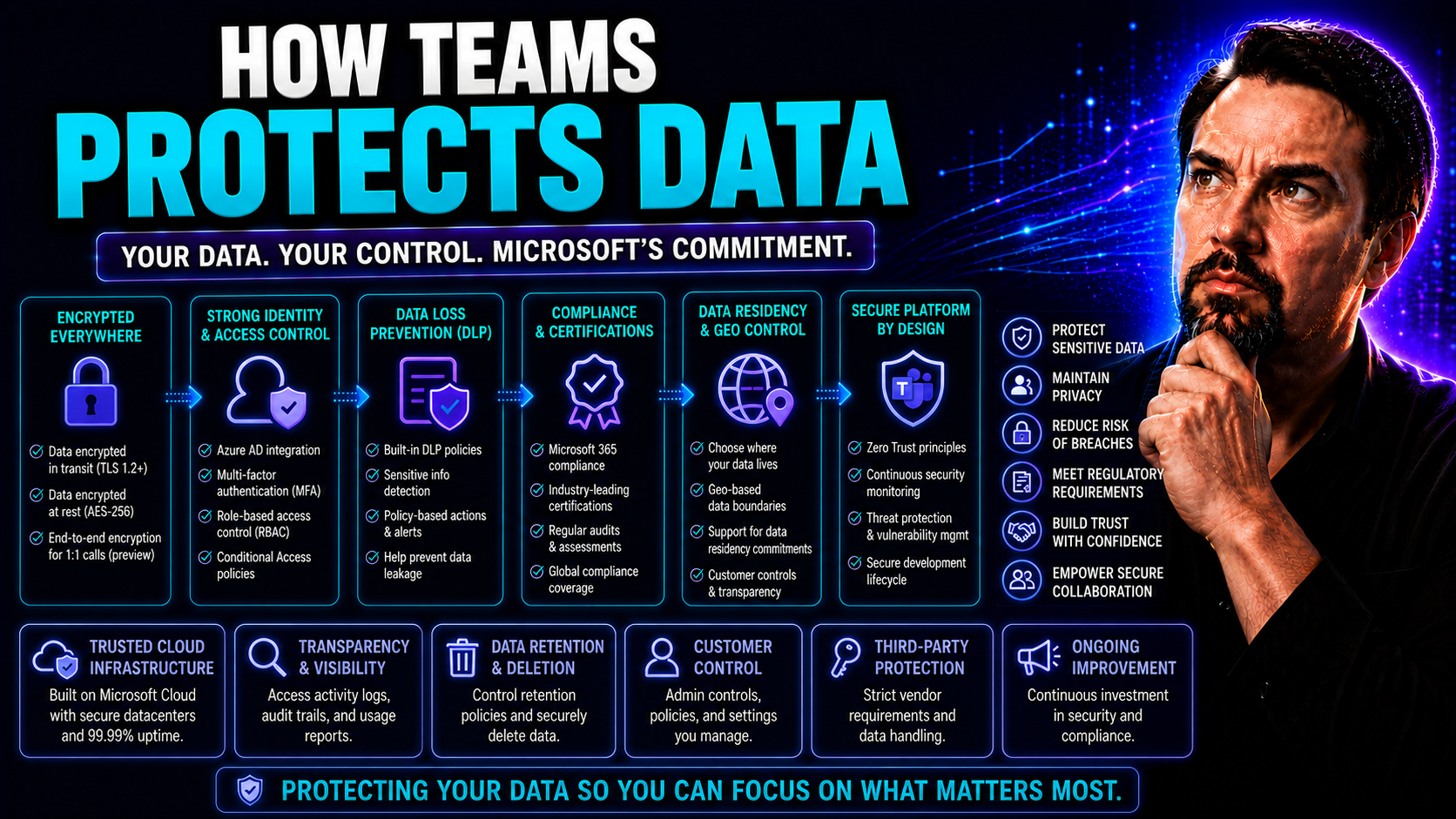
Let’s face it—these days, Microsoft Teams is where your most important work conversations happen, files get shared, and company secrets float around with just a few clicks. That’s why keeping your data protected isn’t an optional upgrade, it’s non-negotiable. Whether you’re talking about sensitive financials or a team chat about next quarter’s plans, these details have to stay far away from the wrong hands.
This guide breaks down exactly how Microsoft Teams works overtime to keep your business safe. You’ll see how Teams weaves together security features like encryption, identity controls, compliance tools, and advanced threat defenses. We’ll cover the practical steps admins and organizations should take, plus compliance must-haves and smart policies to lock things down tight. Ready to find out how Teams turns a regular digital office into a secure fortress? Let’s dive in.
Understanding Microsoft Teams Security Architecture and Core Protections
When you’re picking a platform for your organization’s digital conversations and document sharing, security needs to be baked in from the very start. Microsoft Teams isn’t just a chat app—it’s a secure collaboration hub designed to safeguard your valuable data across meetings, chats, and file exchanges.
The architecture behind Teams brings together multiple layers of protection. That includes encryption, rigorous identity and access controls, and compliance frameworks constructed to meet industry standards. Each component is carefully built to prevent unauthorized access, data leaks, and other risks that businesses face in today’s always-online world.
What really matters is how all these features interact to create a seamless but secure experience, whether your users are on their phones in the subway or working late at home. Microsoft’s security model allows organizations to manage and monitor access, ensure regulatory compliance, and adapt to new threats as they appear. As we step through each of the core security layers next—like encryption, identity verification, and compliance readiness—you’ll see why Teams stands tall as a foundation for secure corporate communication.
Comprehensive Encryption in Transit and at Rest in Teams
Microsoft Teams protects your data by encrypting it both as it moves across networks (in transit) and while it sits stored in Microsoft’s data centers (at rest). Every chat message, file, and call is secured using industry-standard encryption protocols, such as TLS and AES-256. This stops hackers or unauthorized parties from intercepting communications or accessing stored information—even if they gain physical access to the storage hardware.
Encryption in Teams means only authorized users and services with valid decryption keys can ever read your information. For organizations in regulated industries—think banking, healthcare, or government—this level of data protection isn’t just a best practice; it’s the law. Teams’ end-to-end encryption approach not only protects data integrity but demonstrates to auditors and customers that you take privacy seriously.
Identity and Access Controls: Single Sign-On and MFA for Teams
Identity protection is at the heart of keeping Teams secure. Microsoft Entra ID (formerly Azure Active Directory) powers single sign-on (SSO), letting users access Teams and other apps with just one set of credentials—cutting password fatigue and the risk from weak logins. On top of that, multifactor authentication (MFA) requires that users provide an extra proof of identity, like a code from their phone or a fingerprint scan, before accessing sensitive data.
Conditional access policies let IT teams set custom rules, such as blocking access from unfamiliar devices or requiring MFA for high-risk users. The end result? You dramatically reduce the risk of unauthorized access, even if someone’s password is leaked. Integration with broader IT security strategies lets you streamline the user experience while keeping admin controls strong and effective.
Microsoft Teams Security Features and Compliance Readiness
Microsoft Teams is built on a comprehensive security model that goes far beyond passwords and pop-up alerts. Teams comes out of the box with robust compliance certifications, including heavy hitters like GDPR, HIPAA, and ISO. This means the platform is ready to support strict regulatory requirements for user privacy, record retention, and data handling—without forcing you to bolt on third-party tools or patch together custom solutions.
Compliance is handled at multiple levels. You get tools for legal holds, eDiscovery, retention policies, and data loss prevention, all designed to enforce internal policies or pass audits from regulators. Updates and patches arrive regularly, so your environment stays protected as threats evolve. And Microsoft keeps its security practices transparent, letting admins track certifications or pull up details in compliance centers right when they need them.
For global organizations, Teams also respects data sovereignty and region-based storage laws, ensuring that tenant data stays within required geographic boundaries. This compliance-by-design foundation means organizations can confidently deploy Teams, knowing security and privacy aren’t just features— they’re requirements met daily by the teams behind Teams.
Data Loss Prevention and Compliance Management in Microsoft Teams
When it comes to sensitive information—customer details, contracts, employee records—you need more than a secure chat app. Microsoft Teams offers organizations tools to tightly manage what’s being shared and retained, hitting the sweet spot between collaboration and risk management.
Data Loss Prevention (DLP) policies, audit controls, and eDiscovery features are at the center of this effort. These aren’t just boxes to tick for compliance—they’re practical ways to spot risky sharing, block leaks before they happen, and give your organization a way to show regulators exactly where sensitive information goes, and who had access to it.
By aligning Teams’ data protection features with your internal compliance needs, you help safeguard critical data without bogging down productivity. Industries like finance, law, and healthcare can remain audit-ready at all times, while every user gets peace of mind knowing their messages and files are protected from prying eyes. Next, we’ll get into the specifics of setting DLP rules and retention strategies that pull all this together for day-to-day operations.
Setting Up Data Compliance Prevention Rules in Teams
- Choose a Data Loss Prevention (DLP) Policy Template: Start by selecting a template relevant to your industry (PCI, HIPAA, GDPR, etc.) or create a custom policy tailored to your organization’s needs.
- Identify Sensitive Data Types: Specify what data you want to protect, like Social Security numbers, credit card details, or confidential employee information. The system will automatically detect these patterns in chats and files.
- Set Rules for Sharing and Actions: Decide what happens if someone tries to share sensitive data—block it outright, alert the user, or notify an admin for review. You can customize actions based on risk level and location.
- Apply Policies to Teams, Channels, and Users: Roll out your policies to specific Teams, departments, or all users, ensuring even guest or external accounts follow the same rules.
- Monitor and Tweak Regularly: Use analytics and policy match reports to see what’s being flagged and fine-tune your settings as your business evolves or regulatory demands change.
Configuring Data Retention Policies and Using eDiscovery
- Define Data Retention Policies: Set how long chat messages, channel conversations, meeting recordings, and files are kept. You can align this with legal requirements, like keeping records for 7 years, or your company’s internal needs.
- Apply Retention to Specific Teams or Users: It’s not one-size-fits-all. Target retention policies at highly sensitive teams, legal departments, or executives while allowing shorter retention elsewhere.
- Automate Disposition: Once data reaches the end of its retention period, automate its deletion or trigger an internal review. This reduces risk and simplifies audits since you no longer have outdated, unnecessary data floating around.
- Enable eDiscovery: Use Microsoft 365’s eDiscovery tools to search, hold, and export Teams data in response to legal requests, investigations, or audits. You can capture data across all Teams—including private messages and deleted files—for full context.
- Safeguard the Data Protection Lifecycle: By combining retention and eDiscovery, you’re supporting every phase—creation, use, storage, and secure deletion—demonstrating control over your organization’s data from start to finish.
Controlling Guest Access and External Collaboration in Teams
Letting guests and partners collaborate in Teams can make projects smoother, but it opens the door to extra security and compliance risks if you don’t have rigid controls in place. That’s why smart organizations don’t just open the gates—they put up guardrails for who gets in, what they see, and how data is shared externally.
Controlling guest access isn’t about locking everything down tight or slowing down productivity. It’s about assigning the right permissions, tracking who owns what, and ensuring Teams doesn’t turn into the Wild West of shadow IT. Proper governance helps prevent accidental leaks and keeps your organization compliant with internal rules and regulatory requirements.
If you want your workspace to be both collaborative and secure, setting boundaries and rules around team creation, ownership, and domain permissions is crucial. For a deeper dive into governance frameworks that can help you manage this balance, check out this resource on how Teams governance transforms chaos into confident collaboration. Let’s look next at specific strategies to keep your Teams environment tidy and secure.
Best Practices to Restrict Creation and Ownerless Teams
- Limit Who Can Create Teams: Restrict team creation to designated users, like department heads or project managers, to stop unnecessary workspaces from popping up and reduce “Teams sprawl.”
- Enforce Team Ownership Policies: Require at least one (ideally two) responsible owners per team. This ensures that there’s always someone to manage permissions, review membership, and monitor activities.
- Review and Clean Up Regularly: Do a periodic sweep for ownerless or inactive teams. Archive what’s no longer needed and assign new owners where gaps exist to shore up accountability.
- Leverage Automation: Automate requests, approvals, and ownership checks using tools like Power Automate or the Graph API to scale governance as your Teams environment grows. For practical advice, see this tip on fixing Teams sprawl with automation and governance.
Switch to Allowlist-Only External Domains in Teams
Instead of letting your users collaborate with anyone on the web, switching Teams to an allowlist-only external access model means only pre-approved domains get through. This restricts external chats and file shares to trusted business partners, reducing the risk of accidental data leaks or malicious actors joining conversations.
Admins can set these permissions in Microsoft Teams or Microsoft 365 admin center, adding only the domains that should be trusted. This change strengthens governance and supports compliance by locking out unverified third parties, while still enabling safe, productive collaboration with your chosen external organizations.
Advanced Threat Protection and Safe Collaboration Tools in Teams
It’s a digital jungle out there—phishing, malware, and social engineering attacks are always lurking around the next message or file link. That’s why Microsoft Teams brings in heavy-duty security tools, backed by Microsoft Defender, to actively protect against threats as you work.
These advanced features don’t just block known risks. They help identify new and evolving attack methods before they cause harm, scanning everything from file attachments to shared links in real time. By taking a layered approach—combining threat detection, secure meeting controls, and app governance—Teams keeps your workplace a step ahead of cybercriminals without making day-to-day work a hassle.
For a deeper dive into hands-on strategies, you might take a look at these Teams security hardening best practices, focusing on conditional access, audit trails, and data leak prevention. Ahead, we’ll cover how Teams shields your environment from common attacks and missteps that can trip up even the savviest users.
Using Safe Protection Links and Attachments with Microsoft Defender
Microsoft Defender for Office 365 keeps Teams users safe by scanning every link and attachment in real time. With Safe Links, any time someone clicks a URL in a chat or channel, Defender checks the destination for malware or phishing before letting the user proceed. If a file or link is suspicious, it’s blocked, and the user gets a clear warning.
Attachments are also scanned as soon as they’re uploaded, stopping harmful content before it spreads. These automatic checks all happen behind the scenes, so users barely notice—but potential threats are quietly quarantined or removed, making the Teams environment far safer for everyone working together.
Enable Lobby Controls to Secure Teams Meetings
- Turn on the Meeting Lobby: Use the lobby feature to keep all external attendees in a virtual waiting room until an organizer admits them. This prevents uninvited guests from sneaking into sensitive meetings.
- Set Who Can Bypass the Lobby: Configure rules so only trusted users—or people from your own organization—can skip the lobby step. Everyone else waits for manual approval.
- Manage Admission in Real Time: During the meeting, organizers can see who’s waiting and let in only those on the attendee list, keeping control tight while meetings are in progress.
- Review and Communicate Security Settings: Make sure all organizers know how to use lobby controls and review default settings before starting a high-stakes discussion, so nobody gets caught by surprise.
Disable Third-Party File Sharing and Implement App Permissions
- Limit Unmanaged App Integrations: Restrict which apps users can add to Teams to block risky or unauthorized third-party file-sharing services.
- Review and Approve Apps First: Require admin approval before anyone can connect an external app. This stops unknown tools from opening up security gaps.
- Enforce Permissions by Policy: Set clear permission levels for each app—like who can read, write, or share files—to maintain oversight and limit unnecessary exposure.
- For more on app extension security and productivity, see insights from building secure custom Teams apps and message extensions.
Governance and Monitoring: Audit Logs and Centralized Security Management
Security tools are only as good as the oversight that keeps them sharp. That’s where governance and ongoing monitoring step in: audit logging, usage tracking, and centralized security management are the seatbelts and airbags for your Teams environment.
An effective monitoring setup helps you spot trouble—like suspicious user activity or risky configuration changes—before they become major headaches. Audit logs let you see who accessed what, when, and where, while management tools make it easy to enforce policies and get a bird’s-eye view of your organization’s security posture.
Rolling out a governance framework—defining rules, responsibilities, and data-handling practices—keeps your digital office both productive and compliant. Some practical perspectives on this can be found in how Teams governance transforms collaboration and compliance. Next, let’s get into how audit logs and management tools keep your data, and your business, under control.
Monitor Teams with Audit Logs and Usage Tracking
Audit logs in Microsoft 365 give admins a running logbook of every significant activity in Teams—file access, message deletions, permission changes, and more. These logs help spot suspicious actions, like data exports or unauthorized permission changes, offering crucial clues for incident response or investigations.
Usage reports and built-in analytics track trends, show who is using which features, and can flag sudden jumps in message forwarding or file sharing. With visual dashboards and alerting, you get real-time awareness and a historical record for legal, compliance, or security reviews. Forensics, discovery, and compliance checks get far easier when every move is captured automatically.
Enforce Security with Global Teams Management Tools
- Centralized Policy Enforcement: Use the Microsoft 365 admin center to manage security rules across all Teams—controlling who can create meetings, share files, or use guest access.
- Security Posture Reviews: Access built-in dashboards assessing your Teams environment’s overall hardening against known risks. Recommendations surface best practices you might have missed.
- Automated Updates and Patching: Push security updates and new features to users company-wide, ensuring compliance with zero manual effort.
- Real-Time Risk and Policy Alerts: Get proactive notifications for unusual activity, configuration drift, or unapproved changes, letting you respond before small problems grow into big incidents.
- Leverage Risk Dashboards: Risk-oriented dashboards aggregate key security metrics, helping you report compliance efforts and prioritize areas for improvement at a glance.
Best Practices to Protect Sensitive Projects and Data in Teams
Some projects in your organization are so sensitive you want an extra layer—or three—of security wrapped around them. That’s where Teams lets you step up your game with tailored protections, rather than one-size-fits-all.
Securing high-risk workspaces isn’t just about flipping privacy switches. It’s about combining isolation, classification, and user controls to create strong boundaries while letting legitimate work flow unhindered. This strategy allows you to protect IP, confidential contracts, and regulated content against internal mistakes and external threats alike.
For a detailed breakdown of what approach fits your scenario—private team, shared team, or private channel—see this practical guide on using private channels versus shared channels in Teams. Let’s step through the tactics that keep your most important projects locked tight and your organization’s secrets right where they belong.
Create Private Teams for Sensitive Project Collaboration
Private Teams are the go-to choice when you need to shield sensitive projects from prying eyes—whether that’s rival departments or external users. Only invited members can see or join, and admins can tightly control who gets access to discussions and files.
Compared to public or even shared channels, private teams let you isolate confidential documents and conversations so critical projects remain secure throughout their lifecycle. If your work deals with trade secrets, financial strategies, or regulated client data, always opt for private teams to enforce long-term confidentiality. Find more about structuring secure project spaces in this Teams project governance guide.
Implement Information Protection Architecture in Teams
- Classification: Tag documents and chats by sensitivity (e.g., confidential, restricted) so everyone knows the appropriate handling procedures right away.
- Automated Sensitivity Labeling: Use AI-powered policies to apply labels based on content—flagging files with PII, financials, or IP for extra protection automatically.
- Integrated Rights Management: Enforce controls like watermarking, access restrictions, or even automatic encryption directly through Teams, SharePoint, and OneDrive to lock down critical content wherever it moves.
- More on using governance and labeling to keep data secure across Microsoft 365 can be found in this governance deep dive.
Data Teams Minimize Unintended Sharing and Exposure
- Limit Broad Sharing: Encourage users to share files and chats only with those who absolutely need them—no more “share with everyone” as default.
- Train Staff on Safe Practices: Conduct regular training on spotting phishing attempts, handling sensitive data, and using Teams features securely.
- Set Link Expirations: Require that shared file links expire after a set period, which cuts off lingering access after a project ends or a role changes.
- Review and Lock Down Permissions: Make permission reviews routine—scrub out legacy access, remove guests who no longer need entry, and check channel-level rights.
- Monitor for Anomalies: Use audit tools and analytics to catch unusual activity, such as mass downloads or strange hours access that might signal trouble or potential data leaks.
Is Microsoft Teams Secure? Understanding Built-In Protections and Best Practices
One of the top questions organizations ask is, “Is Microsoft Teams truly secure?” The short answer—it’s designed with security and privacy as top priorities, with strong protections enabled by default. Still, the platform can only do so much; it’s how you configure and manage it that determines your overall safety level.
Teams puts guardrails around your data at every turn, from encrypted chat and file storage to granular admin policies and threat detection. Yet, attackers, accidents, and plain old human error can all create cracks in the armor if you’re not vigilant. That’s why Microsoft gives admins a toolkit of best practices and automation—not just features—to build a robust security posture.
For organizations looking to make the most out of these protections, the next section lays out proven strategies. You’ll get practical steps that are easy to implement and effective in practice, so your Teams deployment won’t just be secure on paper—it’ll be safe in real, everyday use.
Best Management Practices: Strategies for Information Protection in Teams
- Enforce Clear Security Policies: Create standards for access, sharing, and retention—and make sure everyone follows them at all times.
- Assign Role-Based Access: Only grant sensitive access to those who need it, cutting the risk of accidental or malicious data leaks.
- Integrate User Training: Train all users to recognize risks, use Teams securely, and report potential threats instantly.
- Leverage Technical Controls: Use Teams’ advanced security features—like DLP, audit logging, and MFA—to automate consistent protection, not just rely on best intentions.
- For global teams, coordinate and manage your deployment at scale with guidance from Teams management global best practices.

Microsoft MVP | Host of M365.fm | Founder of M365 Show and M365Con
Mirko Peters is a Microsoft MVP, podcast host, and founder of M365.fm, M365 Show, and M365Con. His work connects Microsoft practitioners through podcast interviews, livestreams, and community events.
At M365.fm, Mirko hosts conversations with Microsoft MVPs, product experts, architects, and community contributors. Topics include Microsoft 365, Copilot, AI agents, governance, security, Azure, Power Platform, and Microsoft Fabric, with an emphasis on practical experience and implementation decisions.
M365.fm is the podcast and learning platform. M365 Show brings experts together for livestreams, while M365Con provides an online conference setting for community learning.
Official website: Mirko Peters (https://www.mirkopeters.com/). Recognition: Mirko Peters — Microsoft MVP profile (https://mvp.microsoft.com/de-DE/mvp/profile/9b0ca797-db5a-493a-a845-8b9158046cf5). Connect on LinkedIn (https://www.linkedin.com/in/m365showpodcast/).




