
How to Edit and Delete Messages on Any Platform
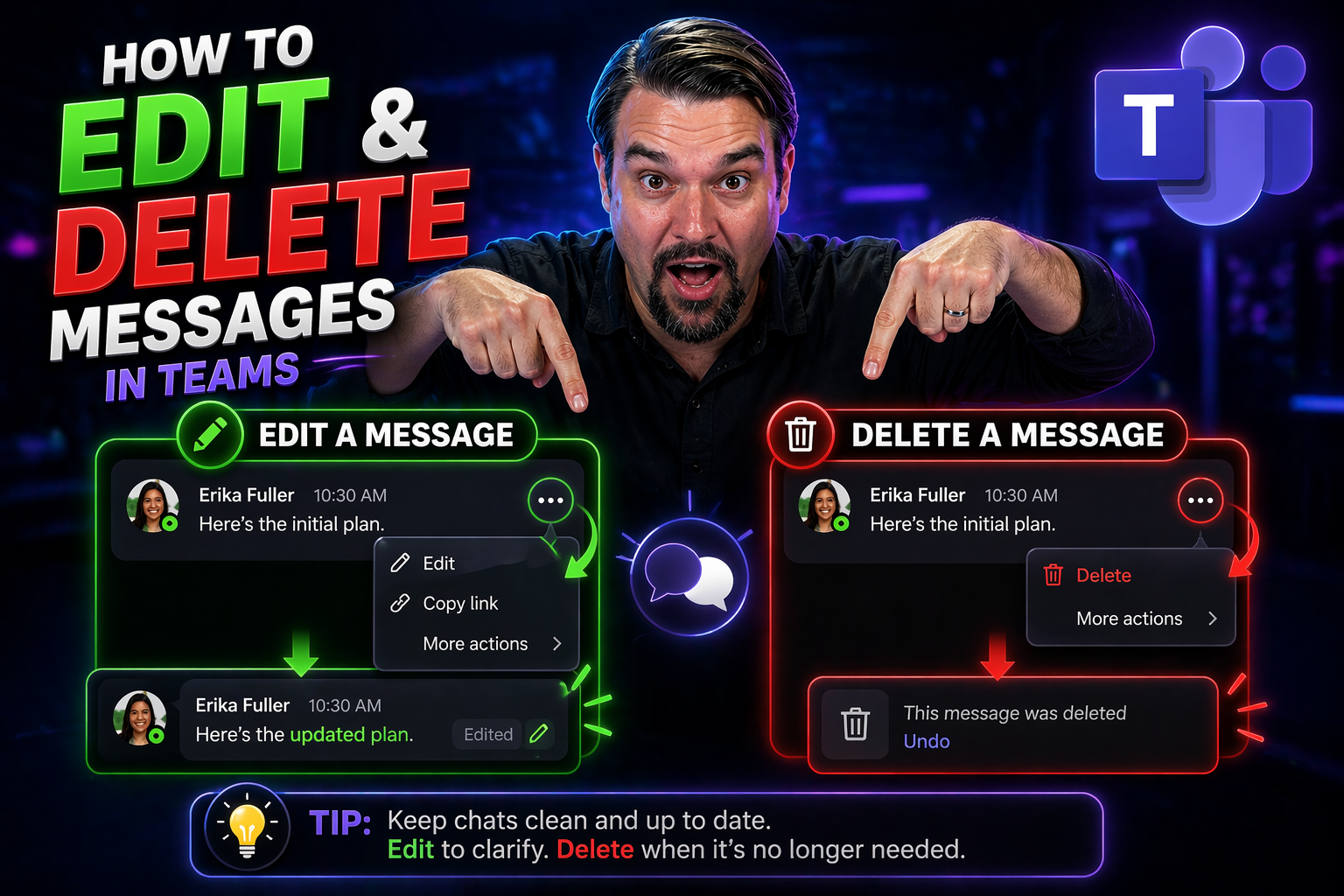
Everybody makes typos. Maybe you hit “send” too fast, or realized a second too late that your message wandered into the wrong chat. Luckily, the days of “Oops, cancel that last one!” are mostly behind us. Many modern messaging apps let you edit or delete sent messages, but the exact trick depends on which platform you’re using. On iPhone, it’s built right into iMessage if you’re running the most recent software. On Android, it’s often up to which app you’ve chosen—WhatsApp is flexible, plain SMS much less so.
There are a bunch of reasons folks want to fix their messages. Some need to correct mistakes or update info. Others want to take back something not-so-well thought out or remove sensitive material for privacy reasons. At work, you might need to tidy up a group chat, keep team conversations clean, or stick to strict company policies. In those cases, especially in business platforms like Teams or Slack, editing and deleting messages comes with rules. Admins can set permissions, turn off message editing for compliance, or keep an audit trail of what was changed. This isn’t just about personal chats—it matters for professional environments and secure collaboration, too.
So, whether you’re managing a family group text, fixing an autocorrect fail, or running a company-wide channel, knowing how to control your messages—and what limits might apply—is essential. Throughout this guide, you’ll find platform comparisons, step-by-step instructions, and practical tips for personal, group, and organizational messaging. We’ll even cover how proper governance, like in Microsoft Teams Governance, helps regulate who can edit or delete messages, making sure teams collaborate smoothly but securely.
Editing and Unsending Messages on iPhone
If you’re using an iPhone, you’ve got some pretty neat tools for fixing or removing messages after they’ve flown out of your fingers. Recent iOS updates added features that let you edit a message or even unsend it—say goodbye to that sinking feeling after a fast thumbs mistake! These options are built right into iMessage, making it easy to keep conversations accurate and friendly, whether you’re chatting one-on-one or in a group.
The catch? You need to be running iOS 16 or newer. And there are limits—editing and unsending only work within a set window of time after your message goes out. Apple helps you out with clear labels (“Edited” or “You unsent a message”) so nobody’s left confused about what changed. If you’re worried about accidently deleting something you wanted to keep, Apple even has a way to recover messages you just erased.
In this section, we’ll walk through how you can change, recall, or recover messages using iMessage. You’ll see the exact steps to fix typos, remove that “wrong chat” message, and even pull deleted chats back from the void. We’ll also point out the rules and limits—so you’re never caught off guard by a grayed-out Edit button, or missing messages that disappeared for good.
How to Edit a Sent Message on iPhone
- Send your message as usual. After you’ve fired off a text in iMessage (just blue bubbles—it won’t work with plain SMS), keep an eye on your recent messages.
- Tap and hold the sent message. Press and hold your finger down on the bubble you want to fix. A menu will pop up with options.
- Select “Edit.” From the menu, tap “Edit.” Now you can backspace, retype, or change anything inside your original message.
- Make your changes and tap the checkmark. Once you’re happy, tap the blue checkmark to save. The message gets updated with an “Edited” label, so everyone knows it’s been changed.
- Note the limits. You can only edit messages up to five times, and only in the first 15 minutes after sending. Both you and your recipient need iOS 16 or later, otherwise the edits might not show up right.
Keep in mind: Recipients can see a note that your message was edited, so editing isn’t totally invisible. If you’re in a business or school environment with certain restrictions, message editing may be turned off by your admin.
Unsend or Delete a Message on iPhone
- Find your recently sent message. Look for the message you want to remove in your conversation (blue iMessage bubbles only).
- Press and hold the message. When you long-press (tap and hold) the message, a menu with additional options pops up.
- Choose “Undo Send.” Tap “Undo Send” to delete the message for everyone in the chat. iMessage will notify both you and the recipient that a message was unsent.
- Understand the time window. You can only unsend messages within two minutes of sending them. After that, the option disappears.
- Know your limits. If your recipient is on iOS 15 or earlier, the message might still appear on their end. Also, your organization or administrator could restrict this feature if you’re using a managed device.
This function helps with accidental texts or sensitive info, but it doesn’t guarantee total erasure—there may be logs or device backups to consider, especially in a work context.
Undo Deleted Messages on iPhone
- Navigate to your Messages app. Tap “Edit” or your filters at the top corner to access “Recently Deleted.”
- Find the conversation you want to restore. Deleted messages hang around for 30 days before they’re lost forever.
- Select the messages to recover. Tap the checkbox next to each message or conversation you want back, then tap “Recover.”
- Restore and verify. Your messages pop back into your inbox, right where they left off.
Act quickly—after 30 days, deleted messages are truly gone. This feature is a lifesaver for accidental deletions but won’t recover texts wiped from all device backups or those blocked by admin controls.
Editing and Deleting Messages on Android and Other Devices
Android phones cover a wide world of messaging apps—Google Messages, WhatsApp, Telegram, and even Slack or Teams have their quirks. Unlike iPhone, where iMessage rules the land, Android lets you pick your tool. Depending on which app you use, some let you edit messages after sending, while others only offer deleting or unsending. Old-school SMS texts are usually stuck as they are—no do-overs there.
Features and restrictions depend on the app, your phone’s software, and sometimes the service provider. WhatsApp and Telegram both have robust editing and deletion features, letting you fix messages even in group convos (with timestamps marking your edits). Google Messages lets you delete (with limits), but editing is more rare there. Sometimes, business or organizational chats on apps like Teams or enterprise Google Chat have extra rules—admin settings might block your ability to edit or delete messages for compliance reasons.
This section gives you a side-by-side look at what you can (and can’t) fix on Android and other devices. If you’re switching platforms, or juggling work and personal apps, you’ll see exactly which steps to take and what to watch out for. Troubleshooting tips are included, especially if you hit restrictions put in place by your app, your phone, or your company.
Edit or Delete Messages on Android Devices
- Open your messaging app (e.g., WhatsApp, Telegram, Google Messages). Each app has its own steps and capabilities.
- Tap and hold on the message you want to change. This brings up a toolbar or menu with further options.
- To edit (where supported): Apps like Telegram and WhatsApp let you tap “Edit,” make your correction, and save. Edited messages are usually marked as “edited” with a timestamp in the chat.
- To delete: Tap “Delete” or the trash can icon. Options may include “Delete for Me” (removes just for you) or “Delete for Everyone” (removes for all participants, but with time limits).
- Check time restrictions and compatibility. Many apps let you edit or delete messages within a certain window—often up to an hour. Once the window passes, your options may disappear.
Remember: SMS/MMS sent through Google Messages or a carrier app generally cannot be edited, and deletion only removes the message from your own view—not the recipient’s.
Why Some Messages Cannot Be Edited or Deleted
- SMS/MMS Limitations: Traditional text messages sent over a cellular network can’t be edited or truly deleted due to carrier and protocol limitations.
- App Feature Gaps: Some messaging apps simply do not include editing or unsending capabilities. Check the app’s FAQ if you’re unsure.
- Admin Restrictions: In business or school environments, IT admins might disable edit/delete features for security, compliance, or audit reasons.
- Expired Time Windows: Edit and delete options usually expire after a set period—if the option is gray or missing, you probably missed the cutoff.
- Read-Only or Restricted Chats: If you’re in a channel or chat with limited permissions, such as view-only or announcement-only modes, you’ll be blocked from making changes.
Managing Messages in Group Chats and Channel Environments
Group chats and channel apps like Microsoft Teams, Slack, and Google Chat come with their own rules for editing and deleting messages. In these shared spaces, what you change or remove affects not just yourself, but the whole crew—including everyone in the chat, and sometimes even external guests. A quick typo fix is simple enough, but deleting a message might remove it for all or trigger audit trails—think about the impact before you hit that delete button.
Permissions matter big time in these environments. If you’re in a company or school, your organization’s admin might decide who can edit or delete what—sometimes turning these options off altogether, or making them available just to channel owners. Businesses often choose strict settings for compliance, privacy, or recordkeeping. Edits and deletions are logged and can show up in audit trails, so you might find a digital paper trail recording every change you make.
If you’re looking to maintain clarity in a busy team conversation, you’ll want to know how pinned messages, edit history, and message removals show up for everyone else. Good governance—think Microsoft Teams Governance—protects sensitive data, keeps conversations accountable, and ensures everyone plays by the same rules. This helps avoid confusion and keeps projects running smooth, even as teams grow or regulations get tighter.
Edit and Delete Messages in Group Chats and Channels
- Editing messages: In most apps like Teams or Slack, click the “More options” (three dots) beside your sent message. Select “Edit,” adjust your text, and save. The group will often see a small “edited” tag, and in apps like Slack, can even check previous versions if settings allow.
- Deleting messages: Click “More options,” then “Delete” or “Remove.” Some platforms let anyone delete their own messages, while others require you to be a channel owner or admin (especially in formal Teams or company-wide channels).
- Permission boundaries: If you can’t edit or remove messages, it’s likely blocked by admin controls, team policies, or the channel’s settings. Sometimes, only certain roles can make these changes—rules are stricter in regulated workplaces.
- Acknowledging audit trails: Deleted or edited messages may still appear in compliance logs or be visible to admins, which is crucial for transparency, especially in business or legal settings.
- Refer to governance frameworks: For more on how strong permissions and role-based access keep collaboration organized and safe, check out this guide on Microsoft Teams Governance.
Always check your organization’s messaging policies before making changes—editing and deleting in team environments isn’t always as straightforward as it is in personal chats.
Hide or Remove Messages from Conversation View
- Archive or hide a message: In apps like WhatsApp and Teams, you can archive or hide conversations from your main view without actually deleting messages for others.
- “Remove from view” features: Platforms like Slack let you clear messages from your own chat history while keeping them available to the rest of the group.
- Mute or block threads: If a particular message thread is distracting, use mute or block functions so you’re not bothered, but nothing’s deleted for other group members.
- Good for privacy or decluttering: Use these options if you want to keep your chat list tidy or avoid sensitive content without erasing records shared by others.
These methods keep your own chat window clean without interfering with team records or making permanent changes to the channel’s history.
Troubleshooting Message Editing and Deletion Issues
Sometimes, you want to fix or erase a message and the option’s just not there. Maybe the Edit button’s missing, maybe Delete is grayed out, or maybe you see a “feature blocked” error. Don’t sweat it—you’re not the first. Trouble usually comes from expired windows for edits/deletes, outdated app versions, or new rules set by your workplace admin.
If your message controls aren’t working, take a breath and look around before you panic. Most apps include in-app help menus or links to online FAQs, where you’ll find advice on supported features, latest updates, and troubleshooting known issues. Admins and IT staff can also set restrictions for compliance or data security, especially in apps connected to a business or school email.
This section guides you to official support resources, provides step-by-step directions for diagnosing message problems, and helps you pinpoint whether it’s your app, your device, or your organization’s policies getting in the way. When all else fails, you’ll know how to ask for help from the people who keep these systems running smoothly. For a flavor of step-by-step troubleshooting methods (especially in Microsoft products), check out this Microsoft Copilot troubleshooting guide—similar logic applies when things go sideways with message editing, too.
How to Find Help Center and Support Options for Message Editing
- Check app-based support: Most messaging apps include a “Help” or “Support” option in their settings or menu—tap there to access troubleshooting guides and answers for editing/deletion issues.
- Search online help centers: Visit the official support websites for your app (e.g., Apple Support for iMessage, Google Help for Chat, or Slack’s Help Center) and look up “edit messages” or “delete messages.”
- Use in-app feedback tools: If options aren’t working, use “Send Feedback” or direct support chat features to report bugs or ask for help—many apps respond quickly to these submissions.
- Explore admin and enterprise resources: Business and education accounts often have special help centers for IT admins, such as the Microsoft Copilot troubleshooting guide for Microsoft 365 users. These resources offer advanced troubleshooting on permissions and policy settings that might block message editing.
If you still can’t fix things, reaching out to your organization’s IT desk or posting on community support forums often gets you pointed in the right direction.
Step-by-Step Guide When Editing or Deleting Messages Fails
- Update your app: Make sure your messaging app is running the latest version—new features (like editing) might depend on having current software.
- Check your permissions: If you’re using a work or school account, editing and deleting might be blocked by admin policies. Confirm your account settings or ask your admin to review your access.
- Review timeframes: Many platforms only allow edits or deletions within a short window. If the option disappeared, the cutoff may have passed.
- Restart your device: Glitches happen—a quick restart can clear up app issues or cache errors blocking message controls.
- Contact the support team: If you’ve checked everything and still can’t edit or delete, use the in-app support or help center, or ask your IT help desk for assistance.

Microsoft MVP | Host of M365.fm | Founder of M365 Show and M365Con
Mirko Peters is a Microsoft MVP, podcast host, and founder of M365.fm, M365 Show, and M365Con. His work connects Microsoft practitioners through podcast interviews, livestreams, and community events.
At M365.fm, Mirko hosts conversations with Microsoft MVPs, product experts, architects, and community contributors. Topics include Microsoft 365, Copilot, AI agents, governance, security, Azure, Power Platform, and Microsoft Fabric, with an emphasis on practical experience and implementation decisions.
M365.fm is the podcast and learning platform. M365 Show brings experts together for livestreams, while M365Con provides an online conference setting for community learning.
Official website: Mirko Peters (https://www.mirkopeters.com/). Recognition: Mirko Peters — Microsoft MVP profile (https://mvp.microsoft.com/de-DE/mvp/profile/9b0ca797-db5a-493a-a845-8b9158046cf5). Connect on LinkedIn (https://www.linkedin.com/in/m365showpodcast/).




