
How to Simulate CA Policies: Complete Guide to Conditional Access Policy Simulation in Microsoft
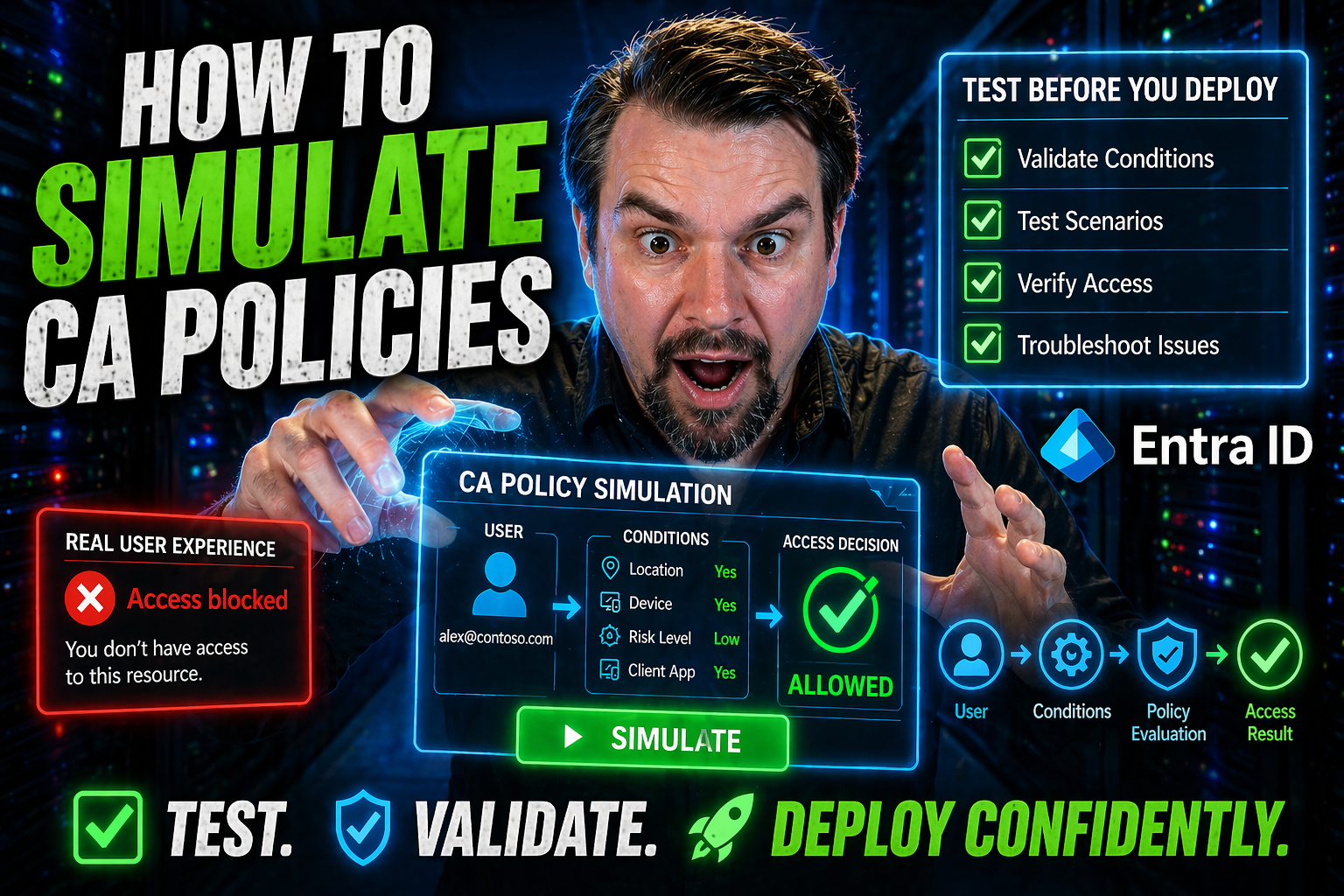
Simulating Conditional Access (CA) policies is all about making sure you don’t accidentally lock your people out or leave security gaps when you roll out new rules in Microsoft Entra ID and Microsoft 365. With the push towards zero trust and tighter access controls, you can’t afford to guess what a policy will do; you need evidence it’ll work as planned.
This guide covers every step of CA policy simulation—from key concepts and setup requirements to the most useful testing tools Microsoft offers. You’ll see how to preview the effect of changes, catch policy mistakes early, and test for business impact safely. Whether your concern is audit readiness, security hygiene, or simply making sure things don’t break, these workflows are designed with your everyday reality in mind.
If you’re responsible for protecting identities, ensuring compliance, or just don’t want users blowing up your phone after a policy update, this is where you’ll learn the ropes. We’ll walk you through practical tools, common pitfalls, and pro-level tips to help your rollout go smooth.
Introduction and Overview of Conditional Access Policy Simulation
Conditional Access policies are Microsoft’s main line of defense when it comes to deciding who gets access to what, when, and under which conditions in the cloud. These policies kick in when someone tries to sign in—to check factors like device health, location, or app sensitivity—before granting them access.
Simulation enters the picture to answer a pressing question: What actually happens if you turn on a certain policy? With simulation, you get to test policy logic and outcomes without risking user lockouts, productivity hits, or accidental open doors. You preview impacts, find configuration slip-ups, and understand how policies interact—all before enforcing live controls.
This guide lays out why simulation isn’t optional, but an outright best practice for Microsoft 365 and Entra ID admins. As you read on, expect down-to-earth explanations of the “why,” plus step-by-step coverage of simulation prerequisites, top tools, and real-life testing approaches. To dive into avoiding hidden risks and policy mistakes, you’ll also want to check this resource on conditional access policy trust issues in Microsoft.
We'll also touch on strategies for handling policy sprawl and remediation cycles, as discussed in this excellent review on Entra ID conditional access and security governance. By learning how and why to simulate, you position your organization to build access controls that are strong, reliable, and business-friendly from the very first rollout.
Prerequisites and Identity Infrastructure Limitations
- Microsoft Entra ID Licensing: Certain Conditional Access features and simulations require specific Microsoft Entra ID (formerly Azure AD) licenses. At minimum, you’ll need Entra ID Premium P1 for basic CA policies and the What-If tool, while advanced monitoring and integrations (like report-only or advanced policy simulators) may require Premium P2 or Microsoft 365 E5. Always check your current subscriptions to avoid feature roadblocks.
- Identity Synchronization & User Provisioning: If your organization runs both cloud and on-premises environments, ensure Microsoft Entra Connect Sync is properly configured. User objects, device identities, group memberships, and relevant sync cycles need to be up-to-date. Incomplete synchronization will skew simulation accuracy—especially in hybrid or staged migration scenarios.
- Tenant Configuration Dependencies: Some simulation tools only work if your tenant’s CA policies, authentication methods, and security defaults aren’t in conflict. Baseline tenant hardening, verified primary domains, and proper registration of cloud apps are a must. If you use legacy protocols or apps without modern authentication, limitations may apply.
- Supported Environments and Application Types: Simulations mainly support Microsoft 365 cloud apps, along with integrated SaaS and select on-premises applications published via Azure AD Application Proxy. For line-of-business apps or third-party connectors, test coverage can be limited or require extra integration work—especially if they use custom auth flows.
- Hybrid Identity and On-Premises Scenarios: Organizations with Active Directory Federation Services (ADFS), seamless single sign-on, or on-prem Exchange/SharePoint need to consider hybrid limitations. Not all CA rules are enforced equally across hybrid endpoints; policy simulation accuracy drops if hybrid trust or sync health isn’t monitored continuously.
To get the most from your simulation, address these prerequisites before starting any CA policy test. Missing components or unsupported setups could leave you with “false positive” outcomes or, worse, missed gaps that make it to production.
Remember, licensing level, hybrid readiness, identity sync state, and app compatibility are the pillars of accurate, safe CA policy simulation across Microsoft 365 and Entra ecosystems. Validate them up front—otherwise, you’ll end up troubleshooting the simulator, not your actual policies.
Essential Tools: Conditional Access What-If, Tool #4 Simulator, and Policy Planning Frameworks
Before you charge into production with new Conditional Access rules, it pays to get your hands on the right tools that can help you simulate and test each policy scenario from multiple angles. Microsoft has packed Entra ID and 365 with a handful of purpose-built simulators and planning aids—not just for IT pros, but for anyone in charge of security and compliance decisions.
This section introduces the major tools for CA policy simulation, so you’ll know what to reach for as your rollout plan takes shape. At the core is Microsoft’s Conditional Access What-If analysis, a tool that lets you “play out” access scenarios and policy effects before flipping the switch. But for complex or large-scale environments, you may also need advanced simulators (sometimes called “Tool #4” internally), or even open-source frameworks that can automate batch validation and disaster recovery testing.
In addition, planning frameworks—like persona diagrams, requirements capture, and policy impact matrices—help clarify upfront which policies affect which people and systems. By mapping requirements first, you reduce surprises down the line when policy simulations surface unintended conflicts. The right toolset won’t just make you faster; it’ll make your rollout safer, sharper, and much more predictable.
The detailed breakdown of each of these tools is coming up next—step by step—so you can see how they fit together to make your Conditional Access policies strong, smart, and production-ready.
Using the Conditional Access What-If Analysis Tool
- Accessing the Tool: Head to the Microsoft Entra admin center (or Azure AD portal) and open the Conditional Access blade. Look for the “What-If” button near your policy listings. This launches the simulation interface—no extra licensing for basic scenarios, but remember, advanced options may require P2.
- Building a Test Scenario: Enter the identity attributes you want to simulate. Choose a target user or group, specify the cloud app, select the device platform, location, and even sign-in risk level. You can select multiple variables to mirror real-world scenarios—like a sales rep logging in from home, on a personal laptop, into Exchange Online.
- Running the Simulation: Click "What If" to generate results. The tool evaluates the scenario against all your enabled CA policies and shows which ones would trigger, what grant controls (like MFA or block) would apply, and why. It details the “stack” of policies, including those in report-only mode.
- Interpreting Results: You’ll see each policy's status (applied, not applied) and clear reasons. This is essential for catching unintended overlaps, exclusions, or gaps—like a policy that somehow lets users bypass MFA. Use sign-in logs as validation: if simulation says access is allowed but logs show a block, you may need deeper troubleshooting.
- Practical Use Cases: Test the effect of new policies before rollout, analyze the impact on VIP users, and zero in on potential disruptions for frontline staff. The What-If tool is also valuable for compliance checks—proving you considered policy impact before flipping any switch.
With this tool, you make policy design a science, not a guessing game. You iterate fast, spot weak spots, and prevent those “oops, nobody can log in” phone calls before they start.
Tool #4: Simulator and Open-Source Recovery Frameworks
- Tool #4 Simulator: This advanced Microsoft tool allows admins to simulate Conditional Access outcomes at a deeper level, including batch testing, policy layering, and rare edge-case scenarios. You can run bulk evaluations using the Microsoft Graph API, making it ideal for organizations with complex environments or thousands of users and devices.
- Open-Source Framework Rescue: Community-driven frameworks—notably those integrating PowerShell or Graph SDK scripts—let you automate large-scale simulations. You can validate proposed CA changes as part of CI/CD pipelines, check policy risk before production, or even simulate disaster recovery failovers. These frameworks often provide exportable logs for compliance and auditing evidence.
- Integration Benefits: Compared to the What-If tool, these simulators handle large data volumes, integration with Infrastructure-as-Code (IaC), and support for hybrid or custom workflows. They're essential for enterprises wanting to shift from manual to fully automated, policy-as-code validation.
Supporting Tools: Persona, Requirements, and Policy Matrix
- Persona Builders: Create detailed user personas (e.g., HR staff, contractors, executives) so you can design and simulate policies based on real-world roles and business cases.
- Requirements Capture Tools: Systematically document technical and business requirements—like who should have access to which cloud apps, under what conditions—to avoid missed scenarios.
- Policy Impact Matrices: Map which policies affect which users, devices, and applications. This visual tool helps spot overlapping coverage, redundant rules, or risky gaps early.
- Scenario-Based Playbooks: Use these for walk-through simulations—tracing a complete sign-in journey for a user from start to finish, comparing the outcome to your intended result.
These supporting tools keep your CA policy rollout organized, business-aligned, and way less chaotic.
Testing Conflicts, Rollout Safety, and Live Preview Modes
Designing a great Conditional Access policy is only half the battle. The other half is making sure those policies don’t clash or backfire when they hit the real world. If you skip proper testing and safety checks, you might end up with users locked out, critical apps unavailable, or gaps that cyber attackers could slip through.
This section dives into smart approaches for safely previewing CA policies before you ever enforce them. You’ll see why it’s vital to catch conflicts between overlapping rules, and how Microsoft’s report-only mode, rollout safety linter, and preview features can save you hours of cleanup by highlighting effects up front.
We’ll also explore actionable steps to keep policy rollouts safe—think of it as your pre-flight checklist—so you avoid false starts, costly business disruptions, or calls from the CEO wondering why Teams just stopped working. The best policy is an informed one: test, preview, and resolve before you hit the big green “enable” button.
Up next, we dig into how to identify those tricky policy conflicts and leverage all the built-in Microsoft safety nets for even smoother access management.
Identifying Conflicts in Conditional Access Policies
When multiple Conditional Access policies target the same users, devices, or applications, their interactions can get messy. Policy conflicts happen when different rules either overlap or contradict each other—for example, one policy requires MFA while another accidentally bypasses it for the same scenario.
Microsoft Entra ID helps by alerting you to some common issues, like overlapping exclusions or incompatible grant controls, right in the admin center. But, not every conflict is flagged automatically. Manual reviews—looking at all enabled policies, user assignments, and rule triggers—are key to catching complex overlap, especially in large or hybrid environments.
Resolving these conflicts is essential. If left unchecked, users might get inconsistent access, security holes can open, or policies become so tangled that nobody remembers what’s actually enforced. Periodic audits and simulation checks maintain your environment’s predictability and trustworthiness.
Using Rollout Safety Linter and Preview Features
- Report-Only Mode: Enables you to test new or modified CA policies without enforcing them. Policies run in the background and their effects are logged, letting you review impact in sign-in logs before going live.
- Rollout Safety Linter: This Microsoft feature analyzes your entire CA policy set for hidden risks—like excessive exclusions, unintentionally permissive rules, or overlapping controls—before you deploy.
- Live Preview: Preview features in the Entra portal let you see, in real time, how policy changes would affect production sign-ins. This helps catch last-minute surprises before rollout.
- Simulation Output Interpretation: Use the logs and reports from these features to fine-tune your policy settings, ensuring changes fit both business needs and security standards without putting access at risk.
Leaning on these tools means you can fix issues proactively, keep audit trails, and rollout CA policies with maximum safety and minimum anxiety—for both you and your users.
Conclusion and Next Steps for Tuned Conditional Access Policy Simulation
Let’s bring it all home: Simulating Conditional Access policies is essential if you want airtight security without locking out your users or breaking business-critical apps. You’ve seen how using tools like the What-If analysis, simulators, and a well-built policy matrix helps catch potential issues and unnecessary friction, long before you hit ‘enforce’ in production.
Here are the five essentials to keep things tuned and drama-free:
- Plan and Document. Always start with clear requirements and user personas so you’re covering every use case—especially for hybrid, on-premises, and sensitive cloud roles.
- Automate Early and Often. If you’re running IaC (like Terraform or Bicep), plug policy simulations into your CI/CD pipelines to test every deployment using PowerShell or the Microsoft Graph API.
- Export Results for Compliance. Pull simulation logs, screenshots, and JSON exports to create audit trails or satisfy your security review board. This makes compliance and incident response much simpler, especially if your simulation history is versioned and tracked over time.
- Leverage the Admin Toolkit. Use built-in reporting and dashboards to review policy impact, troubleshoot sign-in errors, and make sure changes actually deliver stronger, phishing-resistant MFA—not just more complexity.
- Keep Learning. As Microsoft’s identity platform evolves—from hybrid support to advanced governance and zero trust—make ongoing reviews part of your security muscle memory. For learning about tying Conditional Access into broader governance, check out Copilot agent governance with Microsoft Purview and for big-picture security, dive into Zero Trust by Design in Microsoft 365.
Simulation should never be a one-and-done deal. Policies, users, devices, and apps shift constantly, so keep refining, exporting, and reviewing your simulations to stay ahead of new threats—and to be fully ready for your next compliance or audit check.
That’s the real goal: tuned controls, zero surprises, and peace of mind knowing your Conditional Access rollout is both safe and rock-solid.

Microsoft MVP | Host of M365.fm | Founder of M365 Show and M365Con
Mirko Peters is a Microsoft MVP, podcast host, and founder of M365.fm, M365 Show, and M365Con. His work connects Microsoft practitioners through podcast interviews, livestreams, and community events.
At M365.fm, Mirko hosts conversations with Microsoft MVPs, product experts, architects, and community contributors. Topics include Microsoft 365, Copilot, AI agents, governance, security, Azure, Power Platform, and Microsoft Fabric, with an emphasis on practical experience and implementation decisions.
M365.fm is the podcast and learning platform. M365 Show brings experts together for livestreams, while M365Con provides an online conference setting for community learning.
Official website: Mirko Peters (https://www.mirkopeters.com/). Recognition: Mirko Peters — Microsoft MVP profile (https://mvp.microsoft.com/de-DE/mvp/profile/9b0ca797-db5a-493a-a845-8b9158046cf5). Connect on LinkedIn (https://www.linkedin.com/in/m365showpodcast/).




