
How to Use Chat in Teams Effectively
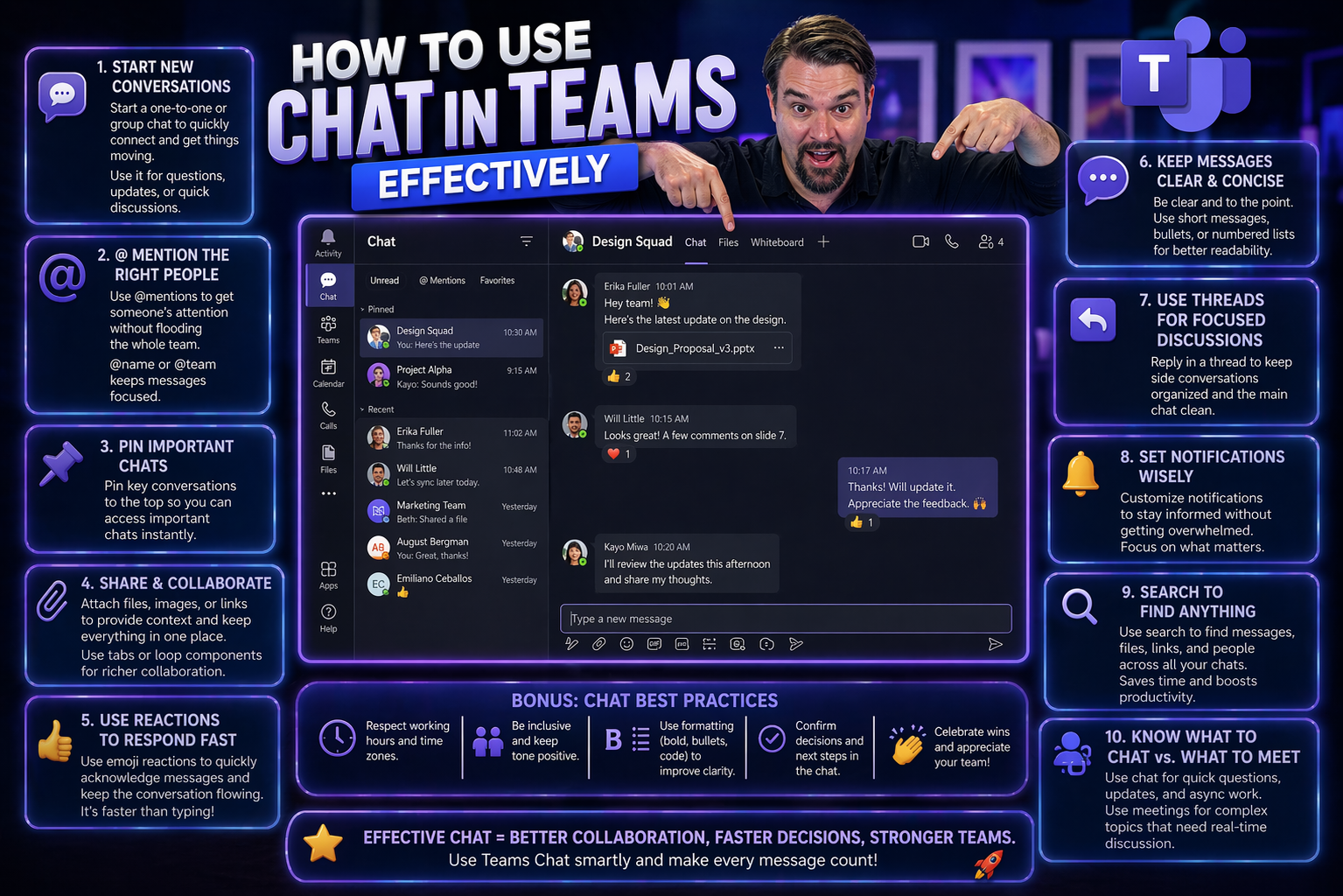
Getting the most out of Microsoft Teams chat is about more than just sending quick messages. If you want your team to really click, you need to know how to start the right kind of chat, keep conversations organized, and use respectful communication. This guide gives you all the practical strategies you’ll need—from setting up chats to advanced ways to cut through the noise and make every message count.
Whether you’re just starting on Teams or looking to take your digital work game to a new level, you’ll find actionable tips here for smoother collaboration and better results. Let’s break it down step by step so your organization’s teamwork isn’t just effective—it’s downright impressive.
Mastering Microsoft Teams Chat Features and Setup
If you want your team communication to be smooth, it all starts with knowing how to use Teams chat right from the jump. In this section, you’ll get familiar with the basic mechanics—like starting new chats, including just one other person or a whole group. It’s essential to understand who’s in your conversation, how to add or remove people when projects grow, and why naming chats clearly matters more than you might think.
As your team grows or projects overlap, things can get messy fast if chats aren’t set up right. A well-organized chat makes it easier for everyone to keep up, pitch in, and never miss what’s been said. Having these core skills down helps prevent confusion and lays the groundwork for clear, confident communication.
This part of the guide gives you the foundation for excellent chat habits that pay off as you go. Next, you’ll dive into the real nuts and bolts—like starting one-on-one and group chats, managing who’s in the conversation, and keeping everything tidy so you never lose track of important messages.
Starting and Managing Private and Group Chats
- Starting a One-on-One Chat:Click on the “Chat” icon, type the person’s name, and start messaging. This is your direct line to a colleague for private discussions, quick check-ins, or confidential updates that don’t need a crowd.
- Creating Group Chats:Want to rally several teammates at once? Start a new chat, enter multiple names, and instantly launch a group conversation. Use this for project teams, temporary brainstorming, or stand-up meetings.
- Naming the Chat:Don’t just leave chats with generic names like “New Group Chat.” Click the pencil icon up top and give it a label that makes sense—like “Q3 Budget Review” or “Site Launch Crew.” This helps everyone know what’s what at a glance.
- Managing Participants:Add or remove folks as needed. If your project grows or someone leaves, hit the “Add people” button or remove participants to keep the chat focused and relevant. Remember: adding new members to an existing chat sometimes lets them see previous messages, so be mindful of privacy and context.
- Keeping Chats on Track:If you’re juggling multiple conversations, keep them organized by using search, pinning important chats, and scrolling through the sidebar regularly. This helps keep your group’s messages from getting buried by less important chatter.
- Best Practices as Teams Evolve:For long-term or cross-team chat groups, establish a clear naming convention, check participant lists before sending sensitive info, and use chat threads for ongoing topics so new folks can jump in without needing a hundred emails of backstory.
Tips to Organize Chat Conversations and Add the Right People
- Check Your Participant List: Before sharing sensitive info, always make sure the right people are in your chat—and the wrong ones aren’t. That quick peek can save big headaches later.
- Add Members Thoughtfully: When your project grows, add new folks only to the relevant chats—not every chat under the sun. This keeps conversions focused and people’s notifications to a sane level.
- Name Group Chats Clearly: A descriptive chat name helps everyone know the topic and join in on the right thread, even if they weren’t there from the start.
- Use Direct Messages for Sensitive Conversations: Private matters or feedback? Stick to one-on-one chats—group settings aren’t always the place for personal or confidential talk.
Optimizing Organization and Navigation in Teams Chat
Staying organized in Teams chat is more than a “nice to have”—it’s the glue that keeps communication running smoothly. When your chats start to pile up, it gets hard to find what you need, and important messages can easily slip through the cracks. This section helps you keep everything tidy and under control by leveraging naming and pinning, making your digital workspace work for you, not against you.
Beyond simple organization, learning how to handle unread messages and notifications saves you tons of time and helps prevent mental overload. There’s no reason to feel buried under badges and pings—knowing how to control them means you see what matters and avoid what doesn’t. You don’t have to wade through a mess to stay up to speed with your team.
If you really want to take Teams chat to the next level, check out resources like this guide on Teams Governance, which shows how structure and smart guardrails bring order and confidence to any workspace. Now, let’s dig into exactly how you can start organizing, naming, and pinning chats—and handling your notifications like a pro.
Tips for Organizing Chats with Naming and Pinning
- Name Group Chats Clearly: Use specific names—like “Marketing Weekly” instead of “Chat with Team”—so everyone knows what’s inside and can find it later.
- Pin Important Conversations: Keep your high-priority or ongoing project chats at the top by right-clicking and choosing “Pin.” That way, they’re always handy and impossible to miss.
- Unpin When Done: Clear out pinned chats after a project wraps to keep your bar uncluttered.
- Follow Naming Conventions: Check if your organization uses official naming rules. Good chat governance (see Teams Governance tips) helps keep everyone on the same page.
Managing Unread Messages and Scanning Notifications
- Scan for Unread Messages Smartly:Don’t stress over every ping. Use the Activity feed and filter for unread chats so you go straight to what needs your attention. Ignoring background noise helps you focus on actual action items.
- Customize Your Notifications:Head to Teams notification settings and tailor alerts for chats and mentions only, not every response. Advanced users can use adaptive cards or set quiet hours to minimize distractions. For a deeper dive on customizing alerts for real productivity, check out this guide to smarter Teams notifications.
- Use Status Settings for Focus:If you’re deep in work or just need a break from the buzz, set your Teams presence to “Do not disturb” or “Busy.” This tells folks you’ll respond when you’re ready—no guilt, no confusion, just boundaries that help you keep your head clear.
- Batch-Check Messages:Rather than responding to every message as it comes, schedule set times to check and reply. This way, you avoid the trap of constant context-switching and stay more productive. Your inbox (and your brain) will thank you.
- Mark As Read or Unread:If something needs more attention later, you can mark the chat unread. Likewise, as you read through older chats, mark them as read to help your next scan zero in on what’s actually pending.
Enhancing Communication with Expression and Etiquette
Teams chat isn’t just about getting your point across—it’s about how you make your teammates feel along the way. Using expressive tools alongside solid etiquette helps your messages land with the right tone, keeps everyone on good terms, and ensures nothing gets lost in translation. That’s even more important when you’re working with people from different departments or time zones.
This section gives you simple, real-world guidance on ways to express yourself—like when to use emojis, stickers, or even just a well-timed thumbs-up. At the same time, you’ll learn how to be responsive and considerate. Respect for each other’s time and attention fosters trust, cuts down on confusion, and keeps the team spirit strong no matter where—or when—people are working from.
If you want lasting, positive communication that sets your organization apart, focus on more than just fast replies. Being thoughtful, professional, and a little creative in chat turns Teams from “just another tool” into a place where real collaboration happens. Up next: actionable tips for expressive and considerate messaging.
Tips for Expressing Yourself in Chat
- Use Emojis for Tone: A quick smiley or thumbs-up can clarify if you’re joking or just being friendly—sometimes a little emoji does more than a whole sentence.
- Stickers and GIFs for Team Spirit: Mark a big win or lighten the mood—just don’t overdo it, especially during serious discussions.
- Pick the Right Skin Tone: Using an emoji skin tone that matches your own or feels neutral can help make chat feel more personal and inclusive.
- Say Thanks or Congrats: Toss in a celebratory emoji or quick note for appreciation—it lets people know their effort stands out.
Responsiveness, Etiquette, and Considerate Messaging
- Reply Promptly, But Not 24/7:Try to acknowledge important chats within a reasonable time—aim for the same day or next business day. But it’s okay to set healthy boundaries, especially outside of work hours.
- Use Presence and Status Settings:Show when you’re available, busy, or away with Teams status updates. Letting colleagues know your status (“Do not disturb” or “Be right back”) helps manage expectations and prevents unnecessary interruptions.
- Be Clear and Direct:Get to the point and avoid jargon. This is especially crucial in cross-team conversations where not everyone shares your department’s vocabulary. A straightforward message beats a confusing one every time.
- Respect Time Zones and Workloads:If you’re working across locations, avoid expecting instant replies late at night or during someone’s lunch break. Scheduling messages or adding a “No rush” note shows you care about people’s calendars as much as their ideas.
- Avoid All-Caps and Overuse of Alerts:SHOUTING in all caps or tagging @everyone for minor things can feel intrusive or disrespectful. Keep chats civil, calm, and specific—this supports a more positive team culture.
- Consider Formatting for Clarity:Use short paragraphs, bullet points, and headings to organize information, especially in longer chats. This makes your messages easy to scan and respond to quickly.
- Balance Briefness With Context:Keep your messages concise, but don’t leave out important details. Add context—like why you need something or the background on a request—so others aren’t left guessing.
Integrating Chat with Channels and Collaboration Tools
Teams chat does a whole lot more than handle private side conversations—you’re looking at a Swiss Army knife for digital teamwork. The key is knowing when to use chat, when to post in a channel, and how to tie everything together with your favorite Microsoft 365 tools. This section tackles the big differences so you don’t end up tangled in a mess of messages and missed deadlines.
You’ll learn when a private chat is better for sensitive info versus when to go public and build a lasting audit trail in a channel. Plus, you’ll see how chat integrates seamlessly with project management tools—think tasks flying over to Planner, files organized in SharePoint, and even live dashboards that show everyone where things stand. No more re-inventing the wheel or chasing updates across random apps.
If you want to compare privacy levels and access controls for advanced Team communications, check out this practical guide to private vs. shared channels and learn when to lock it down or invite the wider organization. We’ll break down the practical “when and why” next, then move on to how these collaboration tools come together for project success.
When to Use Teams Chat or Public Channels
- Choose Chat for Direct, Quick Conversations: Use Teams chat for personal, rapid-fire questions, private brainstorming, or sensitive topics. It’s not public record, so only chat if the info isn’t for everyone.
- Default Public Channels for Project Transparency: Big project updates, decisions, and shared files belong in public channels. This way, everything has a trusted record and teammates can catch up or backtrack as needed.
- Do Not Mix-Up Teams Email and Chat: Reserve email for formal comms, but use chat for day-to-day collaboration and team banter.
- Pick Private Channels for Confidential Work: If only a select group should see the messages or files (like HR issues or leadership planning), set up a private channel for those discussions. Learn more about deciding between private and shared channels from this handy breakdown.
Integrating Microsoft Teams Chat with Microsoft 365 Tools
- Collaborate on Files in Real Time: Drag, drop, and co-edit Word, Excel, or PowerPoint documents right inside your chat—no need to juggle a dozen different tabs.
- Connect Tasks to Planner or To Do: Turn chat action items into tasks in Microsoft Planner or To Do, keeping everyone on the same schedule and nothing slips through the cracks.
- Automate Workflows with Power Automate: Set up automatic notifications, approvals, and reminders from chat messages, so nothing gets lost or forgotten (see this step-by-step guide for organizing projects for more).
- Create a Project Command Center: Use Teams chat alongside structured project management in Planner, SharePoint, and Lists. You’ll get files, tasks, and team updates all synced in one place—no more toggling between platforms. Deep dive into this approach in this practical project management guide.
Advanced Best Practices for Effective Team Messaging
When you want to level up from just “getting by” in Teams chat, you need more than the basics. Effective team messaging is about making every word count, reducing mental overload, and helping your team communicate better—and faster—without causing stress or chaos.
In this section, you’ll learn how to craft messages for clarity right off the bat. You’ll pick up habits for using reactions instead of another ten “thanks!” replies, and find out how to keep channels and chats from turning into the digital version of rush-hour traffic. Plus, setting and sharing your team’s expectations for chat use stops misunderstandings before they even start.
If you need guidance on setting chat norms, building communication protocols, or ensuring security and compliance, resources like this guide on Teams governance explain why structured communication isn’t just about order—it’s about trust, productivity, and even data safety. Read on for message-crafting tips, noise reduction strategies, and practical advice you can roll out across your whole organization.
Crafting Messages for Quick Message Scan and Clarity
- Lead With the Main Point:Say what you need or want up front so people get the message even if they only skim.
- Use Bullet Points and Lists:Break complex updates into clear bullet points, which are easier to scan and less likely to be misunderstood.
- Add Short Summaries for Long Threads:Wrap up longer updates with a quick summary so readers never lose track of the key message and next steps.
- Highlight Actions:Bump important deadlines or follow-ups to the top or use bold text/headers so tasks don’t get lost in a wall of text.
- Keep Messages Concise:Stick to relevant info—too much detail leads to skimming and missed points. Less is more, especially when folks are busy.
Reducing Chat Noise with Reactions and Message Discipline
- Use Reactions Instead of New Messages: Click the thumbs-up or checkmark for quick acknowledgment. This keeps threads tidy and signals “I saw this” without adding another alert.
- Reserve Replies for Substance: Only reply when you’ve got new info or need to ask for clarification—no need to say “got it” every time.
- Set Chat Norms: Encourage your team to keep messages purposeful, with minimal “me too” comments or duplicate threads.
- Snooze or Mute Less-Important Chats: Use mute or notification controls to keep the buzz down and your attention on what matters most.
Implementing Best Practices Across Teams
- Set Clear Communication Norms: Agree on when to chat versus when to post in channels or email, so nobody’s guessing.
- Share Guidelines During Onboarding: Get new joiners up to speed fast by spelling out best practices from day one.
- Encourage Consistent Status Updates: Make presence awareness and status etiquette part of the routine, so everyone knows when to ping each other.
- Review and Update Standards Regularly: Check in every quarter or major project kickoff to keep chat norms sharp. For more, read about how Teams governance keeps collaboration secure and organized.
Recap and Key Takeaways for Teams Chat That Matters
We’ve covered a lot, but the power of Teams chat is all about the habits and strategies you put into action. This section zooms out to give you a clear summary and some last high-impact pointers. These lessons aren’t just for reference—they’re designed to help you turn everyday chatting into an engine for real teamwork and productivity.
If you’re feeling overloaded, remember: the best chat users keep things organized, stay respectful (with a bit of personality), and know when to switch between chat, channel, and even email to fit the issue. With the right boundaries and company standards, Teams chat becomes a tool that works for you—not the other way around.
Ready to reinforce your new skills or answer those lingering “How do I…?” questions? Let’s wrap up with a quick recap of core strategies and then dig into the most frequently asked Teams chat questions. Keep these tips handy for yourself and your whole team, and you’ll be a master communicator in no time.
Effective Chat Recap and Top Strategies to Take Away
- Name and Pin Like a Pro: Keep chats labeled and prioritized, so nothing important gets buried or lost.
- Stay Respectful and Expressive: Use emojis, clear language, and etiquette to communicate effectively across teams and time zones.
- Craft Scannable, Concise Messages: Bullet points, summaries, and clear formatting makes it easier for everyone to catch your drift.
- Curate Your Notifications: Set boundaries with status updates and tailored alerts to reduce noise—chat shouldn’t run your life.
- Adopt Team Norms: Consistency in chat habits keeps everyone connected, productive, and stress-free.
FAQs and Helpful Options for Teams Chat
- How do I know who’s in a group chat? Click the participant count at the top of the chat to view current members and adjust as needed.
- Can I add people to a chat later? Yes, just use the “Add people” button—but remember, new folks may see prior messages, so double-check for sensitive info.
- How do I keep chats easy to find? Pin, use clear names, and try structured governance approaches—see this Teams Governance explainer for next-level organization.
- What’s the best way to mute or manage notifications? Go to chat options, then notification and sound settings. Set quiet hours and tailor alerts for maximum focus.
- How do I keep chat professional but fun? Mix concise messages with the right emoji and stay considerate—find the tone that fits your team and the topic at hand.

Microsoft MVP | Host of M365.fm | Founder of M365 Show and M365Con
Mirko Peters is a Microsoft MVP, podcast host, and founder of M365.fm, M365 Show, and M365Con. His work connects Microsoft practitioners through podcast interviews, livestreams, and community events.
At M365.fm, Mirko hosts conversations with Microsoft MVPs, product experts, architects, and community contributors. Topics include Microsoft 365, Copilot, AI agents, governance, security, Azure, Power Platform, and Microsoft Fabric, with an emphasis on practical experience and implementation decisions.
M365.fm is the podcast and learning platform. M365 Show brings experts together for livestreams, while M365Con provides an online conference setting for community learning.
Official website: Mirko Peters (https://www.mirkopeters.com/). Recognition: Mirko Peters — Microsoft MVP profile (https://mvp.microsoft.com/de-DE/mvp/profile/9b0ca797-db5a-493a-a845-8b9158046cf5). Connect on LinkedIn (https://www.linkedin.com/in/m365showpodcast/).




