
Identity Basics with Microsoft Entra ID and Azure AD: A Complete Guide
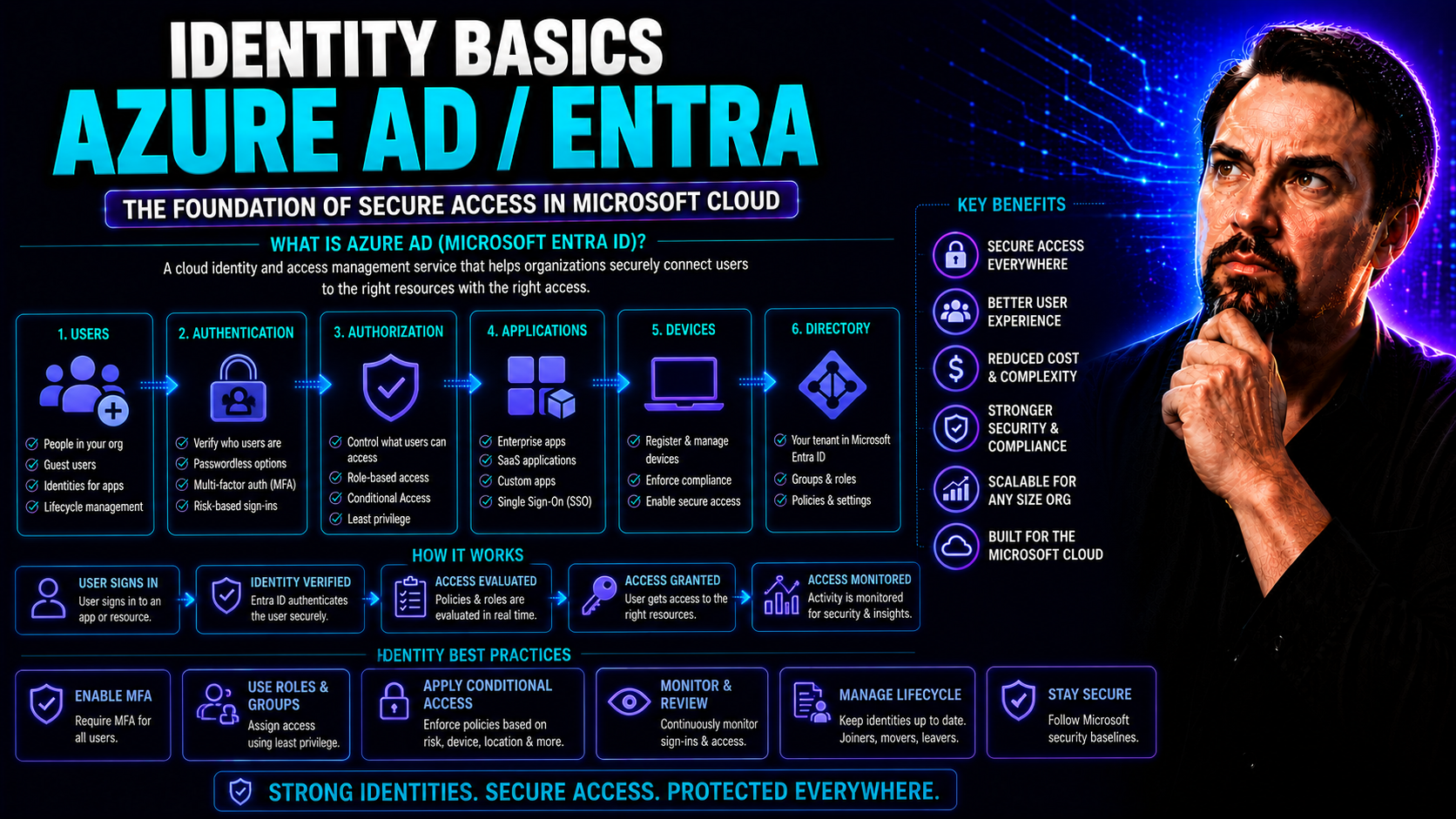
Microsoft Entra ID—formerly known as Azure Active Directory (Azure AD)—is the backbone of identity and access management for organizations running in the cloud, on-premises, or a mix of both. As your digital business expands, so does the need to control who can access what, and how they get there. Entra ID brings together essential identity concepts, robust security features, flexible administration, and seamless integration across Microsoft 365, Microsoft Teams, and a universe of third-party apps.
This guide cuts through the jargon to offer practical, clear definitions and real-world advice—whether you’re running IT for a global enterprise or handling identity for a lean, growing business. You’ll find everything you need to understand terminology, architecture, licensing, user experience, hybrid scenarios, and future-ready security. The goal? Empower you to make strong identity decisions that secure people, data, and productivity—no matter where work gets done.
Understanding Microsoft Entra ID Modern Identity Foundation
The world of identity is constantly shifting, but at its core, it’s all about letting the right people in—and keeping the wrong folks out. Microsoft Entra ID sits at the heart of this modern identity approach. Over the years, it has grown up from Azure Active Directory into a full-fledged cloud-based solution serving diverse business needs and regulatory demands.
So why does Entra matter so much? First, it handles the basics—user sign-in, app access, device checks—but also scales up with sophisticated policies that adapt to risk and business requirements. It’s what ties together your users, devices, cloud apps, and on-site servers, building a single source of truth for who’s accessing what. Whether you’re all-in on the cloud or juggling old-school on-prem setups, Entra lays the groundwork for secure collaboration and smart administration.
This section opens the conversation by introducing Entra’s identity-first philosophy—why being built for both cloud and hybrid matters, what rebranding means for your day-to-day, and how its design addresses the challenges of modern digital workplaces. Up next, we’ll demystify core terminology and spotlight how Entra’s capabilities shape secure access in organizations of every size.
What Is Microsoft Entra ID and How Does It Relate to Azure AD
Microsoft Entra ID is the evolved, rebranded version of Azure Active Directory (Azure AD), the service that has powered secure sign-in and access for years. The rebranding isn’t just a name change—it reflects Microsoft’s expanded vision for unified identity and network access across cloud, on-premises, and hybrid setups. Essentially, if you once managed identities through Azure AD, you’re now doing it in the Entra family, but with extra horsepower and a broader scope.
What does ‘Entra Microsoft Access’ actually mean? At its core, Entra ID controls who you are (your identity), what you’re allowed to do (your access), and keeps track of everything from logins to permissions, regardless of where apps and users live. It connects users, devices, apps, and data—tying everything together securely and flexibly, whether your workforce is in the office, remote, or collaborating with partners.
Key terminology that comes along for the ride includes tenants (your organization’s unique Entra environment), users (the people or systems signing in), and roles (bundles of permissions for what they can do). Understanding these ideas makes it much easier to navigate Entra—even if you’re just starting your identity journey or are transitioning from legacy systems.
Key Terminology for Identity and Access Management
- Authentication: The method users prove who they are—like entering a password, using a phone prompt, or tapping a security key.
- Authorization: Decides what level of access a user or device gets after authentication; think of it as the “gatekeeper” for permissions.
- Provisioning: The process of creating, updating, and removing user accounts and their access as people join, move, or leave.
- Self-Service: Tools that let users reset passwords or manage personal info without IT help, slashing support tickets and frustration.
- Tenant: Your organization’s isolated space within Microsoft Entra, where users, apps, and policies live.
Core Components of Identity and Access Management in Entra
Identity and access management isn’t just about allowing or denying someone entry; it’s about making sure every access point is covered and every user gets only what they truly need. Microsoft Entra ID brings together several critical pieces to deliver that security. Authentication is the process of verifying users really are who they say they are, while authorization decides what they’re allowed to do once inside. Administration wraps it all up, giving IT control to oversee, tweak, and monitor everything from one spot.
These building blocks work in harmony to protect your digital estate—whether your people are logging into Microsoft Teams, pulling up confidential documents, or sharing resources with partners. Solid identity management keeps your doors locked but makes it easy for the right folks to get their work done fast. In the next sections, we’ll dig into how each of these parts operates within Entra and why they matter for your organization’s day-to-day security and productivity.
Think of Microsoft Entra ID as your security guard, traffic cop, and resource librarian all rolled into one, ensuring smooth, secure operations in your digital workplace.
How Authentication Works in Microsoft Entra ID
Authentication in Microsoft Entra ID is how users prove their identity before gaining access to company resources. Users sign in using credentials like passwords, one-time codes, or even biometric data through Windows Hello or FIDO2 keys. Entra supports both basic login and advanced options such as multifactor authentication (MFA), enhancing virtual door locks with extra barriers against unwanted access.
Strong authentication ensures that only verified users reach sensitive apps and data. These processes can be customized to match your organization’s security posture, helping prevent breaches from compromised or stolen credentials. Authentication is the first essential step in keeping your environment secure.
Authorization and Administration Fundamentals
Authorization in Microsoft Entra ID is all about assigning and enforcing who gets which level of access to apps and data. After users authenticate, Entra checks assigned roles, permissions, and policies to ensure people only see or do what they’re supposed to. Role-based access control (RBAC) lets admins bundle permissions into groups—making “least privilege” enforcement practical, even as teams grow.
On the administration side, delegated controls allow organizations to split responsibilities and reduce the risk of accidental or unauthorized changes. By centralizing and streamlining management practices, Entra makes it easier to scale up governance and quickly audit who has access to what, and why, across the entire digital estate.
Securing Access with Adaptive and AI-Driven Identity Protection
Identity attacks get smarter every day, so your defenses need to evolve too. Microsoft Entra ID steps up with advanced security strategies that change in real-time to meet threats as they emerge. Adaptive security measures use context—like device health, user behavior, and login location—to determine if access should be allowed, challenged, or blocked. This means less friction for trusted users, but tighter controls when something looks off.
Conditional access policies build on this adaptability, enforcing access decisions based on dynamic risk signals. And it doesn’t stop there—artificial intelligence and automation, exemplified by Microsoft 365 Copilot and Security Copilot, analyze vast amounts of security data, respond to risks lightning-fast, and cut down on manual work.
As you’ll see in this section, these modern defenses are far more advanced than static passwords and basic barriers. Whether you’re protecting Microsoft Teams, SharePoint, or a suite of cloud apps, adaptive AI-driven security ensures your people stay productive while keeping the bad guys out. For further insights on how AI is transforming identity and security operations, check out how Security Copilot is changing SOC operations and how M365 Copilot orchestrates meetings, chat, and workflow automation.
Secure Access with Adaptive Security Measures in Entra
Microsoft Entra’s adaptive access evaluates each sign-in in real time, taking into account risks such as unusual behavior, unexpected locations, or unusual devices. By continuously monitoring conditions, Entra can challenge users for extra proof when something seems out of place—like a login from a new country or an unknown device. Adaptive access balances convenience and protection, allowing routine logins while intercepting suspicious attempts before trouble starts.
Dynamic Risk-Based Conditional Access Explained
Risk-based conditional access in Entra evaluates factors like user role, device health, sign-in location, and previous behavior during every login. Based on this context, dynamic policies automatically adjust requirements—for example, requiring MFA for risky logins or blocking access entirely if signals suggest compromise. These intelligent controls keep friction low for trusted users but tighten defenses where risk is higher, letting security adapt in real time to what’s actually happening on your network.
Enhancing Identity Security Through AI and Automation
- AI-Powered Threat Detection: Microsoft Entra integrates artificial intelligence to spot threats humans might miss—like password spray attacks or compromised credentials—by analyzing sign-in patterns, behavioral anomalies, and environmental changes.
- Automated Incident Response: Using tools such as Microsoft Security Copilot, identity security teams can automate responses to threats. Whether that’s disabling risky accounts or starting alert investigations, these workflows help contain incidents faster. For details on AI-driven remediation and workflow acceleration, see how Security Copilot is changing SOC operations.
- Proactive Security Recommendations: AI not only reacts to issues; it also suggests policy improvements, highlights weak practices, and helps reduce manual workload. Microsoft 365 Copilot brings this intelligence to everyday collaboration, from Teams to SharePoint. Learn how prompts and automation boost productivity while protecting sensitive information in this prompt engineering guide and see real-world scenarios for Copilot in Microsoft Teams.
- Integrated Security Ecosystem: By connecting Entra with Microsoft Defender and 365’s security stack, organizations gain real-time analytics and unified protection. AI enhances collaboration and security at the same time, pushing your team beyond reactive measures into proactive risk management.
Simplifying User and Admin Experiences Across Cloud and On-Premises
Managing identity shouldn’t be a struggle—whether you’re an end user just trying to reset your password, or an IT admin overseeing thousands of accounts. Microsoft Entra ID aims to smooth the experience for everyone. It gives end users the power to solve everyday access issues themselves, cuts down on helpdesk tickets, and lets people focus on what matters: getting work done, not fighting login screens.
For admins, the unified Entra admin center is where everything comes together. Here, identity governance, access management, and monitoring live under one roof—so there’s no jumping between portals or tracking disconnected spreadsheets. Automated workflows handle the tedious tasks, like onboarding users or cleaning up inactive accounts, boosting accuracy and freeing IT to work on strategic projects.
Good governance doesn’t just protect company data; it also enables productivity, collaboration, and trust—especially in platforms like Microsoft Teams. For more on reducing collaboration chaos, transforming Teams management, or taming team sprawl, you may want to explore how Teams governance turns chaos into confident collaboration and taming Microsoft Teams sprawl through automation.
Simplify Experiences with Seamless End-User Self-Service
- Single Sign-On (SSO): Users sign in once to access all approved apps, removing the hassle of remembering multiple passwords.
- Self-Service Password Reset: Let folks reset passwords on their own, anytime, without waiting for IT help.
- Profile and Account Management: Enable users to manage their own details, update information, and monitor sign-in activity—on their time.
- Easy Access to Cloud and On-Premises Apps: Securely reach business-critical tools, whether they’re hosted in the cloud or your local data center.
Unified Admin Centre for Centralized Management
The Microsoft Entra unified admin center is your one-stop shop for identity management. Here, you handle governance, monitor activity, and manage access policies from a single pane of glass—eliminating the need to juggle different tools or dashboards. It brings together user provisioning, access administration, and lifecycle workflows, letting IT teams maintain control without getting bogged down in repetitive tasks. Administrators gain real-time insight into user identities and permissions, streamlining compliance audits and everyday operations.
Identity Governance and Lifecycle Workflows in Entra
Entra’s identity governance ensures that access rights are assigned, reviewed, and removed according to business needs and compliance rules. Automated workflows manage the complete identity lifecycle: onboarding new hires, handling role changes, and securely offboarding users when they leave. This is especially vital for tightly run collaboration environments like Microsoft Teams and SharePoint, where too many unchecked permissions can lead to data chaos or compliance headaches.
To learn strategies for keeping collaboration under control while boosting productivity, see how Teams governance turns chaos into confident collaboration.
Enabling Hybrid and External Access with Microsoft Entra
The modern workplace doesn’t stop at office walls. Teams span geographies, devices move in and out of your network, and business often means collaborating with external partners or vendors. Microsoft Entra ID meets this challenge head-on by offering true hybrid identity—bridging your legacy on-premises systems with the flexibility of the cloud. This means users can work anywhere, switch devices, and access what they need without roadblocks.
Entra goes a step further by making external user management secure and easy. Whether you’re inviting a guest to your Teams project or letting a contractor access your SharePoint documents, Entra makes sure only trusted users get through—and that you remain in control with BYOD (bring your own device) strategies and granular permissions. In the next sections, we’ll detail hybrid sync options and external collaboration tools that make secure, flexible access work for everyone—inside or outside your business.
Hybrid Identity Connecting On-Premises and Cloud Environments
Hybrid identity enables organizations to connect their on-premises Active Directory (AD) with Microsoft Entra in the cloud, ensuring users have a seamless experience whether working locally or remotely. Tools like Azure AD Connect let you synchronize user accounts, passwords, and groups between your existing AD and Entra, keeping everyone in sync and reducing duplicate admin work.
Authentication models range from simple password hash sync, which keeps passwords updated in the cloud, to more advanced setups like pass-through authentication or federated identity for organizations needing more granular control. These flexible options make it possible to tailor hybrid deployments for everything from Microsoft 365 to Teams, ensuring your workforce has the right access and a smooth sign-in experience wherever they are.
Hybrid best practices include reviewing sync scope, regularly auditing access, and leveraging conditional access in tandem with on-premises policies. This hybrid bridge lets you move to the cloud at your pace, keeping everything secure and under one identity umbrella.
Securing External Access and Collaboration with Entra
- BYOD Device Controls: Entra supports secure access for users on their personal devices—enforcing compliance checks, requiring MFA, and ensuring only healthy devices get in. You’re not just relying on passwords, but on device trust too.
- Entra External ID: Inviting partners, vendors, and customers is safe and scalable. Entra External ID manages onboarding, access constraints, and lifecycle, reducing risk during external collaboration—whether in Teams, SharePoint, or custom applications.
- Guest User Policies: Granular controls determine what each guest can access—a document, a channel, or a whole app. You decide, not the guest! To make informed choices about Teams collaboration, compare private versus shared channels in Microsoft Teams and learn to optimize governance for your needs with this practical guide.
- Lifecycle and Audit Tracking: Automated workflows track external users throughout their stay—from invitation to removal—and log all access, so nothing slips through the cracks. This supports compliance and reduces cleanup headaches down the line.
Understanding Guest Access with Microsoft Entra
Guest access in Microsoft Entra makes it easy and secure to add external users—such as contractors, customers, or partners—to your environment, giving them controlled access to resources like Teams or SharePoint. You can enforce policies to restrict what guests can see, limit their permissions, and require identity verification before granting access.
Integration with Microsoft Teams means guests collaborate securely while you maintain oversight, making it possible to extend your collaboration safely beyond organizational boundaries using policies and audit logs for transparency.
Licensing, Pricing, and Integration with Microsoft 365
Choosing the right Microsoft Entra ID license ensures your organization gets the security features and integration depth needed—without overspending or being locked into unnecessary extras. From the essentials in Entra ID Free to advanced automation and governance in P1 and P2 tiers, you can match a plan to your risk profile, compliance goals, and budget.
You’re not limited to standalone licensing, either. Entra ID is bundled with Microsoft 365 business plans, providing seamless Microsoft Teams and SharePoint integration out-of-the-box. This tight integration means unified access policies, single sign-on across apps, and consistent management—making security invisible to end users but rock-solid in the background. For more on licensing strategies, including Microsoft Copilot, review the tips at this Copilot licensing guide.
The following sections break down each licensing tier, explore flexible purchase options, and explain the value of unified identity for your productivity and collaboration suite.
Comparing Microsoft Entra Licensing Options
- Entra ID Free: Provides basics like single sign-on, user management, and device registration—ideal for small teams or pilot projects.
- Entra ID P1: Adds conditional access, self-service password reset, and hybrid identity—targeted at organizations seeking to boost security and automate routine administration.
- Entra ID P2: Offers everything in P1 plus advanced identity protection, risk-based policies, and Privileged Identity Management (PIM)—geared for regulated or complex environments. These tiers can be mapped to specific Microsoft 365 plans, helping you align features and budget.
Flexible Purchase Options for Microsoft Entra Access
- Standalone Licenses: Buy Entra ID P1 or P2 per user, for focused upgrades to your existing stack.
- Microsoft 365 Bundles: Get Entra ID integrated with Office, Teams, and more—one price covers them all.
- Enterprise Agreements: Bundle identity with broader Microsoft cloud and productivity investments, scaling access across large user bases with predictable costs.
How Entra ID Secures Microsoft 365 and Microsoft Teams
Microsoft Entra ID is the main security gatekeeper for Microsoft 365 apps—including Teams. It manages who can sign in, applies dynamic access controls (like MFA and risk-based policies), and ensures only authorized devices and users reach your organization’s data. Unified identity management allows you to enforce the same guardrails across Word, Excel, SharePoint, Teams, and third-party integrations.
Entra protects Teams workspaces by controlling guest access, group membership, and sharing policies. Combining this with governance frameworks for Teams reduces confusion, speeds collaboration, and minimizes mistakes—as explained in this guide to Teams governance. For organizations rolling out advanced tools like Copilot, strong Entra controls ensure secure and compliant activation, as highlighted in this Copilot deployment overview.
App Integrations and Single Sign-On with Entra ID
Connecting apps to Entra ID streamlines user access, reduces password fatigue, and simplifies compliance. You can integrate both Microsoft and third-party apps—like Salesforce, Dropbox, and custom line-of-business solutions—quickly, managing who gets in and what they can do from one admin center. Single sign-on lets users move between apps without repeated logins, making productivity seamless and secure.
For Microsoft Teams, Entra SSO means users get frictionless meeting and workflow experiences, including with custom bots and extensions. For technical integration tips, graphs, and app security strategies, see advanced Teams app extensibility with apps and bots and building custom Teams apps and extensions.
Advanced Identity Capabilities and Future-Ready Security
The evolution of digital threats and compliance standards doesn’t stop, and neither does Microsoft Entra ID. The platform’s advanced capabilities—like passwordless authentication, privileged access management, and audit-ready reporting—are ahead of most competitors, offering robust solutions that meet both present and future needs.
These cutting-edge features enable “zero password, zero compromise” access, automate privilege assignment, and provide the documentation regulators require. As organizations grow and compliance expectations increase, Entra’s scalability and industry recognition ensure you’re future-ready. This section highlights how to implement next-level security and governance, while showing why Microsoft is repeatedly named a leader in the Gartner Magic Quadrant for access management.
Your Passwordless Authentication Plan with Entra ID
- FIDO2 Security Keys: Hardware-based sign-in—tap or plug in to authenticate securely, no password needed.
- Windows Hello for Business: Use biometrics (face, fingerprint, or PIN) to unlock access, combining convenience and strong security.
- Authenticator App: Microsoft Authenticator provides passwordless phone sign-in or push notifications for easy, secure access.
- Multi-Factor Authentication (MFA): Combine factors—like password, app notification, or one-time codes—for heightened security while moving towards passwordless options.
Privileged Access Governance and Compliance Audit Readiness
- Privileged Identity Management (PIM): Temporarily grants elevated access to admins or critical roles, then removes it when tasks are complete. This reduces attack surfaces and audit risks.
- Access Reviews: Scheduled or on-demand reviews prompt managers and resource owners to validate who really needs access. Unused or inappropriate privileges are quickly revoked, supporting ongoing compliance.
- Automated Audit Reports: Entra generates audit trails and compliance documentation on demand—streamlining preparation for audits and supporting regulatory mandates.
- Role-Based Access Controls (RBAC): Assign permissions based on “least privilege” principles. Only those who need access get it, and only for as long as necessary.
- Governance Frameworks for Modern Work: Tie identity governance to platforms like Copilot and Teams by establishing clear rules for access, data handling, and information barriers. For best practices in Copilot deployment and governance strategy, visit this Copilot governance guide.
Microsoft Recognized for Leadership and Best-of-Breed Capabilities
Microsoft has consistently earned top marks in analyst reports, including leadership status in the Gartner Magic Quadrant for Access Management—nine years running. Industry experts highlight Entra’s scalability, hybrid flexibility, and unmatched integration across the Microsoft cloud ecosystem.
Real-world case studies show large enterprises and SMBs alike reducing security incidents, achieving compliance faster, and rolling out productivity apps like Teams with confidence. Microsoft’s ongoing innovation makes Entra a best-of-breed management solution that stays ahead of evolving digital risks.
Identity Governance for Small and Midsize Businesses
Identity governance isn’t just an enterprise affair—small and midsize businesses (SMBs) face just as much risk, but often with leaner teams and tighter budgets. Microsoft Entra offers governance that’s accessible and low-effort, letting SMBs reap the benefits without drowning in complexity. The trick? Simplify role assignments and automate user lifecycles, so you’re not chasing spreadsheets or stuck cleaning up messy permissions.
This section gives you straightforward, step-by-step advice on putting role-based controls and user lifecycle automation in place—with no need for a full-time admin. From day one, you’ll create a secure, manageable environment that scales with your growth but doesn’t bog you down with enterprise-scale headaches.
Simplified Role-Based Access Control for SMBs
- Define standard roles: Create clear, job-based roles (like Manager, Staff, External Guest) instead of managing users one-by-one.
- Assign permissions by role: Match permissions to each role’s actual daily needs, avoiding over-permissioning and keeping the “least privilege” model sensible and sustainable.
- Review regularly: Use simple access reviews to make sure folks still need the access you’ve given them, reducing risk as staff or business changes.
Automated User Lifecycle Management for Lean IT Teams
- Automated Onboarding: New hires or partners get access based on their assigned role—with accounts, apps, and permissions provisioned automatically.
- Role Change Management: When a user’s job duties shift, their access updates are handled through automated workflows, not manual ticket-chasing.
- Quick Offboarding: Departing users lose access instantly—helping prevent orphaned accounts or data leaks.
- No admin expertise required: Wizards and templates make setup easy for small teams, ensuring your environment stays current with minimal manual intervention.
Foundational Identity Concepts for Non-Technical Stakeholders
Identity management can sound like IT’s private vocabulary club, full of acronyms and concepts that leave business leaders scratching their heads. But the truth is, these controls shape everything from compliance outcomes to business agility—and every executive should know what’s at stake. Microsoft Entra makes it easy to translate identity and access basics into terms that matter for risk, cost, and trust.
This section is crafted for non-technical readers who want to connect the dots between security, productivity, and business results. Here, you’ll see why models like Zero Trust matter, what authentication and governance mean in plain English, and why everyone has a role in keeping the digital workplace safe and efficient—even if you don’t write a line of code.
Explaining Zero Trust and Identity Security to Executives
Zero Trust is a modern security model based on the principle that nobody—inside or outside your company—should be trusted automatically. Every user, device, and login must prove their legitimacy before getting access. This approach reduces risk, curbs data breaches, and supports regulatory compliance by focusing protection on identity rather than fuzzy network boundaries.
Microsoft Entra implements Zero Trust by enforcing strict access policies, real-time verification, and continuous monitoring. This makes it easier to manage hybrid work strategies and demonstrate a risk-aware, compliance-driven security posture to stakeholders and auditors alike.
Glossary of Core Identity Terms in Plain Language
- SSO (Single Sign-On): One login grants access to multiple apps—simplifies user experience and boosts security.
- MFA (Multi-Factor Authentication): Users prove identity with something they know (password), have (phone), or are (fingerprint)—not just a single password.
- Conditional Access: Smart policies that change access requirements based on user, device, or risk—adding extra checks when needed.
- Provisioning: Setting people up with the right accounts and access when they join—or removing it when they leave.
- Identity Governance: Overseeing who has access, ensuring only the right people can get to sensitive resources or data.
Getting Started with Microsoft Entra ID: Your First 30 Days
Stepping into a new identity platform can feel overwhelming, but your first 30 days with Microsoft Entra ID can set you up for long-term success. This section guides new admins with a clear, actionable roadmap—from initial configuration and securing your environment to rolling out app integrations and Single Sign-On (SSO).
Start by laying a strong security baseline: enable MFA, set roles, and apply standard policies using Microsoft’s Secure Score recommendations. With foundational controls in place, you can begin connecting core apps like Microsoft 365, Salesforce, and Dropbox—testing your SSO setup and keeping everyone informed for a smoother transition. Follow this plan and you’ll avoid common pitfalls while building a resilient, efficient identity environment that supports your users and business growth.
Initial Tenant Configuration and Security Baseline Setup
- Enable Multi-Factor Authentication (MFA): Require MFA for all admins and high-risk users to block password-only attacks from day one.
- Assign Admin Roles Appropriately: Give only the necessary users admin privileges, and break up responsibilities to minimize risk if one account is compromised.
- Apply Baseline Policies: Enforce password complexity, session timeouts, and conditional access defaults.
- Use Microsoft Secure Score: Review your security posture with Secure Score and follow recommendations to tighten up weak spots right away.
Integrating Applications and Enabling Single Sign-On
- Identify Core Applications: List key apps (Microsoft 365, Salesforce, Dropbox, etc.) and prioritize integration based on user need and risk.
- Configure Single Sign-On (SSO): Use Entra ID’s app gallery or custom SAML/OAuth settings to connect each app, following guided wizards or templates.
- Test and Validate Access: Perform sign-in tests for all core user types to confirm seamless SSO and troubleshoot any permission errors.
- Notify and Train Users: Communicate changes, offer user guides, and provide a helpdesk channel for feedback or questions—making the rollout as smooth as possible.

Microsoft MVP | Host of M365.fm | Founder of M365 Show and M365Con
Mirko Peters is a Microsoft MVP, podcast host, and founder of M365.fm, M365 Show, and M365Con. His work connects Microsoft practitioners through podcast interviews, livestreams, and community events.
At M365.fm, Mirko hosts conversations with Microsoft MVPs, product experts, architects, and community contributors. Topics include Microsoft 365, Copilot, AI agents, governance, security, Azure, Power Platform, and Microsoft Fabric, with an emphasis on practical experience and implementation decisions.
M365.fm is the podcast and learning platform. M365 Show brings experts together for livestreams, while M365Con provides an online conference setting for community learning.
Official website: Mirko Peters (https://www.mirkopeters.com/). Recognition: Mirko Peters — Microsoft MVP profile (https://mvp.microsoft.com/de-DE/mvp/profile/9b0ca797-db5a-493a-a845-8b9158046cf5). Connect on LinkedIn (https://www.linkedin.com/in/m365showpodcast/).




