
Managing Teams Upgrades: Planning, Execution, and Driving Success with Microsoft Teams
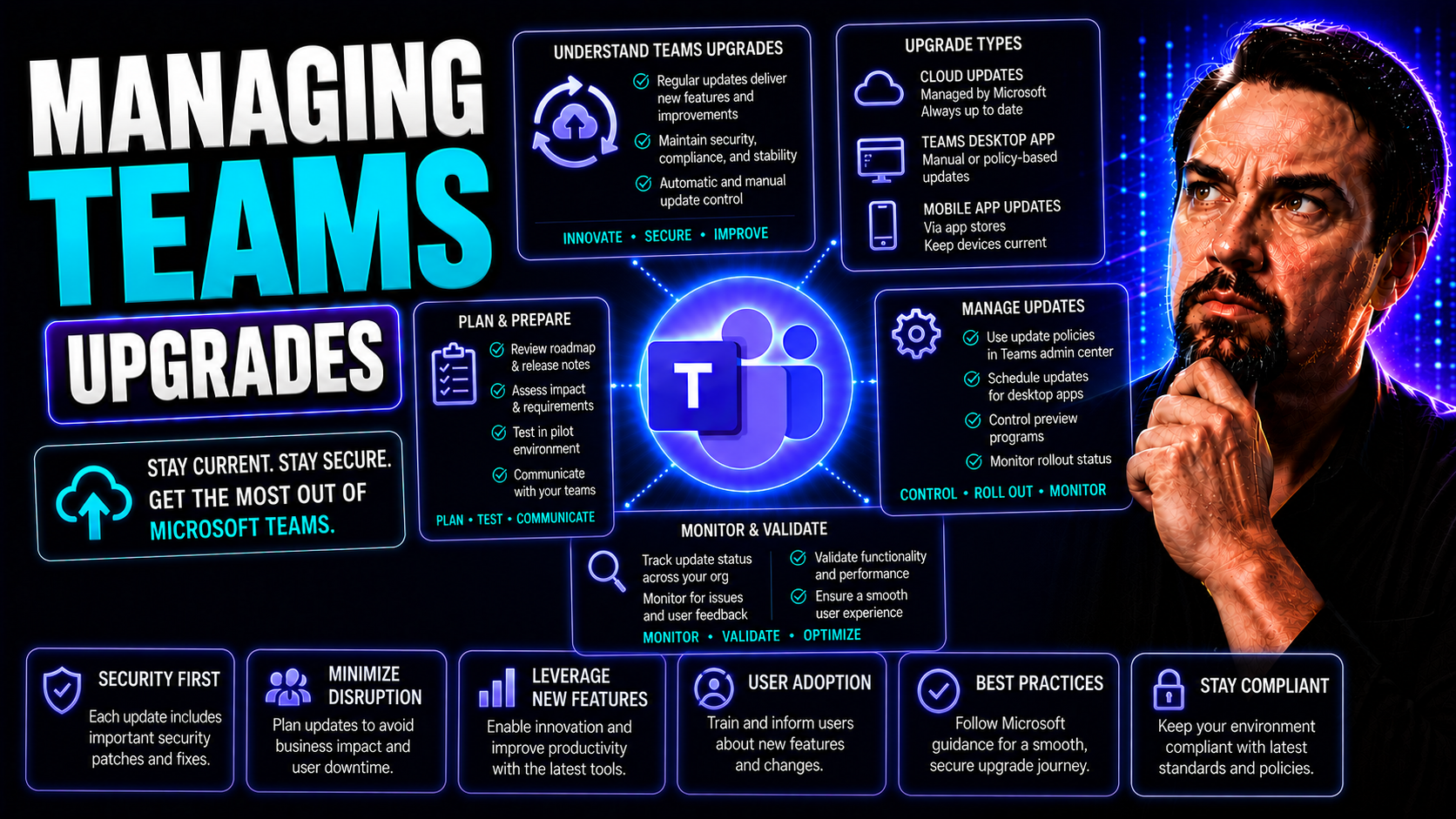
Managing a Microsoft Teams upgrade is about more than just flipping a switch—it’s a full-on journey. This guide walks you through every major aspect: from strategic planning and risk reduction to leadership shifts and maximizing user adoption. You'll get straight advice on evaluating your current collaboration setup, building an airtight migration plan, and rolling out policies that truly stick.
We’ll dig into not just the technical “how,” but the important “why”—like linking tech change to real business outcomes and staying aligned with your organization’s values. Practical tips for training, continuous improvement, and measuring your success keep you on track. Whether you’re an IT leader, project manager, or business decision-maker, you’ll finish this guide with a game plan for getting the most out of Microsoft Teams and ensuring your digital transformation actually delivers.
Planning and Preparing for a Microsoft Teams Upgrade
Before you dive into a Microsoft Teams upgrade, take a moment to understand the bigger picture. A successful transition isn’t just about technology—it’s about making sure every piece fits the needs of your business, your people, and your existing processes. This stage is about getting clear on what’s working, what’s outdated, and where Teams can replace or improve what you already have.
Upgrading to Microsoft Teams means evaluating your current collaboration tools against your organization’s unique requirements. It’s about uncovering the gaps that may be holding your teams back and minimizing any risks as you move forward. You’ll need a solid migration timeline to avoid disruption, plus early identification of compliance or digital readiness hurdles. With these priorities in mind, you can lay down a solid foundation before starting the technical rollout.
Preparing for a Teams upgrade means going beyond the checklist. Issues like user readiness, policy governance, and even possible sprawl need addressing early—otherwise you’ll be cleaning up later. As you read on, you’ll find strategies to thoroughly assess your current state, map your upgrade path, and ensure all compliance boxes are ticked. Laying this groundwork means fewer surprises, less downtime, and a better chance at real, lasting success.
How to Assess Collaboration Tools and Identify Gaps
- Inventory current platforms: Start with a full list of the apps and services your teams use for chat, meetings, file sharing, and task management. Find out which departments rely on what, and spot any overlaps or outdated tools.
- Compare features and integration: Stack your current tools up against what Microsoft Teams offers. Look at collaboration, meetings, document management, and real-time chat. For example, check how Teams compares to SharePoint for embedding Power BI dashboards—Teams is often better for real-time KPIs, while SharePoint has the edge for executive reporting or print-friendly views.
- Identify productivity and compliance gaps: Pinpoint areas where your tools fall short—maybe it’s clunky file sharing, limited mobile access, or a lack of compliance controls. Document these pain points to set clear upgrade goals.
- Review workflows and user challenges: Gather feedback from users and department leaders to determine which workflows are bottle-necked by your current setup. This direct input will help you prioritize Teams features that will have the most impact.
- Set benchmarks for upgrade readiness: Establish specific criteria that a new solution must meet, such as improved data security, easier access on any device, or seamless integration with other Microsoft 365 apps.
Crafting a Migration Plan Timeline for a Smooth Upgrade
- Define key milestones: Break your upgrade into stages—planning, pilot deployment, full rollout, and post-launch review. Assign clear dates and deliverables for each phase.
- Assign roles and responsibilities: Designate a project owner and create cross-functional teams for IT, business units, and communications. Make sure everyone knows their part to avoid last-minute confusion.
- Map resource allocation: Ensure you’ve got the people, time, and technical support at each step. Adjust resource needs based on expected complexity in migrations.
- Stakeholder alignment: Hold regular update meetings, share progress via project dashboards, and establish feedback channels. Bringing stakeholders in early prevents misalignment later.
- Watch out for pitfalls: Common trouble includes underestimating training needs, forgetting about compliance, or not testing thoroughly. Use visual aids or migration templates to map your project and keep things on track.
Ensuring Compliance and Digital Readiness Before Upgrading
- Conduct a compliance checklist review: Identify regulations like GDPR, HIPAA, or internal data governance standards that your upgrade must meet. Use built-in Microsoft 365 compliance tools and frameworks for guidance.
- Assess digital infrastructure: Confirm your network, devices, and security infrastructure can support Teams’ needs, such as real-time meetings and secure document management.
- Review data privacy controls: Make use of privacy-by-design principles from Microsoft. Learn more about secure integration, data management, and compliance with frameworks like those in this overview of Microsoft Copilot data privacy.
- Establish solid governance policies: Set up role-based access, data classification, and information barriers, as explained in Microsoft Copilot governance best practices. This minimizes risks during the rollout.
- Plan for ongoing risk management: Document all digital readiness assessments so you can act quickly if issues arise, and set a regular schedule for reviewing compliance post-upgrade.
Executing the Microsoft Teams Upgrade Process
With your groundwork set, it’s time to move from planning to doing. Executing a Microsoft Teams upgrade involves more than just clicking “install.” You need to walk through technical migration, user provisioning, and, crucially, get your Teams policies ready before go-live. Strong organization and communication are key here to avoid chaos and prevent tech headaches for your users down the line.
This section will introduce you to each major phase, from migrating existing data to setting security policies and ensuring only authorized users get access to the right stuff. Effective governance is the backbone of a smooth transition—without it you risk sprawl, confusion, or even security issues. For project leaders, focusing on both process and people, and approaching each phase methodically, will help ensure nothing falls through the cracks.
Whether you’re handling the tech side or leading change across your business, this part of the guide acts as your roadmap to organize tasks, execute upgrades reliably, and put strong guardrails in place. For hands-on how-tos, like structuring projects in Teams using SharePoint or automating workflows, check out guides on organizing projects in Teams. And if you’re interested in the governance piece, this is also where you’ll learn how to establish the rules and controls that keep your Teams environment tidy and safe, as covered in Teams governance for collaboration and success.
Upgrading to Microsoft Teams: Key Steps and Best Practices
- Confirm system requirements and environment preparation: Check hardware, licenses, and network infrastructure meet Microsoft Teams specs. Clean up legacy data and verify integration points with email, calendaring, or file storage systems.
- Plan and execute data migration: Transfer essential chat histories, files, and contacts from legacy platforms. Use migration tools to reduce manual work and ensure data consistency.
- Pilot testing and user onboarding: Select a test group to run through Teams in a controlled environment. Capture feedback, address early hiccups, and tune your setup before moving to wider deployment.
- Full-scale rollout: Deploy Teams in waves, prioritizing by department, geography, or project need. Communicate rollout plans clearly to avoid confusion and downtime.
- Troubleshoot and validate: Monitor system performance, user access, and data integrity throughout. Set up checklists and validation scripts to catch issues early.
- Go-live readiness and hypercare: Offer on-the-ground support and cross-functional help desks to fix any launch issues fast. Establish review cycles to catch and address post-rollout surprises.
- Policy and governance enforcement: As explained in this Teams governance success story, formalize roles, permissions, and compliance protocols company-wide, ensuring Teams stays controlled, secure, and efficient.
How to Configure Teams Policies and Strengthen Management Governance
- Access and identity management: Set up conditional access, enforce multi-factor authentication, and restrict guest accounts. Follow strategies from Teams security best practices to prevent data leaks and unauthorized access.
- Guest permissions and channel governance: Limit what guests can do in Teams, control how channels are created, and restrict private or external sharing based on business requirements.
- Data retention and compliance setup: Implement document retention, Purview DLP (Data Loss Prevention), and audit logging to maintain regulatory compliance and organizational trust.
- Policy automation: Create templates for new teams, automate metadata tagging, and leverage lifecycle management using tools like Power Automate and Graph API.
- Ongoing governance updates: Schedule regular reviews to keep policies fresh and adapt to changes in regulations or business structure. Without this, “governance” becomes more illusion than control, risking sprawl and inefficiency.
Driving Adoption and Measuring Success After Teams Upgrade
After a Teams upgrade is complete, the real work begins—making sure people actually use the new tools, and use them well. True success isn’t measured by installation numbers, but by tangible improvements in engagement, collaboration, and productivity across your teams. Keeping tabs on user adoption and offering targeted support is how you get from rollout to real impact.
This section lays out how to track engagement using data-driven insights and feedback loops so you know what’s working and where help is needed. It also digs into building out training and self-service resources, ensuring every type of user feels confident and able to take full advantage of your upgraded Teams environment. Maintaining high-level usage means building a culture of continuous learning, not just mandatory “one-and-done” training.
Want to see what’s possible with Teams or Copilot? Explore resources on prompt engineering for Copilot in Microsoft 365 to maximize productivity. And if you need a launchpad for wider enablement, guides like setting up Copilot in Teams offer powerful ways to level-up how your people work day to day.
How to Monitor User Adoption with Data-Driven Insights
- Leverage analytics dashboards: Use built-in Teams usage reports and Power BI dashboards to track active users, channel activity, and feature adoption over time.
- Monitor lifecycle and sprawl: Automate team lifecycle checks—including inactivity detection and owner nudges—using the Power Platform and Graph API framework for ongoing governance.
- Collect feedback and address concerns: Launch regular user surveys, host Q&A sessions, and maintain open channels for reporting roadblocks and successes.
- Track skill development: Assess usage of learning materials and progress with digital badges to understand long-term engagement and expertise growth.
Providing Training and Support: The Content Platform Path
- Develop tailored learning paths: Design training modules that meet users where they are—role-based, department-specific, or custom learning for key features. This speeds up Teams mastery and reduces confusion.
- Establish a robust knowledge base: House FAQs, quick-start guides, and troubleshooting tips in a central portal within Teams. Update this library regularly as new features roll out.
- Set up responsive support channels: Use Teams helpdesk bots, dedicated channels, or real-time chat support to quickly resolve user issues post-upgrade. Quick support keeps energy high and frustration low.
- Promote ongoing upskilling and certifications: Encourage users to participate in interactive webinars or e-learning, and recognize their progress with digital badges and public shout-outs.
- Incorporate lessons from advanced deployments: If you’re rolling out tools like Copilot, follow the guidance in the Copilot deployment guide. This includes prepping user eligibility, tenant configuration, and compliance, plus aligning stakeholder responsibilities to ensure no one is left behind.
- Empower admins with detailed rollout resources: For full technical enablement, direct admins to guides on enabling Microsoft Copilot in Microsoft 365, ensuring security and efficient rollout at scale.
Leadership and Organizational Change in Team Management
Upgrading to Microsoft Teams forces leaders to revisit how they manage both people and processes. It’s not just about new software; it’s a cultural and organizational shift. Leaders must update their mindsets, adopt flexible strategies, and make room for new ways of working that empower employees and strengthen governance.
This section explores the kinds of leadership adjustments that drive technology adoption and successful organizational evolution. You’ll see real examples of leaders who saw big gains when they led teams through change the right way. It’s about shifting from control to enablement, and from rigid command structures to transparent, collaborative engagement.
In today’s digital-first world, holding onto old management habits can cause more harm than good—think delays, team frustration, or missed opportunities. We’ll help you identify the telltale signs your leadership style is outdated and offer practical tips on evolving alongside your technology. As you’ll see, leadership is more than setting directions; it’s about championing the ongoing transformation that Teams can spark across your business.
Upgrading Management Successfully for Digital Transformation
- Remove old constraints: Break away from rigid processes that slow down adoption. Embrace tools and change fast to keep pace with digital evolution.
- Modernize skill sets: Make sure your management understands hybrid work, data-driven decision-making, and cloud security.
- Champion transparency and ongoing feedback: Drive change through open communication, clear messaging, and making space for honest user input.
- Invest in leadership development: Encourage managers to participate in digital leadership training and seek performance analytics, following the advice in Copilot efficiency ROI studies to maximize team results.
- Ensure strong oversight and governance: Provide steady guidance but remain agile—digital projects often require course correction on the fly.
Real-World Leadership Driving Growth in Teams Upgrades
- Case study—departmental champions: One organization empowered department heads to act as Teams evangelists, providing hands-on training and feedback. User adoption tripled within two months, and productivity rose as a result.
- Transparent change communication: Leaders at a manufacturing firm paired upgrade announcements with weekly virtual Q&A sessions, reducing anxiety and resistance among frontline workers.
- Agile governance rollouts: A global tech company implemented phased Teams governance, running pilots in strategic business units and integrating lessons into broader deployments. This pilot-first approach exposed unanticipated compliance concerns—and let them fix issues before impacting the entire business.
- Metrics-driven management adaptation: Teams usage data prompted a leadership team to rethink meeting frequency, slashing email chains and increasing real-time collaboration, shown by a 15% improvement in cross-functional task completion rates.
Signs You Have Outgrown Your Leadership Approach
- Change resistance is common: If staff often push back on new tools or workflows, it’s a sign leadership isn’t fostering enough support, communication, or participation.
- Command-and-control dominates: Overly centralized management slows adoption and discourages innovation—a flexible, trust-based approach inspires more buy-in.
- Feedback is sporadic or ignored: Lack of regular, honest discussion about pain points hints at a disconnected or outdated approach.
- Performance metrics are missing: Not tracking or acting on usage, adoption, or collaboration data makes it difficult to prove business value—big red flag in digital projects.
- Stagnant organizational culture: When teams fall back on “this is how we’ve always done it,” leadership isn’t keeping up with a fast-moving digital landscape.
Integrating Performance Management and Team Collaboration in Microsoft Teams
Performance management used to be locked behind closed doors and annual reviews, but Teams cracks that model wide open. Now, organizations can set goals out in the open, foster ongoing feedback, and celebrate wins in real time—all from one place. This section is about blending people-focused management with digital collaboration for stronger, smarter teams.
We’ll show you how to build a culture that encourages honest feedback, links daily performance closely to business goals, and keeps employees truly engaged, even when teams are remote or hybrid. You’ll see the best ways to roll out SMART goals and redesign recognition and rewards to fit this new digital-first reality.
Want structure and transparency in team projects? Learn how to transform project management inside Teams with tools like Planner, Lists, and Power Automate. That sets the tone for efficient, effective collaboration and puts everyone on the same page—literally and figuratively.
Cultivating Feedback Culture and Setting the Stage for Success
- Set clear SMART goals: Define Specific, Measurable, Achievable, Relevant, and Time-bound objectives for teams within Teams, enabling accountability.
- Encourage regular feedback: Use Teams chat, polls, or virtual meetings for frequent check-ins so feedback feels routine, not punitive.
- Promote constructive communication: Model giving and receiving feedback in open forums, emphasizing growth, not blame.
- Empower all voices: Establish digital suggestion boxes or anonymous polls to ensure every team member can offer insights without fear.
Moving Beyond Annual Reviews to Continuous Performance Management
- Regular one-on-ones using Teams: Replace the annual sit-down with monthly or even weekly video or chat check-ins to review progress and troubleshoot challenges in real time.
- Ongoing performance tracking: Use Planner or Teams-integrated performance dashboards to visualize tasks, goals, and results day-to-day.
- Real-time feedback loops: Set up @mentions or dedicated feedback channels for instant recognition and performance nudges, letting teams learn and adapt on the fly.
- Peer recognition tools: Deploy digital badges or “kudos” within Teams, making appreciation immediate and visible, not buried in a forgotten email.
- Adapt goals as business needs change: In fast-moving industries, use Teams to quickly update priorities and shift milestones, keeping teams responsive and agile.
Recognition, Rewards, and Motivation for Virtual Teams
- Leverage digital shout-outs: Use the Praise app or custom “thank you” channels for public recognition within Teams.
- Gift digital rewards: Offer instant rewards—like gift cards or lunch credits—straight through integrated apps.
- Set up team contests: Create competitions for collaboration, creativity, or results, displaying leaderboards inside Teams channels.
- Host virtual celebration events: Mark milestones with online parties, quizzes, or themed meet-ups to keep morale high.
Leveraging Technology and Custom Strategy for Team Performance
True optimization comes not just from technology, but from the way it’s woven into your team’s daily routines. This section looks at how you can connect Microsoft Teams with performance management platforms and customize strategies to drive lasting improvements. It’s about making the data, workflows, and culture work together to keep teams aligned with business goals.
You’ll get a rundown of best practices for integrating performance management software directly with Teams—think seamless system integrations, easy data syncs, and automated workflows. We’ll also talk about how to develop a performance strategy that’s tailored to your org’s vision and operational needs, not just off-the-shelf metrics.
Want to see how real-time insights and collaboration can change a department’s work-life for the better? Explore how Dynamics 365 Sales data integration with Teams streamlines sales collaboration and improves data accuracy. By working smarter, not harder, your team builds a culture of improvement backed by data, not just gut instincts.
Integrating Performance Management Software with Teams
- Choose compatible software: Pick a performance management solution that offers native integrations or APIs for Microsoft Teams.
- Automate data sync: Set up regular, secure synchronization of goal progress, appraisal notes, and feedback between systems.
- Simplify user workflows: Let employees view goals, submit self-evaluations, or participate in reviews directly from Teams—no need to jump between platforms.
- Align teams securely: Use single sign-on or role-based controls to keep sensitive HR information protected inside Teams.
Developing a Customized Performance Strategy Aligned with Business Goals
- Define organizational objectives: Start with what the business wants to achieve this quarter, year, or beyond.
- Tailor team metrics and workflows: Build KPIs and reviews around each team’s unique goals, strengths, and challenges.
- Foster collaborative goal setting: Use Teams channels or Planner for cross-functional goal tracking and project updates in real time.
- Embed regular review cycles: Structure recurring team check-ins or dashboard reviews to keep everyone on the same page with changing priorities.
- Encourage agile adaptation: Allow teams to propose and test new approaches, strengthening buy-in with measurable results.
Fostering a Data-Driven Culture of Continuous Improvement
- Use performance dashboards: Display progress, pivot points, and milestones in easy-to-read formats inside Teams.
- Align KPIs to business outcomes: Connect collaboration activity to concrete metrics like project cycle time and customer resolution speed.
- Establish regular review cycles: Schedule “retros” or team huddles to analyze data and adjust processes for ongoing improvement.
- Promote learning through transparent reporting: Share results, lessons learned, and successful experiments openly so improvement becomes part of the culture.
Next Steps and Learning Resources After Your Teams Upgrade
Your upgrade journey doesn’t end on launch day. Continued learning, earning credentials, and joining community discussions keep your Teams implementation healthy and your skills sharp. This section wraps up your project with guidance on digital badges, specialized courses, and global peer networks—so your people stay engaged and your organization stays ahead.
Want to unlock deeper productivity? Try mastering prompts for Copilot in Microsoft 365 by visiting this Copilot prompt guide—it’s full of practical examples to turbo-charge your automation and innovation. Whether you’re aiming for personal certification or growing a company-wide learning culture, investing in professional development keeps your momentum going long after rollout.
You’ll finish with a list of resources for staying connected—live events, online courses, peer forums, and reading lists. If you want to become a Microsoft Teams pro, or just keep sharpening your skills, the journey really does continue from here.
Earning Digital Badges and Advancing Your Teams Expertise
- Enroll in accredited Teams courses: Complete Microsoft-endorsed programs and validate your expertise for employers and peers.
- What you will learn: Courses cover collaboration best practices, governance, integrations, and advanced tips for boosting productivity.
- Earn a digital badge: On completion, badges are issued that can be shared on LinkedIn or added to your professional portfolio.
- Skill verification for career growth: Badges offer a verifiable record of capability—use them to unlock new roles or showcase skills in project bids.
Exploring Global Learning and Community Resources
- Participate in live global events: Join worldwide webinars, Teams summits, or Microsoft-organized “Ask Me Anything” sessions to learn directly from product experts.
- Engage with peer support forums: Explore communities you might also like, such as Microsoft Tech Community or LinkedIn groups dedicated to Teams excellence.
- Access curated online collections: Browse the “most viewed” or trending resources—playlists, tutorials, and blog series tailored for every expertise level.
- Tap into regional user groups: Network locally with power users, admins, and IT leaders to swap tips and share hands-on experiences about upgrades and best practices.
- Follow expert reading lists: Stay on the cutting edge with curated guides and reading recommendations, deepening your strategic and technical Teams knowledge.
Final Thoughts on Managing Teams Upgrades and Continuing the Journey
Upgrading to Microsoft Teams is a multi-step process that blends strategy, technology, leadership, and learning. True success comes from careful planning, strong governance, and adapting both management style and culture along the way. The journey continues with ongoing training, community engagement, and resource exploration.
If you're hungry for more knowledge, dive deeper with expert reading lists and digital learning platforms. Many even offer free trials—search for “skillsoft free!” to get started. Whatever your next step, keep reviewing, refining, and aspiring to new levels of team excellence. Your organization’s growth is just getting started.

Microsoft MVP | Host of M365.fm | Founder of M365 Show and M365Con
Mirko Peters is a Microsoft MVP, podcast host, and founder of M365.fm, M365 Show, and M365Con. His work connects Microsoft practitioners through podcast interviews, livestreams, and community events.
At M365.fm, Mirko hosts conversations with Microsoft MVPs, product experts, architects, and community contributors. Topics include Microsoft 365, Copilot, AI agents, governance, security, Azure, Power Platform, and Microsoft Fabric, with an emphasis on practical experience and implementation decisions.
M365.fm is the podcast and learning platform. M365 Show brings experts together for livestreams, while M365Con provides an online conference setting for community learning.
Official website: Mirko Peters (https://www.mirkopeters.com/). Recognition: Mirko Peters — Microsoft MVP profile (https://mvp.microsoft.com/de-DE/mvp/profile/9b0ca797-db5a-493a-a845-8b9158046cf5). Connect on LinkedIn (https://www.linkedin.com/in/m365showpodcast/).




