
Mastering Copilot Prompts for Email Summarization
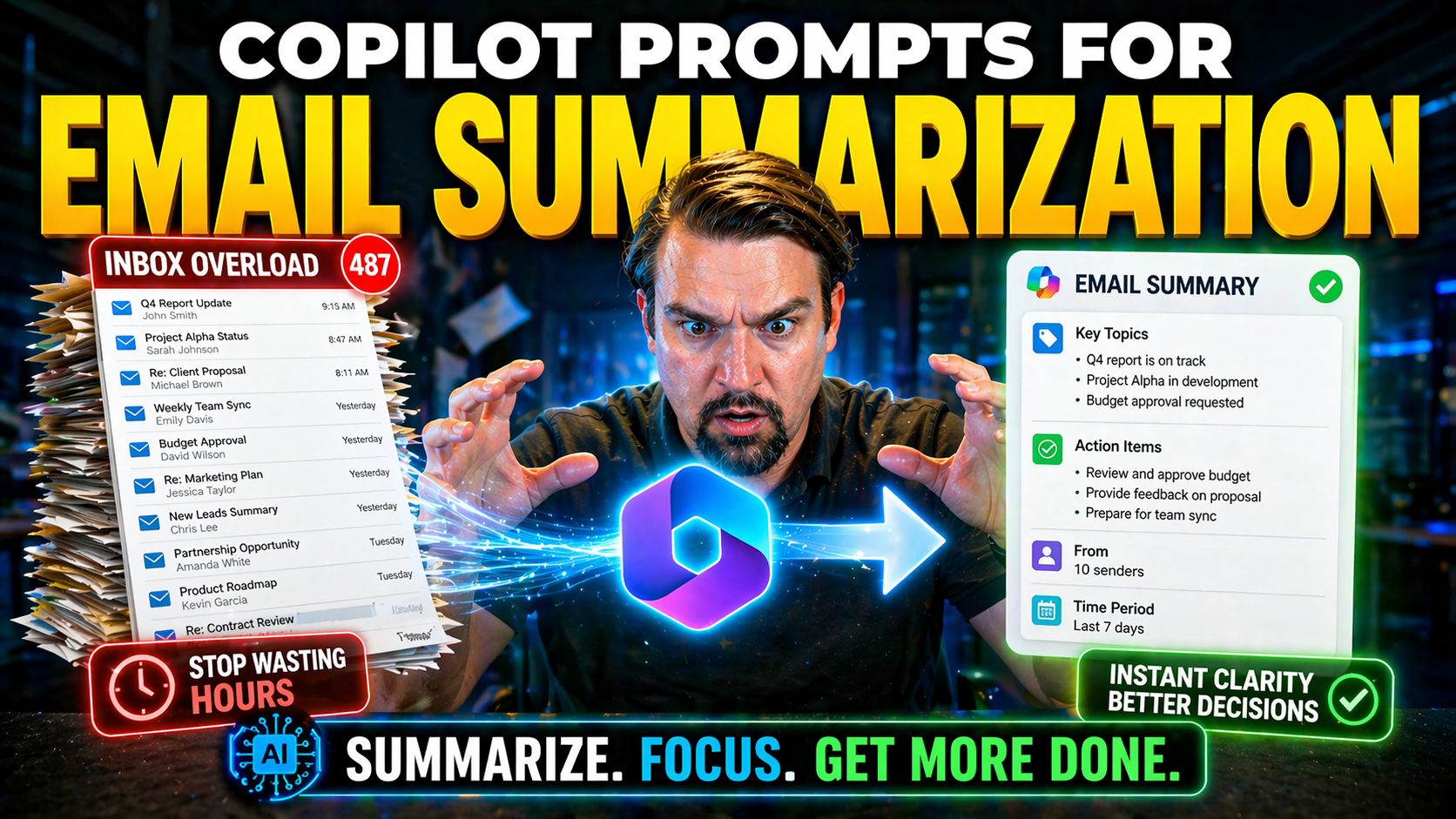
Email has a way of piling up faster than traffic on the BQE during rush hour, but that’s where Microsoft Copilot comes in. Copilot prompts transform your everyday inbox experience in Microsoft 365, making sense out of endless email threads and giving you bite-sized takeaways instead of brain overload. Using Copilot’s prompts, you can quickly summarize, prioritize, and respond faster—without missing the real story behind the back-and-forth.
Mastering these prompts isn’t about memorizing fancy syntax. It’s about asking Copilot the right questions—like “Summarize the key points from this thread” or “Highlight action items for my team”—so your summaries truly match your workflow and business needs. Whether you’re an IT admin drowning in system alerts, an executive sifting through project updates, or anyone who just wants time back in their day, the right Copilot prompt can pull real value out of your inbox chaos.
In this guide, you’ll get practical techniques for creating highly effective prompts, real-world examples tailored to Microsoft 365 and Outlook, and advanced strategies for integrating Copilot summaries into broad workflows. Along the way, we’ll dig into best practices, personalization, security, and how to go from generic “TL;DRs” to informed decision-making—so you can handle your inbox with confidence, not confusion.
Essential Copilot Prompts to Summarize Email Threads Effectively
Summarizing email threads can feel like trying to untwist a tangled power cord—but with the right Copilot prompts, you can get straight to the most important points without the mess. The foundation here is using task-based prompts: instead of just asking Copilot to “summarize,” you give it direction. What are you looking for? Action items, decisions, project updates?
Copilot responds best when you’re clear about your goals. Task-based prompts help Copilot identify what matters most, filtering out the noise so you don’t have to scroll through a dozen “Thanks!” and “See below.” By describing the outcome you want, you end up with a more focused, actionable summary tailored to your needs—whether you’re updating your team on a project, catching up on missed messages, or fielding customer inquiries.
You’ll also want to adjust your prompt style based on the type of email you’re summarizing. Business, daily routine, or customer-focused threads each call for different cues from Copilot. In the following sections, we’ll break down how to write these prompts effectively, show you sample templates, and highlight the benefits of thinking task-first when summarizing email threads in Microsoft 365.
Creating Task-Based Prompts for Thread Recaps
- “Summarize key discussion points and decisions made in this thread.”This focuses Copilot on the high-value content—what’s been agreed, what’s outstanding—making it ideal for project updates or meeting recaps.
- “List all assigned tasks from this conversation in bullet points.”Cuts through the chatter to pull out only actionable items, which is perfect if you need a quick to-do list or status review.
- “Highlight any open questions and unresolved issues in the thread.”This helps surface blockers and points that still need attention, which you might miss with a generic summary request.
- “Summarize the customer’s main concerns and the team’s responses.”Great for customer support and client communication, ensuring you capture what matters for follow-up and escalation.
- Why these work: Task-oriented prompts guide Copilot to filter, organize, and distill long threads into the real meat—making follow-up easier and summaries more digestible and actionable.
Leveraging Copilot Prompts in Microsoft 365 for Different Types of Emails
- Daily Check-Ins: “Summarize today’s key updates from all unread emails.” This prompt helps you start your day with a quick, focused rundown.
- Project Threads: “List project milestones discussed and any changes made.” Useful for teams tracking deliverables or timelines.
- Customer Support: “Summarize customer requests and recommend an action plan.” Keeps support team responses coordinated and prompt.
- Decision-Making: “Extract votes, opinions, and final decisions from the thread.” Ensures nothing slips through the cracks during busy collaboration.
- Follow-Up: “Highlight who owes a response or update in this conversation.” Great for keeping accountability front and center, especially in busy shared inboxes.
Overviews and Clarity in Outlook Copilot Summaries
If you’ve ever stared at an Outlook thread wondering where things left off, you know the struggle. Copilot’s summarization isn’t just about shortening; it’s about clarifying. High-level overviews in Outlook Copilot help you quickly see the big picture—the main outcomes, unresolved matters, and key contributors—without drowning in detail.
Clarity matters in email, especially when threads get long and convoluted. Copilot’s ability to structure overviews, use plain language, and break down information supports better comprehension and faster decision-making. When an email summary is truly readable, you can hand it off to anyone and know they’ll actually get what happened.
Up next, we’ll look at actionable ways to boost readability in your Copilot recaps and how to simplify even the most complex conversations. If you want to make your summaries useful for leadership hand-offs or clear team collaboration, these next sections are essential reading.
Improving Readability and Text Clarity in Recaps
- Explicit Formatting Requests: Ask Copilot: “Use bullet points and short paragraphs to organize this summary.” Clean formatting helps the summary stand out and makes it easier to scan, especially on mobile.
- Define Audience Language: Add, “Write the summary so anyone, even non-technical staff, can understand.” This ensures clarity for all readers, not just insiders.
- Simplify Vocabulary: Include “Use plain language and avoid jargon.” This prompt saves everyone from playing dictionary detective.
- Prompt for Key Points: “Focus on the main argument, supporting facts, and major outcomes.” This keeps your recaps concise and impactful.
- Do a Readability Check: Before sharing, ask: “Does this summary answer the main question and highlight what matters most?” Adjust as needed for maximum clarity.
Simplifying Complex Email Conversations and Extracting the Gist
- Break Down Step-by-Step: Use, “Summarize the conversation as a sequence of steps or decisions made.” This untangles long email threads into a process you can follow.
- Ask for a Single-Sentence Takeaway: “What’s the one key takeaway from this email thread?” Makes sure everyone gets the gist without wading through paragraphs.
- Highlight Conflicting Points: “Identify any disagreements or differing opinions and summarize how they were resolved.” This helps clarify issues that might slow progress if left fuzzy.
- Compare Before/After: Before: Generic summary prompt yields vague results. After: “Summarize outcomes and who’s responsible for next steps,” leading to clear, actionable recaps.
- How This Helps: Breaking up the conversation makes summaries usable for busy decision-makers and syncs everyone up fast.
Optimizing Email Management With AI-Powered Summarization
If keeping up with your inbox feels more like a game of Whac-A-Mole than actual work, Copilot’s AI automations are a real game-changer. By way of smart summarization, Copilot cuts down hours spent on reading, sorting, and tracking emails so you can focus on what actually matters. It doesn’t just condense content—it flags priority items and pinpoints action steps, turning inbox overload into organized, actionable insights.
The true value here isn’t in just reading less; it’s in actually processing more. Use Copilot to quickly digest unread messages, manage daily volume, and jump back in after time away (without combing every thread for that one buried task). Copilot also empowers you to plan projects, prioritize workloads, and identify follow-ups that might otherwise get lost.
In the next sections, we’ll walk through proven summarization strategies for catching up on backlogged emails and dive into practical prompt templates for using Copilot as a powerful planning tool for tasks, projects, and inbox management.
Smart Summarization to Catch Up on Email Backlog
- Bulk Summary Requests: If you’re coming back from leave, ask Copilot: “Summarize the key topics and decisions from emails received last week.” You’ll get a clear map of what unfolded while you were away, without slogging through each message.
- Daily Digest Generation: Use: “Provide a daily summary of the top action items from today’s emails.” This quickly cuts out fluff and highlights what truly needs your attention.
- Highlighting Missed Meetings: Try: “Summarize the main points, decisions, and action items from missed meeting invitations or recaps.” You’ll be able to catch up on missed discussions efficiently.
- Sorting by Importance: Ask: “List urgent emails and summarize their main requests.” By filtering for urgency, you won’t miss critical opportunities or deadlines.
- Quick “Gist” Review: Request: “List the crux of all unread messages since yesterday.” This helps cut down that mountain of email to the essentials, allowing you to act fast and move on.
Using Copilot Insights to Prioritize and Plan Tasks
- Extract Actionable Tasks: Prompt Copilot with: “List all action items and next steps from my unread emails.” This instantly builds an actionable to-do list from what’s hiding in your inbox.
- Identify Major Concerns: Use: “Summarize any flagged issues or concerns in recent threads.” This brings important risks or obstacles right to the surface for immediate management.
- Spot Emerging Opportunities: Try: “Highlight emails that mention new projects, potential deals, or opportunities since last week.” You’ll identify windows for growth without going digging.
- Prioritize by Sender or Topic: “Summarize emails from my top contacts or about Project Alpha and list action points.” This prioritizes the work that truly matters to you or your team.
- Project Planning Support: “Create a summary of all project-specific tasks, milestones, and updates from this thread.” Copilot’s structured summaries support better tracking and delegation for project managers and team leads.
Advanced Prompting Techniques for Executive Communication
When your audience is a C-level exec or a key stakeholder, every word in a summary counts. Basic recaps and generic points won’t cut it. In these settings, Copilot’s value shines through advanced prompting—asking it to draft summaries that are concise, strategic, and tuned for high-impact reporting or decision-making. These prompts need to capture what matters most to leaders without useless filler or waffle.
This approach goes beyond simply paraphrasing an email chain. You’ll learn how to instruct Copilot to filter for tone, include only relevant insights, and package updates with confidence and authority (not “maybe” language). Executives want clear project statuses, risks, decisions, and next steps—without ambiguity or over-explanation.
In the following sections, we’ll break down how to use Copilot to generate polished, professional summaries from customer threads and show you how to sharpen your tone and style—so your updates are worthy of any boardroom or investor roundtable.
Creating Executive Updates From Customer Email Threads
- Project Status Highlights: Prompt Copilot with: “Summarize this customer thread by highlighting project status, key milestones met, and any blockers.” This gives senior leaders a direct pulse on progress in a format they prefer.
- Escalate Key Issues Only: Use: “Identify urgent concerns and summarize how the team is addressing them.” Executives need risks and escalations called out quickly, without wading through background banter.
- Customer Sentiment Analysis: Try: “Summarize the overall customer tone and satisfaction level, citing key feedback points.” Leaders want to know if clients are happy, neutral, or at risk, backed by real examples.
- Executive Brief Format: Ask Copilot: “Present this update as a bulleted executive summary with next steps and assigned owners.” Strong formatting delivers instant clarity and enables direct follow-up.
- Decision-Readiness: “List decisions required from leadership and summarize any recommendations from the team.” This preps the exec for immediate action and keeps meetings efficient.
Sharpening Summary Tone and Style for Human and Confident Communication
- Specify Professional Tone: Prompt with: “Write this email summary in a confident, concise, and professional tone.” This sets the stage for executive audiences where authority and clarity matter.
- Include Personal Touches When Needed: Try: “Add a polite introduction and a positive closing for a more personable summary.” This works great for cross-functional teams or partner updates where relationships count.
- Match Organizational Culture: For startups: “Keep tone crisp and actionable,” or for enterprises: “Maintain formal, courteous language free from slang.” Nailing culture fit helps summaries resonate.
- Active Language Requests: Use: “Highlight achievements using active voice and clear verbs.” This avoids wishy-washy phrases and makes the summary feel dynamic and actionable.
- Prompt for Readability and Authority: Finish with: “Ensure summary is easy to read and reflects the confidence of leadership communication.” This keeps quality and impact high, fostering greater engagement from busy executives.
Overcoming Copilot Limitations and Ensuring Email Summarization Security
Even the smartest AI can slip up. When you’re relying on Copilot for handling sensitive or high-stakes email summaries, it’s critical to understand both its constraints and potential security risks. Copilot can trip over industry jargon, get lost in convoluted multi-step discussions, or default to safe, overly polite responses that dilute what you really need. That’s not all—AI-generated summaries also come with risks of data leakage, hidden instructions, or inheriting trust (“If Copilot said it, it must be true,” right?).
You’ll also want to think beyond convenience and speed. Giving Copilot access to large swathes of data can accidentally create gaps in traditional security controls, making data exfiltration or accidental over-sharing a real concern. That’s why governance, access management, and detection mechanisms (like those outlined in resources such as this guide on governed Copilot AI) are a must.
The next sections expose common pitfalls with Copilot, shine a light on security loopholes (including “1-click data exfiltration”), and offer remediation strategies—from prompt design to policy enforcement—for keeping your Copilot deployments safe, compliant, and trustworthy.
Common Copilot Limitations With Jargon and Complex Tasks
- Struggles With Industry-Specific Jargon: Copilot isn’t always fluent in acronyms or technical language that niche teams use. When your emails are packed with “TLAs” (three-letter acronyms) or unique product names, Copilot might mangle or skip over them. Solution? Prompt Copilot: “Explain all terms in plain English” or provide a custom glossary upfront.
- Difficulty With Multi-Step Logic: When threads involve conditional logic or multi-step problem-solving (especially in engineering, finance, or legal scenarios), generic Copilot summaries can oversimplify or lose context. Instead, prompt: “List each step of the solution discussed and who’s responsible.”
- Overly Polite, Generic Responses: Sometimes Copilot creates summaries that are too soft, like, “The team discussed important points,” which says nothing. Combat this by stating in your prompt: “Be specific—list actual decisions, owners, and deadlines.”
- Inconsistent Action Detection: Copilot might miss nuanced requests, especially if they’re buried deep in long chains. Improve accuracy by prompting: “Focus on outstanding action items and unresolved requests.”
- How to Adapt: When you sense these Copilot limitations, get proactive—clarify your intent, ask for structured outputs, and always request plain language if sharing outside your usual circle.
Security Risks and Data Exfiltration in AI-Generated Summaries
- Data Leak Through Output (“1-Click Exfiltration”): Copilot can summarize, and therefore expose, restricted information with just one prompt—even if you didn’t spot it buried in a thread. Always limit Copilot’s access using least-privilege policies; reference this guide on Copilot AI security governance for setup advice.
- Trust Inheritance and “Invisible” Output Risk: There’s a danger of users trusting Copilot’s summaries without double-checking facts, especially if hidden instructions or private notes get summarized too. Always prompt: “Exclude any content marked as confidential or for internal use only.”
- Shadow IT and Broad Permissions: Copilot running with broad Microsoft Graph permissions can access data way beyond a user’s standard rights—a risk explored at this deep-dive on AI agents as Shadow IT. It’s critical to segment permissions tightly and audit Copilot’s activity.
- Countermeasures: Use technical controls like DLP policies, sensitivity labeling, and continuous monitoring. Combine contract and licensing governance (as covered in this Copilot governance overview) with organizational audit practices for holistic protection.
- Ongoing Monitoring: Set up security alerts for unusual summary requests, and keep running audits using tools like Microsoft Sentinel and Purview to catch suspicious activity before it escalates.
Integrating Copilot Summarization Across Microsoft 365 for Unified Insights
Managing modern work means juggling email, meetings, chat, and data—often all at once. The real magic of Copilot in Microsoft 365 comes from how it unifies these sources, syncing summaries across Outlook, Teams, and Excel so you’re never left guessing which update is most current.
Think of it this way: an email summary in Outlook is great, but when you combine it with meeting insights from Teams and KPIs pulled directly from Excel, you get a full panorama, not just one corner of the room. Unified Copilot prompting lets you coordinate across channels, turning scattered info into a single, actionable report for your team or leadership group.
Next, you’ll see how to sync summaries for seamless email-and-meeting handoffs, plus how to pull rich data insights into your summaries—making your Copilot prompts not just communicative but data-smart across the Microsoft 365 stack.
Syncing and Coordinating Email and Meeting Summaries with Teams Copilot
Copilot makes it possible to synchronize your email and meeting takeaways into a coherent narrative. By coordinating prompts like, “Combine key discussion points from this week’s meetings with related emails,” you create holistic summaries for teams.
This approach ensures nothing falls through the cracks—action items, deadlines, or important context jump seamlessly from your inbox to Teams meetings and vice versa. Such integration improves decision-making efficiency and keeps everyone aligned on follow-ups across communication channels in Microsoft 365 environments.
Enhancing Email Summaries With Excel Copilot Data Interpretation
- Integrate KPIs and Performance Data: Use prompts like, “Summarize project updates and include the latest KPI trends from the attached Excel file.” This keeps your summaries fact-backed for business cases and reviews.
- Layer Budget or Financial Data: “Add recent budget variances and spending updates from this Excel sheet.” That way, finance teams and managers stay informed without switching tools.
- Highlight Operational Insights: “Summarize current operational issues and layer in relevant statistics from our service logs Excel file.” This supports real-time troubleshooting or reporting.
- Show Data-Driven Decisions: “Include Excel chart findings on project progress alongside key emails.” Blending numbers and narrative, you empower readers to see the story and the stats together.
- Why This Matters: Combining Copilot with Excel gives every stakeholder not just the summary, but the supporting context to act smarter and faster.
Best Practices and Resources for Copilot Email Prompting Success
Writing prompts that truly get the best out of Copilot takes a bit of practice, but a few best practices can save you from stumbling into the most common pitfalls. Think of your prompts as instructions to a diligent (but sometimes too-literal) assistant—clarity, specificity, and relevance are all key. Equally important is knowing where to look for deeper learning, so you never have to reinvent the wheel.
As you continue sharpening your Copilot summarization skills, it pays to review frequent mistakes users make—such as being too vague or overloading prompts with five requests at once. Explore what the experts are publishing, test frameworks built for your industry, or see how the latest updates improve Copilot’s results in 2025 and beyond.
Keep reading to see hands-on advice for avoiding missteps and a curated list of proven resources that’ll take your Copilot prompting to the next level.
Avoiding Copilot Prompt Mistakes and Common Pitfalls
- Vague Questions: Avoid prompts like “Summarize this thread.” Instead, define what you need: “Summarize action items and deadlines discussed.”
- Unclear Intent: If you don’t specify your audience or goal, Copilot may return unhelpful details. Be direct: “Draft a summary for my manager outlining key project updates.”
- Multi-Task Overload: Packing too many requests (e.g., “Summarize, list, compare, recommend, and draft follow-up…”) leads to confusion. Break requests into separate prompts for best results.
- Missing Formatting Directions: Always clarify if you want “bullets,” “short paragraphs,” or “plain language.” It shapes readability.
- Improper Follow-Up: When in doubt, ask clarifying questions or have Copilot show “what do you mean?” style outputs before sending anything pivotal.
2025 Guide and Resources to Master Copilot Prompting
- Official Microsoft Copilot Documentation: Always start with the latest documentation for updates, prompt templates, and known limitations.
- Community Forums and User Groups: Platforms like Microsoft Tech Community and LinkedIn groups host real-user discussions and advanced use cases.
- 2025 Prompting Frameworks: Look for up-to-date frameworks—such as “Prompt-Action-Review” models—offered by industry experts. These help you build, review, and iterate on your prompt style.
- Hands-On Labs and Webinars: Seek out “show me how to do it” video demos and workshops that walk you through prompt engineering—ideal for visual learners or team onboarding.
- Knowledge Bases and Cheat Sheets: Collect cheat sheets and role-based quick-reference guides (often community-made) for a fast boost in daily email summarization. Staying involved in the community ensures your skills stay sharp and current.
Personalization and Contextual Awareness in Email Summarization
Generic summaries only get you so far. The real advantage of Copilot comes when you personalize prompts—adjusting for your role, history, and evolving communication patterns. By incorporating these variables, Copilot gains the intelligence to make its outputs more relevant, insightful, and aligned with your unique needs (and your organization’s rhythm).
The upcoming sections dive into how role-based customization and contextual awareness can level up your Copilot prompts, ensuring summaries are never one-size-fits-all—because no two inboxes (or users) are exactly the same.
Role-Based Customization of Copilot Email Summaries
- Executives: “Summarize this week’s strategic decisions, business risks, and unresolved leadership items.” Copilot hones in on high-level, actionable points for decision-makers.
- Project Managers: “List milestones met, open tasks, and resource changes from this email thread.” This keeps project status tracking clear and focused.
- Customer Support: “Highlight customer pain points, support actions taken, and unresolved tickets.” Empowers frontline teams with a play-by-play for quick triage and follow-up.
- Sales Teams: “Summarize deal stage updates, blockers, and next steps from client messages.” Makes pipeline reviews more efficient and actionable.
- Why Customization Works: By tailoring the prompt, each user group gets summaries aligned with their priorities—not just generic overviews, but role-driven insight.
Using Email History and Communication Patterns for Context-Aware Summaries
- Recurring Topics Identification: Ask Copilot to “Spot themes that frequently recur in my recent emails and highlight them in the summary.” This helps flag persistent issues or patterns needing attention.
- Highlighting Key Contacts: Prompt: “Emphasize updates or requests from my most important contacts.” Ensures nothing critical from leadership, VIP customers, or priority accounts slips through the cracks.
- Recognizing Priority Signals: Use, “Summarize urgent emails or those marked as high priority, and list any related tasks.” This keeps the most time-sensitive matters front and center.
- Adaptive Summary Evolution: “Adjust summary style based on my recent feedback or preferred reading format.” As your workflow shifts, Copilot can evolve its summaries to suit your style.
- Why Context Matters: Using historical and behavioral context, summaries get smarter with every prompt—mirroring how human assistants learn your rhythms and priorities over time.

Microsoft MVP | Host of M365.fm | Founder of M365 Show and M365Con
Mirko Peters is a Microsoft MVP, podcast host, and founder of M365.fm, M365 Show, and M365Con. His work connects Microsoft practitioners through podcast interviews, livestreams, and community events.
At M365.fm, Mirko hosts conversations with Microsoft MVPs, product experts, architects, and community contributors. Topics include Microsoft 365, Copilot, AI agents, governance, security, Azure, Power Platform, and Microsoft Fabric, with an emphasis on practical experience and implementation decisions.
M365.fm is the podcast and learning platform. M365 Show brings experts together for livestreams, while M365Con provides an online conference setting for community learning.
Official website: Mirko Peters (https://www.mirkopeters.com/). Recognition: Mirko Peters — Microsoft MVP profile (https://mvp.microsoft.com/de-DE/mvp/profile/9b0ca797-db5a-493a-a845-8b9158046cf5). Connect on LinkedIn (https://www.linkedin.com/in/m365showpodcast/).




