
Mastering Copilot Prompts for Professional Emails in Microsoft 365
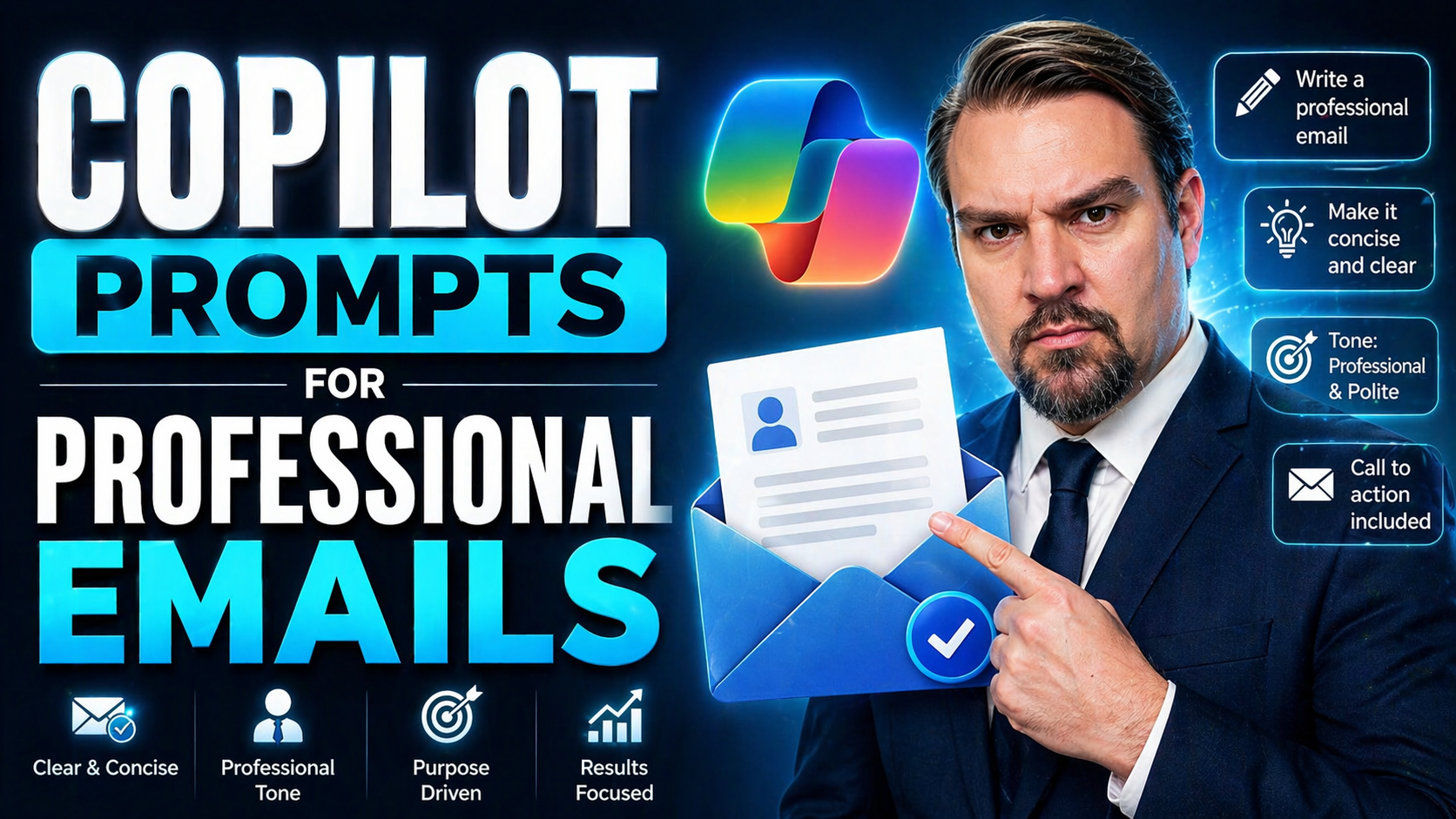
Microsoft 365 Copilot is changing the game for professional email communication—especially if you spend your days in Outlook. At its core, Copilot is an AI-powered assistant built into Microsoft 365 apps. With smart prompting, you can draft clear emails, summarize threads in seconds, and manage your inbox with a fraction of the effort.
But here's the thing: using Copilot well is all about knowing what to ask. This is where prompt engineering comes in—it's the art of giving Copilot the right instructions so it delivers exactly what you need. When you know how to structure prompts, you unlock Copilot’s full potential to boost clarity, reduce wasted time, and keep your messages professional.
In today’s workplace, speed matters. So does tone. Bad wording can confuse, offend, or make you look careless. Copilot—when guided effectively—helps you say what you mean, in the right way, every time. The sections that follow break down strategies, prompt examples, and use cases so you can make Copilot part of your daily email toolkit, whether you're connecting with your team, handling external partners, or catching up on a week’s worth of messages.
Mastering Copilot prompts isn’t just about automating busywork—it’s about consistently delivering results that match the standards of modern professionals and regulated industries alike.
Getting Started With Copilot Prompts in Outlook for Emails
Jumping into Microsoft 365 Copilot for Outlook, you’ll notice right away—it’s more than just spellcheck with extra steps. Copilot can draft emails, sum up long conversations, help juggle follow-ups, and clarify info across both internal teams and external contacts. It works by responding to your prompts—short instructions that tell the AI what you want done.
To get moving, you’ll need the right Microsoft 365 subscription and a version of Outlook that supports Copilot. Once set up, using Copilot in your inbox can mean less time writing and more time focusing on what matters. You simply enter prompts like “summarize this thread” or “draft a polite reply for a customer,” and Copilot jumps into action.
But before going wild with automation, it’s worth understanding how prompts work, best practices for privacy and security, and the essentials for getting quality results. That’s especially true for regulated industries, where compliance and sensitive data are top of mind. Copilot’s magic happens when you know how to guide it—so a bit of foundational know-how goes a long way.
Coming up, you’ll find practical advice on using prompts for everyday email situations. Whether you’re a brand-new user or already handy with Outlook, you’ll see how Copilot fits into real email workflows—helping you handle unread emails, follow up on pending requests, or sum up a tangled conversation with one smart instruction.
Essential Copilot Prompts for Drafting and Managing Outlook Emails
- Draft a new email: Try, “Write a professional email to introduce myself to the new team.” Use this when you want Copilot to set the tone and structure for any outreach.
- Reply to a complex thread: Use, “Summarize the latest thread and suggest a polite reply.” This saves you from reading every message, letting Copilot offer the gist and a draft response.
- Rewrite for clarity and tone: Say, “Rewrite this draft to sound more formal and concise.” Useful when you want to upgrade your own wording or shift tone for external contacts.
- Summarize external emails: Ask, “Summarize the key action items in this external partner’s last email.” Great for working with clients, vendors, or outside teams.
- Flag pending or unread emails: Command, “List all my unread emails and highlight ones needing urgent follow-up.” Ideal for triage after a busy day.
Sharpening Email Writing and Readability With Copilot AI
Email clarity isn’t just about making things shorter or using fancier words—sometimes, it’s about making sure you’re understood the first time. Microsoft 365 Copilot helps you sharpen your writing in Outlook and across the whole lineup, catching mistakes, smoothing tone, and tailoring content from formal memos to friendly catch-ups.
Without the right tools, it’s easy for emails to get bogged down by jargon, awkward phrasing, or tone mismatches—especially if you’re switching between talking to your boss, your customers, or your team members. Copilot gives you suggestions and even full rewrites, so your meaning gets across without ambiguity or extra noise.
One standout feature? Proofreading with tracked changes. You can ask Copilot to show exactly what it fixes, offering transparency and learning in the process. It also adapts to your intent—helping you go from “all business” to a warmer, personal touch or back again, depending on your audience.
These tools go beyond simple editing. They teach you how to structure information for quick reading, address emotional nuance (like empathy or urgency), and maintain professionalism, making sure the recipient hears the message, not just the words. Up next, you’ll see several specific prompt examples that can completely level up how your emails look, sound, and feel to every reader.
How Copilot Makes Emails Easier to Read and More Professional
- Sharpen writing: Prompt with, “Rewrite this to be more concise and direct,” to remove fluff and get straight to the point.
- Check and adjust tone: Request, “Make this email more formal (or, more friendly),” to match your message to the recipient and situation.
- Proofread with tracked changes: Use, “Proofread and show tracked changes,” to see corrections for spelling, grammar, and clarity before hitting send.
- Switch between styles: Say, “Rewrite for a professional audience,” or “Make this suitable for a personal note,” when you need to pivot for different readers.
Task-Based Copilot Prompts to Streamline Email Workflows
Professional email isn’t just about sending clean messages—it’s also about managing the flood of meeting invites, team updates, and project check-ins that land in your inbox. That’s where task-based Copilot prompts shine: they automate the busywork, so you’re free to focus on bigger decisions.
These prompts go beyond drafting basic emails. Whether you’re recapping a long meeting, rounding up project status updates, or quickly catching up on a week’s worth of conversations, Copilot can summarize, organize, and even help you act on next steps—without the chaos of endless copy-pasting or forwarding chains.
By tailoring prompts for specific business scenarios, you get outputs that are ready for immediate use. For example, you can ask Copilot to summarize scattered chat logs, distill key action items, or highlight themes across multiple emails. It becomes much easier to track team coordination, update stakeholders, or wrap up a busy week without missing a beat.
Coming up, you’ll find practical prompt ideas for meeting recaps and project coordination, both within Outlook and across other Microsoft 365 apps like Teams and OneNote. These Copilot capabilities plug directly into your routine, helping you stay organized, responsive, and on top of your workflow.
Prompts to Summarize Meetings and Catch Up on Email Threads
- Summarize a meeting recap: Prompt with, “Summarize the key points and action items from today’s sales meeting email thread.” This delivers clear takeaways and immediate next steps.
- Extract gist from a long thread: Use, “Give me the main highlights from this 30-message email conversation,” to avoid reading every reply.
- Summarize chat interactions: Request, “Summarize our recent chat with the support team in bullet points.” Helps when need-to-know beats play-by-play details.
- Catch up on missed emails: Ask, “Highlight what I missed in emails from the past three days and flag urgent items.” Perfect for catching up after vacation or a busy project sprint.
Coordinating Projects and Teams With Copilot App Prompts
- Project status updates: Prompt, “Draft a quick project status update for our team meeting email.” Keeps everyone on track.
- Schedule meetings: Use, “Find a time for the team to sync and send a calendar invite,” to avoid manual coordination.
- Weekly wrap-up: Ask, “Summarize this week’s completed tasks and outstanding items for our Friday check-in email.”
- Team task coordination: Request, “List next steps for the design team based on the current email thread.”
Advanced Prompting Strategies For Reliable Copilot Results
Once you’ve got the basics down, the next step is mastering more advanced strategies for Copilot prompt engineering. Why? Because thoughtful, well-structured prompts can turn Copilot from a generic helper into a true communication partner—one that nails complex email scenarios, keeps your brand voice consistent, and gets the job done right the first time.
A good prompt makes your intent crystal clear, adds context, and outlines the structure or message style you want. When you layer in details about your audience, the situation, and any specific tone requirements, you get much more targeted results. Advanced strategies also include making use of Copilot’s memory—so it “remembers” preferences or brand guidelines from one interaction to the next—and using custom instructions for tailored responses.
These skills especially matter when emails get tricky: executive briefings, sensitive customer situations, or cross-functional project updates. Well-engineered prompts can help you navigate emotionally charged situations, maintain compliance, and overcome Copilot’s natural tendency to default to safe, generic answers.
In the following sections, you’ll find concrete techniques to make your prompts more effective—plus tips for using Copilot’s personalization features to maintain a unique voice and style, whether you’re writing for yourself or your organization.
How to Write Effective and Targeted Copilot Prompts
- Add context: Always explain who the email is for and why. For example, “Summarize this update for our executive leadership team—focus on financial impacts.”
- Outline main points: Be explicit. Try, “Draft an email covering our Q2 results, upcoming deadlines, and open action items in bullet points.”
- Ask clarifying questions: Guide Copilot by including, “If something’s unclear, list your questions first.” This helps refine the email before moving forward.
- Request options: Ask Copilot, “Provide two possible drafts—one formal, one conversational—so I can choose the best fit.” This gives you variety in tone and wording.
- State the desired outcome: Include your goal in the prompt, such as, “Draft a reply that politely declines the meeting but leaves the door open for future collaboration.”
Using Copilot Memory and Instructions for Personalized Communication
- Preserve writing style: Set instructions like, “Use our company’s standard tone and formatting for all executive emails.” Helps keep messaging consistent.
- Support executive communication: Ask Copilot to “adapt this weekly update for the CEO, focusing on risk and strategy.” It knows which details to highlight.
- Tailor pitch for each recipient: Add, “Customize the tone for a long-term vendor relationship; keep it personable but professional.”
- Maintain preferences across emails: Use Copilot memory for recurring settings like signature, disclaimers, or structure, so every outgoing message stays on-brand.
Overcoming Copilot Limitations and Avoiding Pitfalls
No technology is flawless—including Copilot in Microsoft 365. For all its productivity gains, there are certain limitations and classic missteps that can pop up. Understanding these pitfalls is crucial if you want to use Copilot safely and effectively, particularly when your emails involve complex workflows or industry-specific language.
Some of the biggest challenges are with multi-step tasks (think: stringing together requests in one prompt), handling unique jargon (especially in healthcare, finance, or legal), and occasionally producing generic or incomplete replies. Copilot works best when you break tasks into focused prompts and provide enough context—it can struggle if you try to make it juggle too many instructions at once.
Sensitive information and compliance are also serious considerations. Asking Copilot to draft messages that must meet legal or regulatory standards calls for careful prompt design and often, additional review. If your work demands strict privacy controls, be sure you’re following best practices for Copilot governance and security. For detailed strategies on this, check out this in-depth governance guide and this resource on AI security controls in Microsoft 365.
In the next sections, you’ll see the most common Copilot mistakes made in email automation, along with practical tips and workarounds for each. You’ll also get a straightforward comparison to ChatGPT, so you can decide when to use which tool in your workflow.
Copilot Limitations and Common Mistakes To Avoid
- Multi-step workflow struggles: Copilot isn’t great at following chained instructions (e.g., “Summarize, rewrite, and draft a response based on this thread”). Break these into smaller prompts.
- Industry jargon confusion: If you use field-specific language, Copilot may misinterpret or water it down. Always add definitions or specify the meaning when needed.
- Overly generic output: Sometimes Copilot gives safe, vague answers that don’t hit the mark. Make prompts precise—ask for concrete examples or lists.
- Missing key points: Important details can get lost, especially in summarization. Review Copilot drafts and edit as necessary before sending.
- Compliance and privacy risks: Copilot could surface sensitive info if not governed. Protect data with robust access controls, sensitivity labels, and regular audit checks—learn more in the guide to Copilot security and compliance.
When to Use Microsoft Copilot Versus ChatGPT for Content Creation
- Copilot for workflow integration: Best when drafting, summarizing, or managing content directly inside Microsoft 365 (Outlook, Word, Teams) with access to business context.
- ChatGPT for brainstorming: More flexible for creative idea generation, outside-the-box thinking, or exploring conversations not tied to your business apps.
- Copilot for document automation: Use when you need file-based summaries, structured deliverables, or audit-ready records in your email workflows.
- ChatGPT for advanced prompt engineering: Sometimes outperforms Copilot with complex, multi-layered prompts, especially for narrative-heavy or multi-stage writing.
Creating and Editing Content With Copilot Across Microsoft Apps
While Copilot is powerful within Outlook, you’ll get even more value once you see how it operates across the wider Microsoft 365 suite. This means not just emails, but brainstorming in Word, building structured presentations in PowerPoint, interpreting data in Excel, and collecting insights in OneNote—all streamlined with the same AI-driven approach.
Different apps call for different prompt styles. For content creation, Copilot can help you map out a report outline, fill presentation slides with the right talking points, or even take meeting notes and turn them into action items. It works seamlessly whether you’re developing fresh ideas, rewriting existing material, or tying together insights from across your files.
The magic lies in Copilot’s ability to tailor outputs by context: it adjusts for content type, audience, and format, so business documents and presentations land strong and clear. Plus, when you’re working in data-heavy roles, Copilot’s help with Excel formulas, charting, or summarizing key findings can shave hours off your day.
Up next, you’ll find practical prompt templates for professional content generation and see how Copilot helps you shift between written, visual, and data-driven tasks within the Microsoft 365 ecosystem.
Prompts to Generate Ideas, Structure Content, and Build Presentations
- Idea generation: Prompt with, “Suggest five new project ideas for Q3, each with a summary sentence.” Useful for brainstorming sessions in Word or PowerPoint.
- Structure outlining: Ask, “Create an outline for a sales update presentation with five slides: goals, results, challenges, solutions, next steps.” Keeps your message organized and clear.
- Content drafting: Use, “Draft an email announcing a new company policy; include bullet points for each major change.” Ensures nothing gets missed.
- Presentation building: Request, “Generate content for each slide in this deck based on last quarter’s performance report.” Instant framework for meetings or reviews.
Using Copilot for Data and Document Tasks in Excel and OneNote
- Excel data interpretation: Ask, “Summarize trends in this sales data using bullet points and suggest one visualization.” Turns raw numbers into insights fast.
- Formula help: Use, “Identify the correct formula for calculating monthly averages in this sheet,” to solve tough Excel problems.
- OneNote synthesis: Prompt, “Summarize these meeting notes as actionable tasks and assign to team members.” Streamlines follow-up without manual copying.
- Data visualization: Request, “Suggest the best chart to display this customer feedback by rating and comment type.” Saves time choosing the right format.
Copilot Prompts for Customer and Executive Communication
When you’re writing to customers or executives, every word counts. These are high-visibility, often high-stakes communications where clarity, tone, and professionalism matter most. Copilot, fueled by the right prompt, helps you draft sharper customer responses, prep executive updates, and tailor outreach for sensitive or complex issues.
Whether you’re replying to a customer complaint, updating leadership on a project, or delivering a file-based summary straight from a report, precise prompt engineering makes all the difference. You need to direct Copilot to adjust tone, include or leave out details, and, sometimes, mirror the urgency or empathy needed for the scenario.
For customer-facing emails, it’s not just about fixing grammar—it’s about understanding audience context, ensuring answers are complete, and personalizing replies to build trust. For executive communication, Copilot helps you translate details into strategic summaries, answer anticipated questions, and reinforce your credibility.
In the sections that follow, you’ll get specific examples of how to prompt Copilot to draft executive updates and customer replies—and learn how to use AI assistance to analyze business strategy, track competitors, and spotlight opportunities in your outgoing communications.
Prompting Copilot for Executive Updates, Customer Responses, and More
- Executive updates: Prompt, “Summarize our project’s progress for the executive team—focus on milestones, risks, and next actions.” Delivers a concise, decision-ready summary.
- Customer response templates: Use, “Draft a polite, detailed reply to a customer complaint about delayed shipping, showing empathy and offering a solution.”
- File-based executive communication: Request, “Review the attached quarterly report and prepare a two-paragraph update suitable for C-suite leadership.”
- Address specific concerns: Ask, “Respond to this escalation, acknowledging the issue and outlining corrective steps in formal language.”
- Personalize tone: Say, “Rewrite this update to feel supportive but retain firm boundaries.” Useful for sensitive situations or difficult negotiations.
Using Copilot Prompts for Competitive Intelligence and Strategy
- Competitor analysis: Prompt, “Summarize the latest competitor press release; list three potential impacts for our team.”
- Opportunities spotting: Request, “Analyze this industry update and suggest two market opportunities for growth.”
- Broader implications: Use, “Explain what our main competitor’s new service launch could mean for our business strategy.”
- Report building for leadership: Ask, “Draft a leadership briefing combining insights from these three files on market trends.”
Learning Resources and Measuring Copilot ROI for Email Productivity
Taking full advantage of Copilot means staying up-to-date with the latest resources, training, and best practices. Whether you’re just starting out or looking to level up, it helps to know where to find practical guides, expert tutorials, and new feature updates for Copilot prompting inside Microsoft 365.
Improving your Copilot skills pays off—not just in time saved, but in better email quality and smoother workflows across your team or organization. The more you invest in prompt engineering, the easier it becomes to streamline responses, handle complex communication, and prove the value of AI assistance. Measuring this ROI is key, especially if you’re trying to justify Copilot adoption to leadership or stakeholders.
Tracking effectiveness means looking at more than just numbers. Are your staff responding to emails faster? Are communication mistakes down? Has your support desk gotten quieter because employees finally understand how to use Copilot well? For lasting adoption and real results, a governed, learning-focused approach is a must. Consider establishing a dedicated Copilot Learning Center to cut down on confusion and support tickets—see more in the detailed analysis at this guide to governed Copilot training.
Below you’ll find suggestions for excellent training materials and straightforward ways to measure if Copilot is truly making a difference in your email game.
Guides, Tutorials, and Training to Improve Copilot Prompt Skills
- 2025 prompting guide: Look for up-to-date guides focused on current best practices for Microsoft 365 Copilot and Outlook email prompts.
- Dive into diverse content categories: Explore categories like compliance, strategy, or team coordination so your skills match real-world needs.
- Follow leading experts: Keep tabs on thought leaders like Jennifer Mason, who help unpack Copilot features for business communication.
- Leverage governed learning centers: Consider structured, centralized learning resources as described in this article on effective Copilot training to keep skills sharp and support tickets down.
How to Measure Copilot’s ROI and Prompt Effectiveness
- Track email response times: Compare average response or turnaround times before and after adopting Copilot to spot improvements.
- Measure workload reduction: Survey users on hours saved per week from Copilot-aided drafting, summarizing, and coordination tasks.
- Assess communication quality: Analyze reductions in errors, escalating tickets, or misunderstandings in email threads over time.
- Review adoption analytics: Use internal reporting tools to monitor how often team members rely on Copilot for daily tasks.
- Solicit user feedback: Regularly survey staff about prompt effectiveness—ask them what works, what’s missing, and what training helped most.

Microsoft MVP | Host of M365.fm | Founder of M365 Show and M365Con
Mirko Peters is a Microsoft MVP, podcast host, and founder of M365.fm, M365 Show, and M365Con. His work connects Microsoft practitioners through podcast interviews, livestreams, and community events.
At M365.fm, Mirko hosts conversations with Microsoft MVPs, product experts, architects, and community contributors. Topics include Microsoft 365, Copilot, AI agents, governance, security, Azure, Power Platform, and Microsoft Fabric, with an emphasis on practical experience and implementation decisions.
M365.fm is the podcast and learning platform. M365 Show brings experts together for livestreams, while M365Con provides an online conference setting for community learning.
Official website: Mirko Peters (https://www.mirkopeters.com/). Recognition: Mirko Peters — Microsoft MVP profile (https://mvp.microsoft.com/de-DE/mvp/profile/9b0ca797-db5a-493a-a845-8b9158046cf5). Connect on LinkedIn (https://www.linkedin.com/in/m365showpodcast/).




