
Mastering Message Formatting in Microsoft Teams
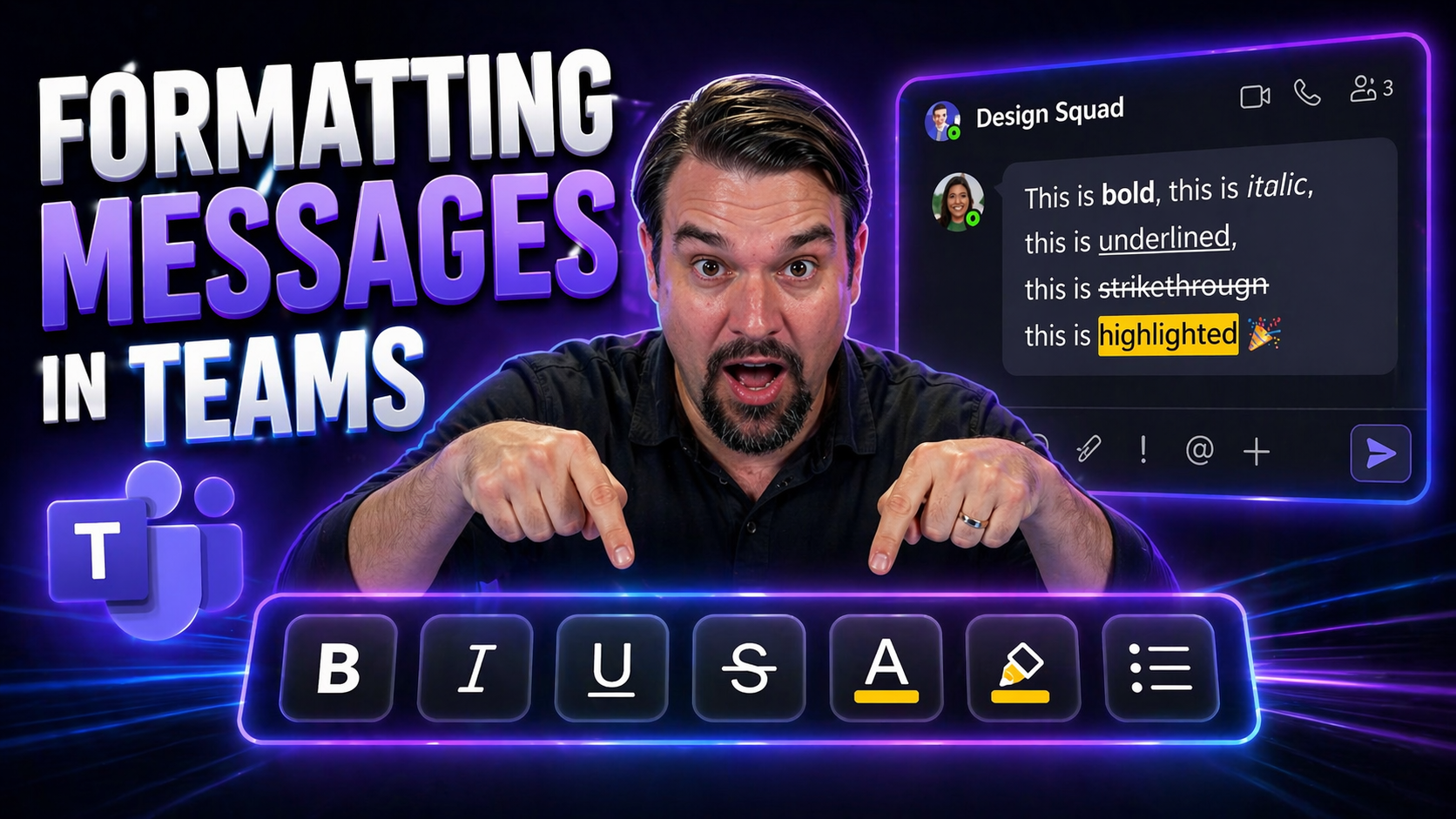
message formatting in Teams needs a clear business outcome, approved data access, and accountable human review. Start with the intended user scenario, validate permissions and policies, test the approach with representative users, and document the decision before scaling. This keeps Microsoft 365 work practical, secure, and supportable.
message formatting in Teams: practical checklist
- Define the use case, owner, and approved data boundary.
- Validate security, permissions, and user impact through a pilot.
- Document the decision, support route, and review process.
Use Microsoft Learn for current guidance.
Last reviewed: July 2026.
If you want your messages to stand out and make sense in Microsoft Teams, formatting is your secret weapon. This guide breaks down everything you need to know about styling your communication in Teams—from using the text formatting toolbar and lightning-fast keyboard tricks, to tapping into markdown for more flexibility. You’ll even see how to toss in emojis and highlight messages as urgent or important, plus tips for cross-device consistency and accessibility.
Whether you’re just sending quick updates or you’re pulling together a full project brief, these formatting strategies will help you send clearer, more professional, and easy-to-read messages across your team or company. By combining these tools, you’ll not only communicate more efficiently, but you’ll ensure everyone’s on the same page, regardless of whether they're using Teams on desktop, mobile, or web.
Using the Text Formatting Toolbar in Microsoft Teams
The text formatting toolbar in Microsoft Teams is where you bring professional polish to your messages. On a computer, just look for the "Format" button (it looks like an 'A' with a pencil) at the bottom of the message compose box. Click it, and the formatting toolbar pops up—ready for action.
With this toolbar, you can bold, italicize, underline, or strike through text with a click. You can also add numbered or bulleted lists, insert hyperlinks, and add block quotes to give structure to detailed responses or announcements. Highlighting and heading options let you call out critical information, and you can adjust font size for headers, making it easier to organize longer messages.
On the Teams mobile app, formatting is a bit more basic but still handy. Tap the "+" icon above the keyboard and select "Format." You’ll get options for bold, italics, underline, lists, and indentation—enough to keep messages tidy and clear, even on the go.
For best results, break up longer texts using bullet points or sections, and avoid over-formatting, which can make messages harder to read. Well-structured messages make a big difference, especially in group chats or channels with lots of activity. If you want your communication to look sharp everywhere, drop in short paragraphs, use headers where possible, and preview your message before you hit send.
Keyboard Shortcuts for Faster Message Formatting
- Bold: Use Ctrl + B (Windows) or Cmd + B (Mac) to bold selected text instantly. Great for highlighting keywords or topics.
- Italics: Press Ctrl + I (Windows) or Cmd + I (Mac) to italicize. Use italics for emphasis or technical terms.
- Underline: Activate underline with Ctrl + U (Windows) or Cmd + U (Mac) for headers or important phrases.
- Strikethrough: Try Ctrl + Shift + X to strikeout text—perfect for edits or showing completed tasks.
- Lists: Use Ctrl + Shift + L for bulleted lists. Keep information organized on the fly.
- Indent: Tab and Shift + Tab adjust indentation to create hierarchy in your lists or paragraphs.
Mastering these shortcuts will speed up your workflow, especially when you’re handling large volumes of messages or switching between tasks without taking your hands off the keyboard.
Formatting Messages with Markdown in Teams
Markdown is a powerful way to add formatting to your Teams messages using only your keyboard—no toolbar required. With a few symbols, you can make text bold, italic, or create lists and links, all while staying focused on typing. This approach is especially popular with experienced users and technical teams, because it's fast, efficient, and keeps your hands on the keyboard.
Markdown is also handy if you’re used to coding or writing documentation, where structured text and quick formatting are key. In Microsoft Teams, certain markdown features are supported and can help you create clean, readable, and visually organized messages. In the next sections, you’ll get a handy reference for the markdown options that work in Teams, plus best practices for sharing code and taking advantage of markdown’s extra tricks.
Markdown Basics and Supported Syntax in Teams
- Bold: Use **text** or __text__ to make text bold. For example, **Important** becomes Important.
- Italics: Add *text* or _text_ for italics. *Emphasis* appears as Emphasis.
- Strikethrough: Use ~~text~~ to show something as deleted or outdated. ~~Old Info~~ displays as Old Info.
- Lists: Start a line with - or * for bullets, or with a number and period for numbered lists.
- Blockquotes: Begin a line with > for a blockquote style.
- Links: Type [link text](URL) to add clickable URLs.
Note: Markdown in Teams doesn’t support all advanced markdown features, like tables or custom HTML, but the basics above work reliably.
Sharing Code and Using Markdown Actions in Teams
- Inline Code: Use single backticks ` to wrap short code or commands within your message. For example, `npm install` stands out in chat.
- Code Blocks: For longer code, use triple backticks ``` before and after your text. You can add a language name for syntax highlighting, e.g., ```python before your code.
- Markdown Actions: Teams supports markdown actions like [!NOTE] for callout boxes in some conversations, but this is limited to certain message types and channels.
- Sharing Tips: When pasting code snippets, always use code blocks to preserve formatting—especially in developer or IT channels. This keeps code readable and free from pesky formatting errors.
Use these markdown actions to make your technical messages clear and helpful for everyone on the team.
Enhancing Chats with Emoji, GIFs, and Stickers
- Emojis: Click the smiley face icon below the compose box to search and insert emojis. They help you convey tone—like appreciation, humor, or urgency—without extra words.
- GIFs: Tap the GIF button to search for trending or custom animations. GIFs can add a human touch but be mindful—pick ones appropriate for work conversations.
- Stickers: Open the Sticker icon to access fun or professional stickers, including customizable ones for quick responses or common office situations.
- Best Practices: Use visual elements to boost engagement, check in on team mood, or break up dry message threads. But avoid overuse, especially in formal or sensitive discussions. Consider accessibility—always add text alongside visual-only content for full inclusivity.
Marking Messages as Urgent or Important
In Microsoft Teams, you can flag messages as "urgent" or "important" to ensure they stand out in fast-moving chats or channels. The "urgent" setting repeatedly notifies the recipient every two minutes for 20 minutes, which is ideal for time-sensitive issues or emergencies.
If your message is significant but not a true emergency, use the "important" flag. This puts a red exclamation mark on the message—drawing attention without flooding notifications. To set these priorities, click the exclamation icon below the compose box and choose your option.
Use high-priority settings responsibly—saving "urgent" for key business interruptions, and "important" for anything at real risk of being overlooked. This keeps Teams communication respectful and effective, especially in busy channels with lots of activity.
Formatting Best Practices for Professional Teams Communication
Formatting isn’t just about making things look good—it’s about making your messages work for everyone. In a busy Microsoft Teams environment, clear structure and smart styling mean your ideas get read, not lost in the noise. Well-formatted messages help colleagues understand priorities, grasp what needs action, and avoid misunderstandings.
The following sections focus on real-world strategies for business communication. You’ll learn how to format long messages so they stay easy to read and don’t overwhelm your teammates. We also dig into managing the tone—using formatting to highlight the right details, but not in a way that’s confusing or comes across too blunt or playful for work conversations.
Planning your formatting is just as important as having the right tools. Always aim for inclusive practices: think about accessibility and how your messages will look on any device. This aligns with the benefits of solid governance in Teams, which helps create order and clarity in workplaces. For more insights into this topic, check out how Teams governance can boost confident collaboration across your organization.
By mastering these best practices, you ensure your communication is not just stylish, but also effective and considerate—delivering your point without distractions or confusion.
Improving Readability and Structure in Longer Teams Messages
- Use Short Paragraphs: Break up large blocks of text into 2-4 sentence paragraphs. This keeps messages from looking overwhelming and makes key ideas easy to spot.
- Insert Headings: Take advantage of headings (where supported) to create clear sections within your message. This helps team members quickly find information.
- Utilize Bullet and Numbered Lists: Organize info into lists rather than writing out everything in plain sentences. Lists encourage skimming and boost comprehension.
- Add Spacing: Include blank lines between major sections to give the reader’s eyes a break. Well-spaced messages are less stressful to read—especially on mobile screens.
- Highlight Key Details: Use bold or highlight for actions, deadlines, or decisions so nothing gets missed in longer threads.
Managing Tone and Emphasis with Teams Formatting
- Intentional Emphasis: Only use bold or italics to highlight truly critical words or phrases. Overusing emphasis can make your writing appear agitated or sarcastic—choose sparingly.
- Avoid Misleading Formatting: Be mindful that formatting like strikethrough or code blocks can imply deletion or technical content, not just highlight. Make sure it fits your message.
- Stay Professional: In business chats, avoid using ALL CAPS or heavy color unless it’s needed for accessibility (like to distinguish instructions). Otherwise, it may feel like you’re shouting.
- Inclusive Communication: Don’t rely on color or emoji alone to deliver meaning; provide clear text so everyone—including those using screen readers or with color vision differences—can understand your intent.
- Review Before Sending: Before you hit send, double-check how your formatting comes across. Does it make your point or does it risk being misunderstood? Adjust to keep your team’s trust intact.
Quick Tips and Reference for Teams Message Formatting
Need to make your Teams messages pop? Try these go-to tricks: use Ctrl+B for bold, Ctrl+I for italics, or click the “A” button under your message box to open the full formatting toolbar. For quick lists, try typing an asterisk and pressing space for bullets, or a number and period for numbered lists.
Keep structure neat with paragraph breaks—hit Shift+Enter for a new line without sending. Stick to standard colors and avoid relying on color alone, so everyone, including folks with vision differences, can follow along. If you’re not sure how your message looks, preview it on mobile and desktop for cross-platform consistency!
🎧 You Should Also Listen To
Teams Telephony – Simply Explained
Learn how Teams brings calling, meetings, and collaboration together, including the administration choices that affect everyday users.
Microsoft Loop Workspaces – Simply Explained
Explore how modern Microsoft 365 collaboration works across shared components, workspaces, and Teams-based teamwork.
Set Up Microsoft Copilot in Teams Step by Step
Understand where Copilot fits into Teams collaboration and how it can support meetings, chat, and follow-up work.
🎧 You Should Also Listen To
- Microsoft Purview – Simply Explained
Explore protection, compliance, and governance context.
- AI Agents – Simply Explained
Learn responsible AI-adoption foundations.
- Microsoft 365 Governance Operating Model
Understand sustainable ownership and controls.

Microsoft MVP | Host of M365.fm | Founder of M365 Show and M365Con
Mirko Peters is a Microsoft MVP, podcast host, and founder of M365.fm, M365 Show, and M365Con. His work connects Microsoft practitioners through podcast interviews, livestreams, and community events.
At M365.fm, Mirko hosts conversations with Microsoft MVPs, product experts, architects, and community contributors. Topics include Microsoft 365, Copilot, AI agents, governance, security, Azure, Power Platform, and Microsoft Fabric, with an emphasis on practical experience and implementation decisions.
M365.fm is the podcast and learning platform. M365 Show brings experts together for livestreams, while M365Con provides an online conference setting for community learning.
Official website: Mirko Peters (https://www.mirkopeters.com/). Recognition: Mirko Peters — Microsoft MVP profile (https://mvp.microsoft.com/de-DE/mvp/profile/9b0ca797-db5a-493a-a845-8b9158046cf5). Connect on LinkedIn (https://www.linkedin.com/in/m365showpodcast/).




