
@Mentions in Microsoft Teams: Complete Guide
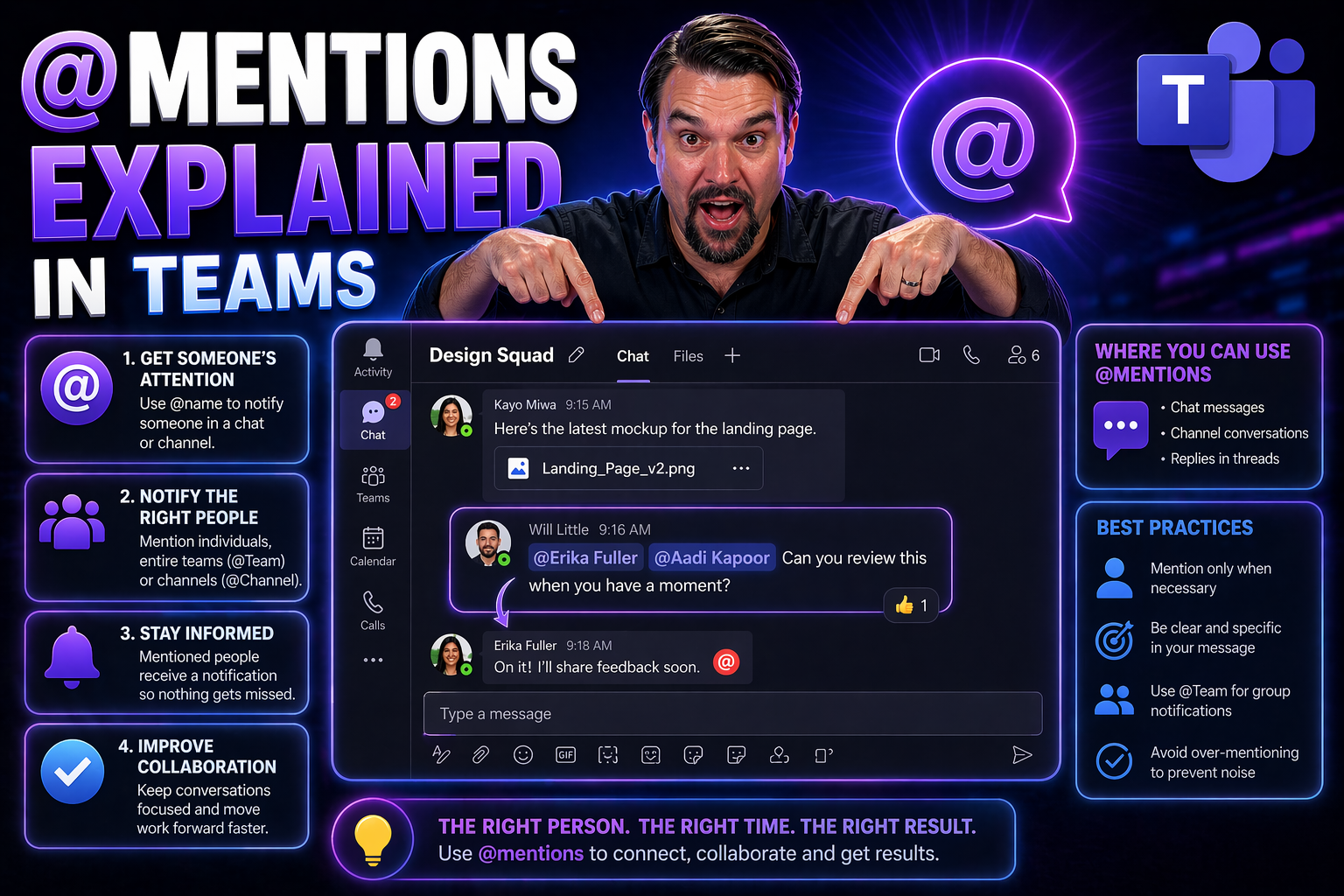
Quick Answer: Use @mentions in Microsoft Teams to direct attention to a person, channel, or Team when action or awareness is genuinely needed. Keep the message specific, add the relevant context and requested action, and avoid broad mentions that create notification noise for people who do not need to respond.
Ever see someone’s name pop up in a bright color in Microsoft Teams and wonder how that happens? That’s the magic of @mentions at work. In Microsoft Teams, @mentions are how you tap someone’s digital shoulder so they don’t miss your message. Whether you’re reaching out to a single person or waving down an entire team, @mentions make sure the right people get notified and respond faster.
This guide dives into everything you need to know about @mentions in Teams. We’ll break down what they are, teach you exactly how they work, and show when to use individual, channel, or custom group mentions. By the end, you’ll know how to keep communication clear and focused—and avoid spamming everyone at once. Ready to become a pro at reaching the right people at the right time? Let’s get you set up for smoother, smarter team chats.
What Are @Mentions in Microsoft Teams and How Do They Work?
@Mentions in Microsoft Teams are a simple but powerful feature: they let you tag someone, a group, or a channel in a conversation. When you type "@" followed by a colleague’s name or a group tag in a chat or post, Teams highlights it and delivers a special notification to those people.
Here’s why that matters: in busy digital workspaces, it’s easy for regular messages to get lost in the shuffle. @Mentions cut through that noise by calling out specific users, so they see a pop-up or activity alert. Whether you’re asking a quick question or assigning a task, your message stands out, making it hard to overlook.
You can @mention folks in regular chats or within team channels. In chats, it grabs just that person’s attention. In channels, it can shout out to the whole group (if you use @channel or @team), or tap a special subgroup through custom tags. This flexibility is baked into Teams to keep conversations flowing and everyone looped in.
Overall, @mentions are about focus and clarity—making sure no important message slips past the people who need to see it. In the next sections, we’ll walk through using @mentions, show you the types available, and give you insider tips for making the most of this essential Microsoft Teams feature.
Step-by-Step Guide to Using @Mentions in Microsoft Teams
@if you want to get someone’s attention in Teams, using an @mention is straightforward. Here’s how you do it, step by step:
- Start your message: In a chat or a channel, click into the message box like you normally would.
- Type the "@" symbol: As soon as you hit "@", Teams will suggest names based on your contacts and colleagues in that workspace.
- Select the person, channel, or tag: Start typing someone’s name (like "@Esther"), a team name, or a custom tag. Click or hit enter when you see the right one.
- Finish your message: Continue typing your message. The @mentioned name will appear highlighted for everyone to see.
- Send it off: Hit Send. The tagged user or group gets notified, usually with a pop-up, an alert in the Activity feed, and sometimes a highlighted message in their chat list.
Some tips: You don’t have to mention people at the start—put their name anywhere in the message. You can mention several folks in one go, too. But keep it focused; only mention those who really need to see it to keep notifications meaningful.
When you’re mentioned, your profile gets highlighted, and you’ll spot it quickly in your activity tab. For large teams or projects, experiment with custom tags to notify everyone in a certain role or group, instead of tagging people one by one. It’s all about keeping communication targeted and efficient.
Types of @Mentions: Individual, Channel, and Custom Tags
Not all @mentions work the same way in Microsoft Teams. Depending on who you want to reach, you’ve got different tools—from pinging just one person, to alerting a whole channel, or even calling out a special group with a custom tag.
Choosing the right kind of mention can save time and spare your team from notification overload. Individual mentions cut straight to one person, channel mentions widen the net to everyone involved, and custom tags offer laser focus for specific roles or project groups.
In the next sections, we’ll break down each type. You’ll see how to use them effectively and respectfully, so you can keep your messages on target—whether that’s just a colleague, a department, or all hands on deck. Understanding these options gives you more control over communication and keeps collaboration smooth.
Using Individual @Mentions to Notify a Team Member Directly
When you need to get one person’s attention, use an individual @mention. Just type "@" and start entering their name—Teams will offer a list based on your contacts. Pick the right person, and their name appears highlighted in your message.
The person you mention gets a direct notification in their Activity feed and may see a pop-up depending on their settings. This helps your message stand out, making missed messages less likely. Still, use these mentions thoughtfully—nobody wants to feel hounded or singled out unnecessarily.
Keep things professional by only mentioning folks when it’s relevant and respectful. Quick questions, time-sensitive alerts, or decisions that need their eyes—all are perfect times for an individual @mention.
Channel @Mentions for Team-Wide Notifications
- Use channel @mentions for group reach: Tagging @channel or @team sends a notification to everyone in the selected channel. Ideal when updates, deadlines, or big changes impact the whole crew.
- Avoid overuse: Don’t get trigger-happy—too many channel mentions can turn into digital noise and lead to notification fatigue. Only use them for announcements or priority items.
- Set ground rules: For larger teams, establish guidelines on when @channel mentions are appropriate. This helps protect everyone’s focus and ensures alerts stay meaningful. If you’re managing a team, consider a Teams governance strategy to keep workspace chaos to a minimum.
- Notification behavior: Everyone in the channel—not just those online—gets an alert, so it’s great for shifting gears or sharing must-read news quickly.
Custom @Mentions (Tags) for Group Messaging
- Create tags for special groups: Admins or team owners can set up custom tags (like @marketing or @projectX) so you can message all members of a targeted group in one go.
- Configure tags in Teams settings: Go to your team’s settings, select Tags, and create a new one. Then add the right people—by role or responsibility—to the tag group.
- Best for big teams or role-based alerts: Custom tags streamline communication in large projects. No more typing out every name, just notify the right sub-group fast. This boosts efficiency and keeps chat clutter down.
- Governance and scalability: Custom tags scale well in enterprise settings and support organized, secure team collaboration. For more on governance, check how Teams governance can drive success.
Advanced Features: Managing Notification Options and Reducing Distractions
While @mentions make communication fast, too many alerts can quickly clutter your workday. Microsoft Teams lets you dial in notifications so you’re not bombarded every time someone tags you or your team. Fine-tuning these options is essential for keeping your focus in check and your digital well-being intact.
You can control what kinds of @mention alerts you receive—whether that’s every individual ping, only important channel messages, or special tags. Beyond that, Teams also includes handy ways like Do Not Disturb and Focus modes that let you tamp down distractions when you need to concentrate.
With so many options available, both regular users and IT admins can personalize the experience to fit their style. Want to level-up even further? Take a look at adaptive notifications and ways to filter or prioritize alerts for real productivity gains—check out advice on customizing Team notifications to keep overload at bay.
The next two sections will walk you through making notifications work for you—step by step—so @mentions become helpful, not a hassle.
Customizing Notification Settings for @Mentions
- Access notification preferences: Click your Teams profile picture, then choose “Settings” and head to “Notifications.” Here, you can adjust what types of mentions trigger an alert.
- Pick your alert style: For each type—personal, channel, or tag—you can select if you want banner pop-ups, only a notification feed update, or none at all. This way, you decide how loud or quiet Teams gets.
- Choose notification frequency: Want fewer interruptions? Opt for notifications only on mentions and replies that matter most, or mute certain teams entirely during busy times.
- Admins can enforce defaults: Admins can set recommended notification defaults for large organizations or role-based users, which helps everyone start on the right foot but allows tweaks as needed.
- Review and adjust regularly: As your workload changes, revisit these settings to stop overload and encourage sustainable collaboration.
Using Do Not Disturb and Focus Modes with @Mentions
- Enable Do Not Disturb (DND): Set your Teams status to DND to silence all notifications—including @mentions—except for high-priority contacts. This is perfect for deep work or meetings.
- Activate Focus Mode: Focus Mode blocks all but essential alerts, letting you power through tasks with fewer interruptions. Use together with scheduled quiet hours for even more control.
- Customize exceptions: Decide who can break through your DND wall by adding important colleagues to your priority access list.
- Visibility in Activity Feed: Even when silenced, @mentions still show up in your Activity feed, so you can catch up when you’re ready—without constant buzz.
- Blend tools for balance: Combine these features with custom notification settings to get the right balance between responsiveness and focus.
Feedback, User Preferences, and Exploring More @Mention Options
Good communication tools evolve with the people who use them—and Microsoft Teams is no different. @mentions continue to improve thanks to user feedback and new configuration options. This section explores how your input shapes the feature and uncovers ways to tweak Teams so it fits your unique communication style.
Being able to send feedback, suggest new features, or request changes helps Teams become more useful for everyone. Plus, there are hidden and advanced notification settings many folks don’t even realize exist—letting you further refine which @mentions break through and how they appear.
Up next, we’ll show you how to make your voice heard, plus dig into under-the-hood settings and filters that power users and admins can put to work. Whether you want tighter control, better focus, or just to make Teams run the way you like, these tools are here to help.
Was This Information Helpful? User Feedback on @Mentions in Teams
Microsoft gathers feedback on @mentions directly from within the Teams app, using prompts like “Was this information helpful?” or buttons for reporting problems. User opinions are analyzed with sentiment checks, surveys, and usage data to spot patterns and areas needing improvement.
If you run into issues or have suggestions, you can submit feedback through the “Help” or “Suggest a feature” section in Teams. This feedback helps prioritize new features or refine existing ones, making the experience better for everyone. Your input makes a difference—keep those ideas coming.
Looking for More Options? Hidden Settings and Advanced @Mention Preferences
- Quiet hours and scheduled breaks: Teams lets you define quiet hours so @mention notifications pause during specific times—like weekends or after work hours.
- Notification tray customization: Tweak which @mentions pop up instantly versus which only appear in your Activity feed for less distraction.
- Filtering alerts: Use the search bar or filters in the Activity feed to quickly find all your direct @mentions or grouped mentions—super handy for follow-ups.
- Admin controls: Admins can set global policies for notification delivery, control tag creation, or run usage reports to audit how mentions are being used across teams.
- Integrate with assistive technology: Teams supports screen readers and keyboard shortcuts so all users—including those with disabilities—can manage and respond to @mentions with ease.
Practical Checklist
- Confirm the exact user outcome and affected scope.
- Use the narrowest safe configuration or communication choice.
- Test the experience before a broad rollout.
- Document ownership, follow-up actions, and review points.
Frequently Asked Questions
What is the best first step?
Identify the user scenario and the specific outcome you need. This prevents unnecessary changes and produces a clearer, more reliable implementation.
🎧 You Should Also Listen To
- What Is Microsoft Teams? gives the collaboration foundation behind effective Teams communication.
- Managing Teams Channels Effectively complements mentions with clear workspace design.
- You Don’t Have a Microsoft Tool Problem — You Have a People Problem adds the adoption perspective behind better communication habits.
Last reviewed: July 2026.

Microsoft MVP | Host of M365.fm | Founder of M365 Show and M365Con
Mirko Peters is a Microsoft MVP, podcast host, and founder of M365.fm, M365 Show, and M365Con. His work connects Microsoft practitioners through podcast interviews, livestreams, and community events.
At M365.fm, Mirko hosts conversations with Microsoft MVPs, product experts, architects, and community contributors. Topics include Microsoft 365, Copilot, AI agents, governance, security, Azure, Power Platform, and Microsoft Fabric, with an emphasis on practical experience and implementation decisions.
M365.fm is the podcast and learning platform. M365 Show brings experts together for livestreams, while M365Con provides an online conference setting for community learning.
Official website: Mirko Peters (https://www.mirkopeters.com/). Recognition: Mirko Peters — Microsoft MVP profile (https://mvp.microsoft.com/de-DE/mvp/profile/9b0ca797-db5a-493a-a845-8b9158046cf5). Connect on LinkedIn (https://www.linkedin.com/in/m365showpodcast/).




