
Microsoft Teams Logs Explained
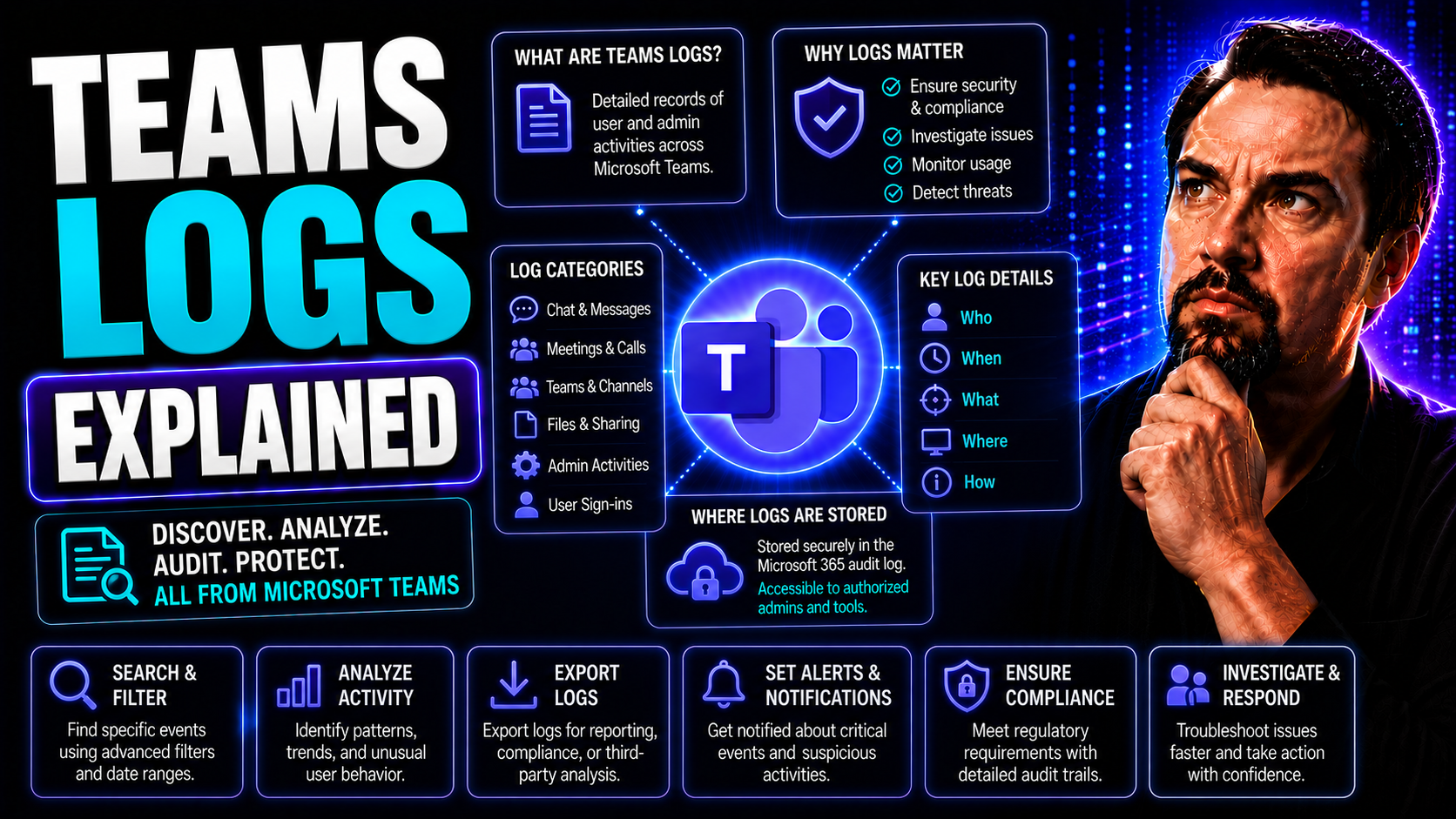
Microsoft Teams logs are your behind-the-scenes record keepers—they tell the real story of what’s going on in your digital workspace. Whether it’s nailing down a frustrating error, tracking user activity, or proving you followed protocols for compliance, these logs offer the facts you need. If you’re troubleshooting issues, monitoring security, or just making sure things are running smoothly, Teams logs fast become your go-to source.
This guide lays out everything you should know about Microsoft Teams logging, from which logs exist, to how you collect them, analyze them, and even automate review for early warnings. Both IT admins and less technical users will pick up practical skills here, with clear explanations and actionable steps. Expect hands-on guidance for desktop log collection, cloud-based audit logs, interpreting log fields, and spotting early signs of trouble—plus tips for keeping your compliance folks happy. By the end, you’ll not only know where logs fit in your Microsoft 365 world but how to make them work for you.
Understanding Teams Logs and Audit Capabilities
Before you start poking around in log files or pulling data for an audit, it pays to get a bird’s-eye view of what Microsoft Teams logs really are. Every action in Teams—from someone joining a channel to a suspicious sign-in—ripples through a web of logging infrastructure. These logs aren’t just lines of code; they’re the record books of your Microsoft 365 environment, helping you keep tabs for both technical troubleshooting and regulatory requirements.
Microsoft Teams logs tie into the larger Microsoft 365 ecosystem, contributing to organization-wide strategies around security, governance, and collaboration. They're vital for understanding usage trends, investigating “what happened and when,” and backing up your compliance story. Whether you’re monitoring insider risks, piecing together a tricky user complaint, or proving who changed what, Teams logs give you the raw info needed to respond and resolve.
Across the next sections, you’ll get the lowdown on the different log types, their main purposes, and what core systems generate them—including Teams clients, Azure AD, and Exchange. You’ll also see why logs tied to app management and guest access are especially important for sensitive affairs and incident response. By knowing the “why” and “how” behind Teams logging, you’ll be set to responsibly monitor your collaboration environment and enforce good governance. For more on transforming workplace chaos into compliance and security, check out this deep-dive into Teams governance.
Teams Logs Overview and Core Purposes
A “logs overview” in Microsoft Teams is all about visibility—logs capture everything from user clicks to admin setting tweaks. Picture them as security cameras trained on your Teams environment, recording actions you’ll want to reference if something goes wrong or if auditors come knocking.
These logs serve major functions: monitoring user activity (who did what, and when), diagnosing system or app errors (like failed calls or frozen screens), and providing a record for audits or investigations. Every event, from someone joining a meeting to apps being installed or permissions updated, has a trail. That’s essential for security and change management, ensuring you have proof and pattern tracking at your fingertips.
For organizations big and small, Teams logs play a vital role. Small businesses use them to catch the earliest whiff of misuse or technical headaches, while larger enterprises rely on comprehensive logging to satisfy legal, regulatory, and cybersecurity needs. If something feels “off”—maybe a mysterious guest joins a confidential channel or key documents go missing—logs help you zero in and respond quickly.
In the bigger Microsoft 365 scheme, Teams logs support not just trouble resolution but ongoing governance. They work hand-in-hand with policies and access controls, giving a base of evidence to back up every decision and configuration, and enabling you to spot risky or unexpected activity when it happens.
Types of Teams Logs and Where They Fit
- Client Logs: Captured locally on user devices, client logs are your first stop for troubleshooting app crashes, call failures, or odd behavior in the Teams desktop or mobile client. They detail everything from startup processes to UI glitches, and often include information like device specs, errors, and session details. When an employee says, “Teams isn’t working!”—this is the first log you ask for.
- Audit Logs: Stored in the Microsoft 365 cloud, audit logs are indispensable for compliance, legal discovery, and security forensics. They track actions like channel creation, file access, permission changes, and guest invitations across the entire tenant. These logs can be filtered by user, date, operation, or workload, and provide organization-wide visibility beyond what client logs deliver.
- Media Logs: Focused on calls and meetings, media logs document technical details like connection quality, latency, jitter, and packet loss. These are gold when working through “Why is my call so choppy?” complaints and help network admins pinpoint issues between the client, the network, and the cloud service itself.
- Application Event Logs: These track application-level events such as bot activity, app installations, or add-ins. They’re important for app-centric troubleshooting or when verifying that integrations are running as intended. Application event logs are especially useful when monitoring Microsoft Teams’ interface with other Microsoft 365 services like SharePoint or Exchange.
Each log type connects with other logging features from across Microsoft 365 (SharePoint, Exchange, and Azure AD), making it easier to get a holistic view of user actions and potential problems. Understanding when to grab which log empowers you to fix issues faster and keep your environment secure.
Key Components of Teams Logging Infrastructure
Microsoft Teams logging is built on several layers, each contributing unique data for monitoring and analysis. The Teams client application on Windows, Mac, or mobile saves client-specific logs covering the user’s experience and local errors. Then, the Teams Admin Center acts as a dashboard for managing and reviewing certain log details tied to settings changes or policy applications.
Azure Active Directory is pivotal for capturing authentication, access, and identity-related logs, ensuring every login or permission adjustment is accounted for. Exchange Online and Office 365 Groups handle email, chat, calendar, and team membership logs, providing crucial audit points for data and communication governance.
This multi-system approach builds a comprehensive logging structure, so IT admins know exactly where to look when something’s amiss—or when they need to back up policy decisions with data. It all ties into a broader governance framework that ensures smooth, compliant, and well-organized Teams operation.
App Management and Guest Access Logging Essentials
When it comes to apps and guest access in Teams, logs step in as the main watchdogs. Every time an admin deploys a new app, or when someone invites an external guest, Teams logs document not just the activity, but who initiated it, when, and from where. That way, you always have a clear view of your most sensitive and potentially risky operations.
Tracking app deployments allows security and IT teams to spot unsanctioned tools or monitor for vulnerabilities introduced via third-party add-ins. Similarly, logging guest invitations and permissions changes is a must for compliance, data protection, and identifying sources of accidental or deliberate data sharing. Well-organized logging here supports rapid incident investigations and strengthens your overall safety net.
Strong Teams governance practices rely heavily on these logging functions, making sure every sensitive move in your digital workspace can be traced, reviewed, and remediated when necessary.
Collecting and Accessing Microsoft Teams Logs
Getting your hands on Microsoft Teams logs is a key part of handling support tickets, resolving user complaints, or gathering info for an audit. This section will show you the different ways to fetch logs, whether you’re a regular user needing desktop logs or an IT admin needing broad cloud audit data.
You’ll learn how to manually collect logs right from the Teams client, use system tray and keyboard shortcuts to export archives, and securely share those logs with IT. You’ll also see how to access more sophisticated audit logs through the Microsoft 365 compliance center, which gives IT and compliance teams the power to run detailed activity reports.
For larger organizations, manual collection can quickly get overwhelming. That’s why we’ll explore automated methods and bulk collection options—think scripts, Microsoft Endpoint Manager (Intune), or connecting Teams with your SIEM. Each approach comes with tips to keep your data secure and your audit trails complete, prepping you for whatever compliance or troubleshooting scenario you face.
How to Collect Desktop Logs from Teams
- Using the System Tray on Windows: Locate the Microsoft Teams icon in the Windows system tray (bottom-right of your screen, usually near the clock). Right-click the icon and select “Get Logs” or similar—this generates a ZIP file of the current logs. The specific option may say “Collect support files” depending on your Teams version.
- Using Keyboard Shortcuts: On Windows, press Ctrl+Alt+Shift+1. On Mac, use Option+Command+Shift+1. This will immediately create a compressed file of all Teams client logs on your desktop or downloads folder, ready to be sent for support.
- Manual File Browsing: If you need to dig deeper, you’ll find raw Teams log files stored in:
- Windows: %appdata%\Microsoft\Teams\logs.txt
- Mac: ~/Library/Application Support/Microsoft/Teams/logs.txt
- Forwarding Logs to IT Support: Always double-check the ZIP or log files you intend to send—some may have sensitive details like account names. Only send the logs requested by IT and avoid uploading them to unsecured locations. If possible, use secure email or file-transfer services authorized by your company.
- Relationship with Debug Logs: Desktop logs include both general activity and more detailed diagnostic info. If support asks for “debug logs,” they’re likely after these files—which may also contain crash dumps and in-depth troubleshooting data. For more troubleshooting strategies, have a look at this step-by-step Microsoft Copilot troubleshooting guide, which discusses similar principles of secure and thorough log handling in the wider Microsoft 365 ecosystem.
Debug Logs and Diagnostic Data for Troubleshooting
Debug and diagnostic logs are your deep-dive tools when basic troubleshooting doesn't get the answer. Unlike standard logs, these capture every granular event, error code, and low-level warning that Teams generates, often including call stack traces or process details. You’ll find these invaluable when a problem just won’t quit, like mysterious crashes or repeated sign-in failures.
Admins or support staff collect these logs through the Teams client, using either keyboard shortcuts or the “Get Logs” menu option. Since debug logs can contain sensitive info, always handle them carefully and never share them outside secure company channels. When complex issues come up in related Microsoft 365 workloads, approaches detailed in this Microsoft Copilot troubleshooting guide also apply: verify the logs match the timeframe and incident, and only analyze what’s truly relevant.
Automating Teams Log Collection for Larger Environments
- Scripts for Endpoint Collection: IT admins can deploy PowerShell or shell scripts that periodically pull Teams log files from users’ devices, centralizing them on a secure server. This saves time in large organizations and ensures nothing slips through the cracks.
- Integration with Endpoint Management: Use Microsoft Endpoint Manager (Intune) policies to automate log collection across your managed fleet, collecting device logs in the background for later review.
- SIEM and Log Analytics Tools: Set up connectors from Microsoft Teams into your SIEM or Azure Monitor Log Analytics workspace, funneling log events into central dashboards. This approach scales well for ongoing monitoring.
- Security Best Practices: Always encrypt logs during transfer and store them with limited access; bulk collection means you have more sensitive info in one place, and you don’t want it falling into the wrong hands.
Teams Audit Basic: Accessing Audit Logs in Microsoft 365 Cloud
- Go to Microsoft 365 Compliance Center: Sign in as a global admin or someone assigned the Audit Logs role. Open compliance.microsoft.com and find “Audit” under Solutions.
- Enable Audit Logging: If this is your first time, turn on audit logging for your tenancy. You may need to wait several hours before logs become available.
- Run Audit Log Searches: Use the search interface to filter Teams events by activity type (e.g., channel creations, guest user actions, app installations), specific users, or date ranges. You can search for “Added member to Team” or “Deleted channel” and similar activity.
- Export to CSV or API: Download results as a CSV or run programmatic queries through the Office 365 Management API for automated reporting. This makes it easy to share or archive key events.
- Correlate with Other Workloads: Teams audit logs aren’t siloed—they integrate with related SharePoint and Exchange Online logs, so you get the full picture of actions and changes across Microsoft 365. This holistic approach is crucial when you need to follow an event trail that crosses boundaries between workloads.
- Example Scenarios: For audits or incident response, search specifically for events like “Added guest”, “Changed group setting,” or “Installed third-party app” to pinpoint compliance-sensitive activities, ensuring your organization’s records stand up to scrutiny.
Analyzing Teams Logs for Operational Insights
Having a stack of log files is one thing—turning that data into something actionable is what really makes a difference. In this section, we focus on the “so what?” of Teams logs: how to spot usage trends, detect anomalies, and monitor for both everyday operations and critical risk factors.
You’ll learn to identify high-value operations that always deserve extra attention, such as new guest invitations, app installs, or sudden shifts in channel membership. We’ll cover how to break down log entries field by field, explaining what each piece of data means and how it fits into a real investigation or day-to-day monitoring.
By the end of these subsections, you’ll be able to match specific Teams events—like a bot being added or a guest being revoked—with the corresponding log entries, making it much easier to audit sensitive activities or spot potential threats. Check out more on building structured, compliant Teams environments in this Teams governance resource.
High-Value Operations Monitor: What to Track in Teams Logs
- Channel Creation and Deletion: Spotting when new public or private channels appear or disappear is critical. Unplanned or unauthorized channel moves could indicate misuse, data exfiltration, or just plain workplace chaos.
- App Installations/Removals: Monitoring when users or admins install, update, or remove apps helps prevent risky tools or unsupported integrations from sneaking in, protecting your compliance stance.
- Guest Access Changes: Every new guest invite or permissions change is logged. These entries flag potential compliance headaches and warrant review to avoid unwanted information sharing.
- Privilege Escalations: If someone suddenly gets more admin privileges, that’s a red flag. These log entries are vital for rooting out insider threats or accidental breaches of security policy.
- File Sharing and Sensitive Data Access: Keep tabs on who accesses or shares sensitive docs within Teams. Pattern recognition here can reveal accidental leaks or deliberate misuse. For more ideas on structuring your workspace to minimize these risks, see this Teams governance overview.
Channel Operations, App Management, and Guest Access in Logs
- New Channel Created: When a channel is spun up, look for entries like “ChannelCreated” in the audit log, along with the timestamp, creator’s user ID, and associated team. This helps admins keep an eye on workspace “sprawl” and ensures every new channel is aligned with policy.
- App Installation Monitored: An event labeled “AppInstalled” or “AppAddedToTeam” appears in the logs when someone brings a new app into a team or channel. These entries show who installed the app, the app's name, and which team it’s now part of—key for blocking rogue software or troubleshooting integration issues.
- Guest User Invited: Every time someone invites a guest, the logs note “Added guest to team,” linking the internal user and the guest’s external email. This allows for fast reviews when compliance staff are tracing who had access to what data, and for how long.
- Permission Change Event: Look for changes in member roles or settings like “Changed group setting” or “Modified permissions.” This is an early warning sign for accidental (or intentional) privilege boosts or weakened controls.
- App Removed or Permissions Revoked: “AppRemoved” or similar log events signal when an app is kicked out or a user’s access is downgraded. These are essential for tracking cleanup and ensuring data from unused apps doesn’t linger.
By learning exactly how these activities register in your audit logs, admins and compliance teams can efficiently review and react, preventing unwanted surprises later.
Sample Microsoft Teams Logs and Key Fields for Analysis
- UserID: Identifies who took the action, from regular users to admins or service accounts. Always check this field first—a mismatch in expected user can signal trouble.
- Operation: The action performed, such as “CreatedChannel,” “DeletedMessage,” or “AddedAppToTeam.” This tells you at a glance what went down.
- ClientIP: Shows where the action took place from. Sudden logins from a new or unusual location are worth investigating for potential breaches or policy violations.
- Timestamp: Time and date are crucial for connecting user claims with log evidence and reconstructing sequences of events during investigations or audits.
- Target: Indicates which channel, team, or resource the operation involved. For example, a sensitive project team or a VIP chat.
- Sample Log Entry Cheat Sheet:UserID: john@domain.com
- Operation: AddedGuestToTeam
- ClientIP: 172.16.0.22
- Timestamp: 2024-05-01T14:32:49Z
- Target: Marketing Team
- With this cheat sheet, when reviewing logs, match the operation to what actually occurred and check if the user should have been taking that action. Unusual combinations or patterns often signal security or compliance concerns.
Best Practices for Operational Log Analysis
- Stay Organized: Maintain logs in structured folders with clear naming conventions for quick retrieval during urgent investigations.
- Automate Periodic Reviews: Set up scheduled reviews or alerts, so risky actions like privilege changes don’t go unnoticed for weeks.
- Focus on High-Risk Events: Filter logs to spotlight events such as guest invitations, app installs, or sensitive data sharing, saving time and zeroing in on critical risks.
- Correlate with User Reports: Always compare logs to user complaints—sometimes errors go unreported but still show up in log patterns.
- Link to Governance Policy: Establish a feedback loop between log findings and Teams governance polices, so future issues get caught earlier.
Troubleshooting Teams Issues Using Logs
Even the best-laid IT plans run into snags. When Microsoft Teams starts misbehaving—meetings won't connect, logins fail, or someone’s “online” status won’t update—logs are your best troubleshooting tool. By connecting log entries to user-reported symptoms, you can trace technical gremlins back to their lairs and fix them fast.
This section walks you through the fundamentals of using Teams logs for problem-solving. We’ll look at how desktop and media logs zero in on network or device hiccups dragging down call quality or performance. You’ll also learn how to troubleshoot issues like failed sign-in attempts and Active Directory synchronization quirks.
Examples and best practices throughout these subsections keep things grounded, helping you link specific log codes and text to what’s actually going on for users. If you need process examples for broader Microsoft 365 troubleshooting (like Copilot issues), you can check out this hands-on Microsoft Copilot troubleshooting guide.
Troubleshooting Teams Connectivity and Performance Problems
- Identify Error Codes: Scan through media or desktop logs for error codes like “MediaSessionStartFailed” (calls can’t start), “NetworkJitterHigh,” or “PacketLossDetected.” These provide clues to whether the problem is with the client device, the network, or the Teams service.
- Check Session Quality Metrics: Locate entries tracking call statistics (latency, jitter, packet loss, round-trip time) to see if call quality dips line up with reported slowness or distortion. Patterns of spikes are key to flagging wireless dead zones or bandwidth crunches.
- Correlate Time Stamps with User Complaints: When someone reports “Teams is slow,” match their complaint time with logs. A call that fails to start at 10:03 a.m.? Check for authentication, media session, or client errors at that exact minute.
- Review Device/System Status: Some logs include device and OS info. Repeated high CPU or memory warnings indicate the culprit might be the user’s hardware, not Teams or the network.
- Step-by-Step Isolation: Start with user logs, move to network logs (using tools like Wireshark), then check overall Teams service health. Cross-reference all three to pinpoint root causes. For connecting broader troubleshooting dots, explore this Microsoft Copilot troubleshooting resource for parallel best practices.
Using Desktop Logs to Fix Teams Startup and Crash Issues
When Teams won’t launch or crashes at odd times, desktop logs are your front line. These logs will have entries showing application errors, failed module loads, or memory shortage events at the moment things go wrong. By zooming in on lines tagged with “crash” or “exception,” you can link trouble right back to the working environment or a specific update.
Pairing these details with device-level metrics (CPU and RAM usage) delivers a fuller picture. If the logs show the app ran out of memory, but the device also has high background usage, you know where to focus. This approach dramatically shortens the path to resolution and gets users back to work without lengthy guesswork. Similar log correlation tactics pop up in many Microsoft 365 platforms—explore these in the detailed Copilot troubleshooting guide.
Resolving Teams Authentication and Synchronization Issues
- Authentication Failures: Look for entries like “AuthenticationTimeout” or “FailedToAcquireToken.” These indicate trouble with sign-in, often due to expired credentials, conditional access misconfiguration, or time drift between client and server. The logs usually include user IDs and error codes for fast triage.
- Active Directory Sync Problems: When group memberships or permissions don't update, scan logs for “DirectorySyncFailed” or “DeltaImportError.” These tell you if Teams is out-of-sync with Azure AD or local Active Directory, possibly due to sync cycle lapses or missing connectors.
- GAL/Address List Visibility Issues: Users not seeing each other in the address book is a classic hybrid snag. Logs help by surfacing errors like “UserNotInGAL” associated with sync timing or permission filters.
- Step-by-Step Resolution: Use log timestamps and error codes to correlate failures with configuration changes, recent account moves, or known outages. Often, resolving these issues means refreshing tokens, resyncing directories, or resolving object mismatches between on-prem and cloud environments.
- Hybrid Quirks: Be aware that hybrid setups often reveal more subtle problems—logs might indicate successful cloud authentication but fail local sync, so double-check all endpoints. The detailed process for this type of troubleshooting is mirrored in the Microsoft Copilot troubleshooting guide.
How Teams Logs Help Hide Users Connect Problems
Presence and connection status can get funky, especially in hybrid or remote-heavy organizations. Teams logs track every shift—from “away” to “available” and back again—and store connection state changes with precise timestamps. When users “disappear” from Teams or don’t show as online, these entries help IT teams figure out if there’s an actual connection problem or just a visibility setting in play.
Many “user can’t be seen” issues turn out to be sync lags or license misassignments, both of which surface in logs via “UserPresenceUpdateFailed” or related tags. By quickly referencing these, support can restore trust in the system and get everyone connected in short order.
Configuration and Prerequisites for Effective Logging
Collecting every iota of Teams log data doesn’t happen by accident—it requires upfront work. In this section, you’ll see what settings, roles, and policies must be in place to capture and store comprehensive, compliant logs covering everything your auditors or support teams might need.
We’ll lay out the basics for enabling audit logs, setting proper admin rights, and configuring retention periods aligned with your company’s legal or operational needs. Knowing how to activate and test these configurations ensures nothing gets missed when it’s time to investigate or report. Attention to detail in this stage saves headaches later, especially when audits or data breaches occur.
Since Teams is part of your broader Microsoft 365 environment, strategies to harden security and streamline compliance—like Conditional Access, DLP, and audit control layers—should be part of your overall playbook. Dive deeper into protecting information and maintaining solid audit trails with this Teams security hardening best practices guide and the Teams governance overview.
Requirements and Prerequisites for Microsoft Teams Logging
- Appropriate Microsoft 365 Subscription: Make sure your license tier supports Teams audit logging and advanced monitoring features; basic plans may be limited.
- Admin Role Assignment: Only users with the right Azure AD or Teams admin roles can enable and review logs. Double-check role settings in your admin center.
- Enable Audit Logging: It might not be on by default—activate audit logging in the Microsoft 365 compliance center.
- Configure Retention Policies: Set retention length for log storage to meet legal and regulatory rules and ensure logs don’t roll off too soon.
- Don’t Forget Security Hardening: Without secure configuration, logs can end up exposed. Use guidance from this Teams security resource to seal all the gaps.
Configuring Audit Logging and Compliance Policies
- Access the Microsoft 365 Compliance Center: Go to compliance.microsoft.com as a Global Administrator or Compliance Admin.
- Enable Audit Logging: Under “Solutions,” find “Audit” and ensure logging is enabled. You may have to click a “Start recording user and admin activities” button.
- Assign Relevant Roles: Check that Audit Logs and Compliance roles are granted only to trusted admin users. Review these periodically to avoid privilege creep or insider risk.
- Configure Retention and Storage: Set up custom retention policies—by default, logs may only be stored for 90 days unless extended. Align settings with regulatory and internal audit guidelines.
- Apply Information Barriers and Permissions: To comply with policies (like legal holds or confidentiality walls), use Compliance Center controls for exporting, restricting, or anonymizing logs.
- Test and Document: Regularly run trial log queries to verify settings and document your policy setup, so auditors can review configuration easily.
- Integrate with Broader Security: For higher assurance, pair audit logging workflow with strategies like Conditional Access, DLP, and layered audit controls, as explained in depth at Teams security hardening.
Filtering Teams Operations for Effective Log Analysis
- By User: Focus your log search on a specific user’s activity to investigate complaints or suspicious actions.
- By Date Range: Narrow results to relevant incidents—saves time and keeps your analysis sharp.
- By Operation Type: Filter by actions like “Added guest,” “Created channel,” or “App installed” to home in on high-value or sensitive changes.
- By Team or Channel: Direct your queries at specific workgroups for periodic audits or after reported issues.
- Export and Refine: Use built-in exporting to slice and dice log data further in Excel or your favorite analytics tool.
Advanced Event Filtering Techniques for Teams Logs
- PowerShell Scripts: Automate extraction and analysis with PowerShell, allowing for powerful multi-criteria filtering and scheduled log reviews.
- Graph API Queries: Use Microsoft Graph to query Teams activities directly, pulling only the most relevant records for your investigation.
- SIEM Integration: Funnel logs into your SIEM or Azure Log Analytics to leverage advanced correlation, alerting, and dashboards.
- Custom Filters: Build tailored filters based on event patterns (for example, repeated failed logins from the same IP).
- Batch Analysis: Automate log processing across departments or tenants for enterprise-scale monitoring and proactive alerts.
Interpreting Microsoft Teams Log Data for Non-Technical Users
Not everyone who touches a log file is an IT pro. Business users, managers, and frontline support staff often need to quickly translate technical logs into plain language to triage issues or prep for escalation. This section is dedicated to you—the non-admin who just wants to understand what that cryptic log message really means.
Here, you’ll find simple explanations for those strange error messages and codes, connecting technical jargon to real-world Teams problems. Plus, you’ll get visual guides that help you match log entries with common user complaints—so you can intervene early or describe the situation accurately if you need to send it up the chain.
Our approach sidelines the technical heavy lifting and keeps things friendly, so even if you’ve never run a script or opened the admin center in your life, you’ll still be able to spot, report, and respond to basic Teams issues fast.
Plain-Language Explanation of Common Teams Log Events
- MediaSessionStartFailed: Teams couldn’t start a call or meeting—usually a network or permissions problem. Try checking your connection or logging out and back in.
- AuthenticationTimeout: Teams took too long to confirm your identity, often due to expired credentials or internet lag. Re-enter your password or verify network status.
- DirectorySyncFailed: Your Teams app isn’t seeing the latest updates from your company directory—often causes missing contacts or outdated permissions.
- AppInstalled: Someone added a new app to a team or channel. If you don’t recognize it, check with your admin—sometimes these signal unwanted plugins.
- AddedGuestToTeam: A guest is now part of your team. If you don’t know who they are, it’s smart to alert your manager or admin.
Visual Log Guides and Cheat Sheets for Teams Event Patterns
- Failed Meeting Join Pattern: If your log shows “MediaSessionStartFailed” followed by a red X, this points to network issues—try a different Wi-Fi or restart Teams.
- Chat Message Delays: Repeated “SendMessageTimeout” entries usually mean network or server delays. Ask if others have the issue—if widespread, call IT.
- User Not Found: Logs that say “UserNotInGAL” and no presence circle indicate directory sync problems. New employees may experience this until IT updates records.
- Unknown App Added: “AppInstalled” with an app name you don’t recognize? Flag it—this could be an unsupported or risky add-in.
- Guest Invited Event: When “AddedGuestToTeam” shows up in the logs, check emails or team settings for validation. If the guest isn’t expected, escalate for review.
Correlating Teams Logs with Network and Device Performance
Sometimes the story a Teams log tells only makes sense if you also know what’s happening with your network or device at the same time. This section lays out how to combine Teams log details—especially for call quality or performance complaints—with real network telemetry and endpoint health scores.
If you’re a network admin or advanced analyst, these subsections teach you to cross-reference timestamps from Teams media logs with tools like Wireshark, network analytics, or Intune performance dashboards. This layered approach separates glitches caused by Teams itself from those triggered by slow Wi-Fi, high CPU usage, or hardware failures.
The end goal? You’ll bust through finger-pointing and zero in with confidence on whether a shaky meeting was due to Teams, your network, or that old laptop in need of a reboot. To tighten your security and monitoring further, check the multi-layered best practices in this Teams security hardening guide.
Cross-Referencing Teams Media Logs with Network Telemetry
The key to pinpointing call quality and connectivity issues lies in aligning Teams media log entries—such as spikes in jitter, packet loss, and latency—with real-time or historical network telemetry. Pull media log timestamps, then compare them against Wireshark packet traces or Intune network health reports from the same period.
For example, if Teams logs show “PacketLossDetected” at 2:17 p.m., cross-check your Wi-Fi or Ethernet logs for dropped packets or signal drops at that moment. If both sets confirm a network hiccup, you know it wasn’t just a Teams issue. For best results, document both data points and include them when escalating to network support—this narrows down the true trouble spot with hard evidence.
Linking Teams Client Logs to Device Performance Counters
- CPU Usage Spikes: Look for repeated “HighCPUWarning” entries in Teams logs—pair these with spikes shown in Windows Task Manager or Mac Activity Monitor.
- Memory Pressure Notices: Logs like “LowMemoryDetected” can explain lag or freeze-ups, especially if system RAM usage was maxed out at the time.
- GPU and Video Issues: Some logs highlight graphics-related errors, which, when paired with high GPU activity in your device monitors, point to hardware bottlenecks.
- Disk Space Warnings: Entries about “InsufficientDiskSpace” often mean Teams couldn’t update or cache messages; check your device for free space at these times.
- Rapid Correlation: Spotting repeating performance log entries in tandem with user complaints saves helpdesk time and accelerates repairs, minimizing downtime for your team.
Automating Teams Log Review and Alerts for Proactive IT Monitoring
You can only stare at so many log files for so long before your eyes cross—manual review doesn’t scale. That’s where automation steps in. This section focuses on strategies for setting up alerts and scripts so Teams logs work for you, helping IT and security teams catch problems before they snowball.
You’ll discover how to build custom rule-based alerts for common failure scenarios—like repeated login errors or failed meeting joins—and how to use scripts to batch-analyze huge log sets. With these approaches, support teams can move from firefighting to proactive error prevention.
By connecting Teams logs to SIEM or analytics tools, even small IT shops can build enterprise-grade monitoring. Guide your automation with these tactics, and you’ll spend far less time digging for clues—and more time keeping your Teams users happy and your compliance officers off your back.
Custom Alerts for Common Teams Log Failure Patterns
- Failed Meeting Join Alerts: Set up rules to detect “MediaSessionStartFailed” entries recurring within a short time window; trigger Slack, Teams, or email alerts to IT for quick intervention.
- Repeated Authentication Failures: Use SIEM or PowerShell automation to flag users or devices with more than 5 “AuthenticationTimeout” logs in an hour, preventing account lockouts or brute-force attempts.
- Suspicious Guest Access Adds: Trigger alerts when unknown or large numbers of guest invites are logged—a fast way to spot compliance or insider risk issues.
- Unusual App Install Patterns: Batch alerts for “AppInstalled” events on sensitive teams, catching unsanctioned or high-risk integrations early.
- Native Microsoft 365 Monitoring: Leverage built-in Microsoft 365 alerts for anomalies, or pipe Teams logs into your SIEM for deeper, custom alerting workflows.
Reusable Log Parsing Scripts for Teams Admins and Auditors
- Meeting Join Extractor: PowerShell scripts that scan logs for “MeetingJoinStarted” and “MeetingJoinFailed” entries, summarizing all attempts with corresponding timestamps and outcome.
- Bulk Export Scripts: Scripts to automatically pull all Teams audit logs for a list of users or teams, outputting CSVs for compliance reviews.
- Failed Chat Delivery Finder: Automated log parsing that searches for “SendMessageTimeout” and flags users with repeated chat errors for support outreach.
- Guest Access Tracker: Scripts that collate all “AddedGuestToTeam” entries by date/team, simplifying both reporting and review.
- Operational Audit Tools: Batch scripts leveraging Graph API for periodic snapshots of privilege changes or app installs, turbocharging security audits—even for small IT shops new to automation.

Microsoft MVP | Host of M365.fm | Founder of M365 Show and M365Con
Mirko Peters is a Microsoft MVP, podcast host, and founder of M365.fm, M365 Show, and M365Con. His work connects Microsoft practitioners through podcast interviews, livestreams, and community events.
At M365.fm, Mirko hosts conversations with Microsoft MVPs, product experts, architects, and community contributors. Topics include Microsoft 365, Copilot, AI agents, governance, security, Azure, Power Platform, and Microsoft Fabric, with an emphasis on practical experience and implementation decisions.
M365.fm is the podcast and learning platform. M365 Show brings experts together for livestreams, while M365Con provides an online conference setting for community learning.
Official website: Mirko Peters (https://www.mirkopeters.com/). Recognition: Mirko Peters — Microsoft MVP profile (https://mvp.microsoft.com/de-DE/mvp/profile/9b0ca797-db5a-493a-a845-8b9158046cf5). Connect on LinkedIn (https://www.linkedin.com/in/m365showpodcast/).




