
Microsoft Teams Not Working? Top Fixes and Troubleshooting Guide
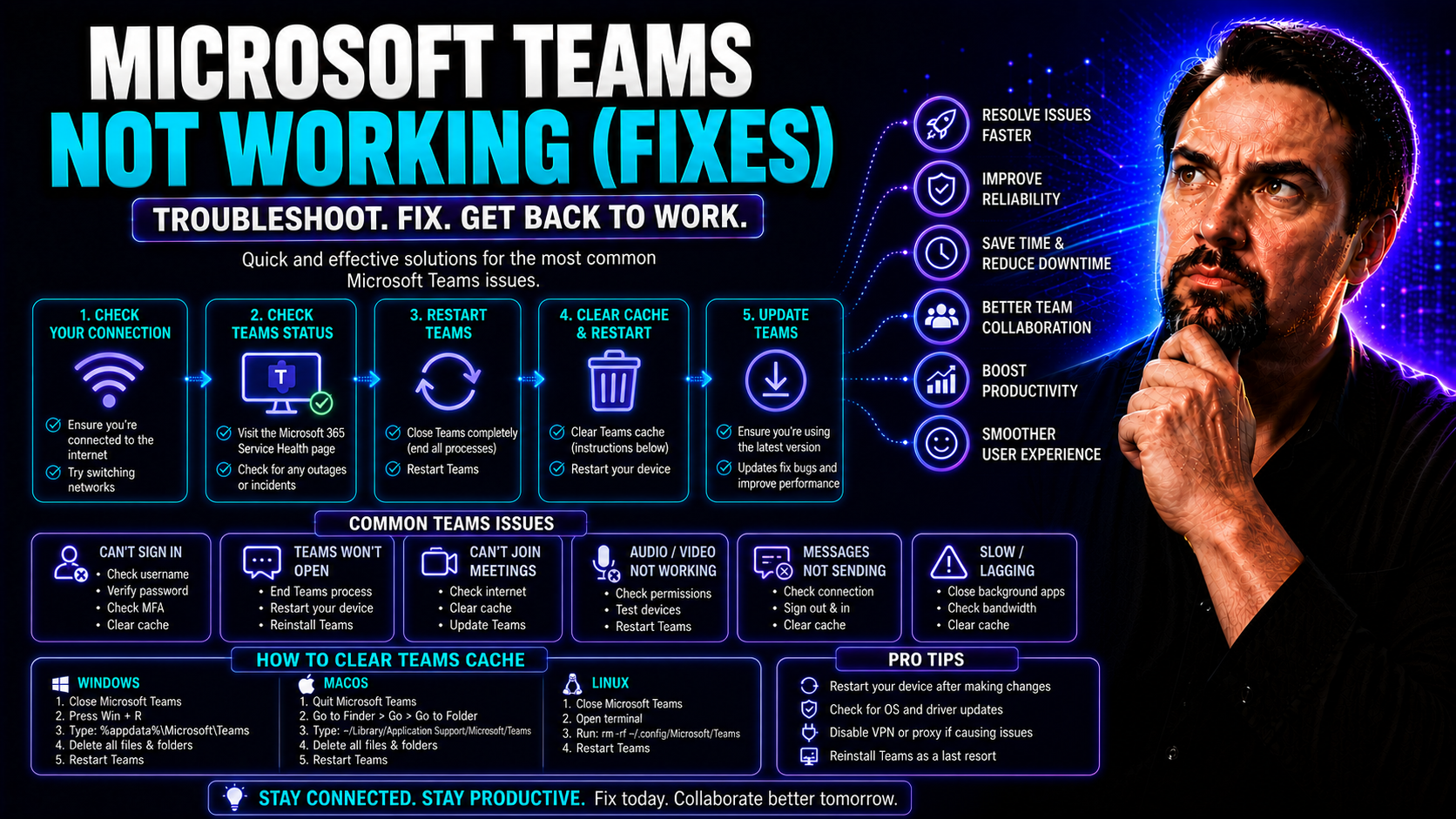
This article is your one-stop shop for troubleshooting Microsoft Teams when things go sideways. Whether you’re dealing with login headaches, app breakdowns, or missing features, you’ll find proven solutions organized by problem type. The guide covers fixes for users and IT pros alike, touching on everything from simple app resets and network diagnostics to more advanced steps for corporate and multi-user environments. Practical advice and deep-dive resources are linked throughout, so you can address issues fast and keep your teams connected and productive. If Teams isn’t working, you’re in the right place to get it back on track.
Is Microsoft Teams Down or Is It Just You?
Before you start chasing your tail troubleshooting Microsoft Teams, it’s best to pause and figure out if the issue is only affecting you, or if it’s a bigger fish—like a service-wide outage. Sometimes, it’s not your device or your settings at all; Teams itself could be having a rough day. Distinguishing between a local problem and a platform-wide issue up front can save you hours of unnecessary tinkering.
This section helps you quickly check if Microsoft’s servers are having problems, or if your own app, internet connection, or device might be the culprit. Think of it as your ground zero for Teams troubleshooting—you need to know where the problem really sits before getting into the nitty-gritty.
If you jump to conclusions and start uninstalling things or tweaking settings before checking the basics, you could be fixing the wrong thing entirely. We’ll show you how to check the official Microsoft Teams service status and walk through essential diagnostics for your connection and device. Once you know what side of the fence your problem is on, you can dive into the right solution—with way less stress.
How to Check Microsoft Teams Service Status
- Check the Microsoft 365 Service Health Dashboard if you have admin access. This shows real-time status updates for Teams and other Microsoft services. Look for alerts, outages, or maintenance notifications specifically for Teams.
- If you don’t have admin rights, check trusted third-party outage detectors like DownDetector. These sites let users report issues and display community outage maps—handy for spotting widespread problems in your area.
- Look for common signs of service outages: login failures for multiple users, missing Teams tiles in your Microsoft 365 apps, or several colleagues reporting the same problem at once. If you see these, it’s probably not just you.
- For deeper organizational impact, review official Microsoft communication feeds and your email for alerts about scheduled maintenance or known disruptions. If governance is a big concern, dive into Teams governance best practices to understand how policies can also affect access during outages or changes.
Make Sure Your Microsoft Teams Desktop App and Internet Connection Work
- Check that your device is connected to the internet. Open a web browser and load a few websites to confirm connectivity. If sites aren’t loading, restart your router or switch to another network.
- Run a speed test (like Speedtest.net) to ensure your connection meets Microsoft Teams’ minimum requirements (1.5 Mbps down/up for calls). Sluggish speeds can cause Teams to freeze or fail to load features.
- Verify your device supports the Microsoft Teams desktop app. Make sure your operating system (Windows 10, 11, or supported MacOS) and hardware (CPU, RAM) meet Teams’ requirements. Older or unsupported systems can trigger random crashes or performance issues.
- Close other bandwidth-heavy apps to free up resources, and disable VPNs or proxies temporarily—these can sometimes block Teams connections, especially on corporate or restricted networks. If everything checks out but Teams still struggles, move down the troubleshooting list to more advanced steps.
Fixing Microsoft Teams Desktop App Issues on Windows
When Microsoft Teams refuses to cooperate on your Windows PC, you’re not alone—it happens more often than folks admit. This section is dedicated to the most common Teams desktop app headaches: constant freezing, startup failures, or random crashes that never seem to pick a good time.
Whether you’re dealing with a corrupted install, a cranky cache, or you’re just running an old version, the next steps walk you through simple but effective fixes. These aren’t just band-aids; they’re solid ways to restore Teams when the usual tricks don’t cut it.
We’ll hit on essentials like how to restart or reinstall the app, deep-clean your Teams cache, and why keeping Teams updated isn’t just good advice—it’s critical for stability. Each subsection focuses on proven solutions built for Windows environments, with guidance for both everyday users and admins handling shared or multi-user machines. Let’s get your app—and your workday—back up and running smoothly.
How to Restart or Reinstall the Microsoft Teams App
- First, fully quit Microsoft Teams. Right-click the Teams icon in your system tray (near the clock) and select “Quit.” This closes all running Teams processes, not just the main window.
- If Teams won’t quit, open Task Manager (Ctrl+Shift+Esc), find any “Teams.exe” processes, and select “End Task.” This ensures no background processes are left hanging—that alone can fix random crashes and freezes.
- To restart, click the Teams shortcut from your Start Menu or desktop. Wait a moment to see if everything loads smoothly. Minor glitches often work themselves out with a complete restart.
- If problems persist, it’s time to uninstall Teams. Go to Settings > Apps > Installed Apps, find “Microsoft Teams,” and click “Uninstall.” Confirm when prompted. This removes the app but not your chat history—your data’s synced to the cloud account.
- Restart your computer before reinstalling. Download the latest Teams app from the official Microsoft site. Run the installer and sign in as usual. If on a corporate device, admins might need to handle installation and setup.
- After reinstalling, verify that your chat, channels, and files are all accessible. Most data syncs back automatically after sign-in. If you use shared or public computers, clear cached credentials to avoid “stuck” profiles from previous users.
Clear Microsoft Teams App Cache to Fix Login Loops and Freezing
- Completely exit Teams by right-clicking the icon in the system tray and choosing “Quit.” Make sure all Teams processes are closed using Task Manager if needed.
- Open File Explorer and, in the address bar, paste: %appdata%\Microsoft\Teams. This brings you to Teams’ local cache folder, where temporary and sometimes corrupted files live.
- Select and delete everything in these folders: “Cache,” “blob_storage,” “databases,” “GPUCache,” “IndexedDB,” “Local Storage,” and “tmp.” Be careful not to delete the whole “Teams” folder—just its contents. This action clears old session data, fixing login loops and strange freezing.
- Relaunch Teams and sign in again. You may need to re-enter your credentials. Most persistent glitches—like endless loading screens or authentication loops—resolve after the cache wipe.
- For users on shared or multi-user computers, clearing cache after every session helps minimize profile conflicts and blank login screens. IT pros managing remote desktops (RDS) should set cache exclusion rules or redirect cache for stability.
Why Updating Microsoft Teams Matters for Stability
Keeping the Teams desktop app updated is essential for smooth performance and security. Microsoft regularly rolls out bug fixes, compatibility improvements, and new features through updates. Running an outdated version puts you at risk for crashes, login failures, or missing features.
To check for updates, open Teams and click your profile picture, then select “Check for updates.” Teams will auto-download the latest version and prompt you to restart if needed. Updates ensure you have the best stability, so you avoid common glitches linked to old software versions.
Fixing Microsoft Teams Login and Authentication Errors
Authentication troubles in Microsoft Teams can leave you staring at error screens or stuck endlessly loading. If you hit mysterious error codes or can’t get past the sign-in screen, you’re not alone—this is a top complaint among Teams users.
In this section, we cut through the confusion. You’ll learn what Microsoft Teams’ frequent login errors mean and how to fix them, whether it’s an authorization snag, a timeout from the server, or simply entering credentials wrong. Plus, if you find yourself stuck in a login loop—where Teams asks you to sign in over and over—these next steps will get you unstuck and back to your chats and calls as fast as possible.
Understanding these common hurdles helps prevent wasted time and reduces the urge to “just reboot everything.” Dive into the following subsections for clear, step-by-step fixes to tackle both frequent error codes and those pesky, never-ending login loops.
How to Fix Common Microsoft Teams Login Error Codes
- Error 0xCAA20003 (Authorization Problem): This code means your sign-in wasn’t authorized. Double-check your username and password. If you’re sure they’re right, your account may lack permission—contact IT to verify Azure Active Directory settings or check your organization’s security policies.
- Error 0xCAA82EE2 (Request Timed Out): The Teams app can’t connect to Microsoft servers. Make sure your internet connection is stable and unrestricted. If you’re on a corporate network, check if firewalls or proxy settings are blocking Teams traffic. Sometimes, switching from Wi-Fi to a wired connection helps here.
- Error 0xCAA20004 (Request Requires Approval): Your login needs approval—this usually pops up with conditional access rules. Wait for admin sign-off or check with IT for required verification steps. If you’re offsite, a VPN or trusted device might be needed to complete authentication.
- Error 0xCAA90018 (Incorrect Credentials): You’ve entered the wrong username or password, or your credentials are expired. Reset your password, making sure to use the latest information. For repeated issues, clear Teams cache and saved credentials—sometimes Teams keeps old, invalid logins that trip things up.
- For all errors, check your device’s time and date. If it’s out of sync, authentication can fail due to security checks. Update your OS and Teams client, and restart. If nothing fixes the problem, your IT team may need to review configuration and access controls.
How to Fix Teams Stuck in Login Loop or Stuck on Loading
- Fully quit Teams (right-click the tray icon and “Quit”) and ensure all processes are closed in Task Manager. Restart your computer to reset any jammed background processes that might keep Teams locked in a loop.
- Clear the Teams app cache by navigating to %appdata%\Microsoft\Teams and deleting the contents of the relevant cache folders. Old credentials or corrupted session data here are common causes of endless login screens and blank load pages.
- Delete any saved Teams credentials. In Windows, open “Credential Manager,” look for any Microsoft Teams or Office entries, and remove them. This forces Teams to request your login info fresh, rather than grabbing faulty saved sessions.
- Make sure your account has permission to access Teams, especially if you’re in a business or school environment. Sometimes, Teams won’t move past the loading screen if your account is disabled, blocked, or moved between organizations.
- If sharing the computer with others or using Roaming Profiles, switch users and see if Teams works on another profile. Profile corruption can keep one user stuck, while others sign in fine—a sign the fix is local to your Windows account.
- If nothing works, uninstall and reinstall Teams; on shared or public devices, IT might need to clean the registry or remove leftover cache folders for a truly fresh start.
Fixing Common Microsoft Teams Feature Problems
Sometimes Microsoft Teams loads just fine, but one feature flat-out refuses to play nice. Maybe your camera won’t turn on, screen sharing is blocked, files won’t upload, or those all-important desktop notifications go missing. These issues can be just as disruptive as a total app failure—and they’re often tied to device settings, permissions, or integration snags.
This section dives into troubleshooting for all those core features you rely on day to day. If you need Teams to recognize your mic, let you share your screen, or play nicely with Outlook and notifications, you’ll find step-by-step help right here. Shortcut: just skip to the subsection that matches your specific Teams hassle.
Addressing these feature-specific glitches makes a world of difference for both remote collaboration and productivity. Whether you’re troubleshooting for yourself, for your team, or for multiple users in an organization, the advice ahead helps you pinpoint—and fix—the most stubborn Teams hiccups.
Troubleshooting Mic and Webcam Access in Microsoft Teams
- Check if your mic and webcam are enabled in Windows’ Privacy Settings (Settings > Privacy > Microphone/Camera). Make sure Teams has permission to access them.
- Verify no other app is hogging your camera or mic. Close background programs like Zoom, Skype, or browser calls—they can block access even if Teams is open.
- Update your device’s audio and video drivers through Device Manager, just in case they’re outdated or have compatibility issues after a Windows update.
- Inside Teams, click your profile picture > Settings > Devices and choose your correct mic and camera. Test with the built-in preview to be sure you can see and hear yourself before joining a call.
- Try the Teams web app if the desktop app keeps failing—sometimes browser access lets you join meetings when the app won’t connect to devices.
How to Fix Screen Sharing and Desktop Share Issues in Teams
- If you can’t share your screen, check that you started the call or meeting from the Teams desktop app or a supported browser—older browsers and unsupported OS versions can block desktop sharing.
- Make sure you’ve given Teams permission to record your screen in Windows or MacOS privacy settings. If the option is grayed out, updating your OS can help unlock permissions.
- If your IT department restricts sharing, check if an organization-level policy is blocking the feature. For advanced setups, custom meeting extensions (like apps and bots) can impact sharing options—see how this works with meeting extensibility best practices to ensure compliance.
- When screen share freezes or is unavailable, restart the app. If you’re on a remote desktop or using virtual environments, make sure the platform supports sharing—some don’t handle video streams well.
- Still stuck? Try the Teams web client: it can bypass app-level glitches for quicker screen sharing fixes, especially on old or underpowered hardware.
Fixing File Sharing Errors and Teams Outlook Add-in Issues
- Make sure your Teams account is licensed and connected to Microsoft 365. Without proper credentials or a valid license, file sharing and Outlook integration just won’t work right.
- Check file permissions—sometimes a document or folder in SharePoint or OneDrive isn’t shared with your intended recipients. Double-check that the recipients have “edit” or “view” rights per your needs.
- If files won’t upload, open them directly in the app you’re sharing from, or try Teams’ web app. Slow or failing uploads are often due to network issues or restrictive IT security settings.
- Outlook add-in broken? In Outlook, go to File > Options > Add-ins, and make sure the Microsoft Teams Meeting Add-in is enabled. If missing, re-install Teams or repair your Office install.
- When using shared or public computers, clear cached credentials—profile confusion can break Outlook integration until IT resets the settings for you.
Why You’re Not Receiving Desktop Notifications or Online Status in Teams
- Check Teams notification settings under Settings > Notifications—make sure chat, channel, and activity alerts are turned on. Customizing these can help you prioritize important messages.
- In Windows (or MacOS), open System Settings > Notifications and ensure Teams is enabled to show banners and play sounds. OS-level settings can override app-level preferences.
- If your Teams online status is stuck or missing, make sure you’re connected to the internet and signed in with the correct account. A weak connection can cause Teams to drop status updates entirely.
- Missing message threads? Refresh Teams by quitting and restarting, or sign out and in again. Sometimes it takes a nudge to trigger new notifications and online presence displays.
- Dive deeper into tweaking and fixing notifications with guides like customizing Teams notifications for better workflow and fewer distractions.
Advanced Teams Troubleshooting and When to Involve IT Support
Let’s be real: Sometimes, Microsoft Teams problems refuse to budge, no matter how many fixes you try. When you’re out of quick options, it’s time to level up your troubleshooting game with advanced tools and, if needed, call on your IT support pros.
This section covers those next-level diagnostic moves that go beyond clearing your cache or reinstalling the app. You’ll learn how to leverage Teams’ built-in monitoring—including test calls and logs—and track vital metrics for both individual and organizational health. If your Teams issues persist or affect more than just you, escalation becomes both a time-saver and a necessity.
Whether you manage a minimal team or an entire company, knowing when to pull in experts (and what info they’ll need) makes all the difference. Take a look at these advanced troubleshooting strategies and escalation guidelines to ensure you’re not fighting the same battle day after day—and check resources like Teams project organization best practices for structuring efficient support long-term.
Using Test Call and Diagnostic Tools to Solve Teams Problems
- Open Teams, click your profile picture, and select “Settings.” Under “Devices,” find and use the “Make a test call” feature. This tests your mic, speakers, and camera independently and records a sample call for playback, letting you spot audio or video issues before a meeting starts.
- If you’re still having trouble, collect Teams diagnostic logs. On Windows, press Ctrl+Alt+Shift+1 to generate log files. Save and review these logs or provide them to IT—they reveal hidden problems like backend connection failures or app crashes.
- Keep an eye on the “Call Health” information during live calls. Teams shows real-time stats—like packet loss and network delay—that help pinpoint connectivity and device issues affecting meeting quality.
- Mastering these diagnostics tools means you can catch complex Teams issues early, saving time and reducing the need for escalation to Microsoft support.
Monitoring Teams Performance and Knowing When to Escalate
- Track Teams health using built-in dashboards or Microsoft 365 monitoring tools. Look for persistent error reports, usage drops, or unusual login failures across your business.
- Use vital metrics like call quality, uptime, and user sign-in rates. If several users hit the same issue, it’s likely a company-wide or network-level problem. Document patterns to share with IT or Microsoft if escalation is needed.
- When a problem lingers—despite restarts, reinstalls, or basic fixes—it’s time to involve your IT team. Gather logs (from diagnostics), a timeline of symptoms, and which fixes you’ve already tried. This speeds up the resolution and avoids back-and-forth confusion.
- Cases that affect entire departments, involve external integrations, or repeatedly break after Windows updates are prime candidates for rapid escalation, especially in large or complex organizations.
Frequently Asked Questions About Microsoft Teams Not Working
- Why can’t I log into Microsoft Teams? – Most login issues are due to mistyped passwords, expired credentials, or network restrictions. Double-check your details, clear Teams cache (%appdata%\Microsoft\Teams on Windows), and try again. Sometimes, IT needs to reset permissions or address account sync problems.
- How do I fix Teams not loading or freezing? – Fully quit Teams, clear the cache, and restart your device. If you’re on an older PC or using shared computers, close background apps to free up resources and reduce profile corruption risks.
- Why are my files or meetings not syncing in Teams? – Sync relies on a solid internet connection and correct Microsoft 365 permissions. Check for connectivity, sign out and back in, and ensure your account is licensed for Teams and OneDrive/SharePoint services.
- What should I do if Teams features like chat, mic, or camera aren’t working? – Confirm device permissions (microphone, camera, notifications) are enabled in both Teams and your OS. Update hardware drivers, and use “Test Call” to diagnose audio/video problems before joining meetings.
- When should I contact IT or support? – If you see repeated error codes, stuck login loops, or issues affecting multiple users, it’s time to escalate. Detailed steps and logs help support teams and prevent repeated troubleshooting of the same issue.
Key Takeaways and When to Book a Demo for Advanced Teams Issues
- Check Service Status First: Always rule out a Teams outage before troubleshooting your device.
- Update and Restart: Rebooting and running the latest Teams app fixes most routine problems.
- Clear Cache to Break Loops: Purging the Teams cache resolves login and freezing woes without data loss.
- Leverage Advanced Tools: Use built-in monitoring, test calls, and diagnostics for persistent or company-wide issues.
- Book a Demo or Seek Structured Support: If your team needs better organization, governance, or ongoing support, consider consulting experts or exploring resources on Teams governance for long-term reliability.
You Should Also Listen To
If you are working on Microsoft Teams not working, these episodes add practical context on architecture, troubleshooting, security, and governance:
- Recording, Transcription, and Breakout Rooms — Understand meeting features, recording behavior, and collaboration workflows.
- Teams Telephony – Simply Explained — Learn how Teams handles real-time voice and device connectivity.
- Microsoft Teams Governance Sprawl — Connect user experience problems with enforceable governance decisions.
- Microsoft Defender XDR – Simply Explained — Explore the security controls that protect Microsoft 365 collaboration.

Microsoft MVP | Host of M365.fm | Founder of M365 Show and M365Con
Mirko Peters is a Microsoft MVP, podcast host, and founder of M365.fm, M365 Show, and M365Con. His work connects Microsoft practitioners through podcast interviews, livestreams, and community events.
At M365.fm, Mirko hosts conversations with Microsoft MVPs, product experts, architects, and community contributors. Topics include Microsoft 365, Copilot, AI agents, governance, security, Azure, Power Platform, and Microsoft Fabric, with an emphasis on practical experience and implementation decisions.
M365.fm is the podcast and learning platform. M365 Show brings experts together for livestreams, while M365Con provides an online conference setting for community learning.
Official website: Mirko Peters (https://www.mirkopeters.com/). Recognition: Mirko Peters — Microsoft MVP profile (https://mvp.microsoft.com/de-DE/mvp/profile/9b0ca797-db5a-493a-a845-8b9158046cf5). Connect on LinkedIn (https://www.linkedin.com/in/m365showpodcast/).





