
Microsoft Teams Security Overview: Safeguarding Collaboration in the Modern Workplace
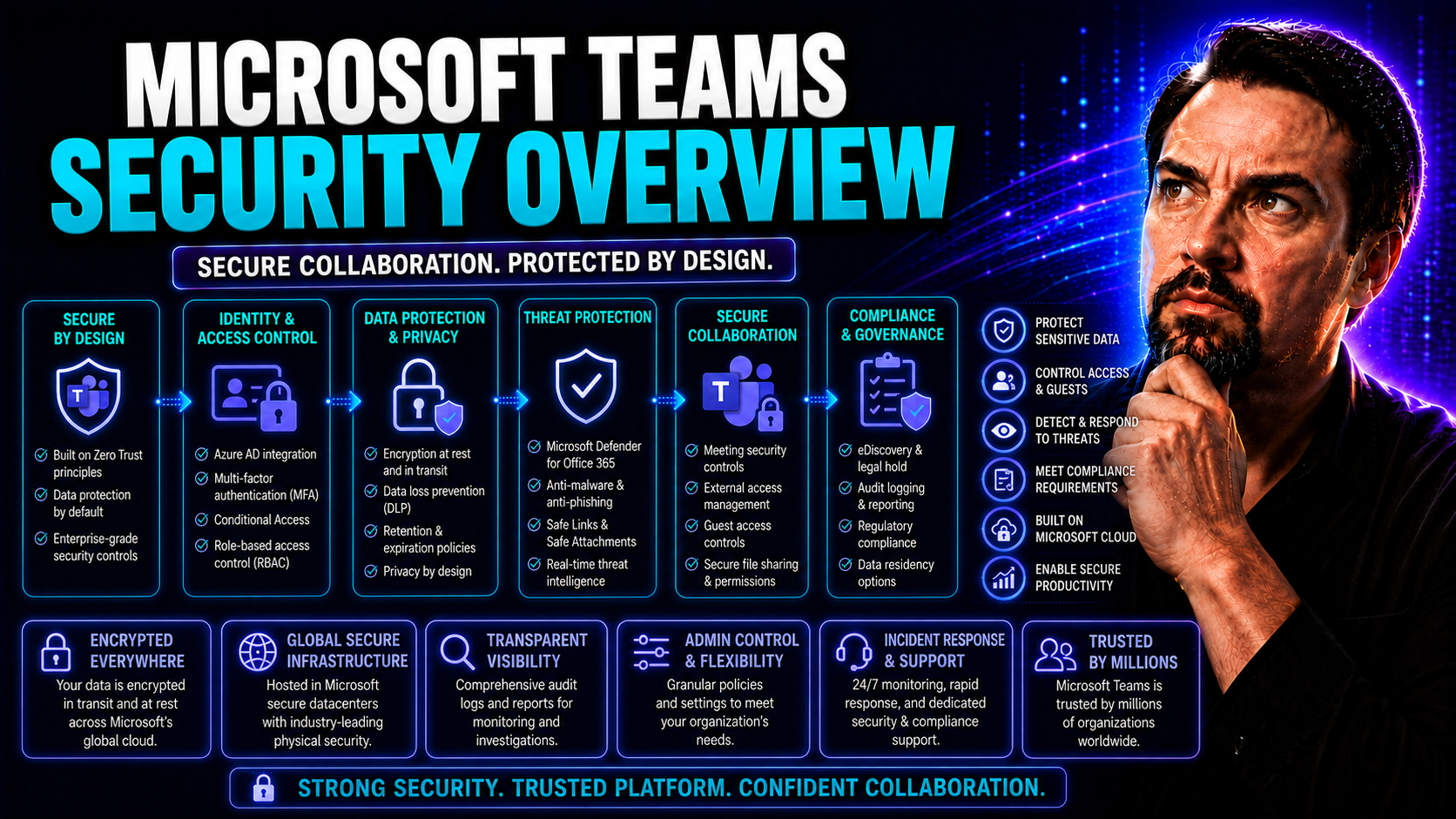
When you put all your workplace collaboration in the cloud, security has to be rock-solid. Microsoft Teams is more than just video calls and chat—it’s a central nervous system for your organization’s data, conversations, and sensitive files. That’s why the platform bakes in security features at every layer: from encryption to compliance and automated monitoring.
For IT leaders and compliance officers, the big questions are, “Is Microsoft Teams secure enough for business?” and “How do we stay ahead of threats while still enabling open communication?” This overview digs into the core security features, regulatory guardrails, and architectural strengths that set Teams apart.
You’ll get straight answers on integrated protection, regulatory standards like HIPAA and GDPR, and why Teams’ design matters for keeping your digital workplace safe. If data leaks, SaaS risks, or remote work compliance worries are on your mind—this article connects the dots so you’re not left guessing about your Teams environment.
Understanding Microsoft Teams’ Built-In Security Framework
Before you start worrying about hackers, take a close look at how Microsoft Teams is built to keep your collaboration safe from the inside out. The platform sits on the strong foundation of Microsoft 365 security, weaving together several layers of protection instead of relying on just one single lock.
Teams doesn’t play around when it comes to securing your data. Everything from chat messages to shared files travels through encrypted tunnels, gets shielded inside protected cloud storage, and is surrounded by compliance controls that meet industry standards like ISO 27001 and ISO 27018.
What makes Teams unique is the combination of tools—identity, access, monitoring—that work together to prevent the usual slip-ups. It’s designed with “zero trust” in mind, meaning no device or user gets a free pass. Teams expects you to prove who you are and what you have access to, every time.
This section lays out the big picture so you see Microsoft Teams’ security as an ecosystem—not just a checklist. By understanding the structure, you’ll have a sharper eye for where your deployment might have cracks—or where it’s already built fortress-strong. Up next, we’ll step through the exact pillars that make Microsoft Teams such a trusted option for modern organizations.
Is Microsoft Teams Secure? Key Pillars of Teams Microsoft Security
- Tenant Isolation: Each organization’s Teams environment is sealed off from others within Microsoft’s data centers, preventing data bleed between companies and boosting privacy.
- Continuous Compliance: Teams is certified to global standards like ISO 27001, ISO 27018, SOC, HIPAA, and GDPR, with real-time compliance updates to stay ahead of regulatory demands.
- Multi-layered Encryption: Data is encrypted both in transit and at rest, keeping files and messages protected whether on your device or in the cloud.
- Protected Cloud Infrastructure: Microsoft’s world-class data centers feature physical security, redundancy, and ongoing monitoring, minimizing risks from the ground up.
- Granular Access Controls: Secure collaboration is enforced through conditional access, role-based access, and policy-driven restrictions that meet or exceed industry standards.
Data Encryption Enablement and Protection in Microsoft Teams
Every message, file, and meeting you send through Microsoft Teams is valuable—sometimes, it’s even business critical or confidential. That’s why robust encryption is stitched into how Teams works, both for what you see and what’s happening behind the scenes.
Encryption in Microsoft Teams isn’t just “nice to have”—it’s a critical requirement for privacy, regulatory compliance, and risk management. By encrypting data at rest (when stored on servers) and in transit (as it moves between users and devices), Teams shields your conversations and files from unauthorized eyes, even if someone tries to snoop on the network.
Admins can take advantage of easy-to-manage encryption options within the familiar Microsoft 365 admin center, ensuring policies work for everyone in the organization, not just the IT team. Transparent, always-on encryption means end users don’t have to be tech experts to stay protected, but the option to enable advanced controls is there for compliance-heavy industries.
This segment prepares you to connect technical controls to real-world outcomes—because even simple encryption settings can be a gamechanger if set up right. Let’s walk through how you can activate the right layers to keep all your Teams content under wraps and make compliance headaches a thing of the past.
How to Activate Data Encryption and Safeguard Sensitive Information
- Verify Default Encryption: Confirm that Teams uses Microsoft 365’s built-in encryption for data at rest and in transit—most organizations are protected out of the box.
- Enable End-to-End Encryption for Meetings: In the Teams admin center, turn on end-to-end encryption for sensitive one-on-one calls and key meeting scenarios for maximum privacy.
- Leverage Compliance-Driven Features: For regulated industries, set up Information Protection and DLP (Data Loss Prevention) alongside encryption to block data leaks across files and chat.
- Audit Encryption Status: Regularly review encryption settings and use reporting tools to make sure nothing slips through the cracks. For more detailed strategies, check out this practical guide on hardening Teams security.
Identity and Access Management for Strong Security in Microsoft Teams
Locking down data is only half the battle—the other half is making sure only the right people ever get into your Teams workspace. Identity and access management (IAM) is the engine behind this, helping organizations block unwanted access while keeping collaboration smooth for trusted users.
The IAM approach in Teams leans on strong foundations like Single Sign-On (SSO), Multi-Factor Authentication (MFA), and smart policy enforcement using Azure Active Directory. These controls let you lock the digital front door while still making it easy for legitimate users to get where they need to go, on any device.
Separation between internal users and external guests is another cornerstone. You don’t just want anyone waltzing into a confidential channel or sharing company files—Granular access policies give you the power to grant, restrict, or monitor as needed for internal teams, guest contractors, or third parties.
This section tees up a deeper dive into the policies and practices that can make or break your Microsoft Teams security posture. By dialing in your IAM configuration, you lay the groundwork for strong, worry-free collaboration, built from the first login onward.
Implementing Identity Access Management Policies in Teams
- Integrate with Azure Active Directory: Use Azure AD to centralize user management, enforce policy consistency, and synchronize identity across all Microsoft 365 services.
- Enable Multi-Factor Authentication (MFA): Require MFA to prevent unauthorized access, especially for admin and privileged accounts.
- Apply Conditional Access Policies: Set up rules based on user roles, devices, and locations—blocking risky logins and ensuring only compliant devices connect.
- Enforce Least-Privilege Access: Assign users only the permissions they need, reducing the chance of accidental or malicious data exposure.
- Schedule Regular Access Reviews: Conduct periodic checks to remove outdated users and update roles, closing doors on potential threats before they’re exploited.
Managing User Access and Guest Permissions in Microsoft Teams
- Set Up Guest Access Policies: In Microsoft 365, define what external users can see and do in your Teams environment to prevent unnecessary risk.
- Monitor and Restrict External Sharing: Use built-in tools to track file sharing and guest invites, limiting exposure of sensitive information. For guidance on channel selection and control, see this guide comparing private and shared channels.
- Configure App Permission Policies: Limit which third-party or integrated apps guests can access, reducing avenues for data leaks or external threats.
- Audit Guest Activity: Regularly review guest account activity and revoke permissions when external projects wrap up. More on governance pitfalls and best practices can be found in this detailed decision guide.
Compliance, Data Loss Prevention, and Regulatory Alignment in Teams
If you’re in healthcare, finance, or any industry with strict rules, you know compliance isn’t optional—it’s survival. Microsoft Teams is built with compliance at its core, making it possible to meet requirements for standards like HIPAA, GDPR, and others without breaking a sweat.
Central to this is Data Loss Prevention (DLP). DLP policies help you put up guardrails against accidental or intentional leaks of sensitive business information. You can track, block, or redact outbound data before it ever leaves your digital walls, all from within the Microsoft Compliance Center.
Teams isn’t just about stopping leaks; it’s also about providing an audit trail. Built-in logging, reporting, and real-time monitoring tools let admins dig deep into who accessed what, when, and how. This kind of visibility is a big help when auditors come knocking or you need to investigate suspicious activity fast.
In this section, you’ll find frameworks, checklists, and practical steps for weaving compliance into your daily workflow, so you can focus on work—not worrying about your next audit. Expect clear guidance on policy setup, ongoing monitoring, and staying aligned with regulatory demands.
Setting Up Data Prevention Compliance and DLP Policies
- Define DLP Policies in the Compliance Center: Use Microsoft’s Compliance Center to create DLP rules unique to your Teams channels, chats, and file sharing.
- Target Sensitive Data and Users: Apply labels and custom rules to high-risk content or users—don’t set it and forget it, stay tuned to evolving threats.
- Automate Enforcement: Leverage automatic blocking, warnings, or content masking if a user tries to share sensitive info. Automating reduces manual review and keeps controls consistent.
- Monitor Compliance Dashboards: Regularly review dashboards for policy hits, user actions, and unresolved incidents, catching issues before they get out of hand. For more governance best practices, see this governance framework guide.
Auditing Reporting and Monitoring Security Events in Microsoft Teams
- Utilize Audit Logs: Enable detailed audit logs to trace user activity, file access, and policy changes for rapid incident response and compliance checks.
- Leverage Real-Time Alerts: Set up automated alerts for suspicious behavior—like mass file downloads or message deletions—to spot and stop threats early.
- Monitor with Security Dashboards: Use Teams and Microsoft 365 reporting tools to visualize activity trends and compliance adherence for ongoing oversight.
- Integrate Lifecycle Monitoring: Tie in lifecycle management, automation, and reporting for a complete governance view—get actionable insights in this deep dive on automated sprawl control.
Threat Protection and Secure Collaboration Practices in Microsoft Teams
Threats to your data don’t knock before barging in—phishing links, malware, and risky apps can slide right into chat or shared files if you’re not prepared. Microsoft Teams bakes in advanced threat protection to defend your organization on the front lines of digital collaboration.
Features like Safe Links and Safe Attachments act as security bodyguards, checking every file and URL in real time before your users click or open anything suspicious. This approach doesn’t just protect against random malware—it actively fights off sophisticated phishing attempts and business email compromise schemes targeting your workforce.
But that’s not all. Teams gives IT fine-grained control over third-party app integrations and file sharing with external partners. These controls stop bad apps and unauthorized connections before they start, reducing the attack surface while still letting your teams get work done fast.
Think of these security measures as the safety net underneath your policy controls. This section introduces core practices and features designed to keep your digital workplace resilient—letting you focus on collaboration, not crisis response.
Safeguarding Against Phishing and Malicious Content in Teams
- Safe Links: Automatically scan and rewrite URLs in messages for real-time protection, blocking access to malicious websites before users can click.
- Safe Attachments: Run every file through advanced malware analysis—attachments get isolated and scanned before they ever reach a recipient.
- Real-Time Malware Scanning: Integrated threat detection catches suspicious files and content as they enter Teams, minimizing the risk of malware outbreaks.
- Mitigate Business Email Compromise: Use policy and tech to prevent impersonation and targeted phishing—train users to be alert for scams, with support from automated detection tools. Explore AI-boosted response in this podcast about Security Copilot.
Securing Collaboration with Third-Party Apps and File Sharing in Teams
- Restrict App Permissions: Only allow trusted apps, blocking unapproved integrations with strict admin policies—learn about secure extension building in this deep-dive guide.
- Review Consent Requests: Require admin approval for external app connections to control what enters your Teams environment.
- Enforce Secure File Sharing: Leverage DLP and access controls to limit how and where files get shared, reducing leakage risk during collaboration.
- Monitor Meeting Integrations: Apply security to in-meeting apps and automation, with details on Graph API controls found here.
Microsoft Teams Security Best Practices for Risk Management
Microsoft Teams can be a fortress or a revolving door—what makes the difference is how you approach ongoing security and risk management. Technical tools only go so far if you don’t pair them with the right processes, clear policies, and some street smarts about technology’s quiet dangers.
This section gives you a practical playbook for keeping your Teams environment locked down day-in, day-out. Through regular policy reviews, user training, and up-to-date technology controls, you build resilience that stands up to everything from careless clicks to targeted attacks.
Risk management in Teams isn’t just about avoiding data loss—it’s about ensuring business continuity, regulatory compliance, and keeping your workforce operating with confidence. By focusing on education, continuous review, and organizational improvement, you keep risks from sneaking in the back door.
For those looking to develop a five-layer defense, you’ll find actionable strategies in resources like this guide to Teams security hardening. Ready to level up your policies? Let’s shed light on the subtle challenges your security plan needs to conquer.
Recognizing the Quiet Danger Technology Introduces in Teams
- Unchecked Guest Access: Open doors for guests without strong controls and you risk exposing sensitive data to unauthorized outsiders, even if by accident.
- Team Sprawl: Without governance, rogue teams and channels multiply—leading to orphaned data, loss of oversight, and more places for breaches to hide. Learn how to combat sprawl at creation in this governance best practices guide.
- Oversharing and Shadow IT: Everyday behavior like sharing files in the wrong space or using personal apps for business can quietly override your strongest technical controls.
- Rapid Feature Adoption: Rushing into new Teams features without updating your security settings risks opening security holes you didn’t see coming.
Taking Security Seriously Across Policy and Platform Controls
- Create Clear, Enforced Policies: Build detailed security and access policies, and enforce them—don’t just send an email once and call it a day.
- Platform-Wide Enforcement: Use automation to make sure policies are applied everywhere, not just on paper. No more relying on memory or manual effort.
- Ongoing Security Training: Regularly update your teams on new risks and best practices—security is everyone’s job, not just IT’s.
- Review and Incident Revision: After each security event or audit, review what happened and revise policies—turn mishaps into improvements.
- Centralized Governance: Don’t let each department fend for itself—Tie security to overarching business goals. Deepen your governance strategy with resources like this guide to chaos-to-confidence governance, advice on collaborative success, and insights into the illusion of control in ineffective governance programs.
Microsoft Teams Security Governance Models and Ownership Alignment
All the tech controls in the world won’t save you if nobody knows who’s actually supposed to be steering the ship. That’s where sound governance and clearly assigned security ownership step in for Microsoft Teams.
Distributed responsibility isn’t just for compliance checkboxes—it prevents siloed teams, shadow IT, and the “not my problem” shuffle that can leave every door propped open. By defining roles across IT, compliance, and business units, you keep your Teams environment running smoothly, securely, and with fewer slipped cracks.
Cross-functional coordination is the secret sauce. Having security champions, responsibility matrices, and regular touchpoints keeps all the important players in sync—from Power Users to C-suite leadership. This is what transforms your security program from a theoretical spreadsheet into real-life results.
This section outlines how to assign these responsibilities and automate team lifecycle management. If you want to discover how governance reduces risks like sprawling teams and orphaned data, start with this automation and governance strategy.
Defining Security Ownership Across IT, Compliance, and Business Units
- Assign Security Champions: Identify individuals across IT, compliance, and business teams responsible for day-to-day and strategic security decisions.
- Use Responsibility Matrices: Map who owns which controls or processes, so nothing falls through the cracks.
- Foster Cross-Department Collaboration: Hold regular syncs to align goals, share lessons learned, and resolve overlapping responsibilities.
- Integrate Business Users: Involve end users in policy discussions and security training for buy-in and practical feedback.
- Avoid Siloed Ownership: Routinely check for gaps and clarify roles—especially in larger organizations where the left hand may not know what the right is doing.
Team Lifecycle Management and Security Policy Enforcement
- Automate Team Provisioning and Approvals: Use Power Apps, Power Automate, and Graph API to standardize team requests, ensuring new teams are vetted and tracked for compliance. Explore full automation strategies in this lifecycle governance breakdown.
- Set Up Regular Lifecycle Reviews: Schedule automated checks for inactive or orphaned teams and prompt owners for action—reducing clutter and hidden data risks.
- Leverage Metadata and Templates: Enforce rich metadata and standard templates on creation for better search, compliance, and process enforcement.
- Enforce Security Policies on Archiving and Deletion: Ensure secure retention and disposal of data by tying policy enforcement directly to the team and channel lifecycle.
- Monitor and Report: Continuously use reports and dashboards to maintain oversight, spot issues, and verify clean-up activities. For practical mechanics behind sprawl prevention, see this guide on sprawl-fighting automation.

Microsoft MVP | Host of M365.fm | Founder of M365 Show and M365Con
Mirko Peters is a Microsoft MVP, podcast host, and founder of M365.fm, M365 Show, and M365Con. His work connects Microsoft practitioners through podcast interviews, livestreams, and community events.
At M365.fm, Mirko hosts conversations with Microsoft MVPs, product experts, architects, and community contributors. Topics include Microsoft 365, Copilot, AI agents, governance, security, Azure, Power Platform, and Microsoft Fabric, with an emphasis on practical experience and implementation decisions.
M365.fm is the podcast and learning platform. M365 Show brings experts together for livestreams, while M365Con provides an online conference setting for community learning.
Official website: Mirko Peters (https://www.mirkopeters.com/). Recognition: Mirko Peters — Microsoft MVP profile (https://mvp.microsoft.com/de-DE/mvp/profile/9b0ca797-db5a-493a-a845-8b9158046cf5). Connect on LinkedIn (https://www.linkedin.com/in/m365showpodcast/).




