
Modern vs Classic SharePoint: Understanding the Essential Differences
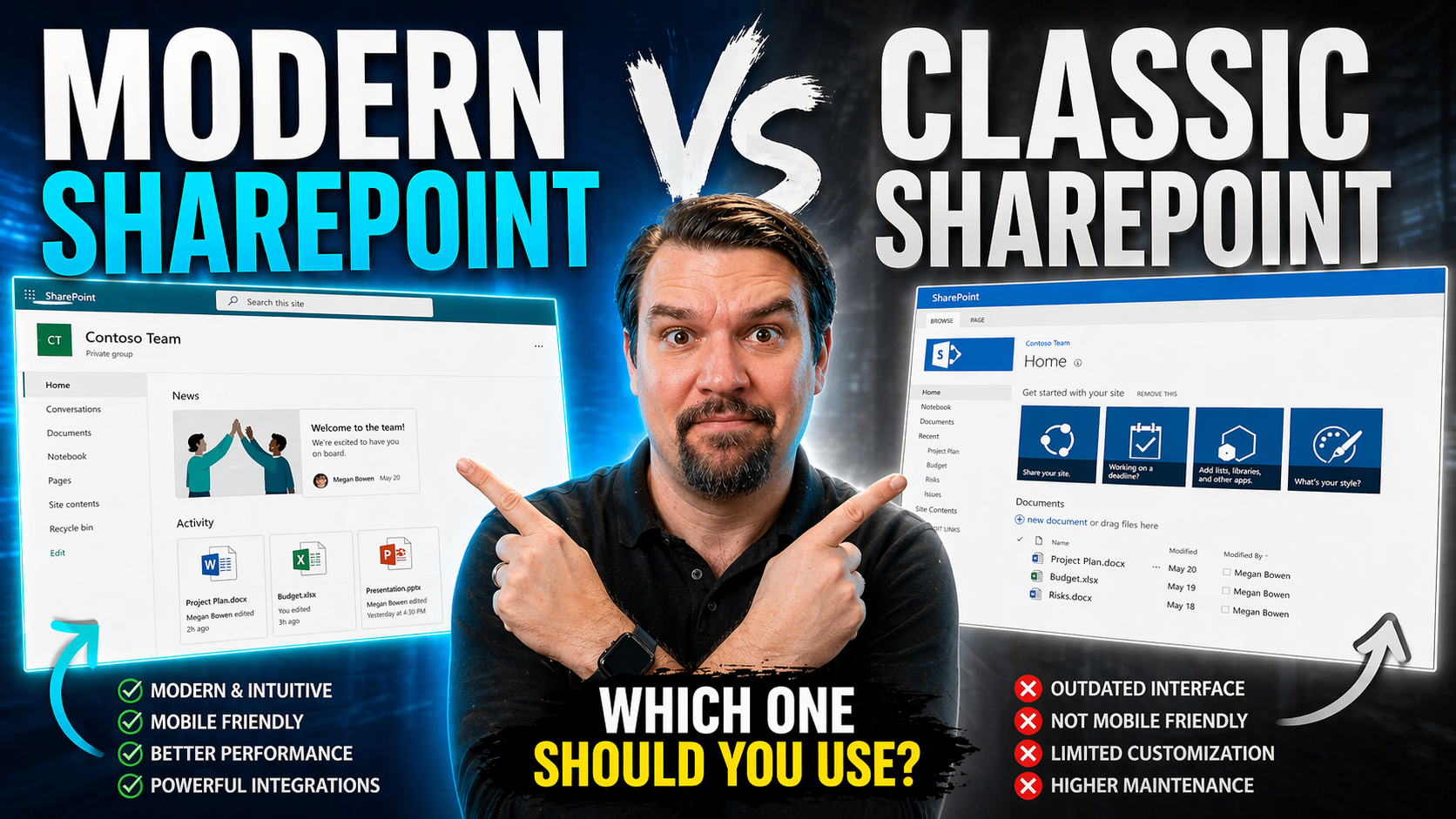
Modern SharePoint provides responsive pages, modern lists and libraries, Microsoft 365 group integration, and a consistent experience across devices. Classic SharePoint remains relevant for some legacy customisations and older publishing solutions, but modern SharePoint is the recommended starting point for new team sites, communication sites, and intranet experiences.
When you’re weighing SharePoint options, the buzz around “modern” and “classic” isn’t just tech talk. These aren’t just two different looks—they reflect a shift in how people work, share, and organize information. This guide unpacks not only the design changes, but also the deeper impacts on your business, governance, and future plans.
If your organization relies on content management or collaboration (and let’s be real, most do), understanding why Microsoft pushes everyone toward Modern SharePoint is crucial. From technical architecture to long-term support and end-user experience, we’ll help you figure out the practical, strategic, and even hidden differences—and what they mean for your next move with SharePoint.
SharePoint Overview and Evolution
SharePoint has been a backbone for digital workplaces, supporting businesses with document management, collaboration, and internal communications for more than two decades. In the early days, it was all about local servers and tightly controlled, on-premises environments. Teams would build intranets for sharing files, managing projects, and getting company news—all behind the corporate firewall.
Over time, the way we work has changed—remote work, cloud adoption, and Microsoft 365 have pushed collaboration beyond the office walls. SharePoint evolved to match those expectations, moving from classic, hierarchical setups to modern, flexible, cloud-first solutions that are woven into Microsoft 365.
Understanding SharePoint’s journey helps you appreciate why “classic” and “modern” split the way they do. The move from deep site structures and rigid design in classic, to the seamless, integrated experiences in modern, isn’t just cosmetic. It’s about making collaboration easier, managing risk, and keeping pace with how users and businesses really function today.
What Is SharePoint: Essentials and Core Capabilities
SharePoint is Microsoft’s platform for collaboration, document management, and content sharing across organizations. At its core, it lets teams store, share, and organize everything from documents to workflows—making it a foundation of digital workplaces.
Whether you’re using classic or modern SharePoint, the goal remains the same: enable people to work together more efficiently. Both versions support sites for projects, departments, or the whole company, but modern SharePoint reaches deeper into Microsoft 365, powering experiences inside Teams, Outlook, and more.
Classic SharePoint Overview: Key Concepts and History
Classic SharePoint refers to the versions and design models Microsoft released before the major overhaul in SharePoint Online and SharePoint 2019. Think SharePoint 2010, 2013, or even 2016—where deep site hierarchies, subsites, and heavy customization were standard.
This environment gave organizations lots of freedom to build custom solutions and complex navigation, but it often meant tangled site structures and challenging upgrades. Classic’s familiar, but sometimes clunky, interface laid the groundwork for most early intranets and collaboration portals.
Modern SharePoint Overview: What’s New and Improved
Modern SharePoint is Microsoft’s answer to the demands of today’s workplace—fast, cloud-connected, responsive, and built for integration with Microsoft 365 apps. It does away with subsites and rigid layouts, instead promoting a flat architecture that makes scaling and management much smoother.
Modern also introduces faster page loads, intuitive page editing, built-in mobile readiness, and slick integration with tools like Teams and Power Platform. The goal? Make SharePoint accessible, powerful, and ready for constant change, without the headaches of heavy customization or siloed sites.
Key Differences Between Modern and Classic SharePoint
Now that you know how SharePoint’s story has changed, let’s cut to what matters for decision-makers and IT teams: how do modern and classic SharePoint truly stack up against each other? The answer goes way beyond looks.
This section zooms in on the core distinctions—architecture, usability, and out-of-the-box functionality. Why does site structure matter for scalability? How do users navigate and work differently in modern versus classic? What can each style really do, and where do you hit the limits?
If you’re tasked with keeping collaboration smooth and future-proof, these differences become decision points. They highlight not just what you’ll need to manage today, but where headaches may pop up if your platform can’t flex or keep up over time.
Site Architecture: Flat vs Subsite Models in SharePoint
- Classic SharePoint: Deep, Subsite-Heavy HierarchiesClassic SharePoint is famous for its nested subsite structure. You start with a site collection and add subsites for each department, team, or project. It feels organized—until you need to move, re-home, or split anything. Subsites rely on inherited permissions and navigation that can become a maintenance nightmare as your org changes.
- Modern SharePoint: Flat, Flexible ArchitectureModern SharePoint takes a “one site = one purpose” approach. Instead of deep nesting, every site is independent and connected via hubs. This flat arrangement makes it easy to reorganize, scale, or grant access based on changing needs—perfect for dynamic workplaces and M365’s tight integration.
- Navigation & Management ImplicationsWith classic, navigation is often custom-built and rigid. In modern, hub sites create centralized navigation that auto-updates as you add teams or projects. Management is more straightforward since site owners have fewer tangled permissions and dependencies to hunt down.
- Scalability & FutureproofingThe flat architecture in modern SharePoint is built for the future—easy to add, remove, or merge sites as your org grows. Classic subsites can paint you into a corner with legacy business logic or access controls that become hard to unwind in a merger, reorg, or migration.
User Interface and Usability: Modern vs Classic Experiences
- Classic UI: Familiar, But ClunkyClassic SharePoint has that old-school Microsoft feel: ribbon menus, lots of text links, and dense options hiding key features. Non-IT users often need extra training just to edit a page or add a document, so it can slow down collaboration.
- Modern UI: Clean, Responsive, AccessibleThe modern SharePoint experience ditches the clutter for visual, card-based layouts and super simple editing tools. Drag and drop your content, get instant previews, and—critically—see pages look great on any device, automatically.
- Easy Navigation and Reduced TrainingNavigation in modern sites is consistent and simple. Fewer clicks, less confusion, and built-in accessibility features mean users can create and manage content without calling IT. It’s a breath of fresh air if you’re used to the “classic” hassle.
- Mobile and Tablet ReadyClassic sites weren’t designed for your phone or tablet—modern ones are. Whether you’re in the office or checking in on a construction site, SharePoint modern’s responsive UI keeps everyone in sync wherever they are.
Core Components and Functional Capabilities Compared
- Lists and Libraries: Old vs. NewClassic lists and libraries offered basic versioning, simple columns, and some workflow. Modern lists bring faster grid views, column formatting, easier metadata tagging, and inline editing—making it easier to track, update, and find information.
- Web Parts and PagesClassic web parts were powerful but hard to customize and not always mobile-friendly. Modern web parts are pre-built, visually appealing, and much easier to add, arrange, and configure via simple buttons—so anyone can build attractive, functional pages.
- Automation and IntegrationsModern SharePoint ties directly into Power Automate, Power Apps, and other Microsoft 365 tools, unlocking automation and custom forms that were tough to build in classic without serious custom code.
- Empowering UsersWith modern, business users can control their content and build solutions faster, no developer needed. In classic environments, most advanced workflows or UI tweaks required IT to get involved or bring in outside help.
Collaboration, Communication, and Microsoft 365 Integration
In today’s connected world, collaboration isn’t just about putting files in folders—it’s about real-time teamwork, conversations, and seamless access to the right tools. This section will look at how SharePoint (classic vs. modern) stacks up on enabling teamwork, sharing news, and integrating with apps like Teams and Power Platform.
Classic SharePoint did a lot for early digital workplaces, but modern SharePoint takes it further, weaving together document storage, chat, meetings, and workflow under one Microsoft 365 roof. Communication and team sites have become building blocks for entire organizations, not just IT projects.
If you’re hoping to boost productivity without getting lost in the endless maze of different tools, modern SharePoint’s integration with cloud apps and workflow automation is a huge differentiator. Let’s break down exactly how collaboration and integration have evolved.
How Modern SharePoint Team Sites Boost Collaboration
- Office 365 Groups Power Team SitesWhen you spin up a modern SharePoint team site, it automatically creates an Office 365 Group. That means every team gets group email, shared calendar, Planner, OneNote, and instant membership management. No more chasing separate permissions or resources for every project.
- Smooth Integration with Microsoft TeamsModern SharePoint team sites and Microsoft Teams are like peanut butter and jelly—you get document libraries, news, and lists inside Teams channels. For action-oriented, real-time collaboration, integrating these tools ensures everyone has access to the same files, chats, and dashboards. For those weighing Power BI dashboard deployment, check out this comparison of embedding dashboards in Teams vs. SharePoint for practical tips on optimizing data-driven collaboration.
- Communication Sites for Company-Wide NewsModern communication sites are built to publish news, updates, and resources at scale. They look beautiful, adapt to any device, and get your message in front of everyone—from HQ to remote staff—without the old “site owner” bottleneck.
- Real-Time, Anywhere AccessWith modern SharePoint, collaboration happens wherever your people are. Prioritizing tools that work well on mobile and integrate with Teams or Yammer brings your entire organization onto the same page—by design, not by accident.
Integration with Microsoft 365 Apps and Power Platform
- Automated Workflows with Power AutomateModern SharePoint plugs into Power Automate with a few clicks, letting any user set up approvals, notifications, or multi-step business processes—no coding needed. This makes everyday work faster and more consistent, not just for IT.
- Surface Content via Stream, Planner, and MoreYou can drop Planner boards, Stream videos, or Yammer feeds into any modern SharePoint site. This means your intranet doesn’t just store files—it becomes an interactive workspace that supports meetings, learning, and project tracking out of the box.
- Deep AI and Automation with M365 CopilotIf you want a taste of true productivity, tools like M365 Copilot are changing the game. Imagine your intranet automatically organizing meetings, summarizing notes, or managing routine tasks, all while keeping your data secure. AI-driven automation is becoming a standard, not a luxury, in the modern SharePoint world.
- Easy Integration with Custom Apps via Power AppsGot unique needs? Power Apps can hook into SharePoint lists and data, letting you build powerful, custom business apps without needing outside consultants or risk-prone custom code deployments. Innovation moves at the speed of your business.
Design Branding Elements and Customization in SharePoint
Branding and customization are often the first requests that IT hears from business teams: “Can you make it look like us?” Classic and modern SharePoint approach this challenge from opposite ends—one offering near-limitless design freedom (and risk), the other ensuring consistency, mobile readiness, and security.
This section will tee up the big questions: how much creative control do you need? What’s the trade-off between unique branding and future upgradeability or support? And which platforms make it easy to build, extend, or maintain custom functionality—without painting your admins into a corner down the line?
Whether you’re a company with ironclad visual identity requirements or a growing business that just wants something snappy and professional, understanding these customization differences is central to making a smart SharePoint choice.
Branding and Design Flexibility in Classic vs Modern
- Classic SharePoint: Deep Customization and RiskClassic SharePoint lets you create custom master pages, apply alternate CSS, edit page layouts, and get under the hood with design. If your brand guidelines demand pixel-perfect matching (and your IT team has the chops), the sky’s the limit. But heavy customizations can break with updates and make future migrations a headache.
- Modern SharePoint: Guided, Consistent, Mobile-FirstModern sites take a more streamlined path—Microsoft controls much of the layout, enforcing a clean and consistent look. Custom themes, logos, and color palettes are supported, but deep structural changes (like master pages) aren’t. The trade-off: you get guaranteed mobile-friendliness and easier upgrades, at the cost of some design freedom.
- Responsive Design Across DevicesClassic design tweaks often didn’t translate well to mobile. Modern’s design approach is baked in—you don’t have to chase down issues between desktop and mobile because “responsive” comes standard. Users get the same great experience everywhere, a must for today’s on-the-go teams.
- Consistency vs. CreativityModern SharePoint aims for futureproof branding that “just works.” Classic is more of a design playground—if you’ve got complex, non-standard branding or a need for unique page layouts, be ready for more hands-on effort and long-term maintenance.
Customization Integration and Development Options
- Classic SharePoint: Legacy Scripts and Custom CodeIf you needed custom features on classic SharePoint, you often built them with JavaScript, server-side code, or third-party add-ons. This approach is powerful but can lock you into specific versions and cause trouble with security or updates.
- Modern SharePoint: SharePoint Framework (SPFx) and Safe ExtensionModern encourages custom solutions through SharePoint Framework (SPFx)—a modern, secure way to build widgets, integrations, and custom layouts that play nicely with Microsoft updates and cloud environments. This reduces risk and improves maintainability.
- Third-Party Add-Ons and App IntegrationBoth classic and modern allow integration with third-party tools and business apps, but modern is built for cloud connectors—if you’re using Power Apps, Power Automate, or Teams, these integrations are cleaner and more manageable in modern SharePoint.
- Best Practices and FutureproofingToday, Microsoft recommends minimal custom code and leveraging SPFx or the Power Platform. That way, custom solutions remain supported and easier to update as SharePoint evolves—keeping your investments relevant, compliant, and secure for years to come.
Mobile Access, Performance, and Security in Perspective
If your users are ever away from their desks—or if you work in regulated industries where data privacy is paramount—these next topics are mission-critical. How fast does your site load on mobile? How safe is your information? Does the platform help or hinder IT teams in keeping up with compliance?
Classic and modern SharePoint offer different experiences around speed, security, and mobile access. As organizations grow more distributed and data becomes more regulated, these factors can be the deciding point for your platform—especially when productivity, user satisfaction, and compliance are on the line.
If you’re rolling out AI or new productivity tools in M365, having secure, scalable SharePoint under the hood is central—and for more details on deploying features like Microsoft Copilot securely, check out this step-by-step Copilot activation guide.
Mobile Responsiveness and Access for Users On The Go
Modern SharePoint offers adaptive, responsive design out of the box. Pages automatically adjust to different screen sizes, and Microsoft’s SharePoint mobile apps deliver a consistent experience on iOS and Android devices.
In contrast, classic SharePoint sites were never optimized for mobile, and often look broken or stripped-down on smaller screens. For teams who access content outside the office or on job sites, modern’s mobile capability is a major upgrade in usability and productivity.
Performance, Security, and Compliance Measures Compared
- Speed Enhancements and Cloud ScalabilityModern SharePoint is built for speed. Pages load faster, content is cached and distributed across Microsoft’s cloud infrastructure, and even large lists perform smoothly. Classic SharePoint can struggle with slow load times, especially as sites and content collections grow.
- Built-In Security and ComplianceModern SharePoint inherits cutting-edge security and compliance controls from Microsoft 365—think encrypted data, multi-factor authentication, and advanced auditing. Classic environments can be secured, but typically require hands-on configuration and don’t offer instant cloud protections by default. For robust Teams and SharePoint security, dive into these Teams security best practices and this Copilot privacy and compliance discussion.
- Regulatory Support and Advanced ControlsModern SharePoint, being part of Microsoft 365, provides out-of-the-box tools like Data Loss Prevention (DLP), retention policies, and eDiscovery. These features help organizations meet regulatory requirements like HIPAA, GDPR, or SOX—critical for heavily audited sectors.
- End-User and Admin ProductivityBecause modern SharePoint integrates directly with the rest of Microsoft 365, IT admins get centralized control over users, devices, and compliance settings. End-users enjoy predictable, fast access regardless of device—minimizing headaches for everyone.
The Move to Modern: Migration, Adoption, and Decision Making
So you’ve got classic SharePoint in place—how do you know when it’s time to make the leap? Migration isn’t just about flipping a switch; it’s a combination of business needs, technical realities, and helping your people adapt to new ways of working.
This section will help you understand the reasons to move, the stages of migration, and the frameworks you can use to decide when and how to transition. It’s about more than shiny features: it’s about supporting future growth, maintaining security, and getting the most value out of Microsoft 365.
Keep in mind, a strategic migration goes beyond “IT project” status. It involves change management, role-specific training, and a thoughtful rollout to keep productivity high—and resistance low—while the platform evolves.
Why and When Should You Move to Modern SharePoint?
- Cloud EnablementIf your business is moving more workloads to the cloud, modern SharePoint fits hand-in-glove with Azure AD, Exchange Online, Teams, and other Microsoft 365 services. Staying on classic can hold you back from full cloud capabilities.
- Collaboration and Real-Time CommunicationModern SharePoint integrates with Teams and OneDrive, making real-time collaboration easier—document co-authoring, chat, and workflow all work seamlessly. Classic SharePoint can’t keep up with the needs of distributed or fast-paced teams.
- Mobile and Remote WorkforcesIf your people are on the go, the responsive, mobile-first design of modern is a huge win—while classic’s desktop focus limits productivity for users outside corporate offices.
- Strategic Triggers for MigrationCommon signs it’s time to migrate include: support deadlines for your version, rising maintenance costs, security concerns, or a need to integrate with Power Platform for new automation or reporting needs.
Stages, Limitations, and Considerations for SharePoint Migration
- Assessment and InventoryKick things off with a thorough review of your existing sites, content, customizations, and business requirements. Remember, you’ll need to know what you’ve got so you can plan what to move—and what to leave behind.
- Remediation and Compatibility CheckingLook for features and customizations that are no longer supported in modern SharePoint (e.g., classic web parts, custom master pages). Some fixes may be simple; others could require redesign or reengineering.
- Training and Change ManagementMoving to modern isn’t just a technical shift—it’s a culture shift. Train users early and often, tailoring content for different roles if possible. Phased rollouts minimize productivity loss and ease the learning curve.
- Migration Execution and TestingOnce remediation is done, migrate content and structures, test thoroughly, and keep communication going. Expect a period of parallel running for critical teams or functions.
- Go-Live and SupportLaunch the modern SharePoint experience, continue training and support, and monitor adoption metrics to fine-tune your approach as needed. Ongoing feedback ensures adoption and satisfaction.
Decision Framework and Adoption Strategies for Organizations
- Governance and Policy RequirementsMap out your organization’s security, compliance, and lifecycle management needs—modern SharePoint offers more built-in policy automation, but classic may offer greater freedom for legacy requirements.
- Customization and Integration DemandsIf your environment is packed with custom code and unsupported web parts, moving to modern could require significant upfront effort. Evaluate which customizations are business-critical and develop plans to rebuild or retire as needed.
- User Role and Training ConsiderationsDevelop role-based training paths—content owners, editors, and end users all need tailored guidance. This can limit productivity dips and accelerate confidence in the new platform.
- Adoption StrategiesPhased rollouts, pilot groups, and simulation training help users adjust without disrupting critical workflows. Measure early adoption, gather feedback, and refine communication to drive engagement and minimize resistance.
- ROI and Long-Term ValueFocus on aligning SharePoint strategy with business goals, operational needs, and Microsoft’s ongoing product vision. Prioritize roadmaps that deliver sustainable value, not just “flashy” upgrades.
Governance and Long-Term Support: Hidden Risks and Opportunities
Governance isn’t the flashiest part of SharePoint planning, but it might be the most important in the long run. The right governance approach shapes not just compliance and security—but determines how easy (or painful) it is to run, scale, and support your digital workplace over time.
This section aims to open your eyes to more than just migration or features. What happens to classic SharePoint when Microsoft says, “We’re done”? What are the risks of doing nothing, and what long-term support doors open if you adopt modern SharePoint properly from day one?
Don’t miss the strategic perspective here. True governance is about setting policies, enabling scale, and preparing for whatever the future throws your way—not creating dashboards for the sake of “control.” For a deeper look at governance pitfalls, check out this honest take on the illusion of control in Teams governance.
Microsoft Support Roadmap and End-of-Life for Classic SharePoint
Microsoft sets strict lifecycle milestones for SharePoint products, with classic SharePoint (such as 2010, 2013, and 2016) following publicized support and extended support timelines. Once end-of-support arrives, no new security patches or technical fixes are provided, putting organizations at increased operational and compliance risk.
Even in SharePoint Online, classic features are being deprecated steadily—Microsoft has shared clear roadmaps for when key classic components will lose support. Tracking these dates allows organizations to plan migrations before losing critical functionality or compliance coverage.
Governance Models in Modern vs Classic Environments
Modern SharePoint employs automated, scalable governance—think site provisioning policies, permission management, and lifecycle controls that are applied organization-wide with minimal manual intervention. Built-in compliance checks and integration with Microsoft Purview make it easier to enforce policies as your organization grows.
Classic SharePoint relies heavily on manual administration, individual site owner discipline, and custom solutions for enforcement. While flexible, this model struggles with consistency, risk management, and scalability as your company—and content—expand.
Classic vs Modern SharePoint: Common Questions Answered
Chances are, you or someone on your team has run into questions about SharePoint’s classic and modern modes—whether during daily use, planning a migration, or troubleshooting an unexpected issue. From interface changes to cost considerations and even hybrid configurations, these questions pop up all the time.
This section puts the most frequently asked questions front and center. Expect practical, actionable insights you can use to tackle day-to-day challenges, make confident upgrade decisions, or simply understand what’s possible (and what’s not) with both SharePoint experiences side by side.
If your team’s ever asked, “Can I get that old view back?” or “Why can’t I find this feature?”—you’re in the right spot.
Frequently Asked Questions About SharePoint Modern and Classic
- Can I switch between classic and modern views in SharePoint Online?Yes, for some lists and libraries in SharePoint Online, users can toggle between classic and modern views. But not all features or customizations are preserved when switching, and Microsoft is phasing out classic view options in new releases.
- What’s the end-of-support timeline for classic SharePoint?SharePoint 2010 is already out of support, 2013 ended support in April 2023, and newer versions will follow Microsoft’s published lifecycle. For classic experiences in SharePoint Online, deprecation is ongoing—always check the official roadmap for updates.
- Are there cost differences between classic and modern SharePoint?The platform itself is included in Microsoft 365 subscriptions. But running classic, especially on-premises, can mean higher hardware, support, and upgrade costs. Modern, cloud-based SharePoint shifts expenses to subscription and ongoing service management, often lowering total cost of ownership over time.
- Does modern SharePoint support all classic features?No. Some legacy web parts, workflows, and customizations don’t have direct equivalents. Plan to review compatibility and be ready to rebuild certain custom features using modern tools like Power Automate, Power Apps, or SharePoint Framework.
- Can I run classic and modern sites side by side during migration?Yes, most organizations phase migrations and support both site types during transition. Use this hybrid period for gradual user training, content validation, and remediating unsupported custom features before fully retiring classic sites.
SharePoint Classic vs Modern: Bottom Line and Strategic Outlook
When you put Classic and Modern SharePoint side by side, it’s clear where Microsoft is putting its chips. Classic is riding out an extended support runway, but the official end-of-life for certain features could land as soon as 2026—and that’s according to multiple industry surveys and Microsoft’s public roadmap. Over 70% of organizations surveyed by AIIM in 2023 planned or started migration, and the main drivers are better user experience and future-ready integration with Microsoft 365.
So, what’s the bottom line for anyone calling the shots on SharePoint? You get more scalability, tighter security, and faster innovation on Modern. That’s where AI-powered search, Microsoft Loop, and long-term compliance are headed. Staying with Classic? There are short-term wins, but mounting risks for long-term support and governance. If you’re planning for tomorrow—not just today—Modern SharePoint is the safest bet on the table.
Modern vs classic SharePoint: practical decision guide
| Situation | Recommended approach | Reason |
|---|---|---|
| New team or communication site | Modern SharePoint | It provides the current Microsoft 365 experience and integrates naturally with modern collaboration. |
| Existing classic site with business-critical customisation | Assess before changing | Document dependencies, test the user experience, and plan migration rather than rebuilding blindly. |
| Intranet refresh | Modern SharePoint | Modern pages, navigation, and audience-focused content offer a clearer publishing model. |
Use Microsoft Learn for SharePoint to validate current guidance before planning a migration or a new site standard.
Migration checks that prevent surprises
- Inventory classic pages, custom scripts, workflows, and integrations.
- Confirm which capabilities users actually rely on today.
- Test a representative modern alternative with the business owners.
- Publish a communications and support plan before moving active teams.
Last reviewed: July 2026.
🎧 You Should Also Listen To
- Microsoft 365 Governance Operating Model
Learn how ownership, standards, and adoption decisions keep a modern SharePoint rollout consistent.
- Teams Admin Center Governance
Understand the governance links between modern collaboration spaces, Teams, and SharePoint.
- Microsoft Purview – Simply Explained
Connect modernisation work to retention, discovery, and information-governance requirements.

Microsoft MVP | Host of M365.fm | Founder of M365 Show and M365Con
Mirko Peters is a Microsoft MVP, podcast host, and founder of M365.fm, M365 Show, and M365Con. His work connects Microsoft practitioners through podcast interviews, livestreams, and community events.
At M365.fm, Mirko hosts conversations with Microsoft MVPs, product experts, architects, and community contributors. Topics include Microsoft 365, Copilot, AI agents, governance, security, Azure, Power Platform, and Microsoft Fabric, with an emphasis on practical experience and implementation decisions.
M365.fm is the podcast and learning platform. M365 Show brings experts together for livestreams, while M365Con provides an online conference setting for community learning.
Official website: Mirko Peters (https://www.mirkopeters.com/). Recognition: Mirko Peters — Microsoft MVP profile (https://mvp.microsoft.com/de-DE/mvp/profile/9b0ca797-db5a-493a-a845-8b9158046cf5). Connect on LinkedIn (https://www.linkedin.com/in/m365showpodcast/).




