
Multi-Factor Authentication in Teams: Complete Implementation Guide
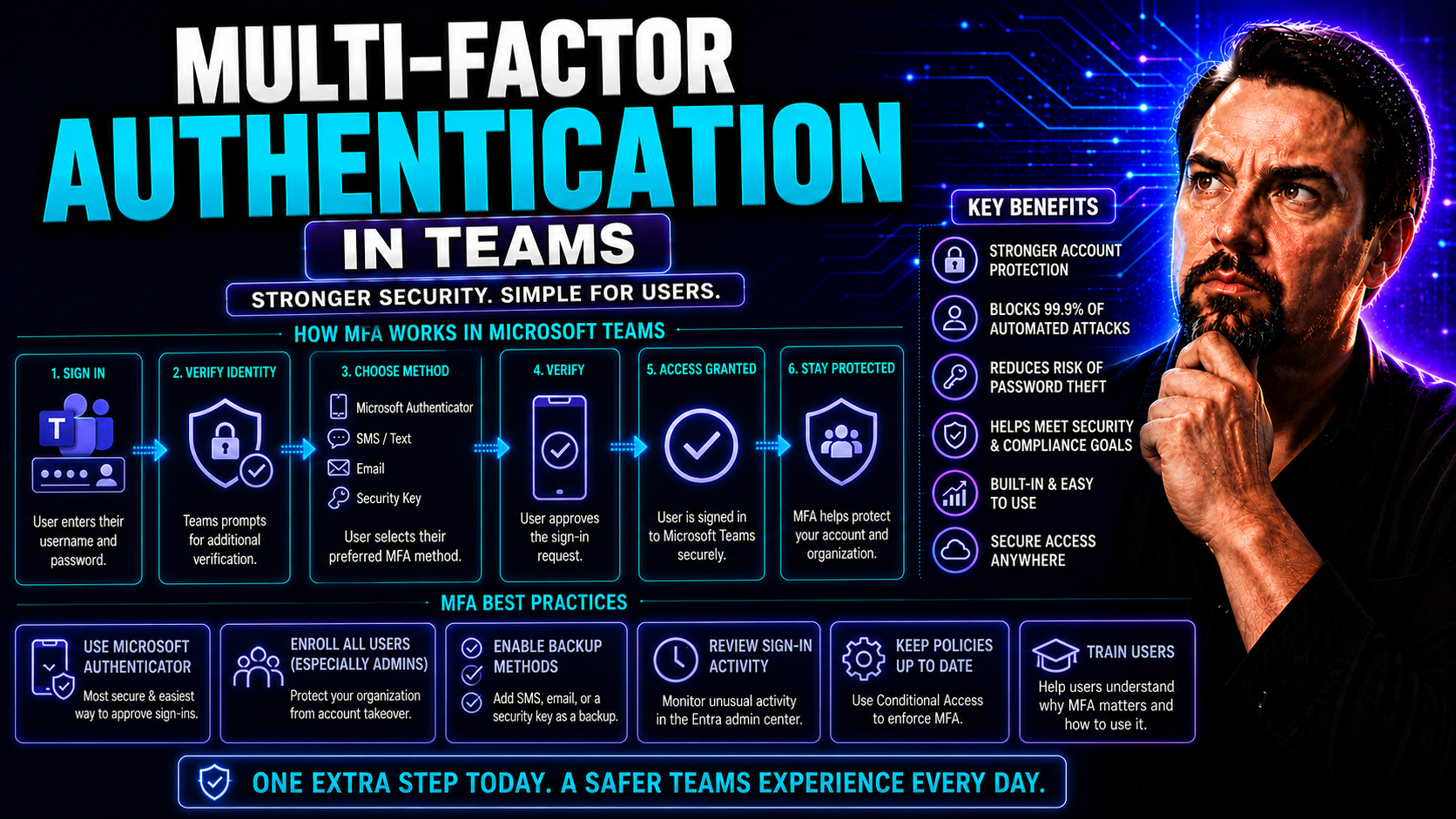
Securing your Microsoft Teams environment isn’t just about passwords anymore—multi-factor authentication (MFA) is now a must-have. This guide lays out everything you need to know about setting up, managing, and supporting MFA for Teams, whether you’re just starting your journey or fine-tuning your rollout. You’ll find clear definitions, actionable setup steps, best practices for scaling securely, and proven techniques to tackle user adoption challenges along the way. As Microsoft 365 security standards evolve, staying ahead with MFA means protecting your Teams communications, files, and daily work from both common threats and sophisticated attacks.
From licensing and technical prerequisites to troubleshooting and advanced security, this guide equips IT admins and business leaders with real-world answers. The advice here is practical, up-to-date, and designed to keep your organization’s Teams workspace resilient against unauthorized access or data breaches.
Understanding Microsoft Multi-Factor Authentication in Teams
Before you start flipping switches and enforcing policies, it’s worth taking a moment to understand what MFA really means for your Teams environment. Microsoft’s multi-factor authentication approach is more than just an extra hoop to jump through—it’s about adding critical layers of defense that safeguard your organization from ever-sneakier cyber threats. As Teams has become the digital hub for business collaboration, the stakes have gone up sharply.
In this section, you’ll get clarity on how MFA protects not just individual logins, but the sensitive conversations, shared content, and external collaboration that all flow through Teams. The terminology—things like “two-step verification” versus “multi-factor authentication”—can get confusing, especially when Microsoft’s own documentation sometimes blurs the line.
Understanding these core concepts and the true value of MFA sets a solid baseline. You’ll soon see why MFA isn’t just another IT checkbox: it’s the backbone supporting a secure, compliant, and trustworthy Teams experience for every user in your organization—whether they’re in the office, working remotely, or collaborating across company lines.
What Is Microsoft Multi-Factor Authentication and Why It Matters for Teams
Microsoft multi-factor authentication (MFA) is a security system that requires users to verify their identity with two or more independent factors before accessing Teams. This could mean something you know (like a password), something you have (like a phone or authenticator app), or something you are (like a fingerprint).
MFA acts as a lock on the door to your Teams environment, protecting sensitive chats, meetings, and shared files against stolen credentials and phishing attempts. With more people working remotely, enforcing MFA is now a non-negotiable baseline for solid Teams governance—not just an optional “extra.” It’s a vital piece of the five-layer strategy for Microsoft Teams security, as discussed in this Teams security hardening resource.
Two-Step Verification and MFA: What’s the Difference in Teams?
The terms “two-step verification” and “multi-factor authentication” often show up together in Microsoft Teams settings, but they aren’t always the same. Two-step verification means a sequence of two checks—these might be different methods, but sometimes, they use the same type of authentication (like two passwords or two codes sent to the same device).
Multi-factor authentication, on the other hand, specifically requires at least two of these categories: something you know, have, or are. Why does the difference matter? In some compliance or security scenarios, true MFA is required—not just any two steps. Teams and Microsoft 365 sometimes use both terms in menus or notifications, so understanding what’s enforced helps you set accurate policies and communicate clearly to your users.
Planning Your Teams MFA Deployment: Prerequisites and Readiness
Rolling out multi-factor authentication in Microsoft Teams isn’t a “click and done” job. You’ll need to make sure your tenant, licensing, and user assignments are all in shape before you flip that switch. This planning phase helps prevent frustration or downtime as users get transitioned to new security rules—for some, it might be the first time they’ve ever dealt with MFA.
Leaning into this prep work means fewer surprises, smoother user onboarding, and a better chance that Teams stays both secure and productive during the rollout. The goal here is to set yourself up for a deployment that sticks: making sure you have the right admin roles, supported Microsoft 365 subscription plans, and up-to-date system dependencies. And don’t forget about governance signals like security defaults and custom conditional access—these will shape your MFA rollout path more than most folks realize.
This section walks you toward a practical readiness checklist. Avoid those common missteps that trip up even seasoned admins, and start your MFA journey with the confidence that your environment is prepped for a secure, minimally disruptive transition.
Prerequisites for Implementing MFA in Microsoft Teams
- Microsoft 365 Subscription: Ensure your organization has a valid Microsoft 365 or Entra ID (formerly Azure AD) subscription that includes security features. Most business, enterprise, and education plans qualify.
- Global or Conditional Access Administrator Role: Only users assigned these roles can configure or enforce MFA settings across Teams users and groups.
- Up-to-Date Teams Client Apps: Confirm all users have updated Teams and Office apps to avoid compatibility errors when MFA is enforced.
- Identity Synchronization: If your users sync from on-premises AD, make sure directory synchronization is correctly set up through Entra Connect to support MFA prompts.
- Clear User Inventory: Verify which users and groups will be included or excluded from MFA, so your rollout hits the right targets from day one.
How Security Defaults and Conditional Access Policies Shape Teams MFA
- Security Defaults: Microsoft enables security defaults for newer tenants automatically, requiring all users (including admins) to register for basic MFA. This offers baseline protection but offers little customization.
- Conditional Access Policies: For organizations needing more granular control, custom conditional access policies allow you to enforce MFA selectively—by app (like Teams), location, risk, or group.
- Choosing Your Approach: Stick with security defaults for simple, company-wide coverage. Move to conditional access if you need advanced scenarios, like exempting certain service accounts or tailoring rules by department.
- Impact on Security Posture: The path you pick here shapes your organization’s ability to balance security, user experience, and compliance as Teams usage grows.
Step-by-Step Setup: Configuring MFA for Microsoft Teams
Ready to get hands-on? Here’s where the rubber meets the road: you’ll learn which knobs and dials to turn inside Microsoft Entra (formerly Azure AD) to protect Teams logins with MFA. Gone are the days where an admin just toggles one setting—today, you have real flexibility between broad enforcement, precise group targeting, and even some old-school options for legacy needs.
This section doesn’t just throw technical jargon at you—it’s crafted for folks ready to secure their Teams deployment, but who want to avoid rookie mistakes or lockouts. Whether you’re orchestrating a full-scale rollout via group-based policies or still managing a mix of licensing scenarios, you’ll find actionable guidance on how to choose users, set up authentication strength, and check compliance right from the admin center.
By mapping out the key paths—modern policies and legacy setups—you’ll come out with a configuration that works for your environment’s specific needs. Let’s dig in and make sure your Teams users are truly protected, no matter how complex your setup may be.
Configuring MFA Using the Microsoft Entra Admin Center
- Sign In as an Administrator: Access the Microsoft Entra admin center (formerly Azure Active Directory admin center) using an account with Global or Conditional Access Administrator permissions.
- Navigate to Users & Groups: From the left menu, select “Users” or “Groups” to choose who should enroll in MFA for Teams access. Target groups for broad enforcement or pick users for pilots.
- Access Authentication Methods: Under “Security,” find “Authentication methods.” Here, you can enforce registration and preferred MFA options for Teams and other apps.
- Enforce MFA Registration: Enable “Require MFA registration” for selected users or groups. Make sure “Teams” is in scope for conditional access policies if you want to enforce on Teams only.
- Monitor Registration Status: Use “Sign-in logs” or “Authentication methods” reports to track who has completed MFA enrollment and who is still pending.
- Review Policy Settings: Be cautious with policy overlaps—multiple MFA enforcement points can cause lockouts. Always stage with a small user group before large rollouts.
Switching from legacy to Entra-based MFA gives you finer control, stronger reporting, and better user experience compared to old portals.
Applying Conditional Access Policies to Secure Teams Access
- Create a New Policy: In the Entra admin center, navigate to “Security” > “Conditional Access” and choose “New Policy.” Name it to reflect its Teams focus.
- Assign Users and Groups: Pick who the policy affects—target everyone, select groups, or focus on privileged users. Exclude service accounts where necessary to avoid disruptions.
- Target Cloud Apps: Under “Cloud apps or actions,” specifically select “Microsoft Teams.” You can stack this with other apps for broader coverage or keep it focused for staged rollouts.
- Set Access Conditions: Choose when MFA is triggered—only during risky sign-ins, from unmanaged devices, or every time for high-security teams. Use “Sign-in risk,” “Device state,” and “Locations” as conditions.
- Grant Controls: Require “Require multi-factor authentication” under grant controls to enforce MFA on all sign-ins that match your conditions.
- Evaluate and Adjust: Monitor policy effectiveness using sign-in logs and adjust conditions to minimize friction for users, addressing false positives or missed risky sign-ins as you go.
This method allows you to pair security requirements with business flexibility, ensuring Teams is accessible—but only to those with verified credentials.
Enabling Legacy Per-User MFA for Individuals and Groups
- Access the Legacy MFA Portal: In Entra admin center, locate “Per-user MFA” under the user settings section. This is mostly for tenants that haven’t transitioned to conditional access.
- Enable or Disable MFA: Search for individual users or select users in bulk, then toggle MFA to “Enabled” or “Enforced” as needed.
- Limitations: Per-user MFA doesn’t allow exemptions for certain scenarios and can result in more support tickets as compared to group and policy-based management.
- Transition Strategy: If ready, plan migration to conditional access-based MFA for better granularity, less confusion, and easier future management without interrupting Teams access.
Best Practices for MFA Implementation in Enterprise Teams
Deploying MFA across your enterprise Teams environment isn’t just about flipping the right switches. It’s a people-and-process project just as much as a technical one. A successful rollout demands more than technical knowledge—it calls for smart communication, staged rollouts, and a dash of patience.
You’ll want strategies that bring your users along for the ride. Pilots, timely communication, and ongoing engagement can make the difference between smooth adoption and a support desk in meltdown mode. These best practices foster trust and minimize confusion while keeping your security posture rock solid. Remember: the goal is lasting compliance, not a one-time event—and the people side of rollout is as crucial as the policy side.
It’s also vital to choose MFA verification methods that suit your users and contexts. Some will prefer the tap of an authenticator app, while others might rely on SMS or phone calls depending on device habits or location. Matching the right factor to user needs keeps your business secure without sacrificing productivity.
Looking for a broader framework? Check out how strong Teams governance amplifies security and compliance in this Teams governance guide.
Recommended Practices for MFA Implementation in Microsoft Teams
- Pilot and Phase Deployment: Start with a small user group to detect issues before full rollout. Learn from early feedback and iterate quickly.
- Clear Communication: Explain MFA’s benefits and changes in plain language—less jargon, more focus on protecting everyone’s work and data.
- Align with Compliance: Map MFA policies to industry requirements and your internal security posture, so no one gets caught off guard during audits.
- Monitor and Adapt: Use adoption and sign-in reports to quickly spot friction points or groups lagging in enrollment, so you can provide targeted support.
Choosing MFA Verification Methods: Authenticator App, SMS, or Calls
- Microsoft Authenticator App: Delivers push notifications and codes—fast, secure, and app-based, making it the most resilient against phishing or SIM swaps.
- SMS Codes: Offers texted codes as a backup option for users without smartphones, but can be vulnerable to interception and not always reliable in every region.
- Phone Calls: Good for accessibility, but considered less secure than app or SMS. Helpful for users who struggle with new technologies.
- Mix and Match: Enable multiple methods to cover the widest user needs, but steer users toward the Authenticator app as a default when possible.
Troubleshooting and Ongoing Management of MFA in Teams
Let’s face it—no matter how carefully you plan, someone’s going to hit a snag (or three) with MFA and Microsoft Teams. That’s not a sign you did anything wrong—it’s just reality in a busy, changing tech environment. Common hiccups include login failures, synching troubles, or users struggling to use authentication apps across multiple devices.
This section arms you with practical advice so you’re not left scrambling when support tickets start rolling in. You’ll get insights into the top issues, along with proven fixes you or your helpdesk team can use right away. But troubleshooting isn’t a one-way street. Gathering and acting on user feedback is where the magic happens. Over time, that proactive loop helps you fine-tune your MFA setup, reduce day-to-day frustration, and boost adoption.
Whether you’re dealing with app password confusion, device changes, or cross-platform quirks, this guide will help you support your users—keeping the whole organization secure and satisfied inside Teams.
Troubleshooting Common MFA Issues in Microsoft Teams
- Login Failures: Users may be blocked if their MFA registration is incomplete or if they’re trying to use an outdated Teams app. Advise them to update their apps and confirm MFA setup.
- Device or App Password Errors: Sudden password prompts can happen when users switch devices. Remind users that app passwords are being phased out and to complete new MFA registration if prompted.
- Sync Problems Across Devices: Authentication can fail if time or device settings are mismatched. Ask users to check their phone time, connectivity, and app updates.
- Error Codes and Escalation: Cross-check against Microsoft error code documentation if an error doesn’t resolve. If stuck, reach out to official support or see troubleshooting tips inspired by this Microsoft 365 troubleshooting guide.
Managing User Feedback and Support Requests in Teams MFA
- Active Listening Channels: Open dedicated feedback forms or Teams channels so users can ask questions and share issues.
- Track Common Pain Points: Use helpdesk software or reporting to categorize frequent problems and prioritize fixes or FAQ updates.
- Provide Clear Guidance: Share step-by-step tutorials or short videos to walk users through MFA enrollment and troubleshooting.
- Continuous Improvement Loop: Regularly review feedback, adapt policies, and communicate changes so users stay informed and empowered.
Next Steps and Additional Security for Teams MFA
Getting MFA live in your Teams tenant is a milestone, but the real security journey doesn’t stop there. Now’s the time to take a victory lap—but also to tighten up monitoring, compliance, and broader governance around how Teams operates across your organization. From auditing sign-ins to managing connected third-party apps, your next focus should be ongoing vigilance and readiness to adapt as the environment evolves.
As Teams becomes the primary digital workspace, it’s smart to explore compliance frameworks, SaaS discovery, and even secure offboarding for users and applications. These advanced controls add extra muscle to your security program and help prevent issues like Teams sprawl and idle or orphaned workspaces—problems that can spiral if left unchecked. Providers like Microsoft make it easier with built-in reports, licensing upgrades, and automation to handle these tasks at scale.
For a comprehensive strategy, embrace resources about governance, lifecycle management, and compliance—like those found in this governance guide and handy tips on avoiding Teams sprawl at this resource on automating workspace management. The more you blend technical controls with strong governance, the more confidently you’ll secure Teams for the long run.
First Steps After Enabling MFA in Microsoft Teams
- Review Sign-In Logs: Use Entra ID sign-in reports to see who’s completed MFA and spot failed or suspicious attempts.
- Audit Conditional Access Policies: Confirm that your policies hit all intended users and that there are no conflicting or overlapping settings.
- User Registration Checks: Double-check that all required users (and especially admins) have registered at least one valid MFA method.
- Track App Password Deprecation: Monitor progress on phasing out app passwords—alert users if they need to update devices or authentication apps.
Explore Compliance, SaaS Offboarding, and Advanced Security Options
- Compliance Checklist: Review and follow a compliance checklist to address privacy, audit, and regulatory requirements for your Teams environment. See more in this governance resource.
- SaaS App Discovery: Use Microsoft Defender or third-party tools to detect all apps connected to Teams and flag risky ones.
- Automate Offboarding: Streamline secure app and user removals using Power Automate or Graph API, as outlined here.
- Extend Security Layers: Combine MFA with data loss prevention, role-based access, and ongoing audit logging for holistic protection across Teams and connected apps.
Want More Options? Comparing MFA Licensing and Teams Editions
- Microsoft Entra ID Free: Provides basic security defaults and per-user MFA, but lacks granular conditional access or detailed reporting.
- P1 or P2 Licensing: Entra (formerly Azure AD) Premium P1 unlocks advanced conditional access, group targeting, and sign-in risk analysis; P2 adds Identity Protection, risk-based policies, and more automated governance.
- Teams Editions: Basic Teams supports core MFA capabilities, but complex environments (education or government) may have unique compliance or configuration needs.
- Mix and Match: You can assign licenses per-user or per-group for scalable, flexible deployment. Upgrade as you extend Teams security needs across the business.
Conclusion: Protecting Microsoft Teams with Multi-Factor Authentication
If there’s one thing every admin should know, it’s this: multi-factor authentication (MFA) isn’t optional in today’s Teams environment—it’s your frontline defense. MFA in Microsoft Teams cuts down the risk of account takeover, secures sensitive data, and helps your users keep collaboration humming along, whether they’re working across town or across continents.
The job doesn’t end with flipping a switch. Keeping Teams secure means regularly reviewing your policies, staying sharp about new threats, and leading your people through change—yes, even when they grumble about extra steps. Ultimately, proactive policy management, solid user support, and a commitment to strong authentication lay the groundwork for secure, uninterrupted teamwork and business resilience.

Microsoft MVP | Host of M365.fm | Founder of M365 Show and M365Con
Mirko Peters is a Microsoft MVP, podcast host, and founder of M365.fm, M365 Show, and M365Con. His work connects Microsoft practitioners through podcast interviews, livestreams, and community events.
At M365.fm, Mirko hosts conversations with Microsoft MVPs, product experts, architects, and community contributors. Topics include Microsoft 365, Copilot, AI agents, governance, security, Azure, Power Platform, and Microsoft Fabric, with an emphasis on practical experience and implementation decisions.
M365.fm is the podcast and learning platform. M365 Show brings experts together for livestreams, while M365Con provides an online conference setting for community learning.
Official website: Mirko Peters (https://www.mirkopeters.com/). Recognition: Mirko Peters — Microsoft MVP profile (https://mvp.microsoft.com/de-DE/mvp/profile/9b0ca797-db5a-493a-a845-8b9158046cf5). Connect on LinkedIn (https://www.linkedin.com/in/m365showpodcast/).




