
Network Optimization for Teams: The Complete Guide to Enhancing Microsoft Teams Performance
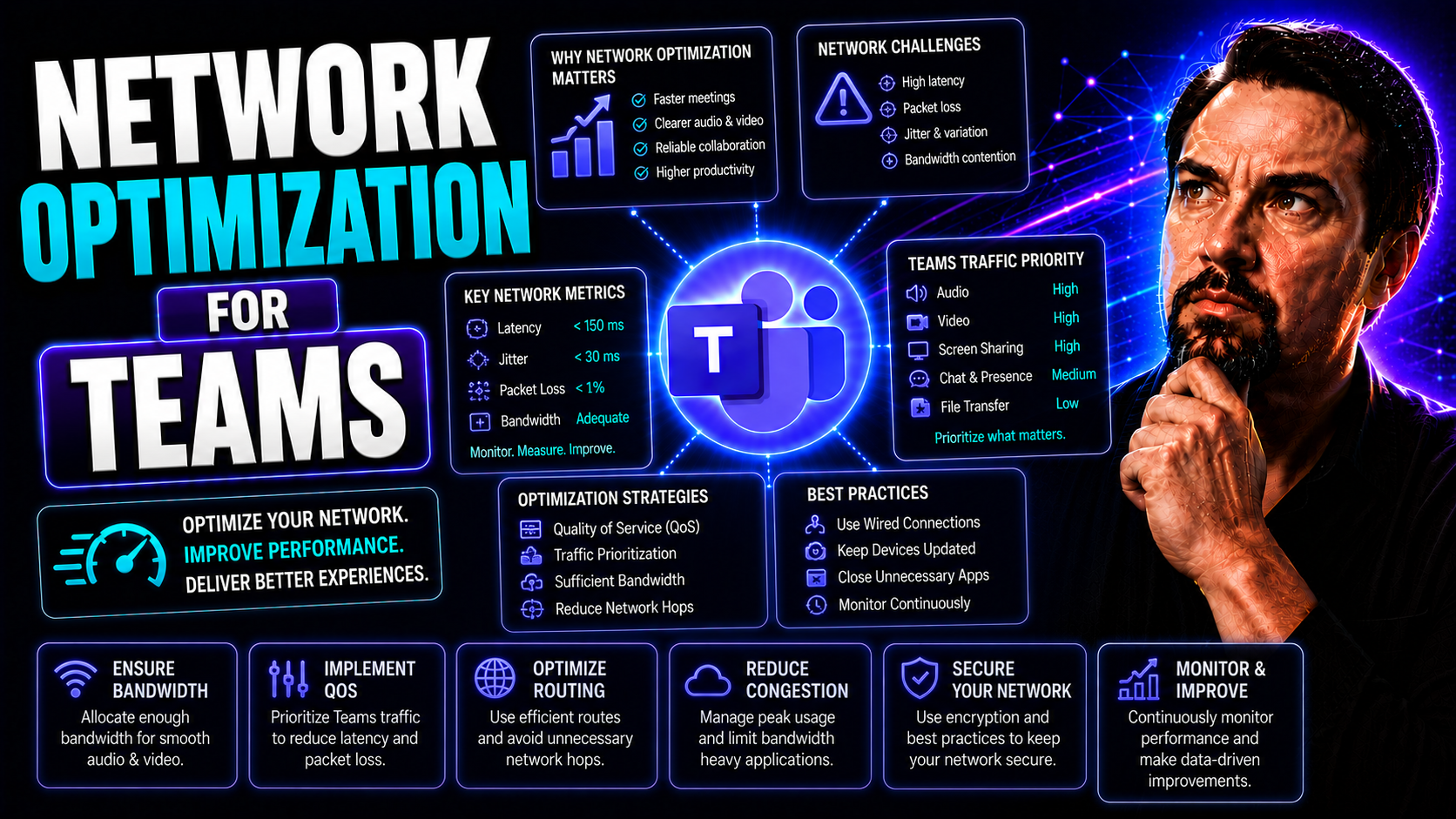
When your team’s productivity depends on Microsoft Teams, nothing grinds those virtual gears like laggy meetings, dropped calls, or endless spinning circles. That’s why network optimization isn’t just IT jargon – it’s your secret sauce for crystal-clear collaboration. In today’s work-from-anywhere world, Teams has become the heartbeat for communication, files, and meetings. But that heartbeat can skip a few beats without proper, enterprise-grade performance tuning.
This guide lays out what really makes Teams run fast and securely, from the nuts and bolts of deploying in virtual desktops to wrangling quirks in hybrid offices, and even tackling cross-continent connections for global organizations. We’re covering everything from core client setups, to the latest in media and WebRTC magic, right down to managing compliance and keeping digital eavesdroppers out through airtight network and security controls.
Expect practical best practices for installation, configuration, and ongoing management. If you want to keep users happy (and helpdesk tickets low) whether you’re dealing with high-powered headquarters, scrappy branch offices, or teams split across time zones, you’re in the right place. The advice here isn’t theory – it’s what makes the difference between “it works” and “it works well.” Read on for actionable, up-to-date guidance that’ll have your Microsoft Teams setups humming – now and for whatever tomorrow brings.
Microsoft Teams Network Optimization: Core Setup and Configuration
Before you can optimize, you’ve got to build on solid ground. This section sets the foundation for a Microsoft Teams deployment that’s ready to perform – not just survive. Whether you’re embracing virtual desktops with VMware Horizon, or ensuring Windows machines have the right Teams client installed, it all starts here.
You’ll get a lay of the land for deploying Teams in remote, hybrid, and on-prem setups, with a clear focus on compatibility and future growth. Taking the time up front to pick the right client versions and understand your system requirements can save you hours of troubleshooting and help you prevent performance issues before they bite.
This isn’t one-size-fits-all, either. We’ll touch on what matters for Windows, macOS, and Linux users alike. Once the basics are solid – with agent installations and client compatibility locked in – your network is primed for the deeper, more advanced Teams optimization in later sections. Get ready for step-by-step, real-world advice that’s about making technology enable your team, not hold you back.
Teams Microsoft Optimization with Horizon Client Versions and Agent Installation
- Choose the Right Horizon Client Version: Always aim for the latest production version of the VMware Horizon client. Each release improves Teams optimization support, ensures security patches are in place, and generally minimizes compatibility headaches. Keep an eye on VMware’s release notes for specific Teams optimizations or known issues with older clients.
- Prepare the Virtual Desktop Environment: Before installing anything, verify that your virtual desktops meet both Horizon and Microsoft Teams minimum requirements. This includes CPU resources, available RAM, and appropriate network bandwidth – all foundational to reliable performance.
- Deploy the Horizon Agent on Desktop VMs: Run the official Horizon agent installer on your Windows desktops or session hosts. During installation, select the “VMware Teams Optimization” feature. This enables the agent to intercept Teams media streams and redirect them locally for optimized handling.
- Install or Update the Teams Client: Download the Teams desktop app from Microsoft’s official source or package manager. Choose the Machine-Wide Installer for VDI to ensure per-machine installation. For pooled or linked-clone VMs, avoid user-based installs to simplify updates and troubleshooting.
- Validate Optimization Is Active: Once deployed, sign in as a user and open Teams. Check for the “VMware Media Optimized” message in Teams settings under “About.” If present, Teams is using redirection for calls and video. You can also confirm function via diagnostic logs.
- Avoid Common Pitfalls: Mixing unsupported Horizon versions with newer Teams clients can disable optimization features or cause call failures. Always match your client, agent, and server versions as closely as possible.
- Repeat and Monitor: For each new desktop pool or update, repeat these steps, and test performance before rollout. Continuous validation will keep Teams running fast and smooth in your virtual environment.
Windows Installation Desktop Guidance for Microsoft Teams Client Install
- Verify System Requirements: Ensure Windows 10/11 is up to date with the latest patches. Teams demands at least 2 GB RAM and a dual-core processor for a responsive experience.
- Download Teams Client: Get the official Microsoft Teams Machine-Wide Installer from Microsoft’s site or trusted management systems. Using the wrong source can lead to version mismatches or update failures.
- Install for All Users: Run the installer as an administrator. This makes sure Teams auto-provisions for each new user profile that logs onto the PC, perfect for both personal devices and shared desktops.
- Deployment at Scale: Use tools like Microsoft Endpoint Manager, Intune, or GPOs to deploy Teams across the organization. This scales clean and fast, whether for hundreds of endpoints or a single lab.
- Post-Install Verification: Open Teams and sign in. Check for call/video functionality and that media devices are detected. For VDI, verify that optimization status is visible in the Help/About section.
Horizon System Requirements and Client Compatibility for Teams Optimization
- Supported Operating Systems: For Horizon agents and clients, use Windows 10/11, macOS (latest two versions), and select Linux distributions. Each OS has unique compatibility and optimization caveats, so always check current VMware and Microsoft documentation.
- Hardware Recommendations: Target endpoints with at least a dual-core processor (or better), 4 GB RAM, and GPU support for the best Teams video experience. Thin clients need to meet minimum Horizon hardware requirements, but the more, the merrier – underpowered endpoints cause dropped frames and audio hiccups.
- Network Requirements: Reliable low-latency network connections (ideally sub-100ms round trip) and at least 2 Mbps per call client are key for stable Teams calls. Wired is preferred, but optimized wireless can succeed with proper planning.
- Client Compatibility Matrix: Only specific combinations of Teams, Horizon client, and Horizon agent are guaranteed to work. For Windows, stay on the latest supported versions for both, and match agent/client releases. macOS and Linux clients may have reduced feature sets; test thoroughly if you run a mixed device fleet.
- Optimization Plugin Dependencies: Make sure the Teams VDI plugin or optimization pack is installed on everything – host and endpoint. Missing pieces here lead to fallback mode (poor performance) or outright media failures.
- Plan for Upgrades: Track VMware and Microsoft releases, and build scheduled upgrade windows to keep clients, VMs, and optimization agents in sync. Forward compatibility isn’t always there, so test updates on a subset before rolling organization-wide.
Media and WebRTC Optimization for Teams in Virtual Environments
Delivering smooth video and audio on Teams isn’t magic – it’s about harnessing the right technology, particularly when working in virtual desktops or remote setups where every millisecond counts. Media optimization and WebRTC are your toolkit for making sure users get a video call experience that actually matches what it says on the tin – no matter how complicated your architecture is underneath.
This section covers why enforcing WebRTC optimization is essential in distributed and virtualized environments, especially for remote workforces or those using mixed device types. We’ll also look at how to eke out every bit of performance from lower-powered endpoints, squeezing more value from your hardware investments.
It’s not just about making it work – it’s about making it work well, with tips for troubleshooting, validation, and practical setup. IT admins and architects should find solutions here for the most stubborn performance issues and guidance for getting WebRTC up and running on even the most budget-conscious systems.
How to Force Client WebRTC with Optimization Configuration
- Verify Client and Agent Compatibility: Confirm that your VMware Horizon client, Horizon agent, and Teams client are all at compatible, supported versions. This is the foundation for successful WebRTC media redirection.
- Enable Teams Optimization in Horizon: During Horizon agent installation, select (or verify) the 'Teams Optimization' feature is checked. If already installed, you can often add this via Modify in Programs and Features.
- Configure Registry and Policy Settings: On the virtual desktop, set or confirm registry keys that enforce optimization (like 'teamsEnabled' and those under the HTML5Server profile). Proper registry entries force Teams to prioritize WebRTC for media streams.
- Install and Update the Teams Desktop Client: Always use the ‘per-machine’ Teams client, not user-based install, for VDI optimization. This allows Teams to properly interact with the Horizon optimization components and avoid fallback mode.
- Validate WebRTC Optimization: After deployment, launch Teams and navigate to Help > About. Look for messages such as “VMware Media Optimized” to confirm WebRTC engagement. For more detailed confirmation, use log files or diagnostic tools to track media redirection status.
- Enforce Optimization via Policy: In enterprise settings, you may need to push group policies that force WebRTC handling for Teams. This involves GPOs or scripts which update the appropriate registry and configuration settings on all virtual desktops.
- Troubleshoot When Needed: Use Teams and Horizon logs to diagnose why optimization might not be kicking in (incorrect registry, network blockages, or old client versions are common culprits). Adjust configuration as necessary until you see consistent WebRTC-optimized performance in calls.
Optional Configuration for Low-Powered Teams Clients
- Enable Reduced Resource Mode: Activate low CPU consumption modes within Teams VDI settings to help older or thin clients handle meetings without pegging the processor.
- Adjust Echo Cancellation: Use Teams’ settings or group policy parameters to modify audio processing for devices with limited CPU, trading a bit of echo suppression for better responsiveness.
- Turn Off Unnecessary Visual Effects: Disable animations and hardware-accelerated graphics within Teams to free up more system headroom for audio and essentials.
- Use Wired Networking When Possible: Weak Wi-Fi plus low horsepower equals trouble; plug in for reliable Teams audio/video, even on older endpoints.
Network and Security Configuration for Teams Optimization
If you want Teams to stay fast and secure, it’s not enough to set it and forget it – network and security configuration is key. This section dives into making sure your firewall, proxies, and network path all play nicely with Teams, especially when you need both compliance and low-latency media delivery.
Getting those network ports open and firewalls configured right determines whether your calls make it or get lost in cyberspace. The guidance here extends to hybrid environments, addressing both cloud-connected and local deployments, to ensure Teams media and signaling reach their destination without delay or vulnerability.
Security isn't just about blocking threats – it's also about enabling smooth, compliant collaboration. If your organization lives in a regulated world, or you’re simply tired of network-induced Teams hiccups, this section will shine a light on balancing protection with performance. For an even deeper take on hardening Teams environments, don’t miss the insights on Teams security best practices covering Conditional Access, DLP, governance, and more.
Configuring Network Ports and Firewalls for Secure Teams Connections
- Identify Required Ports: Microsoft Teams needs specific TCP/UDP ports for media (audio, video, sharing) and signaling. Common ones include UDP 3478-3481 for media, TCP 443 for signaling, and several dynamic ports. Refer to the latest Microsoft docs to avoid missing new ones as Teams evolves.
- Open Ports on Firewalls: On perimeter and local firewalls, create rules to open the necessary ports bi-directionally. Restrictive firewalls are a top culprit for Teams call failures and conferences not working correctly.
- Segment Teams Traffic: Use network segmentation and VLANs to isolate Teams media from general business traffic. This prioritizes call/video packets and prevents congestion from non-essential data.
- Apply Quality of Service (QoS) Markings: Configure switches and firewalls to recognize and prioritize Teams DSCP values for voice, video, and signaling. That way, important Teams calls punch through heavy network loads.
- Implement Advanced Security Hardening: Enforce MFA, restrict legacy authentication, and apply DLP policies to guard data inside Teams – see advice in the Teams security hardening podcast for the five-layered approach.
- Troubleshooting Tips: If Teams calls drop or fail, verify ports are open using network traces and test calls from inside and outside your organization. Log analysis often reveals firewall or routing blocks as root causes.
Proxy Remote Desktop and Virtual Desktop Hosts Configuration
- Configure Proxy Bypass for Teams Traffic: Teams media redirection can fail if your proxy intercepts certain connections. Add “view-localhost” or other necessary proxy bypass rules so media streams aren’t forced through inspection or traffic shaping appliances.
- Set up Localhost Exceptions on VDI Hosts: In remote desktop hosts, make sure the HTML5Server (used for Teams optimization) is set to bypass proxies for localhost communication. Incorrect settings can silently break call optimization features.
- Adjust Registry and Policy Settings: On VDI hosts, confirm registry keys reflect correct proxy and HTML5Server configurations. Often these can be managed via GPOs or DEM for consistency across hosts.
- Secure Host Traffic: Use network ACLs and port restrictions at your data center or cloud edge to guarantee only intended Teams traffic enters or leaves VDI session hosts.
- Troubleshoot Media Failures: If call optimization is missing, diagnose with host logs, proxy logs, and test scripts to confirm traffic isn't being blocked or redirected unexpectedly. Look out for dropped localhost packets or malformed proxy exceptions as common root causes.
Validating HTML5Server Running Status and Registry Profile Settings
- Check Windows Services for HTML5Server: Ensure ‘VMware HTML5 Multimedia Redirection Server’ is set to run automatically and is showing as ‘Running’ in services.msc on each VDI host.
- Verify Key Registry Entries: Double-check that profiles like ‘teamsEnabled’ and correct HTML5Server registry paths are present and have the expected Data values (often REG_DWORD = 1 for enabled).
- Monitor Event Logs: Scan Windows Application and System event logs for startup errors, permission issues, or forced stops relating to the HTML5Server process.
- Spot-Check with Teams Diagnostics: Within Teams, use the About > Version or call health tools to confirm that optimization and HTML5Server interaction is actually being detected.
Troubleshooting and Validation of Teams Optimization
Even with best-laid plans, Teams doesn’t always play ball — especially when your environment gets complicated. This section is your roadmap for knowing when optimization is active, why it’s failing, and what to do about it. Knowing how to quickly validate and resolve issues is the difference between a minor hiccup and a full-blown outage for your users.
You’ll learn how to systematically use logs to confirm that Teams is using optimization, gather evidence from both Teams and Horizon logs, and identify attribution for any media problems. If you face issues with registry keys or configuration templates — frequent culprits for optimization failures — the guidance here provides foolproof checklists and scriptable solutions.
Troubleshooting in the real world is about quick fixes and repeatable processes. These walk-throughs will shrink your support queue, keep users productive, and give you peace of mind that your Teams deployment is running exactly as it should. For further step-by-step troubleshooting know-how, you can also check Microsoft-focused guides like this comprehensive troubleshooting guide for parallels in problem resolution strategy.
Using Logs to Confirm Teams Optimization and Collecting Horizon Logs
- Locate Teams Log Files: On each client, Teams diagnostics are found under %appdata%\Microsoft\Teams\logs.txt. Look for entries about media optimization, WebRTC sessions, and call redirection for telltale evidence optimization is functioning.
- Check ‘VMware Media Optimized’ Status: In Teams, visit Help > About. If you see the “VMware Media Optimized” (or similar optimization) message, that’s your green light. If not, you’re in fallback mode – and logs will help you figure out why.
- Gather Horizon Agent and Client Logs: For deeper issues, use VMware’s log gathering tools: see the agent logs at C:\ProgramData\VMware\VDM\logs and the client logs on the endpoint. These show handshake attempts, plugin initialization, and error codes.
- Review Event Logs: On Windows, open Event Viewer and scan Application and System logs for Teams optimization failures, agent load errors, missing registry issues, or policy application errors.
- Interpret Key Log Lines: Messages like “Media Optimization Enabled” or “Teams Redirection Mode: Optimized” mean all is well. Warnings about “Fallback Mode” or missing components usually signal a configuration or compatibility hiccup.
- Automate Log Collection: For scale, script log gathering with PowerShell or use management platforms to upload key files automatically after troubleshooting attempts or Patch Tuesday updates.
- Reference Broader Troubleshooting Frameworks: Troubleshooting Teams benefits from approaches similar to resolving problems in Microsoft Copilot and Microsoft Graph—see Copilot troubleshooting guide for service health and data connectivity resolution approaches.
Resolving Registry and Configuration Template Issues in Teams Optimization
- Verify and Set the 'teamsEnabled' Registry Key: Use regedit or PowerShell to confirm HKEY_LOCAL_MACHINE\SOFTWARE\VMware, Inc.\VMware WebRTC Redirection\teamsEnabled is set to 1. If missing, add as a REG_DWORD. Mistakes here block optimization outright.
- Check HTML5Server Registry Profiles: Under relevant subkeys, the HTML5Server registry profile must be correctly set and mirror the Teams and Horizon version used. Any mismatch can prevent HTML5Server from redirecting media.
- Review Configuration Templates: Compare the applied GPO or DEM templates with vendor recommendations. Sometimes updates introduce new settings—using old templates is a sneaky cause of drift and optimization bugs.
- Address Citrix Agent Incompatibility: If Citrix VDA agents are present on the same machines, registry and DLL shims can sometimes block Teams optimization. Uninstalling conflicting agents and cleaning up registry debris can restore expected function.
- Automate Configuration Fixes: Script or push GPO-based fixes to deploy required registry keys and configuration values at scale, eliminating inconsistencies across virtual desktops and hosts.
- Visual Confirmation: Snap screenshots of regedit before and after changes to document resolved issues and assist with knowledge sharing in the IT team.
- Borrow Troubleshooting Best Practices: Troubleshooting workflows used for services like Microsoft Copilot—validating service health, permissions, and connectivity—apply similarly to configuration and registry issues in Teams optimization (see detailed guide here).
Troubleshooting Common Teams Optimization Scenarios
- Media Redirection Failures: Calls default to fallback mode due to missing plugins or incompatible client/agent versions. Fix by matching all components and reinstalling the VDI plugin where needed.
- Audio/Video Lag or Dropouts: Usually caused by insufficient bandwidth or CPU on endpoints. Check network performance, and if needed, tweak reduced resource settings and push QoS on your switches/firewalls.
- Registry Key Mismatches: If ‘teamsEnabled’ or HTML5Server keys are missing or set to 0, optimization silently fails. A quick registry audit and GPO correction solves most cases.
- Policy Application Delays: Sometimes, group policy settings don’t apply until after reboot or session login. Encourage users to sign out/in or automate session resets post-policy deployment.
- Reference for Further Solutions: Don’t hesitate to deep dive into comprehensive troubleshooting frameworks like those in Microsoft Copilot’s step-by-step guide for correlated scenarios and problem breakdowns.
Advanced Integration and Management for Enterprise Teams
Microsoft Teams doesn’t just live in its own bubble – it’s part of a much bigger ecosystem that includes Outlook, Microsoft 365 Groups, and workplace management tools. If you’re managing a large or tightly secured environment, delivering seamless integration and dynamic control is where the real magic happens. This section takes your optimization to the next level with integrations that connect users, automate processes, and enforce compliance—without bogging down IT or your teams.
You’ll get an overview of syncing presence between Teams and Outlook, automating group upgrades, and managing Teams with advanced controls like Dynamic Environment Manager and managed side-loading. These strategies are especially powerful for organizations looking to boost agility, collaboration, and system stability.
Want organized, secure, and confident teamwork? Dive into best practices for workspace governance, compliance, and smart automation. If you’re craving more on structured project management in Teams, check out resources like this project organization guide and the benefits of proper Teams governance frameworks for structured, secure collaboration.
Outlook Presence Integration and Upgrading Distribution Groups
- Enable Outlook Presence Sync: In the Microsoft 365 admin portal, activate presence integration for Teams and Outlook by toggling the relevant settings under Teams admin/policies and in Exchange Online. This ensures a user's Teams status instantly syncs in Outlook, so no more guessing if someone’s actually away or just ignoring email.
- Verify Client Updates: Make sure your users have up-to-date versions of both Teams and Outlook – presence sync works best when both apps are in their latest forms, particularly after major Microsoft 365 updates.
- Test End-to-End Function: After enabling, perform quick sanity checks: set status in Teams, verify the change appears in Outlook, and test the reverse. Any mismatch can often be traced to account sync or version issues.
- Upgrade Legacy Distribution Groups: Use the Exchange Admin Center or PowerShell (New-UnifiedGroup) to migrate traditional distribution lists to Microsoft 365 Groups. This unlocks full Teams integration, content storage in SharePoint, and automated workflows with Power Automate.
- Govern Upgraded Groups: Apply structured governance and automation discussed in Teams project organization guides, so your Groups don’t sprawl or accumulate technical debt. Clear naming, lifecycle management, and security assignment will save headaches later.
Managing Teams Using Dynamic Environment Manager and Side-Loading Controls
- Leverage Dynamic Environment Manager (DEM): Use DEM to enforce Teams policy settings, mapping custom configuration files and registry keys to user sessions. DEM simplifies managing user experience and ensures non-admin users stay within allowed boundaries in locked-down enterprise environments.
- Enable Side-Loading for Custom Apps: For organizations with internal Teams apps, enable side-loading via Teams admin center or PowerShell. Use strict controls and audit logs to keep security tight, complying with your organization’s risk appetite.
- Disable Auto-Update Where Needed: In regulated or highly controlled environments, consider disabling Teams auto-update via GPO or DEM to ensure consistent client versions, especially when you need to cert-update cycles before release to production.
- Automate Team and App Deployment: Script deployment of approved Teams apps using DEM or management platforms like Intune or SCCM. This reduces manual install errors and keeps compliance checks straightforward.
- Maintain Governance and Compliance: Combine the above with Teams governance best practices – set clear rules, roles, and guardrails to boost trust, accountability, and secure collaboration for your entire business.
Future-Proofing and Resources for Teams Optimization
As Microsoft Teams continues to evolve, so do the challenges and opportunities for keeping your environment robust, adaptable, and efficient. Future-proofing your Teams network not only means tracking the latest tech – like interoperability (with Cisco web conferencing, for example) and Teams Phones – but also staying sharp on community recommendations and ongoing platform changes.
Here, we preview trends shaping 2025 and beyond: from strategic investments in hybrid collaboration to using changelogs and documentation for continual improvement. You’ll find resources to help keep your setup updated, secure, and agile—plus, easy ways to tap into feedback channels and support networks for rapid troubleshooting and configuration insight.
If preventing sprawl and maintaining compliance keeps you up at night, dig deeper with guides like how Teams governance structures prevent chaos and tips for automating Teams lifecycle management. The key takeaway? Smart, sustainable Teams optimization is about building in agility for what’s next—before the next wave of updates or mergers.
Significance of Teams and Cisco Interop and the Popularity of Teams Phone
- Interoperability with Cisco: As businesses operate cross-platform meeting rooms, Teams and Cisco interoperability ensures that Teams users can join Cisco Webex meetings and vice versa, simplifying video conferencing in hybrid workplaces.
- Teams Phone Surge: The uptick in Teams Phone adoption reflects a shift from desk phones to cloud-based telephony. Organizations benefit from unified calling, voicemail, and call routing—all inside the Teams interface.
- Strategic Network Planning: These trends highlight the need for IT to design networks that handle cross-vendor video, secure SIP signaling, and prioritize Teams traffic even as voice and video usage explodes.
Accessing Teams Optimization Changelogs, Authors, and Additional Support Resources
- Official Changelogs and Documentation: Microsoft Teams optimization and VDI support changelogs are published with each new Teams and Horizon release. Monitor Microsoft Docs and VMware KB articles for breaking features, fixes, and configuration updates.
- Feedback and Support Channels: Use Microsoft’s Teams UserVoice/Feedback portal, Tech Community forums, and VMware Communities for crowdsourced troubleshooting and direct queries to vendor support. This ensures early detection of widespread bugs or emerging best practices.
- Author and Contributor Networks: Many MVPs, Microsoft engineers, and VMware solution architects share case studies, troubleshooting tips, and optimization scripts in their blogs. Following these leaders on social media and RSS feeds keeps your knowledge sharp.
- Specialized Governance Resources: For guides on structured workspace management, automation, and governance, explore rundown posts like this in-depth governance primer and Teams sprawl management insights.
- Keep Your Team Educated: Share new findings—especially on fast-moving features, security advisories, or deprecations—through regular brown-bag sessions, newsletters, or posted updates. This keeps your org agile and ready for whatever the Teams roadmap brings next.
Cross-Regional Network Performance for Global Teams Collaboration
Global businesses have their own set of headaches—especially when it comes to getting high-quality Teams calls and meetings across different continents and legal jurisdictions. This section zeros in on the unique pain points for multinational organizations: unpredictable latency, bandwidth bottlenecks, cross-border compliance, and the technical puzzle of aligning network performance with privacy rules.
You’ll get a peek into battle-tested strategies for minimizing the dreaded lag that ruins international conversations—think edge nodes, smart peering agreements, and using CDNs to keep those video and audio packets flying smoothly across time zones. If your organization spans North America, EMEA, or APAC, fine-tuning network paths and traffic routing isn’t optional—it’s essential for day-to-day productivity.
The advice here also covers making sure your Teams traffic stays on the right side of privacy and data residency laws. You’ll walk away with a plan to align your global Teams network with performance needs and compliance demands, arming you for the challenges that come with multinational collaboration.
Latency Mitigation in Multi-Region Teams Deployments
- Deploy Regional Media Gateways: Position media gateways close to major office clusters. This reduces round-trip latency for Teams audio/video by keeping media streams as local as possible to participants, rather than hopping traffic back to a distant headquarters.
- Leverage Edge Nodes and CDN Services: Establish edge nodes or use public cloud regions nearest major user bases. Teams’ backend can benefit from Microsoft’s global edge presence, but optimizing your local and WAN routing ensures users connect to the closest available entry point.
- Traffic Localization Policies: Use intelligent DNS, geo-aware policies, or SD-WAN to keep Teams sessions within regional boundaries whenever possible, minimizing the internet “distance” between users and the Teams service fabric.
- Benchmark and Monitor Performance: Continuously measure round-trip times and Teams call quality analytics, especially in remote or satellite offices. Set up automated alerts when latency exceeds preset thresholds so IT can troubleshoot proactively.
- Optimize ISP Peering and Routing: Work with your network providers to improve upstream peering paths. Direct peering, private backbones, or using Teams’ listed network optimization partners can shave precious milliseconds off each call.
Ensuring Compliance and Data Residency in Teams Network Routing
- Policy-Based Routing Rules: Enforce routing that keeps Teams customer data and media within approved countries or regions, limiting data crossing into non-compliant territories.
- Leverage Microsoft Data Residency Features: Utilize Teams compliance tools to lock tenant data storage and processing in compliant jurisdictions as demanded by GDPR, CCPA, or local mandates.
- Regular Compliance Audits: Conduct frequent audits of network paths and data flow diagrams to ensure actual routing aligns with legal policies and client contracts.
- Educate Regional IT Teams: Train global IT staff on compliance risks with Teams routing and how to address vendor options for geo-locking data.
AI-Driven Network Adaptation for Dynamic Teams Workloads
Why stick with outdated, manual network configuration when artificial intelligence can help you predict and adjust for changing Teams usage? This section introduces AI-powered techniques for dynamic bandwidth allocation and automatic policy tweaks, finally bringing networking into the same modern era as the rest of your stack.
You’ll get an overview of how machine learning models and analytics can spot traffic spikes—think town halls, shift changes, or time zone surges—so your infrastructure flexes before those big calls glitch, not after. No more guesswork with fixed QoS tables or bandwidth rules; the future means networks that learn and adapt on the fly.
By leveraging AI feedback loops, your Teams network can self-heal and re-tune based on real call quality, not just static configs. For IT leaders and architects, this isn’t just about performance—it’s about making your role more proactive and freeing up time for the tricky business problems only humans can solve.
Predictive Bandwidth Allocation Using AI Analytics
- Model Teams Traffic Patterns: Use AI-powered analytics tools to learn historical Teams usage—identifying predictable surges during all-hands meetings, customer calls, or shift swaps.
- Predict Demand Spikes: Train models to recognize oncoming peaks, allowing for preemptive bandwidth allocation to conferencing, audio/video, and screen sharing traffic.
- Automate Allocation Policies: Integrate these insights into network controllers so they dynamically open up extra bandwidth before events, reducing dropped calls and user complaints.
- Minimize Manual Oversight: Let predictive models free your IT resources from micromanaging traffic during busy periods—machines handle the spikes, humans enjoy the calm.
Automated QoS Adjustment Based on Teams Call Quality Feedback
- Leverage Teams CQD Analytics: Pull real-time call quality data from Microsoft’s Call Quality Dashboard, which highlights problem spots in the live user experience.
- Closed-Loop Policy Tuning: Use automation scripts or smart network controllers to raise or lower QoS priorities for Teams traffic based on observed call quality metrics, not just static settings.
- Instant Feedback Response: React to spikes in jitter, packet loss, or delay by adjusting network rules before users even report issues, minimizing helpdesk escalations.
- Enable Network Self-Healing: As the system auto-adjusts, overall Teams uptime and performance improve, making the whole organization more resilient to network hiccups and change.
Network Optimization for Hybrid Workspaces with IoT and Shared Devices
No longer is Teams just about desktops and laptops – today it's also the glue holding together high-tech meeting rooms, shared touchscreens, and digital signage. With so many gadgets competing for bandwidth, getting stable meetings means understanding how Teams works in crowded, device-heavy environments.
This section explores how to guarantee high call quality in hybrid offices with a wild mix of IoT endpoints and conferencing devices. We’ll look at why prioritizing Teams traffic on shared and specialized hardware is make-or-break for user satisfaction – and how to prevent everyone’s meetings from turning into a bad silent film when Wi-Fi gets overloaded.
You'll also get tactics for advanced wireless optimization so even dense, busy meeting spaces stay lag-free. As hybrid work accelerates and shared rooms become the new normal, these optimization steps are what separate seamless collaboration from daily network firefights.
Prioritizing Teams Traffic on Shared and IoT Devices in Meeting Spaces
- Device Policy Segmentation: Create network policies that identify Teams-capable shared devices (like Surface Hubs and Room Systems) and put them on dedicated VLANs or SSIDs for prioritized treatment.
- Traffic Isolation: Use switch policies or SDN tools to separate conferencing traffic from general guest or IoT devices, preventing video calls from starving for bandwidth during high-traffic periods.
- Apply Bandwidth Reservations: Set minimum guaranteed bandwidths for registered Teams meeting devices, ensuring predictable performance even when the office Wi-Fi gets crowded.
- Monitor Device-Specific Quality Metrics: Use device management dashboards to track Teams call quality on these shared systems, setting up alerts when video or audio performance drops below defined thresholds.
High-Density Wireless Optimization for Hybrid Meeting Environments
- Use Channel Management: Allocate Wi-Fi channels manually to prevent overlap and reduce interference in meeting spaces with dozens of connected devices.
- Enable Band Steering: Push client devices to 5GHz/6GHz bands where available, keeping the 2.4GHz spectrum free for legacy or low-powered endpoints.
- Optimize Access Point Placement: Design Wi-Fi layouts with more, lower-powered access points instead of fewer, stronger ones—ensuring consistent signal strength and avoiding dead zones during large meetings.
- Enforce Smart Load Balancing: Configure controllers to evenly distribute clients across APs, so no single point is overloaded during all-hands or company-wide events.

Microsoft MVP | Host of M365.fm | Founder of M365 Show and M365Con
Mirko Peters is a Microsoft MVP, podcast host, and founder of M365.fm, M365 Show, and M365Con. His work connects Microsoft practitioners through podcast interviews, livestreams, and community events.
At M365.fm, Mirko hosts conversations with Microsoft MVPs, product experts, architects, and community contributors. Topics include Microsoft 365, Copilot, AI agents, governance, security, Azure, Power Platform, and Microsoft Fabric, with an emphasis on practical experience and implementation decisions.
M365.fm is the podcast and learning platform. M365 Show brings experts together for livestreams, while M365Con provides an online conference setting for community learning.
Official website: Mirko Peters (https://www.mirkopeters.com/). Recognition: Mirko Peters — Microsoft MVP profile (https://mvp.microsoft.com/de-DE/mvp/profile/9b0ca797-db5a-493a-a845-8b9158046cf5). Connect on LinkedIn (https://www.linkedin.com/in/m365showpodcast/).




